Tech Ideas & Best Practices
The SharePoint Framework (SPFx) has long been the backbone for building modern experiences in SharePoint and Teams development. Since its launch from 2017, developers have relied on the gulp-based toolchain to build, bundle and deploy their solutions.
In December 2025, Microsoft released the new release for the SPFx 1.22. This release entirely shifts from gulp-based toolchain to Heft.

Gulp based toolchain
From initial stage onwards (v1.o to v1.21) SharePoint framework depends on gulp-based toolchain. This system orchestrated tasks like compiling Typescript, bundling with webpack, and packaging solutions. Over the period, the gulp tasks changed to custom built for SPFx. This causes the below issues and problems,
- Outdated dependencies: The gulp-core-build stack was rarely updated, leading to frequent npm audit warnings and security concerns
- Limited Customization: Developers struggled to extend or modify the build process.
- Minimal maintenance: With little ongoing support, technical debt accumulated, making the toolchain fragile and harder to sustain.
Shifting to Heft
Heft is a config-driven build orchestrator developed as part of the Ruh Stack ecosystem. Unlike gulp, which helps developers writing custom JavaScript tasks to handle builds. Heft takes a standardized and declarative approach. It defines tasks through configuration files, making the build process more transparent, predictable and easier to extend.
Still Heft uses the webpack to handle bundling, manifest generation and localization. The Heft plugins ensure the compatibility with existing SPFx features. This helps developers to customize the webpack via Heft’s APIs or eject for full control.
Why the change matters?
Based on my thoughts, this change can reshape the SPFx development experience and it sets the stage to make the SPFx generator as open source in upcoming months. This change addressed the long-standing pain points and lays the foundation for a modern, scalable and developer-friendly ecosystem.
Reduce outdated dependencies
SPFx developers aware about the problem in getting audit warnings and errors by using gulp tasks. Because we depend on the gulp tasks and its outdated package. Heft is actively maintained, secure and aligned with the modern web standards =, reducing vulnerabilities and ensuring long-term stability.
Configuration driven builds
Developers frequently struggled with hidden “black box” build steps in gulp
Heft introduces a transparent, config-driven workflow with a plugin architecture, making customization cleaner and easier. This helps developers to extend builds without struggling on alternative way of creating custom JavaScript tasks.
Unified ecosystem
Based on the Microsoft documentation, the internal team from Microsoft already moved away from gulp a long back.
With Heft, both Microsoft and the developer community can now share the same toolchain. This update accelerates feature delivery and ensures improvements benefits equally.
Future Proofing
Heft is designed for scalability, supporting large projects and monorepos with ease.
Advanced features like incremental compilation, filesystem caching, and performance tracking make builds faster and more efficient.
This helps the SPFx for long-term growth and adaptability in modern development environments.
The Next Step
1. Install Node.js (Jod Version)
To begin setting up your development environment, install the Jod version of Node.js. This specific version is required for compatibility with the tools and libraries used in this workflow.
2. Install Required Global npm Packages
Next, install the following npm packages globally to ensure all necessary tooling is available:
- @rushstack/heft
- Yo
- @microsoft/generator-sharepoint
You can install all these packages at once by running the following command in your terminal:
npm install @rushstack/heft yo @microsoft/generator-sharepoint --global
3. Enable Trust Mode for Localhost Testing
To enable trust mode for localhost while in testing mode, use the following command:
heft trust-dev-cert
This will allow your development environment to run securely on your local machine.
4. Ready to Create SPFx Web Parts and Extensions
Once you have completed the above setup steps, you are ready to create SPFx web parts and extensions using Rush Stack.
Conclusion
Staying aligned with Microsoft standards is essential for modern SharePoint development. With the transition to the Rush Stack and Heft-based toolchain in SPFx 1.22, we’ve begun migrating our product and services projects to this new model to stay ahead of the roadmap. This shift has streamlined our SharePoint development process, reduced build and packaging time, and improved overall maintainability allowing us to deliver scalable, future-ready solutions more efficiently.
SPFx 1.22: Transitioning from Gulp to Heft for Modern SharePoint Development
The SharePoint Framework (SPFx) has long been the backbone for building modern experiences in SharePoint and Teams development.

Building an intranet is more than deploying technology it’s about creating a central digital hub that connects employees, accelerates communication, and supports business goals. Whether you’re starting from scratch or refreshing an existing system, a strategic and people-centered approach is critical to success.
An effective intranet enhances productivity, supports knowledge sharing, and anchors the digital workplace. It becomes the single trustworthy source where employees find information, connect with colleagues, and navigate daily tasks.
Why Your Organization Needs an Intranet
An intranet is a secure, internal platform that streamlines communication and collaboration across departments. It supports:
- Centralized content and resources
- Company news and announcements
- HR policies and employee services
- Knowledge bases and documentation
- Secure access to tools and data
By serving as an internal gateway, an intranet helps organizations deliver consistent information and unify people around common goals.
Before you begin building your intranet, it’s useful to understand what modern intranet design looks like. Layout, navigation, and user experience all play a major role in how well employees adopt the platform. For a clearer picture of what works today, you can look through our Intranet Design Checklist 2026, which outlines the essential design elements and UX patterns to consider.
Download the Intranet Design Checklist 2026
Step-by-Step: How to Build an Intranet That Works
1. Define Clear Objectives
Before you begin, identify the purpose of your intranet. Consider questions such as:
- What business needs will it serve?
- Who are the primary users?
- What problems should it solve?
Understanding objectives ensures the intranet supports both strategic business goals and daily employee needs.
2. Form a Dedicated Team
Building an intranet is not a solo effort. Assemble a cross-functional team that includes:
- IT professionals
- Internal communications
- HR representatives
- Key stakeholders from departments
This diversity ensures the intranet serves the entire organization effectively.
3. Choose the Right Hosting Model
One of your first decisions is whether to use a cloud-hosted intranet or a self-hosted solution.
Cloud intranet options offer:
- Faster deployment
- Lower IT maintenance
- Built-in security and updates
Self-hosted intranets give more control but require ongoing infrastructure support.
4. Select an Intranet Platform
Choose software that fits your organization’s size, complexity, and growth plans. Key features to look for include:
- User-friendly content management
- Mobile accessibility
- Custom navigation and search
- Personalization for user groups
- Analytics for engagement metrics
The right platform can significantly reduce complexity and speed up implementation. Before making your final decision, it’s helpful to explore how different platforms perform in real-world scenarios especially across usability, governance, scalability, and long-term maintenance. To understand the strengths, limitations, and best-fit use cases of today’s top intranet systems, look at our detailed guide on The Best Intranet Platform.
Read the Complete Guide to Choosing the Best Intranet Platform
Should You Use Prebuilt Intranet Templates?
After choosing your intranet platform, the next decision is whether to design everything from scratch or use prebuilt intranet templates. For most organizations, templates offer a faster and more cost-effective way to launch.
Benefits of Using Prebuilt Templates:
- Quick deployment with minimal development
- Lower implementation costs
- Modern, user-friendly layouts built on best practices
- Easy customization for branding and navigation
- Reduced risk compared to building from the ground up
If you're looking for a quicker way to deploy a polished, user-friendly intranet, exploring professionally designed SharePoint intranet templates can significantly simplify your build process.
5. Audit and Migrate Content
Content migration from legacy systems is an opportunity for cleanup. Instead of moving everything as-is, audit existing documents and remove outdated or irrelevant material. This improves usability and searchability, making the intranet feel valuable from day one.
6. Design for People, Not Systems
A successful intranet is intuitive. Focus on:
- Clear navigation
- Simple labels based on user language
- Easy access to frequently used resources
- Search that delivers relevant results quickly
Tailor the structure to real employee personas and use cases to ensure adoption.
7. Brand and Personalize the Experience
A branded intranet builds trust and familiarity. Internal identity reinforces culture and gives employees an emotional connection to the platform. Personalization such as role-based content ensures users see what matters most to them.
8. Test Before Launch
Conduct internal pilot testing with representative users to identify usability issues, gather feedback, and refine functionality. Testing improves confidence in the final rollout and reduces friction at launch.
9. Plan a Strategic Launch
A successful launch is as important as the build. Use internal communication channels to:
- Announce the new intranet
- Highlight key features
- Share quick start guides and tutorials
- Offer help resources or Q&A sessions
Engagement activities help users understand that the intranet is not just another tool,
it’s a workspace enabler.
10. Continuously Improve and Evolve
After launch, an intranet should not remain static. Track use metrics, gather ongoing feedback, and update content and features regularly. An agile approach ensures your intranet stays relevant and continues to meet user needs.
To keep your intranet running smoothly after launch, it's equally important to maintain it the right way. For practical tips and long-term best practices, explore our detailed guide on how to maintain a SharePoint intranet.
Read the SharePoint Intranet Maintenance Guide
Best Practices for Building an Intranet
1. Mobile-First Accessibility
Modern workforces are often distributed, remote, or on the move. A mobile-optimized intranet ensures employees can find information anytime, anywhere supporting flexibility and engagement.
2. Focus on User Experience (UX)
An intranet that is difficult to navigate will be ignored. Apply UX principles such as:
- Clean layouts
- Logical navigation
- Useful search
- Fast load times
These improvements boost adoption and satisfaction.
3. Encourage Employee Engagement
Features like discussion forums, social feeds, and feedback mechanisms promote participation and collaboration. Engaged users make the intranet a vibrant, dynamic workplace resource.
See Real Modern SharePoint Intranet Examples Explore Templates
How to Build an Intranet: A Practical Guide for Modern Organizations
Building an intranet is more than deploying technology it’s about creating a central digital hub that connects employees, accelerates communication

A personalized welcome message improves user engagement and creates a more professional experience in your Copilot agent. Greeting users by name helps the agent feel more responsive, human, and context-aware from the very first interaction.
In simple terms, you can personalize a Copilot agent welcome message by editing the Conversation Start system topic in Copilot Studio and inserting built-in system variables like the user’s display name or first name. No code is required.
Personalization like this is often the first step teams take when working with Copilot Studio. Once it’s in place, many organizations begin exploring broader ways to maximize AI potential in-house with Copilot Studio, using Copilot not just as a chatbot but as a practical digital assistant across everyday workflows.
In this guide, you’ll learn how to update the default welcome message and display the logged-in user’s name using system variables in Copilot Studio.
How to Add the Logged-in User Name in the Welcome Message or Other Topics nodes?
Follow these steps to display the logged-in user’s name in your Copilot Agent:
1. Open your agent in Copilot Studio.
2. In the top navigation bar, click Topics.

3. Select the System tab, and then click the Conversation Start system topic.
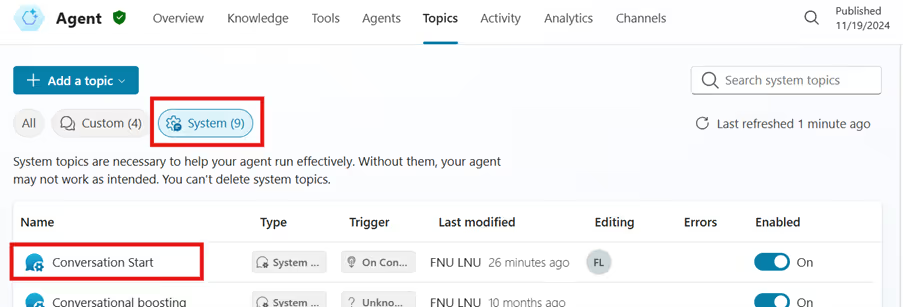
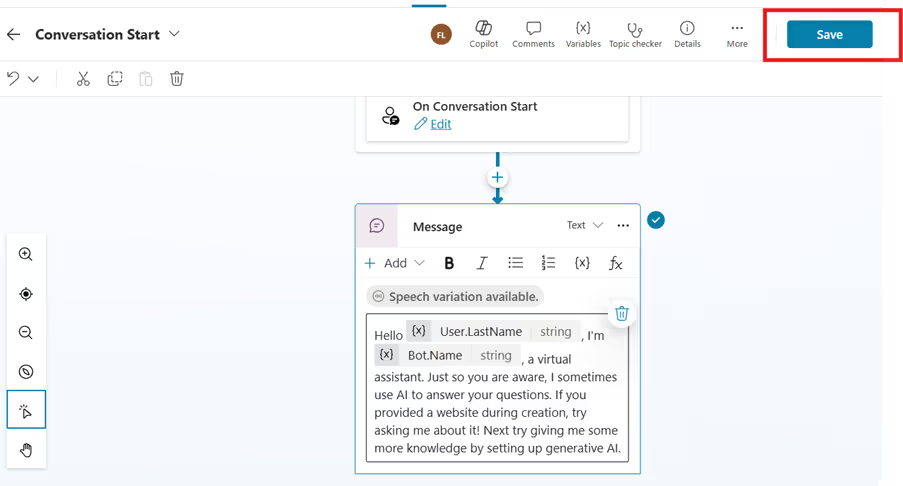
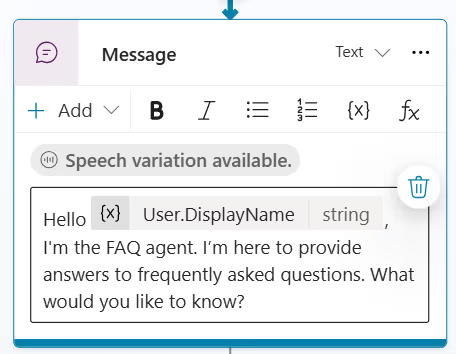
4. In the message node, edit the message text and place the cursor where you want to insert the logged-in user’s name.
5. Click Insert variable this opens the Select a variable pop-up.
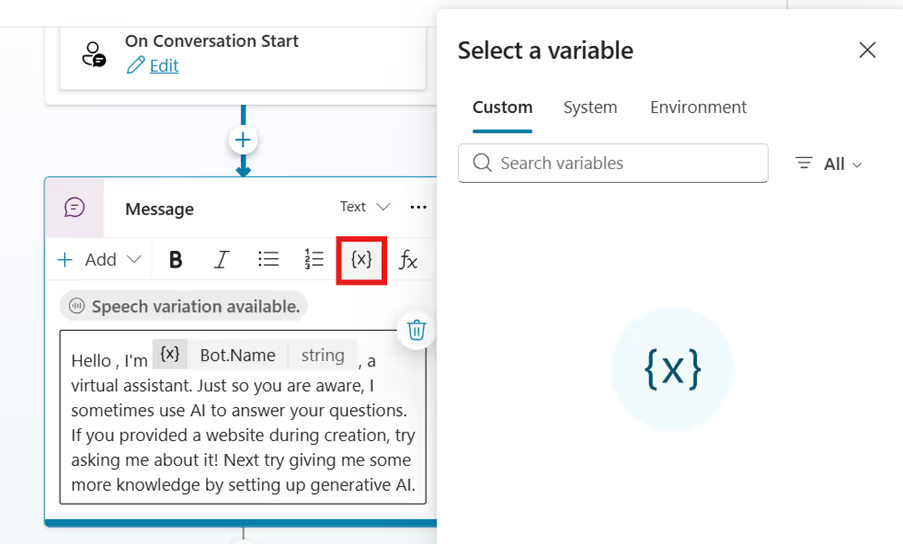
6. In the Select a variable pop-up, select the System tab.
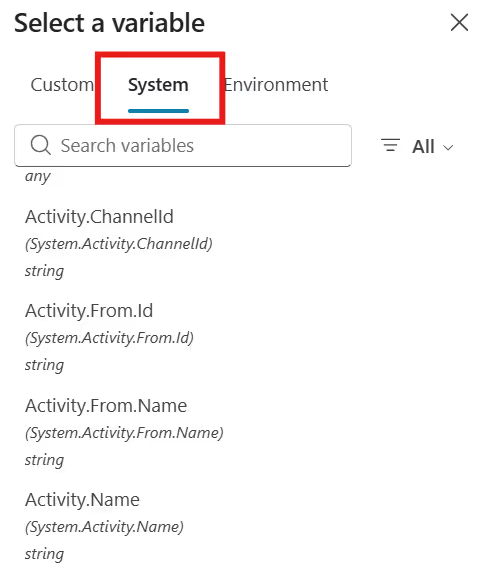
7. Choose one of the following system variables to display the user’s name:
- User Display Name
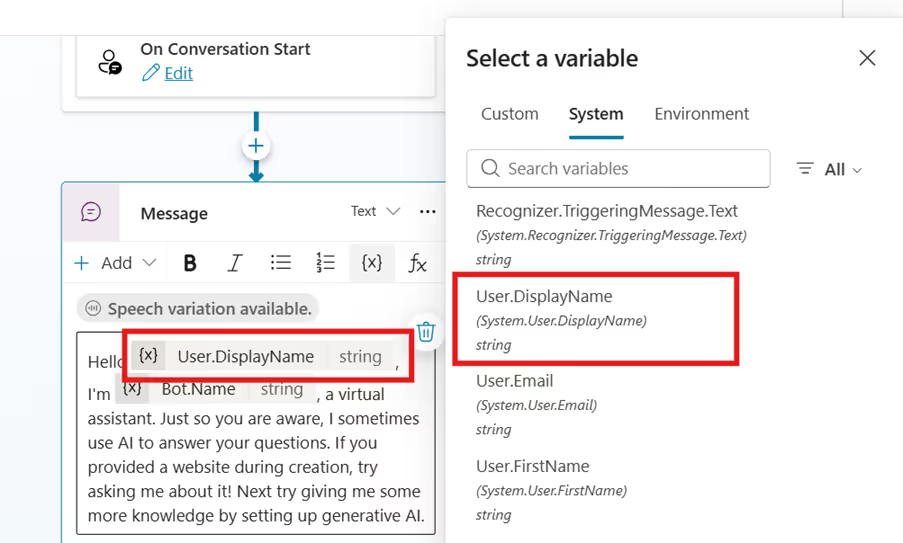
- User First Name
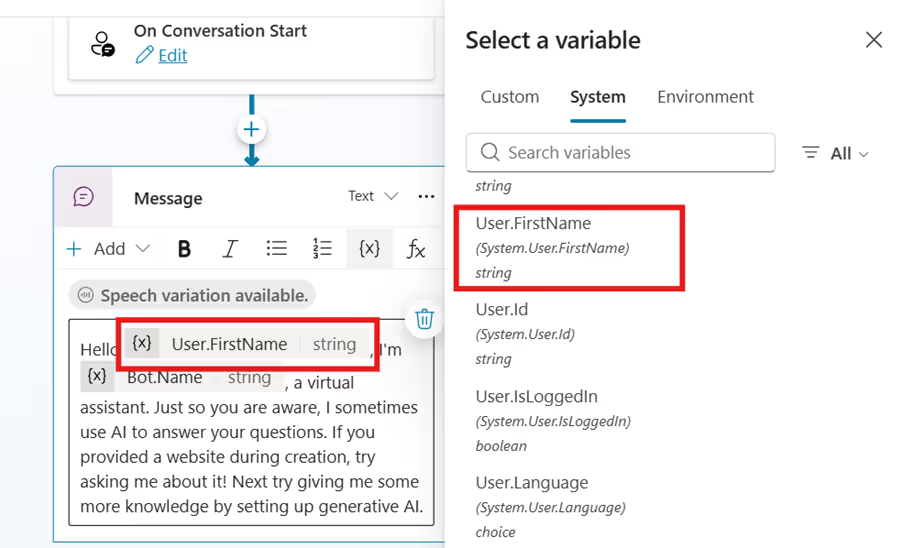
- User Last Name
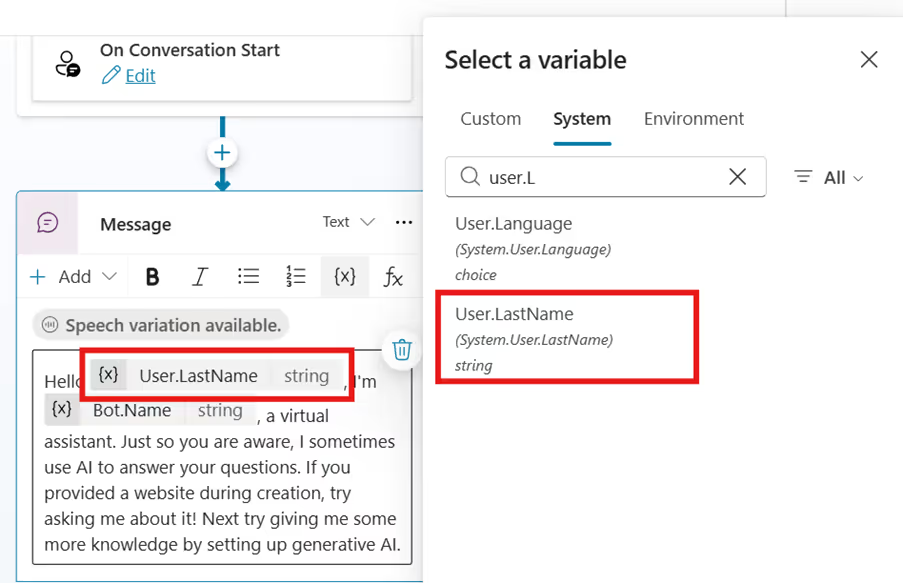
8. Click Save to save your changes.
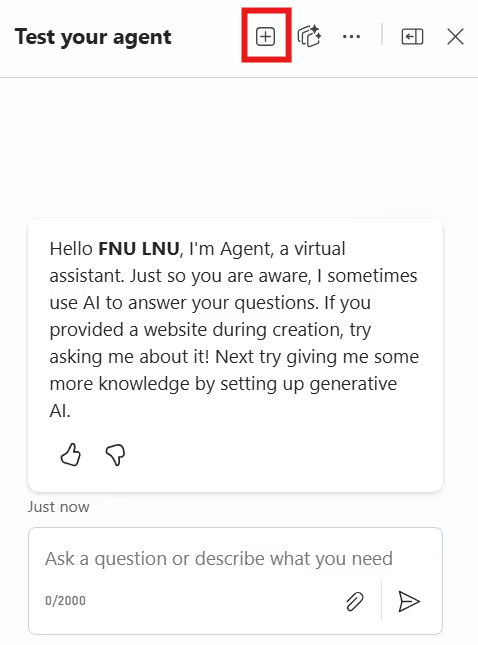
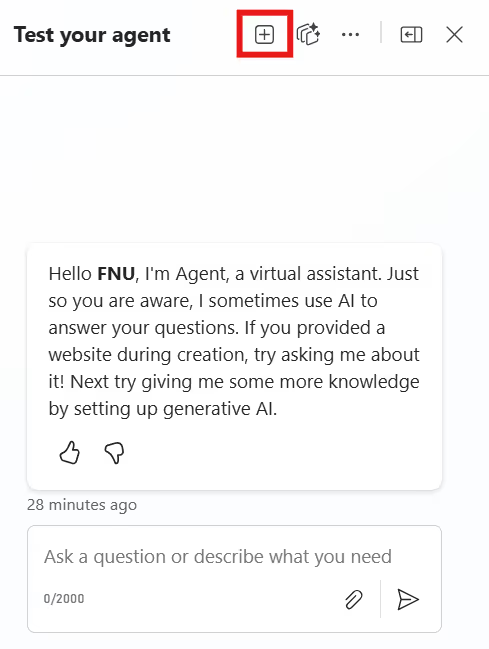
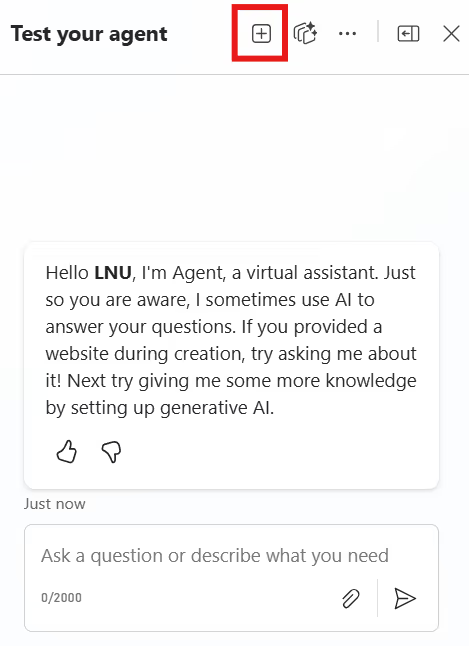
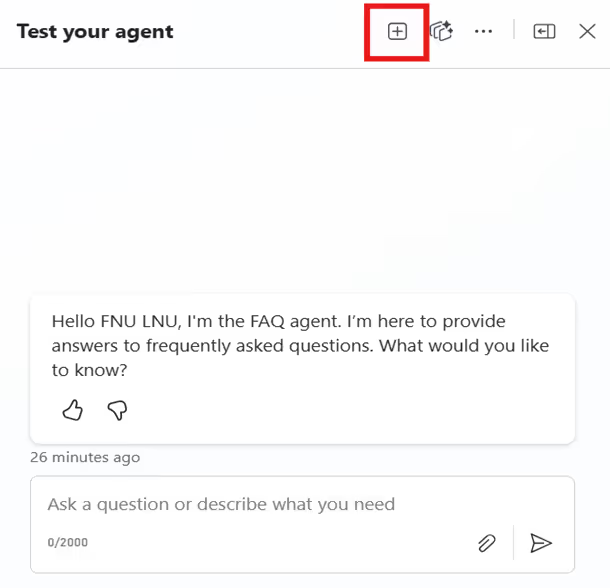
9. After saving, go to the Test chat pane on the right and click Start new test session to preview your logged-in user’s name displayed in the welcome message or other topic nodes.
- User Display Name
- User First Name
- User Last Name
How to customize the welcome message in your Copilot agent?
1. Go to the Conversation Start system topic as described in the previous instructions.
2. Click the Conversation Start system topic to open it.
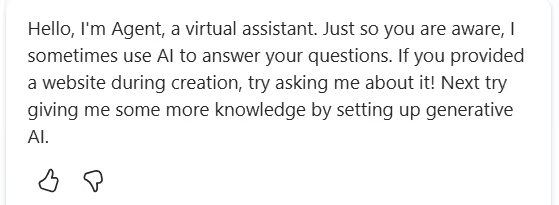
3. When a new Copilot agent is created, this type of default welcome message is automatically displayed in the agent.
4. In the message node, delete the default message and enter your own custom welcome message that you want users to see when the agent opens.
5. Click Save to save your changes.

6. After saving, go to the Test chat pane on the right and click Start new test session to preview your custom welcome message.
Example:
Why Personalizing Copilot Welcome Messages Matters?
Personalization is not just cosmetic. It directly improves:
- User trust and engagement
- Perceived intelligence of the Copilot agent
- Adoption and repeat usage
- Overall user experience in Microsoft Copilot implementations
In fact, greeting users by name is one of the most common patterns seen across real-world implementations, especially in scenarios highlighted in many top use cases for Microsoft Copilot Studio from HR self-service to IT helpdesk agents and internal knowledge assistants.
Final Thoughts
Customizing the welcome message in your Copilot agent is a small change, but it has an outsized impact. By greeting users by name and clearly setting expectations, you create a more engaging and trustworthy first interaction.
These small experience improvements reflect a larger shift in how organizations are adopting AI. As Copilot becomes part of everyday collaboration, personalization helps bridge the gap between automation and human-centered design something increasingly visible as Microsoft’s generative AI continues to reshape modern collaboration.
With just a few configuration steps, your Copilot agent can move from feeling generic to feeling genuinely helpful from the very first message.
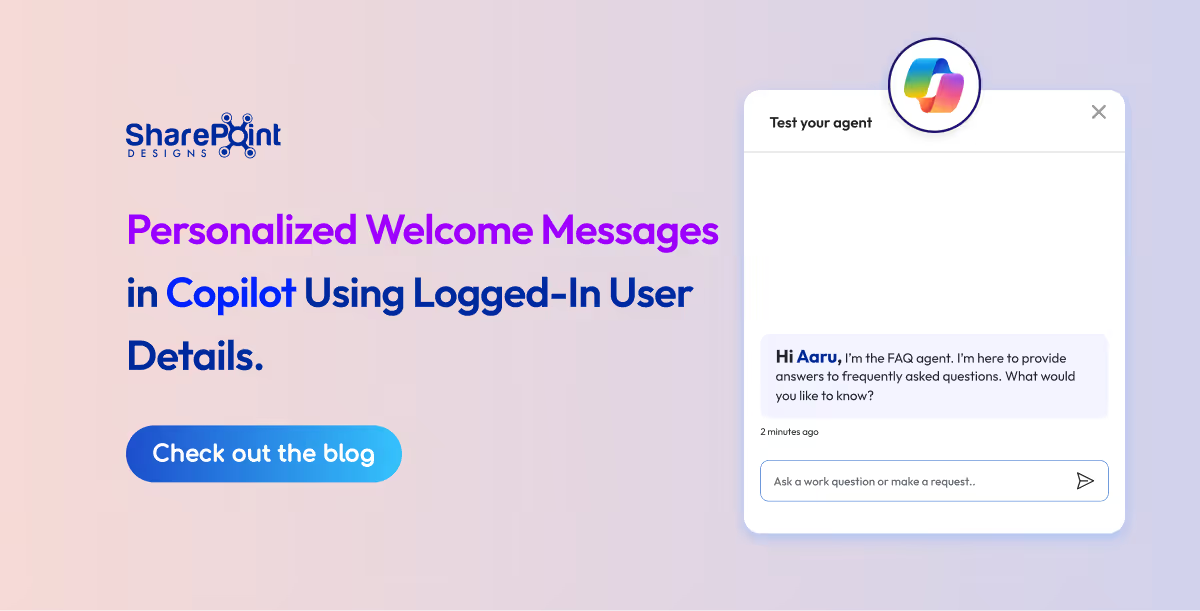
Personalized Welcome Messages in Copilot Using Logged-In User Details
A personalized welcome message improves user engagement and creates a more professional experience in your Copilot agent.

SharePoint continues to evolve into one of the most powerful intranet platforms for modern organizations. As businesses focus on hybrid work, AI-driven productivity, and employee experience, SharePoint's design capabilities have expanded dramatically.
In 2026, companies expect intranets that are clean, intuitive, and personalized far beyond what traditional portals offered a few years ago. SharePoint delivers these capabilities through modern site designs, advanced layouts, and ready-to-use intranet examples that help teams launch faster and work smarter. This updated guide explores the best SharePoint intranet site designs and examples for 2026, how they support today’s digital workplace, and what features truly matter when building a high-performing SharePoint environment.
Want a SharePoint Intranet Like These Examples? Explore Intranet Templates
Instead of designing everything from scratch, explore professionally designed SharePoint intranet templates built for Microsoft 365.
Why SharePoint Site Designs Matter More in 2026
Modern workplaces demand intranet experiences that are:
- Simple to use
- Visually appealing
- AI-powered and personalized
- Mobile-friendly
- Fast to deploy
- Integrated with Microsoft 365
- Designed for collaboration and engagement
SharePoint meets all these needs through modern page layouts, flexible components, and professionally designed site examples that eliminate guesswork and reduce development time.
Top SharePoint Site Designs and Intranet Examples for 2026
Microsoft’s SharePoint design ecosystem has grown significantly. The latest examples show how organizations can create digital workplaces that feel modern, connected, and engaging.
Below are the best-performing design styles and examples dominating 2026 intranet builds:
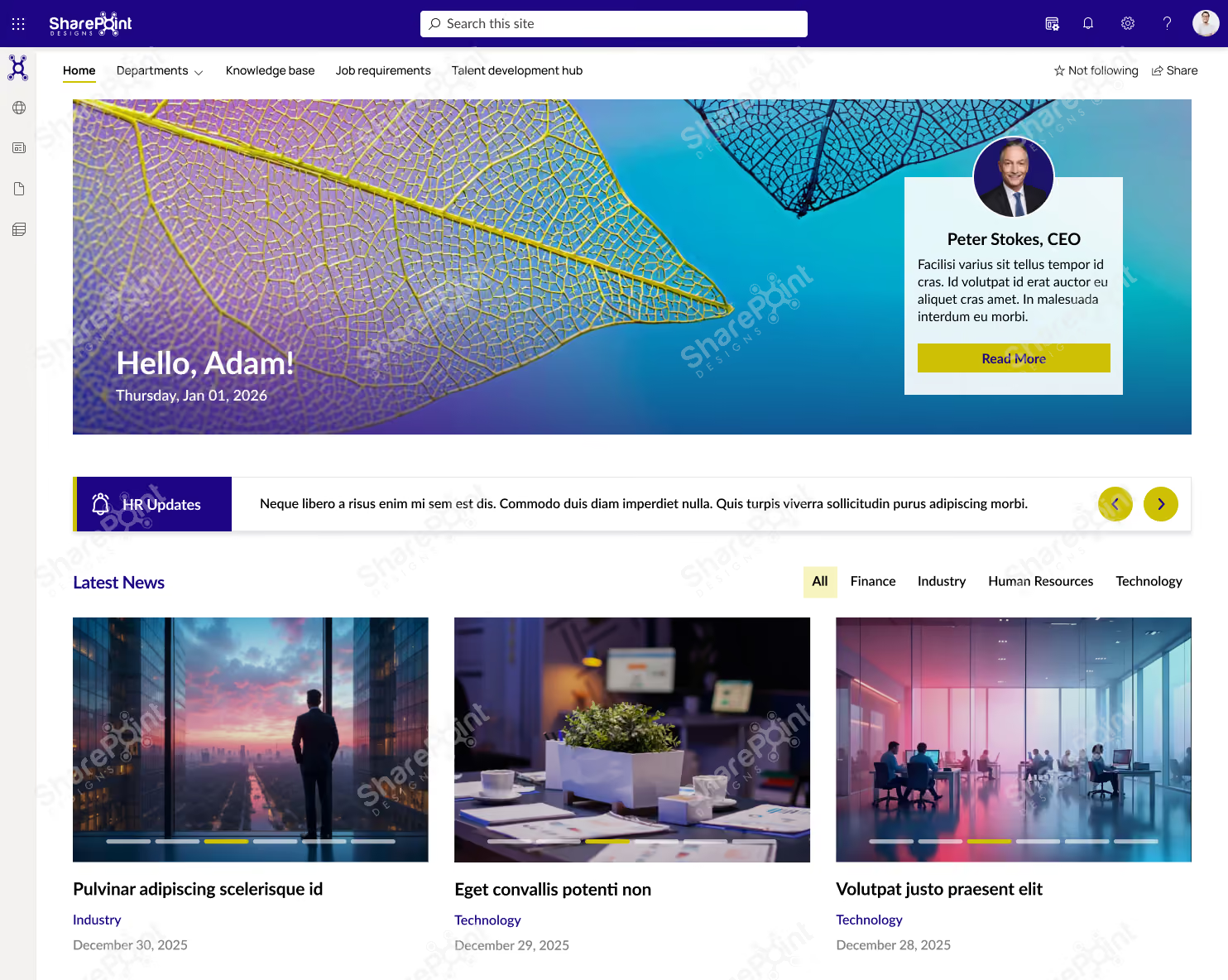
1. Modern Communication Sites (2026 Upgrade)
Communication Sites remain the backbone of enterprise intranets. The 2026 updates focus on:
- Streamlined layouts
- Improved readability
- Flexible navigation
- Strong visual hierarchy
- Personalized content sections
These sites help organizations share news, highlight updates, and maintain consistent branding across departments.
Looking for More Inspiration?
Explore 50+ professionally designed SharePoint intranet examples across HR, IT, Healthcare, Manufacturing, Finance, Education, and more.
Explore the SharePoint LookBook
Best for: Company-wide announcements, leadership communications, HR updates, and employee engagement.
Why This Template Works?
1. Built for daily employee use, not just announcements
2. Clean, scannable layout that improves content discovery
3. Combines news, resources, people, and links in one view
4. Easy to manage and scale without heavy customization
Who It’s For?
1. IT, HR, and Internal Communications teams
2. Mid to large organizations using SharePoint
3. Companies with hybrid or distributed workforces
Best Parts
1. Personalized hero with leadership visibility
2. Categorized news and updates
3. Quick access to policies, forms, and tools
4. Modern design that drives adoption
Book a live demo and see the platform tailored to your business needs. Schedule a Live Demo
2. Hub Sites for Structured, Scalable Navigation.
Hub Sites now offer deeper personalization and advanced navigation management. In 2026, businesses use them to unify:
- Department portals
- Regional intranets
- Project hubs
- Knowledge centers
Hub sites create a consistent experience across thousands of pages, no matter how large the organization grows.
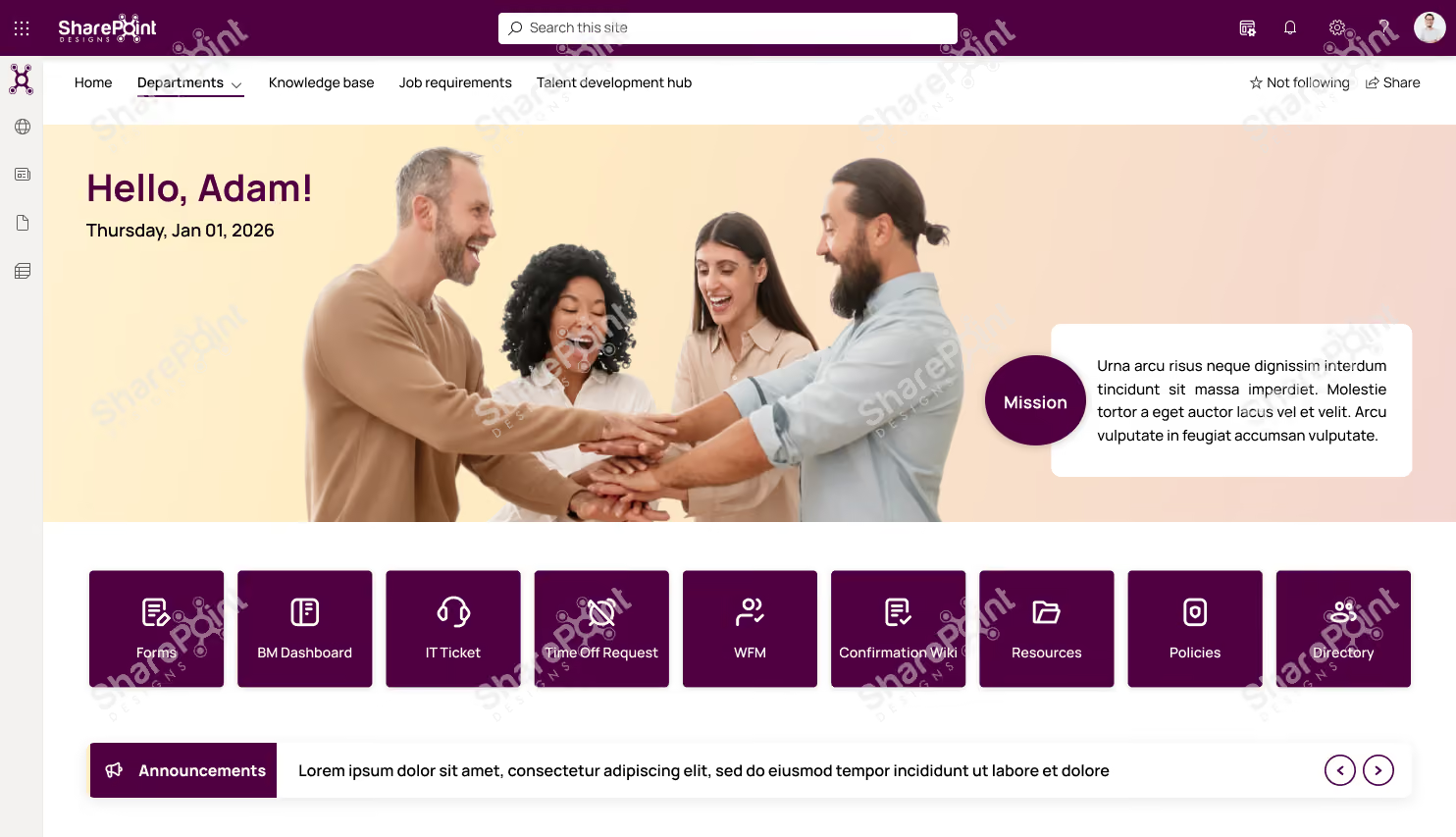
Why This Template Works?
1. Action-first layout with quick access to everyday tools and requests
2. People-centric design that highlights culture, goals, and leadership
3. Keeps employees informed with announcements, news, and events in one place
4. Clean structure that’s easy to update and scale
Who It’s For?
1. HR, IT, and People Ops teams
2. Organizations focused on employee engagement & internal communication
3. Mid to large enterprises using SharePoint
Best Parts
1. Centralized shortcuts for forms, tickets, and requests
2. Announcements and town hall countdown for timely communication
3. Goals and leadership sections to align teams
4. Modern, engaging UI that encourages daily use
Ready to launch a similar intranet?
Discover professionally designed SharePoint homepage templates, ready to deploy. Browse Templates
Book a live demo and see the platform tailored to your business needs. Schedule a Live Demo
3. AI-Powered SharePoint Home & Viva Connections
AI plays a major role in 2026 intranet experiences. Viva Connections integrates directly with SharePoint, offering:
- Personalized dashboards
- AI-curated news
- Task and workflow shortcuts
- Recommended content
- A unified mobile intranet inside Teams
Ready for an AI-Powered Intranet?
Create, customize, and launch a modern SharePoint intranet faster with Sangha's intelligent automation.
Explore Sangha
This transforms the intranet from a static portal into a smart, adaptive employee experience platform.
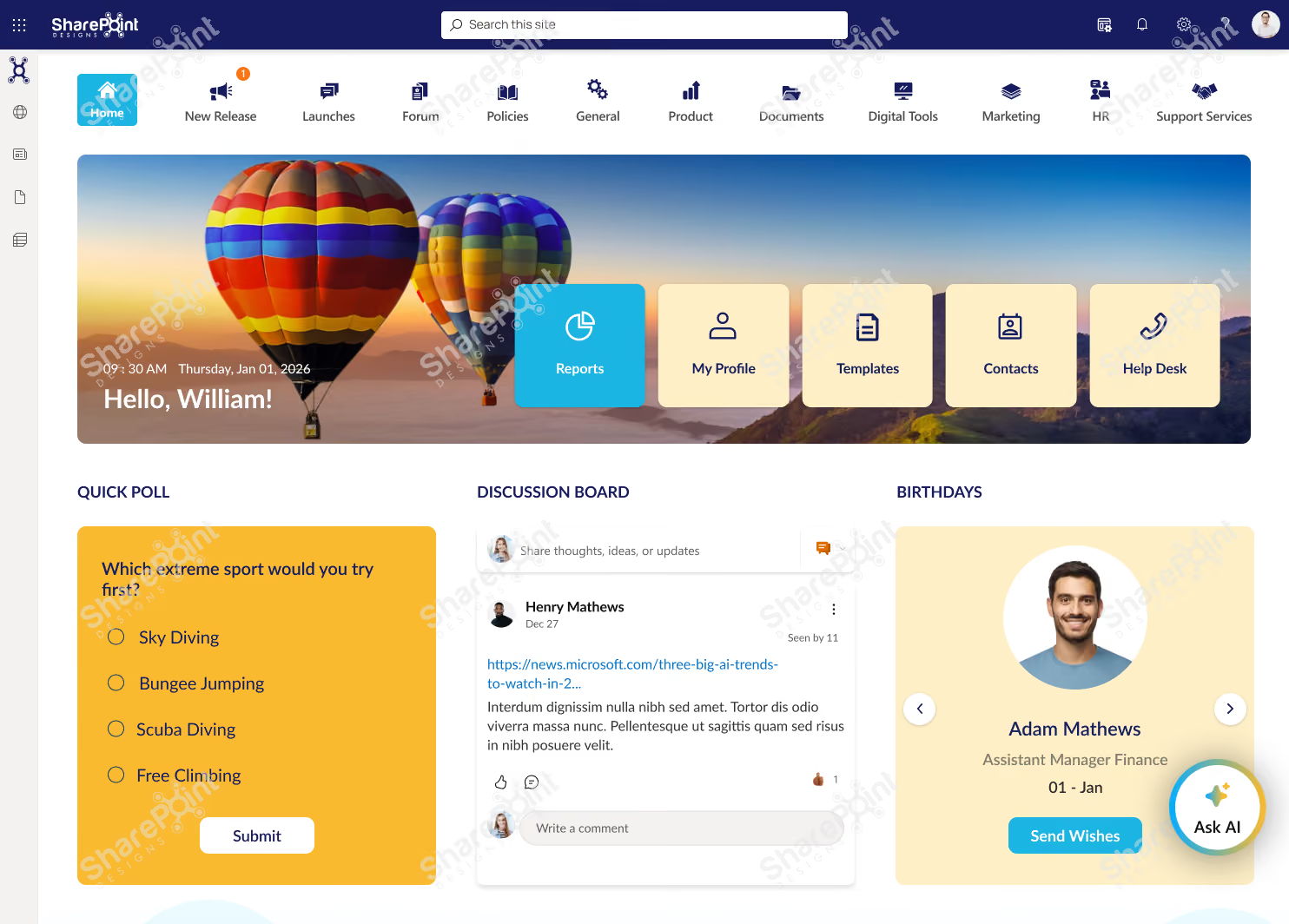
Why This Template Works?
1. Highly interactive layout that encourages participation, not just reading
2. Combines work updates and social engagement in one experience
3. Clear navigation to tools, documents, and services
4. Keeps content fresh with polls, discussions, and feeds
Who It’s For?
1. Internal Communications & HR teams
2. Organizations focused on culture, collaboration, and engagement
3. Mid to large enterprises using SharePoint
Best Parts
1. Quick access tiles for profiles, templates, contacts, and help desk
2. Polls, discussion boards, and birthdays to boost engagement
3. Categorized news and social media integration
4. Idea submission section to encourage innovation
Book a live demo and see the platform tailored to your business needs. Schedule a Live Demo
4. Modern SharePoint Intranet Examples That Stand Out in 2026
These trending designs shape intranets across industries:
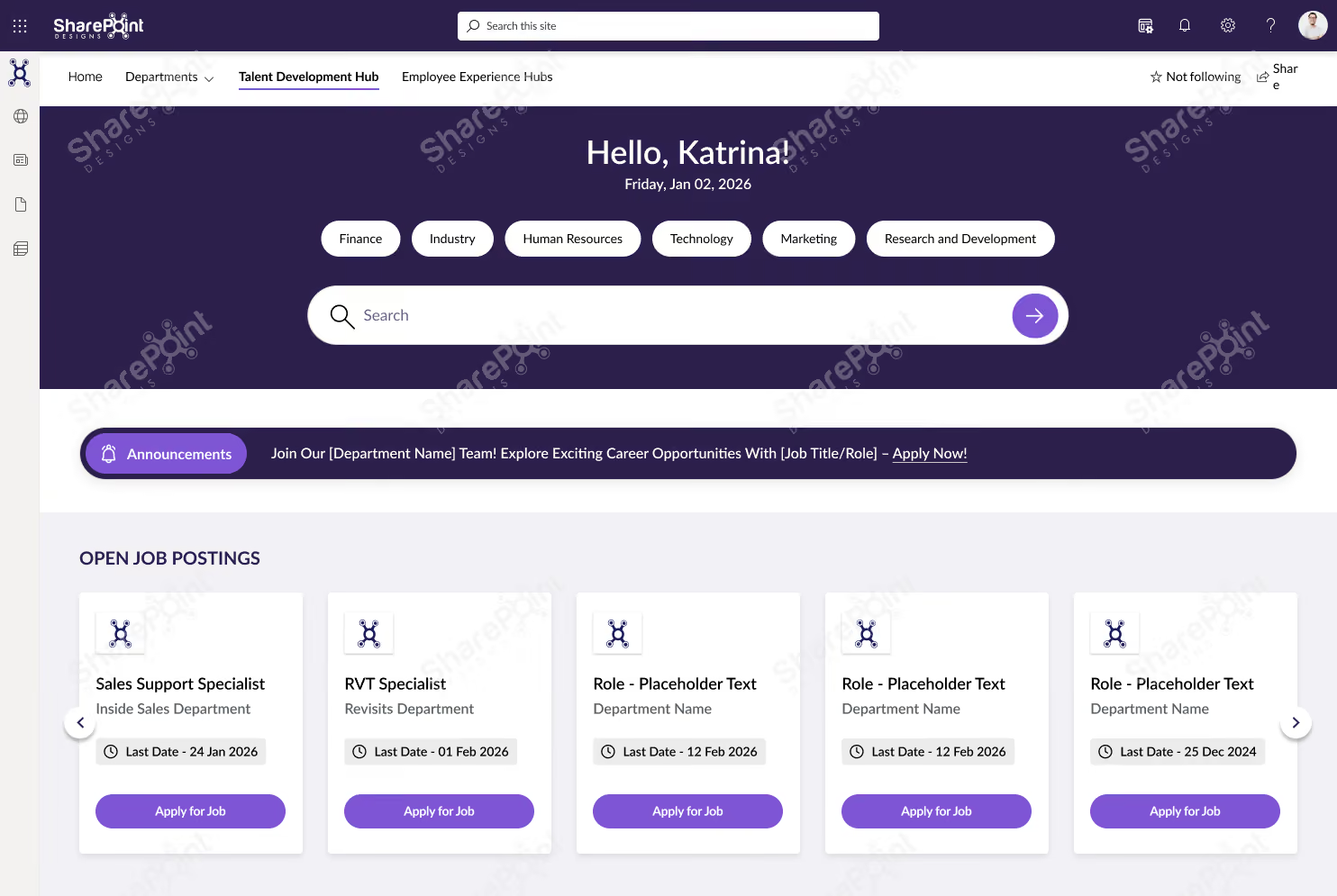
Employee Experience Hubs
Centralized hubs for announcements, events, resources, and employee services.
Beautiful intranets still need great document management.
Discover how DocVault adds intelligent search, approvals, version control, compliance, knowledge management.
Explore DocVault
Why This Template Works?
1. Purpose-built for learning & growth, not general intranet clutter
2. Smart filters and search make jobs, training, and resources easy to find
3. Clear progression from opportunities → learning → events
4. Structured layout that supports frequent updates
Who It’s For?
1. HR, L&D, and Talent Development teams
2. Organizations investing in internal mobility and upskilling
3. Mid to large enterprises using SharePoint
Best Parts
1. Open job postings with direct apply actions
2. Centralized SOPs and operational documents
3. Training hub with category-based filtering
4. Event calendar with Outlook integration
Book a live demo and see the platform tailored to your business needs. Schedule a Live Demo
HR Portals
Featuring onboarding guides, leave policies, self-service tools, and training content.

Why This Template Works?
1. HR-focused layout that simplifies policies, documents, and training access
2. Clear separation of information, actions, and learning
3. Intuitive navigation that reduces employee support queries
4. Easy to maintain with structured, repeatable sections
Who It’s For?
1. HR and People Operations teams
2. Organizations with growing or distributed workforces
3. Mid to large enterprises using SharePoint
Best Parts
1. Centralized guidelines, policies, and trending documents
2. Quick links for high-frequency HR tasks
3. Dedicated training and development section
4. Clean, professional design that builds trust and adoption
Book a live demo and see the platform tailored to your business needs. Schedule a Live Demo
Departmental Sites
Customized layouts for IT, HR, Finance, Sales, or Marketing teams.

Why This Template Works?
1. Department-focused structure that keeps people, documents, and support in one place
2. Clear navigation reduces time spent searching for files and contacts
3. Designed for day-to-day departmental workflows
4. Simple, clean layout that’s easy to manage
Who It’s For?
1. Department heads and team leads
2. Internal teams managing shared resources
3. Mid to large organizations using SharePoint
Best Parts
1. Centralized document library with category-based access
2. Quick links to people, perks, forms, and support
3. Built-in FAQs to reduce repeated queries
4. Feedback section to improve team communication
Want to see more? View complete intranet examples from Healthcare, Manufacturing, Construction, Finance, Education and Government
Open LookBook
Book a live demo and see the platform tailored to your business needs. Schedule a Live Demo
Knowledge Base Sites
Structured articles, FAQs, SOPs, and search-optimized content libraries.

Why This Template Works?
1. Search-first design that helps employees find answers fast
2. Clear categorization improves document discoverability
3. Reduces repeated queries with self-serve knowledge access
4. Clean, structured layout that’s easy to maintain
Who It’s For?
1. IT, HR, and Operations teams
2. Organizations managing large volumes of documents
3. Mid to large enterprises using SharePoint
Best Parts
1. Advanced search with category and sub-category filters
2. Centralized document library and featured content
3. Time-zone aware widgets for global teams
Built-in help and support links for quick guidance
Book a live demo and see the platform tailored to your business needs. Schedule a Live Demo
Project Workspace Designs
Modern dashboards for progress tracking, documents, workflows, and team collaboration.
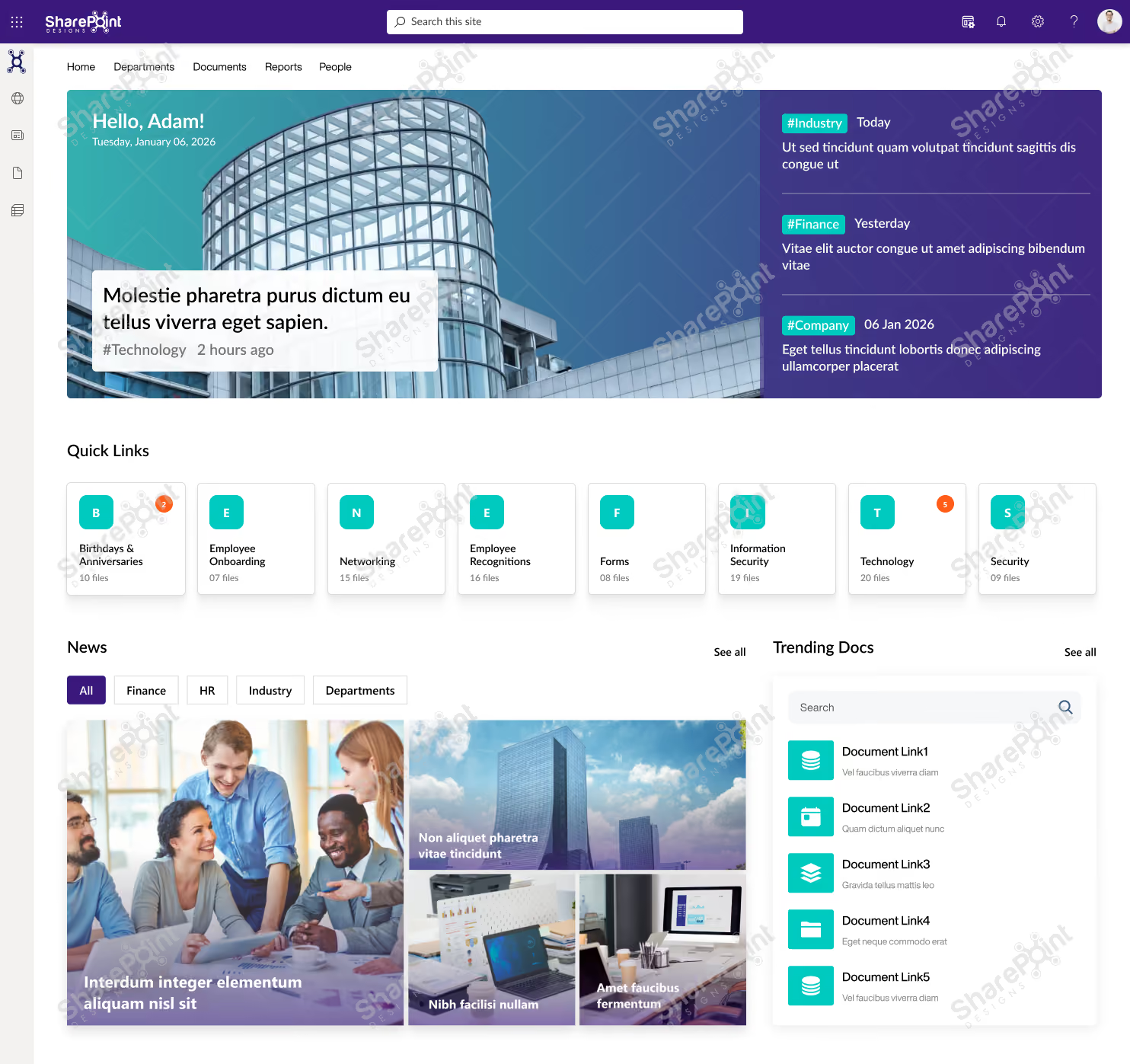
Why This Template Works?
1. All-in-one dashboard that combines communication, events, documents, and performance
2. Clear visual hierarchy makes updates and insights easy to scan
3. Designed to support daily decision-making, not just announcements
4. Scales well as teams, projects, and data grow
Who It’s For?
1. Leadership, PMOs, and Operations teams
2. Organizations that need visibility across projects and updates
3. Mid to large enterprises using SharePoint
Best Parts
1. Personalized hero with live updates and highlights
2. Quick links for fast access to key business areas
3. Integrated calendar, town hall events, and news
4. Project progress tracking with visual metrics.
Book a live demo and see the platform tailored to your business needs. Schedule a Live Demo
These examples showcase the full power of SharePoint’s modern design capabilities.
SharePoint Look Book: Still the Best Design Inspiration The SharePoint Look Book continues to offer some of the best curated examples of what modern SharePoint can achieve.
It provides:
- Ready-to-use design ideas
- Proven layout structures
- Industry-specific intranet examples
- Modern branding and UX options
For many organizations, the Look Book becomes the starting point for refining their own intranet vision.
Trusted by global enterprises. Proven through real customer success. Explore Case Studies
Best SharePoint Site Designs & Intranet Examples for 2026 (Updated Guide)
SharePoint continues to evolve into one of the most powerful intranet platforms for modern organizations.

Launching an intranet is a lot like buying a desk plant. At first, it feels exciting and fresh. But without regular care, it slowly loses its charm.
While launching a SharePoint intranet template can be done quickly, maintaining a modern SharePoint intranet over time requires thoughtful planning. Many HR teams and SharePoint owners face the same challenge: the intranet starts strong, but ongoing SharePoint intranet maintenance updating banners, news, and announcements gradually becomes overwhelming.
This blog focuses on easy SharePoint Intranet maintenance best practices that help you design a low-maintenance SharePoint intranet, saving time while keeping it relevant and engaging.
1. Banner Image with Vision, Mission, and Values
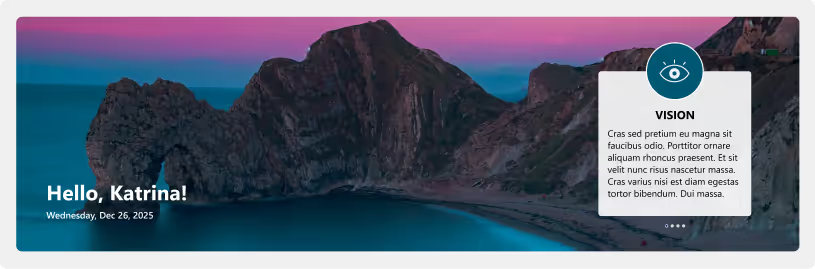
Your homepage banner sets the tone for your intranet. Instead of changing it frequently, align it with your organization’s vision, mission, and values. These rarely change, making them perfect long-term content. You may refresh the banner quarterly or during major company milestones to keep it visually fresh without constant updates. This approach supports long-term SharePoint intranet design without frequent visual changes.
2. News Through RSS Feeds
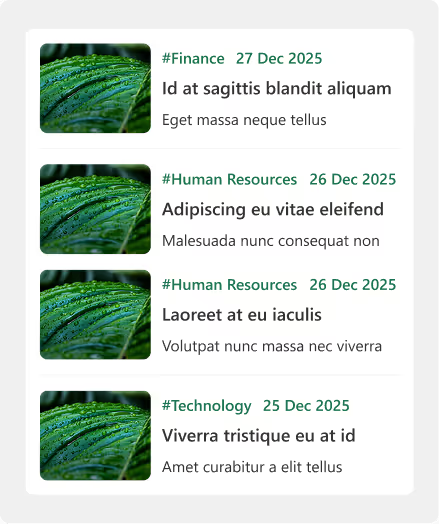
Instead of writing news articles from scratch, connect your intranet to RSS feeds from your company website or trusted external sources. This allows relevant news to appear automatically, keeping the site fresh and informative with minimal manual intervention. This keeps your SharePoint intranet content fresh without increasing maintenance effort.
3. Quote of the Day (QOTD)
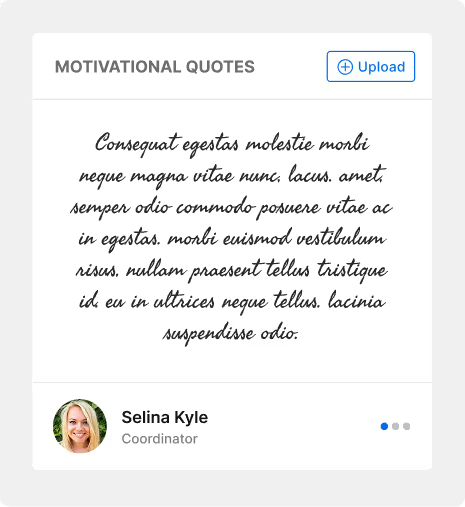
A Quote of the Day widget adds daily freshness to your intranet. By pulling from a predefined quote library or external source, a new quote can be published automatically each day. This small touch keeps the homepage dynamic and motivating.
4. Birthdays, Anniversaries, and New Joiners
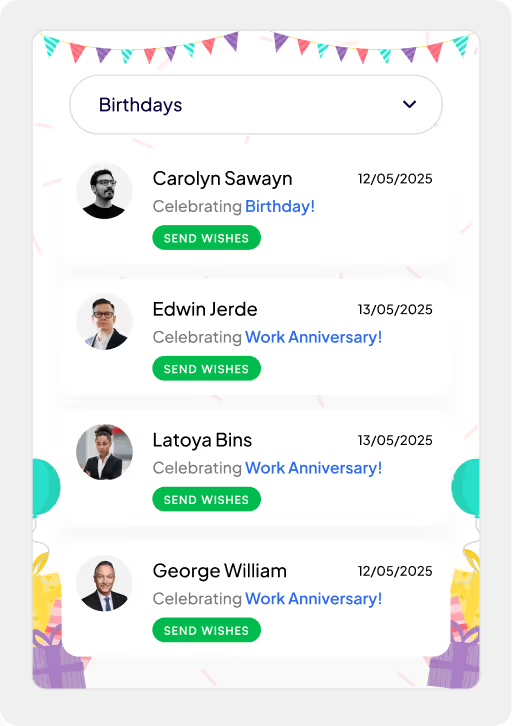
Manually updating people-related information is time-consuming. Integrating your intranet with Active Directory allows birthdays, work anniversaries, and new joiners to update automatically. This ensures accuracy, consistency, and keeps employees feeling recognized without extra effort from HR. Automation like this is a key part of sustainable SharePoint intranet best practices.
5. Sociable Kit for Social Media Updates
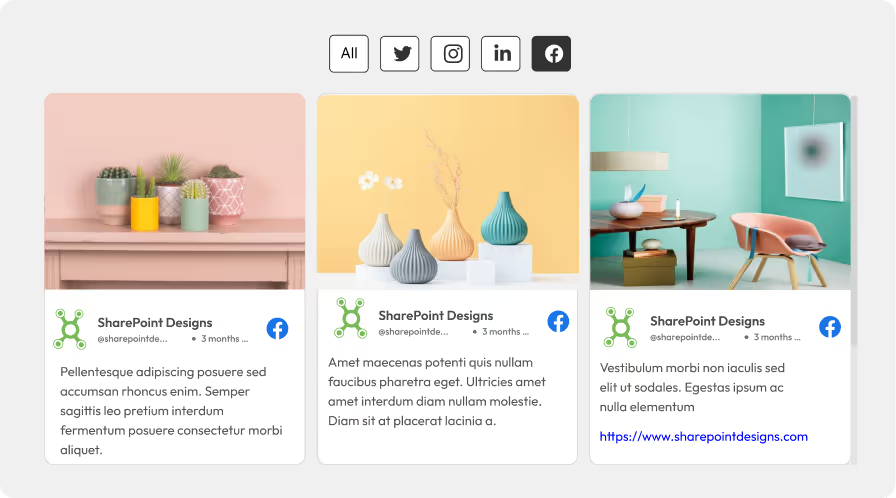
Employees often engage more with real-time content. A Sociable Kit can automatically pull posts from your company’s social media channels and display them on the intranet. This keeps internal communication aligned with external branding efforts.
6. Web Parts with Start and Expiry Dates
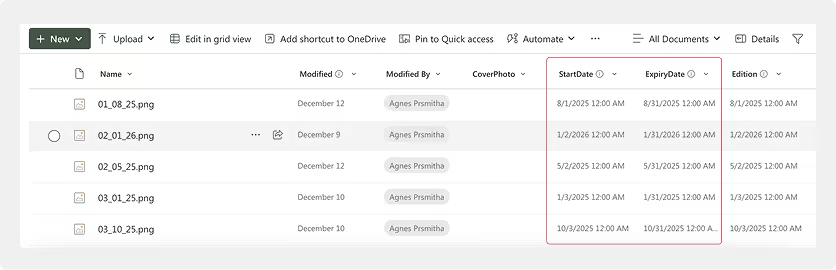
Using start and expiry dates for web parts ensures content appears only when relevant. It also allows you to upload content in advance and plan the contents. Campaigns, announcements, or events automatically disappear after their expiry, keeping the intranet clean and clutter-free without manual cleanup.
7. Weather and Stock Market Widgets

Live widgets such as weather or stock market updates add real-time value. Integrating trusted sources like MSN allows automatic updates and even severe weather alerts, keeping employees informed without maintenance effort.
8. One-Click ‘Add to Outlook’ for Events
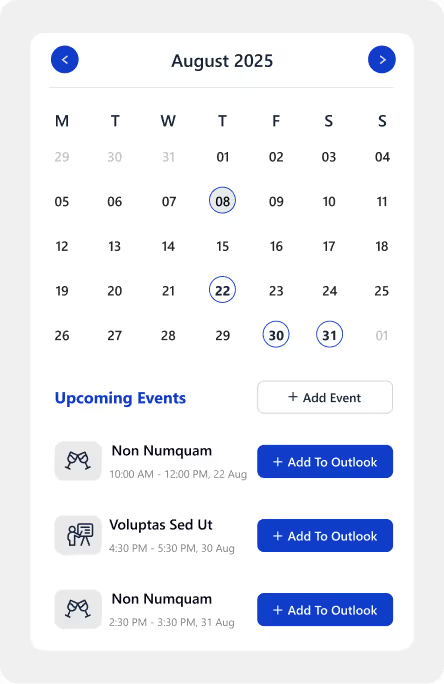
Events become more effective when employees remember them. A one-click ‘Add to Outlook’ option allows users to save events instantly to their calendars, improving attendance and reducing follow-up communication.
How to keep your SharePoint Intranet updated: Weekly, Monthly & Quarterly
9. Default Messages for Empty States
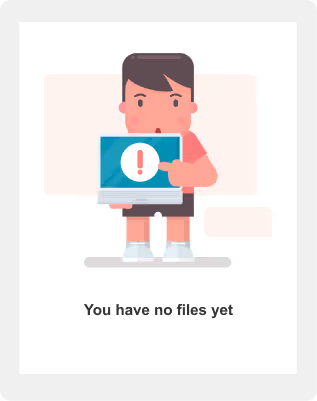
Empty sections can make a site feel broken. Set up friendly default messages with simple illustrations for times when there are no announcements or new joiners. This keeps the page visually complete and user-friendly.
10. Automated Holiday Themes
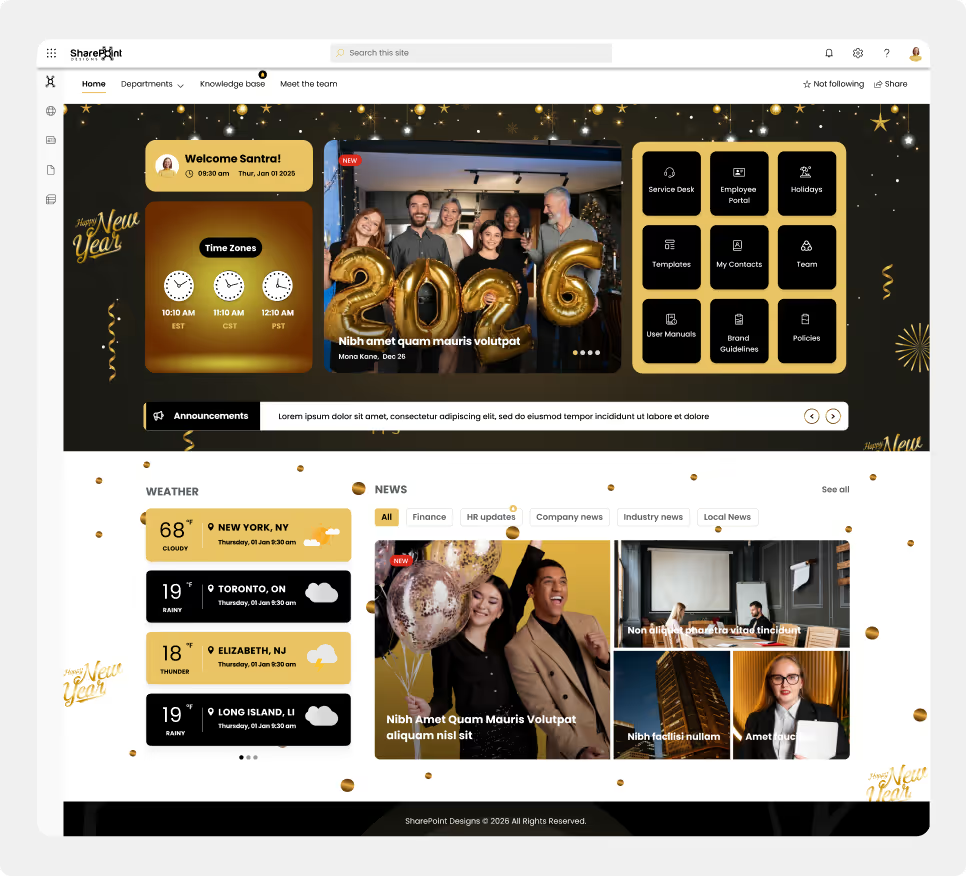
Holiday-themed designs add fun and warmth to the intranet. By scheduling these themes in advance, they can automatically go live before festive seasons, creating a bit of fun and excitement without last-minute design changes. Scheduled theming is commonly used in modern SharePoint intranet templates to balance culture and efficiency.
Final Thoughts
A well-planned SharePoint intranet does not demand constant attention. Think of it like a succulent rather than a high-maintenance desk plant. With the right setup, it doesn’t need daily watering, yet it continues to stay healthy and grow. In the same way, smart automation and thoughtful SharePoint configuration allow your intranet to remain fresh, engaging, and relevant, thriving on its own.
By following these SharePoint intranet maintenance best practices, organizations can create a modern intranet that continues to support employees long after launch.
Top 10 Tips for Easy SharePoint Intranet Maintenance (Practical & Proven)
Launching an intranet is a lot like buying a desk plant. At first, it feels exciting and fresh. But without regular care, it slowly loses its charm.
As organizations move away from traditional on-premises environments, SharePoint Online has become the foundation for building modern digital workplaces. Cloud modernization doesn't just upgrade your intranet, it unlocks a new set of features, integrations, and user experiences that weren’t possible before.
Top SharePoint Intranet Features That Work Best After Cloud Modernization
As organizations move away from traditional on-premises environments, SharePoint Online has become the foundation for building modern digital workplaces.
When working with SharePoint Site Pages and building custom page approval workflows in Power Automate, you may face a frustrating issue:
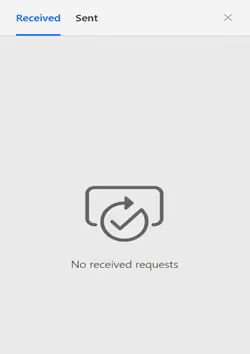
You click Review approval in the command bar, but the approval panel refuses to load.
Yet the approval email still arrives, and the workflow seems to run normally.
This problem occurs frequently when organizations replace the default “Configure page approval” feature with custom approval flows.
This guide explains why this happens, how to fix the approval panel, and how to configure Power Automate correctly so the approval interface renders every time.
Why Use SharePoint Page Approval?
SharePoint Page Approval helps maintain:
- Content governance for intranet and communication sites
- Quality control before publishing
- Consistent workflows for content reviewers
- A structured approval lifecycle for pages
However, custom approval flows introduce one common but critical issue:
SharePoint cannot render the panel unless Item Link + ETag are provided in the correct format.
Root Cause: Incorrect or Missing Item Link in the Approval Action
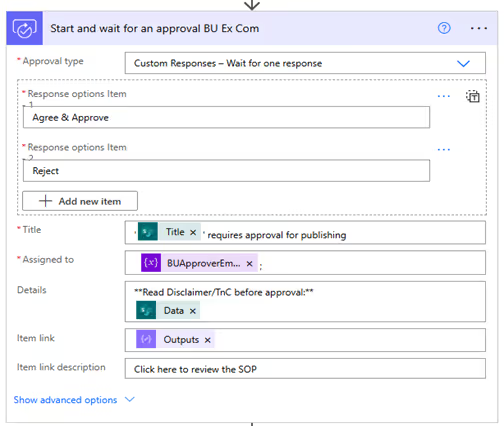
In Power Automate, the Start and wait for an approval action includes a field called Item Link.
This is the link SharePoint uses to open the approval panel when someone clicks Review approval.
If this link is missing the encoded ETag, the panel will not load.
To fix this, we must include two things:
- The page URL
- The properly encoded ETag of the item
Without these, the SharePoint panel cannot load approval data.
Step-by-Step Guide to Resolve the Approval Panel Rendering Issue in Power Automate
Step 1: Build the Correct Item Link
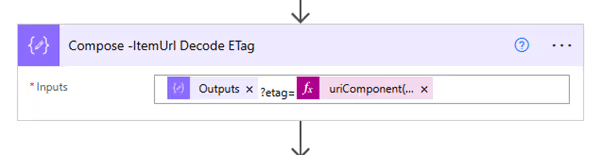
The correct format for the item link is: itemUrl?etag=uriComponent('ETag')
In Power Automate dynamic content, it should look like: outputs('Compose_ItemUrl')?etag=uriComponent(body('Get_file_metadata_-_Get-Etag')?['ETag'])
Why this works:
- SharePoint expects the ETag as a URL parameter.
- The ETag must be URI encoded using uriComponent().
In the Start and wait for an approval action, the ItemLink property controls the rendering of the approval panel when clicking 'ReviewApproval'.
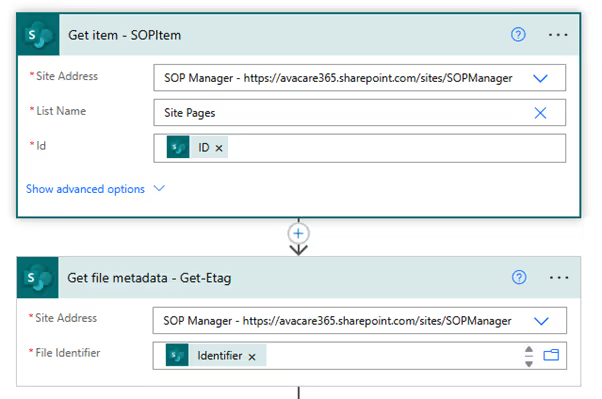
Step 2: Retrieve the Current ETag Using “Get file metadata”
Add the Get file metadata action and pass the page’s file identifier.
This gets the latest ETag, which changes every time the page is edited or updated.
Why ETag matters?
SharePoint uses ETag to determine if the item version being approved is current.
If the ETag doesn’t match, the panel fails to load.
Use the Get file metadata action to retrieve the current ETag, as it changes frequently.
Step 3: Add a Short Delay Before Getting the ETag
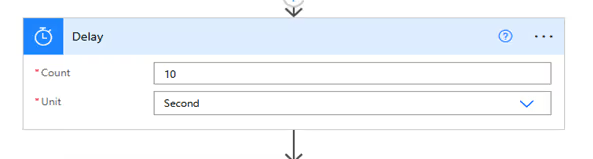
When a page is saved or updated, SharePoint may take a few seconds to commit the latest version.
Add a Delay of 10–15 seconds before the "Get file metadata" action.
This ensures:
- You always get the latest ETag
- Approval panel loads correctly
Even a small delay significantly improves reliability.
Adding a short Delay (10–15 seconds) before retrieving the ETag may help ensure the latest version is fetched.
SharePoint “Review Approval” Not Loading? Here’s the Fix
When working with SharePoint Site Pages and building custom page approval workflows in Power Automate,

SharePoint remains one of the most versatile platforms for internal communication, document management, and team collaboration. However, SharePoint delivers its true value only when it is customized to reflect the unique workflows and structure of your organization. With the right enhancements and guidance from professional SharePoint consulting services, your intranet can become a productivity powerhouse.
As a digital workplace consultant with hands-on experience implementing SharePoint for diverse industries, we have seen how the right features can transform productivity. Below are the top customizations that consistently deliver measurable results.
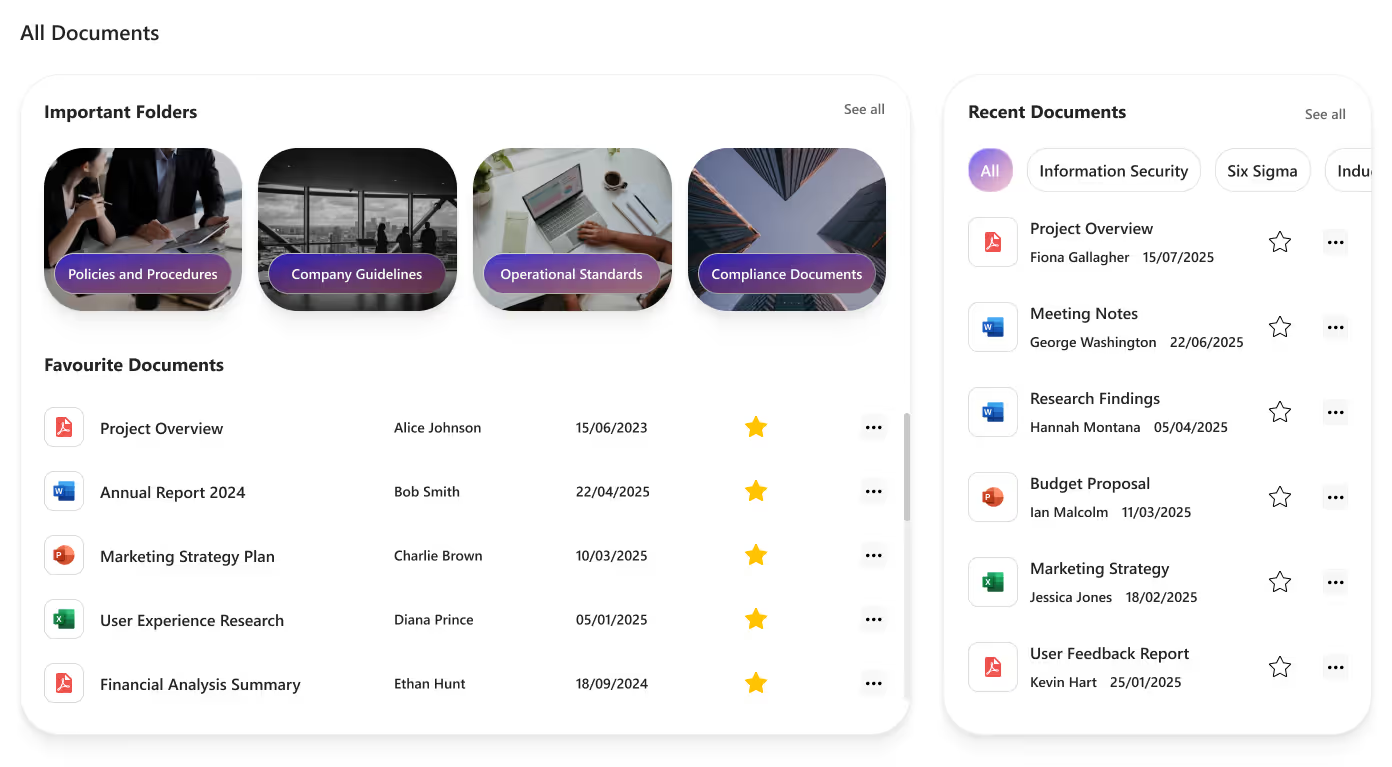
1. Custom Document Libraries With Smart Rules
A traditional file system often comes with problems like duplication, outdated information, and poor searchability. SharePoint’s custom document libraries solve these challenges with structured metadata, automated rules, and strict version control.
Benefits include:
- Organized content using metadata and filters
- Fewer duplicated files
- Transparent document history and version tracking
- Custom approval workflows
- Department-level permission control
Organizations using structured libraries report up to 30% faster document retrieval, saving hours every week.
Top SharePoint Custom Features That Improve Productivity
SharePoint remains one of the most versatile platforms for internal communication, document management, and team collaboration.
A user is stuck on a long-loading screen, getting slightly frustrated. Suddenly, the UI shifts to a calming micro-animation, a soft breathing circle, and gently says, “Hang on, we’re almost there.”
Do you know what this moment represents?
It shows a human-like reaction: when we notice someone getting stressed, we naturally try to calm or comfort them.

That’s exactly what Neuro-Adaptive Interfaces are trying to do in UI design by 2026. They use data from user behaviour, emotions, and context to automatically adjust the interface’s tone, layout, content, or visual intensity to match the user’s mental and emotional state.
Why It Matters
1. Burnout-Aware Design
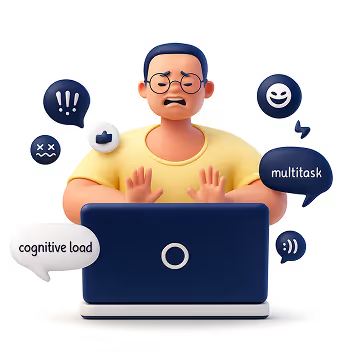
Modern users multitask more than ever, switching between apps, tabs, and devices. Neuro-adaptive design reduces cognitive strain by stepping in at the right moments, slowing things down, simplifying screens, or offering supportive cues before frustration builds.
2. AI Empathy Layer

Interfaces can now detect emotional arcs, not just actions. A stressed user gets softer tones and simpler paths. A confident user gets faster workflows. The system mirrors emotional intelligence by responding in a comforting, human-like way.
3. Neuro-Inclusion
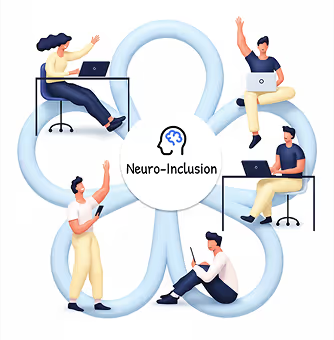
Different brains process information differently. By adapting layouts, reducing distractions, or altering reading density, neuro-adaptive UIs create safer digital spaces for users with ADHD, anxiety, dyslexia, or sensory sensitivities.
4. Productivity & Retention
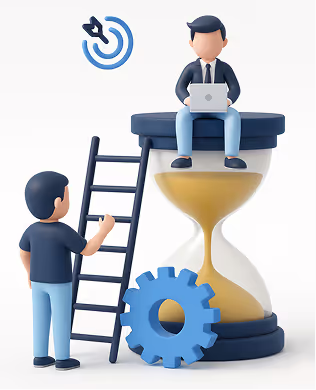
Emotionally aligned experiences encourage trust and flow. When a system “feels” supportive, users learn faster, commit fewer errors, and stay engaged longer, directly impacting product adoption.
How It Works
1. Mouse Movement Speed or Pauses
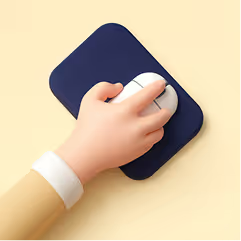
Detects: Frustration, hesitation, or confusion
Response: Highlights tooltips, simplifies layout options, slows animations, or guides with micro-hints.
2. Eye Tracking or Camera Input

Detects: Distraction, fatigue, or wandering focus
Response: Reduces motion, adjusts brightness, increases contrast, or declutters the screen.
3. Voice Tone Analysis

Detects: Stress, irritation, or urgency
Response: Shifts microcopy to a calmer tone or provides step-by-step instructions.
4. System Data (Time of Day, Workload)

Detects: Late-night usage, heavy task load, or deadlines
Response: Suggests short breaks, activates “focus mode,” or reduces interface density.
5. Biometric Feedback (Opt-in)

Detects: Elevated heart rate, stress responses
Response: Calming visuals, slow animations, ambient backgrounds, or mental reset prompts.
Expanded Real-World Use Cases
1. Microsoft Viva + Copilot
Recognizes emotional patterns across the workday and gently nudges users to manage workload, reflect, or reset, boosting well-being at work.
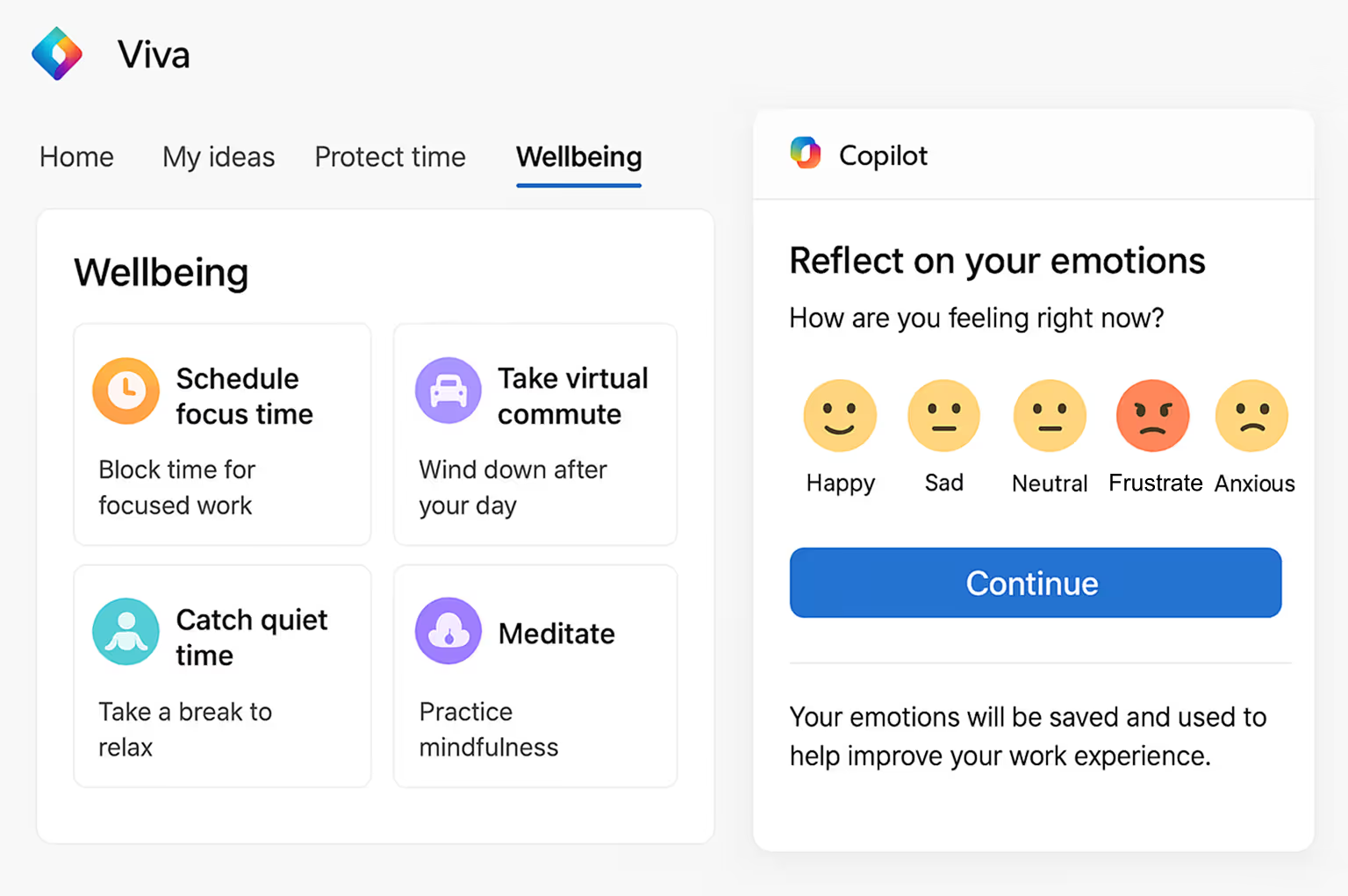
This image illustrates how Viva + Copilot visualizes emotional patterns and work rhythms, helping users stay balanced and productive throughout the day.
2. Healthcare Dashboards
During critical moments, interfaces shift to high-contrast, low-distraction modes to support better decision-making for doctors and nurses.
The dashboard image shows a high-contrast, distraction-free interface designed for doctors to make quicker, clearer decisions during critical moments.
3. E-Learning Platforms
Track attention levels and learning fatigue to dynamically adjust difficulty, add breaks, or change the lesson style.
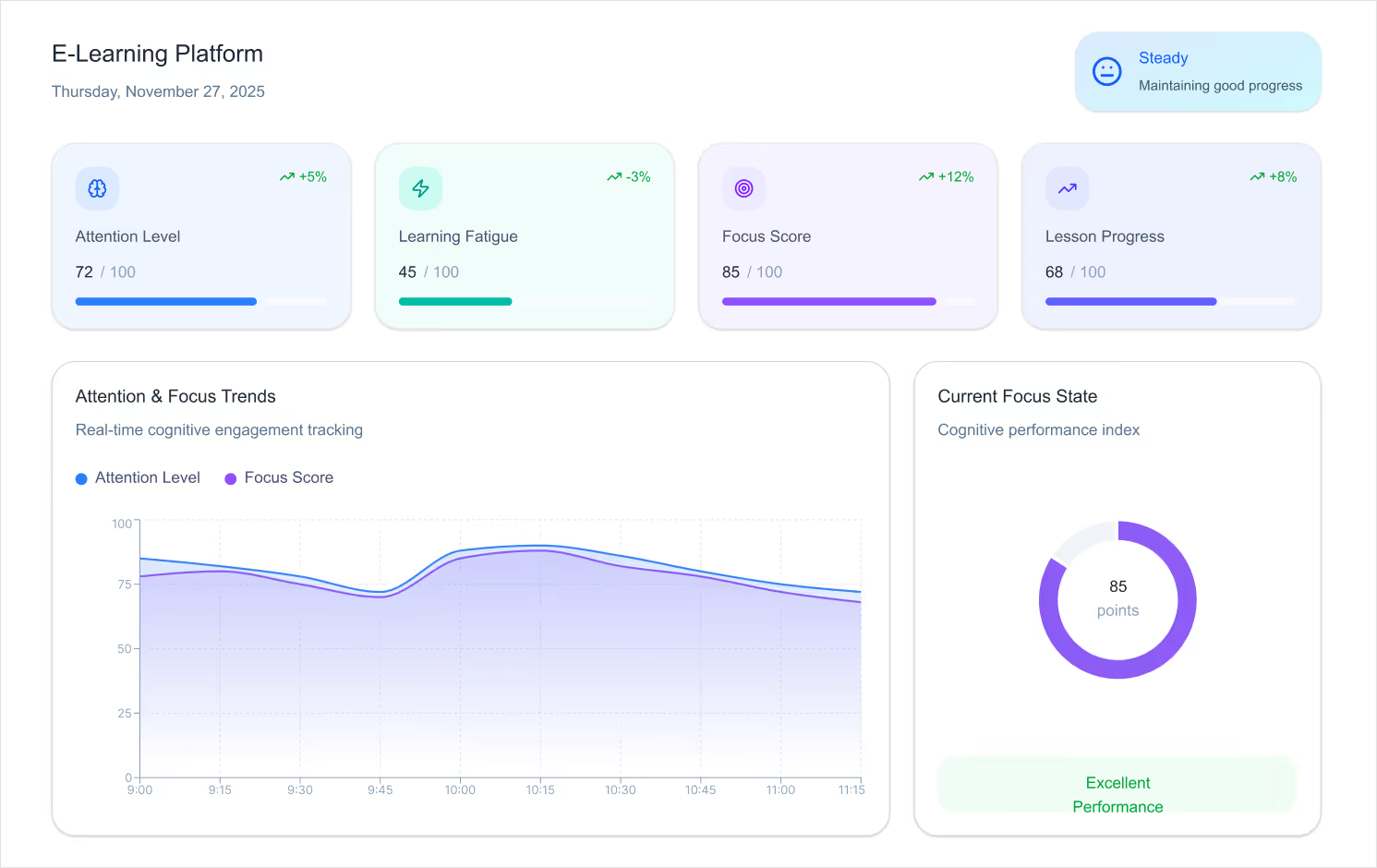
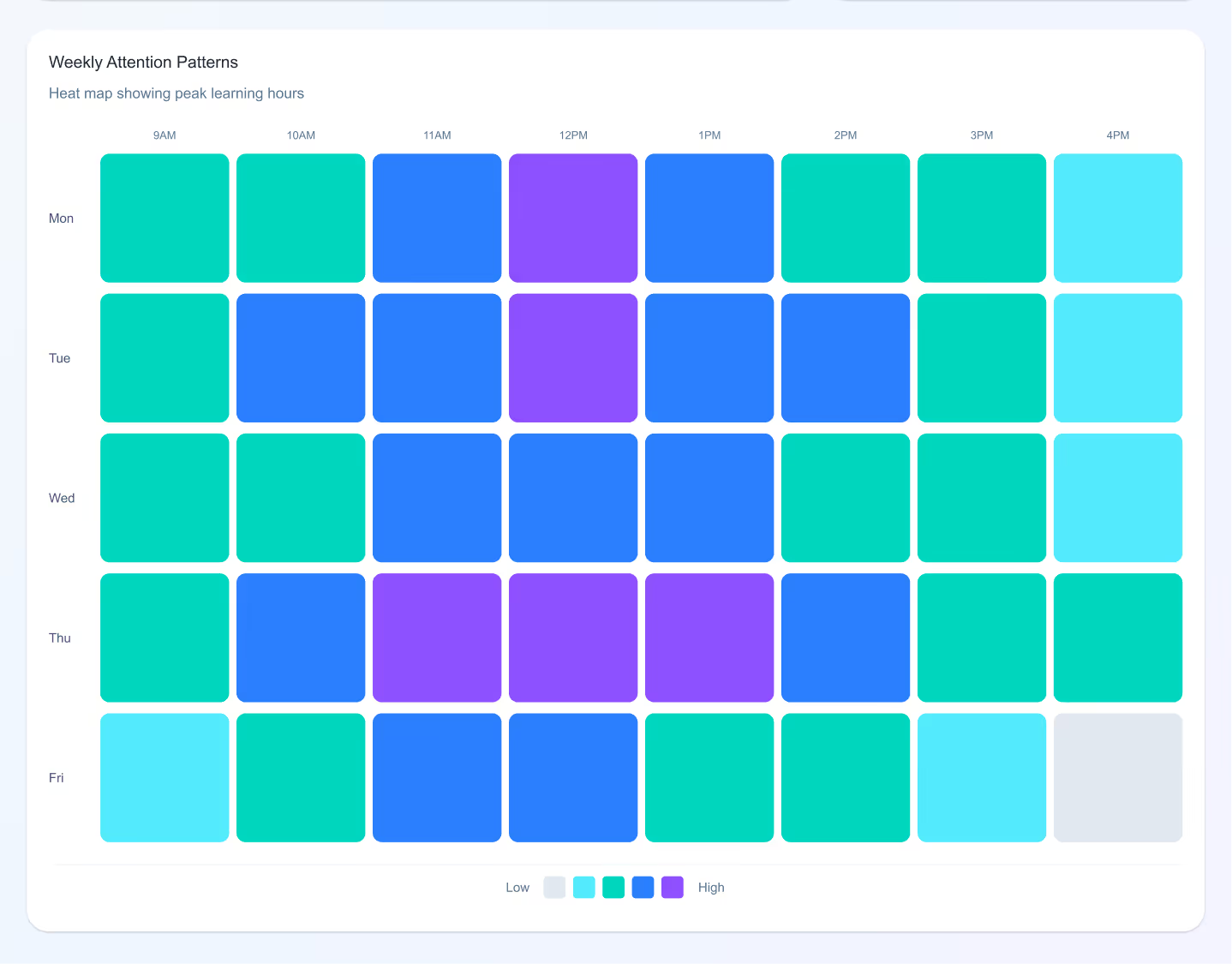
This example shows an adaptive learning screen that adjusts lesson difficulty and pacing based on a student’s attention level and engagement.
4. Banking Apps
Detect confusion during transactions and simplify steps automatically, reducing drop-offs and errors.
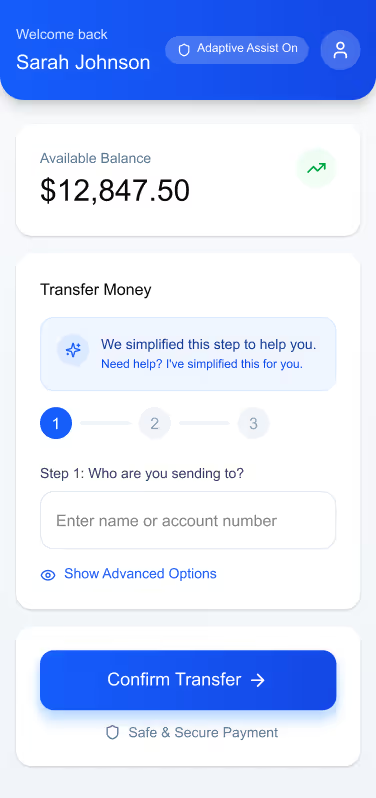
The banking UI demonstrates how steps can automatically simplify when confusion is detected, making complex transactions feel intuitive and safe.
5. Corporate Intranets
Enable “calm modes” during repetitive tasks soft colors, minimal UI, slower animations to reduce digital fatigue.
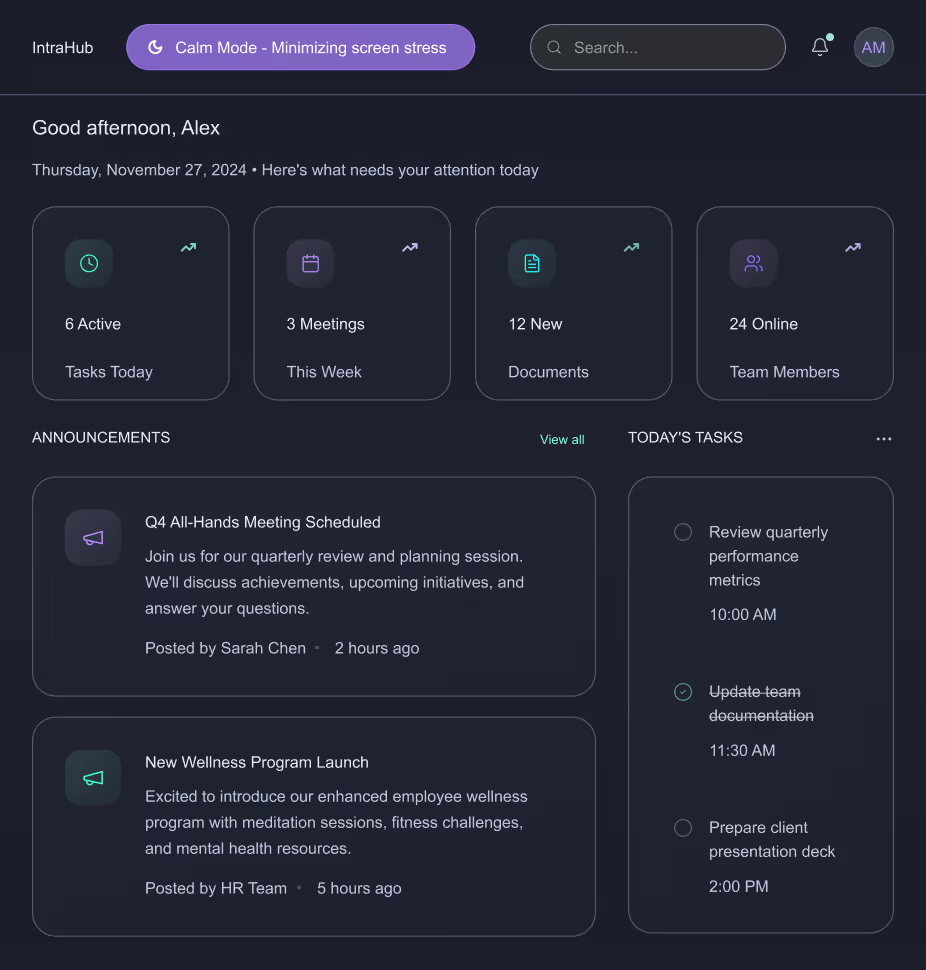
The intranet layout highlights a calm, minimal interface using soft colors and reduced visual noise to ease stress during repetitive workflows.
6. Productivity Tools
Apps like Notion, Asana, and Figma are beginning to experiment with emotion-sensitive features that adapt based on user pace and interaction mood.
Design Considerations for 2026 and Beyond
1. Privacy-First Emotion Tracking
Designers must ensure emotional data is opt-in, transparent, and stored responsibly. Users should always feel in control.
2. Avoid Over-Adaptation
Too much change can overwhelm users. Neuro-adaptive patterns must be subtle, predictable, and respectful.
3. Consistency with Human-Centered Language
Microcopy must balance empathy and clarity. Not every emotional signal needs a “comfort message”; sometimes simplifying the interface is enough.
4. Cross-Device Continuity
Emotion-aware experiences should sync across mobile, desktop, and wearable devices to maintain flow.
Conclusion
As we move into the next era of digital design, our role goes beyond usability. It’s about designing experiences that respect mental energy, emotional states, and human limitations.
Emotionally Intelligent and Neuro-Adaptive Interfaces remind us that great design doesn’t just speak, it listens, adapts, and supports.
This is the future of meaningful, human-centred digital experiences.
Emotionally Intelligent & Neuro-Adaptive Interfaces
Modern users multitask more than ever, switching between apps, tabs, and devices. Neuro-adaptive design reduces cognitive strain by stepping in at the right moments,

In this blog post, we’ll walk through how to manually upload an Intuit Interchange Format (IIF) file to a SharePoint document library and automatically parse its contents to create list items in a SharePoint list using Power Automate. This can be especially useful when working with QuickBooks for data exports.
Scenario Overview
1. Manually upload an IIF file to a SharePoint document library.
2. Trigger a Power Automate flow when the file is uploaded.
3. Read and parse the file content.
4. Extract relevant data (e.g., transaction details).
5. Create items in a SharePoint list based on the data.
Step 1: Set Up SharePoint Library and List
Document Library
1. Create a new library (e.g., "Time Tracker Excel Docs").
2. Assume we are uploading the file contains the values for the below fields,
- Date
- Type
- Amount
- Account
- Name
- Memo
3. Based on the above fields, create a necessary column in SharePoint list." Include Column Name along with type of column.
SharePoint List
1. Create a new SharePoint list (e.g., "IIF Uploads Data").
2. Define necessary columns like:
- Date
- Type
- Amount
- Account
- Name
Step 2: Uploading the IIF File
1. Users to manually upload .iif files to the “Time Tracker Excel Docs” library.
2. Example file name (e.g., Invoices_2025.iif).
Step 3: Create Power Automate Flow
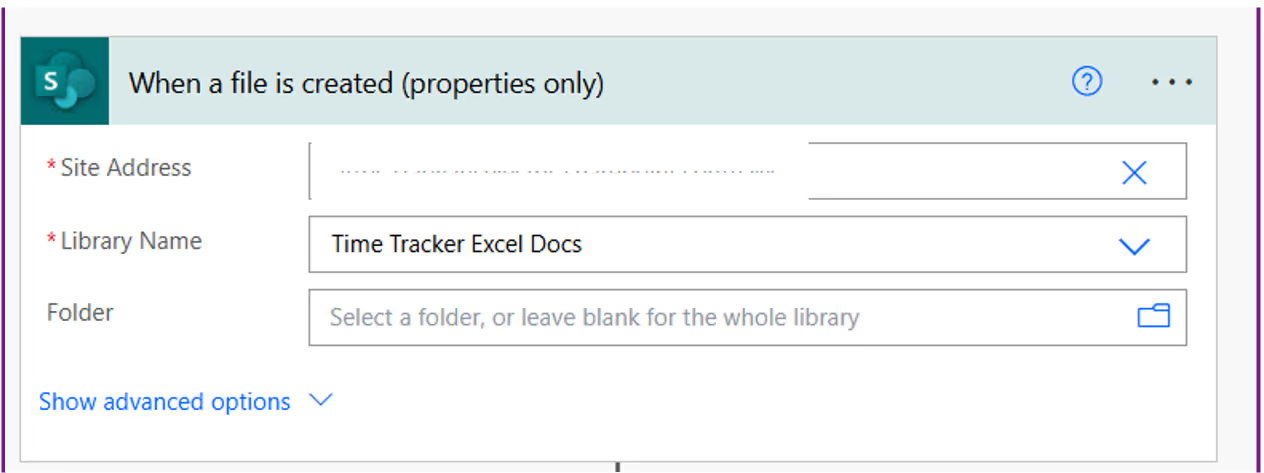
1. Trigger Action
Use “When a file is created (properties only)” to trigger the document library.
2. Get File Content
- Action: “Get file content”
- Use the Identifier from the trigger step.
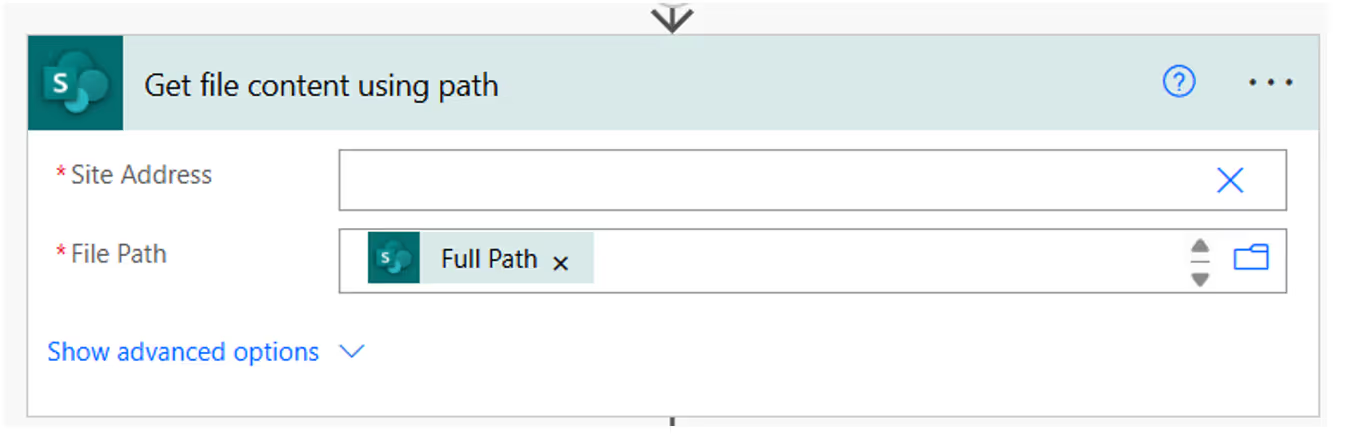
3. Convert File Content from Base64 to String
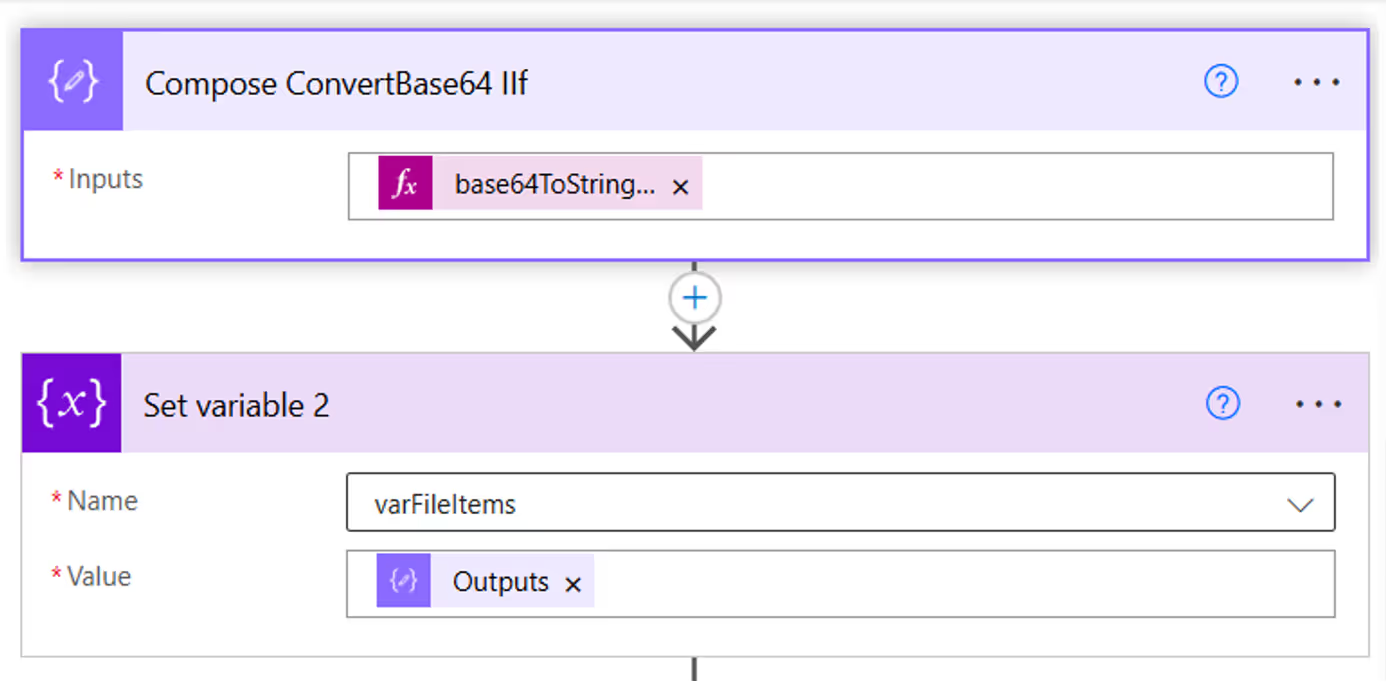
- Action Name: ‘Compose ConvertBase64 IIF’
- Description: This Compose action decodes the base64 content of the uploaded .iif file into a readable string format.
- Expression Used: base64ToString(body('Get_file_content')?['$content'])
- Create an 'Initialize variable' action named 'varFileItems' with the type set to 'String' and use a 'Set variable 2' action to assign the output of the 'Compose' action to it.
- Get file content is the action where the file content is fetched from the SharePoint library.
- base64ToString() is the expression that converts the base64-encoded file content into plain text.
Automate IIF File uploads and data extraction with Power Automate and SharePoint
In this blog post, we’ll walk through how to manually upload an Intuit Interchange Format (IIF) file to a SharePoint document library

Why Modernize?
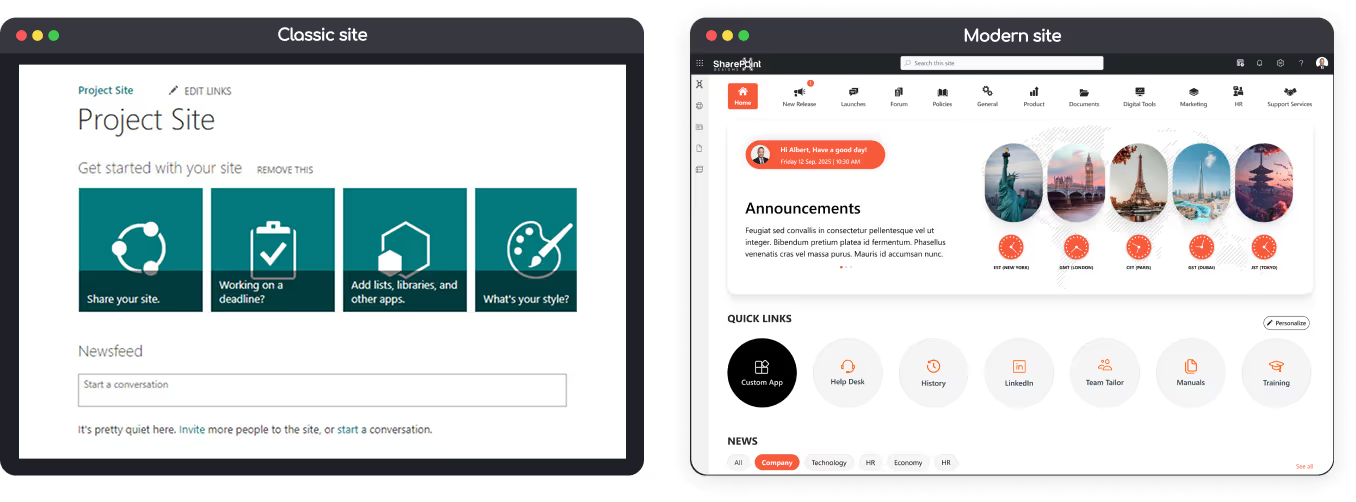
The modern SharePoint experience is responsive, faster, mobile-friendly, and supports modern web parts, improved search, and Microsoft 365 integrations.
You can modernize in-place (convert pages, enable modern lists and libraries) or create a new modern site and migrate content both approaches are valid depending on your customizations and risk appetite.
Approaches to Modernization
1. In-place modernization
Keep the same site, convert pages, and enable modern lists/libraries. Best if you want minimal URL change or have few subsites.
2. New modern site + migrate
Create a modern Communication or Team site and migrate content. Recommended for sites with heavy customizations, custom master pages, or complex navigation.
3. Hybrid approach
Modernize some sites in-place and create new modern sites for others. Copy content as needed.
Note: Always plan, inventory, and back up before touching production. Modernization modifies pages and layouts test in a dev or staging environment first.
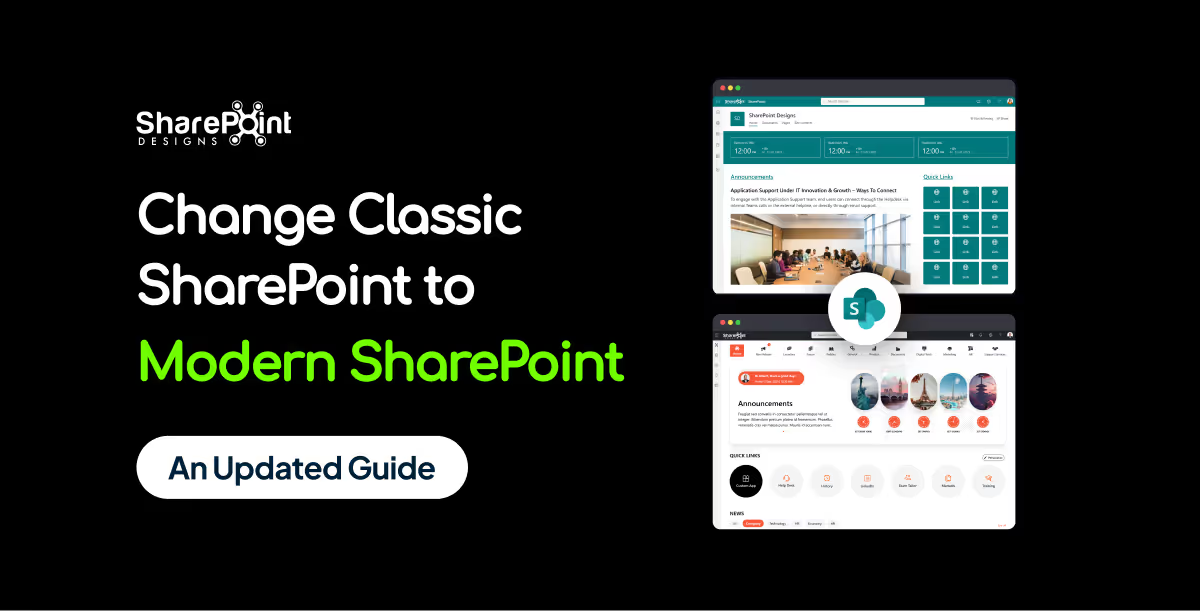
How to Change Classic SharePoint to Modern SharePoint (An Updated Guide)
The modern SharePoint experience is responsive, faster, mobile-friendly, and supports modern web parts,

Introduction: Importance of Collaboration and Role of SharePoint
Collaboration is the foundation that keeps any business intact. However, as your company grows, relying solely on manual processes becomes ineffective.
That’s where Microsoft SharePoint, a modern collaboration platform trusted by over 200 million active monthly users, becomes essential.
Many organizations still struggle to leverage SharePoint’s full potential due to a lack of understanding or poor implementation.
This guide will help you learn everything about SharePoint features, pricing, and implementation strategies so your team can collaborate seamlessly and efficiently.
What is SharePoint?
Microsoft SharePoint is a versatile intranet and collaboration platform that helps organizations create centralized hubs for communication, document sharing, and project management.
Whether you use the on-premises server or the cloud-based SharePoint Online, the platform simplifies teamwork even for non-technical users.
To explore real-world design examples, read our blog: Modern SharePoint Intranet Templates That Boost Employee Engagement in 2025
Features of SharePoint
SharePoint offers a powerful blend of collaboration and automation features. Below are its key functionalities:
1. Collaboration
SharePoint enables seamless teamwork regardless of where your employees are.
Multiple users can co-author documents in real time, comment, and restore older versions if needed.
Admins can set permissions in advance to manage who can edit or share files.
Additionally, SharePoint’s centralized dashboard keeps all updates visible, eliminating the need to sift through endless email threads.
(Related: The Ultimate Guide to Modern Intranet & Digital Workplace Success )
2. Project Management
Its advanced search filters, calendar integration, and Outlook connectivity make it easy to schedule tasks and stay on top of deadlines.
For advanced setups, you can also automate project tracking with Microsoft Power Automate learn more in our post on Transforming Business Processes with AI in SharePoint Workflows.
3. Content Management
Beyond document storage, SharePoint doubles as a Content Management System (CMS).
It allows content managers to upload, publish, and archive content easily while maintaining version control.
Deleted or outdated versions can be restored instantly and no external tools are required.
Explore layout ideas for your library: 15 Modern SharePoint Document Library Web Part Layouts
4. Integration
Integration defines SharePoint’s true power.
It works seamlessly with Microsoft 365 apps includes Word, Excel, PowerPoint enabling real-time editing and collaboration without endless file transfers.
You can also integrate Microsoft Teams, Power Apps, or third-party CRMs to extend functionality.
5. Security
Security is non-negotiable in any enterprise solution.
SharePoint offers robust controls for access management, data encryption, and multi-factor authentication.
Admins can restrict external sharing, define user roles, and even require sign-ins for document access.
For governance insights, read Governance of Data in SharePoint: Tools, Policies, and Best Practices
SharePoint Pricing Plans
When selecting a SharePoint plan, it’s important to choose one that aligns with your organization’s size, collaboration needs, and integration goals. Microsoft offers SharePoint primarily through two main licensing options are SharePoint Online Plan 1 and Microsoft 365 Business Standard each offering distinct benefits.
1. SharePoint Online Plan 1
Best for: Small to medium businesses that need a secure intranet and document collaboration platform without requiring the full Microsoft 365 suite.
Key Features:
- Team sites, document libraries, and version control
- Real-time co-authoring and file sharing
- 1 TB of OneDrive storage per user
- Lists, libraries, and customizable pages
- Access from web and mobile devices
- Enterprise-grade security and compliance controls
Pricing:
Starts at $5.00 USD per user/month (annual commitment).
This plan focuses purely on SharePoint and does not include Office desktop apps or Exchange-based email.
Recommended for companies that want a lightweight, scalable intranet solution built purely on SharePoint Online.
2. Microsoft 365 Business Standard
Best for: Businesses seeking a complete productivity suite including SharePoint, Teams, and the full Office app ecosystem.
Key Features:
- Everything included in SharePoint Online Plan 1
- Desktop, web, and mobile versions of Word, Excel, PowerPoint, and Outlook
- Microsoft Teams for meetings, chat, and collaboration
- Business-class email hosting with 50 GB mailbox
- 1 TB cloud storage per user via OneDrive
- Security and compliance tools integrated across Microsoft 365 services
Pricing:
Starts at $12.50 USD per user/month (annual commitment).
Ideal for organizations looking to integrate document management, internal communication, and collaboration tools under one Microsoft 365 umbrella.
Explore next: Modern SharePoint Design Examples for Corporate Intranets
3. Enterprise Options (E1, E3, E5)
For large organizations or enterprises needing advanced compliance, analytics, and automation, Microsoft offers Enterprise (E1/E3/E5) plans.
Highlights:
- Enhanced governance and security capabilities
- Advanced data loss prevention (DLP)
- Power Automate and Power Apps integration
- Advanced analytics with Power BI
- Unlimited cloud storage in higher tiers
Pricing:
Enterprise plans vary by feature set and start around $10–$38 USD per user/month depending on the license type.
You can check the detailed pricing Plans here: Microsoft SharePoint Pricing Plans
A Guide to SharePoint: All You Need to Know About SharePoint and How to Implement It
Collaboration is the foundation that keeps any business intact. However, as your company grows,


.svg)