Tech Ideas & Best Practices
Digital collaboration has become a core requirement for modern workplaces but adopting it successfully takes more than enabling a tool. Organizations need a clear, phased approach to ensure productivity isn’t disrupted while employees transition to new ways of working.
This 7-step partner mini-guide outlines a proven onboarding framework to help organizations adopt Microsoft Teams smoothly, drive real user adoption, and achieve measurable business outcomes.
Why a Structured Microsoft Teams Adoption Plan Is Critical
Many organizations struggle with low engagement after deployment because Teams was rolled out without a clear strategy. A structured onboarding roadmap helps you:
- Align Teams with business goals
- Reduce resistance to change
- Improve employee productivity and collaboration
- Measure adoption and optimize continuously

The 7-Step Partner Mini-Guide to Onboarding Customers on Microsoft Teams
Digital collaboration has become a core requirement for modern workplaces but adopting it successfully takes more than enabling a tool.

Microsoft 365 brings together two powerful platforms for teamwork SharePoint Online and Microsoft Teams. SharePoint provides a secure place to store, organize, and manage content, while Teams enables real-time communication and collaboration. By integrating a new SharePoint site with Teams, organizations can provide employees with a unified hub where conversations, files, and resources live together.
In this blog, we’ll walk through the steps to integrate a new SharePoint site with Microsoft Teams and highlight best practices for seamless collaboration.
Steps to Integrate a SharePoint Site with Microsoft Teams
Step 1: Create a New SharePoint Site
1. Check out this blog for creating a SharePoint site.
(or)
2. Navigate to the SharePoint Admin Center (or directly via the SharePoint home page).
3. Click Create site.

4. Choose the Communication site template (recommended for collaboration).
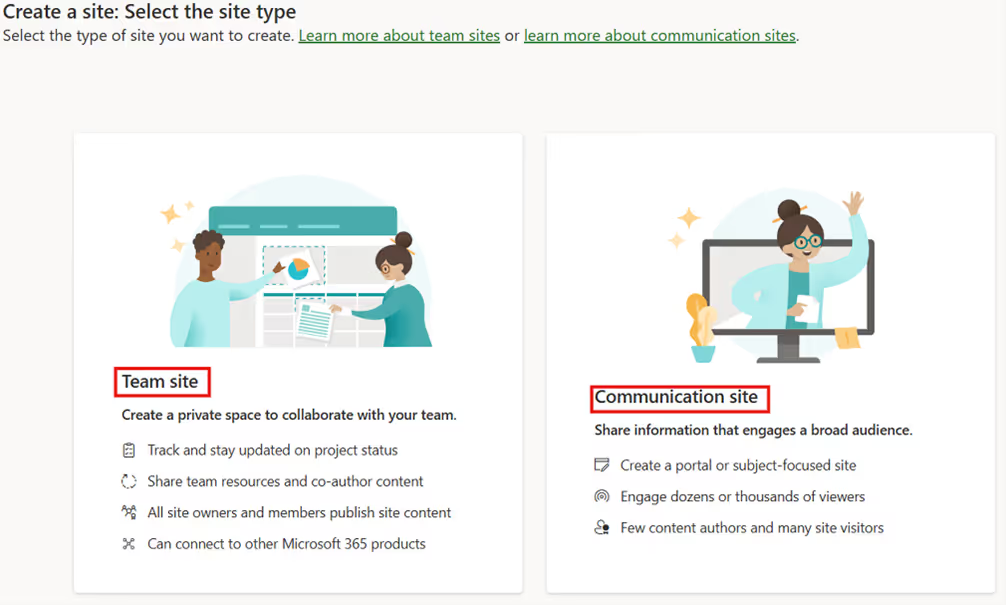
5. Enter site name, owners.
6. Once created, your site will have its own document library, lists, and permissions.
Note: Use clear and consistent naming conventions so the site is easily recognizable in Teams.
Step 2: Connect the SharePoint Site to Microsoft Teams
You can link your existing SharePoint site to a new or existing Teams channel.
Option A: Add a SharePoint Site to Teams (opens directly within Teams)
1. In Teams, go to your desired team and channel.
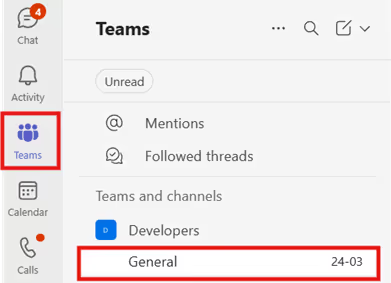
2. Click + (Add a tab).

3. Select SharePoint.
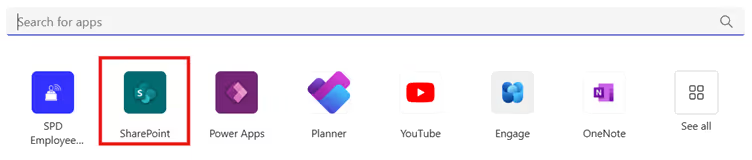
4. Select Any SharePoint site and paste the SharePoint site link in the text box.
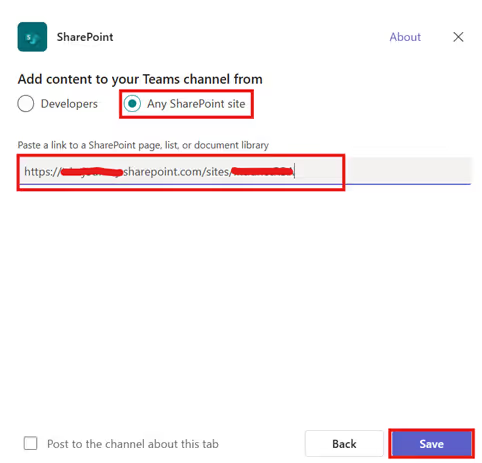
5. Click Save to add it as a new tab.

This allows members to interact with SharePoint pages (like dashboards or news pages) without leaving Teams.
Option B: Add SharePoint Site as a Website Tab (opens in a new browser tab)
If you want to link the entire SharePoint site:
1. Go to the desired team channel in Teams.
2. Click + (Add a tab).
3. Search for Website.

4. Paste your SharePoint site URL.
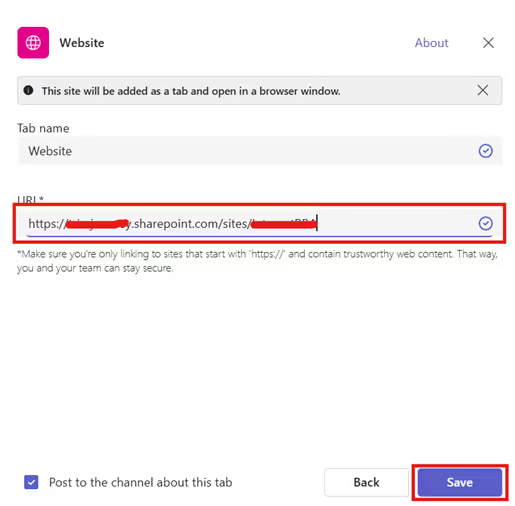
5. Click Save to add it as a new tab.

Step 3: Manage Permissions Effectively
Teams and SharePoint permissions are linked:
- Adding a member to Teams automatically grants them access to the connected SharePoint site.
- Removing a member from Teams revokes SharePoint access.
Conclusion
Integrating SharePoint with Microsoft Teams bridges the gap between structured content management and fluid team communication. By connecting your new SharePoint site into Teams, you create a single hub for collaboration where users can chat, share, and co-author documents all without switching between apps.
Related Blogs
How to Create a SharePoint Site: Step-by-Step Guide
Explore the Best SharePoint Intranet Examples: 16 Practical Applications

Integrate SharePoint with Microsoft Teams for Seamless Collaboration
Microsoft 365 brings together two powerful platforms for teamwork SharePoint Online and Microsoft Teams.

Why Microsoft Teams is a Budget Game-Changer?
As Microsoft Teams experts, we can confidently say that Teams are not just a tool for seamless collaboration and communication. It's a one-stop solution for companies looking to minimize operational costs. In this detailed guide, we'll explore how Microsoft Teams can be a budget-saver for your organization.
Key Takeaways
- Reduce travel expenses
- Streamline communication and project management
- Enhance cybersecurity at a lower cost
1. Eliminate Travel Costs with Virtual Meetings
- Why Travel Costs Add Up
Business travel isn't cheap. Flights, hotel stays, meals, and even conference rooms can take a big chunk out of your budget.
- Virtual Meetings: A Cost-Effective Alternative
With Microsoft Teams, you can hold HD video conferences, webinars, and virtual meetings, cutting out all those travel expenses.
- Real-World Savings
Company X reported a 30% reduction in annual travel costs.
- Sustainable Benefits of Modern Workplace Collaboration
- Reduces Office Footprint: Remote work capabilities mean less need for physical office space, saving energy and resources.
- Less Commuting: With virtual meetings, there's a significant reduction in travel, cutting down on emissions.
- Digital Collaboration: Sharing documents and ideas electronically cuts down on paper waste.
- Energy Efficiency: Modern team platforms often run on cloud infrastructure, optimized for energy efficiency.
- Extended Tech Lifecycles: With software-focused collaboration, there's less pressure to constantly update hardware, reducing electronic waste.
2. Unify Communication Channels and Save Big
- Traditional Communication Costs
Managing separate bills for emails, SMS, video conferencing, and enterprise chat applications can be daunting and expensive.
- The All-in-One Solution
Microsoft Teams offers an integrated platform where chat, email, and video calls come under a single license. This is where Microsoft Teams consulting can help you make the most of your investment, by customizing your setup to align with your specific needs.
- Cost-Benefit Analysis
A study showed that companies saved up to 20% on communication software after switching to Teams.
3. Streamlined Project Management at No Extra Cost
- The Expense of Project Management Software
Microsoft Teams provides a budget-friendly alternative when compared to tools such as Asana, Trello, and Jira. While these other tools come with additional costs, Microsoft Teams offers similar collaboration and project management capabilities within its platform, making it a cost-effective choice for businesses looking to streamline communication and project coordination.
- Built-In Project Management Features
Microsoft Teams offers built-in task assignments, file storage, and collaboration spaces, making external project management tools redundant.
4. Robust Security Without Breaking the Bank
- The High Cost of Data Breaches
Data breaches can have devastating financial implications.
- How Teams Enhances Security
Two-factor authentication, data encryption, and secure guest access make Teams a secure platform.
5. Boost Collaboration Without Additional Tools
- Additional Collaboration Tools are Expensive
Slack, Zoom, and Dropbox subscriptions can add up.
- The Teams Advantage
With real-time co-authoring, large file storage, and sharing capabilities, Teams eliminates the need for additional tools.
6. Scalability and Flexibility: Pay for What You Use
- The Cost of Scaling Operations
Adding more users usually means buying more licenses and bigger, costlier packages.
- Teams' Flexible Plans
Add or remove users without committing to fixed, inflexible plans.
Don't Miss Out on Substantial Cost Savings
If you haven’t embraced Microsoft Teams yet, you're not just missing out on seamless operations you're missing out on substantial savings. Adopt Microsoft Teams to streamline processes and significantly cut costs across various facets of your organization.

Maximize Savings with Microsoft Teams: Your Comprehensive Guide to Cutting Costs
Microsoft Teams helps companies improve access to information and free up workers to focus on high-value activities.

When bringing two companies together through acquisitions, you are often bringing in a different culture with different technology. This can often make it difficult to efficiently collaborate. Sharing files and streamlining communication is a common problem. Two of the leading agency networks, McCann and MullenLowe, needed help to create a single platform which enabled their employees to work together through close collaboration. Microsoft Teams provided the solution they were looking for.\

McCann & MullenLowe - Microsoft Teams Case Study
When bringing two companies together through acquisitions, you are often bringing in a different culture with different technology.
Welcome to the fourth industrial revolution where we're now experiencing the digital age. This revolution is transforming all industries, including shipping and logistics. Maersk, the integrated transport and logistics giant, has transformed their business using digital strategies. In the past, shipment delays were caused by hiccups in a supply chain, since those chains must move large amounts of data. Since Maersk's switch to harnessing data digitally, they've reinvented how global supply chain management is done.

Disruption Defined: Maersk navigates data to move goods globally
Welcome to the fourth industrial revolution where we're now experiencing the digital age.

Virtual meetings are now a core part of how modern teams work. With remote and hybrid work becoming the norm, leaders rely on online meetings to communicate, collaborate, and make decisions often across time zones.
While virtual meetings solve distance challenges, they also come with real issues: low engagement, distractions, technical problems, and meetings that run longer than they should. Leading effective virtual meetings requires more than just starting a call, it requires intention, structure, and the right tools.
Here are 5 practical ways to lead effective virtual meetings with remote teams and keep them productive, focused, and impactful.

1. Keep Cameras on to Improve Focus and Engagement
Video meetings are far more effective than audio-only calls. When people are on camera, they are naturally more attentive and present.
Keeping cameras on:
- Reduces multitasking
- Improves communication through body language and expressions
- Helps participants feel more connected
Encourage video participation whenever possible. A video-first culture leads to better engagement and more productive discussions.
2. Lead With Empathy and Emotional Intelligence
Virtual meetings can easily feel transactional or disconnected. Great leaders bring empathy and emotional intelligence into every interaction.
Simple actions make a big difference:
- Acknowledge participants by name
- Check in briefly before starting the agenda
- Be mindful of different time zones and workloads
Create a respectful space where everyone feels comfortable speaking. When people feel valued, participation and collaboration improve naturally.
3. Ask If Your Team Has What They Need
Not every remote employee has the same work-from-home setup. Some may struggle with poor internet, background noise, or limited hardware.
Ask your team:
- Do you have a proper headset or microphone?
- Are you using a laptop or mobile device?
- Is anything making meetings harder for you?
Providing basic equipment or clear recommendations can significantly improve meeting quality and reduce frustration.
4. Give Everyone a Chance to Share
One common issue in virtual meetings is uneven participation. Some voices dominate, while others stay quiet.
As the meeting facilitator:
- Invite quieter team members to share their thoughts
- Allocate short time slots for updates or questions
- Gently redirect the conversation when needed
This approach ensures better idea sharing, inclusivity, and engagement across the entire team.
5. Set a Clear Agenda and Manage Time
Effective virtual meetings start before the call begins.
Always:
- Share an agenda in advance
- Outline discussion topics and time limits
- Appoint a timekeeper if needed
A clear agenda keeps meetings focused, prevents unnecessary discussions, and respects everyone’s time especially important for remote teams juggling multiple meetings.
Why Virtual Meetings Still Matter
While in-person meetings have their advantages, virtual meetings allow organizations to collaborate across locations, regions, and global teams. When led effectively, they can be just as productive sometimes even more so.
By applying these five strategies, leaders can turn virtual meetings into valuable working sessions instead of time-consuming check-ins.
Quick Summary
Effective virtual meetings improve remote team productivity by increasing engagement, encouraging participation, and reducing distractions. By keeping cameras on, leading with empathy, setting clear agendas, and using tools like Microsoft Teams, leaders can run focused and inclusive virtual meetings for remote teams.
Final Thoughts
Virtual meetings are here to stay but ineffective meetings don’t have to be. With the right structure, empathy, and tools, leaders can create virtual meetings that are engaging, inclusive, and productive for remote teams.
Start small: turn cameras on, set clear agendas, invite participation, and support your team with the right setup. Over time, these habits lead to better communication, stronger collaboration, and more focused work.
Ready to Improve Your Remote Team Collaboration?
Explore modern digital workplace solutions and collaboration tools that help teams communicate better, meet smarter, and work more efficiently no matter where they’re located.
Book a Free Consultation
You may also refer:
How Microsoft Teams works with SharePoint intranets
How modern intranets improve collaboration
How modern intranets like SharePoint boosting teamwork

5 Ways to Lead Effective Virtual Meetings With Your Remote Teams
Virtual meetings are now a core part of how modern teams work. With remote and hybrid work becoming the norm, leaders rely on online meetings to communicate, collaborate, and make decisions often across time zones.

Team messaging tools like Slack, Flock, and Microsoft Teams have completely transformed workplace communication. Quick decisions, brainstorming sessions, and urgent problem-solving now happen in real timeoften within minutes.
But while team messengers improve speed and collaboration, they also come with a challenge: poor messaging etiquette can quickly lead to confusion, distractions, or awkward situations at work.
To help you communicate more effectively, here are 5 things to avoid when using a team messenger in the workplace.
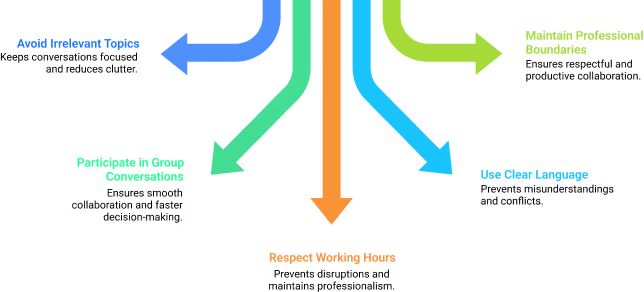
1. Don’t Bring Up Irrelevant Topics
One major advantage of team messengers is instant access to colleagues. However, this convenience can quickly become a distraction if conversations drift off-topic.
Avoid:
- Turning work channels into casual chat rooms
- Starting discussions unrelated to the task or agenda
- Letting side conversations grow into long threads
Why it matters:
Irrelevant messages reduce focus and clutter important work-related conversations, especially in busy channels.
2. Don’t Stay Silent in Group Conversations
If you’re part of a team channel, there’s a reason for it. Staying completely silent can slow decision-making and give the impression of disengagement.
Do this instead:
- Acknowledge messages when required
- Share brief updates or feedback
- Ask clarifying questions when needed
Active participation helps teams collaborate better and keeps communication flowing smoothly.
3. Avoid Messaging at Odd or Inappropriate Hours
Team messengers make it easy to contact anyone at any time but that doesn’t mean you should.
Best practices:
- Know the difference between urgent and important
- Respect working hours and time zones
- Use delayed or scheduled messages if available
Unless it’s critical, avoid messaging colleagues late at night or early in the morning. Team messengers are work tools not social chat apps.
4. Be Careful with Your Choice of Words
Written messages can easily be misunderstood. Without tone or facial expressions, even a harmless message can come across the wrong way.
Avoid:
- Informal or inappropriate language
- Messages that sound aggressive or dismissive
- Emotional responses typed in haste
Always read your message once before sending. Professional, clear language helps prevent confusion and conflict.
5. Don’t Get Too Personal
Instant messaging feels informal, which can cause conversations to become overly personal very quickly.
Remember:
- Keep discussions professional
- Avoid personal opinions or sensitive topics
- Stay focused on work-related communication
Maintaining professional boundaries ensures respectful and productive collaboration across teams.
Why Messaging Etiquette Matters?
When used correctly, team messengers improve collaboration, speed up decisions, and reduce unnecessary meetings. When misused, they can become distracting and counterproductive.
Platforms like Microsoft Teams work best when paired with clear communication norms and good etiquette especially in remote and hybrid work environments.
Quick Summary
Using team messengers effectively requires focus, professionalism, and respect for boundaries. Avoid irrelevant conversations, silence, poor timing, careless wording, and overly personal messages especially when using tools like Microsoft Teams for daily work communication.
Explore modern digital workplace solutions that help teams communicate better, collaborate smarter, and stay aligned no matter where they work from.
5 Things to Avoid When Using a Team Messenger at Work
Team messaging tools like Slack, Flock, and Microsoft Teams have completely transformed workplace communication.

You've just arrived at the office, booted up your computer or laptop, and filled your first cup of coffee. You sit back down, take a sip, and what do you see? Chances are it's a login screen. Hastily, you type in your username and password and get on with a productive day.
At least that was the idea, until you remember you forgot to send Karen from HR your vacation request form. You try to reach her by email but to no avail, so you boot up the informal messenger that everyone in the office uses because the legacy messenger set up years ago crashes when you send so much as an emoji. But of course, you once again need to type in your login info, only to see that Janice is not online. So ultimately you end up making two trips to HR (on the first trip, you forgot to staple your vacation balance because the document is stored in a separate internal SharePoint) to finally get your vacation approved. Ready to throw your computer out a window yet? We don't blame you.
This scenario may seem comical, but it's a reality that thousands of employees must endure thanks to the lack of a single, unified digital workspace. Preferably one that can be implemented across your entire organization and serve as a hub for all documents and teams to collaborate, within and across projects.
After reading this infographic, you'll learn how each department within your business can utilize Microsoft Teams to become more efficient, store documents securely, and collaborate seamlessly with any peer or colleague.
Microsoft Teams helps businesses become more efficient by enabling improved collaboration, horizontal work methods, and organized, easily accessible information. It also helps them to accelerate decision making by sharing information in the moment and with context, empowering people to quickly make well-informed choices.
Read below to learn how all your departments can use Teams to deliver organization-wide value.
Human Resources
HR departments can use Teams to effectively manage recruitment, training, and reviews across administrative areas, as well as to establish meetings with candidates and peers.
Sales
Teams is a crucial tool for sales reps to communicate when in the field or during meetings and deliver real-time reporting on customer cases from anywhere in the world.
Marketing
Teams provides a creative hub where creative ideas and strategies can evolve into revenue-generating initiatives.
Finance
Financial departments benefit greatly from Teams’ security and integration features, which helps their information remain safe and easily accessible whenever they need it.
Engineering
Teams can allow engineering departments to move quickly between ideation, development and deployment phases, as well as easily integrate developer tools.
Project Management
PMs can effectively use Teams to manage stakeholders, tools, budgets, project reviews, and feedback.
Information Technology
Teams increases the efficiency of IT departments and allows them to focus on their organization’s digital transformation and technological innovation.
Ready to streamline your business processes and foster a collaborative workspace that is efficient, secure, and user-friendly? It's time to revolutionize the way your teams work together.
Reach out to a Microsoft Teams Expert today to start leveraging the unmatched capabilities of integrated, intelligent collaboration tools in your business landscape.

Empower your entire organization with Microsoft Teams
You've just arrived at the office, booted up your computer or laptop, and filled your first cup of coffee. You sit back down, take a sip, and what do
Microsoft Teams is no longer just a chat tool. For many organizations, it has become the central workspace for collaboration, communication, and information sharing. As Teams becomes the primary workspace for many organizations, it often connects back to how internal sites and content are structured. Understanding how a SharePoint site is created helps teams design a smoother experience between Teams and their intranet.
When used effectively, Microsoft Teams helps teams reduce app switching, improve meeting efficiency, and keep work flowing without friction. Instead of juggling emails, documents, meetings, and third-party tools, everything comes together in one place.
This guide explains how Microsoft Teams helps streamline solutions, why it saves time, and how organizations can get real value from it.
Why Microsoft Teams Is the Hub for Modern Work
The biggest challenge at work today isn’t lack of tools.
It’s too many tools.
Microsoft Teams addresses this by acting as a single workspace where people can:
- Communicate in real time
- Collaborate on documents
- Meet, chat, and share updates
- Access apps and workflows without switching platforms
This shift alone has a measurable impact on productivity.

How Microsoft Teams Saves Time Every Day
1. Fewer App Switches, More Focus
Context switching is one of the biggest productivity killers. Moving between apps breaks concentration and slows progress.
With Microsoft Teams:
- Chats, meetings, files, and apps live together
- Documents open directly inside Teams
- Conversations stay connected to the work itself
Result: Less time searching, more time doing.
2. Real Productivity Gains for Information Workers
Studies and real-world usage show clear time savings.
For an information worker, Microsoft Teams helps save:
- Around 5 minutes per day by reducing app switching
- 1.1 to 8 hours per user per week through more efficient meetings, faster access to information, and better collaboration
Those minutes add up quickly across teams and departments.
3. More Efficient Meetings (That Actually End on Time)
Meetings often run long because people:
- Can’t find the right files
- Join without context
- Follow up in separate tools later
Microsoft Teams improves meetings by:
- Keeping agendas, notes, and files in one place
- Allowing real-time collaboration during calls
- Storing meeting recordings and chat automatically
Meetings become part of the workflow, not a disruption to it.

Collaboration Without Friction
Microsoft Teams fosters a collaborative culture by making sharing effortless.
Instead of emailing files back and forth:
- Teams work on the same document together
- Feedback happens in context
- Decisions are visible to everyone involved
This kind of frictionless collaboration often turns good ideas into exceptional outcomes, simply because teams can move faster and stay aligned.
Microsoft Teams as a Central Solution Hub
Teams is most powerful when it becomes the entry point for daily work.
Organizations use Microsoft Teams to:
- Centralize internal communication
- Surface key documents and resources
- Integrate business apps and workflows
- Support remote and hybrid collaboration
This is why many companies combine Microsoft Teams with SharePoint-based intranets and digital workplaces.

Streamlining Information Sharing with Teams + SharePoint
Microsoft Teams and SharePoint work best together when paired with a well-structured intranet.
- Teams handles conversations and collaboration
- SharePoint manages structured content and sites
When combined properly:
- Employees find information faster
- Content stays organized
- Teams becomes the front door to knowledge
Looking at modern SharePoint intranet templates can give a clearer picture of how content, navigation, and collaboration fit together.
Best Practices to Get Real Value from Microsoft Teams
To truly streamline solutions with Microsoft Teams:
- Keep channels purpose-driven and clearly named
- Store files in the right Teams and folders
- Reduce duplicate apps and tabs
- Integrate Teams into daily workflows, not just meetings
- Review and clean up unused Teams regularly
Teams works best when it’s intentional, not cluttered. Just like Teams channels, intranet content needs regular attention. A simple SharePoint intranet maintenance checklist can help keep information accurate, relevant, and easy to trust over time.
Why Microsoft Teams Fits the Future of Work
As work becomes more digital, distributed, and fast-moving, tools need to:
- Reduce friction
- Improve visibility
- Support collaboration without complexity
Microsoft Teams does this by bringing people, content, and conversations together—helping teams focus on outcomes instead of tools.
Final Thoughts
Microsoft Teams helps organizations save time, collaborate better, and simplify work by acting as a single, connected workspace.
The biggest value doesn’t come from using more features.
It comes from using Teams as the central place where work happens.
When communication, information, and collaboration live together, productivity naturally follows.

Microsoft Teams Collaboration: How to Streamline Work and Save Time
Microsoft Teams is no longer just a chat tool. For many organizations, it has become the central workspace for collaboration, communication, and information sharing.

Microsoft plans to roll out an updated meeting experience, which will enable users to have conversations and calls in separate Windows during Teams meetings. In a Microsoft 365 Roadmap document, Microsoft confirmed that the feature is now timed for roll out beginning in June:
Multi-window experiences are coming to Teams meetings and calling. Users will have the ability to pop out meetings and calling into separate windows to help them optimize their workflow. These experiences can be turned on directly within Teams for PC and Mac clients.
In addition, Microsoft says that the upcoming Teams update will allow you to pin meeting controls such as mute, video, chat, leave, and others to the top of your screen. With this change, the Redmond giant aims to ensure that the meeting and call controls never block the underlying content.

1.Click on Avatar on top right of Teams and click Settings.

2.Check the Turn on new calling and meetings experiences check box and then restart the Teams client.

While the existing current meeting experience will be retired later this year, Microsoft has provided a timeline as to when we should expect the new experiences to be enabled:
- June – New experiences are available and users can enable through settings.
- July – Experiences are enabled by default and users can disable through settings.
- August – Experiences are enabled by default and user controls are no longer available.

Microsoft Teams to get new meeting and calling experience in June
Microsoft plans to roll out an updated meeting experience, which will enable users to have conversations. and calls in separate Windows
This infographic lists the many ways you can use Microsoft Teams to drive workplace collaboration. It also provides statistics on the success and popularity of Microsoft Teams.

Drive workplace collaboration through one digital hub where teams can meet, call, and chat. Use Microsoft Teams to have instant conversations with members of your staff or guests outside your organization.
You can also make phone calls, host meetings, and share files.
- 20M+ daily active users
- 5,00,000+ organizations use teams
- 91 Fortune 100 companies use teams
- Teams is in 181 markets with support for 53 languages(and growing)
- 200+ organizations have 10,000+ active Teams users
Before we transitioned to remote working, we had approximately 30 Teams meetings a day. Now it’s up to 500 a day. We’re all working better together to continue to provide amazing customer support and simplify health services for our members in a challenging time.
Dennis Armstrong, Enterprise Messaging Engineer
Premera Blue Cross

Collaborate with Microsoft Teams
This infographic lists the many ways you can use Microsoft Teams to drive workplace collaboration. It also provides statistics on the success and popularity of Microsoft Teams.



.svg)





