Tech Ideas & Best Practices
In this blog post, we’ll walk through how to manually upload an Intuit Interchange Format (IIF) file to a SharePoint document library and automatically parse its contents to create list items in a SharePoint list using Power Automate. This can be especially useful when working with QuickBooks for data exports.
Scenario Overview
1. Manually upload an IIF file to a SharePoint document library.
2. Trigger a Power Automate flow when the file is uploaded.
3. Read and parse the file content.
4. Extract relevant data (e.g., transaction details).
5. Create items in a SharePoint list based on the data.
Step 1: Set Up SharePoint Library and List
Document Library
1. Create a new library (e.g., "Time Tracker Excel Docs").
2. Assume we are uploading the file contains the values for the below fields,
- Date
- Type
- Amount
- Account
- Name
- Memo
3. Based on the above fields, create a necessary column in SharePoint list." Include Column Name along with type of column.
SharePoint List
1. Create a new SharePoint list (e.g., "IIF Uploads Data").
2. Define necessary columns like:
- Date
- Type
- Amount
- Account
- Name
Step 2: Uploading the IIF File
1. Users to manually upload .iif files to the “Time Tracker Excel Docs” library.
2. Example file name (e.g., Invoices_2025.iif).
Step 3: Create Power Automate Flow
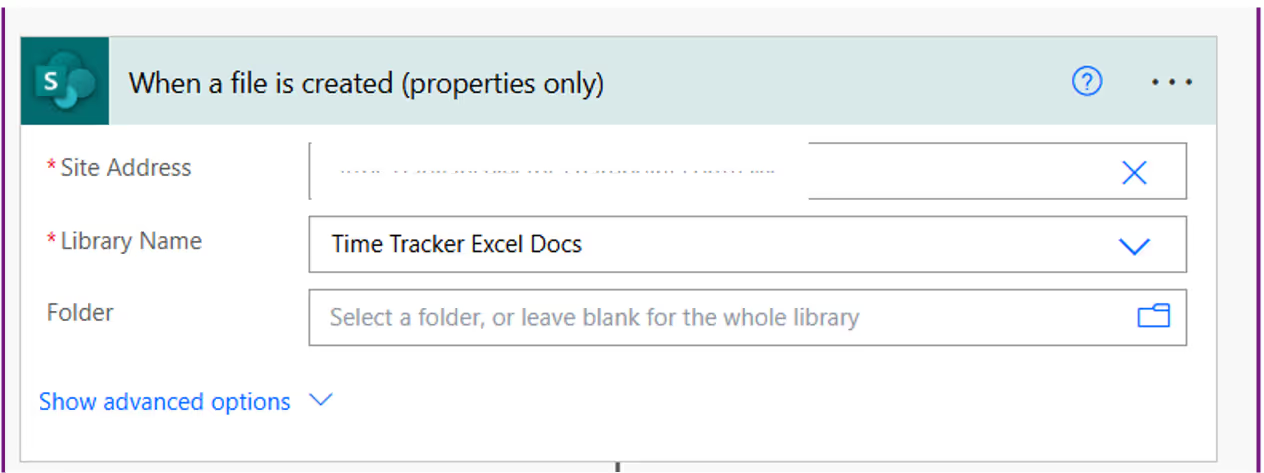
1. Trigger Action
Use “When a file is created (properties only)” to trigger the document library.
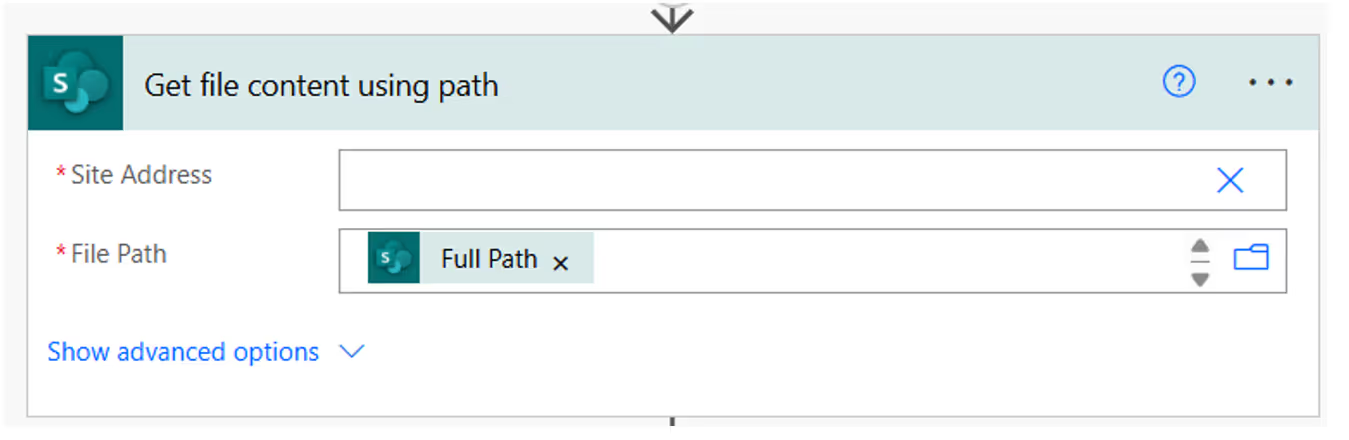
2. Get File Content
- Action: “Get file content”
- Use the Identifier from the trigger step.
3. Convert File Content from Base64 to String
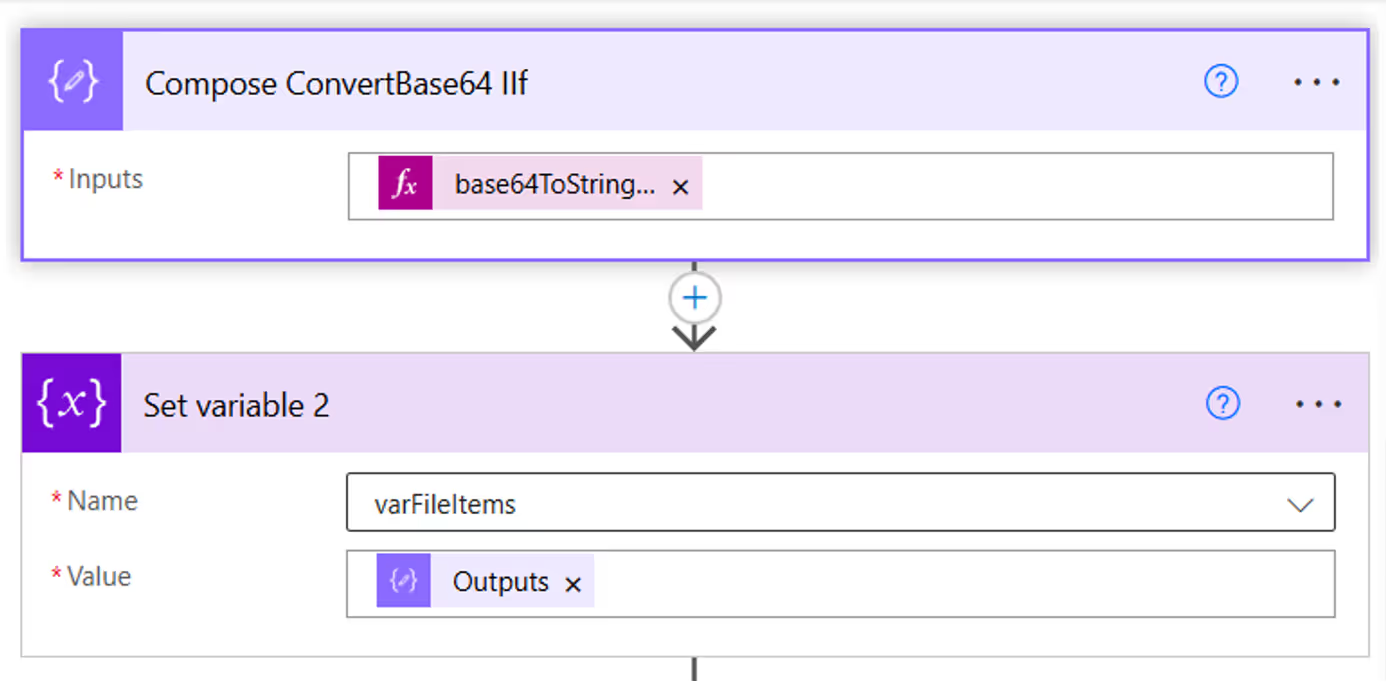
- Action Name: ‘Compose ConvertBase64 IIF’
- Description: This Compose action decodes the base64 content of the uploaded .iif file into a readable string format.
- Expression Used: base64ToString(body('Get_file_content')?['$content'])
- Create an 'Initialize variable' action named 'varFileItems' with the type set to 'String' and use a 'Set variable 2' action to assign the output of the 'Compose' action to it.
- Get file content is the action where the file content is fetched from the SharePoint library.
- base64ToString() is the expression that converts the base64-encoded file content into plain text.
Automate IIF File uploads and data extraction with Power Automate and SharePoint
In this blog post, we’ll walk through how to manually upload an Intuit Interchange Format (IIF) file to a SharePoint document library

In today’s fast-paced work environment, keeping everyone updated with the latest news and announcements is crucial. With Power Automate, you can streamline the process of creating news posts in SharePoint directly from Outlook emails. This automation saves time and ensures that important information is shared quickly and efficiently. This blog walks you through the steps to set up this efficient integration.
What You’ll Need
- Power Automate: Included with most Microsoft 365 plans for creating automated workflows.
- SharePoint Site: The destination site where your news articles will be published.
- Outlook Account: A Microsoft 365 Outlook account to receive emails.
Step-by-Step Guide to Create Your Flow
Step 1: Set Up the Trigger
Begin by signing in to Power Automate and creating a new flow using the "When a new email arrives" trigger from Outlook. You can set specific conditions to filter the emails that will initiate the flow, such as emails with a particular subject line (e.g., "News Update")

Step 2: Extract Content and Attachments
After setting the trigger,
Outlook Attachments:
- Add a "Get Attachment (V2)" action to set the "Message Id" and “Attachment Id” in the action.
- Use an "Apply to each" action to iterate through the attachments.
- Add a "Create file" action to store the Outlook attachment(image.png) in SharePoint, specifying the Site Address, Folder Path, File Name, and File Content. Then, use a "Get files (properties only)" action to retrieve the properties of the uploaded image for use in the news post.


From Inbox to Intranet: Automate SharePoint News Posts in Real-Time
In today’s fast-paced work environment, keeping everyone updated with the latest news and announcements is crucial.

In your Microsoft 365Tenant, there may be a lot of workflows running numerous times every day some execute automatically, some follow a schedule, and others trigger instantly upon user requests. Additionally, Desktop Flows are used to integrate with legacy systems. As a result, multiple workflows operate simultaneously to meet various requirements.
With many workflows running, several challenges arise:
- Monitoring each flow is time-consuming.
- Validating execution times can be complex.
- Flow owners receive summary notifications for failed workflows but must manually check each one to diagnose issues.
To overcome these challenges, Microsoft introduced the Automation Center.
What is a Power Platform Automation Center?
The Automation Center in Power Platform is a central hub for tracking and managing automation in Power Automate. It helps different users, like creators, operators, CoE team members, and business analysts, to oversee and improve their automation processes. With a clear, all-in-one view of automation data, it makes it easier to gain insights and improve the efficiency of their automation workflows.
Key Features of the Automation Center
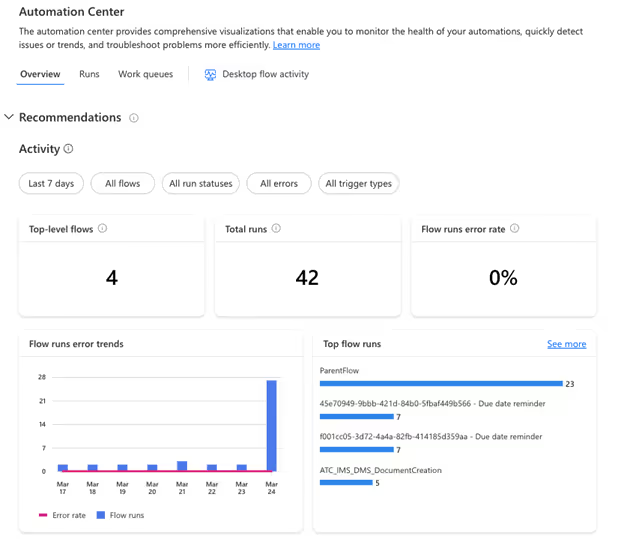
- Overview Tab: The Overview tab in the Automation Center gives you a clear, high-level view of their automation performance. It tracks all related cloud and desktop flow runs, allowing you to monitor the entire process from start to finish. With insights on total runs, success rates, and key performance metrics, you can quickly identify trends, ensure smooth operations, and optimize workflows for better efficiency.
- Runs and Process Map Pages: These pages provide clear visuals and data on your cloud and desktop automation runs, helping you quickly see if your workflows are successful or need attention. With detailed insights into each step, business users can make informed decisions to improve efficiency and ensure smooth operations.

- Recommendations: The Automation Center provides proactive and reactive suggestions to enhance the reliability, efficiency, and general health of your automation. These recommendations follow the best practices and offer actionable insights to improve your workflow.
- Integrated Copilot: The Automation Center includes an integrated copilot that assists you in navigating the platform and optimizing their automation processes. The copilot provides guidance and support, making it easier for you to manage their workflows effectively.

- User-Friendly Interface: With its intuitive dashboard and user-friendly interface, the Automation Center enables users to access and analyze automation-related data effortlessly. The platform's design ensures that users can quickly find the information they need and take appropriate actions to optimize their workflows.

Boosting Your Business with the Automation Center in Power Platform
In your Microsoft 365 Tenant, there may be a lot of workflows running numerous times every day some execute automatically,

Migrating OneNote pages to SharePoint as documents can be a tedious task when done manually. In this blog, I will explain a step-by-step process to automate the migration using Power Automate.
Note: Images inside OneNote pages cannot be migrated using this method. A different approach and some manual works are required for that.
Step-by-Step Automated Migration Flow
1. Trigger: Manual Trigger
I have used a manual trigger for this flow, but you can modify it as per your needs. Additionally, I have initialized two variables to store the notebook key and section key.

2. Get OneNote Notebooks
I used the "Get recent notebooks" action to fetch the available notebooks and added a condition to select only one notebook, storing its key in a variable. If needed, you can loop through all the notebooks instead.


Automating OneNote to SharePoint Migration Using Power Automate’s OneNote Actions
Migrating OneNote pages to SharePoint as documents can be a tedious task when done manually.

In today's fast-paced business environment, efficiency and agility are paramount. Organizations across industries are constantly seeking ways to optimize their workflows, reduce manual tasks, and improve decision-making processes. One area that often requires significant attention is the approvals process. Whether it's expense reports, time sheets, travel requests, procurement orders, or sales discounts, approvals are integral to business operations.
Microsoft Power Automate has introduced new Business Approvals Templates designed to revolutionize how organizations handle approvals. These no-code templates are built on the robust Microsoft Power Platform, enabling businesses to quickly create sophisticated approval workflows without the need for extensive technical expertise.
In this blog post, we'll delve into an overview of these new templates, explore their key features, and provide use cases to illustrate how they can transform your organization's approval processes.
Why Automate Approvals with Power Automate?
Before we dive into the templates themselves, it's essential to understand the benefits of automating approvals:
- Increased Efficiency: Automation reduces the time spent on manual approval processes, speeding up decision-making.
- Enhanced Transparency: Automated workflows provide visibility into the status of approvals, ensuring accountability.
- Improved Accuracy: Reducing manual intervention minimizes errors and ensures consistent application of approval policies.
- Scalability: Automated processes can easily adapt to growing business needs without additional overhead.
Overview of the Business Approvals Templates
The new Business Approvals Templates in Power Automate are pre-configured workflows that cater to common approval scenarios. They leverage the combined power of Power Apps and Power Automate to deliver a seamless approvals experience. Here's what makes these templates stand out:
- No-Code Solution: Designed for users without technical backgrounds, allowing anyone in the organization to set up and manage approval workflows.
- Customizable: While ready to use out-of-the-box, the templates can be tailored to meet specific business requirements.
- Feature-Rich: Equipped with advanced capabilities like multi-stage approvals, delegation, and conditional branching.
Key Features and Their Use Cases
1. Configure Multi-Stage Approvals
Feature Overview: Set up approval processes that require multiple levels of authorization. Each stage can have its own set of approvers and conditions.
Use Case:
- Procurement Orders: A purchase over $10,000 might require department head approval, followed by finance department approval.
- Expense Reporting: Expenses above a certain threshold may need to go through additional scrutiny.
Benefits:
- Ensures compliance with internal policies.
- Streamlines complex approval hierarchies.
2. Delegate Approvers
Feature Overview: Allow approvers to delegate their approval authority to another individual, either temporarily or permanently.
Use Case:
- Out-of-Office Scenarios: An approver going on vacation can delegate approvals to a colleague.
- Workload Management: High-level executives can delegate routine approvals to their assistants.
Benefits:
- Prevents bottlenecks due to unavailable approvers.
- Maintains workflow continuity.
3. View Approvals Progress and History
Feature Overview: Track the status of approvals in real-time and access historical data for completed processes.
Use Case:
- Audit Trails: Compliance teams can review approval histories for regulatory purposes.
- Status Updates: Employees can check where their requests stand in the approval process.
Benefits:
- Enhances transparency across the organization.
- Facilitates better communication among stakeholders.
4. Manage Out-of-Office for Approvers
Feature Overview: Automate the redirection of approval tasks when approvers are unavailable.
Use Case:
- Holiday Seasons: Automatically route approvals to alternative approvers during public holidays.
- Unexpected Absences: Ensure approvals continue smoothly even when an approver is suddenly unavailable.
Benefits:
- Eliminates delays in the approval process.
- Ensures critical decisions are not held up.
5. Support for Versions of Approval Processes
Feature Overview: Maintain different versions of approval workflows to accommodate changes in business policies or organizational structure.
Use Case:
- Policy Updates: Implement new approval steps when company policies change.
- Organizational Changes: Adjust workflows when departments are restructured.
Benefits:
- Provides flexibility to adapt to business changes.
- Keeps approval processes up-to-date without starting from scratch.
6. Publish Version Approval Workflow
Feature Overview: Easily publish and manage different versions of approval workflows.
Use Case:
- Testing New Workflows: Pilot a new approval process with a select group before organization-wide deployment.
- Rollback Capability: Revert to a previous version if the new process doesn't meet expectations.
Benefits:
- Reduces risk when implementing changes.
- Facilitates continuous improvement of workflows.
7. Handle Workdays and Public Holidays
Feature Overview: Configure workflows to account for non-working days, ensuring deadlines and escalations are appropriately managed.
Use Case:
- Deadline Management: Adjust approval deadlines to skip weekends and holidays.
- Service Level Agreements (SLAs): Ensure compliance with SLAs that specify business days.
Benefits:
- Prevents missed deadlines due to non-working days.
- Aligns approval processes with organizational calendars.
Real-World Scenarios
To further illustrate the impact of these templates, let's explore some real-world scenarios:
Scenario 1: Streamlining Expense Approvals
Challenge: A company requires all employee expenses over $1,000 to be approved by a manager and any expenses over $5,000 to be approved by the finance director.
Solution:
- Utilize the Multi-Stage Approvals feature to set up a two-tier approval process.
- Configure conditions to automatically route expenses to the appropriate approvers based on the amount.
Outcome:
- Reduced processing time for expense approvals.
- Improved compliance with financial policies.
Scenario 2: Managing Approvals During Holidays
Challenge: During the end-of-year holiday season, many approvers are out of office, causing delays in purchase order approvals.
Solution:
- Implement the Manage Out-of-Office feature to automatically delegate approvals to designated alternates.
- Use the Handle Workdays and Public Holidays feature to adjust deadlines.
Outcome:
- Continuous approval flow despite staff absences.
- No disruption in procurement activities.
Scenario 3: Adapting to Organizational Changes
Challenge: Following a merger, the company needs to update its approval processes to align with new corporate policies.
Solution:
- Leverage the Support for Versions of Approval Processes to create new workflows.
- Use the Publish Version Approval Workflow to roll out changes gradually.
Outcome:
- Smooth transition to new approval policies.
- Minimal disruption to daily operations.
Getting Started with the Business Approvals Templates
Step 1: Access the Templates
- Log in to Power Automate.
- Navigate to the Templates section and search for Business Approvals.
Step 2: Choose a Template
- Select the template that best fits your approval scenario.
- Templates are categorized based on common business needs.
Step 3: Customize the Workflow
- Use the intuitive interface to add or modify approval stages.
- Set conditions, notifications, and assign approvers.
Step 4: Test the Workflow
- Run test scenarios to ensure the workflow operates as intended.
- Make adjustments as necessary.
Step 5: Deploy and Monitor
- Publish the workflow for your organization.
- Monitor progress and gather feedback for continuous improvement.
Conclusion
The new Business Approvals Templates in Power Automate offer a powerful, no-code solution to streamline approval processes across your organization. By leveraging these templates, you can:
- Reduce manual workload and increase efficiency.
- Ensure compliance with internal policies and external regulations.
- Enhance transparency and accountability.
- Adapt quickly to changes in business needs.
Empower your teams to focus on strategic tasks rather than administrative hurdles. Start exploring the Business Approvals Templates today and take a significant step toward operational excellence.
Additional Resources

Streamlining Business Approvals with Power Automate's New Templates
In today's fast-paced business environment, efficiency and agility are paramount. Organizations across industries are constantly seeking ways to optimize their workflows,

When working with Power Automate and SharePoint, managing time zones can be a complex task. Whether you're scheduling tasks, automating workflows, or simply trying to display the correct time on a SharePoint list, handling time zones correctly is crucial for ensuring your data is accurate and your workflows run smoothly. In this blog, we'll explore common challenges and provide step-by-step solutions to effectively manage time zones in Power Automate.
Understanding the Time Zone Challenge
SharePoint stores date and time values in Coordinated Universal Time (UTC). While this is great for consistency, it can cause issues when users in different time zones access the data. For example, a task due at 5 PM UTC will display differently for users in New York, London, and Tokyo. Power Automate, being a versatile tool, provides sever always to handle these discrepancies.
Step-by-Step Guide to Handling Time Zones in Power Automate
Step 1: Capture the Time Zone
First, it's essential to capture the user's time zone. This can be done in various ways, such as setting Regional Settings from Site Administration in Site Settings.
1. Create a SharePoint Site & List for Time Zones:
- Create a new Site called "SPDDEMO."
- Create a new list in SharePoint called "TimeZone."
- Add columns for "User" (Person or Group) , "SatartDateAndTime" (Date Picker), "EndDateAndTime" (Date Picker).
2. Set the TimeZone:
- Settings > Site Information > View all site settings > Site Administration > Regional Settings
- Set the Time zone & Region accordingly you want.
Step 2: Retrieve the Time Zone in Power Automate
Use Power Automate to retrieve the user's time zone when the workflow runs.
1. Get List Item:
- Add a "Get items" action to retrieve the user's time zone from the "TimeZone" list.

- Add a "Send Http request to SharePoint" action to retrieve the regional time zone from the " SPDDEMO " site.
- Add method GET and Uri as _api/web/regionalSettings/Timezone
2. Get Time Zone:

3. Simplify the output using Parse JSON
- Pass the above output Body through Parse JSON to get simplify output.

4. Change the sign of Bias:
- Use one compose and called “Compose SPDDEMOBias”.
- To Change the Bias received from the Parse JSON multiply it with -1(Minus one)
- Use function: mul(body('Parse_JSON_SPDDEMO_Regional_Time_Setting')?['d']?['Information']?['Bias'],-1)

Step 3: Convert UTC to the User's Time Zone
Convert the UTC time to the user's time zone in Power Automate using simple add Minutes function and Bias.
1. Add a Compose Action:
- Add addMinutes function and the Bias as to be added minutes and then format ‘M/dd/yyyy h:mm tt’ to the get list items in “TimeZone” list like “StartDateAndTime” , “EndDateAndTime”,” Created”, “Modified” etc.
- Use function: addMinutes(outputs('Get_item_SPDDEMO')?['body/Created'],outputs('Compose_SPDDEMO_Bias'),'M/dd/yyyy h:mm tt')


Navigating Time Zones in Power Automate with SharePoint: A Comprehensive Super Change Guide
When working with Power Automate and SharePoint, managing time zones can be a complex task. Whether you're scheduling tasks, automating workflows,

In today's digital age, organizations are continually seeking ways to streamline operations, enhance productivity, and improve user experiences. Leveraging artificial intelligence (AI) to enhance SharePoint forms and workflows presents a strategic opportunity to achieve these objectives. By integrating AI capabilities, businesses can automate repetitive tasks, enhance data accuracy, and gain predictive insights, there by transforming how they operate.
This blog will delve into the power of AI in SharePoint, explore practical applications across various business scenarios, and provide detailed examples of AI-enhanced workflows. We will cover the following sections:
1. The Power of AI in SharePoint
Artificial intelligence is revolutionizing how organizations handle data and automate processes. In SharePoint, AI can be used to create smarter forms and workflows that streamline various business processes. AI capabilities, such as natural language processing (NLP), machine learning, and cognitive services, can be integrated into SharePoint through tools like Microsoft Power Automate and Azure AI.
By embedding AI into SharePoint, organizations can achieve:
- Automated Data Processing: AI can automate the extraction, classification, and validation of data, reducing manual efforts and increasing accuracy.
- Predictive Analytics: AI models can analyze historical data to provide predictive insights, helping businesses make informed decisions.
- Enhanced User Experience: AI-powered features like natural language input and intelligent recommendations make forms easier to complete and more intuitive.
2. Leveraging Microsoft Power Automate
Microsoft Power Automate is a powerful tool that allows users to automate workflows between various apps and services. It enables the synchronization of files, the collection of data, and the automation of notifications. By incorporating AI ,Power Automate can significantly enhance these workflows.
Copilot-Assisted Automation
Power Automate’s Copilot feature leverages AI to assist in creating and managing workflows using natural language inputs. This capability allows users to build complex automation processes without extensive coding knowledge. For instance, users can describe the desired workflow in natural language, and Copilot will generate the necessary automation steps.
Intelligent Document Processing
AI Builder, a feature within Power Automate, enables the integration of AI models into workflows. It can be used to process documents, extract data, classify information, and even translate content. This is particularly useful for automating tasks like invoice processing, contract management, and customer support.
3. Enhancing SharePoint Forms with AI
Integrating AI into SharePoint forms can enhance their functionality and user experience. Here are a few ways to do this:
AI-Powered Search and Recommendation
AI models can enhance search capabilities within SharePoint forms. For example, Azure Machine Learning can be used to build a recommendation engine that suggests relevant documents or data based on user input. This can help users quickly find the information they need.
Natural Language Processing (NLP)
NLP capabilities can be integrated into SharePoint forms to allow users to interact with them using natural language. This can improve the user experience by making forms easier and faster to fill out. For instance, users can describe their needs in natural language, and the form will auto-fill the appropriate fields.
4. Using Azure AI Services
Azure AI offers a comprehensive suite of tools that can be integrated into SharePoint for advanced AI functionalities. These services include Azure AI Studio, Azure Cognitive Services, and more.
Azure AI Studio
Azure AI Studio is a unified platform for developing generative AI solutions. It can be used to create AI models that provide real-time insights and analytics, which can be embedded into SharePoint forms and workflows. This helps organizations leverage their data to gain actionable insights.
Azure Cognitive Services
Azure Cognitive Services provides a range of AI capabilities, including speech-to-text, text-to-speech, language understanding, and more. These services can be integrated into SharePoint to enhance form interactions and automate data processing. For example, speech-to-text can be used to transcribe audio inputs into text fields within forms.
5. Integrating Azure Open AI Studio
Azure OpenAI Studio brings the power of advanced generative AI models like GPT-4 to SharePoint, enabling new capabilities that were previously unimaginable. By integrating Azure OpenAI Studio, organizations can create highly intelligent and interactive forms and workflows.
Generative AI for Enhanced User Interaction
With Azure Open AI Studio, you can develop generative AI models that understand and generate human-like text. This capability can be used to create more interactive and intuitive SharePoint forms. For instance, forms can auto-generate responses based on user inputs, provide detailed explanations, and even offer suggestions for completing tasks.
Advanced Analytics and Insights
Azure OpenAI Studio can be used to analyze large datasets and generate insights that can be embedded into SharePoint workflows. For example, a generative AI model can analyze customer feedback data and provide a summary of key trends and sentiments, helping businesses make data-driven decisions.
Automating Complex Workflows
Generative AI models from Azure OpenAI Studio can automate complex workflows by understanding context and making decisions based on patterns in the data. This can significantly reduce the time and effort required to manage workflows and improve overall efficiency.
6. Leveraging Microsoft Copilot Studio
Microsoft Copilot Studio is designed to help organizations harness the power of AI to transform their business processes. It allows users to create custom AI models that integrate seamlessly with Microsoft 365 and other Microsoft tools.
Personalized AI Models
Copilot Studio enables the creation of personalized AI models that can be tailored to specific business needs. These models can understand and process natural language, making it easier to automate tasks and improve efficiency.
Enhancing Collaboration
Copilot Studio can enhance collaboration by providing AI-driven insights and recommendations within Microsoft Teams and other collaboration tools. This helps teams stay aligned and make better decisions.
Streamlining Processes
With Copilot Studio, organizations can streamline processes by automating repetitive tasks and providing AI-driven support for complex workflows. This reduces the workload on employees and allows them to focus on higher-value activities.
7. Practical Applications and Detailed Examples
Here are detailed examples of how AI can enhance SharePoint forms and workflows across various business scenarios:
Example 1: Expense Report Automation
Scenario: Employees submit expense reports through a SharePoint form.
AI Enhancements
Receipt Scanning: Use Azure Cognitive Services to automatically scan and extract data from uploaded receipts.
Expense Categorization: AI models classify expenses into categories (e.g., travel, meals, accommodation)based on the extracted data.
Policy Compliance Check: An AI engine checks the submitted expenses against company policies and flags any discrepancies.
Workflow
- Employee submits an expense report with receipts.
- AI extracts and categorizes expense data using Azure Cognitive Services.
- Power Automate triggers a workflow that routes the report to the finance team for review.
- AI checks for policy compliance and notifies the employee and finance team of any issues.
- Approved expenses are automatically recorded in the financial system.
Enhanced with Copilot Studio
- Personalized AI models in Copilot Studio can provide tailored recommendations for expense categorization based on historical data.
- Copilot can offer insights into spending patterns and suggest cost-saving measures.
Enhanced with Azure OpenAI Studio
- Generative AI models can provide detailed explanations and guidance on submitting accurate expense reports.
- OpenAI can automate the review process by generating summaries and insights for finance team approval.
Example 2: Customer Feedback Analysis
Scenario: Collecting customer feedback through SharePoint forms.
AI Enhancements
Sentiment Analysis: Use Azure Cognitive Services to analyze the sentiment of customer feedback.
Keyword Extraction: AI extracts key themes and topics from feedback.
Trend Analysis: Machine learning models identify trends over time to inform business decisions.
Workflow
- Customer submits feedback through a SharePoint form.
- AI performs sentiment analysis and keyword extraction using Azure Cognitive Services.
- Power Automate triggers a workflow to categorize feedback based on sentiment and keywords.
- Feedback trends are analyzed and visualized in Power BI dashboards.
- Automated alerts are sent to relevant teams if negative trends are detected.
Enhanced with Copilot Studio
- Copilot can provide real-time recommendations for responding to customer feedback.
- Personalized AI models can suggest improvements based on historical feedback data.
Enhanced with Azure OpenAI Studio
- Generative AI models can generate detailed summaries of feedback trends and provide actionable insights.
- OpenAI can automate the creation of customer response templates based on the sentiment and content of feedback.
Example 3: Employee Performance Review
Scenario: Managing employee performance reviews using SharePoint forms.
AI Enhancements
Goal Tracking: AI tracks progress on individual and team goals.
Performance Prediction: Machine learning models predict future performance based on historical data.
Personalized Recommendations: AI provides personalized training and development recommendations based on performance data.
Workflow
- Manager and employee complete performance review forms in SharePoint.
- AI tracks progress on goals and provides a summary of achievements.
- Machine learning models predict future performance and identify areas for improvement.
- Power Automate triggers a workflow to schedule follow-up meetings and training sessions.
- Personalized training recommendations are sent to the employee and manager.
Enhanced with Copilot Studio
- Copilot can provide personalized coaching tips and development plans based on individual performance data.
- AI models can generate insights into team dynamics and suggest ways to improve collaboration.
Enhanced with Azure OpenAI Studio
- Generative AI models can create detailed performance reports and highlight key achievements.
- OpenAI can provide predictive insights into future performance trends and potential areas of improvement.
Example 4: Inventory Management
Scenario: Automating inventory management processes with SharePoint forms.
AI Enhancements
Demand Forecasting: AI models predict future inventory needs based on historical sales data.
Stock Level Alerts: AI monitors stock levels and sends alerts when inventory is low.
Supplier Recommendations: Machine learning algorithms recommend suppliers based on price, delivery time, and past performance.
Workflow
- Employee submits inventory update through a SharePoint form.
- AI forecasts future demand and adjusts inventory levels accordingly.
- Power Automate triggers a workflow tore order stock when levels are low.
- AI recommends suppliers and generates purchase orders.
- Automated notifications are sent to relevant departments.
Enhanced with Copilot Studio
- Copilot can provide real-time insights into inventory trends and recommend optimal ordering times.
- Personalized AI models can predict seasonal demand fluctuations and suggest adjustments.
Enhanced with Azure OpenAI Studio
- Generative AI models can automate the creation of detailed inventory reports and supplier evaluations.
- OpenAI can generate predictive insights into potential supply chain disruptions and suggest contingency plans.
Example 5: Incident Reporting and Resolution
Scenario: Managing incident reports and resolutions in the workplace.
AI Enhancements
Incident Classification: AI classifies incidents based on type and severity.
Resolution Recommendations: Machine learning models provide recommendations for resolving incidents based on past cases.
Automated Follow-Up: AI ensures follow-up actions are taken and tracks resolution progress.
Workflow
- Employee submits an incident report through a SharePoint form.
- AI classifies the incident and assigns a severity level using Azure Cognitive Services.
- Power Automate triggers a workflow to notify the relevant response team.
- AI provides resolution recommendations and tracks progress.
- Automated follow-up actions are scheduled and tracked until the incident is resolved.
Enhanced with Copilot Studio
- Copilot can provide real-time guidance on best practices for incident resolution.
- Personalized AI models can predict the impact of incidents on operations and suggest mitigation strategies.
Enhanced with Azure OpenAI Studio
- Generative AI models can create detailed incident reports and suggest preventive measures.
- OpenAI can automate the generation of follow-up action plans and monitor their implementation.
8. Benefits of AI-Enabled SharePoint Solutions
Integrating AI into SharePoint forms and workflows offers numerous benefits:
Increased Efficiency
By automating repetitive tasks, AI reduces the time required to process forms and handle workflows. This allows employees to focus on higher-value tasks, improving overall productivity.
Enhanced Accuracy
AI models improve data accuracy by validating and cross-referencing information in real-time. This reduces errors and ensures that data is consistent and reliable.
Better User Experience
Natural language inputs and intelligent recommendations make forms easier and faster to fill out. This enhances the user experience and increases user satisfaction.
Proactive Decision-Making
AI-powered predictive analytics provide insights that help businesses make proactive decisions. This enables organizations to anticipate issues and opportunities, leading to better business outcomes.
Cost Savings
Automating processes with AI reduces the need for manual intervention, leading to cost savings. Additionally, AI-driven insights can help optimize resource allocation and reduce operational costs.
Conclusion
Integrating AI into SharePoint forms and workflows is a transformative strategy that can significantly enhance business processes. By leveraging tools like Power Automate, Azure AI, Azure OpenAI Studio, Microsoft Copilot Studio, and AI Builder, organizations can create intelligent, responsive, and efficient systems that adapt to their evolving needs.
Whether it’s automating expense reports, analyzing customer feedback, managing performance reviews, handling inventory, or resolving incidents, AI-enabled SharePoint solutions offer a wide range of benefits that drive productivity, accuracy, and user satisfaction.
For organizations looking to stay competitive in today’s digital landscape, investing in AI-enhanced SharePoint forms and workflows is a crucial step toward achieving operational excellence and business success. Explore the comprehensive resources available on Microsoft's official site and stay updated with the latest advancements in AI and the Power Platform to unlock the full potential of your SharePoint environment.
Transforming Business Processes with AI-Enabled SharePoint Forms and Workflows
In today's digital age, organizations are continually seeking ways to streamline operations, enhance productivity, and improve user experiences.
Creating a vacation approval flow and sending a notification back to there quester is a great way to streamline processes within an organization. Given your company's expertise in SharePoint, Power Platform, and AI, you can leverage Microsoft Power Automate to build this flow. Here's a step-by-step guide:
Step 1: Set Up SharePoint List
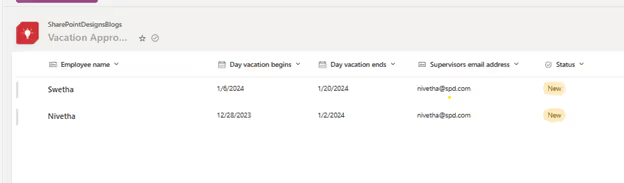
- Create a SharePoint List: Name it "Vacation Approval".
- Add Necessary Columns: Include columns for Employee Name, Start Date, End Date, Supervisor email (for approval), and Status (New, Approved, Rejected) etc.
Step 2: Create the Power Automate Flow
- Access Power Automate: Log in to your Microsoft 365 account and open Power Automate.
- Create a New Automated Cloud Flow: Choose the template “When an item is created”

Step 3: Trigger Setup
- Set SharePoint Site and List: Select the SharePoint site and the "Vacation Approval" list as the trigger. This starts the flow when a new item is added to the list.
Step 4: Approval Process
- Add an Approval Action: Search for and add the “Start and wait for an approval” action.
- Configure Approval Details: Set the Title, Assigned To (Manager’s email), Details (like vacation period), and Link to Item.

Step 5: Condition to Check Approval Status
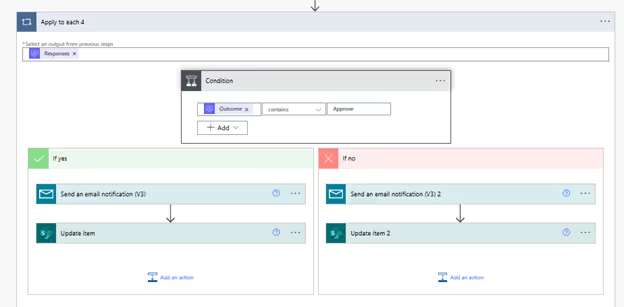
- Add a Condition: After the approval action, add a Condition to check the Outcome of the approval.
- Set Conditions: Use the dynamic content to set conditions like Outcome is equal to Approve and Outcome is equal to Reject.
Step 6: Update SharePoint List Based on Approval
- Add Actions for Approved and Rejected:
- If approved, add an action to update the SharePoint list item status to “Approved”.
- If rejected, update the item status to “Rejected”.
Step 7: Send Notification to Employee
- Add Email Action: For both Approved and Rejected branches, add “Send an email notification” action.
- Configure Email: Use dynamic content to include the Employee's email, a relevant subject, and a personalized message about the approval status.
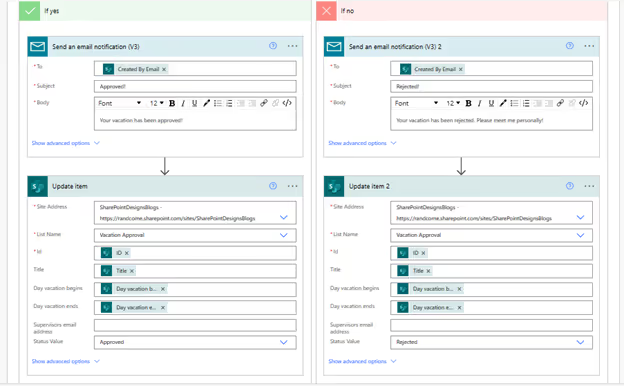
Step 8: Update SharePoint List Based on Approval
- Add Actions to Update the SharePoint List:
- In the Approved branch, after the email action, add an action to update the SharePoint list item status to “Approved”.
- In the Rejected branch, follow the email action with an update to change the status to “Rejected”.
Step 9: Save and Test
- Save Your Flow: Ensure all steps are correctly configured.
- Test the Flow: Create a test vacation request in SharePoint and observe the flow execution.
Flow results:
1. Vacation Request Email

2. Email Notification to the sender

3. List updated with Status.

Looking to revolutionize your approval processes? Connect with our expert sharepoint consultants for personalized guidance. Explore our Power Automate services to seamlessly integrate sophisticated approval workflows in SharePoint. Click here and schedule a call to elevate your business efficiency with our tailored solutions. Start your journey with us today!

How to Create a Vacation Approval Flow in SharePoint
Creating a vacation approval flow and sending a notification back to the requester is a great way to streamline processes within an organization.

Microsoft Power Automate offers a variety of powerful flows that streamline workflows and enhance productivity. With Power Automate, you can automate repetitive tasks, connect different applications, and create custom flows. Its versatility and ease of use make it the best choice for automating processes. Power Automate Desktop provides numerous examples, showcasing its capabilities, such as data integration, email automation, and document processing.
Power Automate is one of the most powerful automation tools available in the market today. It allows you to automate tasks and make them repeatable, while also giving you control over when they get done. This makes it an ideal solution for businesses that want to improve their efficiency while reducing costs through automation. The best part? You don’t need any coding experience or expertise just need some data!
Monitor files and folders in your cloud storage that need attention.
Power Automate can monitor files and folders in your cloud storage that need attention. You can monitor specific files or folders in your cloud storage, for example, you can monitor for a specific file type like an image file or even a specific size like 10mb. You can also specify whether you want to be alerted when there are changes made to this folder by any user other than yourself.
You have the option of setting up Power Automate so that it will only notify you when something happens on these monitored locations but not alert others unless they access them as well - meaning they won't get any unnecessary notifications about what happened if they aren't interested in finding out themselves!
Automate expense approval processes.
Expense approval is a manual process that involves many people and can be difficult to manage. A company's employees are spread across multiple departments, each of which handles their own expenses separately. With an automated expense approval process, you can streamline the process so that it’s easier for all employees to approve expenses without having to contact each other individually or wait until after hours when someone else might be available at the right time.
Benefits of automation include:
- Reduced costs by eliminating manual tasks like filing receipts.
- Increased efficiency through fewer errors
- Improved communication between departments
for example, if there's an incident with supplies or equipment then everyone will know immediately instead of waiting months later when someone discovers it themselves.
Route HR forms to the right people for approval and processing.
If you’re a human resources manager, it’s likely that your team is overwhelmed with forms. You may have hundreds of them to process, and they can be lost or misplaced. Or worse still, some of the people who need to fill out certain forms may not have access to the information necessary for completing them (for example, if someone has left the company). And even if you do everything right and send the form off on time and then again later when someone else needs something from it. there's still no guarantee that all relevant data will be collected before being sent off again!
Coordinate tasks and keep notes at every step when you onboard new hires.
As you know, onboarding is a critical part of any new hire's journey. And it's important to make sure the process goes smoothly and efficiently so that everyone can start working together effectively as soon as possible.
With Power Automate, you can automate the onboarding process by creating tasks for each step in your employee's career path: filling out a form, uploading their resume or portfolio etc., scheduling interviews with managers or HR representatives etc., reviewing answers from previous rounds of interviews after they've already been conducted (and making changes if necessary). You'll also be able to collect feedback from your employees on how they feel about these steps by using surveys or polls, which will help you identify problems with your current system!
Track compliance requirements and make sure they come before any project goes live automatically!
Compliance is a big deal. It’s the foundation of any well-run business, and it can be easily forgotten when you have other things to do. We all know what happens when something goes wrong: you get blamed, or worse yet, you lose clients because of your poor judgment or lack of foresight. So how do we ensure that our compliance requirements are met before our projects go live? With Power Automate!
Streamline human-led processes that involve repetitive tasks that are not standardized.
One of the best use cases for Power Automate is when you have a process that is not standardized. A good example of this is when your company has multiple subsidiaries, each with its own business processes and procedures. The goal here is to ensure that everyone follows the same standards in order to create a consistent brand image across all departments.
The first step in streamlining this type of human-led process involves creating an environment where everyone understands their role within the organization and what they need from others in order to perform their jobs effectively. This can be achieved through creating standard operating procedures (SOPs) or creating business processes based on customer needs so that every employee knows how he or she should work with other departments within your organization.
Build automated workflows to connect your files, data and processes across your entire organization.
- Build automated workflows to connect your files, data and processes across your entire organization.
- The Power Automate Platform empowers you to build workflows that connect your files, data and processes across your entire organization.
Automate and streamline document processing using computer vision technologies, including optical character recognition (OCR)
- Automate and streamline document processing using computer vision technologies, including optical character recognition (OCR)
- Extract text from images in a variety of formats
OCR is the process of extracting text from an image. With OCR, you can extract any type of information from images such as barcodes, QR codes and more. The technology has been widely used in industries such as retail management where it helps identify product prices in store shelves for better inventory control; however, it can also be used for other purposes like automatically detecting handwritten numbers on documents to prevent frauds.
Document automation is particularly useful in the United States, where Power Automate simplifies the creation and management of documents. When combined with Power BI, Microsoft's powerful business intelligence tool, Power Automate flows become even more impactful, enabling data-driven decision-making and enhancing organizational efficiency.
Access data and workflows right from where you work with Power Automate in your favorite apps like Microsoft Teams.
Power Automate is available as a web app, so you can access it from any device. You can also use the Power Automate Connector for Microsoft Teams to access your data and workflows right from where you work with Microsoft Teams.
Keep your team in sync by providing notifications and alerts when something changes.
- Send notifications and alerts to your team in Microsoft Teams, Slack or any other channel.
- Power Automate can send notifications and alerts via email or text message.
- You can use Power Automate to create a single place where you can manage all of these notifications and alerts.
Automate approval and approval-like processes
One of the best Power Automate examples is automating email notifications. With a simple flow, you can receive real-time alerts for critical emails.
With Power Automate's robotic process automation capabilities, businesses can automate repetitive tasks, freeing up time for employees to focus on value-added activities. Embracing Power Automate ensures efficient business process automation and boosts productivity.
Automation is a great way to reduce the amount of human effort required for approval processes. With Power Automate, you can automate approval and approval-like processes with ease.
One example of an automated process would be the ability to approve a purchase order on behalf of your customer without having any involvement from them at all! Another example would be if you wanted to create a new product or service offering, this would require multiple approvals from various departments within your company before it could go live.
With Power Automate’s extensive feature set, there are many ways that you can automate existing business processes by using its Predictive Intelligence capabilities as well as its built-in Workflows feature which enables users to build complex workflows simply by dragging and dropping fields onto their form elements (or adding more advanced rules).
Getting started with Power Automate is easy, so what are you waiting for?
If you're new to Power Automate, there's a good chance you've heard about it. But if not,
here's what it is:
Power Automate is a cloud-based platform that helps businesses run more efficiently and effectively by streamlining their business processes with AI technology. It uses predictive analytics to identify problems in your organization's processes before they happen and then automatically solves them. For example, if your sales team misses their targets or sends too many emails per day (which would be bad), Power Automate can tell them this so they can improve next time around!
You can also integrate Power Automate with SharePoint, streamlining document approval processes and improving collaboration. When it comes to the best Power Automate Services, Microsoft offers an extensive range, including connectors for popular apps like Salesforce, Microsoft Teams, and more.
Conclusion
I hope this article has given you some ideas about how Power Automate can help your organization. Feel free to reach out if you have any questions or want to learn more!
Read More

Top 10 Power Automate Use Cases That Transform Workflow Efficiency
Power Automate is one of the most powerful automation tools available in the market today.

Power Automate is a cloud-based service that allows users to create automated processes in Microsoft
Create a new flow
You can use Power Automate to automate any process that requires input from a user. This includes creating emails, sending messages, scheduling meetings, and more.
Add a task
Once you add a task, you can choose what type of task you want to create. There are three options available: Create a new email, send an existing email, or schedule a meeting.
Add a webhook
You can also use a webhook to trigger actions when something happens on your website. This allows you to automate things like sending emails, updating a database, or even creating a new document.
Add a trigger
A trigger is a piece of code that tells Power Automate what to do when certain events occur. Triggers are triggered by different events, such as when a user visits a webpage, clicks a button, or submits a form.
Add a workflow
Once you’ve added triggers to your flow, you can add actions to them. Actions are pieces of code that tell Power Automate how to perform a task. You can use actions to automate any process, whether it’s sending out emails, creating reports, or performing other tasks.

5 Power Automate Flows Every Beginner Should Start Using
Power Automate is a cloud-based service that allows users to create automated processes in Microsoft

About the Client
Magick Woods Export Pvt. Ltd. is a wholly-owned subsidiary of Magick Woods Ltd., Canada - one of the top manufacturers and pioneers of quality bath vanities and kitchen cabinets. Some of their customers include Home Depot, Lowes, Menards, Rona, and Home Hardware.
Project challenges
- Lack of a quality check process at the end of the production line to ensure delivery of products that meet world-class standards
- An ineffective manual tracking system involving QC inspectors - due to the unavailability of a defect identification system
- No one-stop report repository in place for the management to review the number of open defects and statuses of defects
Our Solution
SharePoint Designs developed a QC form to update the defects in the system instantly. Equipped with a camera feature, the QC Inspector could upload or capture the images of defective items. The data stored in the back-end could be used for further analysis. Furthermore, the form could be easily accessed through handheld devices like mobiles or tabs. Using Power BI, a summarised report of the defects and their status was made available for quick reviews.
Our experience in working with different MS applications like Power Apps, Power Automate, Power BI played a major role in the quick roll-out.
Business Benefits
- Power to instantly reject defective products and eliminating any of their chances of reaching the end customer
- Vast reduction of worker hours involved in updating, correcting, and verifying the documents
- Ability of the QC form to captures the total defects recorded in a day
- Easy-to-interpret Power BI-based reports that facilitates a smooth management review process

Magicwoods – QC Form
One of the top manufacturers and pioneers of quality bath vanities and kitchen cabinets. Some of their customers include Home Depot, Lowes, Menards, Rona,

Intranet, a powerful tool in the modern age helps to stay connected virtually with colleagues across the world. With the right design and content, an organization can use the intranet as an effective tool for communication. It isn’t just sharing news, business information, or management messages. Intranet can do more for business than we all imagine.
Here, we are elaborating on how Daikin, a global air conditioner manufacturing company uses the intranet as a tool to reach out to its employees. Daikin approached SharePoint Designs to redesign its intranet into an informational and engaging one.
The Home Page Contents
As we always say, we love to design SharePoint sites. Our very creative design team came up with multiple design ideas to keep the Intranet home page informative and lively. Here are the contents on the Home Page
- Unique top navigation bar: A custom extension was developed to display the top navigation bar across the site. The option consists of the Home Page, Discussion Board, Upload form, and other folder names. This allows the user to navigate across the site from any location. The top navigation displays the count of new uploads for the day.
- Welcome banner: A Personalized Welcome banner greets the logged-in user and displays the current date and time. It also provides quick links for manuals and contact details.
- Upload Form: A custom-developed upload form, using which users can create site pages. All files related to the site pages are stored in a unique folder in the document library that can be located easily.
- Discussion Board: The latest three discussion topics along with a brief description appear on the home page. Clicking on the title navigates to the discussion topic.
- Latest Uploads & Press Release: The recent four press release items and recent five uploads in all other folders are displayed on the Home Page – Press release & latest upload sections.
- Advanced search: The custom search bar is available throughout the site. The search results are refined to display results only from the site pages library. The users can easily find the information they are looking for with either a keyword search or use filters on the search bar. The results page is neatly designed with more filter options.
- Recommended Read corner: Select and featured articles are displayed in this section. This space can be utilized to display the Most viewed or liked site page for the month, announce contest winners, etc.
- Translator: To support the employee base across various countries, the intranet was designed with a translator tool. Reading the content in a language the user is comfortable has its advantages. Azure translation services are utilized and the employees can choose from the eight language options. The entire site contents, except the files, use azure translation services.
- Subscribe to periodic emails: Though the Home page is full of information, users might miss reading any important updates on the intranet. The new “Subscribe” feature allows users to stay in touch with what is happening around them. On each folder page, a subscribe option is available that the user can activate to receive an instant, daily or weekly summary of the uploads done. Using Power Automate flow, automated emails are sent to users based on their subscription frequency.
A well-built intranet plays a vital role in connecting remote teams, share knowledge and business updates. SharePoint Designs, understands the business values and envisions the complete solution. From design to deployment, we carefully plan and deliver outstanding intranets that help businesses engage with each other.

How Daikin collaborated across the globe through a simple & powerful tool - Intranet
Intranet, a powerful tool in the modern age helps to stay connected virtually



.svg)





