Tech Ideas & Best Practices
Introduction
In today’s hybrid work model, managing office attendance and allocating seats can be a real challenge, especially in shared workspaces. That’s why companies are increasingly turning to the best hybrid workplace App solutions.
Our Power Apps based Attendance & Seat Management solution helps employees book desks, track attendance, and gives managers real-time visibility into office usage. It’s more than just a seat booking app it’s a complete hybrid workplace management app built on Microsoft Power Apps.
Best Hybrid Workplace App: Smart Attendance & Seat Management with Power Apps
In today’s hybrid work model, managing office attendance and allocating seats can be a real challenge, especially in shared workspaces.

This beginner-friendly guide will introduce you to PowerApps and guide you through building a simple app. You'll learn how to choose different layouts, enable coauthoring, and use modern controls. It also covers adding data sources, designing, testing, and publishing your app, ultimately inspiring you to explore advanced features and integrations.
What is PowerApps?
PowerApps is a Microsoft tool that comes under Microsoft 365 services. This allows you to create custom apps without coding. It helps businesses automate tasks, connect with various data sources like SharePoint, SQL, Excel, and Dynamics 365, and create user-friendly apps with drag-and-drop functionality.
Step-by-Step Guide to Create a Simple PowerApps App
Step 1: Sign in to PowerApps
- Go to PowerApps website
- (https://powerapps.microsoft.com), sign in with your Microsoft account. Enter your Email ID and Password.

- Click on Create and choose Start with a blank canvas.

- Choose any one of the three layouts based on your requirements.

- Responsive Layout – Automatically adjusts to different screen sizes for a better user experience across devices.
- Tablet Layout – Best for larger screens like iPads, tablets, and desktops.
- Phone Layout – Optimized for mobile devices with a vertical scrolling design.
Which one should you choose?
- If your app will be used mostly on desktops or tablets, select Tablet Layout.
- If it’s mainly for mobile users, select Phone Layout.
- If you need a flexible design that adjusts to different screens, select Responsive Layout.
Next Step:
- Choose the layout based on your needs.
- Click Create to start designing your PowerApps application.
- Enter your App name.
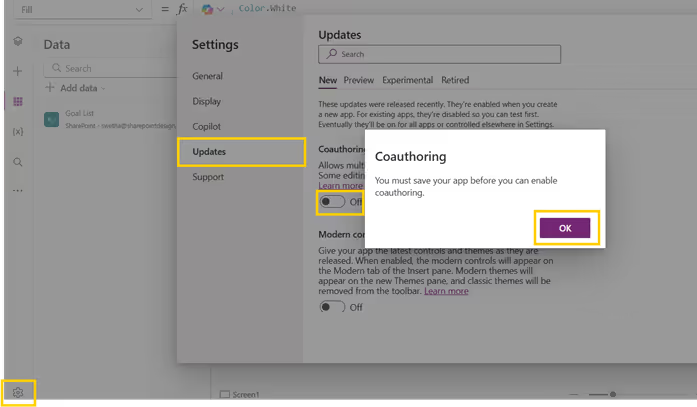
Step 2: Enable Coauthoring in Power Apps
Coauthoring allows multiple users to work on an app simultaneously. To enable this feature:
- Go to Power Apps Studio and open the app.
- Click the Settings icon.
- Click the Updates menu from thesidebar
- Under the New tab, turn on the Coauthoringtoggle.
- Click OK to update the settings.
- Publish the app. After that changes can be visible if some updates the app.
Step 3. Enable Modern Controls in Power Apps
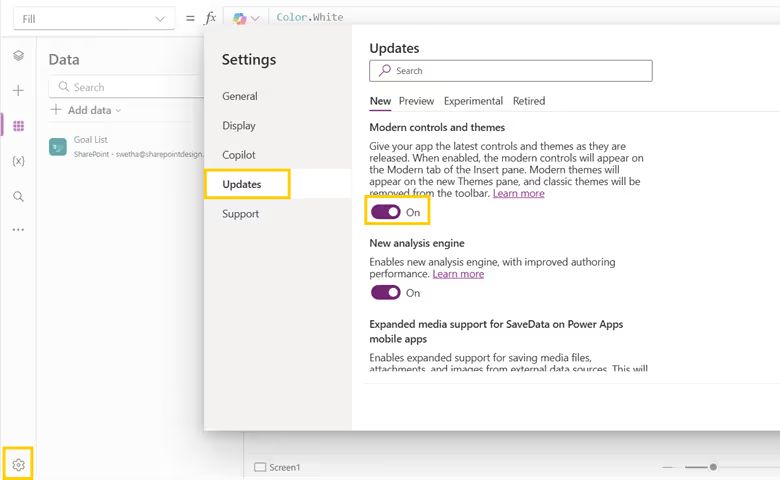
Modern controls improve the app's UI and usability. To enable them:
- Go to Power Apps Studio and open your app.
- Click the Settings icon.
- Click the Updates menu from the sidebar.
- Under the New tab, turn on the Modern controls and theme toggle.
- Save and refresh the app to access new modern controls (e.g., modern buttons, text inputs, and combo boxes).
Step 4: Add a Data Source
For this example, we will use a SharePoint site stored in the list.
- Click Data (on the left panel)> Add Data > Select SharePoint.

- Choose your SharePoint site and select the correct list to connect.
Step 5: Design Your App
- Add a Text Input, labels, Date Picker and Button to allow users to add new records.

- Set the button’s OnSelect property:
- Click Insert > Gallery> Vertical to display data.
- Set the gallery’s data source to your SharePoint list.

Step 6: Test and Publish
- Click the Play button to test your app.
- If everything works fine, click Save and Publish.
Conclusion
This is just the beginning—PowerApps allows you to create more advanced apps with automation, complex logic, and integrations. PowerApps can integrate with Power Automate for automation, Power BI for reporting, and much more. Keep exploring and creating amazing apps!
How SharePoint Designs Can Help
At SharePoint Designs, we specialize in delivering expert PowerApps consulting services tailored to your business needs. As a trusted PowerApps consultant, we help organizations of all sizes design, develop, and optimize custom applications that improve efficiency and reduce manual effort.
Customized PowerApps Consulting
We work closely with your stakeholders to understand business processes, identify automation opportunities, and build tailored apps that solve real operational challenges. From initial strategy and planning to design, development, and support, our end-to-end consulting ensures a seamless experience.
Integration with SharePoint, Teams, and Microsoft Ecosystem
Our PowerApps consultants specialize in creating intelligent apps that connect seamlessly with Microsoft 365 tools, including SharePoint, Teams, Outlook, and Power Automate. These integrations streamline workflows, centralize data access, and enable efficient collaboration across your organization.
Whether you're building your first app or scaling Power Platform adoption enterprise-wide, SharePoint Designs is your go-to partner for strategic PowerApps consulting that drives measurable business outcomes.

PowerApps for Beginners: A Guide to Building Your First App
This beginner-friendly guide will introduce you to PowerApps and guide you through building a simple app.

In the rapidly evolving world of app development, Microsoft Power Apps continues to lead the way with innovative features that simplify and enhance user experiences. One such groundbreaking addition is the Copilot Control—an AI-powered assistant that revolutionizes how users interact with data in canvas apps. By enabling natural language conversations, it generates insights and streamlines operations, making your apps more intuitive and efficient. Let's dive deeper into leveraging this innovative tool to elevate your app's functionality.
What is the Copilot Control?
The Copilot Control is an AI assistant powered by the Azure OpenAI Service, designed to transform data interaction within Power Apps. It allows users to engage with data intuitively through natural language, making complex queries and actions as simple as having a conversation. Whether it's fetching insights, responding to queries, or performing tasks like opening screens or sending emails, this feature enhances user engagement and productivity.
Key Capabilities:
- Natural Language Processing: Understands and processes user queries in plain language.
- Data Insights: Generates real-time insights from your Dataverse data.
- Actionable Responses: Can initiate actions within the app, such as navigating to screens or triggering workflows.
- Customization: Fully customizable to align with your app's branding and functionality.
Getting Started: Prerequisites
Before integrating the Copilot Control, ensure you have the following:
- Supported Environment: Verify that your environment meets the requirements outlined in the Copilot in Power Apps overview.
- Feature Enablement: A Power Platform administrator must enable the feature via the Power Platform admin center.
- Data Source: Have a Dataverse table set up as your data source, as this is currently the only supported option.
Note: Copilot control is currently a preview feature and is not intended for production use. It may have limited functionality and could undergo significant changes in future updates.
Step-by-Step Guide to Adding Copilot Control
1. Enable Copilot Features
- Open your canvas app for editing in Power Apps Studio.
- On the command bar, select Settings > Updates.
- Navigate to the Preview tab.
- Find and turn on the Copilot component and Edit in Copilot Studio settings.
2. Insert Copilot Control
- In the app authoring menu, go to Insert > Copilot (preview).
- Select the Copilot control to add it to your canvas.
- Connect the Copilot to a Dataverse table as the data source by setting the Items property.
3. Customize Your Copilot
- With the Copilot control selected, click on Edit in Copilot Studio.
- In Copilot Studio, you can:
- Define Topics: Specify the subjects or data areas the Copilot should focus on.
- Set Actions: Determine what actions the Copilot can perform, such as creating records or navigating to screens.
- Customize Responses: Tailor the language and tone of the Copilot's replies to match your app's voice.
- Configure Behavior: Adjust settings for how the Copilot interacts with users, including error handling and feedback mechanisms.
Tips for Effective Customization:
- Understand User Needs: Consider the common queries and tasks your users perform and tailor the Copilot to facilitate these actions.
- Maintain Consistency: Ensure the Copilot's responses align with your organization's branding and communication style.
- Test Thoroughly: Regularly test the Copilot's interactions to refine its performance and address any issues.
Maximizing the Experience
Feedback Collection
- The Copilot Control includes a feedback mechanism where users can rate responses or provide comments.
- This feedback is invaluable for refining the AI model and improving the assistant's performance over time.
- If you prefer to disable feedback collection, adjust the Allow users to provide feedback setting in the Copilot's properties.
User Empowerment
- Real-Time Interactions: Copilot enables users to interact with data dynamically, reducing the need for complex navigation or multiple clicks.
- Accessibility: Simplifies the user experience, making your app more accessible to users who may not be familiar with the underlying data structures.
- Efficiency: By handling routine queries and actions, Copilot frees up time for users to focus on more strategic tasks.
Why Add Copilot Control?
Integrating the Copilot Control into your canvas apps offers several compelling benefits:
1. Enhanced Productivity
- Streamlined Workflows: Users can accomplish tasks faster through conversational interactions.
- AI-Driven Insights: Provides intelligent suggestions and data analysis that might be time-consuming to generate manually.
2. Customizability
- Tailored Experience: Customize the Copilot to meet the specific needs of your users and business processes.
- Scalability: As your app evolves, easily update the Copilot's capabilities to match new functionalities.
3. Future-Ready Solutions
- Innovation Leadership: Early adoption positions your organization at the forefront of Power Apps innovations.
- Continuous Improvement: Gain access to the latest features and improvements as Microsoft enhances the Copilot service.
Best Practices for Using Copilot Control
- Data Security: Ensure that the data accessed by Copilot complies with your organization's security policies and that sensitive information is protected.
- User Training: Provide guidance to users on how to effectively interact with Copilot to maximize its benefits.
- Monitor Performance: Regularly review Copilot's interactions to identify areas for improvement and to ensure it meets user expectations.
- Stay Updated: Keep an eye on updates from Microsoft regarding Copilot features and enhancements, as the preview version may change.
Conclusion
The Copilot Control in Power Apps exemplifies how AI can reshape app development by making data interactions more conversational and dynamic. It not only boosts user satisfaction but also sets the stage for a smarter, more efficient workflow. By embracing this feature, you're not just enhancing your apps—you're pioneering a new era of intuitive and intelligent user experiences.

Add Intelligence to Your Canvas Apps with AI
In the rapidly evolving world of app development, Microsoft Power Apps continues to lead the way with innovative features that simplify and enhance user experiences.

What is PowerApps and How Can It Benefit Your Business?
Feeling overwhelmed by repetitive tasks? Struggling with outdated systems that are slowing down your workflow? In today's fast-paced business environment, streamlining workflows and boosting productivity is crucial for success. This is where PowerApps comes in.
PowerApps is a powerful low-code development platform from Microsoft. It helps you to develop customized business applications without requiring a deep understanding of coding. Think of it as a user-friendly tool that allows you to build solutions specifically tailored to your unique needs.
Here are just a few key benefits of using PowerApps
- Increased Efficiency: Automate repetitive tasks and manual processes, freeing up valuable time for your team to focus on higher-level work.
- Improved Productivity: Streamline workflows and provide employees with the tools they need to get things done faster and more efficiently.
- Enhanced Collaboration: Facilitate teamwork and information sharing through collaborative applications that connect your workforce.
- Reduced Costs: Save time and money by building custom solutions in-house, instead of relying on expensive traditional development or third-party software.
- Scalability and Flexibility: PowerApps applications can grow and adapt alongside your business needs, ensuring your tools continue to support your evolving workflows.
Top 10 PowerApps Templates to Streamline Your Workflow
Now that you understand the power of PowerApps, let's explore some of the most valuable pre-built templates available. These Free PowerApps Templates offer a great starting point to address common business challenges and can be easily customized to fit your specific needs.
1. Expense Tracker
Say goodbye to paper receipts and manual expense reports! This user-friendly template allows employees to easily capture and submit expense details on the go, with automatic calculations and clear categorization. Managers can review and approve submissions within the app, saving everyone time and frustration.
2. Inventory Management
Never run out of stock again! This template provides real-time insights into your inventory levels. Track product details, quantities, and reorder points, all within a centralized and accessible platform. Generate reports to identify trends and optimize your ordering process for maximum efficiency.
3. Leave Request and Approval
Streamline your leave request process with this intuitive template. Employees can submit requests with clear details and justifications, while managers can review and approve or deny leave electronically. Automated notifications keep everyone informed throughout the process, eliminating the need for email back-and-forth.
4. Customer Relationship Management (CRM)
Build stronger customer relationships with a custom CRM template. Track customer interactions, manage leads, and oversee sales pipelines, all within a user-friendly interface. This template allows you to centralize customer data, personalize interactions, and improve overall customer satisfaction.
5. Survey and Feedback
Capture valuable insights from employees, customers, or stakeholders with a customizable survey template. Design surveys with various question formats, gather real-time data, and analyze results visually. Utilize this feedback to improve processes, identify areas for improvement, and gain a deeper understanding of your target audience.
6. Asset Management
Keep track of your company assets with this comprehensive template. Log asset details, track maintenance schedules, and monitor locations, all within a central platform. This streamlines asset management, reduces loss, and ensures preventative maintenance is performed on time.

Supercharge Your Workflow: Top 10 PowerApps Templates and How They Benefit Your Business
Feeling overwhelmed by repetitive tasks? Struggling without dated systems that are slowing down your workflow? In today's fast-paced business environment,
In the digital age, the way businesses operate is constantly evolving. Two key players in this evolution are Power Apps and Artificial Intelligence (AI). Together, they're reshaping the future of business applications.
Power Apps: A Game-Changer in App Development
Power Apps, part of Microsoft's Power Platform, is a low-code development platform. It empowers everyone, from professional developers to tech-savvy business users, to create custom business applications. For instance, a retail company can use Power Apps to create a custom inventory management app, streamlining their stock control process. With Power Apps, the tedious, time-consuming coding process is replaced by a user-friendly, drag-and-drop interface. This democratization of app development accelerates digital transformation, making it accessible to all.
The Rise of AI in Business Applications
AI has been a buzzword for some time now. But it's more than just a trend; it's a revolution. AI's ability to learn, reason, and understand makes it a powerful tool in various business applications. For example, a healthcare provider can use AI to analyze patient data and predict health risks. From predictive analytics to customer service, AI is making its mark.
Power Apps and AI: A Powerful Combination
When Power Apps and AI come together, the possibilities are endless. But what exactly is Power Apps AI and how does it work? PowerApps AI refers to the integration of AI capabilities within the Power Apps platform. This integration allows users to leverage AI's capabilities without needing extensive coding knowledge.
Understanding Power Apps AI Builder
So, what is PowerApps AI Builder? AI Builder is a feature integrated with Power Apps that allows users to leverage AI's capabilities without needing extensive coding knowledge. It provides pre-built AI models in Power Apps that can be used directly in your apps, or you can build and train your custom models based on your data.
The Use of AI in Power Apps
What is the use of AI in Power Apps? AI in Power Apps is used to enhance the functionality and efficiency of business applications. For instance, a logistics company can use AI Builder in Power Apps to create a Power App that predicts delivery times based on traffic data. This not only improves the efficiency of delivery processes but also enhances customer satisfaction by providing accurate delivery estimates. This integration brings AI's power to the masses, making it a key player in the future of business applications.
Transforming Business Processes with Power Apps and AI
Power Apps and AI can streamline and automate business processes. For instance, a manufacturing company can use AI to predict equipment failures based on historical data. Power Apps can then use these insights to automate maintenance scheduling. This combination not only boosts efficiency but also enables data-driven decision-making.
Enhancing Customer Experience with Power Apps and AI
In today's customer-centric world, providing a personalized experience is crucial. Power Apps and AI can help businesses achieve this. A telecom company, for instance, can use AI to analyze customer data to gain insights into behavior and preferences. Power Apps can then use these insights to tailor the customer experience, such as recommending personalized data plans, boosting satisfaction and loyalty.
The Future of Power Apps and AI
The future of business applications lies in the convergence of Power Apps and AI. As AI technology advances and Power Apps continues to democratize app development, businesses can expect more sophisticated, personalized, and efficient applications. This fusion of Power Apps and AI is not just the future of business applications; it's the future of business itself.
Conclusion
The integration of Power Apps and AI is revolutionizing the way businesses operate. By democratizing app development and leveraging AI's capabilities, businesses can transform their processes, enhance customer experience, and make data-driven decisions. As we look to the future, the synergy of Power Apps and AI will continue to redefine the landscape of business applications. The future is here, and it's powered by Power Apps and AI.

The Future of Business Applications: Power Apps & AI
In the digital age, the way businesses operate is constantly evolving. Two key players in this evolution are Power Apps and Artificial Intelligence (AI).

Elon Musk once said, "Prototyping is easy but Production is hard." What if there is a magic wand that magically transforms your design from a prototype to a production user interface? Well, the app genies have heard your wish and created a magical Figma plugin - "Create Apps from Figma UI Kit (Preview)". Note: This is still a preview feature.
We at SharePoint Designs, will save you a significant amount of time and effort by creating flawless, trendy, modern & aesthetically pleasing power app solutions. We have been experimenting the Figma plugin and re-designed some of the sample apps from PowerApps and have also created some of our own apps.
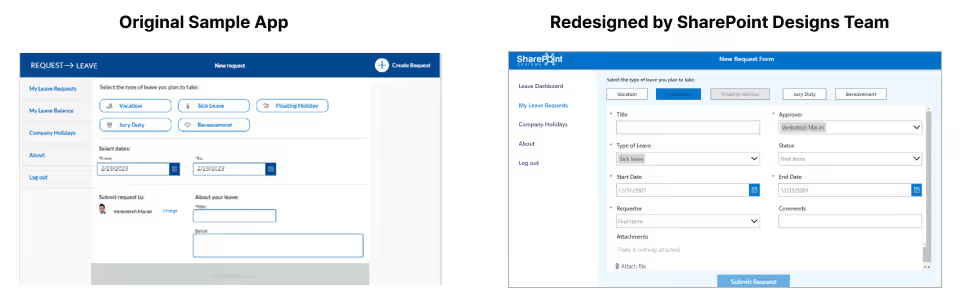
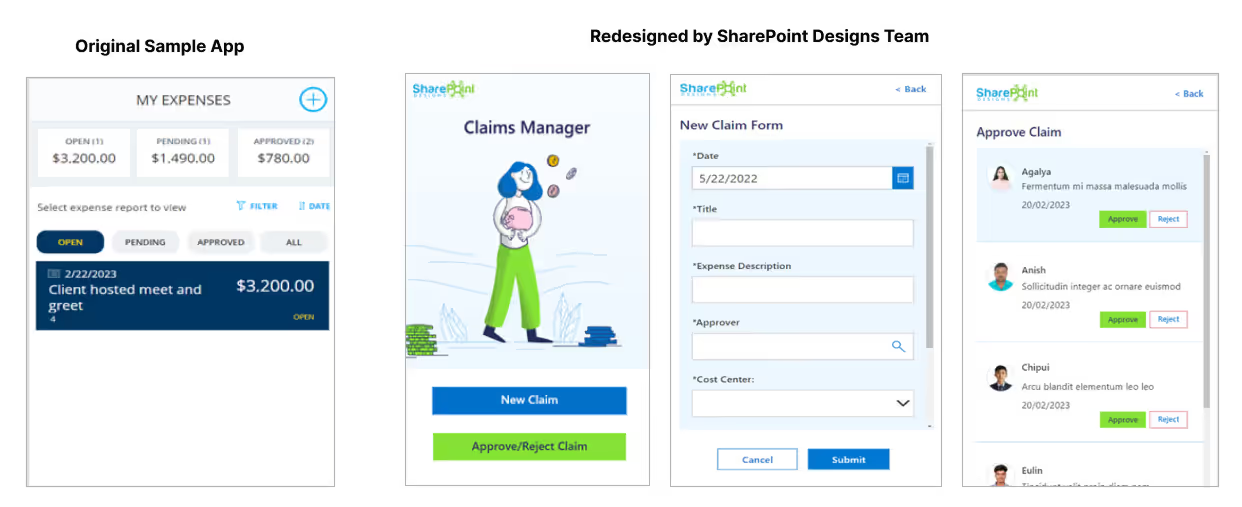
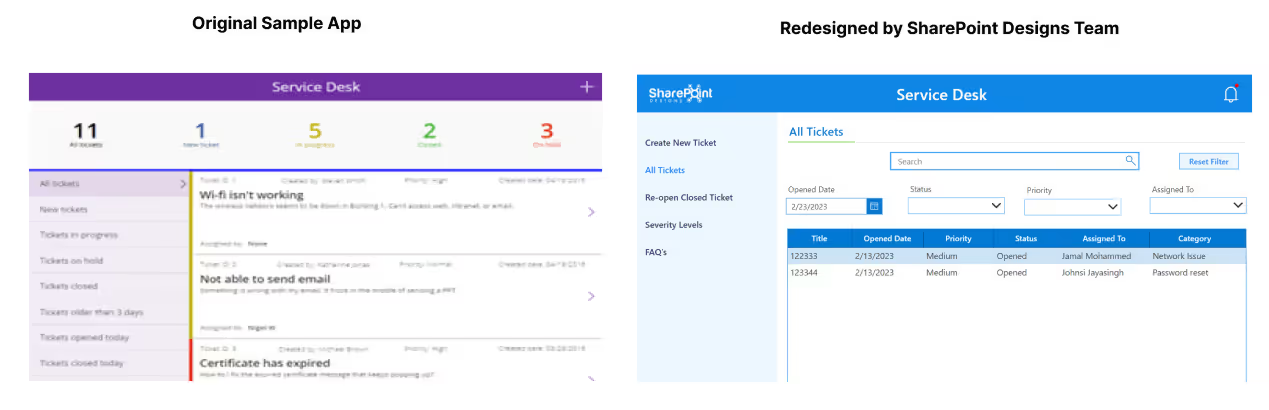
In this blog, we showcase the before and after versions of these apps using the Figma UI kit. By taking a look at the transformation for yourself, you'll be able to see the significant difference we can make in improving the design and user experience of your power apps.
1. Leave Request App
A leave request app can be used by employees across various industries and organizations, including small businesses, non-profits, and large corporations. By using a leave request app, employees can easily request time off and receive timely updates on the status of their request, while managers and HR personnel can more efficiently manage leave requests and ensure compliance with company policies and regulations. This can lead to improved employee satisfaction, better scheduling and resource allocation, and reduced administrative burden for HR personnel.
Some common features of a leave request app include the ability to submit and approve leave requests, the ability to view and manage leave balances, view holidays to plan the leaves, the ability to view and setup rules and policies around leave requests, and the ability to generate reports and analytics related to employee leave.
2. Claims Manager App
A Claims Manager App can be used by claims adjusters, insurance agents, healthcare providers, and other professionals involved in the claims process. By using a Claims Manager App, these professionals can streamline their workflows, reduce errors, and improve the overall efficiency and accuracy of claims processing. This can lead to improved customer satisfaction, reduced costs, and better compliance with regulatory requirements.
Common features of a Claims Manager App include the ability to submit and track claims, the ability to manage documents and other supporting evidence, the ability to communicate with customers and other stakeholders, and the ability to generate reports and analytics related to claims processing.
This version of the app is designed to be used in Mobile but it can be extended to Desktop / Tab as well.
3. Service Desk App
A Service Desk App is a software application designed to help organizations manage and track customer service requests and support inquiries. It provides a centralized platform for employees to handle customer queries, monitor service levels, and manage the resolution of customer issues.
Common features of a Service Desk App include the ability to submit and track service requests, the ability to assign and escalate tickets, reopen a closed ticket, the ability to communicate with customers and the ability to generate reports and analytics to monitor the service desk performance.
4. Quality Check App
This App was designed and developed by our Design Ninjas team of SharePoint Designs which includes Agalya, Jamal & Johnsi.
A quality check app can be used by individuals or teams responsible for ensuring quality control, such as quality assurance or quality control professionals, production managers, or field inspectors. By using a quality check app, these professionals can streamline their workflows, reduce errors, and improve the overall quality of their products or services.
This app can be used in various industries, such as manufacturing, healthcare, retail, and hospitality. It provides users with tools and features that allow them to track and monitor defects, identify potential issues, and implement corrective actions.

We at SharePoint Designs would be happy to help bring your ideas to reality in as early as 12 days. Please go through this infographic below to understand the detailed design and development process we follow to help you achieve your goals.
So what are you waiting for? Go ahead and submit the Contact us form to the right or shoot an email to sales@sharepointdesigns.com

Related Links

From Idea to Prototype: Using PowerApps to Build Interactive Apps
Elon Musk once said, "Prototyping is easy but Production is hard." What if there is a magic wand that magically transforms ...
What are PowerApps?
Power apps is a low code development platform created to be used by citizen developers. It has an array of apps, connectors, services and data platform that provides an immediate application development environment to build custom apps for your following business requirements. Well, by using power apps, you can immediately create custom apps that connect to your business data that has been stored in the underlying data platforms, which is the standard data service for the apps on-premises or in various data sources.
Creating apps using Microsoft power apps enriches the business with logic and workflow capabilities to transform your business from manual to digital automated procedures. Furthermore, apps developed and power apps users using PowerApps have flexible and seamless designs, which enables you to use them on your mobile devices, tablets or browser. PowerApps helps you work according to your desire; it also makes your user experience feature-rich without writing the code and with proper content management.
Well, when the power apps hit the market, creators assumed it was a basic tool for users with varying tiers of technical expertise. It was mainly an app power platform concentrated on facilitating users to build interactive apps for assorted businesses and their process management or personal strategies. Nevertheless, the platform took off, and the assurance of its success is its proficiency to deal with common challenges that organizations face.
Furthermore, Microsoft PowerApps presented an apps portal as well as model-driven apps. It’s the new canvas app, which in fact enables users to build apps without code being written in standard programming languages, and stay flexible in designing and customizing different designs. These capabilities enable a broad range of apps that contribute more functionality for businesses with Power apps.
Top 10 Use Cases for PowerApps for your Different Development Needs
There are 3 different types of PowerApps solutions that can be used. To access them, go to make.powerapps.com and click on the Apps icon on the left navigation bar. Click on the new app button to select canvas apps, model-driven apps, or websites.

1.Web Portals
Click New app -> Select Website to start creating web portals.

This feature is applicable for creating websites that can be accessed internally and externally, facilitating end users to connect securely with all the data stored in the CDS.
2.Canvas Apps
Click New app -> Select Canvas to start creating canvas apps from blank.

Developers can start building apps by adding workflows to your existing data source and then designing a custom app that delivers more flexibility than model-driven apps. This feature is ideal for business users that want to work from a blank canvas.
3.Model-Driven Apps
Click New app -> Select Model-driven to start creating model driven apps.

This feature is excellent for business processes that require complex logic. With power apps, the designs are effectively governed by the connected data sources and rely on the information you feed in the app. Well, now that you know what Microsoft power apps are and how it enriches your business, let's dive into their top 10 power apps use cases that you can implement in your business/organization.
Top 10 use cases for Microsoft PowerApps
1.Enables you to build Customized Business Apps
If your business comes across a specific challenge or has a notion for an innovative solution that could give you a great edge, you can build a custom app through power apps to tick all these boxes for you.
The most significant advantage of using power apps is that anyone can create a custom app without requiring coding knowledge or technical expertise. Customized power apps enable you to run and operate your business according to your desire. It caters to practical business tools which enhance your company's service or product, broaden the customer base and boost efficiency.
2.Precise Business Planning
Planning holds an important place in any successful business. It's one of the key features which enable you to work on time with all discipline. Power apps are a spectacular choice for you to make your planning more aesthetically pleasing and convenient. Power apps promote rapid development, designing, and customization; thus, you can precisely plan accordingly to your wish!
3.On-Site Inspection
The on-site inspection application enables you to refer to all instances with pictures, site details, and location pins. Whether you are in real estate, insurance, property management, or any other business, this tool is helpful for your work. It will make your work more accessible and inspection superior. The recorded information is reserved in the back end and can be utilized when detailed reporting or analysis is required.
4.Helps With Expenditure Approval
There is no argument that expense approval is a tiresome job involving many processes and submissions. But, by using Microsoft power apps, users can build a mobile application for seamless and effortless expense approval. An employee can assert an expense by submitting a proposal with proper proof. Then, a manager can also reject or approve the request through notifications and the app can be well-integrated with the existing human resources system.
5.Fonts
Building a custom theme for your Power apps is essential. The fonts, colors, icons and styles you use for all types of controls like date-downs, text inputs, etc., define and embed an app's unique look and feel.
6.Seamless Integration With Office 365 Tools
The numerous benefits of Power apps for Office 365 make your overall process very comfortable. From no coding or programming required to complete security, and seamless app development to easy-to-use data connectors and low cost, it caters for everything!
Furthermore, like numerous other Office 365 products, Power apps obtain regular updates with many unique features. Notably, the latest update features an AI Builder that facilitates Power apps to operate Microsoft's Artificial Intelligence technology and Machine Learning to assist you in building and developing advanced and more imaginative apps.

7.Quick Quote Generator
Sharing customized quotes with the consumers has constantly been a hassle as it consumes a lot of time to develop custom-create manual sections and templates and send them to consumers, then follow them until they are in!
But, with Power apps, business users can entirely automate the customized proposals generation process, wherein pre-defined templates immediately generate quotes based on the values documented in the application and automatically sends personalized mail to the customer.
8.Image Processing Tools
Power apps can incorporate camera-enabled devices, so companies can create apps that offer picture-processing functionalities. For example, construction companies, healthcare providers and retail providers can capture photos of their products and other commodities during inspections with a mobile devices camera and the data accumulated from its GPS. A customized examination app stocks some data within SharePoint or the standard data service layer, pretending to be a hosted database.
9.Offline Working Capability
In Power apps, you can search, manipulate consistently, filter, aggregate, and sort, even though the data source doesn't exist. Sources range from in-memory arrays in the app to list and create, using Microsoft lists, data-verse, and SQL databases.
10.Approval
Power apps designer use the approval pattern to allow stakeholders or multiple stakeholders to examine data, decisions, and records all at once or in series. Even though the approval pattern can be beneficial, it's often integrated with other patterns, particularly the audit and inspection pattern. Authorizations can be smoothly carried out with Power Automate authorization workflows, but they can also be executed with the ability you develop into your app.
Benefits of using power apps
1. Hassle-Free Delivery
Undoubtedly, it takes an extended amount of time and multiple cycles to design and build new software. Wherein, power apps accelerate the speed of the same and are way simple to learn for new employees as well!
2. Cost Efficient
Software management and development lifecycle can be one of the intricate and budget-breaking business processes. In addition, Power apps seamlessly integrate and allow real-time collaboration among team members. It also provides you with apps that are more mobile-friendly or even agree with tablet and desktop versions at the same time.
3. Versatile
Power apps are appropriate in remote storage connections, data servers on-site, and cloud-based environments. The connection and the flow of information is effectively constant. Furthermore, security protocols are driven faultlessly to assure data flow is safe between all areas.
4. Total Security
The custom apps users built through Power Apps are exceptionally secure. These applications and workflows bind into the Azure Active Directory and other Microsoft security keys like the Common Data Services (CDS) which caters to a role-based safety model.
You can regulate permissions at the data and application levels, which tells end-users only to see what’s appropriate for them without portraying internal profiles and follows all the company policies. Furthermore, apps created on the Common Data Services (CDS) are also automatically GDPR-compliant.
5. Solve Unique Business Challenges
If your business encounters a specific challenge, has to fulfil a unique need, or has a notion for an imaginative solution that could give you a competitive advantage, you can indeed assemble a custom app through Power apps to tick all the requirements for you.
From, running data analytics, tracking employee expenses, automating communications and integrating AI functionality into your processes, changes can be done easily through Power apps. In addition, as it’s customized, you can contemplate any inefficiencies or extraordinary processes present and make your app totally fit your business.
6. Saves You Money
Well, no doubt that the time you save by using Power apps will depict productivity gain and money saved. Nevertheless, one of the other key advantages of Power apps is the expenditure entry to start with.
Indeed, off-the-shelf software goes on high price range and often has functionality that may not fit an organisation’s desires. Wherein, the custom Power apps are low-code, more cost-effective and significantly they’re quicker to create. In turn, organisations can accomplish their return on investment (ROI) as well, and that too faster.
7. Boosts Business Transformation
Building custom apps can perhaps take months or even years. However, when your organisation is evolving, you ought to take actions quickly and intensify your digital transformation. A Power app, personalized to precisely the way your company works, can be assembled in few days or even less.
While a few organisations won’t be certain where, to begin with, that notion, you don’t have to worry at all. Pick one province of your procedures that isn’t functioning as well as it could be. Break down the duties involved and you’ll usually find one assignment that takes much lengthier time than it should.
Lastly, to know how SharePoint designs enable effortless invoice tracking with the power apps, visit the link for a clear idea. In the coming years, the necessity for apps will persist as businesses look for methods to simplify processes, determine new and unique ways to cut costs and improve employee productivity and efficiency. Furthermore, contact us, and you will indeed love the next new app we create for you!

Frequently Asked Questions
1.What are the 6 major components of power apps?
Answer-
- Gallery
- Screen
- Control
- Card
- Property
- Function
2.Can Power apps work offline?
Answer- Yes, you can definitely run it offline on your PC on a mobile device.
3.How many companies are using Microsoft power apps?
Answer- Approximately 771 companies are using it.
4.What are the 4 components of a power platform?
Answer- Power Automate, Power BI, Power Apps, and Power Virtual Agents.
5.Do you need Office 365 to use Microsoft power apps?
Answer- Yes. You cannot use powerapps without office 365.
Reference Links

Top 10 PowerApps Use Cases to Streamline Your Business
Power apps is a low code development platform created to be used by citizen developers. It has an array of apps, connectors, services

If creating power apps app has always been on your mind but you didn't know where to start, then you have come to the right place. Power Apps is a versatile platform that empowers users to create mobile and web apps with ease. One of the great starting point is Free SharePoint templates. Whether you need a mobile app for on-the-go productivity or a web app for broader accessibility, Power Apps and SharePoint have got you covered.
In this blog you can learn how to create an app from free PowerApps templates, a blank canvas, and a data source. We will focus on canvas apps, which give you the flexibility to arrange the user experience and interface the way that you want it.
What is Power Apps?
Power Apps, part of the Microsoft Power Platform, allows you to build three types of apps:
- Canvas Apps: Highly flexible, drag-and-drop design for both mobile and desktop.
- Model-Driven Apps: Component-based apps with dashboards, forms, views, and charts.
- Portal Apps: External-facing apps for customers, partners, or vendors.
Creating power apps mobile app becomes a seamless process. Its intuitive interface allows users to design custom mobile apps tailored to their specific needs. You can get started in many different ways; however, for all of the options, you will use the Power Apps Studio features and functionality to build your app.
1. Create an App from a Template
A quick way to learn Power Apps is to start with templates. Templates come with sample data, letting you explore functionality and design before building your own.
Popular Power Apps Templates: (H4)
1. Budget Tracker Template
For example, you can use PowerApps budget tracker template to create an app that helps you track the budget for projects and events with custom categories, simple data entry, and visuals that highlight expenditures for an effortless inspection.
2. Issue Tracker Template
PowerApps issue tracker template to keep track of different issues, assign owners, and update statuses.
3. Knowledge Base Template
Centralize policies, troubleshooting guides, and training content. Optimized for mobile, so your team can access knowledge anytime, anywhere. Equip your team with the tools to find the information they need quickly and effectively. Embrace the future of workplace learning with our Power Apps Knowledge Base Template.
2. Create an App from a Data Source
Another great option is to build directly from your own data. Power Apps connect seamlessly to multiple data sources, including:
- Microsoft SharePoint lists
- Dataverse (formerly CDS)
- SQL, Excel, and many others
When you point Power Apps at a data source, it automatically generates a three-screen app that lets you:
- Browse records
- View item details
- Create, edit, or delete records
Power Apps + SharePoint Lists
SharePoint lists and Power Apps integrate tightly. You can:
- Build an app directly from a SharePoint site
- Customize modern list forms inside Power Apps
Read our guide: How to Build a Power Apps App from a SharePoint List
3. Build from a Blank Canvas
If you want complete creative control, you can start from scratch with a blank canvas. This option lets you:
- Add screens, forms, and layouts as you go
- Design custom user experiences
- Use connectors to link to multiple data sources
Think of this as freeform app creation perfect if you have a unique use case or want to experiment.
4. Explore Model-Driven Apps
For more structured, data-first applications, Power Apps offers Model-Driven Apps. These are ideal when you need:
- Dashboards with real-time insights
- Predefined business rules
- Components like charts, forms, and workflows
Examples of sample project templates in Power Platform include:
- Asset Checkout
- Innovation Challenge
- Fundraise
Why Power Apps is a Game-Changer
Power Apps isn’t just about making apps. it’s about transforming business productivity.
- No-code/low-code design - Empower non-developers to build solutions.
- Integration-ready - Works seamlessly with SharePoint, Teams, Office 365, and 400+ connectors.
- Mobile-friendly - Apps run smoothly across desktop, tablet, and mobile devices.
Final Thoughts
Whether you’re:
- Starting with a template,
- Connecting to a data source, or
- Designing from a blank canvas
Power Apps make custom app development simple and accessible.
For organizations using SharePoint, it’s an especially powerful way to turn lists and processes into mobile-first, automated solutions.

Ways to Build Power Apps: A Beginner’s Guide
If creating a Power Apps application has always been on your mind but you didn’t know where to start, you’ve come to the right place.
About the Client
Magick Woods Export Pvt. Ltd. is a wholly-owned subsidiary of Magick Woods Ltd., Canada - one of the top manufacturers and pioneers of quality bath vanities and kitchen cabinets. Some of their customers include Home Depot, Lowes, Menards, Rona, and Home Hardware.
Project challenges
- Lack of a quality check process at the end of the production line to ensure delivery of products that meet world-class standards
- An ineffective manual tracking system involving QC inspectors - due to the unavailability of a defect identification system
- No one-stop report repository in place for the management to review the number of open defects and statuses of defects
Our Solution
SharePoint Designs developed a QC form to update the defects in the system instantly. Equipped with a camera feature, the QC Inspector could upload or capture the images of defective items. The data stored in the back-end could be used for further analysis. Furthermore, the form could be easily accessed through handheld devices like mobiles or tabs. Using Power BI, a summarised report of the defects and their status was made available for quick reviews.
Our experience in working with different MS applications like Power Apps, Power Automate, Power BI played a major role in the quick roll-out.
Business Benefits
- Power to instantly reject defective products and eliminating any of their chances of reaching the end customer
- Vast reduction of worker hours involved in updating, correcting, and verifying the documents
- Ability of the QC form to captures the total defects recorded in a day
- Easy-to-interpret Power BI-based reports that facilitates a smooth management review process

Magicwoods – QC Form
One of the top manufacturers and pioneers of quality bath vanities and kitchen cabinets. Some of their customers include Home Depot, Lowes, Menards, Rona,

"PowerApps gives me the ability dream up a business system, draw it, then make it at much quicker speeds that I could have done by learning to program."– Lars Peterson, General Manager (and app maker), Reliable Electric
Lars Peterson is a General Manager at Reliable Electric, Canada, who had no prior app development experience before using the Power platform. He taught himself PowerApps, Microsoft Flow and SQL, and used the Power platform to transform core business processes, such as creating daily work order estimates. This replaced a legacy system for which the company was paying $2,000 for a single seat, and was not user friendly or customizable to meet their exact needs.
Business scenario
Reliable Electric specializes in the design and installation of integrated electrical projects in high-end homes. To generate a work order proposal for a customer, they need to go through the process of analyzing drawings and determining the materials required to accomplish the design. The term used to define this process in construction and engineering projects is a takeoff. To put together a proposal, the estimator at Reliable Electric needs to generate accurate price estimates for all the takeoffs in a project. This requires a complex set of inputs followed by a lookup of product information and a series of calculations to generate a final customer-ready proposal with accurate estimates.
Before Power platform – business process, challenges and opportunities
Reliable Electric had purchased a legacy desktop-based software called Accubid. The process was as follows:
- A contractor would provide the plans
- Estimators would do the takeoffs and enter all the information into Accubid
- All information from Accubid was then copy-pasted into an estimation spreadsheet to get a final proposal

This solution had several challenges:
- According to Lars, “the interface was terrible, was hard to view and change certain data elements.”
- The output from Accubid had to be copy-pasted into a spreadsheet to get a proposal that met their needs.
- Only one person could use the tool at a time. Each additional seat was $2000, which was cost prohibitive.
- They needed a solution that provided them control over their data, with a user interface that was easy to use.
Power Platform solution – Work order estimation app
In a prior role, Lars Peterson was a small business consultant who researched multiple tools to help his customers but found himself almost always recommending Excel. He tried Access but felt it was complex and not something he could leave with the customer to maintain on their own. After joining Reliable Electric, he spent six months researching several estimation software solutions. He did not find any off-the-shelf tools that met his exact needs and decided to build a solution on his own using PowerApps and Microsoft Flow, with SQL as the backend. He found out about PowerApps through his Office 365 subscription. He chose it over other competitive offerings due to the rich visual appeal and depth of customization that was possible. He calls the solution “Estimating the Database” or ED for short. The application has been live in production since December 2017 and used daily by Estimators, Project Managers and Sales Representatives in the organization. It actively manages over 70 projects at any given point in time.

PowerApps: Estimators use a PowerApp on their desktop to manage the entire estimation process. They use predefined assemblies that have been customized for the business. These assemblies are basically takeoff templates that have a collection of products. The assembly is attached to a project and becomes a takeoff – an assembly with a quantity. The cost and labor associated with each takeoff is rolled up based on the products in the takeoff. Each takeoff is then priced based on this roll up with labor costs and other adjustments factored in. All of this happens automatically based on the defaults set in the estimate and can be customized as needed. The final output is stored in a SQL database. An Excel spreadsheet that is directly connected to the database is used to generate the final product list or bill of materials along with the proposal summary.
Microsoft Flow: Flows are used to trigger stored procedures in SQL and notify the Director of Projects & Design whenever a new product is added, or a new assembly created.
SQL Azure: All data for assemblies, product lists, prices and estimates are stored in a SQL Azure database.

Benefits from using the Power platform
- Reduced the time for data entry by half which allowed plans to get priced quickly
- Electricians found the app easy to learn and use, as compared to the old Accubid solution
- No more need for copy-pasting data, the spreadsheet is directly connected to the database which ensures that everyone always has accurate information
- They are in full control of the data – it is instantly available and can iterate through quickly

Solution architecture
The app uses SQL Azure for storing information about Assemblies, Products, Estimates and Proposals involved. The PowerApps application provides easy to use templates to key in the receptacle, view the assemblies and products involved, modify if needed per the customer’s request and generate an estimate for the client

Looking beyond a single app
Encouraged by the success of the estimator app, Lars has built several additional solutions. His goal is to modernize all instances where they use siloed spreadsheets for critical business processes and replace them with a PowerApps solution. He has brought on an additional resource to work on the backend SQL database layer, while he continues to develop the PowerApps Canvas apps.
- Employee Engagement: A phone app used to submit feedback, report vacation, 1-on-1 forms, and manage employee information.
- Product Updater: A tablet app built to edit product lists and vendor product information.
- Sales Tracker: A desktop app to enter and track opportunities and projects. Setting this up to link to QuickBooks through an Azure SQL synced database.
- Asset Tracker: A phone app that tracks all tools in the company. Plan to use the barcode feature in this app and populate it full of tools.
Additional screenshots
Work order estimator


Mobile apps – employee requests, asset tracking

Product updater

Sales tracker


Reliable Electric: Power platform customer story
PowerApps gives me the ability dream up a business system, draw it, then make it at much quicker speeds that I could have done by learning to program.
A very common question our customers ask is, how do I implement role based access control in my app. In other words, how do I make certain features or screens of my app available only to the authorized people in my organization. For example, make Admin screen available only to the users who belong to an Active Directory Group “Administrators” or make management views available only to the users belonging to the Active Directory Group “Managers” (as shown in the picture below).
In this blog post, I’ll show you how you can find out the Active Directory group membership of the signed in user and accordingly make decision to show/ hide certain features.

High Level Steps
We’ll use custom connector feature of PowerApps to connect to Microsoft Graph API for listing the Active Directory Groups that the user belongs to*. After getting the list of groups through this custom connector in PowerApps, we can easily check if the user belongs to a particular group and accordingly set the visibility of certain controls or screens.
Following are the broad steps:
Step 1: Register an app in the Azure Active Directory and request permission to use the right Graph API(s)
Step 2: Grant Permission requested above (An Active Directory Admin needs to do this)
Step 3: Add this app as a custom connector in PowerApps environment
Step 4: Use the custom connector in your PowerApps app
* Note:
- If you never used Microsoft Graph before, I strongly recommend that you checkout their documentation and graph explorer. I find Graph Explorer very handy to explore what’s out there and even test out the output of the specific APIs before using this in my own code.
- Graph API we are using here, lists the groups that the user is direct member of. So, it’ll miss out the group membership through nested group membership. For this blog, we are keeping it simple by just checking for direct membership. There are other Graph APIs for finding nested group membership too. However you’ll need to know group id (you can’t use group name for using that API). You can use the concept outlined in this blog to make use of this other API (after finding group id from the graph explorer). If there is enough interest, I’ll do another blog post showing how to use the other graph api.
Step 1: Register An App In The Azure Active Directory and Request Permission To Use The Right Graph API(s)
These steps are similar to the steps documented in this example of custom api.
1. Sign in to the Azure portal. If you have more than one Azure Active Directory tenant, make sure you’re logged into the correct directory by looking at your username in the upper-right corner.

2. Select Azure Active Directory -> App Registration
3. Select New application registration.

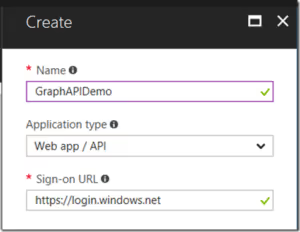
4. For Registering a New App, use following values:
Name: Any Name that you want to use ( I used “GraphAPIDemo”)
Application type: Web app/ API
Sign-on URL: https://login.windows.net
5. Once it is created, select this newly created app. Note down the application id (it’ll be used as Client Id in the later step of adding this API as custom connector in PowerApps environment). After noting down the application id, click “Settings” menu at the top.

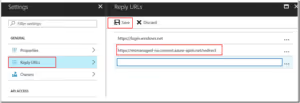
6. From Settings, click on Reply URLs, add following url and hit save:
https://msmanaged-na.consent.azure-apim.net/redirect
Note- This url may not work for non US locations. If you get error, you’ll have to come back and add your location specific url. I’ll go in greater details about that error at a later step (where you register this as custom connector in PowerApps environment).
7. From Settings, click on Keys

8. Enter a description for the key, choose the expiry period, and hit Save. A new key value will be generated. Note down that value. You’ll need this key secret in later step while registering this API as custom API in PowerApps. (Note- very important to note down this secret in this step because you won’t be able to see this key if you come back to this screen later. )

9. Go back to Settings, click on Required Permissions

10. In the Required Permissions, click on Add and then Select an API:

11. On the next screen, select Microsoft Graph:

12. Click on Select Permissions:

13. Under “Delegated Permissions”, check following ones:
- View User’s Basic Profile
- View User’s Email Address
- Sign Users In
- Access Directory As Signed In User
- Read Directory Data
- Read All Groups
- Read All User’s Basic Profile
- Sign in and read User Profile and, hit “Select”

Step 2: Grant The Permissions Requested In The Previous Step (An Active Directory Admin Needs To Do This)
This step can be done only by the admin of the active directory. There are 2 ways to do this:
Option 1:
Ask the admin to the Azure portal, go to Azure Active Directory -> App Registrations -> and select the app you registered in the previous step. Go to settings -> Required Permissions, and click on Grant Permissions button at the top:

Option 2:
Send the following URL to the Active Directory Admin (it is typically someone from your IT Department). In the url below, put the client id (or application id) you noted while registering the app in the active directory. On clicking this url, your Active Directory Tenant Admin will get the prompt to grant permission.
https://login.microsoftonline.com/powerappsdemo1.onmicrosoft.com/oauth2/authorize?client_id=<Client-Id you noted earlier>&response_type=code&redirect_uri=https://msmanaged-na.consent.azure-apim.net/redirect&nonce=1234&resource=https://graph.windows.net&prompt=admin_consent
Step 3: Add This Registered App As A Custom Connector In Your PowerApps Environment
1. Go to powerapps and click on gear icon on the top right, and select “Custom Connectors”.
Note- if you are part of multiple Active Directory Tenants, make sure you sign in to the active directory tenant where you registered this app in the first step.

2. Once you get to Customer Connectors screen, click on “Create custom connector” and Choose the option to “Import an Open API File”:

3. You’ll get following dialogue box. By importing an OpenAPI file, you are essentially importing a Swagger file. Use the Swagger file I created for this scenario (Save it to your local drive, and use it for uploading OpenAPI file). For Custom Connector title, use any title you want. I used DirectGroupMembership.

4. “General Information” step is automatically filled using the information in the swagger file. Feel free to change the icon, description but don’t change Host and Base Url.

5. Click Continue. In the Security Step, Swagger file will help automatically select Authentication Type as OAuth2.0 and choose the Identity Provider as “Azure Active Directory”. Leave all the information as automatically filled. You just need to fill the following information:
Client id: <Application Id you noted down in the earlier step of registering your app in Azure Active Directory.” >
Client secret: <Secret Key you noted while creating Keys in the App registration in Azure Active Directory step earlier>
Resource Url: https://graph.microsoft.com/
Click Continue.

6. Next Step of Definition will have everything automatically filled out from the Swagger file. Don’t make any changes (except summary and description- if you want to)

7. Click on Creator Connector:

8. If you followed all the steps properly, clicking on “Create connector” should create the connector successfully.
If you see warning like following, scroll down and see if you see 200 Success message. If you see 200 Success message, please ignore the warnings. These warnings show up because my swagger file has extra parameters that are used by other Graph APIs. You don’t them for this example, that’s why it’s just warning.

Next step is to test it. Click on “Test” link and then “New Connection” on the Test Screen:

9. Click on “Create” from the Pop up dialogue box:

10. Sign in using your account:

If you are getting sign in error in creating connection, scroll down and see your error message. If the error message points to a different reply url than the one you specified while registering the app in active directory (Step-1) earlier, please add this reply address as a reply url in your app (reply url from your error message)

11. On successful sign in, you successfully registered Graph API with the right permission as a custom connector in your PowerApps environment. You should be all set to use it in your app. You can go ahead testing this in the portal by going to “Custom Connector”, selecting this connector and clicking on “Test”. For user id input, provide your full email (e.g. sudhesh@powerappsdemo1.onmicrosoft.com) and see the output. If all goes well, you should get 200 OK status.
If you are getting 404 error, please check the following in the graph explorer
Go to graph explorer, sign in, and try running following API (make sure you provide full email of the user id e.g. meganb@bappartners.onmicrosoft.com ).
https://graph.microsoft.com/v1.0/users/{userid}/memberOf


See if you can successfully get the list of groups here.
If you get permission error, please click on modify permission link and add following permissions (your Active Directory Admin will have to do this):
User.Read
User.ReadBasic.All
People.Read
Directory.Read.All
Group.Read.All
User.Read.All
People.Read.All
After ensuring that you get the groups list using Graph API as stated above, come back and test your custom connector in PowerApps. You should be good now.
If you are facing any other error, please double check that you followed following steps properly:
- The Registered App was Granted Permission by an Admin of the Active Directory (Ensure that the permission was granted before you registered this as custom connector in PowerApps environment)
- While registering the app, you provided proper reply url (if you got error during custom connection creation, you added additional reply url)
- While creating custom connector, you provided proper resource url
- You noted down the correct Client Id, and Client Secret. (Client Id is same as Application Id. Key is same as Client Secret)
- You are signed in to the Active Directory Tenant where you registered your app
- You could successfully run the api from Graph Explorer
Step 4: Use the custom connector in your PowerApps app
1. In the PowerApps environment where you created this custom connector, create a new app.

2. Create a blank app. Click on View -> Data Sources. You should see this Custom Connector you just created in the list of data sources (If not, click on “New Connection” and you’ll see that connector). Click on the Custom Connector you just created.

On click on this, your custom connector should be a Data Source in your App now. I see “Graph” as a data source now (this name came from the title given in the swagger file. Feel free to change that).
3. For quick testing to see if you are getting the groups, insert a button control and OnSelect action of the button, put following formula:
ClearCollect(MyGroups, Graph.ListUserGroups(User().Email).value)
Graph is the name of the data source (custom connector)

4. Preview the app and click on the button. Go back to design mode and check if the collection “MyGroups” has the list of the groups you are member of.

5. Getting some value in collection like above means you are able to successfully get the list of Groups, the signed in user is member of. You can now use this for setting visibility on or off of certain screens or controls. For example, if you have an Admin button on this screen, you can set the visible property of that Button to:
If(“Administrator” in MyGroups.displayName, true, false)
Note- in your application, you’ll most likely not have any button to get the list of groups. You’ll most like do this in the OnVisible event of your screen.
Hopefully this tutorial gives you a good overview of how to implement active directory group membership based permissions in your app. There are many steps involved here (incl. admin consent), so it’s a long post. However following all these steps successfully will also give you good idea of how to implement any custom connector in your PowerApps environment and how to make use of different Graph APIs.
Let us know your feedback and questions. Will be great if some of you can share your scenario or any additional tutorials you created on similar lines.
Related Links:

Implementing Role Based Security In Your PowerApps App
A very common question our customers ask is, how do I implement role based access control in my app. In other words, how do I make certain features or screens
Bookmark PowerApps Champs to continue learning about how Champions have used Power Apps in ways that are redefining their organizations, their careers, and their lives. Read about their impact–find out what makes them Champions.
Samit
Samit Saini was a security guard at London Heathrow Airport who enjoyed tinkering with technology like Excel and VBA. When he got access to Power Apps, he used it to digitize some of the paper-based processes at Heathrow such as providing translations for common questions asked by international passengers, performing customer experience audits, and supporting passengers with reduced mobility.
Heathrow has benefitted greatly from this level of substitution, having already saved more than 11,000 sheets of paper, 850 hours of time, and $460,000 in potential app costs. They cite that every 25,000 sheets of paper saved equals about 3 trees. But as Samit puts it, “In Heathrow, we’re not trying to save trees, we’re trying to save the forest.” With this type of implementation, Power Apps is reducing the consumption of resources of paper, time, and money.
Watch a video on Samit’s journey: MeetSamit

Martin
Martin Lee has built 50+ apps over the past year for a variety of use cases such as field technicians, call center agents, and executive conferences for Autoglass® (part of Belron® group). Belron® is a vehicle glass repair and replacement group operating worldwide across 34 countries and employing over 25,000 people. With the data collected from apps, they are generating insights and reports getting much more than they had originally planned to do.

Nick
Apps could be made by anyone, for anyone, to solve anything. But they could also be done any time. At the American Red Cross, a volunteer had created an app while deployed during Hurricane Harvey. The app allowed volunteers to check-in and report on their status. It was a simple use case, but had significant value, and it was made ad hoc. Nick Gill, a trainer at the American Red Cross, described this app in his Microsoft Business Applications Summit presentation, along with the app he built for First Aid & CPR instructors to order training supplies such as gloves and masks.
Learn more about the American Red Cross.

Camilla
Camilla Friedrichsen is a Quality Management Specialist at the LEGO Group headquarters in Billund, Denmark. She created a solution to track and communicate product quality issues with the development and operations teams at LEGO. All the information on a quality issue became available in one spot, her team did not need to search elsewhere for additional information, such as pictures. Managing access was easy as SharePoint gave the flexibility of maintaining granular level permissions. Her team was able to implement the solution for themselves, without needing IT to build it for them.
Learn more about Camilla and the LEGO Group - MeetCamilla

Vanessa
At Standard Bank, Africa’s largest bank in terms of assets, Vanessa Welgemoed is on Ian Doyle’s team which has modified the company’s app-building process. As part of their approach, they elicit ideas from those in their organization on what apps they want. Those who share ideas are also invited to learn how to build the apps themselves, so that they are not reliant on central IT. With this implementation in place, Standard Bank collectively has over 100 apps in production and is continuing to grow at a rapid pace as the energy and interest in the Power platform continues to grow.
See how Standard Bank is using Power Apps

Remi
SNCF is France’s national state-owned railway company that operates the country’s national rail services. Rémi Delarboulas, a digital adviser in the digital transformation team took the initiative to build a Power Apps application called Digi Bogies. The aim was to reduce the error rate and streamline the work required to perform this operation. The result was a very intuitive user experience that culminated in the app providing a list of recommendations and guidance around optimal spring placements.
Learn more about SNCF at: Power Platform Customer Success Story

Jonathan
Jonathan Oberhaus is an example of someone whose job is to make apps: not any ordinary apps–but specifically Power Apps. At DriveTime, he has shipped four solutions in production and continues to grow the app portfolio for scenarios such as insurance claims management and contract employee management.
DriveTime started its Power Apps journey as an early adopter in 2016 with Travis Bliele, a business analyst with Power BI and SQL background but no app development experience. He had created a mobile solution for DriveTime car buyers to inspect vehicles at auctions. As the impact of the Power platform grew, the company created a full time Power Apps developer position filled by Jonathan Oberhaus.

Keith
Arriva is one of Europe’s largest transport providers. They operate ~18% of London’s bus service and service ~2.4 billion passenger journeys each year. Keith Whatling had used Power Apps and the Common Data Service to digitize management of the quality process in Arriva London’s operations center. Management and staff could stay more connected in order to continually improve the quality of their operations.
Keith speaks passionately about ‘digital inclusion.’ To quote Keith, Power Apps is a tool that “democratizes technology, one where the cost of quality apps, processes, and data are in the hands of those that need it, not just those who can afford it. It’s the pebble in the pond. A game changer.” He sees how Power Apps makes it possible to build ‘never apps’ apps that would never be built for small teams. Everyone can have an app.

Eric
At G&J Pepsi, the largest family-owned bottler for Pepsi-Cola products, Eric McKinney was managing the company’s migration to the cloud and rolling out services such as Office 365 and Skype. He substituted a paper-based store audit process with Power Apps. With real-time reporting, the company was able to respond much more quickly to issues and reduce errors. On top of that, G&J Pepsi was able to use rich PowerBI reports to derive insights over the aggregated data such as their top in-store competitors on a per-region basis. Since 2016, Eric has built several cross-platform solutions using Power Apps for auditing stores, managing merchandise and tracking resources.
Watch a video on Power Apps at G&J Pepsi

Ludovic
SNCF Railway has a growing community of app makers. They have thousands of app makers on their Yammer channel for Power Apps. While to some this is a large active community, to Ludovic Malondra, a digital transformation leader at SNCF, he sees this as a relatively small number. His goal is to expand Power Apps adoption to all 165,000 employees at the company, redefining the expectations of growing community.
Learn more about SNCF at: Power Platform Customer Success Story/

Ashlee
Never doubt that a twitter contest could change your life. Ashlee’s Power Apps story begins with a fidget spinner–not an ordinary one, but a digital one. Having learned about a challenge to see who could build a fidget spinner in Power Apps, Ashlee used her knowledge of trigonometry to animate a spinner that wowed the Power Apps team and won the contest.
Today she builds complex apps with her dad and leads hackathons where participants of all ages learn Power Apps and crucial life skills.

More Resources
Would you like to learn about more customer stories? Visit

Meet the Power Apps Champions
Bookmark PowerApps Champs to continue learning about how Champions have used Power Apps in ways that are redefining their organizations, their careers,


.svg)