Published Date -

SharePoint “Review Approval” Not Loading? Here’s the Fix

When working with SharePoint Site Pages and building custom page approval workflows in Power Automate, you may face a frustrating issue:
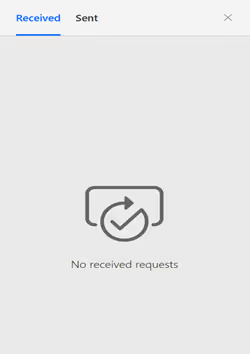
You click Review approval in the command bar, but the approval panel refuses to load.
Yet the approval email still arrives, and the workflow seems to run normally.
This problem occurs frequently when organizations replace the default “Configure page approval” feature with custom approval flows.
This guide explains why this happens, how to fix the approval panel, and how to configure Power Automate correctly so the approval interface renders every time.
Why Use SharePoint Page Approval?
SharePoint Page Approval helps maintain:
- Content governance for intranet and communication sites
- Quality control before publishing
- Consistent workflows for content reviewers
- A structured approval lifecycle for pages
However, custom approval flows introduce one common but critical issue:
SharePoint cannot render the panel unless Item Link + ETag are provided in the correct format.
Root Cause: Incorrect or Missing Item Link in the Approval Action
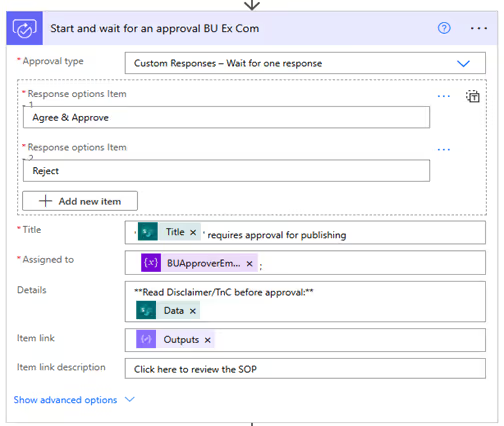
In Power Automate, the Start and wait for an approval action includes a field called Item Link.
This is the link SharePoint uses to open the approval panel when someone clicks Review approval.
If this link is missing the encoded ETag, the panel will not load.
To fix this, we must include two things:
- The page URL
- The properly encoded ETag of the item
Without these, the SharePoint panel cannot load approval data.
Step-by-Step Guide to Resolve the Approval Panel Rendering Issue in Power Automate
Step 1: Build the Correct Item Link
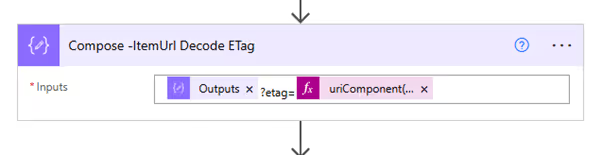
The correct format for the item link is: itemUrl?etag=uriComponent('ETag')
In Power Automate dynamic content, it should look like: outputs('Compose_ItemUrl')?etag=uriComponent(body('Get_file_metadata_-_Get-Etag')?['ETag'])
Why this works:
- SharePoint expects the ETag as a URL parameter.
- The ETag must be URI encoded using uriComponent().
In the Start and wait for an approval action, the ItemLink property controls the rendering of the approval panel when clicking 'ReviewApproval'.
Step 2: Retrieve the Current ETag Using “Get file metadata”
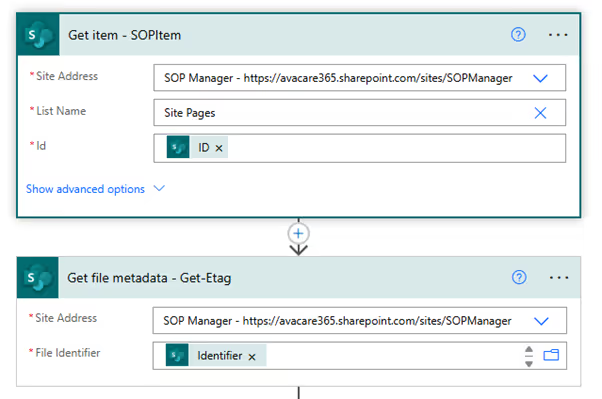
Add the Get file metadata action and pass the page’s file identifier.
This gets the latest ETag, which changes every time the page is edited or updated.
Why ETag matters?
SharePoint uses ETag to determine if the item version being approved is current.
If the ETag doesn’t match, the panel fails to load.
Use the Get file metadata action to retrieve the current ETag, as it changes frequently.
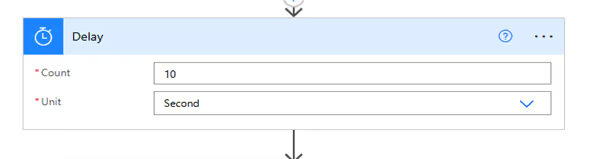
Step 3: Add a Short Delay Before Getting the ETag
When a page is saved or updated, SharePoint may take a few seconds to commit the latest version.
Add a Delay of 10–15 seconds before the "Get file metadata" action.
This ensures:
- You always get the latest ETag
- Approval panel loads correctly
Even a small delay significantly improves reliability.
Adding a short Delay (10–15 seconds) before retrieving the ETag may help ensure the latest version is fetched.
Final Flow Structure (Simplified)
- Trigger: When a Site Page is created or modified
- Delay (10–15 seconds)
- Get file metadata
- Compose page URL
- Start and wait for an approval
- Item Link: pageUrl?etag=uriComponent(ETag) - Update approval status
With this structure, clicking Review approval in SharePoint will consistently load the approval panel.
Conclusion
The SharePoint Page Approval panel fails to render when the Item Link in the approval action does not include the properly encoded ETag. By building the item link correctly and retrieving the latest ETag after a brief delay, you can ensure a smooth and reliable approval experience. This fix is essential for any organization using custom Power Automate approval flows for SharePoint Site Pages.
If your organization needs a reliable, modern, and fully governed SharePoint intranet, get in touch with SharePoint Designs. We help companies streamline page approvals, modernize UX, and implement automation that works flawlessly.
faqs

Sarat Chandra Lohar

Sarat Chandra Lohar is a SharePoint Developer with 3.5+ years of experience in designing and delivering efficient, scalable Microsoft 365 solutions. He specializes in SharePoint Online, SPFx, Power Apps, and Power Automate, focusing on building automated workflows, intranet portals, and business process solutions that enhance productivity and streamline operations.







.svg)