Published Date -

Introduction to SPFx for Modern Intranet Development Tools, frameworks, deployment basics
Modern intranets have evolved far beyond static portals with simple pages and links. Today’s intranets function as dynamic digital workplaces offering personalized dashboards, intelligent content, integrations with business systems, and responsive user interfaces.
This evolution is powered by the SharePoint Framework (SPFx), which has become the foundation for building modern, scalable intranet solutions on SharePoint.
Let’s explore SPFx in a clear and practical way.
What is SPFx?
The SharePoint Framework (SPFx) is Microsoft’s recommended development model for creating custom solutions in Modern SharePoint. It enables developers to build rich, client-side experiences that run securely in the browser.
With SPFx, you can create:
- Client-side web parts
- Extensions such as:
1. Application Customizers
2. Field Customizers
3. Command Sets
- Reusable UI components
All of this is achieved without deploying code to the server, ensuring better performance, security, and maintainability.
Core Tools Used in SPFx Development
1. Node.js & npm
SPFx is built on Node.js, and npm is used to manage dependencies and packages required for development.
Tip: Always use a Node.js version that is supported by your SPFx version to avoid compatibility issues.
2. Yeoman Generator
The SPFx Yeoman generator helps scaffold new projects quickly and consistently.
It creates:
- Standard project structure
- Build and configuration files
- Web part or extension templates
This ensures best practices are followed from the beginning of the project.
3. Gulp
Gulp is the task runner used in SPFx to automate development tasks such as:
- Building bundles
- Running the local workbench
- Packaging solutions for deployment
Commands you’ll use daily:
- gulp serve
- gulp bundle
- gulp package-solution
4. Code Editor
Most developers use Visual Studio Code for SPFx development due to its strong ecosystem and tooling support:
It provides excellent support for:
- TypeScript
- React
- SPFx debugging
- Extensions for linting and formatting
Developing a Hello World Web Part
In this scenario Let’s create a Hello world webpart with a Node.js version greater than 22.
Step 1: Create the Project
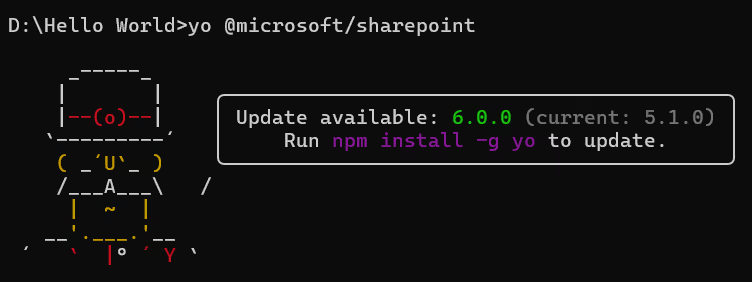
Run the following command:
yo @microsoft/sharepoint
Step 2: Provide Project Details
During setup, provide:
- Solution name
- Type of component (Web Part)
- Web part name
- Framework choice (e.g., React)

Step 3: Open the Project
Once the project is created, open it using Visual Studio Code.
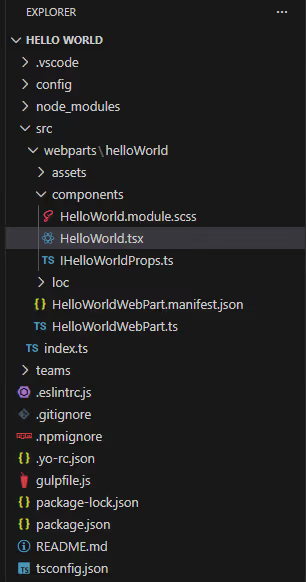
Step 4: Understand the Project Structure
The generated project includes folders for:
- Web part source code
- Configuration files
- Build and packaging setup
Step 5: UI Entry Point
The .tsx file is the main file where all UI elements are rendered in the browser
Debugging the webpart
1. Run the following command to start debugging:
npm run start
2. This command starts the local server and provides a debug URL.
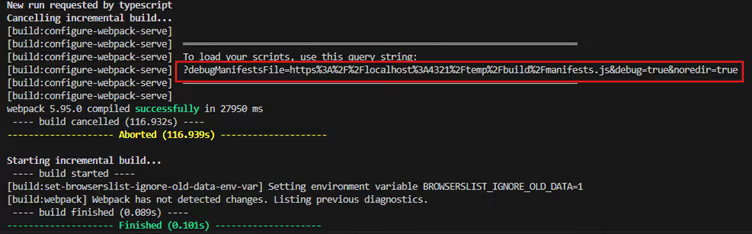
3. Append the debug URL to your SharePoint site URL.

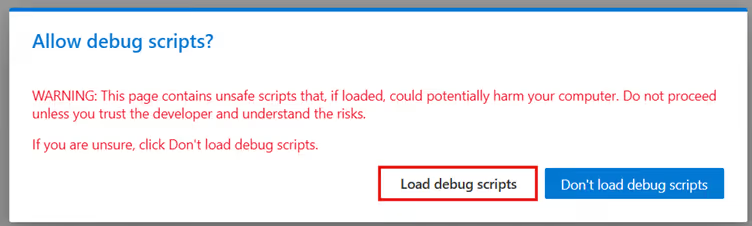
4. You will be prompted to Load debug scripts confirm to proceed.
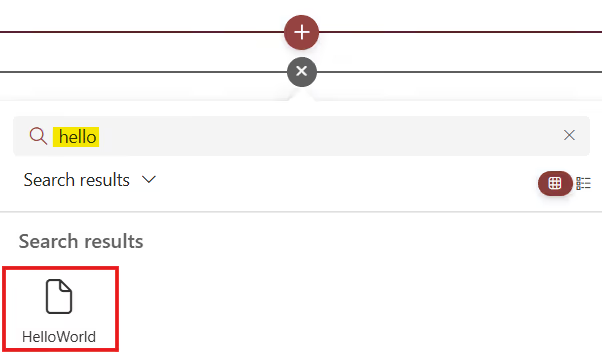
5. Edit the SharePoint page.

6. Add the web part to the page to view and test your changes.
Build and Package the Solution
1. Run the following command:
npm run build
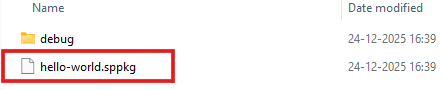
2. This process generates a .sppkg file inside the sharepoint/solution folder.
Deploy to the App Catalog
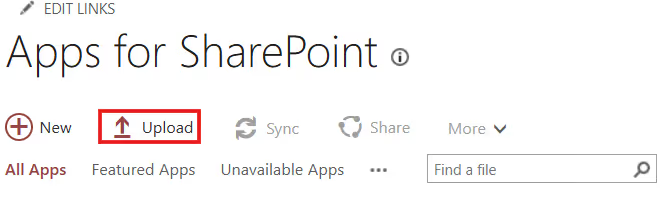
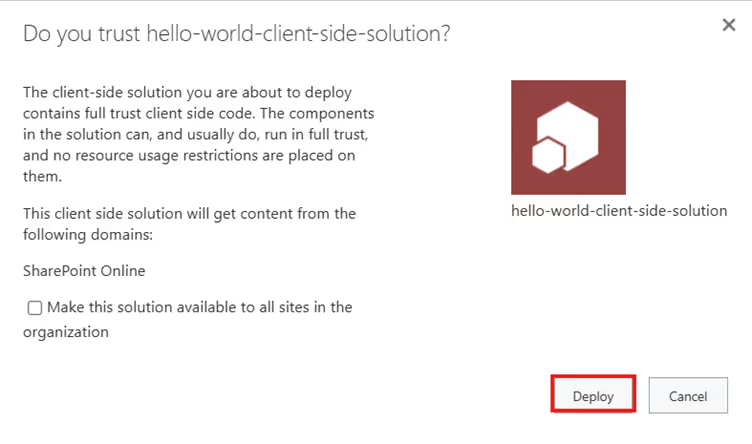
1. Upload the .sppkg file to the SharePoint App Catalog.
2. Click Upload, select the package, and choose Deploy.
Add the App to a Site
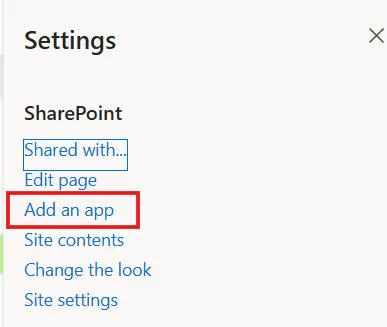
1. Navigate to Settings → Add an app in your SharePoint site.
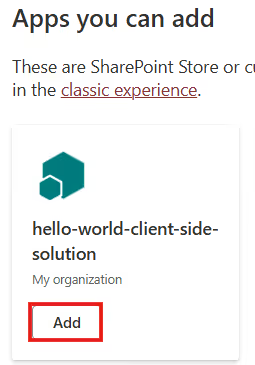
2. Locate the deployed solution.
3. Click Add to make the web part available on the site.
Final Thoughts
SPFx bridges the gap between modern web development and enterprise intranet requirements. By leveraging familiar technologies such as React, TypeScript, and npm, developers can create powerful, secure, and scalable intranet solutions that integrate seamlessly with SharePoint. For organizations building or modernizing their intranet, SPFx is a critical and future-ready development framework.
You may also like
Triggering Out of Box User Invitations for a SharePoint Site Using SPFx and REST API
faqs

Subalakshmi

Subalakshmi is a SharePoint Developer with over 4 years of experience delivering enterprise Microsoft 365 solutions, specializing in SharePoint Online, Microsoft Teams, Azure AD, and Power Pages. She is known for building secure, scalable digital workplace solutions and translating complex business requirements into efficient, high-impact implementations






.svg)