Published Date -

Personalized Welcome Messages in Copilot Using Logged-In User Details
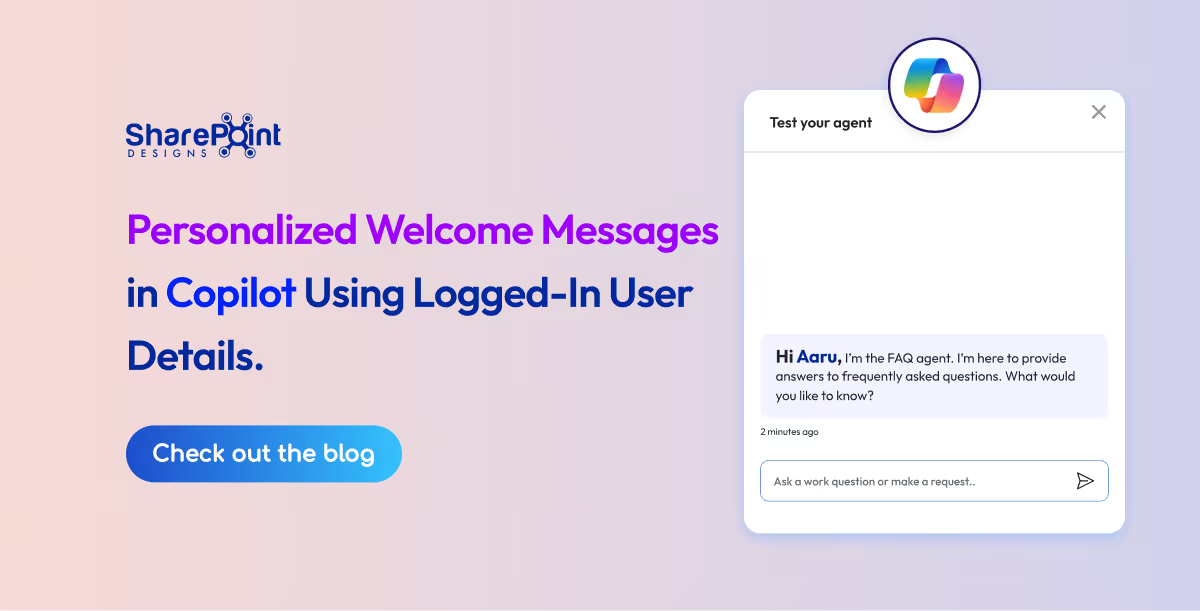
A personalized welcome message improves user engagement and creates a more professional experience in your Copilot agent. Greeting users by name helps the agent feel more responsive, human, and context-aware from the very first interaction.
In simple terms, you can personalize a Copilot agent welcome message by editing the Conversation Start system topic in Copilot Studio and inserting built-in system variables like the user’s display name or first name. No code is required.
Personalization like this is often the first step teams take when working with Copilot Studio. Once it’s in place, many organizations begin exploring broader ways to maximize AI potential in-house with Copilot Studio, using Copilot not just as a chatbot but as a practical digital assistant across everyday workflows.
In this guide, you’ll learn how to update the default welcome message and display the logged-in user’s name using system variables in Copilot Studio.
How to Add the Logged-in User Name in the Welcome Message or Other Topics nodes?
Follow these steps to display the logged-in user’s name in your Copilot Agent:
1. Open your agent in Copilot Studio.
2. In the top navigation bar, click Topics.

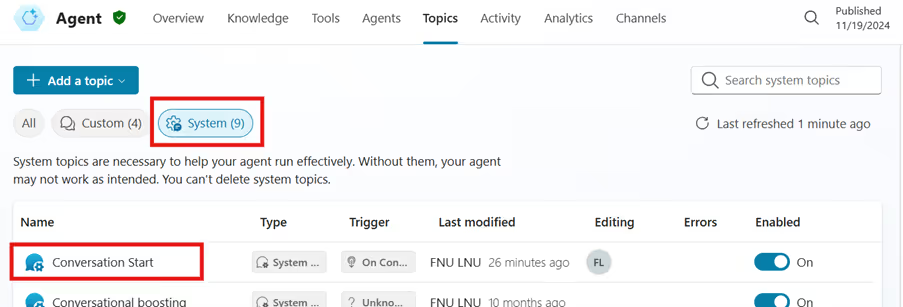
3. Select the System tab, and then click the Conversation Start system topic.
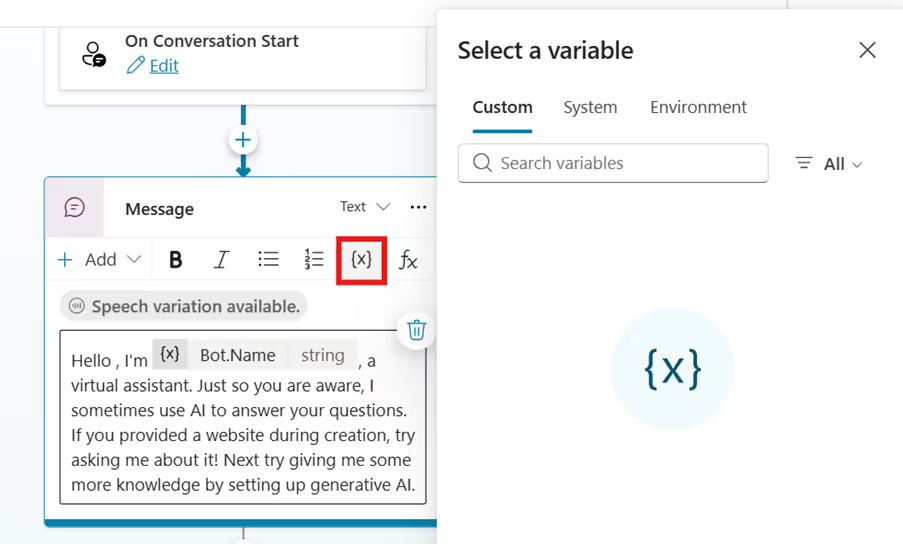
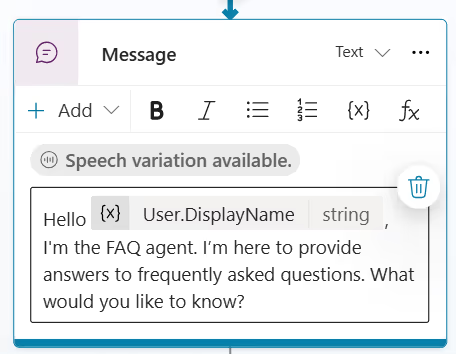
4. In the message node, edit the message text and place the cursor where you want to insert the logged-in user’s name.
5. Click Insert variable this opens the Select a variable pop-up.
6. In the Select a variable pop-up, select the System tab.
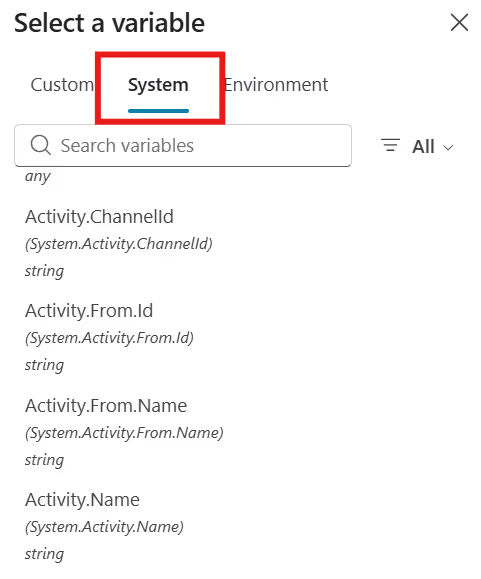
7. Choose one of the following system variables to display the user’s name:
- User Display Name
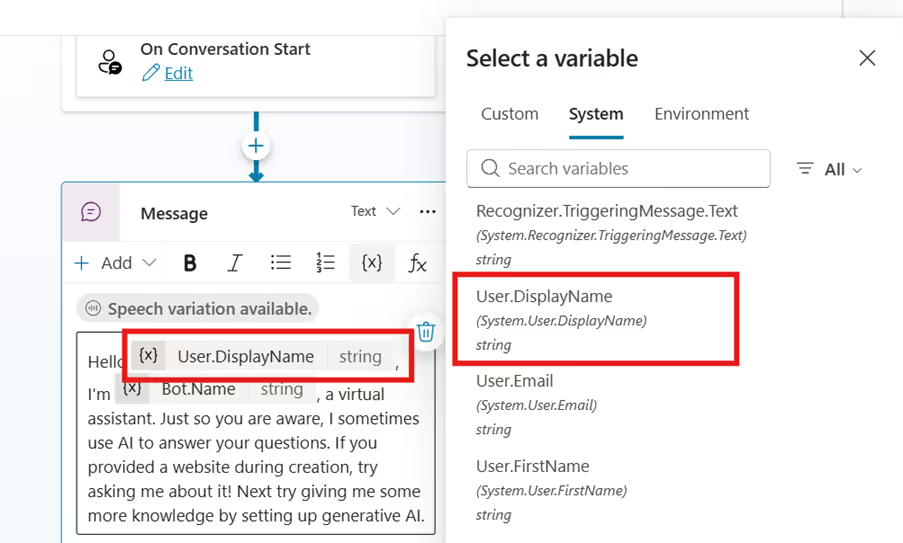
- User First Name
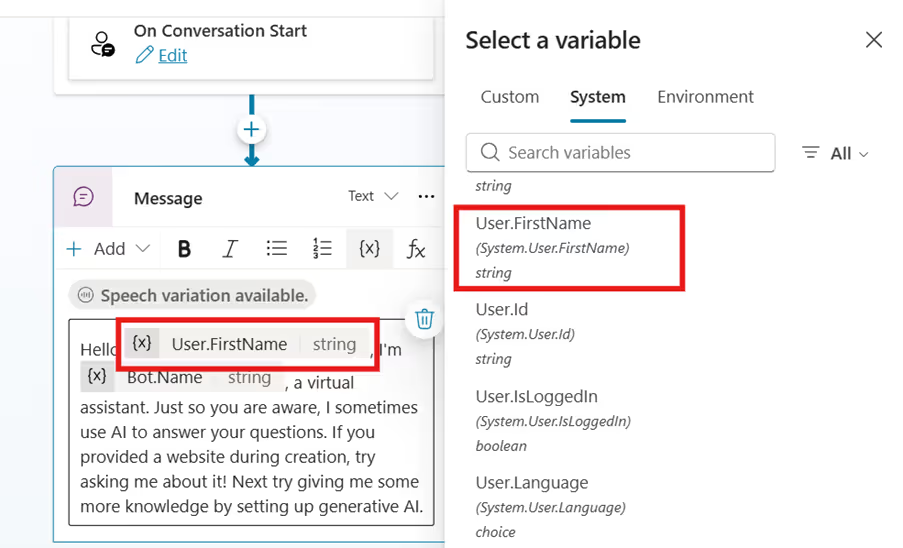
- User Last Name
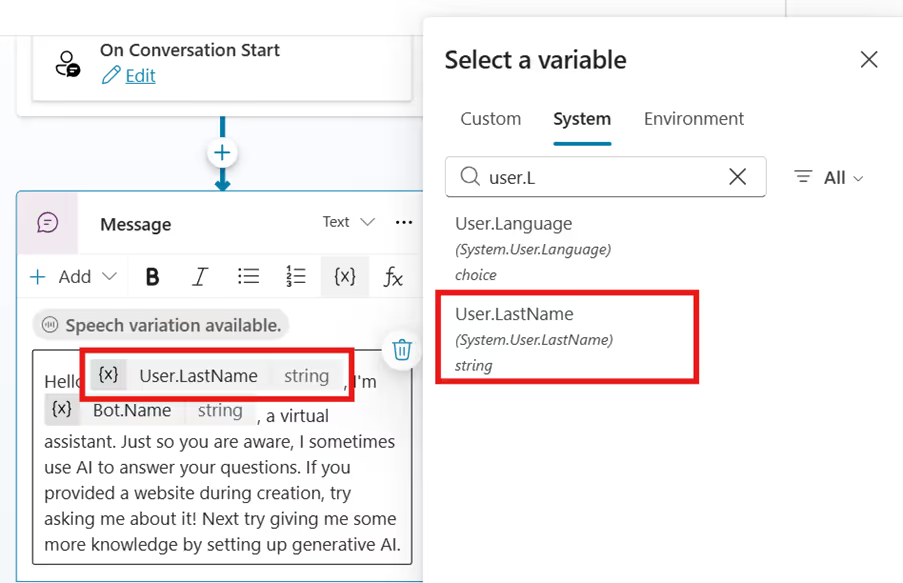
8. Click Save to save your changes.
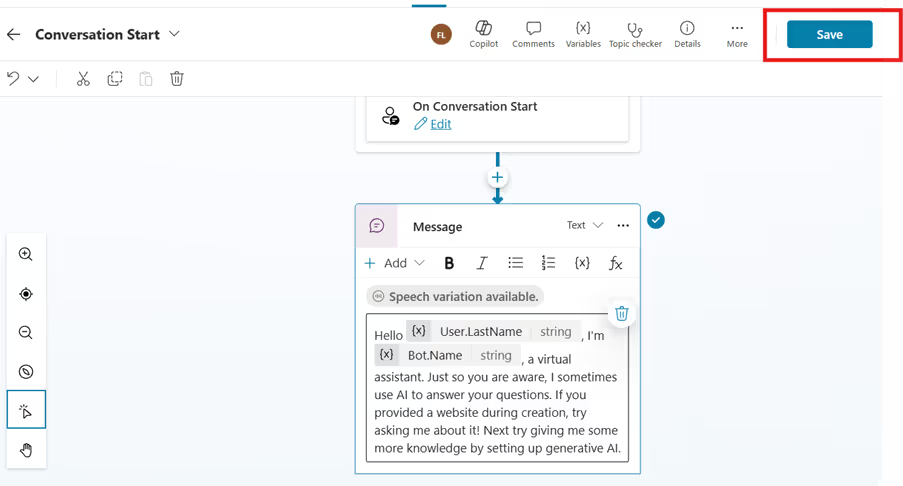
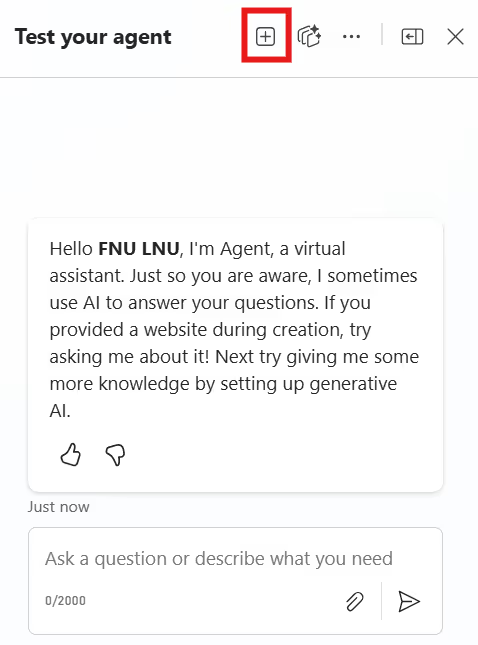
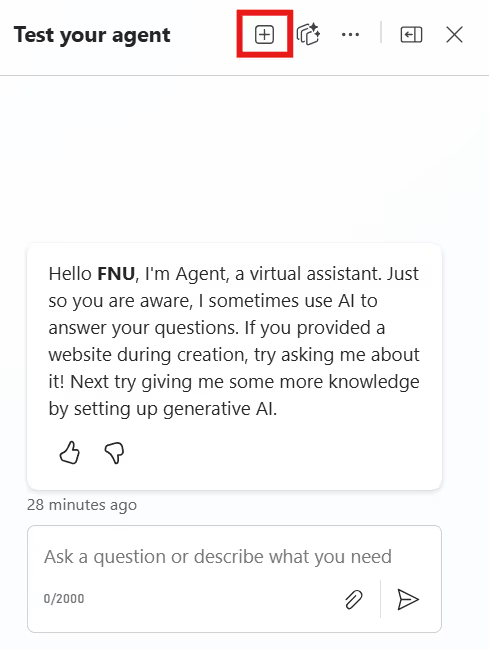
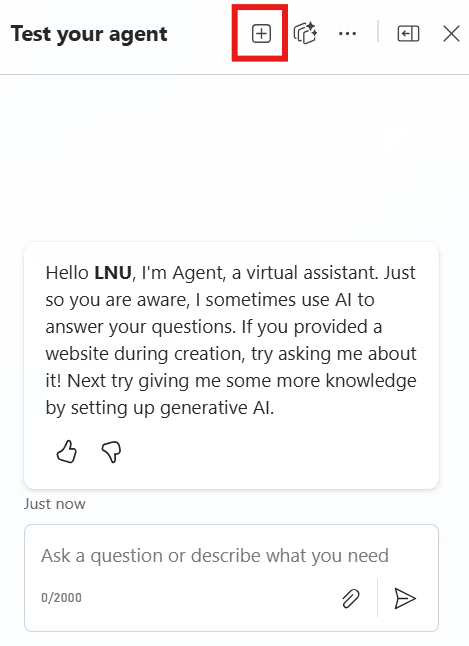
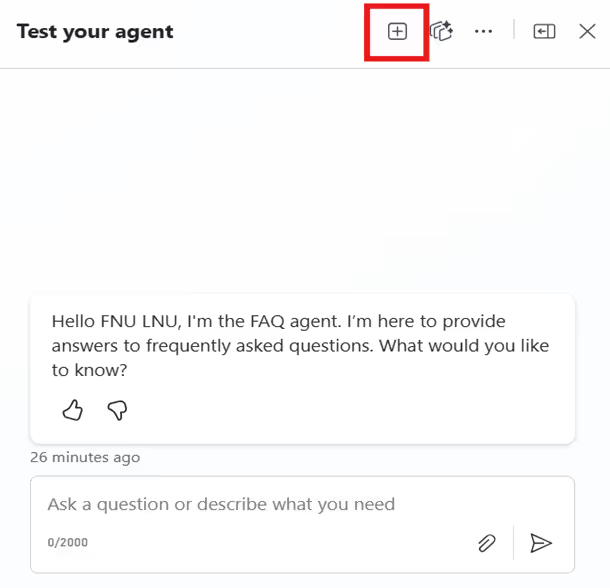
9. After saving, go to the Test chat pane on the right and click Start new test session to preview your logged-in user’s name displayed in the welcome message or other topic nodes.
- User Display Name
- User First Name
- User Last Name
How to customize the welcome message in your Copilot agent?
1. Go to the Conversation Start system topic as described in the previous instructions.
2. Click the Conversation Start system topic to open it.
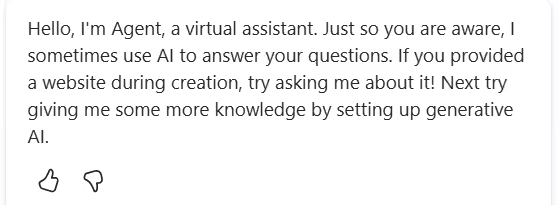
3. When a new Copilot agent is created, this type of default welcome message is automatically displayed in the agent.
4. In the message node, delete the default message and enter your own custom welcome message that you want users to see when the agent opens.
5. Click Save to save your changes.

6. After saving, go to the Test chat pane on the right and click Start new test session to preview your custom welcome message.
Example:
Why Personalizing Copilot Welcome Messages Matters?
Personalization is not just cosmetic. It directly improves:
- User trust and engagement
- Perceived intelligence of the Copilot agent
- Adoption and repeat usage
- Overall user experience in Microsoft Copilot implementations
In fact, greeting users by name is one of the most common patterns seen across real-world implementations, especially in scenarios highlighted in many top use cases for Microsoft Copilot Studio from HR self-service to IT helpdesk agents and internal knowledge assistants.
Final Thoughts
Customizing the welcome message in your Copilot agent is a small change, but it has an outsized impact. By greeting users by name and clearly setting expectations, you create a more engaging and trustworthy first interaction.
These small experience improvements reflect a larger shift in how organizations are adopting AI. As Copilot becomes part of everyday collaboration, personalization helps bridge the gap between automation and human-centered design something increasingly visible as Microsoft’s generative AI continues to reshape modern collaboration.
With just a few configuration steps, your Copilot agent can move from feeling generic to feeling genuinely helpful from the very first message.
faqs

Ruthramugesh

Ruthramugesh is a skilled SharePoint Developer with expertise in SharePoint, Power Automate, PowerShell, SPFx, React, TypeScript, and Docusaurus. He has applied his technical knowledge across client and internal projects while continuously learning and sharing insights with his team. Passionate about growth and innovation, he is committed to delivering his best and contributing to the company’s success.






.svg)