Tech Ideas & Best Practices
A SharePoint HR intranet needs 12 core pages. Eleven serve all employees: HR home, policies, benefits, HR forms, onboarding, leave, pay, directory, learning, recognition and Ask HR. The twelfth is an analytics page for the HR team. Each page needs a named owner, a review date and links to the HR systems employees already use.
Last updated: 19 October 2026
An HR intranet, also called an HR portal or HR hub, is the part of a company intranet where employees find people-related information and self-service tasks. Built well, it reduces repeat questions to HR. Built badly, it becomes a folder of outdated PDFs.
What is a SharePoint HR intranet?
A SharePoint HR intranet is an HR hub site inside your Microsoft 365 tenant. It gathers HR policies, forms, benefits information and self-service links in one place. Because it runs on SharePoint, it uses the same sign-in and permissions as Microsoft 365. HR content can therefore be shown to everyone, while case files stay restricted to the HR team.
Most organisations build the HR intranet as a hub site connected to the main intranet home site. This keeps HR news flowing to the company homepage, while HR editors manage their own pages. Our SharePoint intranet build guide explains how hub sites fit together.
Which 12 pages should every SharePoint HR intranet include?
Every SharePoint HR intranet should include these 12 pages, because together they cover the questions employees ask HR most often. The first eleven serve all employees. The twelfth serves the HR team. Build the first six for launch, then add the rest in a second phase if time is short.
What should the HR home page show?
The HR home page should show the five most common HR tasks, current HR news and a clear way to contact HR. It is the page employees land on from the main intranet, so it must answer "where do I go for this?" in a single glance. Keep long policy text off this page and link to it instead.
A practical layout:
- Top task buttons. Request leave, view payslip, find a policy, update details, ask HR.
- HR news. Open enrolment dates, policy changes, new benefits.
- Upcoming events. Training sessions, wellbeing days, deadlines.
- Meet the HR team. Photos, roles and who handles what.
How should HR policies be organised on SharePoint?
Organise HR policies in a single document library with metadata, not in nested folders. Each policy should carry its category, owner, version, effective date and next review date. Employees then filter by category, and HR filters by review date to see what is overdue. One library also gives Copilot a single, current source to answer from.
Recommended columns for the policy library:
- Policy name
- Category (conduct, leave, benefits, health and safety, IT use)
- Owner
- Version
- Effective date
- Next review date
- Requires acknowledgement (yes or no)
Our guide to folders versus metadata in SharePoint explains why metadata scales better. For policies that employees must confirm they have read, see how to track policy acknowledgement in SharePoint.
What should a SharePoint onboarding page include?
A SharePoint onboarding page should include joiner and manager checklists, a first-week agenda and links to every system the joiner needs. The aim is that a new employee can answer their own first-week questions without emailing HR. Personalising the page by department or location makes it far more useful.
New joiner checklist example:
- Complete personal details and bank information
- Read and acknowledge the code of conduct
- Complete IT security training
- Meet your onboarding buddy
- Book your 30-day check-in with your manager
Our employee onboarding solution shows how this works with automated reminders.
How do you connect HR systems to a SharePoint HR intranet?
You connect HR systems to a SharePoint HR intranet with deep links, Viva Connections cards and, where needed, Power Automate flows. Most employees do not need data copied into SharePoint. They need one click from the intranet to the right screen in Workday, SAP SuccessFactors, BambooHR, ADP or your payroll system.
Three levels of connection, from simplest to richest:
- Deep links. A button that opens the leave request screen in your HR system.
- Viva Connections cards. A Teams dashboard card showing leave balance or open tasks.
- Automated flows. Power Automate creates onboarding tasks in SharePoint when a joiner is added in the HR system.
How do you keep a SharePoint HR intranet up to date?
You keep a SharePoint HR intranet current by giving every page an owner and a review date, then reviewing usage data monthly. Pages nobody visits are candidates for merging or removal. Searches with no result show content HR still needs to write. A short monthly review prevents the slow decay that makes employees stop trusting the HR hub.
A monthly 30-minute HR intranet review:
- List pages past their review date and send them to owners.
- Check the top ten searches on the HR site and whether each returns the right page.
- Check which policies have low acknowledgement rates.
- Retire one page that nobody used.
Can you use a template for a SharePoint HR intranet?
Yes. A template gives you a tested layout for the HR home page, policies, onboarding and recognition, which can cut build time from weeks to days. You still need to write your own content, set permissions and connect your HR systems. Choose a template that installs in your own tenant, so you keep full ownership.
See our SharePoint HR portal template for a ready layout. Sangha adds onboarding, document centre, directory and recognition components to it.
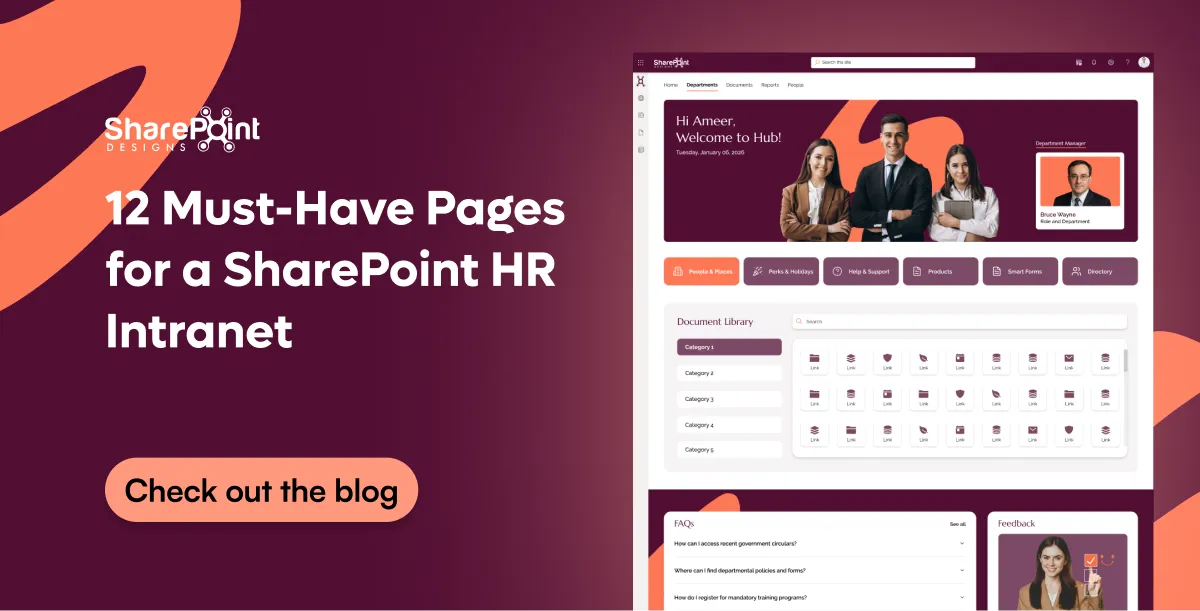
What Pages Should a SharePoint HR Intranet Have? 12 Essential Pages for Every HR Hub
A SharePoint HR intranet needs 12 core pages. Eleven serve all employees: HR home, policies, benefits, HR forms, onboarding, leave, pay, directory...

You calculate intranet ROI by adding four benefits and subtracting the full cost. The benefits are time saved finding information, HR and IT tickets avoided, tools retired and faster onboarding. The costs are licences, build and internal time. ROI equals net benefit divided by total cost. Use conservative assumptions, show every formula, and let finance change the inputs.
Last updated: 12 October 2026
Many intranet ROI calculators show a single savings figure without the formula behind it. Finance teams rarely accept that. This guide shows each formula, the assumption it relies on and a worked example for a 500-person company.
What is intranet ROI?
Intranet ROI, or return on investment, is the financial value an intranet creates compared with what it costs to build and run. It is usually measured over one to three years. The value comes mainly from time employees stop wasting, work support teams stop repeating and software the organisation stops paying for.
The basic formula is:
A credible ROI case states every input, uses ranges rather than single figures and counts only benefits the organisation can observe.
Which benefits should an intranet ROI calculation include?
Include four benefits that can be measured before and after launch: time saved searching for information, support tickets avoided, tools retired and faster onboarding. Leave out softer benefits, such as culture or engagement, from the core figure. Mention them separately, because finance teams discount numbers they cannot verify.
How do you calculate the value of time saved?
Multiply employees by hours saved per week, working weeks per year and the loaded hourly cost. Then apply a capture rate, because not every saved minute turns into productive work. A 50 percent capture rate is a common, conservative choice. McKinsey Global Institute found in 2012 that interaction workers spend nearly 20 percent of their week looking for information or colleagues.
The 1.3 multiplier adds employer costs such as tax and benefits. Adjust it to your country. Source: McKinsey Global Institute, The social economy (2012).
How do you calculate savings from fewer HR and IT tickets?
Count the tickets in categories the intranet can answer, such as policy questions, password guidance and how-to requests. Estimate the share the intranet will deflect, then multiply by the cost of handling one ticket. Use your own help-desk data for the baseline, because ticket cost varies widely between organisations.
Typical eligible categories:
- "Where do I find" questions about policies and forms
- Benefits and leave rules
- Standard IT how-to requests
- Office and facilities information
How do you calculate savings from retired tools and faster onboarding?
Retired tools are the simplest benefit. Add the annual cost of every subscription the intranet replaces, such as an employee app, newsletter tool or old intranet licence. Faster onboarding is valued by the days sooner a new joiner reaches full productivity, multiplied by their daily cost and the number of joiners each year.
The 50 percent factor reflects that a new joiner is partly productive during those days. Our employee onboarding solution shows how a structured onboarding hub shortens the first weeks.
What costs belong in an intranet ROI calculation?
Include every cost over the same period as the benefits: platform or product cost, build and design, content migration, internal staff time, training and ongoing support. Include Microsoft 365 licences only if you are buying them for the intranet. If you are replacing an existing platform, our intranet replacement calculator compares old and new running costs. Most organisations already pay for them, so they are not an intranet cost.
Our intranet cost calculator estimates the cost side in a few minutes. The SharePoint intranet cost guide explains typical ranges by approach.
What does a worked intranet ROI example look like?
For a 500-person company, conservative inputs produce a first-year net benefit of roughly $150,000 against a cost of about $55,000. The largest benefit is time saved, even at only 20 minutes per employee per week and a 50 percent capture rate. Every input below is an assumption that finance can change.
Figures are rounded. The loaded daily cost is $36.11 × 8 hours.
How do you make an intranet ROI case that finance will accept?
Make the case credible by using the organisation's own baselines, showing every formula, choosing conservative inputs and presenting a range. Show a low, expected and high scenario. Then commit to measuring the same inputs after launch. A case that predicts a modest return and proves it is more persuasive than a large, unverifiable figure.
- Baseline first. Survey time spent searching and pull ticket data before launch.
- Show three scenarios. Low, expected and high, with the inputs for each.
- Exclude soft benefits from the headline figure.
- Measure at 90 days and 12 months using the same method.
Our article on intranet and internal communication KPIs lists the metrics to track after launch.
How Do You Calculate Intranet ROI? Formulas, Assumptions and a Worked Example
You calculate intranet ROI by adding four benefits and subtracting the full cost. The benefits are time saved finding information,

Quick Answe: For a company of 200 to 2,000 employees that already uses Microsoft 365, a SharePoint intranet usually fits best. It runs in your own tenant, uses licences you already pay for and avoids per-user platform fees. LumApps fits better when you also run Google Workspace or need its Beekeeper frontline app. Unily fits large, multi-region enterprises that want a vendor-run platform and have the budget for it.
Last updated: 12 October 2026
This comparison is written by a SharePoint partner, so read it with that in mind. We have tried to show where each option genuinely wins, using public information from each vendor as of October 2026.
What is the main difference between SharePoint, LumApps and Unily?
The main difference is where the intranet lives and who owns it. A SharePoint intranet is built inside your own Microsoft 365 tenant, so your content, permissions and data stay there. LumApps and Unily are separate software-as-a-service platforms. They connect to Microsoft 365, but they host the intranet experience themselves and charge a subscription for it.
Vendor details come from LumApps and Unily public pages reviewed in September and October 2026.
How do the three options compare on cost over three years?
Over three years, a SharePoint intranet usually costs least for companies already on Microsoft 365, because there is no per-user platform fee. LumApps and Unily add a subscription for every employee on top of Microsoft 365 licences. Neither publishes prices, so you must request a quote. Ask for the three-year total, including implementation and connectors.
What to ask each vendor for:
- Annual subscription per user, and the minimum user count
- Implementation fee and timeline
- Cost of connectors, AI features and frontline modules
- Price increase cap at renewal
- Cost and format of a full content export if you leave
Our SharePoint intranet cost guide includes a worked three-year comparison. The intranet replacement calculator estimates your own figures.
When does LumApps make more sense than SharePoint?
LumApps makes more sense when your organisation runs Google Workspace, either alone or alongside Microsoft 365. It also suits organisations that want a single vendor for office and frontline staff, since Beekeeper became part of LumApps. If most of your workforce is deskless and has no Microsoft 365 licence, LumApps' frontline tools are worth evaluating.
LumApps is a strong candidate when:
- Google Workspace is your main productivity suite.
- A large share of staff are frontline and unlicensed for Microsoft 365.
- You want a vendor-run platform with built-in frontline messaging and shift tools.
When does Unily make more sense than SharePoint?
Unily makes more sense for large, complex enterprises that want a vendor-run, heavily featured platform and can fund it. Its stated focus is organisations from 1,000 to 1,000,000 employees, and its named customers include global brands. In September 2026 it added Glass for Frontline, an AI search and task tool for deskless staff.
Unily is a strong candidate when:
- You operate across many regions, brands and languages.
- You want the vendor, not your IT team, to run the platform.
- Budget allows a premium subscription for every employee.
When is a SharePoint intranet the better choice?
A SharePoint intranet is the better choice when Microsoft 365 is already your main platform and you want to own the result. Content, permissions and search stay in one place. Copilot answers from the same content. You avoid a second platform to secure, audit and renew. Custom design and add-ons cover features out-of-the-box SharePoint lacks.
A SharePoint intranet is a strong candidate when:
- All or most staff already have Microsoft 365 licences.
- IT prefers one platform, one set of permissions and one audit trail.
- You plan to use Microsoft 365 Copilot or SharePoint agents.
- You want to avoid a per-user fee that grows with headcount.
Our comparison of buying an intranet product versus hiring a partner explains the build options within SharePoint.
Is a SharePoint intranet "just a layer" compared with a SaaS platform?
No. Some vendors describe SharePoint intranets as a layer rather than true software as a service. In practice, SharePoint Online is itself a Microsoft-run cloud service, updated and secured by Microsoft. A SharePoint intranet adds design and components on top of it. A separate platform adds a second cloud service on top of Microsoft 365.
The practical questions are more useful than the label:
- Who updates and secures the platform? For SharePoint Online, Microsoft does.
- Where does your content live? For SharePoint, in your own tenant.
- What happens if you change partner? Your intranet keeps running.
- What happens if you leave a SaaS platform? You export and rebuild.
How should you run an intranet platform evaluation?
Run the evaluation on real tasks, not demos. Give each option the same ten employee tasks, the same three content owners and the same governance questions. Score usability, effort for editors, total cost and exit effort. A two-week proof of concept with real content reveals more than any feature checklist.
- List ten real employee tasks, such as finding the leave policy on a phone.
- Ask each vendor or partner to show those tasks with your content.
- Have three content owners publish a news post on each option.
- Request a three-year cost including implementation and connectors.
- Ask how you would leave and what format your content exports in.
Our free intranet RFP generator produces a requirements list you can send to every shortlisted vendor. Sangha is our option for teams that want a ready SharePoint intranet they own outright.
SharePoint vs LumApps vs Unily: Which Intranet Fits a 200 to 2,000 Employee Company?
For a company of 200 to 2,000 employees that already uses Microsoft 365, a SharePoint intranet usually fits best.
Quick Answer: Copilot quotes outdated policies because outdated copies are still in SharePoint and the user can still open them. You stop it with a content lifecycle. Every policy gets a named owner and a review date. Old versions are archived or removed from search. Inactive and ownerless sites are cleaned up, and restricted content discovery hides sites that should not feed answers.
Last updated: 10 October 2026
Content lifecycle management is the set of rules that decide when content is created, reviewed, archived and deleted. On a SharePoint intranet used with Copilot, it is the main control over answer quality. This guide covers the causes, the controls available in Microsoft 365 and a monthly review routine.
Why does Copilot quote outdated policies?
Copilot answers from content the user already has permission to open. It cannot reliably tell which of two similar documents is current. If "Travel Policy 2023" and "Travel Policy 2026" both sit in accessible libraries, either can appear in an answer. The cause is the content estate, not the AI model, so the fix is content governance.
Common causes:
- Old policy versions saved as separate files instead of versions of one file
- Copies of policies in Teams channels, personal OneDrive folders and email attachments
- Department sites with no owner, still holding years-old guidance
- Draft documents stored beside approved ones without clear labels
Our article on why Copilot returns the wrong document explains how Copilot grounding chooses sources.
What is a content lifecycle for SharePoint?
A content lifecycle for SharePoint is a defined path every important page or document follows: draft, approved, published, reviewed, then archived or deleted. Each stage has an owner and a date. The lifecycle makes sure that only one current, approved version of each policy is visible, and that older versions leave everyday search.
Our guide to document control in SharePoint covers the approval stages for regulated documents.
How do you set owners and review dates on SharePoint content?
Add two columns to every policy library and site pages library: owner and next review date. Then use a Power Automate flow to remind owners 30 days before the review date and again on the date. Content past its review date should be flagged on the page, so readers and editors can see it may be out of date.
- Add columns. Owner (person) and next review date (date) on each library.
- Fill them. Assign every existing policy and key page before switching on reminders.
- Create the reminder flow. Notify owners 30 days before review and on the review date.
- Escalate. Notify the intranet owner when a page is 30 days overdue.
- Report. Show overdue items on a dashboard each month.
Our post on SharePoint automated reminders and alerts shows how to build the reminder flow.
How do you archive old policy versions so Copilot ignores them?
Keep one file per policy and use SharePoint version history for changes, instead of saving new files for each year. Move genuinely superseded documents to an archive site with restricted access, or apply retention labels that keep them for records. If a site must stay readable but should not feed Copilot, use restricted content discovery.
Archiving options in Microsoft 365:
- Version history. One file per policy, with earlier versions kept inside it.
- Archive site. Superseded documents moved to a site only records staff can open.
- Retention labels. Microsoft Purview keeps records for the required period.
- Microsoft 365 Archive. Moves inactive sites to lower-cost storage, out of everyday use.
Our guide to Microsoft Purview retention for SharePoint documents explains how to set retention periods.
Which SharePoint Advanced Management features help keep Copilot answers current?
SharePoint Advanced Management (SAM) adds policies that find and fix stale or ownerless content. Microsoft makes key SAM features available once an organisation has at least one Microsoft 365 Copilot licence. These include inactive site policies, site ownership policies, site attestation, content management assessment and restricted content discovery.
Source: Microsoft Learn, SharePoint Advanced Management features with Microsoft 365 Copilot licences, reviewed October 2026.
What does a before-and-after Copilot answer look like?
Before a content lifecycle, Copilot may answer a travel question with a mix of old and new rules, citing an outdated file. After clean-up, the same question returns one answer that cites the current policy. The model did not change. The content did. This is why content governance usually improves answers more than changing tools.
Question: "What is the daily meal allowance for domestic travel?"
The allowance values are omitted because they vary by organisation. The pattern is what matters.
What monthly routine keeps SharePoint content Copilot-ready?
A 60-minute monthly routine keeps content Copilot-ready. The intranet owner reviews overdue pages, ownerless sites, top failed searches and any wrong Copilot answers reported by staff. Each issue goes to a named owner with a due date. Over a few months, this routine prevents the gradual build-up of outdated content.
- Overdue reviews. Send the list to owners.
- Ownerless and inactive sites. Act on SAM policy results.
- Failed searches. Fix or create the content behind the top ten.
- Reported wrong answers. Trace each to its source document and correct or archive it.
- Duplicates. Merge any new duplicate policies found.
DocVault adds approval workflows, review reminders and version-specific acknowledgement to SharePoint document libraries. Our AI-ready SharePoint score shows where your content stands today.
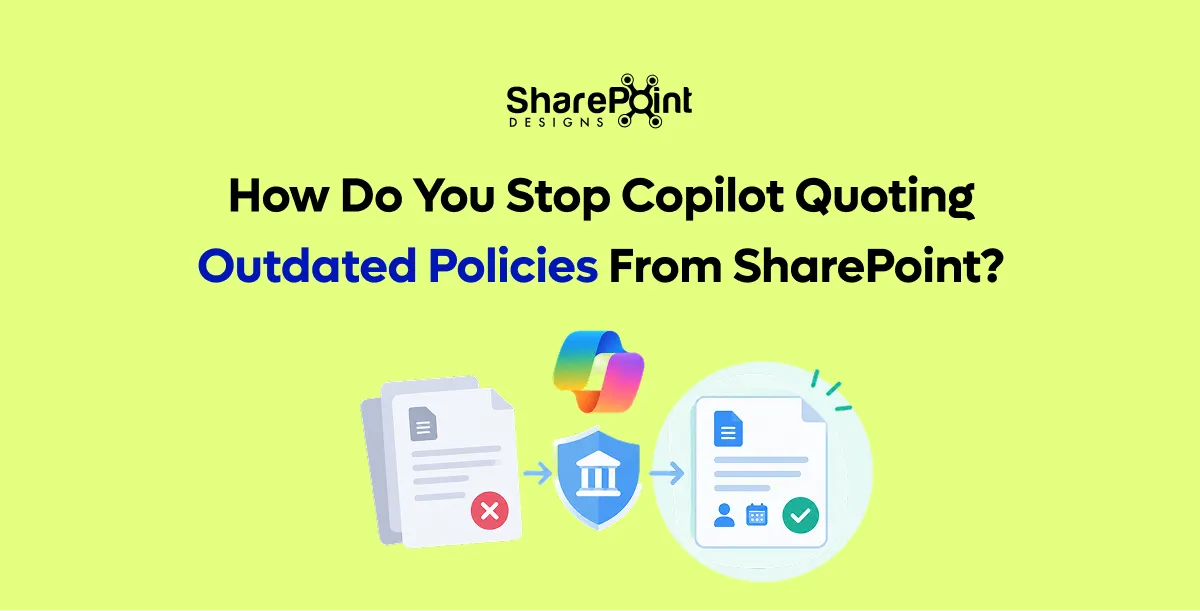
How Do You Stop Copilot Quoting Outdated Policies From SharePoint?
Copilot quotes outdated policies because outdated copies are still in SharePoint and the user can still open them.
Quick Answer: License frontline workers with Microsoft 365 F1 or F3. Then deliver the SharePoint intranet through Viva Connections in the Teams mobile app. F1 costs $3 and F3 costs $10 per user per month from 1 July 2026. Target news by location and role, keep pages short and mobile-first, and put the five most common frontline tasks on the dashboard.
Last updated: 10 October 2026
Frontline workers, also called deskless workers, are employees who work in stores, plants, hospitals, warehouses or the field rather than at a desk. They are often the hardest group for an intranet to reach. This guide covers licensing, the mobile experience and when a separate frontline app is still worth considering.
What do frontline workers need from an intranet?
Frontline workers need fast answers on a phone, in their own language, between tasks. They rarely need long articles or document collaboration. The most valuable content is shift information, pay and leave, safety procedures, site news and a way to ask a question. If any of these takes more than a few taps, frontline staff stop using the intranet.
The five most common frontline tasks:
- Check shifts or the rota
- Find payslips and pay dates
- Request leave
- Read safety procedures and site news
- Ask HR or a manager a question
Which Microsoft 365 licence do frontline workers need for an intranet?
Frontline workers need a Microsoft 365 frontline plan, usually F1 or F3. Both include SharePoint, Teams and Viva Connections, which is enough to read and use the intranet. F3 adds Office web and mobile apps and an email mailbox. Microsoft raised both prices on 1 July 2026, so recheck any frontline intranet budget built earlier.
Prices are US list prices per user per month on annual commitment, with Teams. Plans without Teams rose by a larger percentage. For 1,000 frontline staff, the change adds $9,000 a year on F1 and $24,000 a year on F3.
How do frontline workers access a SharePoint intranet?
Frontline workers access a SharePoint intranet mainly through Viva Connections in the Teams mobile app. Viva Connections shows a dashboard of cards, a news feed and a link to the intranet home site in one place. Because most frontline staff already use Teams for shifts and chat, the intranet sits where they already are.
Set up the frontline experience in four steps:
- Set the home site. Viva Connections uses your SharePoint home site as its source.
- Pin Viva Connections in Teams. Pin it for the frontline user group so it appears in the app bar.
- Build the dashboard. Add cards for shifts, pay, leave, safety and "Ask HR".
- Target news. Show site and regional news only to the relevant locations.
Our Microsoft Viva Connections service covers the dashboard setup in detail.
How should you design intranet pages for frontline staff?
Design frontline pages for a phone screen and a two-minute visit. Put the answer at the top, use short paragraphs and large buttons, and avoid PDFs where a page will do. Translate key pages into the languages your staff speak. Test every page on a mid-range Android phone over a mobile connection, not only on a desktop.
Frontline page rules:
- One task per page, answer first
- Buttons rather than text links for actions
- Images compressed for mobile data
- Key safety and HR pages translated using SharePoint multilingual pages
- No document downloads for information that fits on a page
Our guide to mobile-first intranet design has more layout examples.
How do you handle shared devices and staff without email?
Many frontline staff share a device or have no company email address. Microsoft 365 F1 does not include a mailbox, so the intranet must not rely on email for news or sign-in instructions. Use Teams notifications and Viva Connections news instead. For shared tablets, use shared device sign-in so each worker sees their own content.
Practical steps:
- Send news through Viva Connections and Teams, not email.
- Use QR codes on noticeboards that open specific intranet pages.
- Set up shared device mode on shared tablets and phones.
- Give managers a short guide to help staff sign in for the first time.
When is a separate frontline app still worth considering?
A separate frontline app is worth considering in two cases. Most frontline staff will receive no Microsoft 365 licence, or they need offline access, scheduling and messaging in one tool. Vendors such as LumApps, now including Beekeeper, and Unily, with Glass for Frontline, sell these apps. They add a per-user fee on top of any Microsoft licences.
Compare options with three questions:
- Will frontline staff have Microsoft 365 F1 or F3 licences anyway?
- Do they need features Teams and Viva Connections lack, such as offline content?
- What is the three-year per-user cost of the separate app?
If staff already have frontline licences, Viva Connections usually covers the intranet need without a second app. Our SharePoint vs LumApps vs Unily comparison covers the trade-offs.
How do you measure frontline intranet reach?
Measure frontline reach separately from office reach. Report monthly reach, mobile share and news read rate for frontline audiences on their own. Company-wide averages hide frontline gaps, because office staff visit more often. A frontline monthly reach of 60 percent or more is a strong result in the first year.
Our article on intranet KPIs with formulas explains how to calculate each metric.
How Do You Give Frontline Workers an Intranet on Microsoft 365 in 2026?
License frontline workers with Microsoft 365 F1 or F3. Then deliver the SharePoint intranet through Viva Connections in the Teams mobile app

Quick Answer: You move to a SharePoint intranet in four stages over about 30 days for a focused scope. Week one is a content inventory and keep-or-archive decisions. Week two sets up the SharePoint structure. Week three migrates and rebuilds the content that matters. Week four tests, redirects old links and launches. Large or heavily customised intranets take longer, but the order stays the same.
Last updated: 10 October 2026
Intranet vendors change. Products are acquired, merged or put into administration, and support for on-premises software ends. This guide covers why organisations are moving now, what changes for each starting point, and a week-by-week plan.
Why are organisations moving off LiveTiles, Jive and older intranets?
Organisations are moving because of vendor uncertainty and end-of-support dates. LiveTiles has been in receivership since December 2023. Jive has changed ownership more than once and now sits within Aurea. Beekeeper has become part of LumApps. SharePoint Server 2016 and 2019 reached end of support on 14 July 2026.
Sources: public company records and vendor announcements, reviewed October 2026.
What makes a SharePoint intranet a safer long-term choice?
A SharePoint intranet is a safer long-term choice because the platform is run by Microsoft and the content stays in your own Microsoft 365 tenant. If a partner or add-on vendor changes, your intranet keeps running. Pages, files, permissions and search remain where they are. You are not exporting your whole intranet every time a vendor's situation changes.
What stays under your control:
- Content, pages and documents in your tenant
- Permissions and security settings
- Search and Copilot access to the same content
- The choice of partner, product or internal team
Our article on rebuilding SharePoint rather than replacing it explains the ownership argument in more detail.
What changes when you move from LiveTiles to standard SharePoint?
Moving from LiveTiles is often simpler than other moves, because LiveTiles intranet products were largely built on top of SharePoint and Microsoft 365. Much of the content may already sit in SharePoint libraries. The main work is replacing LiveTiles-specific pages, tiles and web parts with standard or supported SharePoint components, then removing the old app.
Typical LiveTiles move:
- List every page that uses LiveTiles components.
- Map each component to a standard SharePoint web part or a supported replacement.
- Rebuild those pages as modern SharePoint pages.
- Remove LiveTiles apps and permissions once pages are verified.
What changes when you move from Jive to SharePoint?
Moving from Jive means moving content from a separate platform into SharePoint, so it needs export, transformation and import. Jive places, blogs, documents and discussions do not map one-to-one to SharePoint. Documents move to libraries. Blogs and announcements become news posts. Discussions usually move to Viva Engage or Teams rather than SharePoint pages.
Our comparison of SharePoint migration tools shows which tools handle Jive and other sources.
How do you plan a 30-day intranet move?
Plan the move as four one-week stages with a clear decision at the end of each. The plan below suits a focused intranet of a few hundred pages. Larger intranets repeat weeks two and three for each department wave. The key rule is to decide what to archive before migrating anything.
- Week 1: Inventory and decide. Export every page and file with owner, last update and views. Mark each as keep, rewrite, merge or archive.
- Week 2: Build the structure. Create the home site, hub sites and navigation. Apply branding and a template.
- Week 3: Migrate and rebuild. Move documents with a migration tool. Rebuild the top pages by hand as modern pages.
- Week 4: Test, redirect and launch. Test top tasks with real employees, redirect old URLs and announce the launch.
Our free intranet migration best practices e-book includes a migration checklist.
How do you avoid losing links and history during the move?
Avoid losing links by recording every old URL during the inventory and mapping it to a new page before launch. Then set up redirects, so bookmarks and links in emails still work. Keep the old platform read-only for a short period after launch, rather than switching it off on day one.
- Keep a URL map spreadsheet: old address, new address, owner.
- Redirect the top 200 most-visited old URLs at minimum.
- Keep the old platform read-only for 30 to 60 days.
- Archive a final export of the old platform for records.
Our guide to SharePoint migration without downtime covers cutover planning.
What if you are still on SharePoint Server 2016 or 2019?
If you are still on SharePoint Server 2016 or 2019, you are running software that no longer receives security updates since 14 July 2026. The two main routes are moving to SharePoint Online, or upgrading to SharePoint Server Subscription Edition if you must stay on-premises. Most intranets move to SharePoint Online.
Our SharePoint 2016 and 2019 end-of-support migration guide compares both routes. Sangha provides a ready intranet design for organisations that want to launch quickly in SharePoint Online.
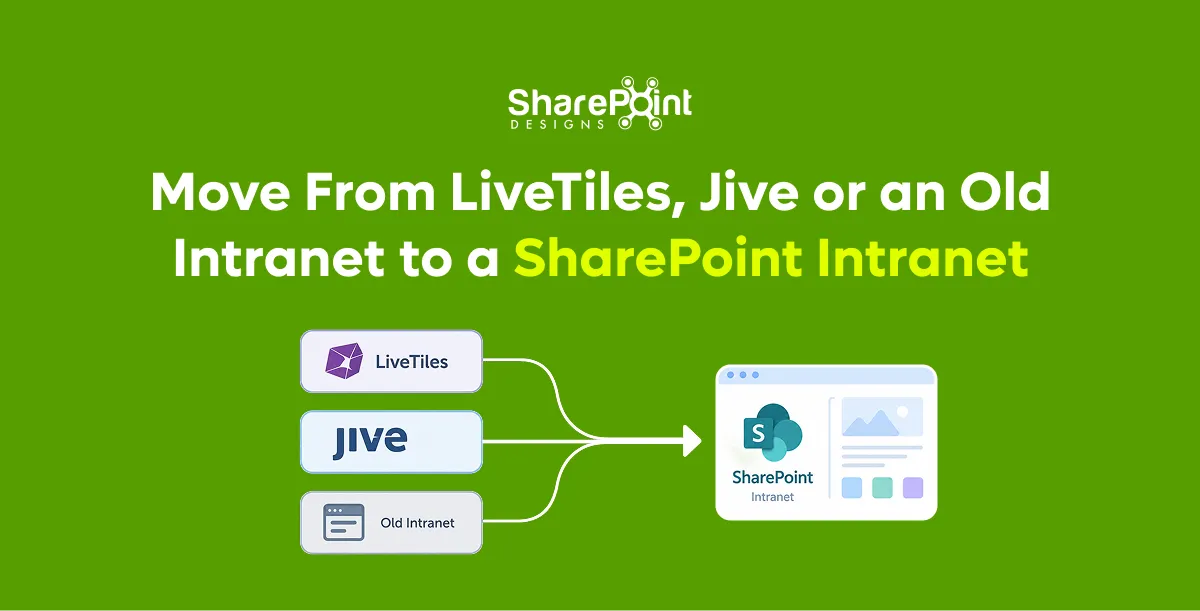
How Do You Move From LiveTiles, Jive or an Old Intranet to a SharePoint Intranet?
You move to a SharePoint intranet in four stages over about 30 days for a focused scope. Week one is a content inventory and keep-or-archive decisions.

Measure an intranet with 12 KPIs across four areas. Reach covers monthly reach, weekly active users and mobile share. Communication covers news read rate and acknowledgement rate. Findability covers search success, zero-result searches and time to complete tasks. Health and value cover content freshness, satisfaction, ticket deflection and onboarding speed. Each KPI needs a formula, a data source and a target.
Last updated: 10 October 2026
Many KPI lists name metrics without saying how to calculate them. This guide gives each formula, a sensible starting target and where to find the data in SharePoint and Microsoft 365. Treat the targets as starting points to adjust after three months of your own data.
Why do intranet KPIs need formulas?
Intranet KPIs need formulas because the same metric name can mean very different things. "Active users" might mean daily logins or one visit a month. Without a written formula, results cannot be compared over time or between departments. A formula also makes the KPI reproducible when a different person prepares the report.
For each KPI, record four things:
- Formula. Exactly how it is calculated.
- Source. Which report or tool supplies the numbers.
- Frequency. Weekly, monthly or quarterly.
- Target. A starting goal, reviewed after the first quarter.
What are the 12 intranet KPIs and how is each calculated?
The table below lists the 12 KPIs, their formulas, starting targets and data sources. Reach and communication KPIs are reviewed monthly by internal communications. Findability and health KPIs are reviewed monthly by the intranet owner. Value KPIs are reviewed quarterly with HR, IT and leadership.
Where do you find intranet KPI data in SharePoint and Microsoft 365?
Most reach and communication data comes from SharePoint site usage and news analytics, available to site owners. Search data comes from Microsoft Search usage reports in the Microsoft 365 admin centre. Freshness and acknowledgement data come from columns and lists you add. Behaviour data, such as clicks and scrolling, can come from Microsoft Clarity.
Our guide to why SharePoint search cannot find your file explains how to improve the search KPIs once you measure them.
Which KPIs matter most for internal communications teams?
Internal communications teams should focus on monthly reach, news read rate, acknowledgement rate and mobile share. Together these answer the leadership question that matters most: did our message reach the people it was meant for? Page views alone do not answer it, because one person visiting ten times looks the same as ten people visiting once.
Report these per audience, not only company-wide:
- Office staff versus frontline staff
- Each region or site
- New joiners in their first 90 days
Frontline gaps usually appear here first. Our guide to policy acknowledgement tracking in SharePoint covers the acknowledgement KPI in depth. Our SharePoint for internal communications page covers targeting news to each audience.
Which KPIs show whether the intranet is healthy?
Content freshness, zero-result searches and time to complete top tasks show whether the intranet is healthy. These are leading indicators. They fall before reach and satisfaction do. An intranet with many expired pages and failing searches will lose users within months, even if its launch numbers looked strong.
Warning signs to act on:
- Content freshness drops below 80 percent.
- Zero-result searches rise above 10 percent.
- Any top task takes more than two minutes in testing.
- A department hub has no new content for 60 days.
Our SharePoint intranet maintenance checklist turns these signs into a monthly routine.
How do you report intranet KPIs to leadership?
Report intranet KPIs to leadership on one page, quarterly. Show three to five KPIs with the trend, the target and one sentence on what changed. Lead with value KPIs such as ticket deflection and onboarding speed, because leaders fund outcomes. Keep detailed reach and search data for the intranet team's monthly review.
A one-page leadership report includes:
- Headline. One sentence on the quarter's biggest change.
- Three to five KPIs. Each with current value, target and trend arrow.
- One success. A short example, such as a policy that reached 98 percent acknowledgement.
- One problem and fix. For example, frontline reach and the planned response.
To convert these KPIs into money, see how to calculate intranet ROI with formulas.
How often should you review intranet KPIs?
Review reach, news and search KPIs monthly, and value KPIs quarterly. Set targets after the first three months of data, not before, because every organisation's baseline differs. Then review targets once a year. Our intranet design checklist for 2026 lists the design fixes that most often move these numbers. A KPI that never changes any decision should be dropped from the report.
What KPIs Should You Use to Measure an Intranet? 12 Metrics With Formulas
Measure an intranet with 12 KPIs across four areas. Reach covers monthly reach, weekly active users and mobile share.
SharePoint has no built-in "read and understood" button, so you track policy acknowledgement with an added layer. That layer records who confirmed which policy version and when, in a log that cannot be edited afterwards. It also chases people who have not responded and reports completion rates. You can build it with a SharePoint list and Power Automate, or use a purpose-built acknowledgement tool.
Last updated: 10 October 2026
This guide explains what auditors expect, the options available in Microsoft 365, how to build a basic tracker yourself, and where that basic tracker falls short.
What is policy acknowledgement tracking?
Policy acknowledgement tracking is a record showing that each employee has read and accepted a specific version of a policy. A complete record names the person, the policy, the exact version, the date and time, and how the confirmation was given. Its purpose is evidence: proof for auditors, regulators or courts that staff were informed.
Acknowledgement is different from publishing. Publishing makes a policy available. Acknowledgement proves a named person engaged with it. Organisations commonly track acknowledgement for:
- Code of conduct and ethics policies
- Information security and acceptable use policies
- Health and safety procedures
- Standard operating procedures (SOPs) in regulated work
- Data protection and privacy policies
Why do auditors ask for policy acknowledgement records?
Auditors ask for acknowledgement records because several standards require organisations to show that people are aware of the policies relevant to their work. A published policy alone does not prove awareness. A dated record tied to a specific version does. Without it, the organisation must rely on interviews, which are slower and less convincing.
Our guide to document control in SharePoint for ISO, SOX and GDPR covers the wider document control requirements.
Can SharePoint track policy acknowledgement out of the box?
No. SharePoint can publish policies, keep version history and require approval before publishing. However, it has no native feature that asks each reader to confirm a policy version and stores that confirmation. Page views are not acknowledgement, because a view does not show the person read or accepted the content.
You therefore choose between four options:
How do you build a basic acknowledgement tracker with a SharePoint list and Power Automate?
You build a basic tracker in five steps: a policy library with versions, an acknowledgement list, a request flow, a confirmation flow and a report view. This works well for a few policies and a few hundred staff. It needs care at scale, because each policy release creates hundreds of flow runs and list rows.
- Prepare the policy library. Add columns for version, effective date, owner and "requires acknowledgement".
- Create the acknowledgement list. Add columns for employee, policy, policy version, status, requested date and acknowledged date.
- Build the request flow. When a policy version is published, create one list row per employee in scope. Send each person an email or Teams message with a link.
- Build the confirmation flow. When the employee selects "I have read and understood", set the status, date and time on their row.
- Build the report view. Group the list by policy version and status, so owners see who is outstanding.
Our post on automated reminders and alerts in SharePoint shows how to schedule the follow-up messages.
Where does a do-it-yourself acknowledgement tracker fall short?
A do-it-yourself tracker usually falls short on tamper-resistance, version linkage and chasing. List rows can be edited by anyone with edit rights, so the record is not append-only. A new policy version must reset everyone's status without losing the old evidence. Reminders need their own schedule and escalation rules, which add more flows to maintain.
Common weaknesses auditors notice:
- Editable records. A member of the site can change a date or status. Version history helps, but it is not an append-only log.
- Lost history. Overwriting a row for a new version removes evidence of the earlier confirmation.
- No escalation. People who ignore the request are reminded once and then forgotten.
- Scope drift. New joiners are not added automatically, so they never receive older policies.
- Weak reporting. Completion rates by department need manual exports to Excel.
What should an audit-ready acknowledgement record contain?
An audit-ready acknowledgement record contains the person, the exact policy version, the date and time, the method of confirmation and an unchangeable history. Each new policy version creates new records rather than overwriting old ones. Together, these fields let an auditor answer "who agreed to what, and when" without interviews.
Store records for as long as your retention policy requires. Our guide to Microsoft Purview retention for SharePoint documents explains how to set that period.
How do you chase employees who have not acknowledged a policy?
You chase non-responders with a fixed reminder schedule, then escalate to their manager. A common pattern is a reminder after 3 days, a second after 7 days, and a manager notification after 14 days. Showing each manager a live list of outstanding staff in their team usually closes the gap faster than further emails.
- Day 0. Request sent by email and Teams.
- Day 3. First reminder to the employee.
- Day 7. Second reminder, copying the policy owner.
- Day 14. Escalation to the line manager with the outstanding list.
- Day 30. Report to compliance on remaining gaps.
How should you report policy acknowledgement completion?
Report acknowledgement completion as a percentage per policy version, broken down by department and location. Show the number outstanding and the oldest outstanding request. Compliance teams need the overall rate. Managers need the names in their own team. Auditors need an export of the locked records for the period under review.
A simple monthly report includes:
- Completion rate per policy version
- Outstanding count by department
- Average days to acknowledge
- New joiners still outstanding after 30 days
DocVault, our SharePoint document management system, includes a version-specific acknowledgement ledger with reminders and reports. See also our SOP and policies manager for SharePoint.
How to Track Policy Acknowledgement in SharePoint With an Audit Trail
SharePoint has no built-in "read and understood" button, so you track policy acknowledgement with an added layer.
Quick Answer: A SharePoint intranet costs between internal staff time only and $80,000 or more, depending on how you build it. A do-it-yourself build uses licences you already own. A ready-made SharePoint intranet product typically costs $6,000 to $25,000 one-time with setup. A custom partner build typically costs $25,000 to $80,000+. Standalone intranet platforms charge per user, every month, for as long as you use them.
Last updated: 10 October 2026
These are typical project ranges in US dollars. Your figure depends on headcount, design ambition, integrations and how much content needs to move. The sections below show what drives each number, so you can build a budget your finance team will accept.
What are the four ways to build a SharePoint intranet, and what does each cost?
There are four common approaches: build it yourself with standard SharePoint, install a ready-made SharePoint intranet product, commission a custom build from a partner, or buy a standalone intranet platform. The first three run inside your own Microsoft 365 tenant. The fourth is a separate platform with its own subscription, usually priced per user per month.
Ranges reflect typical mid-market projects for 100 to 2,000 employees. Most standalone platforms do not publish list prices, so buyers only see a figure after a sales call.
What do Microsoft 365 licences add to intranet cost in 2026?
Microsoft 365 licences are usually a cost you already carry, not a new one. Most business, enterprise and frontline plans include SharePoint Online and Viva Connections. Microsoft raised several list prices on 1 July 2026, so check your renewal before you finalise an intranet budget. Copilot remains a separate, optional add-on.
Prices are per user per month on annual commitment, at US list price. Microsoft 365 Copilot costs $30 per user per month on top. A standalone intranet platform adds its own per-user fee on top of these licences, because employees still need Microsoft 365 for email and files.
What is the difference between one-time and per-user intranet pricing?
One-time pricing means you pay once for the software and its setup, and the intranet keeps running in your tenant. Per-user pricing means you pay a monthly fee for every employee, every month, for as long as you use the platform. Over three to five years, per-user fees usually become the largest line in the budget.
Here is a worked example for 500 employees over three years. The per-user rate is an assumption for illustration, because most platforms do not publish prices.
The gap grows with headcount. At 2,000 employees, the same assumed rate becomes $360,000 over three years. Our intranet build versus buy guide explains when a platform subscription is still the right call.
Which hidden costs do intranet budgets usually miss?
Intranet budgets usually miss the work around the software: content clean-up and migration, content writing, governance hours, training and launch communications. These costs fall on internal teams, so they rarely appear on a vendor quote. However, they decide whether the intranet is still useful a year after launch.
- Content clean-up and migration. Deciding what to keep, rewrite or archive takes owner time. Moving files takes tool time.
- Content writing. New pages need someone to write them. Budget for HR, IT and communications input.
- Governance hours. Allow two to four hours per content owner per month for reviews.
- Training. Editors need a short training session. Readers need a one-page guide.
- Launch communications. Plan a launch email, a leadership message and a short video.
- Copilot readiness. Fixing over-shared sites and duplicate policies takes admin time before Copilot is switched on.
Our guide to moving a network drive to SharePoint shows how migration effort is usually estimated.
How does company size change SharePoint intranet cost?
Company size changes intranet cost mainly through per-user fees and content volume, not through SharePoint itself. A SharePoint intranet product or custom build costs roughly the same whether 200 or 2,000 people read it. Standalone platforms scale cost directly with headcount. Larger organisations also have more departments, which means more hub sites and more content to migrate.
How do you estimate your own SharePoint intranet budget?
Estimate your budget in five steps: count users, choose an approach, size the content, list integrations, then add internal time. This gives a range your finance team can test. You can also use our free intranet cost calculator to produce a first estimate in a few minutes.
- Count users by type. Separate office staff from frontline staff, because their licences differ.
- Choose an approach. Use the table at the top of this page.
- Size your content. Count pages and files that must move, then estimate how many will be archived.
- List integrations. Each connection to HR, payroll or ticketing systems adds build and testing time.
- Add internal time. Include content owners, training and governance hours for the first year.
How can you reduce SharePoint intranet costs without cutting quality?
You reduce intranet cost by building on licences you already own, starting with fewer, better pages, and avoiding per-user fees where a one-time product meets the need. Phasing the build also helps. Launch the homepage, news and the top ten employee tasks first, then add department hubs in a second phase.
- Start from a proven template rather than a blank design. Our SharePoint intranet templates are a starting point.
- Archive old content instead of migrating it.
- Use standard SharePoint web parts where they are good enough.
- Reserve custom development for features employees use daily.
- Choose software you own outright, such as Sangha, our one-time-licence SharePoint intranet.
How Much Does a SharePoint Intranet Cost in 2026?
A SharePoint intranet costs between internal staff time only and $80,000 or more, depending on how you build it.
You build a SharePoint intranet in two stages. First, plan the audiences, tasks and content owners it must serve. Then build it in Microsoft 365. Set a communication site as the home site and connect hub sites. Add task-based navigation, news, permissions and audiences, and surface it all in Teams through Viva Connections. A mid-sized organisation typically needs 8 to 14 weeks.
Last updated: 10 October 2026
Most guides stop after "create a communication site". This guide also covers what usually goes wrong after that: permissions, content migration, accessibility, Copilot readiness and licensing.
What is a SharePoint intranet?
A SharePoint intranet is a private company website built on SharePoint Online inside your Microsoft 365 tenant. It gives employees one place for company news, policies, documents, people and tools. Because it runs in your own tenant, it uses the same sign-in, permissions and security controls as the rest of Microsoft 365. There is no separate platform to host or secure.
A SharePoint intranet is usually made of three building blocks:
- A home site. The front door of the intranet, built as a communication site.
- Hub sites. Department or regional sites grouped under shared navigation and branding.
- Viva Connections. The layer that brings the intranet into Microsoft Teams on desktop and mobile.
Teams handles day-to-day collaboration. The intranet handles information everyone needs. Our guide on when to use SharePoint, OneDrive and Teams for company documents explains where each belongs.
What should you plan before you build a SharePoint intranet?
Plan four things before you open SharePoint: the business goals, the audiences, the top employee tasks and the content owners. Skipping this step is the main reason intranets go stale within a year. A page without an owner is out of date within months. A navigation built around departments, rather than tasks, makes people search instead of click.
Set measurable goals
Write two or three goals you can measure. Examples include "reduce HR policy questions by 30 percent" or "reach 80 percent of staff with leadership news each week". These goals decide which pages you build first.
Map your audiences
List every group that needs different content. Typical audiences are office staff, frontline staff, managers, new joiners and regional teams. Each audience later becomes a Microsoft 365 group or security group used for targeting.
List the top 20 employee tasks
Ask employees what they look for most. Use a short survey, five or six interviews and your help-desk ticket history. The answers usually include leave requests, payslips, policies, expense claims, IT help and the staff directory.
Name a content owner for every area
Every section needs a named owner and a review date. If nobody will own a section, do not build it yet. This single rule prevents most intranet decay.
How do you build a SharePoint intranet step by step?
You build the intranet in ten steps, in this order. Each step depends on the one before it. For example, navigation depends on your hub structure, and audience targeting depends on the groups you created during planning. Following the order avoids rework when you add departments later.
- Create a communication site for the home page. Use a communication site, not a team site. Communication sites are designed to publish to many readers. Choose the site language carefully, because you cannot change the default language after creation.
- Set it as the SharePoint home site. In the SharePoint admin centre, set the site as your organisation's home site. This makes it the landing page in the SharePoint app and the default dashboard source for Viva Connections.
- Create hub sites for departments or regions. Register each department site as a hub, or associate it with one. Hubs share navigation, branding and news roll-up without copying content.
- Design task-based navigation. Build global navigation from the employee task list, such as "Pay and benefits", "Get IT help" and "Policies". Keep menus to three levels or fewer.
- Apply branding. Set a theme from your brand colours, then add your logo and footer. Check colour contrast at this stage, not after launch.
- Build the homepage. Add news, quick links, events, a people search and one or two personalised areas. Our SharePoint intranet homepage best practices cover layout in detail.
- Set up news publishing. Decide who can publish company news and who approves it. Turn on page approval for the home site if legal or communications must review posts.
- Configure permissions and audience targeting. Give most staff read access to the home site. Target navigation links, news posts and web parts to the audiences you defined.
- Add Viva Connections in Teams. Add the Viva Connections app to Teams and pin it for all users. Build a dashboard of cards for frequent tasks.
- Test with real tasks, then launch. Ask ten employees to complete five real tasks each. Fix whatever slows them down before announcing the launch.
How should permissions and audiences work on a SharePoint intranet?
Use permissions to control who can see content, and audience targeting to control who is shown content. They are different tools. Permissions are a security boundary: a person without access cannot open the page. Audience targeting is a relevance filter: a person outside the audience can still find the page through search or a direct link.
A simple, durable model looks like this:
Avoid breaking permission inheritance on individual pages and folders. Each break creates a hidden exception that someone must remember later. Our guide to SharePoint document library permissions explains how to keep sharing manageable.
How do you move existing content into a new SharePoint intranet?
Move content in three passes: inventory, clean-up, then migration. Most organisations find that 30 to 50 percent of old intranet content is outdated or duplicated. Migrating it unchanged recreates the old problems on a new platform. Content that nobody has opened in two years should usually be archived, not moved.
- Inventory. Export a list of every page and file, with owner, last-modified date and view count.
- Decide. Mark each item as keep, rewrite, merge or archive.
- Migrate. Move files with the SharePoint Migration Tool or a third-party tool. Rebuild key pages rather than copying their layout.
- Redirect. Point old links to the new pages so bookmarks keep working.
If you are moving from SharePoint Server 2016 or 2019, support for both ended on 14 July 2026. Our SharePoint 2016 and 2019 end-of-support migration guide covers the upgrade paths.
How do you make a SharePoint intranet ready for Copilot?
A SharePoint intranet is Copilot-ready when its content is current, owned and correctly permissioned. Microsoft 365 Copilot answers questions from content the user can already access. Therefore, outdated policies produce outdated answers, and over-shared files can surface in answers to people who should not see them.
Three checks matter most:
- Remove duplicates. One current version of each policy, with older versions archived.
- Fix over-sharing. Review sites shared with "Everyone except external users" that hold sensitive files.
- Add review dates. Give every policy page an owner and a next-review date.
Our AI-ready intranet checklist lists the full set of checks.
What licences does a SharePoint intranet need?
Every employee who uses the intranet needs a Microsoft 365 licence that includes SharePoint Online. Most business, enterprise and frontline plans include it, so many organisations already own everything required. Viva Connections is included in these plans too. Microsoft 365 Copilot is a separate licence and is optional for the intranet itself.
Prices are Microsoft list prices on annual commitment and vary by region and agreement. Microsoft 365 Copilot remains a separate add-on at $30 per user per month.
When is out-of-the-box SharePoint not enough?
Out-of-the-box SharePoint is enough for a clear, functional intranet with news, pages, documents and navigation. It falls short when you need a strong brand design, personalised dashboards, recognition, onboarding journeys or policy acknowledgement tracking. At that point you can add a ready-made product, commission custom SharePoint Framework (SPFx) web parts, or combine both.
Common gaps in standard SharePoint include:
- Birthday, anniversary and recognition feeds
- Onboarding checklists for new joiners
- Policy "read and understood" tracking with reminders
- Pixel-level brand design that looks like your public website
- Combined dashboards that pull from HR or ERP systems
The comparison of out-of-the-box versus custom SPFx web parts shows which gaps justify custom work. Sangha, our SharePoint intranet product, installs these components inside your own tenant.
How long does it take to build a SharePoint intranet?
A focused intranet built from a template takes 4 to 6 weeks. A custom-designed intranet for a mid-sized organisation takes 8 to 14 weeks. Planning and information architecture take the first 2 to 4 weeks. Build and content take 4 to 6 weeks. Testing, training and launch take the final 2 to 4 weeks.
Timelines slip for three common reasons:
- Content owners are named late, so pages wait for text.
- Brand approval takes several rounds.
- Migration starts before the clean-up decisions are made.
What should a SharePoint intranet launch checklist include?
A launch checklist confirms that the intranet works for real users, on real devices, with real content. Run it one week before launch. Fix every failed item before you announce the intranet, because first impressions decide whether employees come back.
- Every page has a named owner and review date
- Top 20 tasks can be completed in three clicks or fewer
- Search returns the right page for the top 20 task queries
- Pages pass colour-contrast and screen-reader checks (WCAG 2.1 AA)
- Mobile layout tested in the SharePoint app and Teams
- Viva Connections pinned in Teams for all users
- Old intranet links redirect to the new pages
- Usage analytics baseline recorded for week one
Our SharePoint intranet accessibility checklist covers the accessibility items in detail.

How to Build a SharePoint Intranet in 2026: A Step-by-Step Guide
You build a SharePoint intranet in two stages. First, plan the audiences, tasks and content owners it must serve.
Retention conversations usually start in the wrong place. Someone opens the Microsoft Purview portal, clicks around labels, and hopes the lawyer’s spreadsheet will magically become policy. It won’t.
Here’s the order that actually works on SharePoint document libraries: paper map first, labels second, content types third, pilot fourth, tenant-wide last. Skip a step and you’ll spend months unexplained deletes, orphaned labels, or “why can I still edit this record?” tickets.
What Purview retention is (and isn’t) in SharePoint
In Microsoft 365, retention labels and retention policies tell Exchange, OneDrive, SharePoint, and Teams how long to keep content and what happens next delete, review, or retain as a record.
For SharePoint document libraries specifically:
- Retention labels can be published so users (or auto-apply rules) stamp a document.
- Label policies control where those labels show up.
- Records declaration (when you configure a label that marks items as records) is how you get immutability-style behavior restricted edit/delete depending on settings.
- Sensitivity labels are a different tool. They protect and classify for confidentiality (encryption, markings). Don’t confuse them with retention periods. Many programs need both. They solve different problems.
Out of the box SharePoint already gives you versioning, co-authoring, search, Purview retention labels/policies, and sensitivity labels. That’s the platform side. The governance side is still your job.
Step 1: Map retention on paper before you click anything
Sit with legal/compliance and build a simple matrix. Not a 40-tab workbook. A matrix:
Example periods only attributed as typical legal counsel ranges, not product guarantees. In many jurisdictions, financial records are often discussed around a ~7 year horizon. That is an illustration of how counsel commonly frames the conversation. Your actual period must come from your counsel, industry rules, and contracts. We do not publish DocVault or SharePoint Designs “standard” retention years because inventing them would be malpractice.
If counsel hasn’t signed the matrix, do not auto-apply delete labels tenant-wide. I’ve watched a team nearly enable a three-year delete on a library that held seven-year tax support. The pilot caught it. Barely.
Step 2: Design labels to match classes, not folders
One label per retention behavior, not one label per folder name.
Bad: Finance_2024_Folder_A_Keep7. Better: FIN-Retain-7Y-then-delete (or whatever naming counsel + IT agree), applied wherever finance accounting records live.
Publish the smallest set you can defend. Label sprawl is the new folder sprawl.
Expect lag
Label policies can take up to ~7 days to become available everywhere after you publish or change them. Plan demos and UAT accordingly. If someone tests thirty minutes after you hit Publish and the label is missing, that’s often propagation — not a broken tenant.
We burned a half-day of a CFO demo once because we assumed instant availability. Scar tissue: schedule Purview changes at least a week before any executive walkthrough.
Step 3: Put labels on content types (preferred path)
Users will not reliably pick the right retention label from a long list at upload time. Some will. Most won’t.
Stronger pattern:
- Define content types (Contract, Policy, Invoice support, Project deliverable, etc.).
- Associate the default retention behavior with that type’s governance model via default label settings / auto-apply where your licensing and configuration support it.
- Keep the upload experience: pick the content type (or use a controlled creation path), get the right metadata + template + retention intent together.
Content types also keep metadata honest: Document Type, Owner, Department, Status, Review Date typically in a 4–8 field band per type. Term store for Department and Document Type. Free text for narrative fields only.
Deep folder trees fight this. If you’re still nesting past three levels, fix information architecture first; see metadata vs folders in SharePoint. Retention labels on a chaotic tree just make deletion more confident and more wrong.
Step 4: Pilot before tenant-wide
Never start with “all SharePoint sites.”
Pilot shape we like:
- One department or one record class
- One or two libraries
- Clear owners who will file tickets when something feels off
- A disposition dry-run: what would delete in 90 days if this were production?
- Confirm records-declared items behave as legal expects (lock vs editable draft)
Only then expand. Tenant-wide label policies without a pilot are how you get surprise holds and surprise gaps at the same time.
Records declaration: when “keep” must mean immutable
Some programs need more than “don’t delete for N years.” They need a declared record: content that ordinary users can’t alter or remove under normal permissions.
Use records declaration deliberately. Overusing it frustrates collaboration (co-authoring and late edits collide with record locks). Underusing it fails audits that expect immutability after approval.
Pattern that holds up for controlled docs:
- Drafts: normal versioning, co-authoring allowed
- Approved / effective: declare record (or move to a records library with stricter controls), retain prior versions per policy
- Superseded: retain as record for the residual period; new version becomes current
SharePoint versioning alone is not a records program. It’s necessary plumbing.
Permissions still matter
Retention does not fix broken access.
- Prefer Microsoft 365 / security groups, not permission assignments to individual people
- Avoid item-level permissions as the default pattern
- Prefer libraries that are open by default inside the audience, restricted by exception — or split libraries when the boundary is hard
Why this shows up in a Purview article: auto-apply and eDiscovery follow access reality. If half the company can still read “confidential finance packs” because someone shared a folder link in 2022, your retention label is doing governance theater.
Same sprawl confuses Copilot, which grounds on SharePoint content the user can access. Wrong file usually means permissions sprawl, bad naming, no current-version clarity, or folder dumps — not a “model bug.” More in why Copilot returns the wrong document.
How this ties to document control (ISO / SOX / GDPR angles)
Retention is one control among several. Auditors also ask about approval evidence, ownership, review cycles, and — for policies — acknowledgement.
Out of the box SharePoint does not natively give you:
- Automatic document numbering
- Multi-stage approval with escalation
- Scheduled review / pre-expiry as a packaged loop
- Native read-and-acknowledge
- A controlled creation dashboard
For general controlled documents, we use DocVault on top of the SharePoint + Purview base. For policy lifecycle + acknowledgement, that’s SOP Manager — don’t mash those products together. GDPR-style erasure requests also need a process that knows what is a record vs what is deletable personal data; counsel owns that distinction, not a label name.
Broader control framing: document control in SharePoint for ISO, SOX, and GDPR. Platform choice context: can SharePoint be a DMS?, build vs buy, cost.
Scale notes while you label
- Watch the 5,000-item view threshold — indexed columns on Status, Document Type, Department keep review views usable.
- Treat ~100k items per library as a planning checkpoint. Retention jobs and admin views get harder in mega-libraries without splits.
- Network-drive lift-and-shift that recreates deep folder trees makes Purview rollout worse, not better. Migrate with a class map, not a tree clone — network drive to SharePoint.
Where DocVault fits (softly)
Purview answers “how long do we keep this?” DocVault answers “how do we run controlled creation, numbering, multi-stage approval with escalation, and review-before-expiry inside the tenant?” — on top of SharePoint, one-time pricing (see the product page), unlimited users, in-tenant Microsoft 365. If retention mapping is done and the remaining gap is operational document control, look at DocVault — flat one-time, unlimited users, runs inside your tenant. Current pricing is on that page. For the full architecture narrative, the DMS guide is the deep link.
It depends: if counsel hasn’t approved the retention matrix, buy that workshop before any product conversation. Labels on unclear classes just automate confusion.
Microsoft Purview Retention for SharePoint Documents
Retention conversations usually start in the wrong place. Someone opens the Microsoft Purview portal, clicks around labels,
The loudest Microsoft 365 file question I still get Reddit threads, ATP forums, Slack DMs from clients mid-migration is not “which product is better.” It is “where should this file live so we do not lose it when someone leaves.”
SharePoint, OneDrive, and Teams are not three competing DMS products. They are three surfaces on one tenancy, with very different ownership and lifecycle behaviour. Treat them as competitors and you get orphaned OneDrive folders, Teams chat attachments nobody can find, and “shared drives” that are really someone’s personal cloud with Extra Sharing Links.
I use one boring rule on engagements: personal work in OneDrive, company system of record in SharePoint libraries, Teams as the collaboration UX that often sits on top of those libraries.
Decision table: where the file belongs
That table closes most arguments. The rest of this post is the edge cases that still burn tenants.
Teams is mostly UX over SharePoint
When someone says “we store everything in Teams,” ask: channel Files or chat?
Channel Files for a standard team opens a SharePoint site behind that team. The Files tab is a document library (often Documents) with folders per channel. Co-authoring, version history, and site permissions come from SharePoint. If you need metadata columns, content types, or Purview labels on those files, you configure the SharePoint library, not a mythical “Teams storage product.”
Chat files are different. Attachments in private chats and many group chats are tied to the uploader’s OneDrive (shared automatically with chat participants). That is convenient for a quick PDF. It is a terrible system of record. When the uploader leaves and OneDrive is wiped without transfer, the chat still shows a dead link and the “company file” is gone.
I tell project leads: if the file matters after the meeting, put it in the channel library or a dedicated SharePoint library and paste the link in chat. Do not treat the paperclip as archival.
People also confuse “Teams for sharing” with “we do not need SharePoint.” You already have SharePoint if you have Teams. The question is whether you will design libraries and permissions — or inherit whatever default the team creation wizard gave you. That is the same design tension as build vs buy a SharePoint DMS: convenience defaults vs intentional control.
“I just want shared file storage”
Fair ask. After a file share migration, many teams only want a place that is not a mapped drive.
You still need:
- A SharePoint library (or several) owned by a Microsoft 365 group / security groups — not a pile of personal OneDrive shares.
- A permissions model — Contribute for authors, Read for broader audience, External sharing locked down if the content is sensitive. Person-by-person sharing links do not scale; they recreate the “who has access?” mystery of the old drive.
- A home people can find — hub navigation, Teams tabs, or both — so “shared storage” is not twenty orphaned sites named after departed PMs.
If your real pain is deep folders and unfindable names, fix structure with metadata vs folders rather than inventing a fourth place to dump files. If the pain is “we need controlled documents,” storage alone will not save you — same lesson as the Dropbox/Drive comparison in SharePoint vs Dropbox document management.
Offboarding: the OneDrive trap
Employee leaves. Their OneDrive held “the” customer proposal pack, the board deck template, and half the Q3 budget working files shared with “anyone in the org who asked.”
Microsoft gives you manager access / OneDrive retention windows and transfer tools. Use them. But do not design company knowledge to depend on that rescue process.
Patterns that fail:
- “Shared with me” as the department filing system
- Critical SOPs living only under an individual’s My files
- Teams chat attachments as the only copy of a signed agreement
Patterns that survive:
- Move company-owned work into a SharePoint library before it becomes critical
- Ownership = group, not person
- Offboarding checklist includes: transfer remaining OneDrive company content, revoke sharing links, confirm library membership via groups
I have watched a finance close miss a day because the only current reconciliation workbook was in a departed analyst’s OneDrive and transfer had not finished. The file was “in Microsoft 365.” It was not in the company’s document system.
Libraries vs team sites (high level)
A team site is a SharePoint site usually backed by an M365 group — home for channels, Planner, and a default document library. A document library is the container for files inside a site. You can have multiple libraries on one site (Contracts, Working Drafts, Archive) with different columns and permissions.
For company documents, think in libraries and groups first; Teams channels are how many people enter those libraries. If you need a quiet system of record with no chat noise, a communication site or dedicated team site with libraries and no Teams team is fine. Do not force every controlled library into a chatty team just because “everyone lives in Teams.”
When controlled docs enter the picture
Once the question is not “where do we put the file” but “who approved the current version, when does it review, and can we prove access,” you have left consumer-style sharing. SharePoint libraries can host that design. Out of the box they still lack many controlled-document behaviours — numbering, multi-stage approval with escalation, scheduled review, read-and-acknowledge patterns — that regulated and quality-heavy teams expect. That gap is why we package those behaviours in DocVault: runs in the customer M365 tenant, data stays in tenant, unlimited users, one-time flat fee (details on the product page). Broader design context: document management system guide.
For retention and labels on those libraries, pair this with Purview retention for SharePoint documents. For ISO/SOX/GDPR-style control conversations, see document control in SharePoint.
Practical migration habits
If you are leaving network drives, do not land everything in OneDrive “for now.” That recreates personal silos in the cloud. Use a library-first map — network drive to SharePoint migration — and teach Teams as the front door, not the filing cabinet.
Cost conversations belong next to licence and labour reality, not product mythology: SharePoint document management cost. Platform choice vs specialist DMS: SharePoint vs M-Files.
It depends on whether “company document” means a living team asset or a personal draft. Get that wrong and every other Microsoft 365 feature — search, Copilot, retention — inherits the mess.
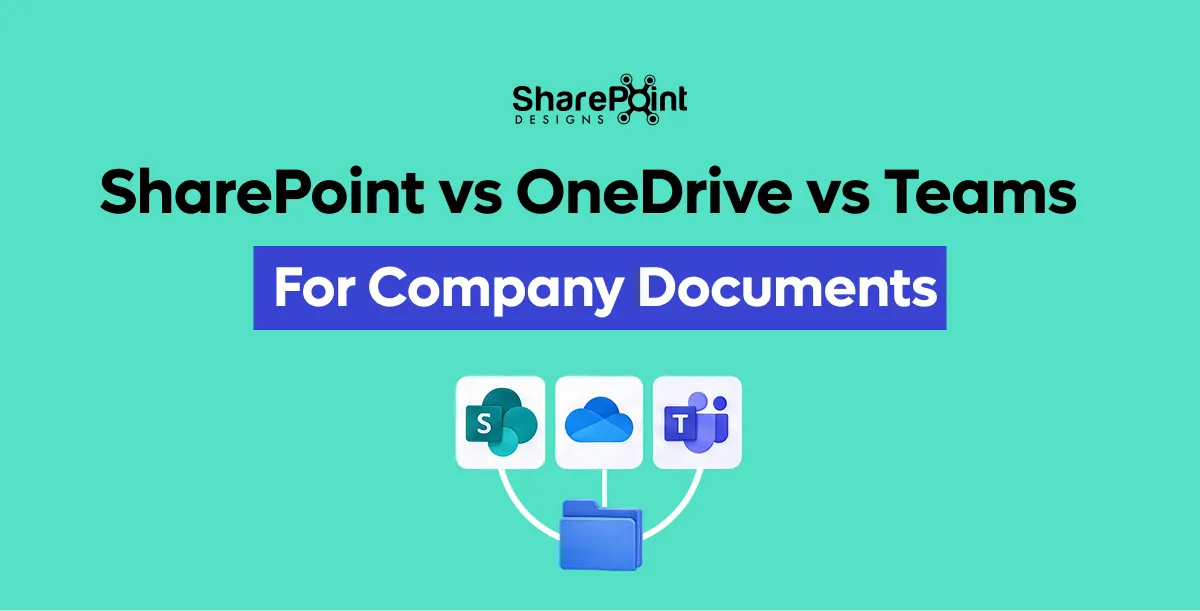
SharePoint vs OneDrive vs Teams for Company Documents
The loudest Microsoft 365 file question I still get Reddit threads, ATP forums, Slack DMs from clients mid-migration is not “which product is better.”


.svg)