Published Date -

Metadata vs Folders in SharePoint: What Actually Works
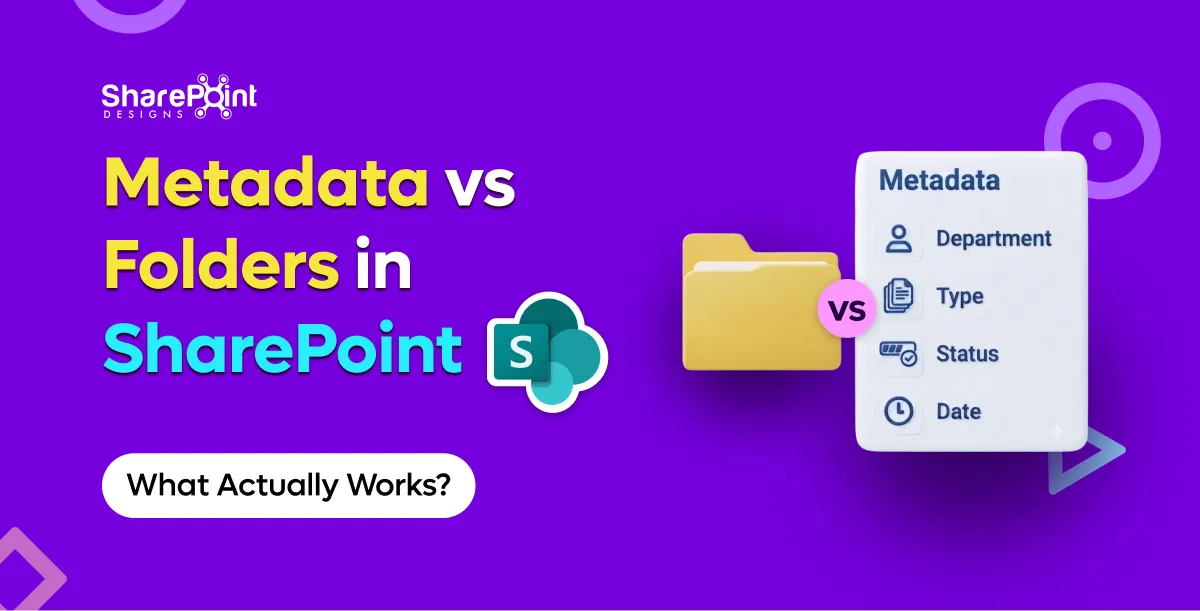
Someone on every project asks for “the same folder structure as the file share.” I get it. Folders map to how people already think. The problem starts around the third nested level and gets ugly by the fifth, when you have Projects / 2024 / ClientA / Final / Final_v3 / Approved and three people swear their copy is current.
This post is how we actually choose between folders and metadata on SharePoint Designs engagements. Not the textbook answer. The one that survives a year of real use.
Folders aren’t the enemy
Folders still earn their keep in a few places.
A small team library with under a few hundred files? Two levels of folders is fine. Onboarding packs. A temporary working area for one project that will archive in six months. A place where the only question is “which client am I in?” and nobody ever filters by status, owner, or review date.
SharePoint folders also play nicely with sync. People who live in File Explorer will create folders whether you like it or not. Fighting that with zero folders usually fails. We design for the behavior, then constrain it.
What folders are bad at: answering cross-cutting questions. “Show me every contract in Draft owned by Legal that needs review before Q4.” That query dies in a deep tree. It lives in metadata and views.
The three-level rule we use
When a design review shows more than three folder levels, we push for metadata. Not because Microsoft said so. Because we’ve watched libraries with six-level trees become unsearchable even for the people who built them.
Typical failure pattern:
- Migrate the network drive “as-is.”
- Recreate every nested folder.
- Users keep dumping files into the deepest leaf.
- Naming drifts (
Final,Final2,USE_THIS). - Copilot and search surface three candidates. Nobody trusts any of them.
If you’re mid-migration, read our companion piece on moving a network drive to SharePoint. Spoiler: lift-and-shift of folder trees is the most expensive way to keep the same findability problems.
Metadata that people will actually fill in
The other trap is metadata maximalism. Twenty required columns. Nobody fills them. Or they type free text into every field and you get seventeen spellings of “Human Resources.”
Our working range: 4–8 fields per document type. Enough to filter and report. Few enough that creation doesn’t feel like a tax form.
Core set we start with on most controlled libraries:
Add industry fields only when a real process needs themContract End Date for legal, Asset Tag for facilities, Study ID for clinical. Resist “nice to have.”
Term store, not free text
Managed metadata (term store) beats choice columns that drift, and both beat free text for anything you’ll filter on. Free text is fine for Title and a short Description. It is not fine for Department.
We learned this the hard way on a 2023 manufacturing rollout. We left Department as a single line of text “to move faster.” Six months later Finance had Fin, Finance, Finance Dept, and FINANCE. Views broke. Dashboards lied. We rebuilt the term set and ran a cleanup script. Should have spent the two days up front.
That’s the scar. Metadata debt compounds faster than folder debt sometimes because folders at least look wrong. Bad terms look fine until reporting day.
Content types do the bundling
A content type is how you stop asking people to remember the rules. Bundle:
- The metadata columns for that type
- The Word/Excel template (optional but useful)
- The default retention or sensitivity label association you’re aiming for with Purview
Contract ≠ Procedure ≠ Meeting Notes. Separate content types. Shared columns where it makes sense (Owner, Department). Unique columns where it doesn’t.
If you’re still deciding whether SharePoint can carry a full DMS load, start with Can SharePoint be a document management system?. Metadata and content types are necessary. They are not the whole system.
Views beat browsing
Once metadata is in place, teach people to open a view, not a folder path.
Examples that stick:
- My documents — filtered where Owner = [Me]
- Due for review — Review Date ≤ today + 30, Status ≠ Archived
- Legal contracts — Document Type = Contract, Department = Legal
- Recently approved — Status = Approved, sorted by Modified
Pin the useful views. Hide the default “All Documents” sprawl if it’s noise. Keep one flat “everything” view for admins who need it — but don’t make that the homepage experience.
Folders + metadata together (the hybrid that works)
We rarely ship zero folders. The hybrid that holds up:
- One or two shallow folders for coarse security or major program boundaries (e.g.,
Public TemplatesvsControlled Records) when breaking into separate libraries is overkill. - Everything else as metadata. Status, type, year, client — columns and views, not nested paths.
- Year as a column, not
2024/and2025/folders, unless retention or legal hold genuinely needs physical separation.
If a folder exists only so someone can “see their stuff,” that’s a view with a filter. Build the view.
Scale limits that change the design
Two SharePoint realities belong in every IA conversation:
- The 5,000-item list view threshold. A view that tries to show everything without indexed filters will choke. Plan indexed columns on the fields you filter (Status, Department, Document Type).
- Practical guidance around ~100,000 items per library before you should be thinking hard about splitting by function, region, or retention class. You can go higher with care. Most mid-market teams shouldn’t invent that pain for fun.
Deep folders don’t fix either limit. They hide the count until someone opens the wrong view.
Permissions tip while you’re here: assign groups, not individuals. Avoid item-level permissions as a habit. Prefer open-by-default inside a library, restricted by exception — or separate libraries when the security boundary is hard. Item-level ACLs plus deep folders is how you get “I can see the folder but not the file” tickets forever.
When OOTB metadata isn’t enough
Out of the box, SharePoint gives you versioning, co-authoring, search, Purview retention labels/policies, and sensitivity labels. That’s a strong base.
What it does not give you natively, for controlled document programs:
- Automatic document numbering
- Multi-stage approval with escalation
- Scheduled review / pre-expiry nudges as a packaged control loop
- Native read-and-acknowledge for policies (different problem — see below)
- A controlled creation dashboard that stops random uploads into the wrong place
If your pain is mostly findability and classification, fix metadata and content types first. If your pain is numbering, review cycles, and controlled intake on top of a clean IA, that’s the DocVault layer — still inside your Microsoft 365 tenant, flat one-time pricing, unlimited users. More on that at the end.
Policy acknowledgement is a sibling problem, not the same product. When the requirement is “everyone must attest they read SOP-004,” we point teams to SOP Manager, not a general DMS.
Decision cheat sheet
Still comparing platforms? Honest takes live in SharePoint vs M-Files and SharePoint vs Dropbox for document management. Cost and build-vs-buy sit in SharePoint document management cost and build vs buy a SharePoint DMS.
A note on DocVault (when metadata alone isn’t the finish line)
Once the IA is sane — content types, 4–8 fields, term store, shallow folders — some programs still need controlled numbering, multi-stage approval with escalation, and review-before-expiry as day-two operations, not a pile of fragile flows. That’s what we built DocVault for: in-tenant on Microsoft 365, one-time pricing (see the product page), unlimited users. For the longer architecture path, use the document management system guide.
It depends on your maturity. If you’re still arguing about folder depth, buy metadata discipline first. Buying a control layer on top of a six-level tree just accelerates the mess.
faqs

Venkatesh Maran

Founder and CEO of SharePoint Designs, a Microsoft ISV with 6 products live on AppSource. We build products that solve the problems Microsoft left on the table. Intranets that people actually use. Document management systems that don't fight your workflows. Knowledge platforms that surface what matters. And now, AI agents built on Microsoft Copilot that take the repetitive work off your team's plate. Every product we build gets designed around your brand, your culture, and how your teams actually work. Trusted by enterprises across 23 countries, primarily in the US and Europe, with deep expertise in SharePoint, Power Platform, Microsoft Copilot, and Microsoft 365. Over 15 years in the ecosystem and still going. Our mission is simple: make work more fun.






.svg)