Tech Ideas & Best Practices
“We need SharePoint to be audit-ready for ISO / SOX / GDPR” usually means four different things smashed into one sentence. Ownership. Approval evidence. Retention. And sometimes proof that people actually read the policy.
SharePoint can carry a serious controlled-document program. It is not, out of the box, a complete document control system. Knowing which layer does what saves you from buying the wrong thing or building a brittle Power Automate forest you’ll regret in nine months.
Two products, two jobs (read this first)
Inside SharePoint Designs we split the problem on purpose:
Don’t confuse them. DocVault is not your acknowledgement engine. SOP Manager is not your general engineering DMS. Auditors care about both classes of evidence; the tooling shouldn’t pretend they’re identical.
What “document control” means in audit language
Strip the acronyms. Controllers and auditors typically probe:
- Is there a current approved version and can we prove it?
- Who owned it, who approved it, when?
- Are obsolete versions retained or withdrawn per policy?
- Do retention and deletion match legal/regulatory periods?
- For policies: did the right people attest?
- Who can change what?
ISO-style quality systems lean hard on (1)–(3) and often (5) for SOPs. SOX-style ITGC / financial reporting controls lean on change control, access, and retention evidence around financial-relevant docs. GDPR leans on lawful retention, minimization, and being able to find/erase personal data when required which collides with “keep forever” culture.
SharePoint participates in all of that. It doesn’t auto-complete any of it.
What SharePoint already gives you (use it)
Out of the box, treat these as foundation not the finish:
- Versioning — major/minor if you configure it; history of who changed what
- Co-authoring — real-time editing in Office files
- Microsoft Purview retention labels/policies — keep/delete/record timelines
- Sensitivity labels — confidentiality markings / protection
- Search — findability when IA isn’t a dumpster
That’s a stronger base than most file shares ever had. For how retention should be designed (paper map → labels → content types → pilot), see Purview retention for SharePoint documents.
What SharePoint does not give you natively
These gaps show up in almost every controlled-document RFP we see:
- Automatic document numbering (SOP-004 Rev C style schemes that don’t depend on filename discipline)
- Multi-stage approval with escalation (not a single “approve” button someone forgets)
- Scheduled review / pre-expiry as an operational loop, not a calendar reminder someone created once
- Native read-and-acknowledge for policies
- Controlled creation dashboard stop random “Upload” into the wrong library with no type, no owner, no template
You can approximate pieces with Power Automate, list formatting, and custom SPFx. We’ve done it. It depends on how much you enjoy owning that code when the maker leaves. Honest build-vs-buy framing: build vs buy a SharePoint DMS and SharePoint document management cost (DocVault is one-time pricing (see the product page), unlimited users, in-tenant Microsoft 365 when packaged beats DIY).
Information architecture auditors can follow
Control fails quietly when the library is a folder museum.
Rules we enforce on controlled libraries:
- Metadata over deep folders. More than three folder levels → redesign. Prefer columns and views.
- 4–8 fields per document type. Baseline: Document Type, Owner, Department, Status, Review Date.
- Term store for Department / Document Type — not free text.
- Content types bundle metadata + template + retention intent.
- Stay ahead of the 5,000-item view threshold with indexed columns; treat ~100k items/library as a split-or-justify checkpoint.
Longer treatment: metadata vs folders. Platform question: can SharePoint be a DMS?.
Permissions: the control that gets skipped
Wrong access blows SOX and ISO conversations faster than a missing metadata column.
Practical rules:
- Assign groups, not people
- Avoid item-level permissions as the default — they don’t scale and they’re invisible in day-to-day admin
- Prefer open by default inside the intended audience, restricted by exception — or separate libraries when the boundary is truly hard (HR vs everyone)
Item-level ACL spaghetti is also why Copilot surfaces the wrong draft: it grounds on content the user can access. Sprawl, bad naming, unclear current version, and folder dumps are the usual root causes — why Copilot returns the wrong document.
Mapping the three acronyms without fake certifications
We are not claiming DocVault or SharePoint Designs “certifies you” for ISO, SOX, or GDPR. Tools support a program. Auditors certify your program.
ISO-style quality / controlled documents
Focus: current approved copy, revision history, ownership, review cycles, obsolete control. SharePoint: versioning + content types + Purview + permissions. Add: numbering, multi-stage approval + escalation, scheduled review — DocVault territory for general controlled docs. If the artifact is a policy/SOP requiring attestation: SOP Manager, not DocVault.
SOX-oriented financial reporting / ITGC flavor
Focus: change control on documents that support controls, restricted access, retention of evidence, clear ownership. SharePoint: group-based permissions, retention labels, audit logs in M365. Add: controlled intake (no shadow uploads), approval trails that survive scrutiny. Retention periods: map with counsel. Example only — financial records are often discussed in ~7 year ranges as typical legal counsel planning figures; confirm for your entity. Not a DocVault guarantee.
GDPR-oriented privacy
Focus: know where personal data lives, retain only as long as lawful, respond to access/erasure where applicable, don’t treat every file as an immortal record. SharePoint: search + retention + minimization of open sharing. Process: records vs deletable personal data is a counsel call. Declaring everything a record “for safety” can fight erasure obligations. Purview records declaration is powerful — use it on purpose.
It depends on your regulator mix. A medical device ISO shop and a SaaS company with SOX-lite ITGCs should not copy-paste the same label set.
Scar: the acknowledgement we bolted on wrong
On a 2022 quality rollout we tried to fake read-and-acknowledge with a custom list + flow “to save budget.” It worked in UAT. In production, managers forwarded PDFs in email, people “acknowledged” the wrong revision, and the list fell out of sync with the document library. The auditor asked one simple question — “show me who attested to the effective version” — and the demo fell apart.
We replaced that path with a proper policy acknowledgement approach later (today we’d send that requirement to SOP Manager). The scar: don’t DIY attestation on the side of a general DMS. And don’t pretend a general DMS is an attestation product.
Migration warning for controlled estates
If you’re moving a network drive full of “controlled” folders into SharePoint by recreating the tree, you will import findability failure into an audit scope. Lift-and-shift folder clones fail. Classify, apply content types, then migrate. See moving a network drive to SharePoint. Comparisons for teams evaluating other repos: SharePoint vs M-Files, SharePoint vs Dropbox.
Putting DocVault in the right slot
When the SharePoint + Purview foundation is in place and the remaining gaps are numbering, multi-stage approval with escalation, scheduled review/pre-expiry, and controlled creation for general controlled documents that’s DocVault: in-tenant Microsoft 365, one-time (see the product page), unlimited users. Deep architecture: document management system guide.
When the requirement is policy lifecycle and read-and-acknowledge, use SOP Manager. Same SharePoint estate. Different control surface.
Document Control in SharePoint for ISO, SOX, and GDPR
We need SharePoint to be audit-ready for ISO / SOX / GDPR” usually means four different things smashed into one sentence.

“Search is broken” is rarely true. More often the file is invisible to you, not indexed yet, named like final_v3_REAL(2).docx, buried six folders deep with no metadata, or sitting in a library your tenant search scope never prioritises.
I treat findability as a design outcome same family as classification and access not as a magic bar at the top of the page. When Copilot cites the wrong MSA, the root cause is frequently the same estate hygiene that makes classic search disappointing. See why Copilot returns the wrong document.
Reason 1: Permissions trimming
SharePoint search (and Microsoft Search in M365) will not show results you cannot open. That is permissions trimming, not a bug.
If you are Visitor on site A and not a member of site B, site B’s contracts do not appear for you even if a colleague swears “it’s in SharePoint.” Ask: can this account open the file URL directly? If access fails, search will not save you. Fix membership/groups first; see document library permissions.
Trimmed results also confuse demos: admins search as themselves, see everything, declare search “fine,” then users with tighter roles see almost nothing. Always test as a representative reader account.
Reason 2: Crawl / index delay
After upload, rename, move, or major metadata change, there is a lag before the item is searchable everywhere. Seconds to longer depending on service load and change type — not usually days, but long enough for “I just put it there” tickets.
Practical habits:
- Wait and retry before opening an incident
- Open the library and use library search / filters (often fresher for that container) while tenant search catches up
- Avoid frantic re-uploads that create duplicates (“then search finds three and none is authoritative”)
If the file never appears for people who can open it after a reasonable wait, then look at site search settings, exclusion, or malformed content — not first-line panic.
Reason 3: Bad filenames and deep folders
Search works better when the query terms exist in the title, filename, or crawled properties. SCAN0004.PDF in Dept/Old/2019/misc/stuff/ with empty columns is hostile to humans and to the index.
Deep folder-only schemes also train people to browse instead of search then they blame search when browse fails. The durable fix is metadata people will actually fill: Document Type, Status, Owner, Department, Customer, Review Date covered in metadata vs folders in SharePoint.
I still allow a shallow folder for human comfort. I do not allow folder path to be the only classification.
Reason 4: Library scope vs tenant search
Users mix three experiences:
- Inside this library — search box on the library / filtered views
- This site — site search
- Work / tenant — Microsoft Search / SharePoint start page / Office.com
A file can be trivial to find in the library filter and hard to discover at tenant scope if naming is weak, the site is obscure, or the user’s habitual scope is wrong. Teach people to start narrow when they know the library, wide when they do not. Verticals and pinned results help at tenant level; they do not replace classification.
Hub sites and clear nav matter here: if nobody knows which site holds SOPs, tenant search becomes archaeology across dumps. Same lesson as treating SharePoint as a designed DMS: can SharePoint be a document management system?.
Reason 5: View threshold vs search
The 5,000-item list view threshold breaks or slows certain unfiltered list views. It is not the same as “search cannot find my file.” People conflate them because both feel like “SharePoint won’t show my documents.”
- Use indexed columns and filtered views for browse
- Use search for discovery across large libraries
- Do not build one mega-library that is both unfiltered-browse and ungoverned plan around Microsoft’s large-library guidance (~100,000 items per library as a planning signal)
Search is not a substitute for retention and archive. Junk in the index stays findable junk which is how superseded PDFs keep winning. Tie cleanup to Purview retention and clear Status values.
Checklist: users
Before you ping IT:
- Confirm you can open the file via a direct link someone sends — if not, it is access, not search.
- Try the library search box and filters (Status = Approved, Document Type, modified date).
- Search on exact filename and on a unique phrase from inside the document.
- Try an alternate account / Incognito only if you suspect wrong identity — not as theatre.
- Check whether you are in Teams chat history looking for a chat attachment (OneDrive-backed) vs the channel Files library — SharePoint vs OneDrive vs Teams.
- Wait a bit after brand-new uploads; re-check before declaring failure.
- Ask whether a duplicate or superseded copy exists under another name — search may be “finding” the wrong sibling.
Checklist: admins / site owners
- Verify permissions with a test reader account (trimming).
- Confirm the library is not excluded from search; check site-level “Allow this site to appear in search results.”
- Inspect naming and required metadata — empty crawled properties limit relevance.
- Index columns used in filters; fix views that hit the threshold.
- Reduce dumps: archive, retention labels, Status = Superseded.
- Review sharing sprawl — orphaned copies in OneDrive and chat create parallel “hits.”
- For Copilot complaints, re-test classic search with the same user; estate issues usually show in both.
Migration residue is a frequent root cause: lifted network-drive trees with no metadata. Fix on the way in when you can: network drive to SharePoint migration.
Duplicates and “which file is the real one?”
Search finding something is not success if it finds three competing truths. Prefer:
- One system-of-record library per document domain
- Status / version clarity (Approved vs Draft)
- Soft delete or archive of superseded PDFs that still match every query
This is governance, not a search tuning knob. Platform shopping and build-vs-buy debates do not fix duplicate MSAs: build vs buy, vs M-Files, cost.
When auto-tag and controlled patterns help
Manual metadata fails at 4:55 p.m. Findability then depends on whatever the uploader typed in the filename. Packaged patterns that push templates, auto-tag, and controlled creation improve the raw material search and Copilot both consume.
DocVault sits in that lane: controlled-document behaviours OOTB SharePoint lacks, running in the customer M365 tenant, data stays in tenant, unlimited users, one-time flat fee (pricing on the product page only). Broader context: document management system guide. It will not override permissions trimming or invent terms that never existed in the file close access and naming first.
It depends on whether “can’t find” means “no access,” “not indexed yet,” “never classified,” or “found the wrong duplicate.” Diagnose that split before you buy another search gadget.
Why SharePoint Search Can’t Find Your File (and How to Fix It)
SharePoint search (and Microsoft Search in M365) will not show results you cannot open. That is permissions trimming, not a bug.

Most SharePoint “security” tickets I see are not sophisticated attacks. They are inheritance accidents: someone shared a folder to fix a Friday deadline, Unique permissions multiplied, Limited Access ghosts appeared, and six months later nobody can explain who sees the contracts library.
Permissions are where DMS ambition dies quietly. You can have beautiful content types and still fail an access review because Contribute was granted to named people instead of groups, or because “Anyone with the link” became the unofficial external portal.
This post is the practitioner version: when each permission scope is justified, why unique permissions explode, how to share safely for company documents, and how to diagnose “why can’t I open / edit this?”
Site vs library vs folder vs item
SharePoint lets you break inheritance at almost every level. That flexibility is also the trap.
Site permissions — default Members / Visitors / Owners (or M365 group membership for team sites). Use this for “who belongs in this workplace.” Most company document libraries should inherit from here.
Library permissions — justified when one library on a site is more sensitive than the rest (HR on a broader intranet site, Legal contracts beside a working drafts library). Prefer a dedicated site when the sensitivity difference is large; unique library permissions are fine when the exception is clear and documented.
Folder permissions — sometimes justified for a sealed sub-area (e.g. “Board only” under a leadership library). Overused, they become a second taxonomy. If every folder has different people, you rebuilt NTFS ACLs in the cloud.
Item (file) permissions — last resort. Valid for a single sealed exhibit or a temporary review pack. Dangerous as habit. Item-level unique permissions are how you get support queues that cannot answer “who has access?” without exporting reports.
Rule of thumb I use on designs: groups at site (or library) level; folders for navigation and metadata, not for access design; items almost never. Pair with metadata vs folders so structure and security do not fight each other.
Why unique permissions explode (and Limited Access)
When you share a file or folder with someone who is not already a site member, SharePoint often grants Limited Access at parent containers so the user can reach the shared item without seeing everything else. Those Limited Access entries are not “extra roles you meant to invent.” They are scaffolding. They accumulate.
Symptoms:
- Permission reports full of Limited Access you did not plan
- “I can open this one file but the library looks empty”
- Inheritance broken on hundreds of items after a year of ad-hoc sharing
- External sharing links that outlive the project
Cleanup means restore inheritance where safe, move sealed content to a tighter library, replace person shares with groups, and delete stale links. Prevention is cheaper. If the estate still behaves like a network drive of personal shares, fix landing patterns in migration: network drive to SharePoint.
Group-based access over person-based
Company documents should grant access to Entra ID / Microsoft 365 groups (or SharePoint groups backed by those), not to long lists of named users.
Why:
- Joiner/mover/leaver becomes group membership, not editing 40 libraries
- Access reviews have a clear object (“Contract Approvers”)
- You can align roles authors, approvers, readers to business language
Person-based sharing is fine for a one-off partner review with an expiry. It is not a DMS access model. The same discipline shows up in regulated control work: document control for ISO, SOX, GDPR.
External sharing links vs guest access
For controlled company docs I separate three patterns:
- Internal only sharing links restricted to people in the organisation; prefer group membership over links when the person needs ongoing access.
- Guest (Entra B2B) named external user in the directory, auditable, can be removed, can sit in a group. Prefer this for ongoing vendor or auditor access to a library or site.
- Anyone / anonymous links convenient, weak for controlled documents. If policy allows them at all, short expiry, specific file, never for the system-of-record library as a whole.
“Sharing externally to non-members” is not one button. Decide whether the outsider is a temporary recipient of one PDF or a recurring collaborator. Recurring → guest + group. One PDF with expiry → restricted link if policy allows. Regulated SOP → usually neither without a documented exception.
Purview retention and labels do not replace access design; they complement it: Purview retention for SharePoint documents.
How to share a file safely (company documents)
Practical sequence I teach power users:
- Confirm the file lives in the correct SharePoint library (not OneDrive, not chat) see SharePoint vs OneDrive vs Teams.
- Prefer adding the person/group to the site or library role if they need ongoing access.
- If a link is required: people in your organisation or specific people, not Anyone, for anything non-public.
- Set expiry and view-only when edit is unnecessary.
- Avoid “stop inheriting” on the item unless you have a written reason and an owner who will clean it up.
- For Teams: share the library/channel file link, not a fresh OneDrive copy uploaded into chat.
Safe sharing is boring. That is the point.
Diagnosis checklist: “Why can’t I access / edit this file?”
Work top-down. I keep this list on engagements:
User side
- Are you signed into the correct tenant / work account?
- Do you have a sharing link vs site membership? Links can grant open without “I belong here” navigation.
- Is the file checked out to someone else, or required checkout enabled?
- Is there an IRM / sensitivity label blocking download or edit?
- Are you looking at a Teams chat copy vs the channel library copy?
Permissions
- Site Members vs Visitors vs unique library permissions?
- Broken inheritance on folder or item? Unique permissions report.
- Limited Access only can open shared item but not browse parent?
- Guest account invited to a different address than the one in use?
- Conditional Access / device compliance blocking Office clients?
Library settings
- Draft item security / major-minor versions readers cannot see minor drafts
- Content Approval pending items hidden from general readers
- Required metadata / content types blocking upload or save that users describe as “can’t edit”
Admin / audit
- Sharing link expired or revoked
- User removed from the M365 group behind the team
- Retention/hold confused with access (different issue, same ticket)
Most tickets resolve at “wrong copy,” “Visitors not Members,” or unique permissions from an old share. Search and Copilot will not show files you cannot open — trimming so findability complaints often start as access design: why SharePoint search can’t find your file, why Copilot returns the wrong document.
DMS angle: roles and audit-oriented patterns
A document management system needs access that matches roles Document Controller, Approver, Reader and an audit story you can explain. SharePoint can model that with groups and least privilege. It will not invent the role model for you.
When teams want those controlled behaviours packaged role-oriented permissions patterns, approvals, templates, audit-oriented trails on top of libraries that already sit in the customer tenant, that is the soft path to DocVault: data stays in tenant, unlimited users, one-time flat fee (see product page). Architecture context: document management system guide. Whether SharePoint alone is “enough” remains a design question: can SharePoint be a DMS?, build vs buy, cost framing.
It depends on whether you treat permissions as a Friday workaround or as part of classification, lifecycle, control, and access. Unique permissions-on-everything rarely survives the first serious access review.
SharePoint Document Library Permissions (Without Breaking Sharing)
Most SharePoint “security” tickets I see are not sophisticated attacks. They are inheritance accidents: someone shared a folder to fix a Friday deadline,

When Copilot cites the wrong file, the meeting goes sideways fast. Someone asks for the “current MSA with Contoso.” Copilot cheerfully summarizes a 2021 draft from a shared folder named Legal_OLD. Confidence is high. Accuracy is not.
Most teams blame the model. On SharePoint estates we implement, the model is often doing exactly what it should: answering from content that user can access, ranked through whatever naming, versions, and dumps you’ve left lying around.
Fix grounding by fixing the estate. Not by prompting harder forever.
How grounding actually behaves (practitioner version)
Microsoft 365 Copilot grounds on workplace content the signed-in user is allowed to see — SharePoint libraries, OneDrive, Teams files, mail/calendar depending on the experience. If a stale draft is still readable to that user, it is in play.
So when the wrong document wins, we check four root causes first:
- Permissions sprawl — too many people can still read abandoned spaces
- Bad naming —
Final,Final_v3,USE_THIS,Contoso MSA copy (2) - No current-version clarity — Status not in metadata; major/minor versions unused; five “approved” PDFs
- Folder dumps — network-drive trees lifted into SharePoint with no metadata discipline
That’s the diagnostic order we use on triage calls. Fancy prompt engineering is step five, if ever.
Root cause 1: Permissions sprawl
Classic patterns:
- Broad “Everyone except external” on a project site that never closed
- Unique item permissions from a 2020 panic share
- Guest links and “anyone in org” links that outlived the project
- Synced folders redistributed over email
Copilot doesn’t know the political history. It knows the ACL.
Fixes that stick:
- Prefer groups, not people
- Avoid item-level permissions as the default habit
- Prefer libraries open by default inside the audience, restricted by exception — or split libraries when exceptions dominate
- Run access reviews on high-risk sites before you “turn on Copilot training”
- Archive or lock dead sites so they stop being eligible context
If Finance can still open the 2018 benefits folder, don’t be shocked when benefits answers sound like 2018.
Root cause 2: Bad naming
Filenames are still a ranking and trust signal for humans and for how snippets show up.
Working conventions we actually get teams to follow:
- Client/vendor + doc type + date or agreement ID
- No
Finalin the name — put lifecycle in Status metadata - Stop uploading
Document.docxfrom desktop defaults - One working file, not email-attachment clones back into the library
Rename festivals fail if you don’t also delete or archive the losers. Renaming five copies to pretty names leaves five copies.
Root cause 3: No current-version clarity
SharePoint versioning is on in most libraries. That doesn’t mean users understand which file is current when five parallel files exist.
Controls that help Copilot and humans:
- Status column: Draft / In Review / Approved / Superseded / Archived
- Views: “Approved only,” “My drafts,” “Due for review”
- Content types so contracts don’t share a pile with picnic photos
- For controlled docs: approval gates before something can be Status = Approved
- Purview records declaration when the approved copy must become immutable
Out of the box you get versioning, co-authoring, Purview retention labels/policies, sensitivity labels, and search. You do not natively get auto numbering, multi-stage approval with escalation, scheduled review/pre-expiry, native read-and-acknowledge, or a controlled creation dashboard. Those gaps matter when “current” must be defensible in an audit — see document control for ISO, SOX, and GDPR.
Root cause 4: Folder dumps from network drives
Lift-and-shift recreating folder trees fails findability. It also fails Copilot.
Deep trees hide duplicates. Metadata-free libraries give the model little structure beyond path tokens and full text. Past three folder levels, we push redesign: metadata vs folders and network drive to SharePoint migration.
Minimum viable structure for Copilot-ready libraries:
- 4–8 metadata fields per type — Document Type, Owner, Department, Status, Review Date as the spine
- Term store values, not free-text departments
- Content types bundling metadata + template + retention
- Indexed columns so views survive the 5,000-item threshold
- Split libraries before ~100k items becomes an excuse for chaos
Sensitivity labels and retention aren’t optional side quests
Wrong-document risk isn’t only “stale.” It’s also “too sensitive to be in the answer set for this user.”
- Sensitivity labels reduce oversharing and mark confidentiality
- Retention labels/policies age out junk on purpose — after you map periods on paper with counsel, attach labels to content types, pilot before tenant-wide, and allow up to ~7 days for label policy propagation
Example retention horizons (illustrations attributed as typical legal counsel ranges, not product promises): financial records often discussed around ~7 years — confirm with counsel. Details: Purview retention for SharePoint documents.
Records declaration helps when an approved file must stop drifting. It does not fix five competing “approved” uploads. Process first.
What we try before blaming Copilot
A field checklist:
- Can this user open the wrong file in the browser without Copilot? If yes, grounding isn’t the bug — access is.
- Is there a single Approved item with clear Status for that agreement?
- How many near-duplicate filenames exist?
- Is the hit coming from an archived or abandoned site still in the user’s reach?
- Did a folder dump migration happen in the last year?
- Are we asking Copilot for a controlled policy acknowledgement problem? (Different tool — SOP Manager for read-and-acknowledge, not a chat thread.)
Scar: the “Copilot is broken” ticket that wasn’t
A sales VP insisted Copilot “hallucinated pricing” from a partner one-pager. We traced the citation. The one-pager was real, still in a public Sales Enablement library, never marked Superseded when the price book moved to a controlled library. Everyone in Sales could read both. Copilot picked the one-pager because the question matched its wording better.
We didn’t retrain anything. We archived the one-pager, set Status properly on the price book, and tightened the enablement library’s content types. The next demo answered from the price book. Scar: if you leave two truths readable, Copilot will eventually pick the convenient one.
It depends on your estate hygiene more than your Copilot license SKU.
When structure still isn’t enough
Sometimes the library is tidy enough for search, but controlled operations are still missing: people upload sideways, numbers are handmade, reviews slip, approvals stall without escalation.
That’s the DocVault layer — still in-tenant Microsoft 365, one-time pricing (see the product page), unlimited users — for controlled creation, numbering, multi-stage approval with escalation, and review/pre-expiry on general controlled documents. Soft landing: DocVault. Architecture: DMS guide.
Platform shopping context if you’re earlier in the journey: can SharePoint be a DMS?, vs M-Files, vs Dropbox, build vs buy, cost.
Don’t buy a control product to compensate for Everyone-access on Legal_OLD. Close the sprawl first.
A practical 30-day grounding cleanup
Week 1: Identify the top 10 Copilot failure questions from the business. Trace each cited file. Tag root cause (access / naming / version / dump).
Week 2: Access pass — groups, remove stale sharing links, archive dead sites.
Week 3: Metadata pass on the libraries that feed those questions — Status, Document Type, Owner, Department, Review Date; content types; term store.
Week 4: Kill duplicates; mark Superseded; publish “Approved only” views; schedule Purview pilot for junk aging.
Re-test the same ten questions. Keep a before/after cite log. Executives believe screenshots of wrong citations disappearing more than they believe slideware about “AI readiness.”
Why Copilot Returns the Wrong Document (and How to Fix Grounding)
When Copilot cites the wrong file, the meeting goes sideways fast. Someone asks for the “current MSA with Contoso.”
The most expensive SharePoint migration sentence in business is: “Just copy the file share into a document library. Same folders.”
You’ll get a go-live party. Three months later nobody can find the current contract, Copilot cites a 2019 draft from Final_FINAL_use_this, and the help desk is recreating mapped drives with OneDrive sync to recreate the comfort of the old mess.
This is how we move network drives into SharePoint without importing the disease.
Why lift-and-shift fails
Network drives optimized for path memory. People remembered \\fileserver\Departments\Finance\AP\Vendors\ACME\2022\Invoices. SharePoint search, views, and Copilot optimize for properties + permissions + clarity of current version.
When you recreate the tree:
- Paths get longer than humans tolerate in a browser
- Duplicate “Final” folders multiply
- Security that was “share permissions + NTFS” becomes accidental item-level chaos
- You blow past usable views without noticing until the 5,000-item threshold bites
- Copilot grounds on whatever the user can access including every abandoned draft in the dump
Wrong file usually isn’t an AI mystery. It’s permissions sprawl, bad naming, no current-version clarity, and folder dumps. Migration is your chance to stop feeding that.
Decide what “done” means before you move a byte
Write success criteria that aren’t “all files arrived.”
Examples that hold up:
- Users find the approved contract in under a minute without asking a veteran
- Every controlled type has Owner, Department, Status, Review Date
- Retention classes mapped with counsel and labeled in Purview (pilot first)
- Permissions are group-based, not “Bob still has unique access from 2018”
- Sync is allowed where it helps but the browser library remains usable without sync
If success is only “terabytes landed,” you will succeed at the wrong project.
Inventory: the boring work that saves the project
Spend real time here.
- Volume and age how much hasn’t been touched in 2+ years?
- Ownership which folders have a living owner vs an orphan?
- Sensitivity HR, legal privilege, personal data
- Duplicates same PDF in five “Final” folders
- Active vs archive cold content should not pollute the working library
Archive strategy options: separate archive site/library with stricter retention, or leave cold files on cheaper storage with a clear sunset. Don’t drag every 2009 picnic photo into the controlled quality library.
Information architecture before Migration Manager
Design the destination first.
Libraries by security and purpose not by old drive letter
Split when audiences differ hard (HR vs company-wide templates). Don’t create 80 libraries because you had 80 top-level folders either. Group by retention class + audience + process.
Metadata over deep folders
If the proposed structure is deeper than three folder levels, stop. Push classification into columns.
Working field set (stay in 4–8 fields per type):
- Document Type
- Owner
- Department
- Status
- Review Date
Use the term store for Department and Document Type. Free text invites Fin / Finance / FINANCE drift. Content types bundle metadata + template + retention intent so uploaders aren’t guessing.
Details we use on greenfield designs: metadata vs folders in SharePoint.
Naming for humans and Copilot
Agree a light naming convention before cutover. Status in metadata beats vFINAL in the filename but filenames still matter for sync users and search snippets. Ban Untitled and Document (1).
Permissions: don’t copy NTFS unique ACLs one-for-one
Classic trap: migrate unique permissions from the file share onto SharePoint items. You inherit a support nightmare.
Prefer:
- Groups, not people
- Library or folder-level group access where a shallow folder is justified
- Avoid item-level permissions as the default
- Open by default inside the intended audience, restricted by exception or a separate library when exception rate is high
Rehearse access with real personas before cutover. “Can Finance see HR offers?” should be answered in a test, not in Slack on Monday morning.
Purview: map retention on paper, then pilot
Don’t invent deletion rules during migration weekend.
- Map classes with counsel first
- Attach labels via content types where possible
- Pilot before tenant-wide
- Remember label policies can take up to ~7 days to propagate
- Use records declaration only where immutability is required
Example periods only as illustrations attributed to typical legal counsel ranges e.g. financial records often discussed around ~7 years always confirm with counsel. Not a migration vendor guarantee. Walkthrough: Purview retention for SharePoint documents.
Migration waves beat big-bang
Pattern that works for mid-market estates:
- Pilot department with friendly owners
- Fix metadata and permissions lessons
- Wave by business unit or record class
- Freeze periods on the file share (read-only) so deltas shrink
- Delta sync / bring-over remaining changes
- Redirect and decommission deliberately not “we’ll leave both open forever”
Tools (Migration Manager, third-party, scripts) matter less than wave design. A perfect tool running a bad IA still delivers a bad library.
Scale checkpoints
- Design views that never need to paint unbounded result sets respect the 5,000-item list view threshold with indexed filters (Status, Department, Document Type).
- Treat ~100,000 items per library as guidance to split or justify. Mega-libraries from “one drive = one library” get painful for admins and for users who open All Items.
Scar: the finance share we cloned
We once agreed against our own advice to recreate a finance file share “exactly” because the controller refused training time. Six levels. Unique permissions everywhere. Go-live looked fine.
Week five: AP couldn’t find vendor MSAs that lived three folders off the path they remembered. Someone had moved them during “cleanup.” Sync clients hit path-length issues. We spent more hours post-migration fixing IA than a metadata-first migration would have taken. The controller later said, “We should have listened about folders.” Yes.
That’s the scar. Political pressure to clone the tree is real. Budget time to push back or budget twice the remediation.
When controlled-document requirements show up mid-migration
Many “file share replacements” are secretly document-control projects: numbering, multi-stage approval with escalation, scheduled review, restricted creation.
Out of the box SharePoint covers versioning, co-authoring, Purview retention/sensitivity, and search. It does not natively cover auto numbering, multi-stage approval + escalation, scheduled review/pre-expiry, native read-and-acknowledge, or a controlled creation dashboard.
- General controlled docs → DocVault conversation after IA is sane
- Policy acknowledgement → SOP Manager, not the general DMS
Compliance framing: document control for ISO, SOX, and GDPR. Platform fit: can SharePoint be a DMS?. Sharepoint vs M-Files, vs Dropbox, build vs buy, cost.
Cutover checklist (short)
☐ Destination IA signed off (libraries, content types, 4–8 fields, term sets)
☐ Group permissions tested with personas
☐ Retention matrix from counsel; Purview pilot done
☐ Naming + Status values agreed (`Draft` / `Approved` / etc.)
☐ Archive path for cold content
☐ Wave plan + file-share freeze window
☐ Support playbook for “where did my folder go?” (answer: a view)
☐ Decommission date for the old share
DocVault after the move (only if you need the control layer)
If the migration leaves you with clean SharePoint libraries but you still need numbering, multi-stage approval with escalation, review-before-expiry, and controlled intake look at DocVault flat one-time, unlimited users, runs inside your tenant. Current pricing is on that page. Don’t buy it to decorate a cloned folder tree; fix IA first. Architecture depth: document management system guide.
It depends on whether you’re replacing a junk drawer or standing up controlled operations. Same SharePoint. Different project.
Moving a Network Drive to SharePoint Without Making a Mess
The most expensive SharePoint migration sentence in business is: “Just copy the file share into a document library. Same folders.”
Someone on every project asks for “the same folder structure as the file share.” I get it. Folders map to how people already think. The problem starts around the third nested level and gets ugly by the fifth, when you have Projects / 2024 / ClientA / Final / Final_v3 / Approved and three people swear their copy is current.
This post is how we actually choose between folders and metadata on SharePoint Designs engagements. Not the textbook answer. The one that survives a year of real use.
Folders aren’t the enemy
Folders still earn their keep in a few places.
A small team library with under a few hundred files? Two levels of folders is fine. Onboarding packs. A temporary working area for one project that will archive in six months. A place where the only question is “which client am I in?” and nobody ever filters by status, owner, or review date.
SharePoint folders also play nicely with sync. People who live in File Explorer will create folders whether you like it or not. Fighting that with zero folders usually fails. We design for the behavior, then constrain it.
What folders are bad at: answering cross-cutting questions. “Show me every contract in Draft owned by Legal that needs review before Q4.” That query dies in a deep tree. It lives in metadata and views.
The three-level rule we use
When a design review shows more than three folder levels, we push for metadata. Not because Microsoft said so. Because we’ve watched libraries with six-level trees become unsearchable even for the people who built them.
Typical failure pattern:
- Migrate the network drive “as-is.”
- Recreate every nested folder.
- Users keep dumping files into the deepest leaf.
- Naming drifts (
Final,Final2,USE_THIS). - Copilot and search surface three candidates. Nobody trusts any of them.
If you’re mid-migration, read our companion piece on moving a network drive to SharePoint. Spoiler: lift-and-shift of folder trees is the most expensive way to keep the same findability problems.
Metadata that people will actually fill in
The other trap is metadata maximalism. Twenty required columns. Nobody fills them. Or they type free text into every field and you get seventeen spellings of “Human Resources.”
Our working range: 4–8 fields per document type. Enough to filter and report. Few enough that creation doesn’t feel like a tax form.
Core set we start with on most controlled libraries:
Add industry fields only when a real process needs themContract End Date for legal, Asset Tag for facilities, Study ID for clinical. Resist “nice to have.”
Term store, not free text
Managed metadata (term store) beats choice columns that drift, and both beat free text for anything you’ll filter on. Free text is fine for Title and a short Description. It is not fine for Department.
We learned this the hard way on a 2023 manufacturing rollout. We left Department as a single line of text “to move faster.” Six months later Finance had Fin, Finance, Finance Dept, and FINANCE. Views broke. Dashboards lied. We rebuilt the term set and ran a cleanup script. Should have spent the two days up front.
That’s the scar. Metadata debt compounds faster than folder debt sometimes because folders at least look wrong. Bad terms look fine until reporting day.
Content types do the bundling
A content type is how you stop asking people to remember the rules. Bundle:
- The metadata columns for that type
- The Word/Excel template (optional but useful)
- The default retention or sensitivity label association you’re aiming for with Purview
Contract ≠ Procedure ≠ Meeting Notes. Separate content types. Shared columns where it makes sense (Owner, Department). Unique columns where it doesn’t.
If you’re still deciding whether SharePoint can carry a full DMS load, start with Can SharePoint be a document management system?. Metadata and content types are necessary. They are not the whole system.
Views beat browsing
Once metadata is in place, teach people to open a view, not a folder path.
Examples that stick:
- My documents — filtered where Owner = [Me]
- Due for review — Review Date ≤ today + 30, Status ≠ Archived
- Legal contracts — Document Type = Contract, Department = Legal
- Recently approved — Status = Approved, sorted by Modified
Pin the useful views. Hide the default “All Documents” sprawl if it’s noise. Keep one flat “everything” view for admins who need it — but don’t make that the homepage experience.
Folders + metadata together (the hybrid that works)
We rarely ship zero folders. The hybrid that holds up:
- One or two shallow folders for coarse security or major program boundaries (e.g.,
Public TemplatesvsControlled Records) when breaking into separate libraries is overkill. - Everything else as metadata. Status, type, year, client — columns and views, not nested paths.
- Year as a column, not
2024/and2025/folders, unless retention or legal hold genuinely needs physical separation.
If a folder exists only so someone can “see their stuff,” that’s a view with a filter. Build the view.
Scale limits that change the design
Two SharePoint realities belong in every IA conversation:
- The 5,000-item list view threshold. A view that tries to show everything without indexed filters will choke. Plan indexed columns on the fields you filter (Status, Department, Document Type).
- Practical guidance around ~100,000 items per library before you should be thinking hard about splitting by function, region, or retention class. You can go higher with care. Most mid-market teams shouldn’t invent that pain for fun.
Deep folders don’t fix either limit. They hide the count until someone opens the wrong view.
Permissions tip while you’re here: assign groups, not individuals. Avoid item-level permissions as a habit. Prefer open-by-default inside a library, restricted by exception — or separate libraries when the security boundary is hard. Item-level ACLs plus deep folders is how you get “I can see the folder but not the file” tickets forever.
When OOTB metadata isn’t enough
Out of the box, SharePoint gives you versioning, co-authoring, search, Purview retention labels/policies, and sensitivity labels. That’s a strong base.
What it does not give you natively, for controlled document programs:
- Automatic document numbering
- Multi-stage approval with escalation
- Scheduled review / pre-expiry nudges as a packaged control loop
- Native read-and-acknowledge for policies (different problem — see below)
- A controlled creation dashboard that stops random uploads into the wrong place
If your pain is mostly findability and classification, fix metadata and content types first. If your pain is numbering, review cycles, and controlled intake on top of a clean IA, that’s the DocVault layer — still inside your Microsoft 365 tenant, flat one-time pricing, unlimited users. More on that at the end.
Policy acknowledgement is a sibling problem, not the same product. When the requirement is “everyone must attest they read SOP-004,” we point teams to SOP Manager, not a general DMS.
Decision cheat sheet
Still comparing platforms? Honest takes live in SharePoint vs M-Files and SharePoint vs Dropbox for document management. Cost and build-vs-buy sit in SharePoint document management cost and build vs buy a SharePoint DMS.
A note on DocVault (when metadata alone isn’t the finish line)
Once the IA is sane — content types, 4–8 fields, term store, shallow folders — some programs still need controlled numbering, multi-stage approval with escalation, and review-before-expiry as day-two operations, not a pile of fragile flows. That’s what we built DocVault for: in-tenant on Microsoft 365, one-time pricing (see the product page), unlimited users. For the longer architecture path, use the document management system guide.
It depends on your maturity. If you’re still arguing about folder depth, buy metadata discipline first. Buying a control layer on top of a six-level tree just accelerates the mess.
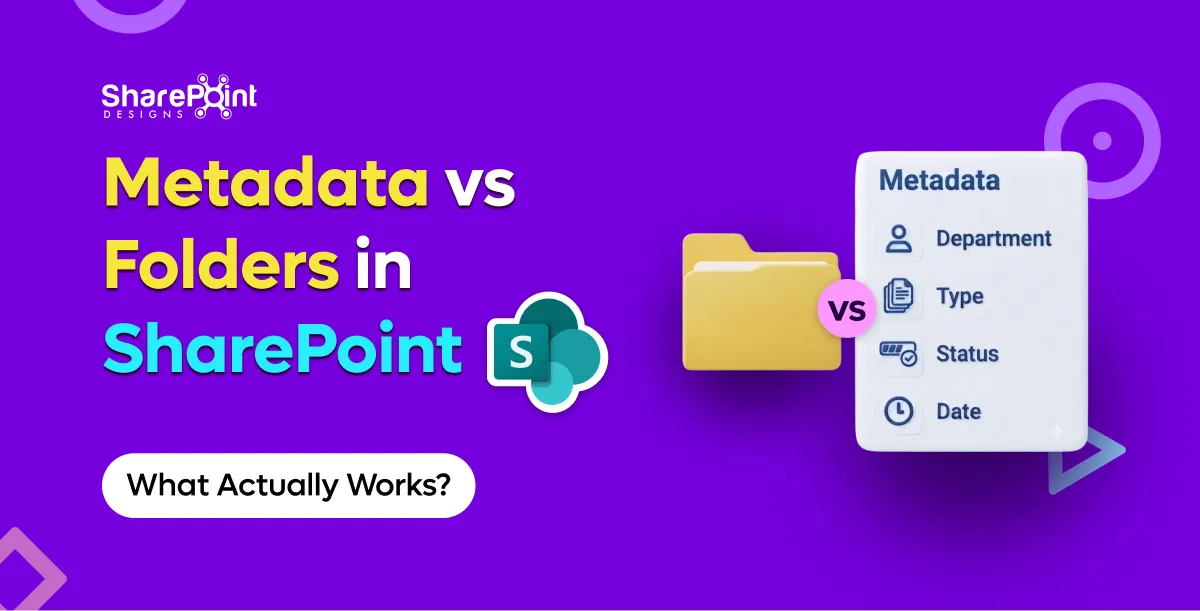
Metadata vs Folders in SharePoint: What Actually Works
Someone on every project asks for “the same folder structure as the file share.” I get it. Folders map to how people already think.
Buyers ask for a number. Fair. Too many vendors answer with a fog machine.
Here is the clean version: Microsoft 365 already includes SharePoint. The cost of a SharePoint document management system is mostly design, process packaging, and change — not "storage." DocVault is our packaged SharePoint DMS: flat one-time, unlimited users, running inside your M365 tenant. Current pricing lives only on the DocVault product page — not in this article.
I will not invent $10k–$150k project bands to sound analyst-y. Those ranges show up in internet folklore and usually mix unrelated scopes: migrations, custom apps, change programmes, and software seats. If a blog quotes them without a bill of materials, treat it as decoration.
First cost fact: you may already own the platform
SharePoint Online is part of Microsoft 365 for licensed users. Teams, Office co-authoring, Entra ID, and search sit in the same estate.
So when someone says "how much is SharePoint DMS?" separate:
- Platform you already pay for — M365 / SharePoint
- Compliance features tied to your M365 SKU — Purview retention and labels depend on what you licensed
- Design and implementation labour — information architecture, permissions, training
- Packaged DMS software (optional) — closes OOTB gaps
- Ongoing ownership — admins, document controllers, small enhancements
Item 1 is not zero, but it is often sunk. Quoting SharePoint like a net-new ECM buy misleads Finance.
What you get OOTB vs what you still pay to create
SharePoint OOTB includes versioning, co-authoring, Purview retention/labels (with the right posture), and search.
It does not include auto numbering, multi-stage approval with escalation, scheduled review with pre-expiry, read-and-acknowledge, or a governed template creation dashboard.
Those gaps drive cost either as DIY labour or as a product fee. Pillar thinking (classification, lifecycle, control, access) is covered in Can SharePoint Be a Document Management System?.
DocVault packaging (price on the product page)
We keep the dollar figure on the DocVault landing page so it stays accurate when packaging changes. What this article will say clearly:
- One-time packaging (not a per-user SaaS seat tax for DocVault itself)
- Unlimited users under that model
- Runs inside your Microsoft 365 tenant — nothing leaves the tenant as part of the product model
- Trial is a hosted demo with sample data, not an instant install into your production tenant
If you need the number for a business case, take it from the product page the day you quote Finance. Blogs go stale; that page should not.
Per-seat DMS vs flat: why Finance cares
Specialist DMS tools often charge per user. Fine for a small controlled circle. Awkward when:
- Plant supervisors need read access
- All staff must acknowledge policies
- Auditors want broad evidence trails
- Contractors rotate
Per-seat models punish inclusive access. Flat packaging inside M365 flips that incentive: you design access for the work, not for the licence spreadsheet.
M-Files is the frequent RFP alternative: separate platform, per-user, strong when connecting non-Microsoft repos. Honest take — M-Files wins when your estate is outside M365. Inside Microsoft-first estates, flat SharePoint packaging is usually the cheaper operational story. Full comparison: SharePoint vs M-Files in 2026.
DIY cost is mostly labour and time
Building with content types + Power Automate + a homepage looks free on the software line.
You still pay for:
- Workshops and taxonomy decisions
- Flow build, rewrite, and edge-case fixing
- Test cycles across document types
- Training
- Break/fix when the maker leaves
Custom consulting historically appeared around $50/hr on site in our older delivery context. Use that only as a labour reminder. Hours stack. I will not multiply them into fictional project totals — your scope owns that maths.
The expensive DIY failure mode is not the first flow. It is the third rewrite after escalation rules change and the original builder is gone. That story sits in Build vs Buy a SharePoint Document Management System.
Cost drivers that matter more than sticker price
Scope of controlled behaviour
A contracts library with one approval stage is not the same as quality-controlled SOPs with acknowledgements and review cycles. Price conversations that ignore scope are theatre.
Number of document domains
HR policies, engineering specs, and supplier quality packs rarely share one happy content type. More domains means more design — whether you buy software or not.
Library architecture
Ignore the 5,000-item view threshold and Microsoft's ~100,000 items per library guidance and you will fund remediation later. Remediation is cost. Plan libraries before you celebrate go-live.
Migration entropy
Moving from file shares, Dropbox, or Drive? Expect classification work. Sync tools optimise for speed; company DMS optimises for control — see SharePoint Document Management vs Dropbox and Google Drive. Copying every folder "just in case" is a cost decision dressed as safety.
Compliance evidence
SOX, ISO 27001, GDPR, HIPAA programmes care about audit trails, access, and retention you can show. DocVault and M365 controls can support that positioning through configuration. Do not budget as if a product fee buys a certification certificate by itself.
A simple cost model you can take to Finance
That table will get you further than a blog claiming every mid-market DMS lands in a magical five-figure band.
What failed when cost was the only slide
A buyer chose pure DIY to "save the licence fee," then spent months in approval edge cases across three departments. The packaged fee they avoided would have been cheaper than the calendar time. Another buyer wanted product packaging but refused taxonomy work — software fee spent, chaos retained.
It depends on whether your bottleneck is missing product behaviour or missing decisions. Software cannot outspend indecision forever.
Across 23 countries of delivery work, the pattern repeats: clear requirements make flat packaging look obvious; fuzzy requirements make any price look high.
How to evaluate trial economics without fooling yourself
DocVault's trial is a hosted demo with sample data. Good for understanding UX and controlled-document behaviours. Bad as a substitute for your permission model and content types.
Budget a short discovery either way. Skipping discovery to "save money" is how migrations get re-done.
Bottom line
A SharePoint DMS costs whatever you spend above the Microsoft 365 estate you likely already own: labour to design a real system, plus optional packaging for the OOTB gaps. DocVault's answer is flat one-time packaging with unlimited users in-tenant; get the current figure from the product page. Per-seat platforms and DIY flow farms can both exceed that in practice depending on audience size and maintenance reality.
If that commercial model matches a Microsoft-first controlled document need, look at DocVault — flat one-time, unlimited users, runs inside your tenant. Current pricing is on that page. For broader solution framing, use the document management system guide.
How Much Does a SharePoint Document Management System Cost?
The cost of a SharePoint document management system is mostly design, process packaging, and change not "storage."
Build vs buy in SharePoint is rarely about ideology. It is about who will still understand the approval escalation path in eighteen months.
I like Power Automate. I have shipped a lot of it. I have also inherited tenants where the "DMS" was seventeen flows, three orphaned solutions, and a document controller who knew which flow to turn off when Finance complained. That is not empowerment. That is key-person risk wearing a Microsoft badge.
If you are still deciding whether SharePoint can be a DMS at all, read Can SharePoint Be a Document Management System?. This post assumes the answer is yes — and asks whether you should assemble the missing pieces yourself or buy a packaged layer.
What "build" usually means in 2026
On Microsoft 365, DIY SharePoint DMS typically looks like:
- Content types and columns (good — do this either way)
- Power Automate approval flows
- Maybe Power Apps forms
- Retention labels via Purview
- A SharePoint page pretending to be a dashboard
- Naming conventions enforced by training and hope
Sometimes add Spfx or custom scripting if someone had budget and a deadline.
That stack can work. It works best when requirements are shallow and ownership is clear.
What SharePoint OOTB already covers
Do not rebuild Microsoft.
You already get versioning, co-authoring, search, and Purview retention/labels (with the right compliance posture). Those are not reasons to buy anything.
SharePoint OOTB still does not give you:
- Auto numbering
- Multi-stage approval with escalation
- Scheduled review with pre-expiry
- Read-and-acknowledge
- Governed template creation dashboard
Build vs buy is mostly about those gaps — plus how polished you need role permissions, audit trails, and Copilot-oriented auto-tag/search to be on day one.
When DIY + Power Automate is enough
Build when most of these are true:
- One or two approval stages, same path for most docs.
- Escalation is a nice-to-have, not an audit finding waiting to happen.
- Review dates can live as a column plus a simple reminder pattern.
- Numbering can be manual or lightly scripted without political drama.
- You have an owner who will maintain flows after go-live — named human, not "the IT team."
- Template governance is a small library of content types, not a factory.
I am fine recommending DIY in that lane. Paying for packaging to impress a steering committee is waste.
Also build when you need deep custom behaviour unique to one line of business and no product will ever match it without becoming a second custom project anyway.
When packaged (DocVault) wins
Buy when several of these show up:
- Multi-stage approvals with escalation across Quality, Ops, and Legal
- Scheduled review with pre-expiry that must run without heroics
- Read-and-acknowledge for policies
- Auto numbering stakeholders will argue about if it drifts
- Template creation that needs governance, not a free-for-all
- You want role permissions and audit-oriented patterns without designing every screen
- You want Copilot AI search/auto-tag sitting on a coherent package rather than bolted scripts
DocVault is the packaged option we ship for that profile: runs inside the customer M365 tenant, nothing leaves the tenant, one-time pricing (see the product page) flat, unlimited users. Uses existing Microsoft 365 licences. Trial is a hosted demo with sample data — useful for UI and flow feel, not a substitute for tenant discovery.
Compared with per-seat specialist platforms, flat-inside-M365 packaging is a different economic animal. For SharePoint vs M-Files honesty — including when M-Files still wins outside Microsoft estates — see SharePoint vs M-Files in 2026.
The failure mode: flows that break after the builder leaves
Here is the pattern.
A strong internal maker builds v1. Approvals work. Everyone claps. The maker gets promoted or leaves. A connection reference expires. An Entra group is renamed. A content type gains a required column. The flow starts failing on 8% of items — enough to destroy trust, not enough to page anyone at 2 a.m.
Document controllers invent a parallel spreadsheet. Shadow process beats official process. Leadership says "SharePoint doesn't work." SharePoint was fine. The operating model was a person.
What failed on a project I still think about: we delivered a clever branching approval with adaptive expressions nobody else could read. It was elegant. It was also unmaintainable. When requirements changed, the business waited four weeks for the one person who understood it. We should have bought packaging for the commodity path and reserved custom build for the true exceptions. It depends on whether your "unique" process is actually unique — or just historically messy.
Hidden DIY costs (labour, not licence fantasy)
DIY cost is mostly labour and time:
- Discovery and information architecture (you need this for buy too)
- Flow build and rewrite cycles
- Test matrices across doc types
- Training and re-training
- Break/fix ownership
- Re-work when Microsoft connects or actions change behaviour
Custom consulting historically showed up around $50/hr on site in our older delivery model. I mention that only as a reminder that hours multiply quietly — not to invent project price bands. Your internal loaded cost may be higher than you think once you count meetings.
Buy shifts some of that into a known product fee and a supportable surface. It does not remove change management. Anyone who says otherwise is selling theatre.
For the cost anatomy with DocVault's current pricing on the product page anchor and why M365 already includes SharePoint,
A decision table I use with buyers
If your real problem is Dropbox/Drive shadow IT rather than SharePoint gaps, fix the category confusion first: SharePoint Document Management vs Dropbox and Google Drive.
Implementation notes either path still needs
Architecture still matters
The 5,000-item view threshold and ~100,000 items per library guidance do not disappear because you bought software. Package or DIY, bad libraries stay bad.
Compliance is configuration
SOX, ISO 27001, GDPR, HIPAA conversations should focus on audit trails, access, and retention you can demonstrate. Packaged controls help. They are not a certificate you hang on the wall without design evidence.
Classification is not optional
Buy a product with auto-tag and you can still create garbage metadata. Content types and ownership remain human work.
Practical recommendation
Start with requirements severity, not brand preference.
If your gaps are shallow and ownership is real, build on SharePoint OOTB + Purview + modest Power Automate. Keep the flows boring on purpose.
If your gaps match controlled-document product territory numbering, multi-stage escalation, scheduled review, acknowledgements, template governance — buy a SharePoint-native package and spend custom effort on the few processes that truly differentiate you.
That is the grown-up version of build vs buy.
For teams choosing the packaged SharePoint path inside Microsoft 365, see DocVault.
Solution background: document management system guide.
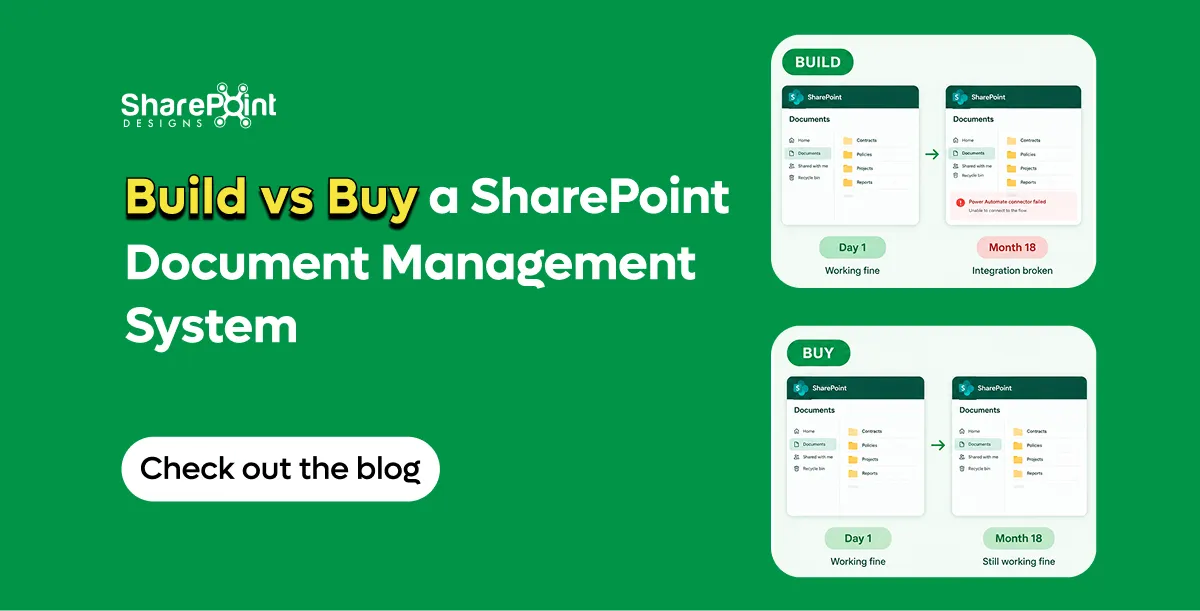
Build vs Buy a SharePoint Document Management System
Build vs buy in SharePoint is rarely about ideology. It is about who will still understand the approval escalation path in eighteen months.
Short answer: yes. Longer answer: a library is not a system.
I still walk into tenants where someone renamed a document library "Quality DMS," turned on versioning, and called it done. That is storage with optimism. A document management system has rules that survive the person who set them up.
After 10+ years of SharePoint delivery work, I treat this question as a design question, not a feature checkbox. SharePoint Online can be a serious DMS. It will not become one by accident.
Library ≠ system
A SharePoint library gives you a place to put files. Optionally folders. Columns if someone bothered. Version history if it is on. Co-authoring if Office is involved.
A document management system answers harder questions:
- What kind of document is this?
- Who can create the next controlled version?
- When must it be reviewed again?
- Who acknowledged the new SOP?
- What is the audit story if a regulator asks next Tuesday?
If your design only answers "where is the file," you built a share. Useful. Not a DMS.
People comparing Microsoft 365 to consumer sync tools often blur this same line. If that is your debate, SharePoint Document Management vs Dropbox and Google Drive draws the company-knowledge vs personal-sync distinction cleanly.
The four pillars I use on every DMS engagement
1) Classification
Classification is not "we have a choice column called Category."
It is content types or equivalent structures, mandatory metadata where it matters, naming and numbering rules, and templates that stop every department inventing a new Word cover page. Without classification, search becomes archaeology and retention becomes guesswork.
SharePoint can do classification well. Most tenants under-invest. They create 40 columns, make none required, then wonder why Copilot returns junk.
DocVault's positioning around templates and auto-tag exists because classification fails when it depends on heroic manual tagging at 4:55 p.m. on a Friday.
2) Lifecycle
Documents are born, drafted, reviewed, approved, published, revised, superseded, and retired. If your library only has "Modified" and "Modified By," you are missing lifecycle.
Lifecycle shows up as:
- Draft vs published states people understand
- Versioning that matches how controlled docs actually change
- Review cycles before expiry — not a calendar reminder in someone's Outlook
- Clear supersede behaviour so old PDFs stop circulating in email
SharePoint OOTB gives versioning and co-authoring. It does not give you auto numbering, multi-stage approval with escalation, scheduled review with pre-expiry, or read-and-acknowledge out of the box. Those are the lifecycle gaps buyers feel after month three.
3) Control
Control is policy made technical: approvals, retention labels via Purview, audit trails, and change discipline.
Microsoft Purview retention and labels are real capabilities in M365. They are also easy to misconfigure or leave half-rolled-out. Audit trails only help if access design is intentional. "Everyone except external" is not a control model.
For regulated conversations — SOX, ISO 27001, GDPR, HIPAA — I talk about platform controls plus configuration: audit trails, access, retention. That is positioning support, not a claim that a packaged SharePoint DMS is itself "certified." Auditors care what you configured and can prove.
4) Access
Access is Entra ID groups, least privilege, broken inheritance used sparingly, and role clarity for authors vs approvers vs readers.
SharePoint permissions can model almost anything. That flexibility is how tenants end up with unique permissions on 2,000 items and a support queue that cannot explain who sees what. A DMS access model is boring on purpose.
Role permissions in a packaged layer help when the business language is "Document Controller" and "Process Owner," not "Contribute" and "Edit."
What SharePoint already gives you
Give Microsoft credit where it is due.
Out of the box, SharePoint Online includes:
- Versioning
- Co-authoring in Office
- Search
- Purview retention and labels (with the right M365 compliance posture)
- A security model tied to your existing identity
That is a strong foundation. It is why "should we leave Microsoft to get a DMS?" is often the wrong opening question for Microsoft-first organisations. For the platform-vs-platform version of that debate,
What SharePoint OOTB still does not give you
This is the list I put on whiteboards:
- Auto numbering that business owners trust
- Multi-stage approval with escalation when someone is on leave
- Scheduled review with pre-expiry warnings that do not depend on one champion
- Read-and-acknowledge for controlled policies
- A governed template creation dashboard so templates do not sprawl
You can approximate pieces with Power Automate, custom forms, and careful content types. Sometimes that is enough. Often it becomes a private automation estate. When the builder leaves, the escalation path fails silently — I have cleaned up more than one of those.
Scale constraints that turn "yes" into "yes, if"
Two numbers matter in real designs:
- The 5,000-item list view threshold still surprises teams who filter nothing and sort on everything.
- Microsoft guidance around ~100,000 items per library is a planning signal, not a dare.
Can SharePoint be a DMS at 200,000 uncontrolled objects in one library with unique permissions everywhere? Technically something will open. Operationally you built a museum. Architecture — multiple libraries, indexing, content types, retention — is part of the "yes."
A pattern that works
When SharePoint succeeds as a DMS, I usually see:
- A small set of libraries aligned to document domains, not one mega-dump.
- Classification rules owned by a business role, not only IT.
- Lifecycle states that match SOPs, not generic "Approved / Not Approved."
- Purview labels applied with intent.
- Either disciplined custom automation or a packaged SharePoint DMS layer for the OOTB gaps.
DocVault is that packaged path for teams who want versioning, approvals, compliance-oriented controls, Copilot AI search/auto-tag, role permissions, audit trails, and templates — inside the customer M365 tenant, nothing leaving the tenant, one-time pricing (see the product page) flat with unlimited users. Trial is a hosted demo with sample data, which is worth knowing before you expect your production taxonomy to appear on day one.
It depends on governance maturity more than licence SKUs. I have seen lightly licensed tenants run excellent controlled document processes, and E5 tenants run chaos with prettier search.
What failed when we pretended otherwise: a client insisted OOTB SharePoint plus "we'll train people better" would replace a retiring legacy DMS. Training helped for two months. Multi-stage approvals with escalation never materialised. Review dates lived in a spreadsheet again. The SharePoint library was fine. The system was missing.
So… can it?
Yes. SharePoint can be a document management system when you treat classification, lifecycle, control, and access as first-class design work — and when you close the OOTB gaps deliberately instead of hoping culture will compensate.
If you need the cost framing next — including why M365 already includes SharePoint and where a flat packaged layer sits.
For the product path we ship for controlled documents in M365, start with DocVault. Broader solution context: document management system guide.
Can SharePoint Be a Document Management System?
I still walk into tenants where someone renamed a document library "Quality DMS," turned on versioning, and called it done.
I get this question on almost every DMS shortlist call: "Should we stay in SharePoint or go to M-Files?"
It is not a religion question. It is an estate question. Where do your documents live today, who already pays for licences, and how much operational drag can you tolerate?
I have shipped SharePoint document systems for more than a decade across 800+ clients. M-Files shows up in RFPs constantly. Some of those RFPs should pick M-Files. Most of the Microsoft-centric ones should not.
What people actually mean by this comparison
Buyers rarely mean "SharePoint Online document library vs M-Files vault" in a clean lab sense. They mean:
- Can we run controlled document management without standing up another platform?
- Will approvals, audit trails, retention, and search survive real usage?
- What does year-two ownership look like when IT headcount is flat?
SharePoint is already in the Microsoft 365 tenant most mid-market and enterprise buyers already pay for. M-Files is a separate document management platform with its own model, connectors, and per-user economics. That single fact drives half the decision.
If you are still deciding whether SharePoint can be a DMS at all, read Can SharePoint Be a Document Management System? first. This post assumes you already know SharePoint can hold documents. The question is whether it should be your controlled system of record — and when a specialist platform like M-Files is the better bet.
Side-by-side: SharePoint (with DocVault) vs M-Files
That table is deliberately blunt. Marketing decks blur these lines. Operations teams live them.
Where SharePoint wins in 2026
You already own the collaboration layer
Teams chats, Outlook attachments that should have been links, Word co-authoring, Entra ID groups — that is the daily work surface. A DMS that forces people out of that surface creates shadow copies. I have watched "best of breed" DMS projects lose to OneDrive folders because the approval UI lived somewhere else.
SharePoint Online already gives you versioning, co-authoring, Purview retention and labels, and search. Out of the box it does not give you auto numbering, multi-stage approval with escalation, scheduled review with pre-expiry, read-and-acknowledge, or a governed template creation dashboard. Those gaps are why packaged SharePoint DMS layers exist.
DocVault sits on those gaps: versioning and approvals, compliance-oriented controls, Copilot-oriented AI search and auto-tag, role permissions, audit trails, templates — still inside the tenant. Flat price. Unlimited users. One-time current pricing on the product page. That economics only makes sense if Microsoft 365 is already your operating system for work.
Flat rate vs per seat changes the conversation
Per-user DMS pricing looks fine in a pilot with 40 quality managers. It gets ugly when Legal, Ops, and plant supervisors all need read-and-acknowledge or controlled access. Flat packaging that reuses M365 licences is not "cheaper software." It is fewer arguments with Finance every renewal cycle.
Compliance positioning without a second control plane
SOX, ISO 27001, GDPR, HIPAA conversations rarely fail because SharePoint cannot store a PDF. They fail because audit trails, access design, and retention are inconsistent. DocVault is positioned around those controls — audit trails, access, retention — as platform capabilities plus configuration. Do not hear that as "DocVault is certified for HIPAA." Hear it as: you can build defensible control patterns in M365 if you actually design them.
For cost mechanics, see How Much Does a SharePoint Document Management System Cost?.
Honest section: when M-Files still wins
I will not pretend otherwise.
M-Files wins when your estate is outside Microsoft 365. If engineering drawings live on network shares, ERP attachments, PLM systems, and three non-Microsoft repositories, M-Files' multi-repo DNA is a real advantage. SharePoint-first packaging does not magically become the best integration hub for a non-Microsoft world.
M-Files also wins when the buying committee wants a dedicated DMS brand more than Microsoft alignment, and when they accept per-user cost and another admin surface. That is a legitimate preference. It is not the same preference as "we live in Teams all day."
What failed on my side once: we pushed a SharePoint-centric design into a manufacturer whose controlled docs were still majority file-share and legacy vault. The metadata model was fine. Adoption was not. People kept saving to the old paths because that is where the ERP deep links pointed. We should have either funded real integration work or recommended a platform built for that mess. It depends on where the documents actually are — not where the CIO wishes they were.
Architecture reality checks people skip
Library scale
SharePoint has a 5,000-item list view threshold. Microsoft guidance sits around ~100,000 items per library before you should get serious about architecture. If your "one library for everything" plan ignores that, neither SharePoint nor a bolt-on DMS will save you. Plan libraries, content types, and indexing like an adult.
Trial expectations
If you evaluate DocVault, the trial is a hosted demo with sample data — not your tenant with your messy permissions. That is normal for packaged SharePoint products. It is also why a short discovery workshop beats a screenshot bake-off.
Search is not the same as governed findability
Copilot and SharePoint search help when metadata and permissions are coherent. They amplify chaos when every department invents columns. Auto-tag helps. It does not replace an information architecture owner.
Decision checklist I actually use
Stay in Microsoft 365 (SharePoint + packaged DMS like DocVault) when:
- Most collaboration already happens in M365.
- You want one identity plane (Entra ID) and one admin story.
- Unlimited-user / flat economics matter more than a specialist brand.
- You need controlled DMS behaviours SharePoint OOTB lacks, without leaving the tenant.
Lean M-Files when:
- Significant controlled content lives outside Microsoft repositories.
- Multi-repo connection is a primary requirement, not a nice-to-have.
- The organisation accepts separate platform ops and per-user licensing.
If you are comparing storage products instead of DMS platforms, that is a different fight
see SharePoint Document Management vs Dropbox and Google Drive.
Build note before you buy anything
Some teams try to close the SharePoint OOTB gap with homemade Power Automate. Sometimes that is enough. Often the flow author leaves and the escalation path dies quietly. If you are on that fence,
Read Build vs Buy a SharePoint Document Management System.
Bottom line
SharePoint vs M-Files in 2026 is not about which logo looks more "enterprise." It is about whether your document estate is Microsoft-first. If it is, staying in M365 with a purpose-built SharePoint DMS layer is usually the lower-friction path. If it is not, M-Files remains a strong answer — and you should pick it without apology.
For teams that have already decided to stay in Microsoft 365 and need the missing controlled-document behaviours, look at DocVault flat one-time, unlimited users, runs inside your tenant. Current pricing is on that page.
Deeper product context sits in the document management system guide.
SharePoint vs M-Files in 2026: when to stay in Microsoft 365
I get this question on almost every DMS shortlist call: "Should we stay in SharePoint or go to M-Files?"
For years, we've designed intranets around the assumption that employees will come to the intranet and look for information. But what happens when employees stop browsing your Intranet and ask AI instead?
Why click through five menus when they can ask one question and get the answers they need?
1. AI needs somewhere to get its answers
AI doesn't magically know your company's policies, processes, organisational structure or project information.
It needs your content.
SharePoint is increasingly becoming an important knowledge layer for Microsoft Copilot and SharePoint agents. SharePoint sites and document libraries can have AI agents that answer questions using content the employee has permission to access.
The employee may never visit that HR page again. But AI might.
That’s why the boring policy page sitting in SharePoint becomes much more important.
2. Someone still has to decide what is trustworthy
Let's go back to our leave policy example.
You ask: "What is our sick leave policy?"
AI gives you an answer.
But which document did it use?
The 2021 PDF? The 2024 HR page? The document sitting in an old departmental library?
This is where SharePoint governance becomes an AI problem.
What makes content trustworthy?
Someone still needs to decide:
- What is the source of truth?
- Who owns the content?
- When was it last reviewed?
- Which version is current?
- Who should have access?
- What should be archived?
- What should be deleted?
AI can retrieve knowledge but someone still has to make sure that knowledge deserves to be retrieved.
3. Your intranet is more than a very expensive search box
Imagine opening your company intranet on a Monday morning.
You see a message from your CEO.
There's a story about a team that just won an important client.
There's a reminder about the town hall.
There's a new learning programme.
Someone has been recognised for ten years with the company.
You weren't looking for any of that.
You discovered it.
- Company identity
- Leadership visibility
- Internal communications
- Employee communities
- Recognition
- Culture
- Events
- Resources
- Self-service experiences
AI is excellent when you know what you want.
An intranet can be valuable when you don't yet know what you want.
4. Not everything should become a conversation
Imagine your CEO publishes an important company announcement.
You could ask:
"Hey Copilot, what did the CEO say today?"
And get a three-line summary.
Is it efficient? Absolutely.
But would you get the same experience as seeing the announcement, reading the message, understanding the context and discovering the related stories around it? Probably not.
There is something about visual storytelling, context and serendipitous discovery that a question-and-answer interface doesn't always provide.
Sometimes you don't know what you need until you see it.
5. The homepage can still influence user behaviour
AI responds to what you ask.
An intranet can introduce you to something you didn't know you needed.
You might open the intranet to check a travel policy and discover
- A new employee benefit
- An upcoming town hall
- A leadership message
- A learning opportunity
- An employee recognition story
- An important company announcement
The homepage can act like a company's noticeboard, newspaper and frontdoor.
That still has value.
For years, we've designed navigation to help people understand where information lives.
With AI, we also need to think whether the information is structured well enough for AI to understand, retrieve and use.
So what does an AI-ready SharePoint intranet look like?
An AI-ready intranet needs:
1. Trusted content
Employees and AI need to know which information is authoritative.
2. Strong governance
Content needs owners, review dates and lifecycle management.
3. Clean information architecture
Information needs meaningful structure and context.
4. Accurate permissions
AI agents need to respect the same access boundaries employees alreadyhave. SharePoint agents use content the user has permission to access.
5. Content that makes sense to AI
Pages and documents need to be clear, current, structured and meaningful.
Because your employees might stop browsing your intranet. Your AI won't.
So... do we still need SharePoint intranets?
Yes, but the real question is:
Do we still need intranets designed for employees to browse?
The future may be an intranet employees visit less often.
Its content may show up through Copilot, agents, Teams and other places where employees already work. Microsoft is already expanding SharePoint's AI capabilities and bringing interactive SharePoint experiences into the Copilot canvas.
So perhaps the future of the intranet is less about being a destination employees must visit.
And more about the intelligence underneath the employee experience.
So, the approach towards modern intranets may change from:
"How do we make employees use the intranet more?"
To:
"How do we make our intranet useful even when employees never open it?"

Do we still need a Sharepoint intranet in the age of AI?
For years, we've designed intranets around one assumption: Employees will come to the intranet and look for information.
Organizations today expect their intranet to be more than a document repository. Modern SharePoint intranets serve as digital workplaces where employees access company news, collaborate with teams, discover resources, complete daily tasks, and stay connected regardless of location.
Prebuilt SharePoint intranet templates significantly reduce implementation time while following Microsoft's modern design principles. Instead of building an intranet from scratch, organizations can deploy professionally designed experiences that are easy to customize and scale.
This article explores eight prebuilt SharePoint intranet templates available on Microsoft Marketplace, highlighting their key benefits, business use cases, and the SharePoint web parts commonly used in each solution.
Why Choose a Prebuilt SharePoint Intranet?
A professionally designed intranet offers several advantages:
- Faster deployment compared to custom development
- Modern responsive design for desktop and mobile
- Reduced implementation cost
- Easy customization without rebuilding from scratch
- Built on native SharePoint Online capabilities
- Scalable architecture for future business growth
- Better employee engagement through intuitive navigation and content organization
Organizations adopting modern Microsoft 365 intranets often experience improved collaboration, knowledge sharing, and communication across departments.
Intranet Design 1 - Professional SharePoint Intranet
Ideal For
- Medium and large enterprises
- Corporate headquarters
- Multi-department organizations
Overview
This professionally designed SharePoint intranet serves as a centralized digital workplace for organizations looking to improve internal communication, collaboration, and information sharing. Employees can quickly access company news, announcements, resources, policies, and departmental portals from a single modern homepage.
Key Benefits
- Professional and modern corporate branding
- Centralized company communication
- Improved employee engagement
- Faster access to business resources
- Better navigation across departments
Looking for a professional, corporate-ready intranet? Explore Intranet Design 1
Intranet Design 2 - Clean and Minimal SharePoint Intranet
Ideal For
- Modern organizations
- HR departments
- Small and medium businesses
- Employee self-service portals
Overview
Designed with simplicity in mind, this clean and minimal intranet provides employees with quick access to essential resources while maintaining a clutter-free interface. The intuitive layout improves usability and ensures important information is always easy to find.
Key Benefits
- Clean and distraction-free interface
- Improved employee productivity
- Easy navigation
- Faster information discovery
- Simplified content management
Want a clutter-free intranet your employees will actually use? Check out Intranet Design 2
Intranet Design 3 - Personalized SharePoint Intranet
Ideal For
- Employee experience initiatives
- Knowledge management
- Hybrid workplaces
- Large enterprises
Overview
This personalized SharePoint intranet delivers targeted content based on employee roles, departments, and interests. Personalized experiences help employees discover relevant news, resources, and applications while improving engagement across the organization.
Key Benefits
- Personalized user experience
- Increased employee engagement
- Relevant content delivery
- Better knowledge sharing
- Enhanced productivity
Ready to deliver a personalized experience for every employee? Explore Intranet Design 3
Intranet Design 4 - SharePoint for Employee Engagement Portal
Ideal For
- HR teams
- Internal communications
- Employee engagement initiatives
- Corporate culture programs
Overview
Built to strengthen workplace culture, this employee engagement portal encourages communication, recognition, participation, and collaboration through interactive content and engaging homepage experiences.
Key Benefits
- Higher employee engagement
- Better internal communication
- Stronger company culture
- Improved collaboration
- Increased participation in company initiatives
Want to build a workplace culture employees are proud of? Check out Intranet Design 4
Intranet Design 5 - Departmental SharePoint Intranet
Ideal For
- Individual departments
- Operations
- Finance
- Marketing
- Sales
- Project teams
Overview
This departmental intranet helps individual business units organize documents, announcements, projects, calendars, and collaboration tools within a dedicated SharePoint workspace while maintaining consistency with the corporate intranet.
Key Benefits
- Better departmental collaboration
- Centralized project resources
- Organized document management
- Improved team productivity
- Easier access to department information
Need a dedicated space for your team's documents, news, and calendars? Explore Intranet Design 5
Healthcare Intranet Design 1 - SharePoint for Hospitals & Clinics
Ideal For
- Hospitals
- Clinics
- Healthcare providers
- Medical institutions
Overview
Purpose-built for healthcare organizations, this intranet centralizes operational updates, hospital announcements, clinical resources, staff schedules, and departmental communication to improve coordination across medical teams.
Key Benefits
- Faster hospital communication
- Improved operational efficiency
- Better access to clinical resources
- Enhanced staff collaboration
- Mobile-friendly experience
Need a smarter way to connect your clinical and administrative teams? Check out Healthcare Intranet Design 1
Healthcare Intranet Design 2 - Modern SharePoint for Healthcare
Ideal For
- Healthcare organizations
- Medical staff
- Nurses
- Administrative teams
Overview
A modern healthcare intranet focused on employee productivity, collaboration, and easy access to medical resources. Staff can quickly locate policies, certifications, training materials, and operational updates from a visually engaging homepage.
Key Benefits
- Modern healthcare workplace experience
- Better staff engagement
- Easier training access
- Centralized healthcare resources
- Improved operational efficiency
Looking for a modern healthcare intranet that improves staff engagement and resource access? Explore Healthcare Intranet Design 2
Healthcare Intranet Design 3 - SharePoint with KPIs and Wellness
Ideal For
- Healthcare leadership
- Hospital management
- Executive teams
- Wellness initiatives
Overview
This healthcare intranet combines executive dashboards with employee wellness initiatives, enabling leadership to monitor key performance indicators (KPIs), operational metrics, organizational announcements, and staff wellness programs from a single dashboard.
Key Benefits
- Real-time KPI visibility
- Executive dashboards
- Employee wellness promotion
- Data-driven decision making
- Centralized healthcare insights
Want real-time KPI visibility and employee wellness built into your intranet? Check out Healthcare Intranet Design 3
Top 8 SharePoint Intranet Templates for Microsoft 365: Features, Benefits & Use Cases
Organizations today expect their intranet to be more than a document repository. Modern SharePoint intranets serve...



.svg)





