Tech Ideas & Best Practices
The workplace has evolved beyond physical boundaries. Today’s hybrid workforce isn’t tied to desks; they collaborate from coffee shops, client sites, or even while commuting. In this new era of work, an intranet that works beautifully on mobile isn’t optional; it’s essential.
A mobile-first intranet empowers employees to access vital information, engage with their teams, and complete tasks, regardless of their location or the device they’re using. This blog explores how to design an intranet that meets the demands of hybrid work and goes beyond just responsive design.
Why Mobile-First Intranet Design Matters?
Designing with mobile-first principles means prioritizing the mobile user experience, starting with small screens and scaling up. This approach ensures that all employees, whether working remotely, in the office, or in the field, receive a consistent and efficient intranet experience.
Key Benefits:
- Instant Access to tools and content, anytime, anywhere.
- Faster Load Times and improved performance on mobile networks.
- Higher Engagement from frontline and remote employees.
- Better Accessibility for diverse roles and work styles.
Must-Have Webparts for a Mobile-First Intranet
To go beyond simple responsiveness, focus on purpose-driven features built with mobile usability in mind. Below is essential intranet components designed for hybrid teams:
1. Weather Webpart
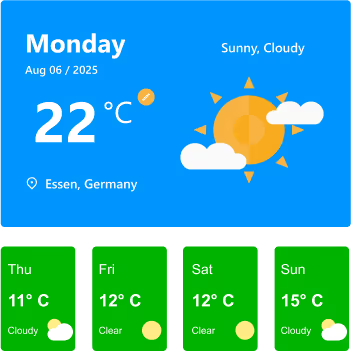
Whether you’re on a jobsite, traveling to meet a client, or planning an outdoor event, having quick weather info at your fingertips helps you prepare better. On a mobile intranet, it’s right where you need it, no extra apps required.
Features:
- Displays current day’s weather with location, date, temperature, and conditions (e.g., Sunny, Cloudy).
- Location detection to automatically fetch weather details for the user’s city.
- Toggle option for Celsius/Fahrenheit for personalized preference.
- 7-day or current-week forecast cards showing temperature, condition icons, and quick visual cues.
- Clear weather icons and colors for instant understanding at a glance.
Watch: Weather Webpart Demo
2. Birthday Reminder Webpart
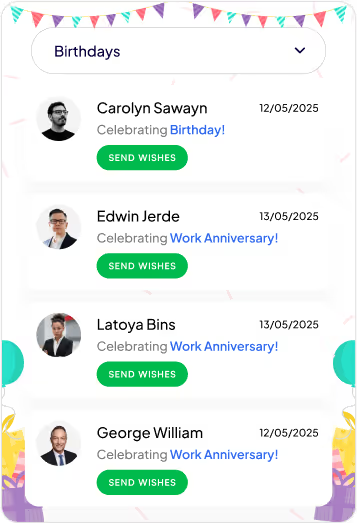
In a hybrid workplace, you don’t pass by a colleague’s desk to say happy birthday. This Birthday reminder webpart ensures no one’s special day is forgotten, wherever you’re working from.
Features:
- Category Filter: Dropdown menu lets you switch between multiple celebration types, including birthdays, work anniversaries, new joiners, and recognitions.
- Personalized Cards: Each entry shows the person’s photo, celebration type, and date, making it easy to identify and remember the occasion.
- Quick Action (Send Wishes): Dedicated “Send Wishes” button for each person allows you to instantly send greetings or messages.
- Event Feed Layout: Scrollable list of celebration cards helps you quickly see all upcoming and current occasions at a glance.
- Engaging Visuals: Festive header and clean card design create a cheerful, celebratory feel without overwhelming the UI.
Watch: Birthday Reminder Webpart Demo
3. Top Navigation
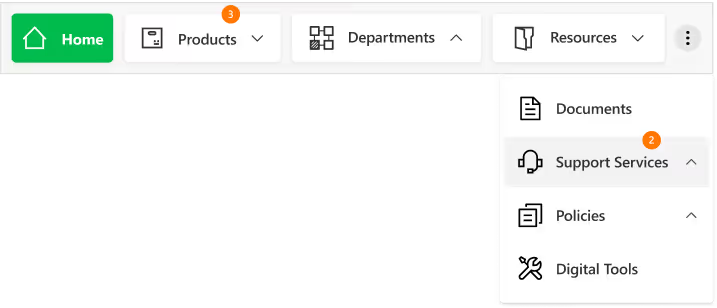
On mobile, clarity is everything. A well-structured top navigation makes it easy to get where you need to go without endless scrolling or tapping.
Features
- Sticky Positioning: Stays visible as you scroll for constant access.
- Custom-Styled Navbar: Fully themed navigation bar with clean typography, consistent iconography, and a modern, minimal look for better brand alignment.
- Intuitive Menu Structure: Clear text labels paired with relevant icons make it easy to identify sections at a glance.
- Expandable Options: The three-dot menu keeps extra navigation links organized without crowding the main bar.
- Real-Time Notifications: Numeric badges on menu items instantly indicate new updates or unread content, helping users prioritize.
- Dropdown Navigation: Smooth, organized dropdown menus allow quick access to subcategories like “Training & Development” or “Policies & Procedures.”
4. News Webpart
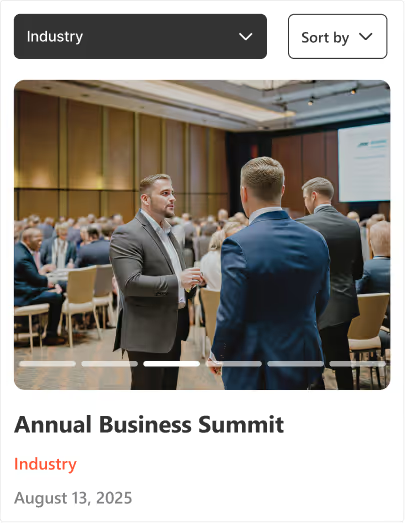
Company updates shouldn’t get buried in your email inbox. The mobile-friendly news webpart keeps important announcements front and center in a clean, scrollable feed you can check anywhere. With its slider design, category tags, and filtering options, it ensures you never miss a relevant update.
Features:
- Multi-Slide View: Browse several updates within a compact space using horizontal sliders.
- Category Tags: Each news item is labelled for quick context (e.g., Industry, Company).
- Active Slide Indicators: Clear visual markers show your current position in the feed.
- Smart Sorting & Filtering: Dropdown and "Sort by" options help you quickly find relevant news.
Watch: News Webpart Demo
5. Events Calendar
From virtual town halls to on-site training, the events calendar ensures everyone stays informed about upcoming activities, even on the go. It combines clear scheduling with easy interaction for a seamless event experience.

Features:
- Month Slider Navigation: Quickly preview previous or next month’s events without leaving the current view.
- Upcoming Events List: Displays event details like time, date, and category directly below the calendar.
- Category Filters: Group events by type (e.g., Meetings, Training, Conferences, Community & CSR) for faster access.
- Add to Outlook Integration: Instantly save events to your Outlook calendar with one tap.
- Add Events Button: Allows users to add their own events to the shared calendar for team-wide visibility.
6. Organization Chart
When teams are distributed across locations, knowing who’s who becomes essential, the organization chart provides a clear, structured view of roles, teams, and reporting lines, making it easier to identify colleagues, understand team connections, and reach the right person without delays.
Features:
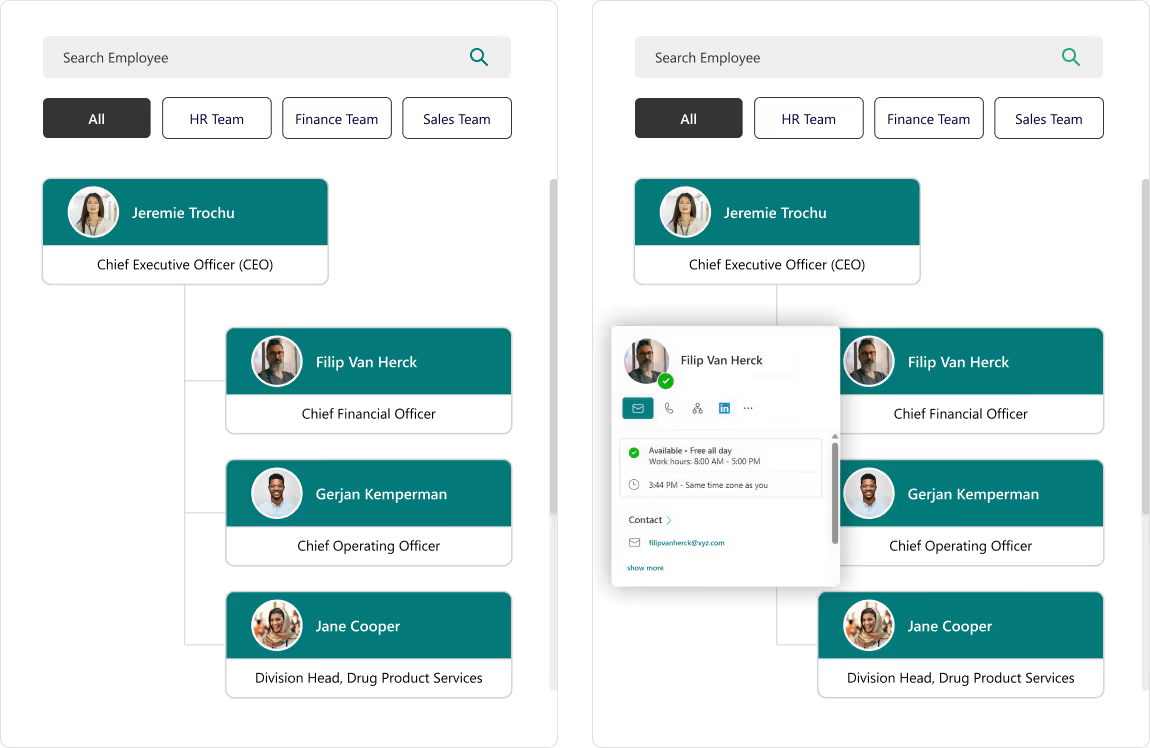
- Search Bar: Instantly find employees by name without scrolling through the entire directory.
- Department Filters: View team members grouped by specific categories like HR, Finance, or Sales.
- Interactive Hover Cards: Access quick actions like chat, email, call, or LinkedIn profile directly from a colleague’s profile card.
- Hierarchical View: Clearly see reporting structures and leadership levels for better team understanding.
7. Document Library
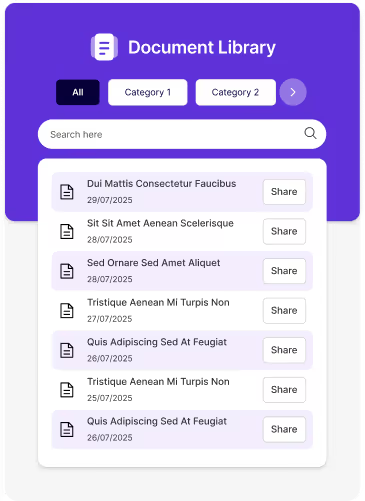
The Document Library keeps all files organized, searchable, and up to date, so you can quickly access the right document when it matters most. Whether filtering by category, searching by keyword, or sharing a file on the go, you’ll always have the latest version at your fingertips.
Features:
- Category Filters: Organize files into categories for easy navigation and reduced clutter.
- Search Functionality: Locate specific files instantly using the built-in search bar.
- Share Option: Share documents directly with colleagues in just one click.
- Clean, Mobile-Friendly Design: Ensures quick access and smooth browsing on any device.
8. Feedback and Improvement
An interactive platform to capture employee or user feedback instantly, helping organizations make data-driven improvements. The engaging design and one-tap access make it quick and easy to share thoughts.

Features:
- One-Tap Feedback Submission: Directly link to online feedback forms for instant input without delays.
- Engaging Visuals: Animated and expressive icons encourage higher participation rates.
- Actionable Insights: Feedback can be analyzed to identify trends and improve services.
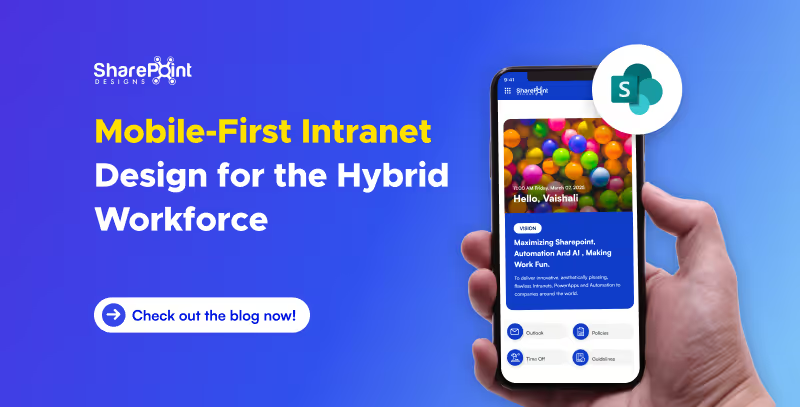
Mobile-First Intranet Design for the Hybrid Workforce
The workplace has evolved beyond physical boundaries. Today’s hybrid workforce isn’t tied to desks.

In today's increasingly complex workplaces, onboarding new employees seamlessly is crucial. Traditional methods often involve mountains of paperwork, lengthy orientations, and manual tasks. A recipe for wasted time and errors.
Employee onboarding software: a game-changer that streamlines the process, fosters engagement, productivity, and ultimately, retention. A smooth and engaging process Here's how to leverage employee onboarding platforms and HR software to create a winning onboarding experience.
This blog explores how onboarding software revolutionizes the new hire experience, ultimately benefiting both employees and employers.
Challenges of Traditional Onboarding
- Paperwork Overload:
Manual document processing is time-consuming and prone to errors. - Inconsistent Communication:
Mixed messages or lack of clear expectations can lead to confusion. - Generic Approach:
A one-size-fits-all approach doesn't cater to individual needs. - Limited Engagement:
Passive learning methods fail to capture interest and motivation.

From Paperwork to Progress: How Onboarding Software Revolutionizes the New Hire Experience?
In today's increasingly complex workplaces, onboarding new employees seamlessly is crucial. Traditional methods often involve mountains of paperwork,

The right software choice for managing standard operating procedures (SOPs) can improve compliance, efficiency, and onboarding of new employees. The decision can be daunting with so many tools available in the market. In this comparison, we look into four industry leading SOP management systems: Microsoft SharePoint, Trainual, Scribe and Whale.
1. Microsoft SharePoint
Overview
Microsoft SharePoint is a sophisticated document management system due to its strong internal communication capabilities and an enterprise-grade document repository. When integrated together with specialized SOP manager plugins, it transforms into a robust SOP management system.
Pros
- Highly customizable: Supports unique SOP formats, metadata tagging, workflows as well as access on roles-based permissions.
- Integration: Seamless integration with Microsoft 365 apps such as Teams and Outlook alongside Power Automate.
- Compliance-ready: Features like audit trails monitoring, document versioning and retention policies provide built-in compliance monitoring.
- Scalable: Well, suited for both small and mid-sized businesses (SMBs) alongside large enterprises.
Cons
- Requires either IT support or a consultant specialized in SharePoint for initial setup and customization.
- More difficult for non-technical teams to adapt to compared to other solutions.
Best For
Companies that are mid-size to larger have already adopted Microsoft 365 since it's easier to integrate. Companies needing specific workflows tailored to compliance needs also fit here more easily than other competing brands.
2. Trainual
Overview
Trainual is an SOP and training software that is cloud-based, ideally for small businesses and startups. It has a user-friendly interface with content authoring tools integrated within the program.
Pros
- Employee onboarding: Retention and training are maintained through strong emphasis on accountability.
- Templates: Comes with pre-built SOP templates.
- Progress tracking: Track who read what and passed which test.
Cons
- Basic workflow customization.
- Limited document control and metadata features.
- Deep Microsoft tool integrations lacking.
Best For
Startups and small businesses that need to quickly devise, share, instruct, and create Standard Operational Procedure documents.
3. Scribe
Overview
Scribe is an AI-powered software that captures workflows and converts them into step-by-step documentation automatically.
Pros
- Quick SOP creation: Great time saver.
- Collaboration friendly: Shareable links with extensions available in browsers.
- Automatic documentation: Captures clicks and screens in real-time.
Cons
- Hard-structured formats to organize SOPs severely lacking.
- Standalone as an incomplete SOP management solution.
- Limited versioning, approval features, compliance capabilities.
Best For
Teams needing step-by-step guides visually documented or quick instructional tutorials tailored towards internal documentation of repetitive tasks.
4. Whale
Overview
Whale focuses on onboarding, training, and knowledge retention by providing a dedicated SOP and knowledge management platform.
Pros
- Visual and structured SOPs: Use rich editing tools like videos and images to embed them into the SOPs.
- Integration-ready: Slack, Chrome, and Teams.
- Onboarding workflows: Content can be triggered to onboard new users automatically.
- Insights: Provides analytics such as engagement metrics, versioning data, and user analysis.
Cons
- Unlike SharePoint, document customization features are not as flexible.
- Small teams may find the pricing model unfavorable.
- Automation of workflows is not as sophisticated when compared with Power Automate from Microsoft.
Best For
Teams looking for off-the-shelf software that allows them to easily integrate Standard Operating Procedures (SOP) alongside training components and provides user analytics will find this useful.
If you are searching for a Trainual alternative, Scribe alternative, or Whale alternative, Microsoft SharePoint stands out as the most versatile and future-proof choice for SOP management. Unlike standalone tools, SharePoint offers enterprise-grade document control, advanced workflow automation, and seamless integration with Microsoft 365 apps like Teams, Outlook, and Power Automate. Its highly customizable framework allows organizations to design SOP processes that align perfectly with compliance requirements, departmental needs, and operational goals. Whether you are scaling operations, improving onboarding, or streamlining documentation, SharePoint delivers a robust, all-in-one platform that outperforms other solutions in flexibility, security, and scalability.
Conclusion
Selecting the right software for SOPs requires consideration of level of business structure, size and operational goals.
- Consider choosing SharePoint if your need is enterprise-level complex compliance policies, advanced workflows as well as office 365 integration.
- Go with Trainual when you are a small business looking for quick-onboarding frameworks.
SOPs also available rapidly alongside guides and how-to-do docs which help less experienced personnel execute assigned tasks seamlessly without much oversight- Makes work life enjoyable is another key strength that comes client servicing software.
Fabulous results swiftly obtained via whale where in-depth analysis is key blended value-add features hence let the analytics do the talking, boast an all-in-one battle quarter driven by desires optimal sop blended plus powerful onboarding surge.
Searching for help setting up SharePoint SOP Manager?
Book complimentary session with us and launch your SOP manager under 7 days!
SOP Software Comparison: SharePoint, Trainual, Scribe and Whale
The right software choice for managing standard operating procedures (SOPs) can improve compliance, efficiency, and onboarding of new employees.
Most people don’t hate SharePoint.
They hate how it looks.
The usual complaint sounds like this:
“It works, but it doesn’t feel like a website.”
And they’re right.
By default, SharePoint is built to manage content, not to impress users. But with the right structure, layout choices, and modern features, SharePoint can absolutely look and behave like a real, modern website.
We’ve seen this happen across intranets, HR portals, knowledge bases, and even internal marketing sites. Let’s walk through real scenarios and practical changes that turn SharePoint into something employees actually enjoy using.
Why SharePoint Often Doesn’t Feel Like a Website
In one organization, the intranet technically “worked.”
All documents were there. Permissions were fine. Search existed.
But employees still avoided it.
The reason wasn’t SharePoint itself. It was because:
- Pages looked cluttered
- Navigation felt confusing
- Branding was inconsistent
- Important content was buried
A website guides users.
A typical SharePoint site just stores information.
That’s the gap we need to close.
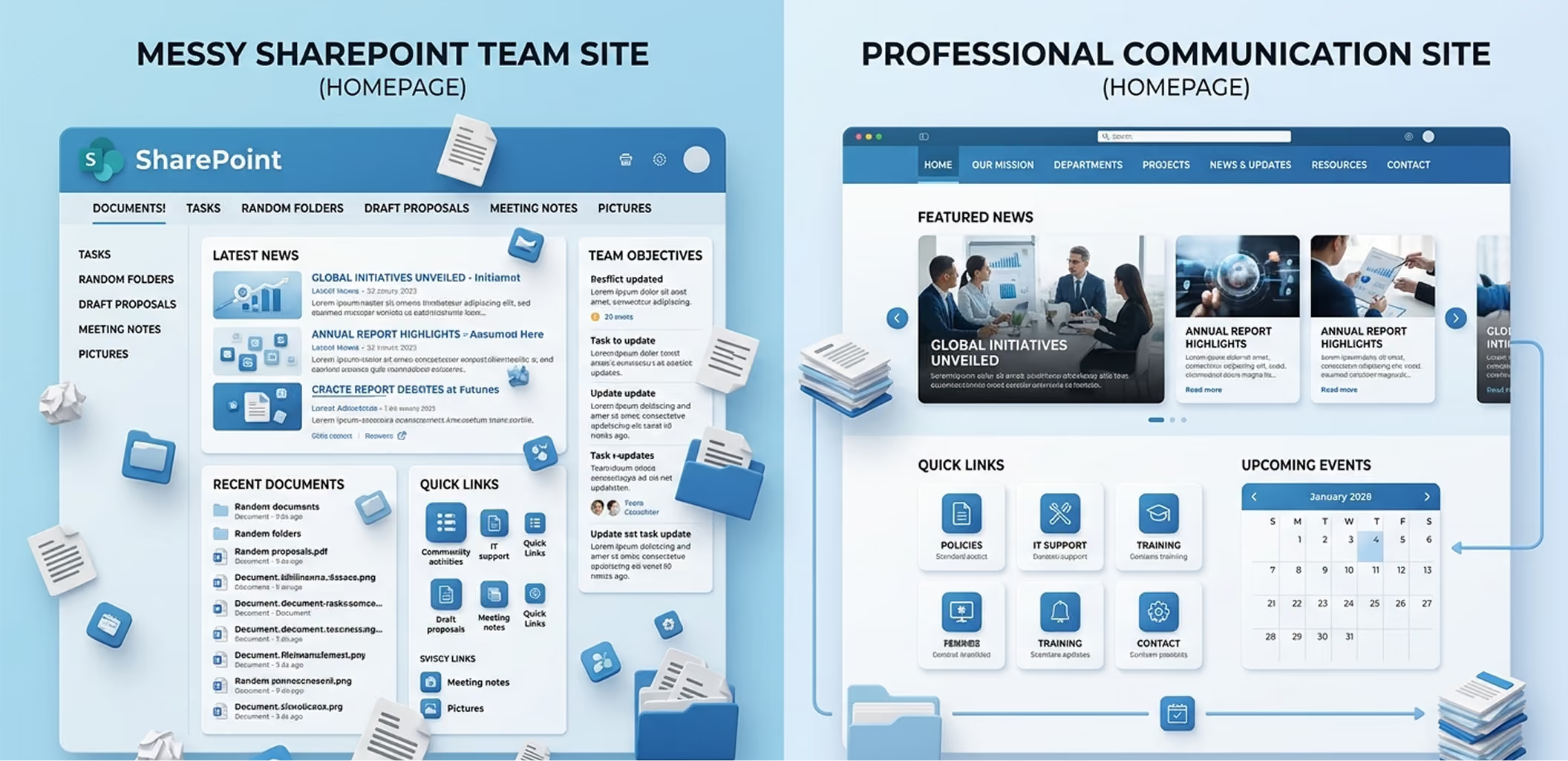
Step 1: Start with the Right SharePoint Site Type (This Matters More Than Design)
One of the biggest mistakes teams make is starting with the wrong site.
If your goal is to make SharePoint look like a website, Communication Sites are non-negotiable.
Why communication sites work better
- Full-width layouts
- Cleaner navigation
- Better visual hierarchy
- Designed for broadcasting information, not collaboration chaos
In almost every successful SharePoint website-style example we’ve seen, the foundation was a communication site, not a team site.
Step 2: Fix the Homepage First (Most SharePoint Website Problems Start Here)
In a real case, an intranet homepage had:
- 12 quick links
- 8 announcements
- 4 banners
- Zero clarity
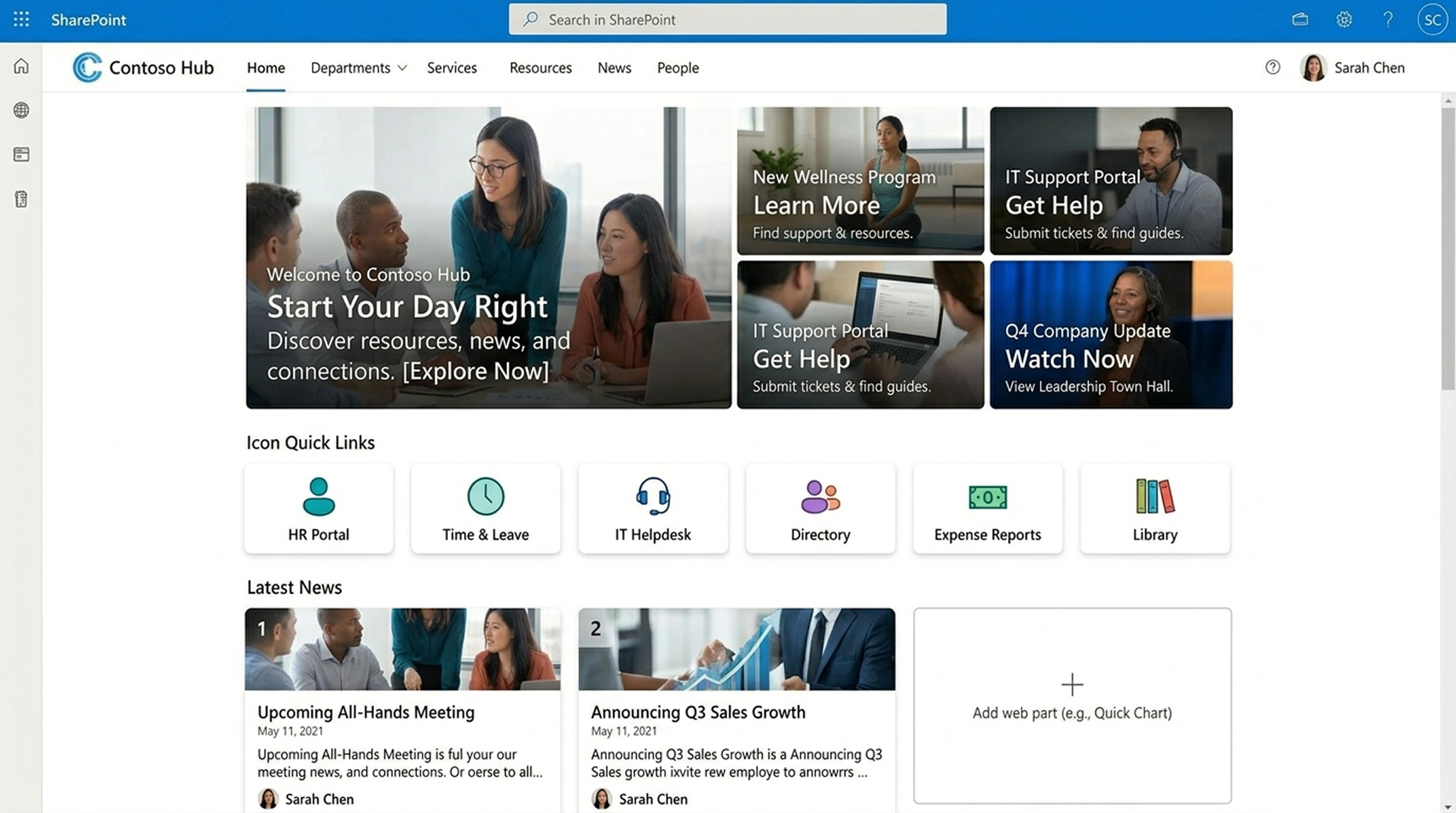
After redesigning the homepage using modern SharePoint web parts, the layout changed to:
- One hero message
- 3–4 primary actions
- Targeted news
- Search at the top
Engagement went up within weeks.
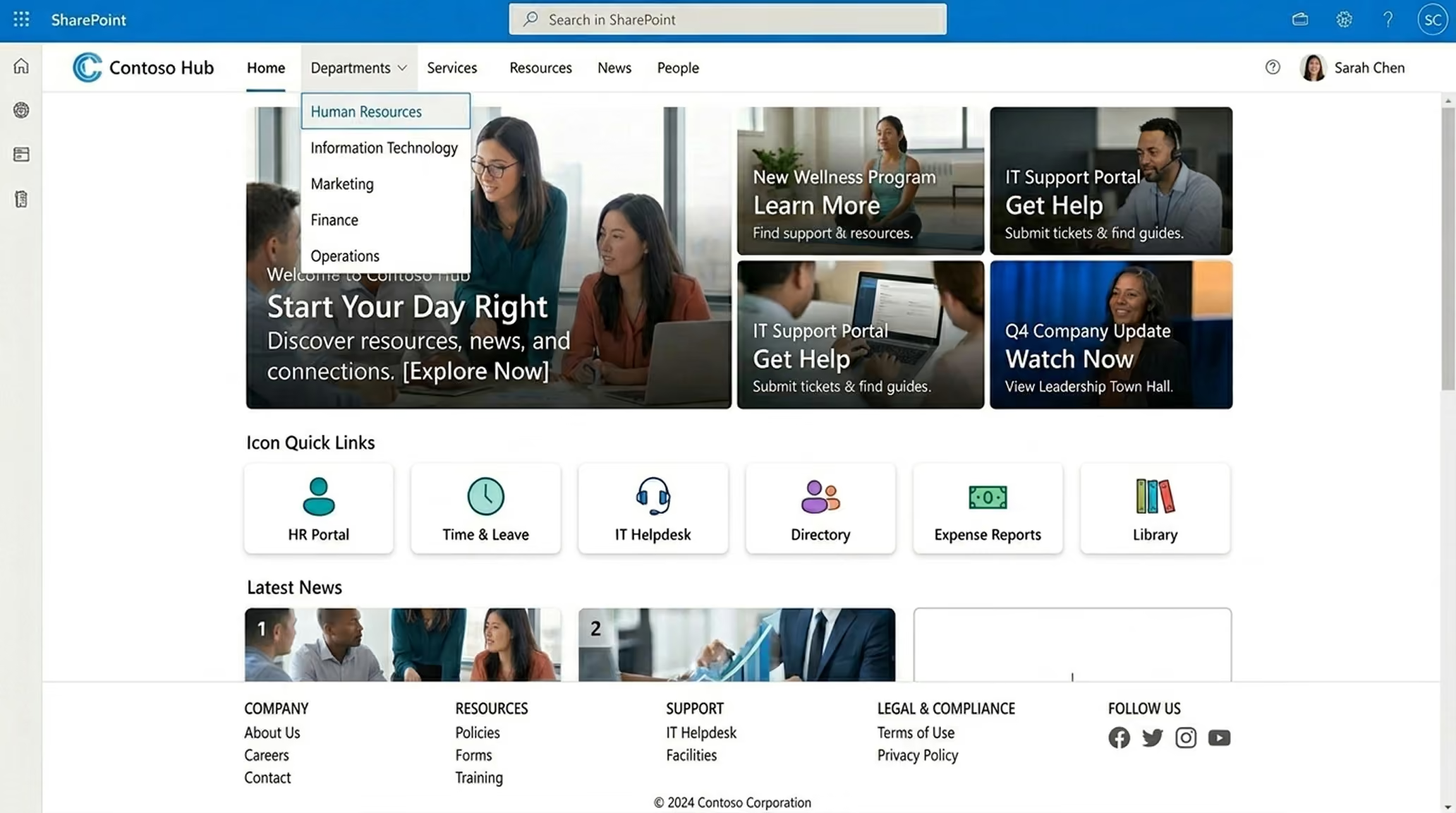
What a website-like SharePoint homepage includes
- Hero web part with a clear purpose
- Quick Links with icons (not text lists)
- News web part with audience targeting
- Visible Microsoft Search
Key lesson:
A website homepage answers “What should I do here?”
Your SharePoint homepage should do the same.
Step 3: Use Navigation Like a Website, not a File System
One major difference between SharePoint and a website is navigation discipline.
In one company, each department added its own links. Navigation became unreadable.
They fixed this by:
- Using hub sites
- Standardizing navigation across all sites
- Limiting menu depth
- Adding footer navigation for secondary links
Now the intranet felt predictable. And predictability builds trust.
Website-style navigation tips for SharePoint
- Use hub navigation as your main menu
- Keep labels human, not technical
- Avoid document-library-first navigation
- Add a footer for policies and legal links.
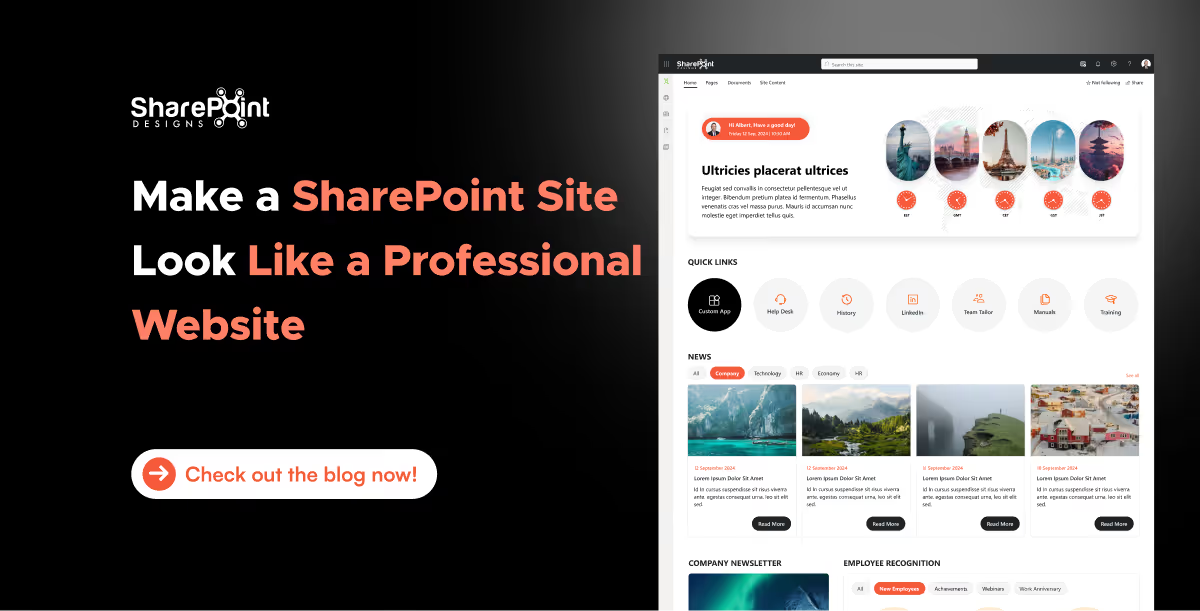
How to Make SharePoint Look Like a Real Website (What Actually Works)
SharePoint is powerful but let’s be honest: default SharePoint sites don’t always feel like modern websites.

The SharePoint intranet homepage serves as the digital gateway to your organization. It’s where employees go to find updates, access tools, and connect with the broader company. A well-designed homepage can boost employee engagement, improve productivity, and reduce time wasted navigating cluttered systems. In this guide, we outline the best practices to help you design a high-impact SharePoint intranet homepage that aligns with your business goals.
Why Your SharePoint Homepage Matters
The homepage sets the tone for your entire intranet experience. When done right, it:
- Increases intranet adoption
- Centralizes communication and resources
- Encourages cross-departmental visibility
- Reduces support tickets and duplicated work
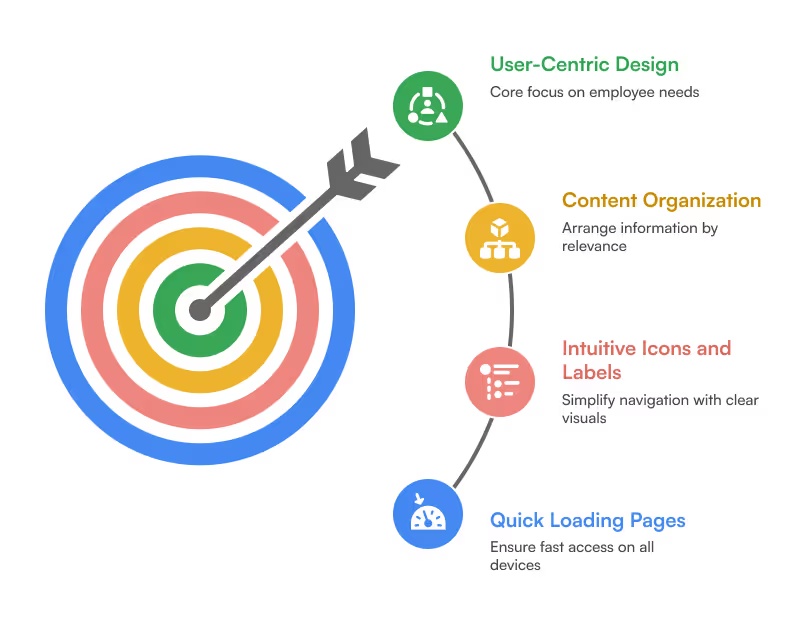
1. Focus on User-Centric Design
Your homepage should cater to employees, not administrators. Conduct user interviews or surveys to understand what information they need daily. Ensure that:
- Content is organized by relevance and frequency of use
- Icons and labels are intuitive
- Pages load quickly on desktop and mobile
2. Prioritize Key Web Parts
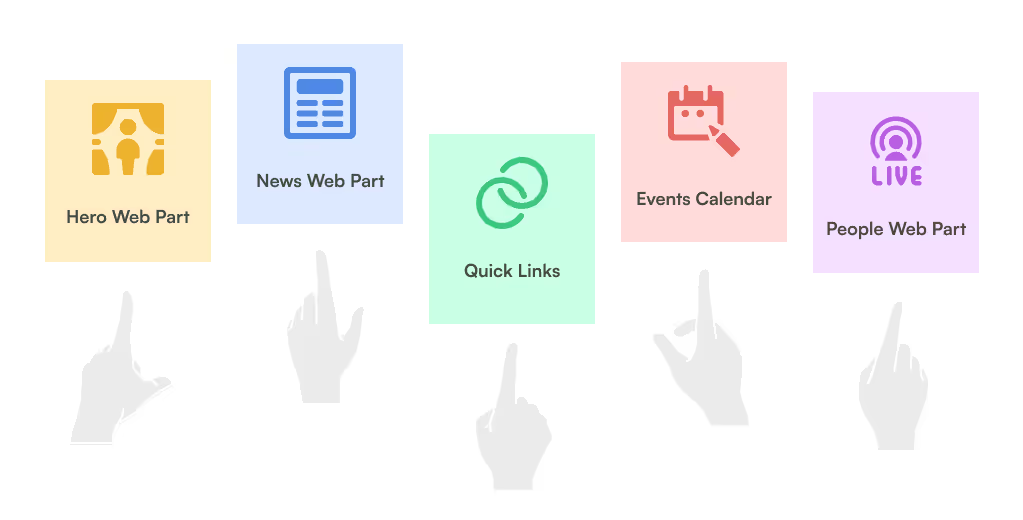
Use Out-of-the-Box (OOTB) and custom SharePoint web parts to surface important information:
- Hero Web Part: Feature announcements, department portals, or campaigns
- News Web Part: Company updates, events, and HR bulletins
- Quick Links: Direct access to frequently used tools or resources
- Events Calendar: Highlight upcoming meetings, holidays, and webinars
- People Web Part: Show key contacts or newly joined team members
3. Personalize Content with Targeting
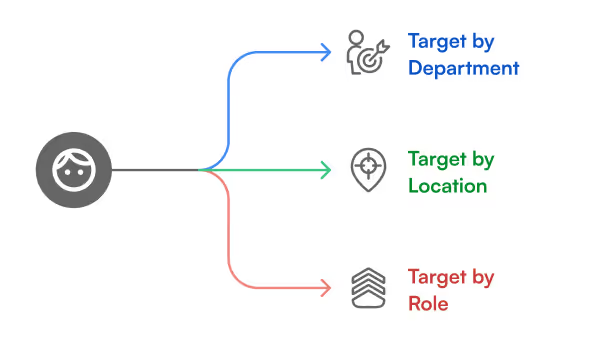
Leverage SharePoint’s audience targeting features to show content based on department, location, or role. This ensures employees only see what’s relevant to them, reducing clutter and improving relevance.
4. Design for Mobile & Accessibility
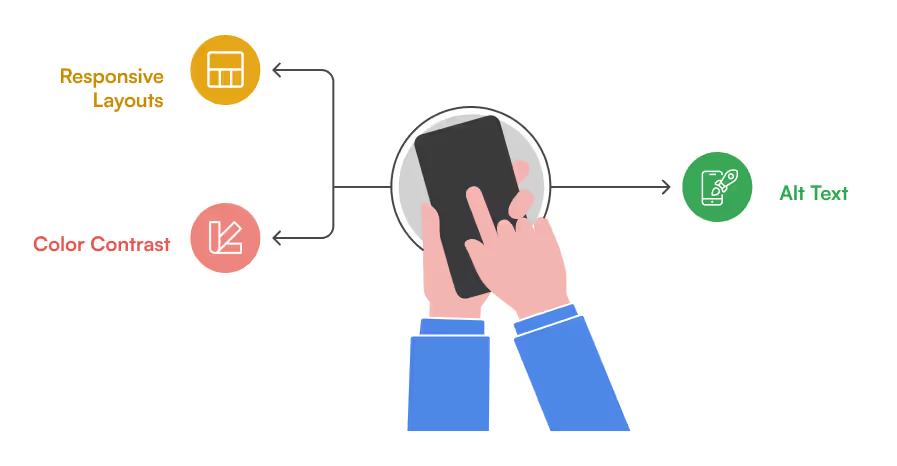
With hybrid work models, ensure your intranet is responsive and accessible:
- Use responsive layouts for mobile usability
- Add alt text to images
- Ensure color contrast meets accessibility standards (WCAG)
5. Use Branding to Reinforce Culture
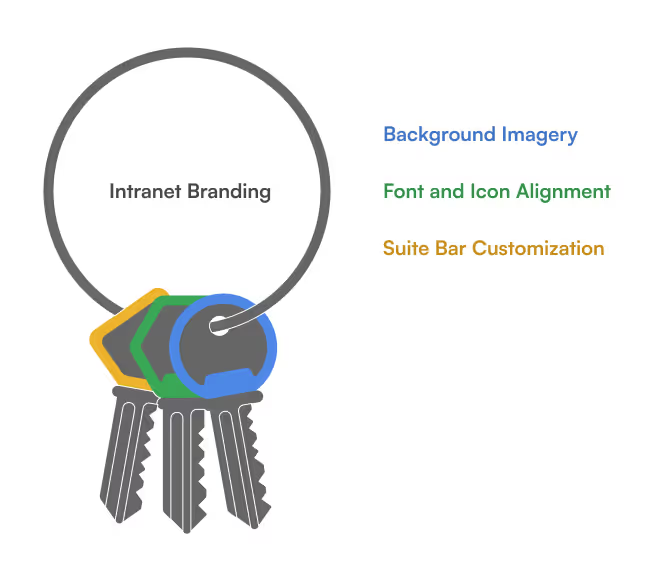
Your intranet should reflect your organization’s identity. Customize:
- Suite bar with logo and brand colors
- Fonts and icons aligned with your internal guidelines
- Background images or banners that highlight team culture
SharePoint Intranet Homepage Best Practices to Boost Engagement and Usability
The SharePoint intranet homepage serves as the digital gateway to your organization.
Introduction: Why This Guide Matters
In this detailed guide, we’ll cover:
- Why hiring a SharePoint consultant is often better than going in-house
- Key criteria to evaluate consultants
- The questions you must ask before signing a contract
- Common mistakes to avoid
- Freelancer vs. consulting firm - pros and cons
- A practical hiring checklist
- Conclusion: What kind of partner your business really needs
1. Why Hire a SharePoint Consultant?
Many organizations begin their SharePoint journey with internal IT or a basic out-of-the-box setup. But they soon hit barriers:
- Low user adoption
- Poor navigation and UI
- Inconsistent file governance
- Inability to scale for business needs
- Missed automation and integration opportunities
What a SharePoint Consultant Brings:
- Deep platform expertise: SharePoint Online, SPFx, Power Platform, Teams, Microsoft Graph, etc.
- Strategic alignment: Matching SharePoint’s capabilities to your business goals
- Process mapping and workflow design
- Knowledge of compliance (GDPR, HIPAA, ISO) and secure architecture
- Post-launch support, training, and optimization
Think of a consultant not just as a technician, but as an intranet architect who ensures your digital workplace performs at every level.
2. Key Criteria to Evaluate a SharePoint Consultant
Choosing the right consultant isn’t just about experience or pricing. You need a well-rounded partner.
Key Evaluation Criteria:
A. Experience & Portfolio
- Do they have a track record of successful SharePoint deployments?
- Have they worked in your industry or with your use case?
B. Business Understanding
- Can they translate business challenges into platform solutions?
C. Design & UX Skills
- Do they offer modern, branded, user-friendly designs or just functional backends?
D. Custom Development Capability
- Can they build SPFx web parts, automate flows, and integrate with Teams, Power BI, and Azure?
E. Communication & Transparency
- Will they walk you through every phase, or just drop a delivery?
F. Support & Training
- Do they train internal admins and end-users for long-term success?
3. Questions to Ask Before You Hire
A consultant’s true value shows in how they respond to these questions:
Strategy & Planning
- What is your approach to understanding our business needs?
- How do you decide between out-of-the-box features and custom development?
Implementation & Delivery
- What’s your delivery methodology? Agile? Waterfall? Hybrid?
- Can you give us a timeline with milestones and checkpoints?
Adoption & Training
- How will you ensure adoption across departments?
- Do you offer training sessions, videos, or documentation?
Post-Launch Support
- What does your support structure look like after go-live?
- How do you handle future feature requests or troubleshooting?
4. 5 Costly Mistakes to Avoid When Hiring a SharePoint Consultant
Hiring the wrong consultant leads to low ROI and high frustration. Here are mistakes you should avoid:
Mistake #1: Hiring for Cost, Not Capability
Low-cost freelancers or agencies may lack the depth needed for complex setups, resulting in patchy work that requires rework.
Mistake #2: Ignoring UX and Branding
A clunky UI kills adoption. A great SharePoint consultant should care about layout, navigation, and branding as much as backend logic.
Mistake #3: No Roadmap or Governance Plan
Without a roadmap, SharePoint turns into a dumping ground. Consultants must help you structure libraries, permissions, metadata, and workflows.
Mistake #4: Not Involving End-Users Early
User feedback helps shape a usable, useful system. If you don’t involve real users early, expect resistance at launch.
Mistake #5: No Post-Implementation Support
A consultant who leaves right after go-live can leave your internal team stranded. Support, iteration, and governance are essential.
5. SharePoint Freelancer vs. SharePoint Consulting Firm: Pros & Cons
Depending on your project’s complexity, timeline, and internal capacity, you might consider a freelancer or a full consulting team.
Freelancers
Pros:
- More affordable
- Fast for small tasks or isolated issues
- Flexible for short-term work
Cons:
- Limited skillset (often one-person team)
- Risk of unavailability or bandwidth issues
- Little to no project management or documentation
- No support continuity
SharePoint Consulting Firms (Like SharePoint Designs)
Pros:
- Team-based expertise (UI, backend, architecture, governance)
- Better quality assurance and peer review
- Defined SLAs, training, and documentation
- Long-term support and scalability
Cons:
- Higher investment (but also higher ROI)
- May require more structured planning
Tip: Choose a freelancer for one-time help. Choose a firm for enterprise-wide impact.
6. SharePoint Consultant Hiring Checklist
Use this checklist before making a final decision:
- Can they demonstrate relevant, recent SharePoint projects?
- Do they understand business processes beyond just SharePoint tech?
- Have they asked about your end-users, pain points, and KPIs?
- Can they balance out-of-the-box and custom solutions intelligently?
- Do they offer user training and documentation?
- Are they clear about scope, timelines, and pricing?
- Do they support post-launch optimization?
- Do they bring design, automation, and compliance thinking into one plan?
7. Final Thoughts: Hire for Growth, Not Just Setup
A SharePoint consultant isn't a plug-and-play hire. You're choosing a partner who will define how your team works every day, how they collaborate, how they find information, how they feel about internal tools.
At SharePoint Designs, we bring the full package:
- Branded and user-friendly intranets
- End-to-end DMS and KMS setups
- Process automation with Power Platform
- AI integrations and Copilot agents
- Deep understanding of your people, not just your platform
We don’t just build SharePoint portals, we maximize your team’s performance through smarter digital workspaces.
Let’s Talk
If you're exploring SharePoint for the first time or need to fix what's already built, we're happy to help.
Book a Free Consultation
The Complete Guide to Hiring a SharePoint Consultant for Your Business
SharePoint is a powerful platform but only when implemented the right way. Whether you're planning to build an intranet,
Launching a SharePoint intranet in 2026 is no longer just about setting up pages or storing files. It’s about building a digital workspace that enhances communication, strengthens culture, and drives productivity across hybrid and distributed teams. But one critical decision remains for every organization:
“Should you build your SharePoint intranet from scratch or buy a ready-to-deploy solution?”
This blog explores both options in depth, breaking down the pros, cons, and hidden costs so you can make the smartest decision for your team.
Summary
This article helps you choose between building a custom SharePoint intranet or buying a ready-to-deploy SharePoint solution in 2026. It explains why intranets matter, weighs pros and cons of each approach, and highlights trade-offs across cost, time to launch, flexibility, maintenance, and UX. Building offers maximum customization but higher costs, longer timelines, and resource demands. Buying accelerates launch with lower risk and vendor-backed features, with light customization as needed.
Why Companies Need a SharePoint Intranet in 2026?
Before we dive into build vs buy, let’s clarify why companies are prioritizing SharePoint intranets more than ever:
- Unified Communication Hub: Bring together remote, on-site, and hybrid teams through a single, connected platform.
- Policy & Knowledge Access: One location for SOPs, HR policies, FAQs, and compliance docs.
- Team Engagement: Celebrate wins, share updates, and spotlight people.
- Process Automation: Streamline onboarding, approvals, and content workflows.
- Microsoft 365 Integration: Seamlessly tie into Outlook, Teams, Power Automate, and more.
Option 1: Building a SharePoint Intranet from Scratch
Custom-built SharePoint intranets give you full control over the design, components, and structure. This route is often favored by companies with complex needs, internal development resources, or highly specific branding and workflows.
Pros of Building:
- 100% tailored experience to your organization’s workflows
- Flexible design and custom branding options
- Ability to integrate unique business apps or third-party systems
Cons of Building:
- High upfront development cost (often $25K+ for mid-sized organizations)
- Long implementation cycles (typically 3 to 6 months)
- Requires skilled SharePoint developers and administrators
- Ongoing maintenance and troubleshooting responsibilities
- Inconsistent UX if not built with best practices
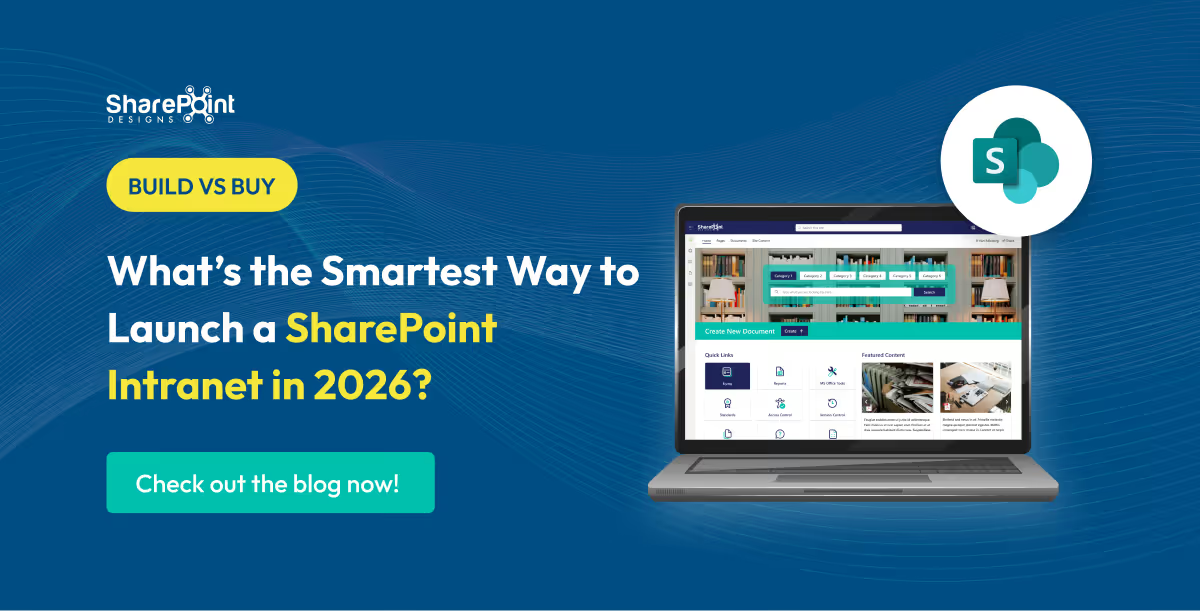
Build vs Buy: What’s the Smartest Way to Launch a SharePoint Intranet in 2026?
Launching a SharePoint intranet in 2026 is no longer just about setting up pages or storing files.
In today’s fast-paced, hybrid work environment, an intranet is more than just a file repository, it’s the digital heart of your workplace. For companies using Microsoft 365, SharePoint intranet templates are a powerful way to launch engaging, user-friendly portals without starting from scratch.
In 2025, the best modern SharePoint intranet templates go beyond design. They focus on employee engagement, collaboration, and productivity making your intranet a daily go-to space for your team.
According to a Gallup Workplace Report, companies with highly engaged employees see:
1. 21% higher profitability
2. 17% higher productivity
3. 41% lower absenteeism
A modern, well-structured SharePoint intranet can directly contribute to these results, if it’s designed with engagement, efficiency, and business goals in mind.
Why Leaders Should Care About Intranet Templates
For CEOs, CIOs, HR directors, and Operations Heads, an intranet is not just an IT tool, it’s an ROI generator.
- Faster decision-making: Centralized, accurate data reduces delays.
- Lower operational costs: Reduced time wasted searching for documents (IDC estimates knowledge workers spend 2.5 hours/day searching for information).
- Better compliance: Controlled access and version history reduce risks in audits.
- Improved onboarding retention: Structured learning reduces early attrition.
Using ready-to-deploy SharePoint templates means you can achieve these benefits in days instead of months, without high custom development costs.
Why Employee Engagement Matters in Your Intranet Design
An intranet’s purpose is to connect employees to the tools, people, and information they need. A well-designed intranet can:
- Foster a sense of community in hybrid and remote teams.
- Reduce time wasted searching for documents.
- Improve communication across departments.
- Enhance transparency through centralized updates.
Modern SharePoint templates combine beautiful layouts with smart functionality, ensuring employees don’t just visit the intranet, they use it regularly.
Key Features of Modern SharePoint Intranet Templates in 2025
Here’s what’s driving engagement in this year’s top intranet designs:
1. Personalized Dashboards
Employees see customized news feeds, tasks, and resources based on their department, location, or role.
Example: HR news for HR staff, project updates for project teams.
2. Mobile-First Design
With remote work and field operations, mobile optimization is no longer optional.
Modern templates offer responsive layouts and app-like experiences on any device.
3. AI-Powered Content Recommendations
Leveraging Microsoft’s AI tools, intranet pages now suggest relevant documents, people, and announcements to keep employees engaged.
4. Integrated Communication Tools
Direct integration with Microsoft Teams and Outlook ensures employees can act on updates without leaving the intranet.
5. Gamification Elements
Badges, leaderboards, and recognition walls encourage participation and interaction across the company.
10 Modern SharePoint Intranet Templates for 2025
1. Employee Hub Template
A centralized landing page for all employees, featuring company-wide news, announcements, events, quick links, and HR resources in one place.
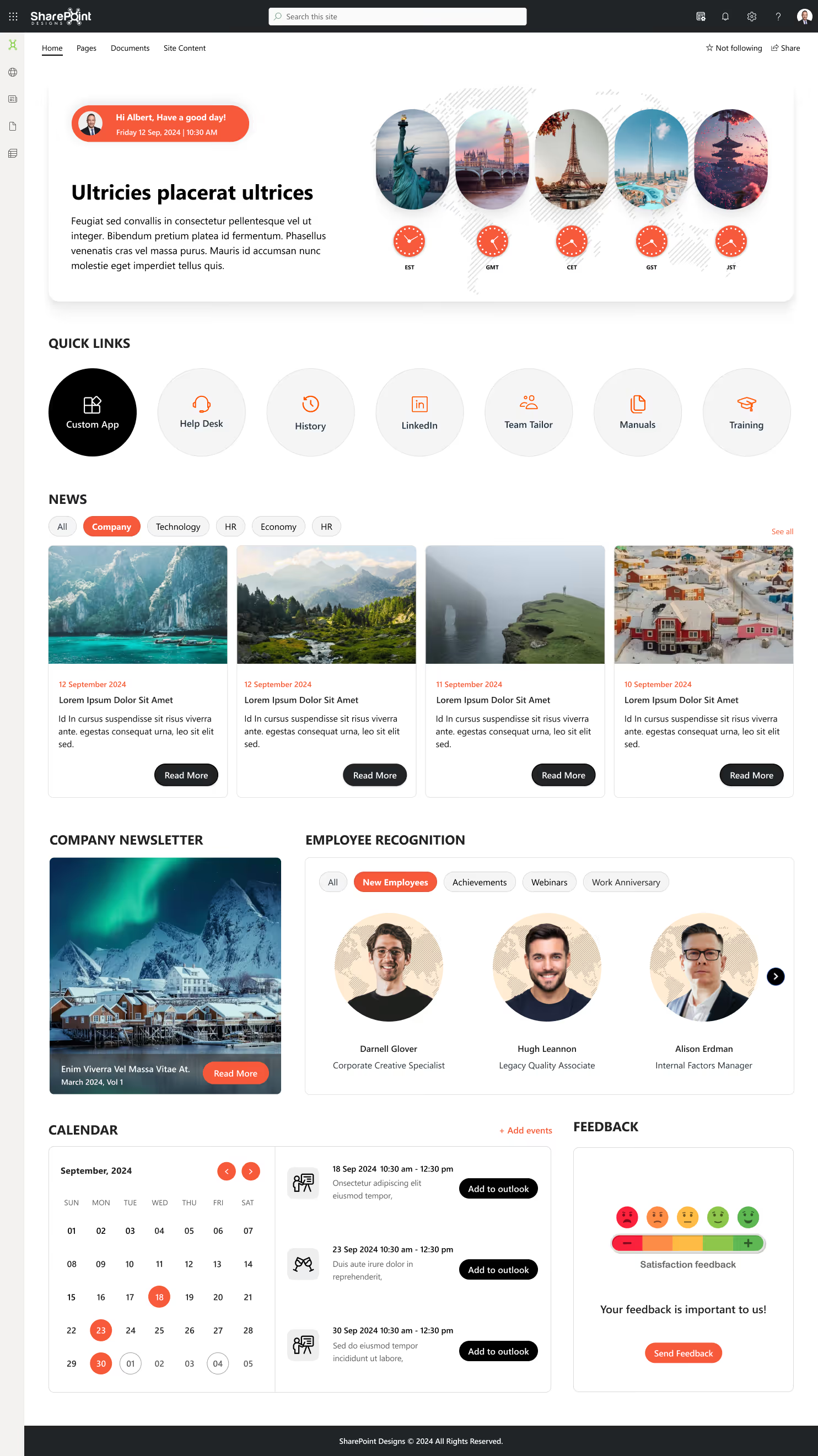
Benefits:
- Improves organization-wide communication.
- Builds transparency between leadership and staff.
- Reduces time spent searching for important updates.
- Encourages daily engagement with company culture.
2. HR Portal Template
A dedicated HR site where employees can access policies, submit leave requests, check benefits, download forms, and find contact details.
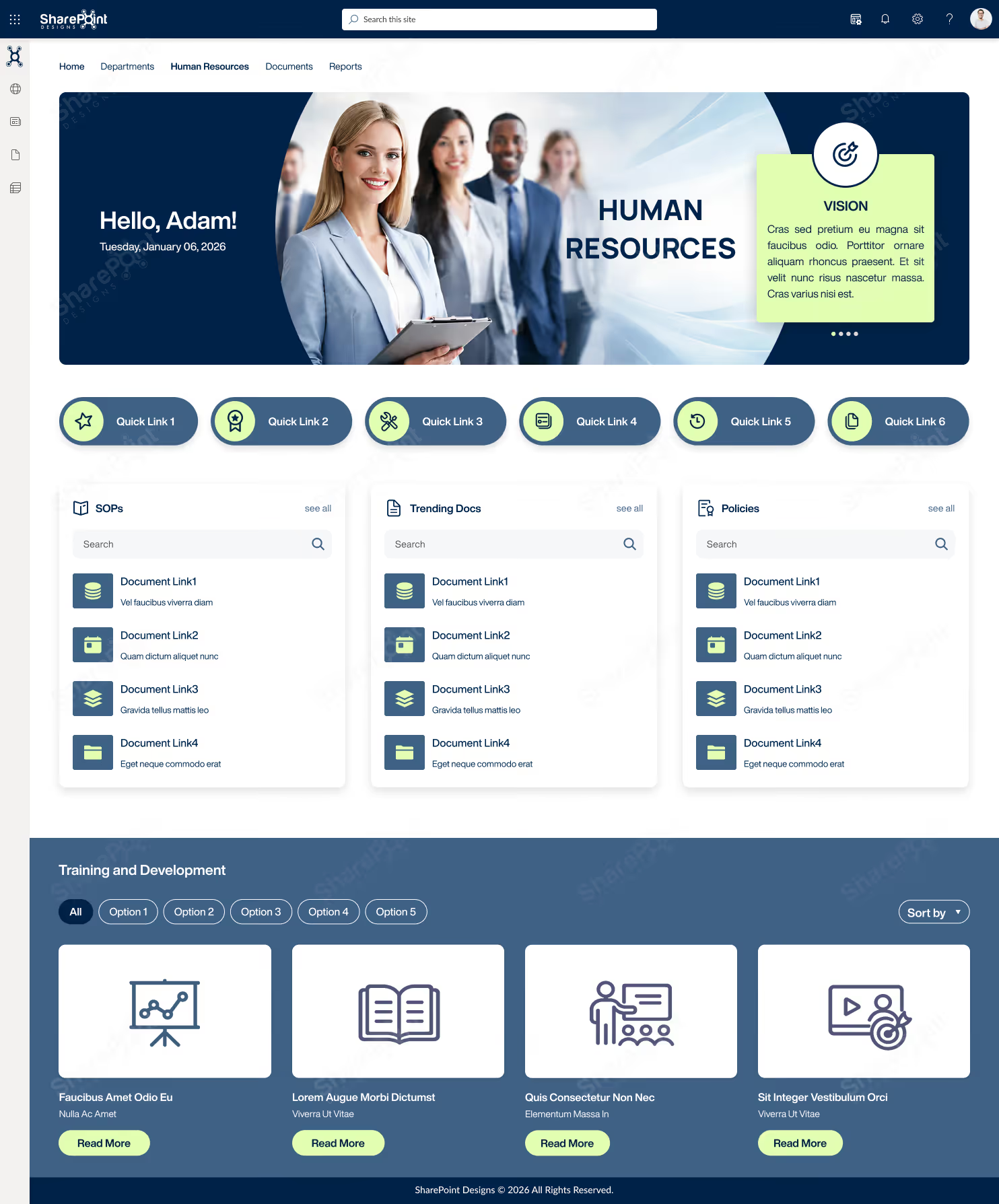
Benefits:
- Cuts HR admin workload by up to 30% via self-service tools.
- Ensures policies are always accessible and up-to-date.
- Speeds up HR approvals through automated workflows.
3. Learning & Training Center
A modern intranet template is designed to centralize learning resources, manage employee training programs, and track skill development across the organization. Perfect for enterprises focusing on continuous learning, compliance training, and professional development.
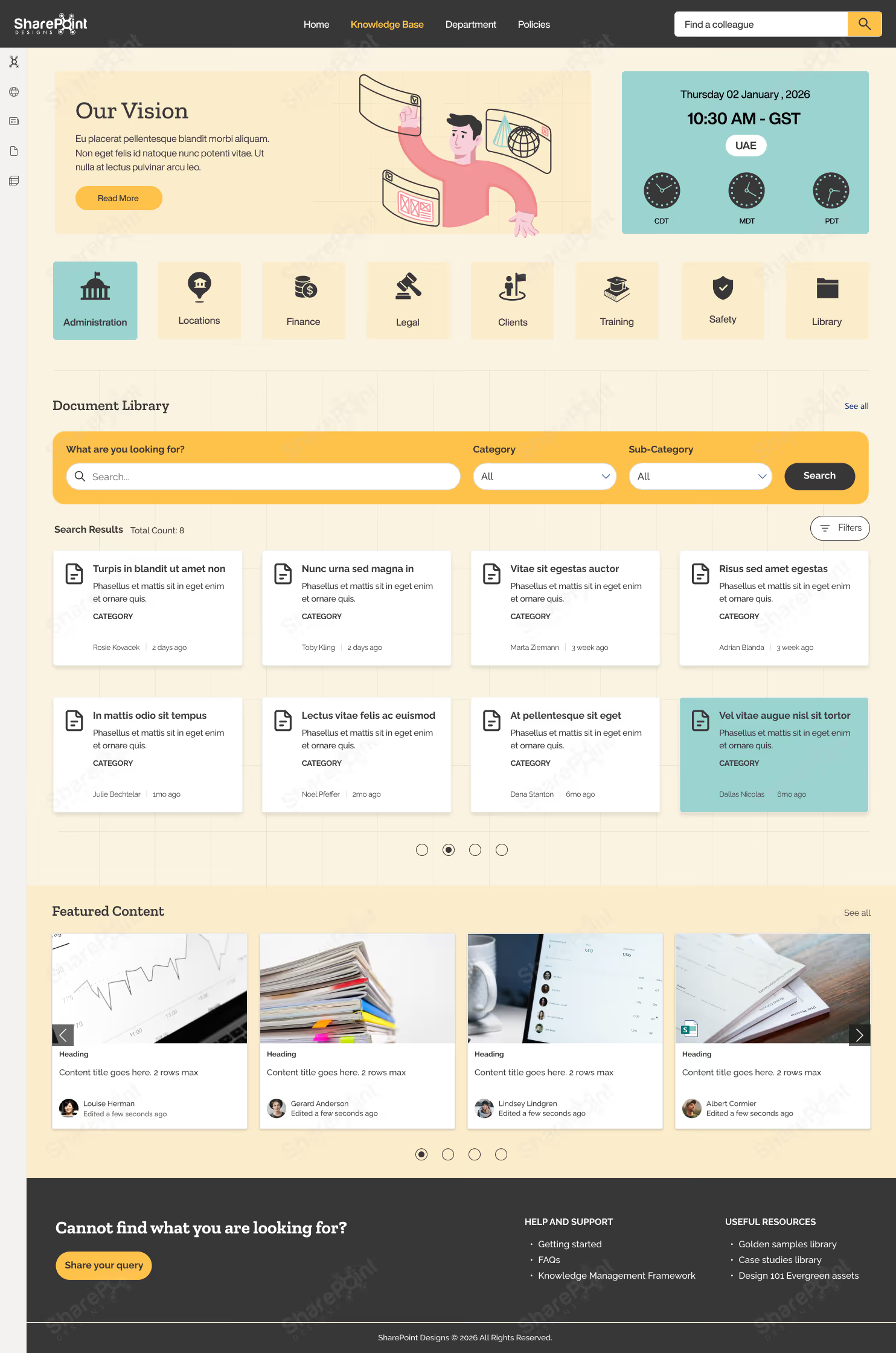
Benefits:
- Speeds up onboarding with a one-stop learning hub for new hires
- Reduces training costs by 30-40% through digitized learning materials
- Enables leadership to track workforce skill gaps and plan upskilling investments
- Improves retention rates by fostering a growth-oriented culture
- Boosts productivity by ensuring employees have quick access to the knowledge they need
4.Onboarding & Training Template
A structured portal guiding new hires through welcome messages, training videos, FAQs, and mandatory policy sign-offs.
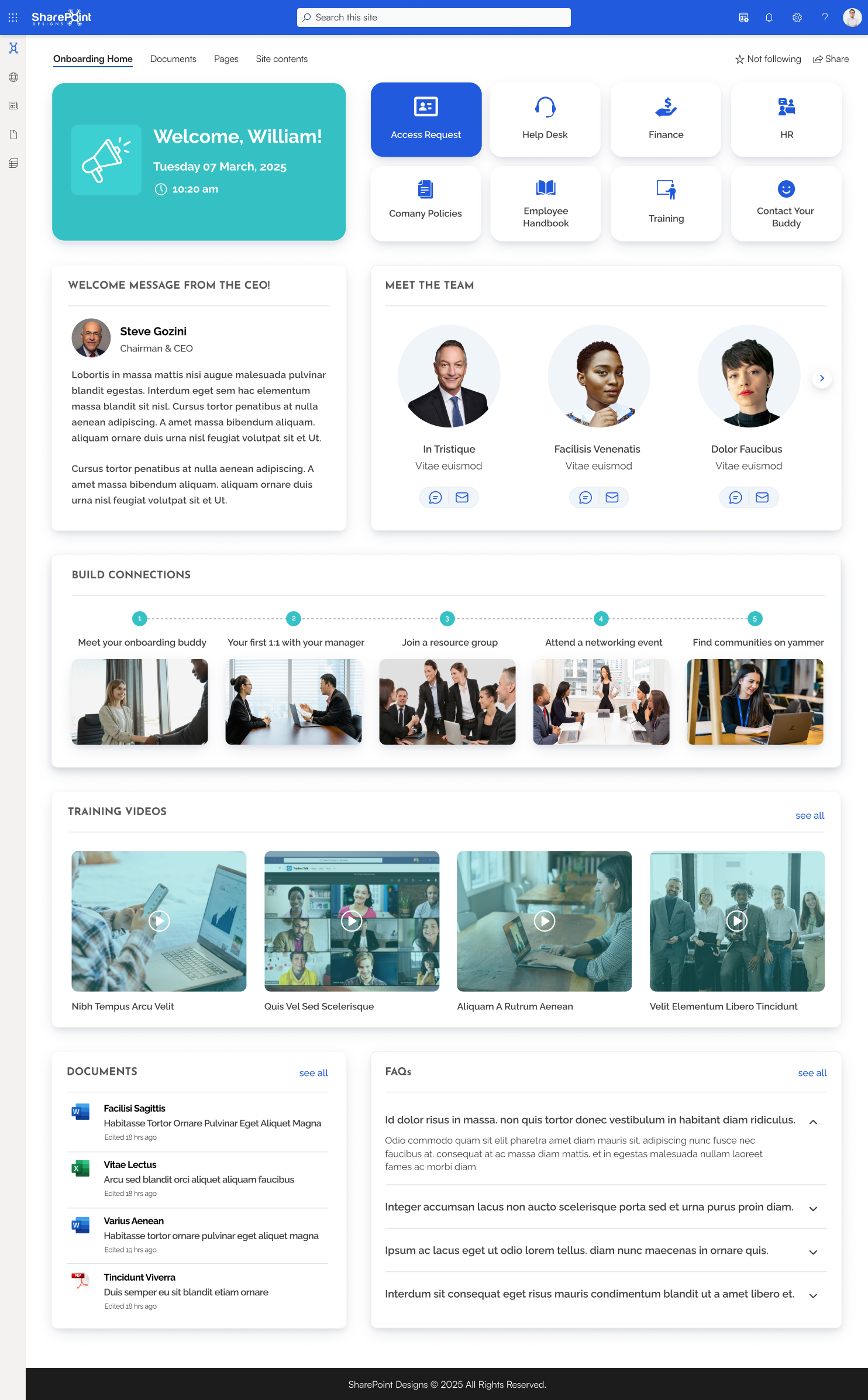
Benefits:
- Improves new hire ramp-up speed by up to 50%.
- Reduces HR’s repetitive onboarding workload.
- Enhances retention by making employees feel supported.
5. Departmental Site Template
Customizable sites for each department (IT, Finance, Marketing, Sales, etc.) with team-specific resources, updates, and tools.
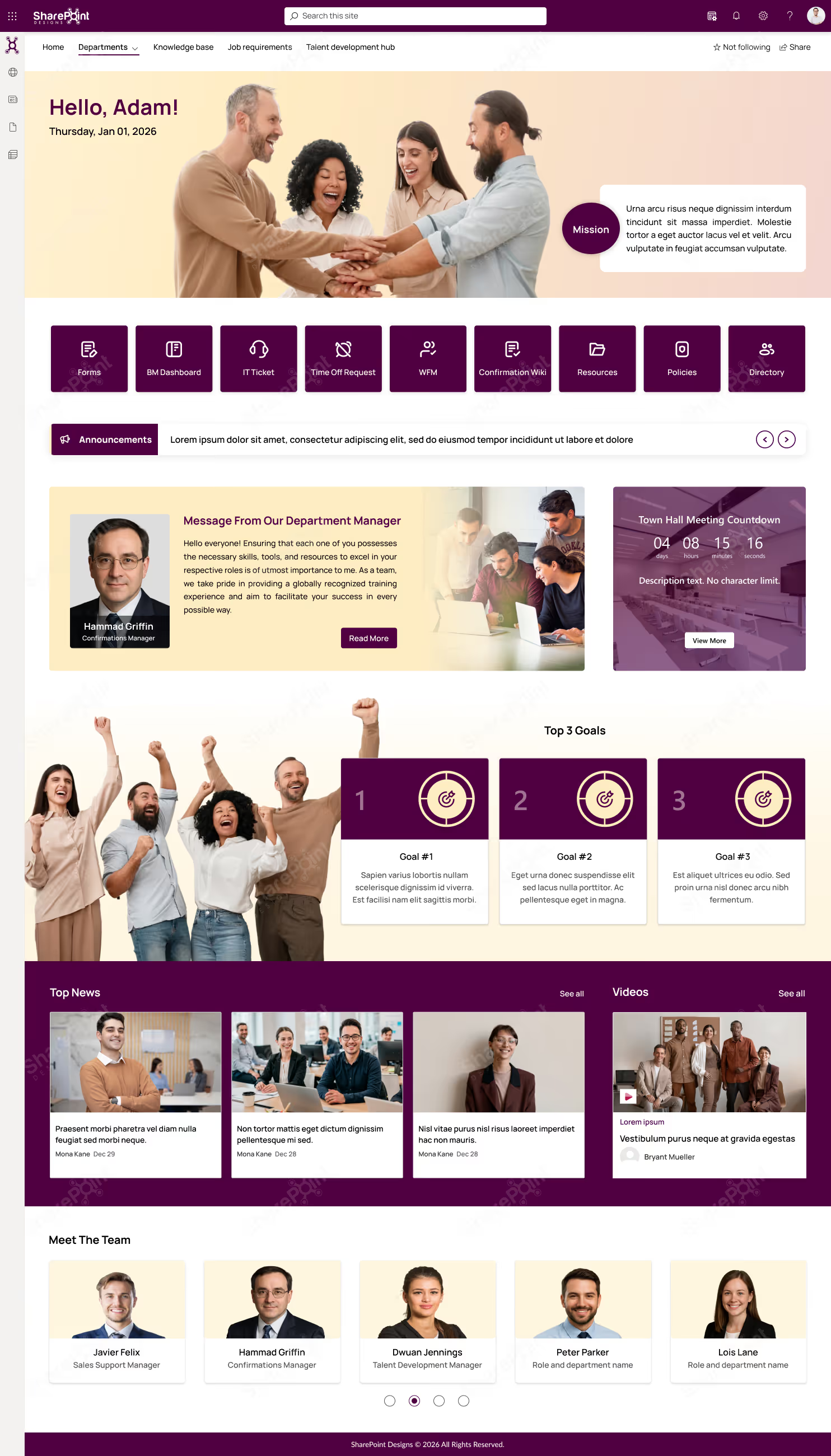
Benefits:
- Increases departmental productivity with relevant information.
- Strengthens team identity and goal alignment.
- Maintains corporate branding while allowing flexibility.
6. ISO Compliance & Document Management Template
A secure, audit-ready library for controlled documents, procedures, and compliance records with version tracking.
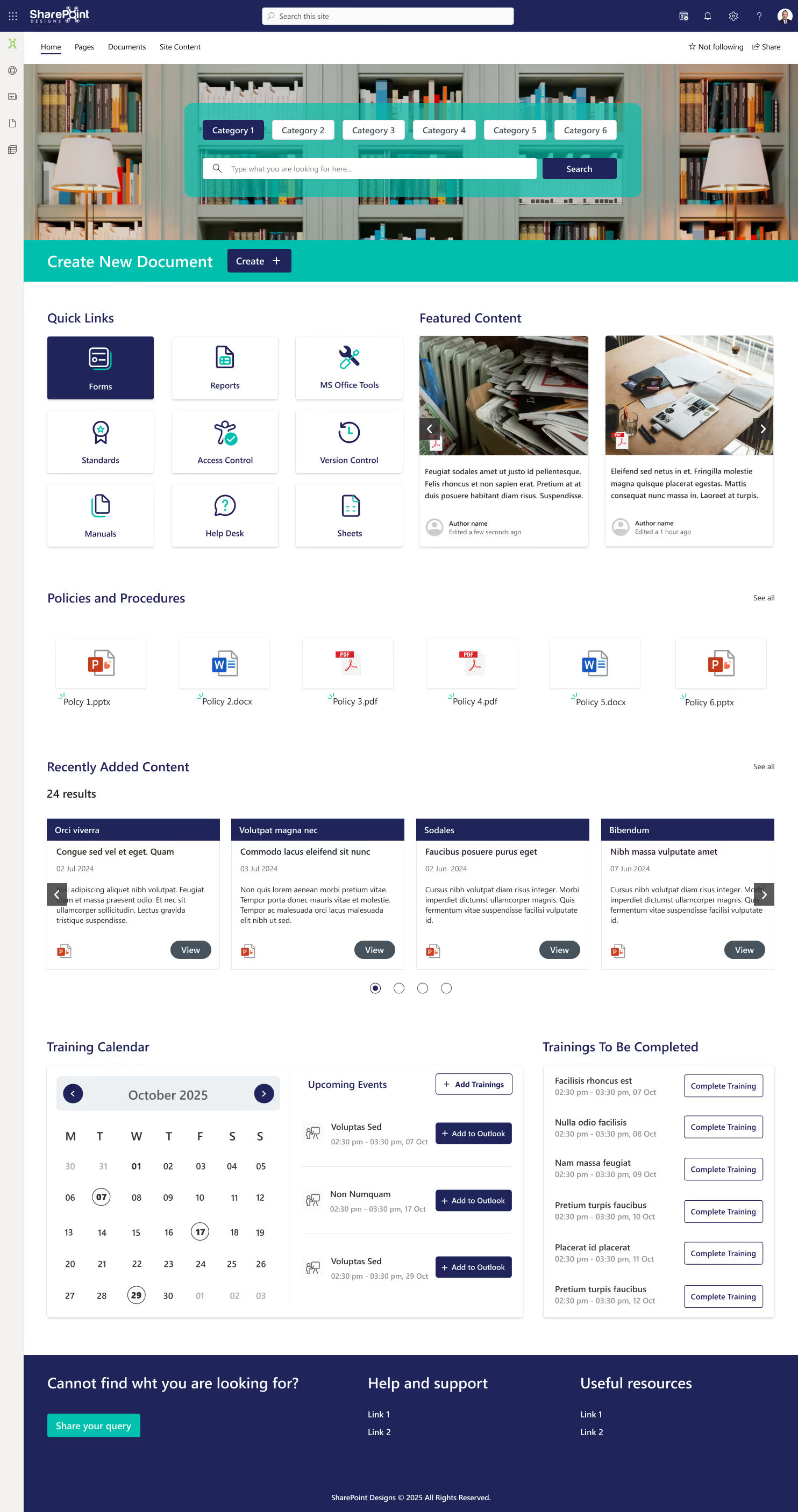
Benefits:
- Reduces audit preparation time by up to 40%.
- Ensures only approved versions are in circulation.
- Protects sensitive compliance documents with role-based permissions.
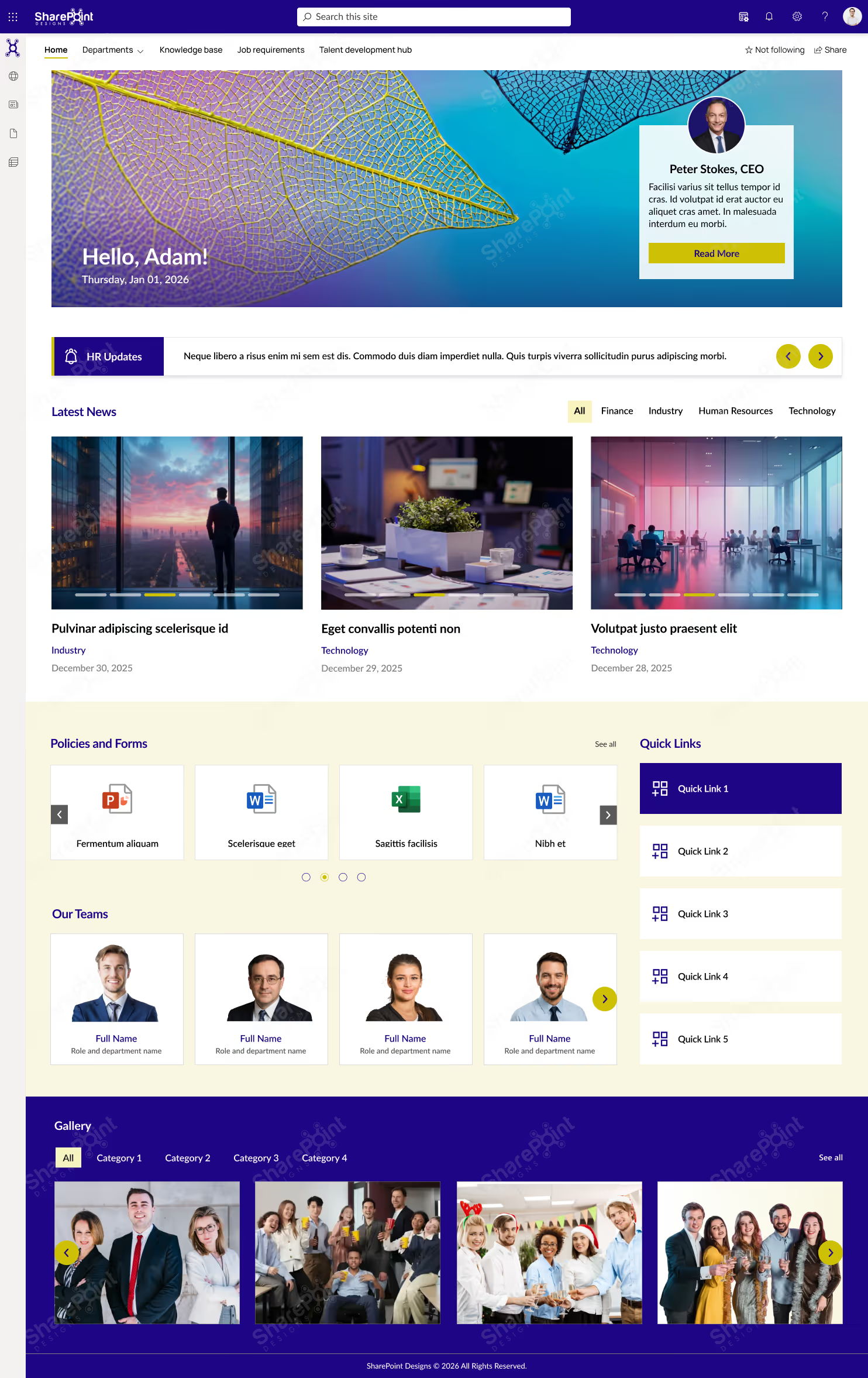
7. Internal Communication & Social Engagement Template
Includes blogs, discussion forums, polls, and recognition boards to encourage interaction beyond work tasks.
Benefits:
- Increases cross-departmental knowledge sharing.
- Boosts morale through peer recognition.
- Creates a sense of belonging in hybrid/remote setups.
8. Knowledge Base / FAQ Template
Central hub for SOPs, troubleshooting guides, and common queries, searchable by keyword or category.

Benefits:
- Cuts repetitive queries to IT, HR, and Operations.
- Improves efficiency with quick self-service answers.
- Maintains a single source of truth for processes.
9. CSR (Corporate Social Responsibility) Initiative Hub
A dedicated SharePoint template to plan, track, and promote your organization’s CSR activities. From volunteer programs to social campaigns, it helps align internal teams with your company’s mission to make a positive impact.

Benefits:
- Enhance corporate reputation with transparent CSR reporting.
- Increases employee engagement 79% of employees prefer socially responsible employers.
- Streamlines volunteer sign-ups and event participation tracking.
- Provides decision-makers with clear impact metrics for stakeholders.
- Strengthens partnerships with NGOs and local communities.
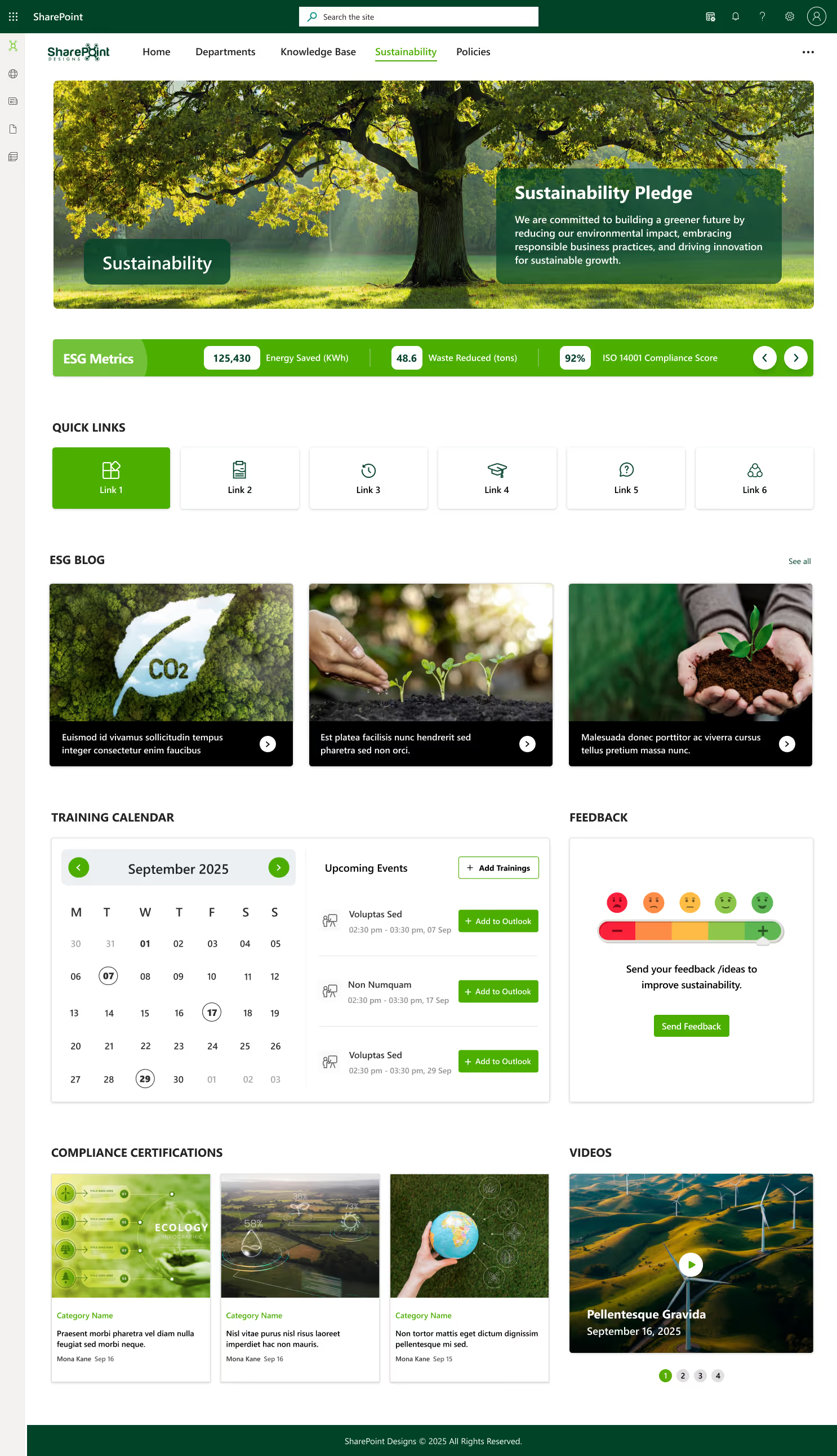
10. Sustainability & ESG Compliance Page
A purpose-built template to showcase and track your sustainability and ESG initiatives. It provides leadership with clear insights into environmental performance and compliance while inspiring employees to participate in green programs.
Benefits:
- Supports ESG compliance and sustainability certifications like ISO 14001.
- Improves brand positioning as a responsible and future-ready organization.
- Provides measurable metrics on energy savings, waste reduction, and carbon footprint.
- Encourages organization-wide participation in eco-friendly challenges.
- Helps attract investors and partners who prioritize sustainable practices.
Best Practices to Boost Engagement with SharePoint Templates
- Keep Navigation Simple: Too many links can overwhelm users.
- Use Rich Media: Images, videos, and infographics keep the intranet lively.
- Enable Feedback Loops: Polls, forms, and comment sections encourage interaction.
- Highlight Employee Achievements: Spotlight teams and individuals on the homepage.
- Refresh Content Regularly: Outdated pages discourage repeat visits.
Organizational Benefits & ROI
Implementing these templates delivers tangible business value:
- Time Savings: If each employee saves 15 minutes/day through better search &navigation, a 500-employee company recovers 1,562 hours/month worth ₹6.5-7.5lakh in productivity.
- Faster Communication: Centralized announcements reach 100%of staff instantly, avoiding delays that can cost opportunities.
- Lower Training Costs: Onboarding templates reduce manual HR training sessions, saving resources.
- Better Retention: Engaged employees are 87% less likely to leave, reducing recruitment costs.
For decision-makers, templates offer the best cost-to-benefit ratio when speed, scalability, and adoption rates matter.
How SharePoint Designs Can Help
At SharePoint Designs, we specialize in delivering ready-to-use modern intranet templates that are fully customizable to your brand and business needs.
We provide:
- Mobile-friendly, modern UI
- Role-based access setup
- AI and Microsoft 365 integrations
- Fast deployment with minimal IT effort
Whether you need an employee hub, departmental site, or onboarding portal, we can deliver a branded intranet that boosts engagement and productivity from day one.
Our clients report:
- 35-40% faster intranet adoption rates
- 20% reduction in internal email volume
- Significant productivity gains within the first 3 months
Ready to Launch Your Modern SharePoint Intranet in 2025?
Let’s build an engaging, future-proof intranet that your employees will love to use.
Additional Resources
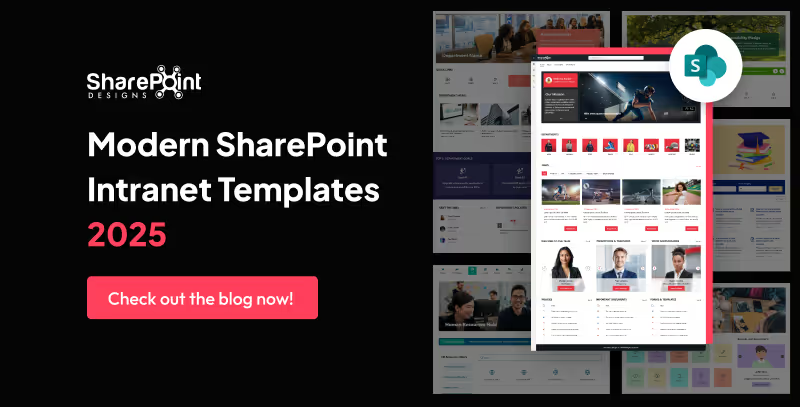
Modern SharePoint Intranet Templates That Boost Employee Engagement in 2025
In today’s fast-paced, hybrid work environment, an intranet is more than just a file repository, it’s the digital heart of your workplace.
If your organization is aiming for ISO certification whether it’s ISO 9001 (Quality Management), ISO27001 (Information Security), or other standards one of the most important steps is setting up a secure, controlled, and audit-ready Document Management System (DMS).
An ISO-compliant DMS ensures that all your policies, procedures, records, and manuals are organized, controlled, and easily accessible to the right people. Without it, companies often struggle with scattered files, version confusion, and audit delays.
Microsoft SharePoint is one of the most effective platforms for building a centralized document control system that meets ISO requirements. With the right configuration, SharePoint can:
- Maintain strict version control
- Provide secure, role-based access
- Automate document approvals and reviews
- Enable faster ISO audits
In this article, we’ll explain why SharePoint is ideal for ISO documentation, how to set it up as your ISO-ready DMS, and the best practices to keep your company compliant.
Why ISO Certification Requires a Robust DMS
Regardless of the ISO standard, certain documentation requirements remain consistent:
- Document control - Approved procedures must be easy to identify and retrieve.
- Record retention - Evidence of compliance must be securely stored.
- Version management - Only the latest approved version should be in use.
- Audit readiness - Auditors must be able to easily verify compliance.
Without a proper DMS, companies risk:
- Outdated or duplicate files during audits
- Unclear document ownership
- Missing records for ISO compliance checks
An ISO-certified business needs a structured and traceable documentation process and this is exactly where SharePoint shines.
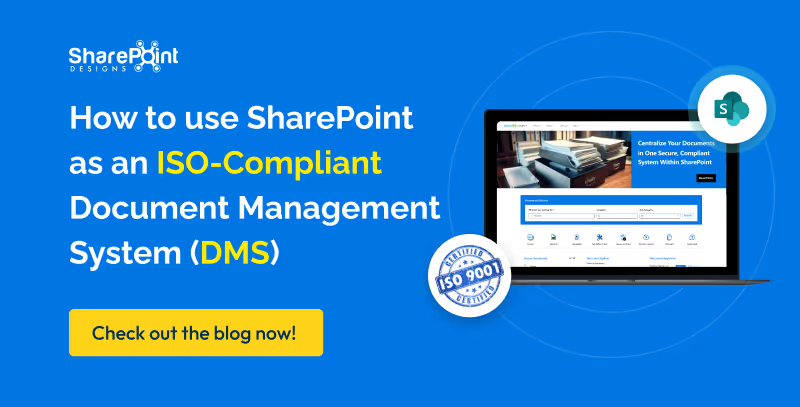
How to Use SharePoint as an ISO-Compliant Document Management System (DMS)
If your organization is aiming for ISO certification whether it’s ISO 9001 (Quality Management), ISO 27001 (Information Security),
A well-structured intranet is essential for organizations to enhance communication, foster collaboration among users, and efficiently manage important documents. Microsoft offers a powerful and flexible platform called SharePoint, which enables the creation of exclusive intranets tailored to an organization's needs using both built-in and customizable web parts. This guide will walk you through building a simple intranet using only the out-of-the-box components available in SharePoint Online.
Step 1: Site Creation
Follow these steps to create your SharePoint intranet:
1. Navigate to the SharePoint Admin Center:
- Go to the Microsoft 365 admin center (admin.microsoft.com).
- Select SharePoint from the left-hand menu.
- Click on Active Sites --> Create to start creating a new site.

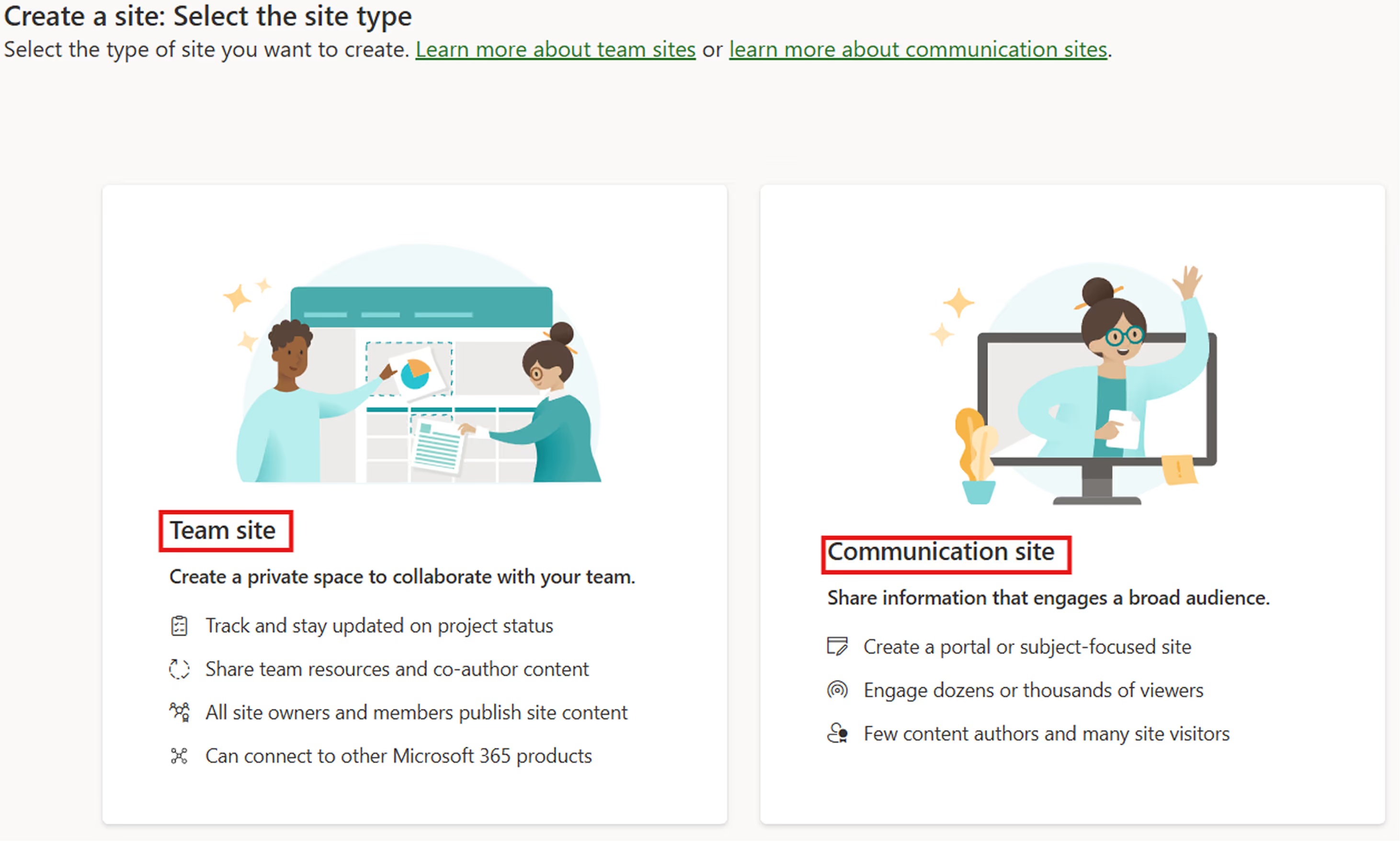
2. Choose the Type of Site:
You can select from Team Site or Communication Site based on your needs:
- Team Site: Ideal for collaboration within smaller groups or teams working on projects.
- Communication Site: Best for sharing news, reports, and information with a wider audience.
3. Select a Template:
SharePoint offers predefined templates like:
- Human Resources Template
- Learning Template
- Volunteer Template
Choose any of these templates to get started quickly or select the Blank Template to design your intranet from scratch.
4. Configure Site Details:
- Click on Use Template after selecting the template.
- Provide a Site Name that reflects the purpose of the intranet.
- Add the Site Owner who will manage permissions and content.
- Click Next to proceed.
5. Set Language and Timezone:
- Select the preferred Language and Timezone for your organization.
- Click on Create Site to finalize the site creation.
Step 2: Modifying Site Appearance in SharePoint
- Once the site is created, open it.
- SharePoint allows customization of the Theme, Font, Header, Navigation, and Footer.
- Click on the gear icon in the top-right corner and select "Change the look."
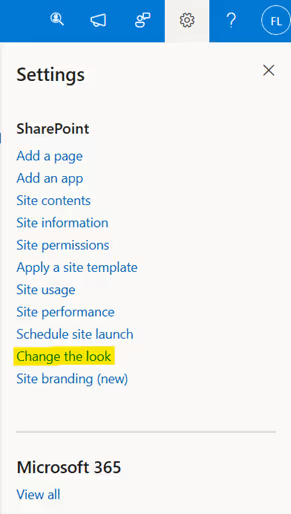
- In this section, you can modify various elements, including Navigation, Header, Theme, and more to personalize the site's appearance.
Step 3: Adding Web Parts in SharePoint
SharePoint provides the flexibility to add both Out-of-the-Box (OOTB) Web Parts and custom web parts to enhance site functionality.
- OOTB Web Parts: These include built-in components like Banner, Image Gallery, Button, Media, Weather, Events, Quick Links, Stream, etc.
- Custom Web Parts: If the available web parts do not meet specific requirements, custom web parts can be developed and deployed on SharePoint pages.
Now, let's explore a customized web part template sample to understand how we can build and integrate a tailored solution.

This SharePoint design template includes various components to enhance user experience and streamline organizational communication. Below is the purpose of each component:
1. Customized Suite Bar
- Displays the company logo with a custom suite bar color for branding.
2. Top Navigation
- Provides quick access to essential sections for better navigation.
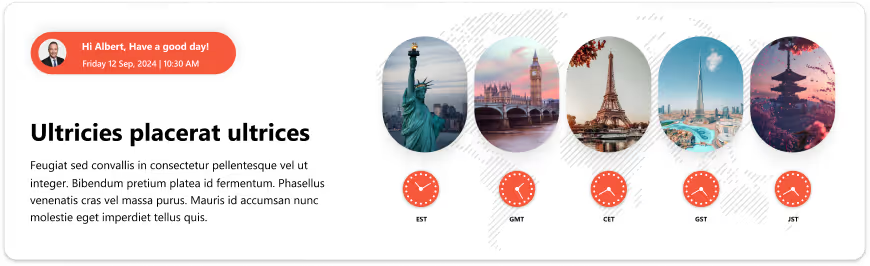
3. Welcome Banner
- Displays the current date and time along with a custom message before the logged-in user’s name.
- Includes a multiple time zone clock that updates based on the selected location.
4. Let’s Wish
- A scrolling carousel showcasing employees with birthdays.
- Users can send customized birthday wishes via the “Let’s Wish” button.
How to create a SharePoint site-A Step-by-Step Guide
A well-structured intranet is essential for organizations to enhance communication, foster collaboration among users,

Migrating to SharePoint can unlock a range of benefits for your organization from improved collaboration and document management to tighter integration with Microsoft 365. However, one of the biggest concerns during any migration is potential downtime, which can disrupt operations, reduce productivity, and frustrate users. The good news? With the right SharePoint migration consulting partner, you can execute a seamless migration without any major interruptions.
In this blog, we’ll walk you through best practices for smooth migration and how SharePoint Designs, a trusted SharePoint migration consultant, ensures zero-downtime transitions.
Why Zero-Downtime SharePoint Migration Matters
Even a short period of system unavailability can:
- Affect team productivity
- Interrupt business-critical processes
- Lead to data inconsistency
- Result in poor user adoption
This is why it's crucial to plan and execute a migration with minimal to no disruption and that requires expert SharePoint consulting services.
Step-by-Step SharePoint Migration Best Practices
1. Engage a Trusted SharePoint Migration Consultant
Partnering with experienced SharePoint migration consulting experts ensures your project is scoped correctly, risks are identified early, and the best tools and methods are applied. At SharePoint Designs, our consultants have successfully executed dozens of no-downtime migrations for global clients across industries.
2. Pre-Migration Assessment & Strategy
- Current data structure and volume
- Customizations and workflows in use
- Integration points with other systems
- User access and permission settings
A strategic plan should include timeline, scope, fallback plans, and communication protocols. Our SharePoint consulting services team will align the migration plan with your business goals while minimizing risks.
3. Choose the Right Migration Tools
Based on your assessment, select tools that best suit your content types, volume, and complexity. Our SharePoint consulting services team recommends Microsoft’s SharePoint Migration Tool (SPMT),ShareGate, or AvePoint for different scenarios. Tool selection is critical to maintaining uptime and data integrity.

How to Migrate to SharePoint Without Downtime Best Practices & Expert Advice
Migrating to SharePoint can unlock a range of benefits for your organization from improved collaboration and document management to tighter integration with Microsoft 365.

Intranets often get a bad reputation. They're seen as clunky, outdated platforms that employees avoid unless absolutely necessary. But it doesn’t have to be that way.
With the right combination of modern SharePoint web parts, your intranet can offer the same polished, intuitive experience users expect from today’s best websites. When executed well, a SharePoint intranet becomes more than a place to store documents or publish announcements, it becomes a branded, interactive digital workplace.
Let’s look at the essential web parts that can elevate your SharePoint site into something employees actually want to visit and use every day.
1. Hero Web Part
First impressions matter. The Hero web partlets you create a visually engaging entry point on your homepage using bold images, clear calls to action, and customizable tiles. This is your opportunity to spotlight internal campaigns, policy changes, department resources, or leadership messages in a highly visual way just like a homepage banner on a public website.
What it does well:
- Drives focus to high-priority content
- Supports branding through imagery and layout
- Makes the page feel designed, not templated
2. Quick Links Web Part
Users love efficiency, and websites make it easy to get where you need to go quickly. The Quick Links web part brings this concept to your intranet by offering neatly grouped, clickable buttons that take users directly to forms, tools, or frequently accessed pages.
You can present links as buttons, icons, or image tiles making it feel modern and user-friendly.
Best for:
- Onboarding checklists
- HR or IT service shortcuts
- Team tools and document hubs

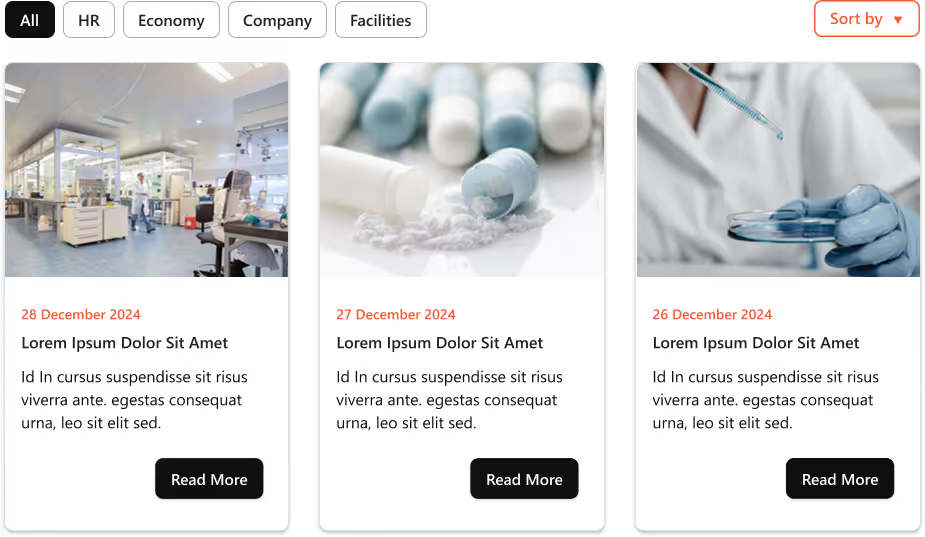
3. News Web Part
Think of this as your company blog or newsroom. The News web part is essential for sharing updates across departments, showcasing achievements, and reinforcing transparency. Formatted with thumbnails, titles, and short summaries, it mimics the newsfeed-style layout that users are familiar with from popular websites and apps.
Why it works:
- Keeps content fresh
- Drives repeat visits
- Encourages leadership visibility
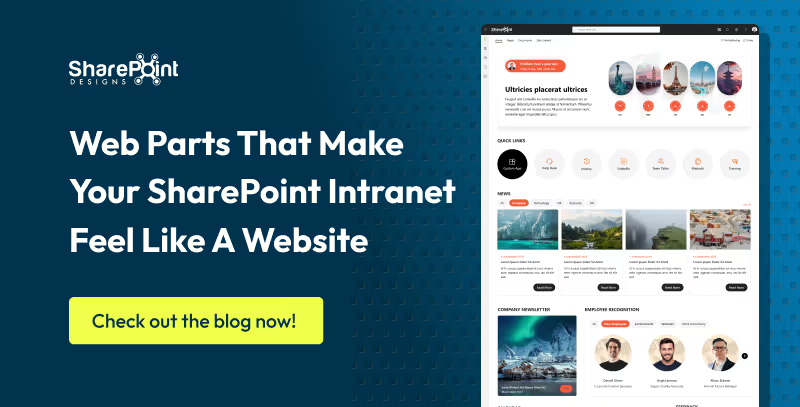
Web Parts That Make Your SharePoint Intranet Feel Like a Website
Intranets often get a bad reputation. They're seen as clunky, outdated platforms that employees avoid unless absolutely necessary.


.svg)