Tech Ideas & Best Practices
In today's digital landscape, seamless authentication processes are paramount for ensuring user convenience and security. One effective solution is integrating Azure Active Directory (Azure AD) with Power Pages, Microsoft's dynamic content management system. By doing so, you can enhance user experience and simplify access management. In this guide, we'll walk through the step-by-step process of configuring Azure AD integration on Power Pages, enabling users to sign in securely from the home page.
Configuring Azure AD Integration on Power Pages
Accessing Power Pages Management
- Open your Power Pages site and navigate to the management section by clicking on the three dots and selecting "Power Pages Management".

Navigating to Site Settings
- Under the website section, locate and click on "Site Settings".

Configuring Authentication Type:
- Search for "LoginButtonAuthenticationType" and click on it.

- In the value field, enter"https://login.windows.net/[tenantid]/", replacing [tenantid] with your specific tenant ID.

Saving Changes:
- Click on "Save and Close" to ensure the configuration is applied.
Syncing and Previewing Changes
- Sync the changes made to ensure they take effect.
Preview the Power Pages site to confirm that the Azure AD integration is functioning as expected.
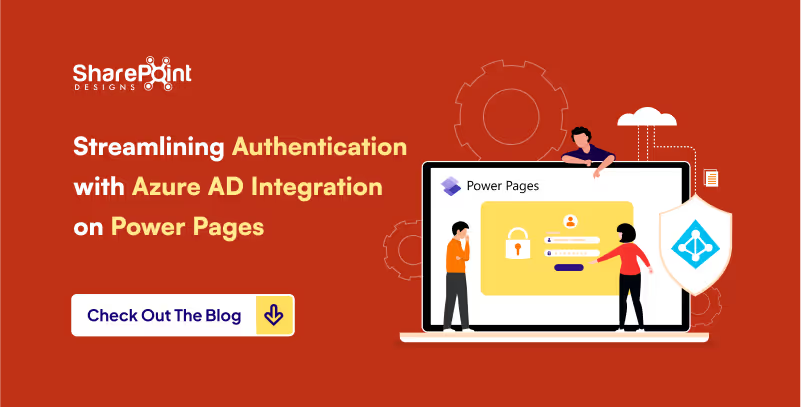
Streamlining Authentication with Azure AD Integration on Power Pages
In today's digital landscape, seamless authentication processes are paramount for ensuring user convenience and security.

When working with Power Automate and SharePoint, managing time zones can be a complex task. Whether you're scheduling tasks, automating workflows, or simply trying to display the correct time on a SharePoint list, handling time zones correctly is crucial for ensuring your data is accurate and your workflows run smoothly. In this blog, we'll explore common challenges and provide step-by-step solutions to effectively manage time zones in Power Automate.
Understanding the Time Zone Challenge
SharePoint stores date and time values in Coordinated Universal Time (UTC). While this is great for consistency, it can cause issues when users in different time zones access the data. For example, a task due at 5 PM UTC will display differently for users in New York, London, and Tokyo. Power Automate, being a versatile tool, provides sever always to handle these discrepancies.
Step-by-Step Guide to Handling Time Zones in Power Automate
Step 1: Capture the Time Zone
First, it's essential to capture the user's time zone. This can be done in various ways, such as setting Regional Settings from Site Administration in Site Settings.
1. Create a SharePoint Site & List for Time Zones:
- Create a new Site called "SPDDEMO."
- Create a new list in SharePoint called "TimeZone."
- Add columns for "User" (Person or Group) , "SatartDateAndTime" (Date Picker), "EndDateAndTime" (Date Picker).
2. Set the TimeZone:
- Settings > Site Information > View all site settings > Site Administration > Regional Settings
- Set the Time zone & Region accordingly you want.
Step 2: Retrieve the Time Zone in Power Automate
Use Power Automate to retrieve the user's time zone when the workflow runs.
1. Get List Item:
- Add a "Get items" action to retrieve the user's time zone from the "TimeZone" list.

- Add a "Send Http request to SharePoint" action to retrieve the regional time zone from the " SPDDEMO " site.
- Add method GET and Uri as _api/web/regionalSettings/Timezone
2. Get Time Zone:

3. Simplify the output using Parse JSON
- Pass the above output Body through Parse JSON to get simplify output.

4. Change the sign of Bias:
- Use one compose and called “Compose SPDDEMOBias”.
- To Change the Bias received from the Parse JSON multiply it with -1(Minus one)
- Use function: mul(body('Parse_JSON_SPDDEMO_Regional_Time_Setting')?['d']?['Information']?['Bias'],-1)

Step 3: Convert UTC to the User's Time Zone
Convert the UTC time to the user's time zone in Power Automate using simple add Minutes function and Bias.
1. Add a Compose Action:
- Add addMinutes function and the Bias as to be added minutes and then format ‘M/dd/yyyy h:mm tt’ to the get list items in “TimeZone” list like “StartDateAndTime” , “EndDateAndTime”,” Created”, “Modified” etc.
- Use function: addMinutes(outputs('Get_item_SPDDEMO')?['body/Created'],outputs('Compose_SPDDEMO_Bias'),'M/dd/yyyy h:mm tt')


Navigating Time Zones in Power Automate with SharePoint: A Comprehensive Super Change Guide
When working with Power Automate and SharePoint, managing time zones can be a complex task. Whether you're scheduling tasks, automating workflows,

In today's digital age, organizations are continually seeking ways to streamline operations, enhance productivity, and improve user experiences. Leveraging artificial intelligence (AI) to enhance SharePoint forms and workflows presents a strategic opportunity to achieve these objectives. By integrating AI capabilities, businesses can automate repetitive tasks, enhance data accuracy, and gain predictive insights, there by transforming how they operate.
This blog will delve into the power of AI in SharePoint, explore practical applications across various business scenarios, and provide detailed examples of AI-enhanced workflows. We will cover the following sections:
1. The Power of AI in SharePoint
Artificial intelligence is revolutionizing how organizations handle data and automate processes. In SharePoint, AI can be used to create smarter forms and workflows that streamline various business processes. AI capabilities, such as natural language processing (NLP), machine learning, and cognitive services, can be integrated into SharePoint through tools like Microsoft Power Automate and Azure AI.
By embedding AI into SharePoint, organizations can achieve:
- Automated Data Processing: AI can automate the extraction, classification, and validation of data, reducing manual efforts and increasing accuracy.
- Predictive Analytics: AI models can analyze historical data to provide predictive insights, helping businesses make informed decisions.
- Enhanced User Experience: AI-powered features like natural language input and intelligent recommendations make forms easier to complete and more intuitive.
2. Leveraging Microsoft Power Automate
Microsoft Power Automate is a powerful tool that allows users to automate workflows between various apps and services. It enables the synchronization of files, the collection of data, and the automation of notifications. By incorporating AI ,Power Automate can significantly enhance these workflows.
Copilot-Assisted Automation
Power Automate’s Copilot feature leverages AI to assist in creating and managing workflows using natural language inputs. This capability allows users to build complex automation processes without extensive coding knowledge. For instance, users can describe the desired workflow in natural language, and Copilot will generate the necessary automation steps.
Intelligent Document Processing
AI Builder, a feature within Power Automate, enables the integration of AI models into workflows. It can be used to process documents, extract data, classify information, and even translate content. This is particularly useful for automating tasks like invoice processing, contract management, and customer support.
3. Enhancing SharePoint Forms with AI
Integrating AI into SharePoint forms can enhance their functionality and user experience. Here are a few ways to do this:
AI-Powered Search and Recommendation
AI models can enhance search capabilities within SharePoint forms. For example, Azure Machine Learning can be used to build a recommendation engine that suggests relevant documents or data based on user input. This can help users quickly find the information they need.
Natural Language Processing (NLP)
NLP capabilities can be integrated into SharePoint forms to allow users to interact with them using natural language. This can improve the user experience by making forms easier and faster to fill out. For instance, users can describe their needs in natural language, and the form will auto-fill the appropriate fields.
4. Using Azure AI Services
Azure AI offers a comprehensive suite of tools that can be integrated into SharePoint for advanced AI functionalities. These services include Azure AI Studio, Azure Cognitive Services, and more.
Azure AI Studio
Azure AI Studio is a unified platform for developing generative AI solutions. It can be used to create AI models that provide real-time insights and analytics, which can be embedded into SharePoint forms and workflows. This helps organizations leverage their data to gain actionable insights.
Azure Cognitive Services
Azure Cognitive Services provides a range of AI capabilities, including speech-to-text, text-to-speech, language understanding, and more. These services can be integrated into SharePoint to enhance form interactions and automate data processing. For example, speech-to-text can be used to transcribe audio inputs into text fields within forms.
5. Integrating Azure Open AI Studio
Azure OpenAI Studio brings the power of advanced generative AI models like GPT-4 to SharePoint, enabling new capabilities that were previously unimaginable. By integrating Azure OpenAI Studio, organizations can create highly intelligent and interactive forms and workflows.
Generative AI for Enhanced User Interaction
With Azure Open AI Studio, you can develop generative AI models that understand and generate human-like text. This capability can be used to create more interactive and intuitive SharePoint forms. For instance, forms can auto-generate responses based on user inputs, provide detailed explanations, and even offer suggestions for completing tasks.
Advanced Analytics and Insights
Azure OpenAI Studio can be used to analyze large datasets and generate insights that can be embedded into SharePoint workflows. For example, a generative AI model can analyze customer feedback data and provide a summary of key trends and sentiments, helping businesses make data-driven decisions.
Automating Complex Workflows
Generative AI models from Azure OpenAI Studio can automate complex workflows by understanding context and making decisions based on patterns in the data. This can significantly reduce the time and effort required to manage workflows and improve overall efficiency.
6. Leveraging Microsoft Copilot Studio
Microsoft Copilot Studio is designed to help organizations harness the power of AI to transform their business processes. It allows users to create custom AI models that integrate seamlessly with Microsoft 365 and other Microsoft tools.
Personalized AI Models
Copilot Studio enables the creation of personalized AI models that can be tailored to specific business needs. These models can understand and process natural language, making it easier to automate tasks and improve efficiency.
Enhancing Collaboration
Copilot Studio can enhance collaboration by providing AI-driven insights and recommendations within Microsoft Teams and other collaboration tools. This helps teams stay aligned and make better decisions.
Streamlining Processes
With Copilot Studio, organizations can streamline processes by automating repetitive tasks and providing AI-driven support for complex workflows. This reduces the workload on employees and allows them to focus on higher-value activities.
7. Practical Applications and Detailed Examples
Here are detailed examples of how AI can enhance SharePoint forms and workflows across various business scenarios:
Example 1: Expense Report Automation
Scenario: Employees submit expense reports through a SharePoint form.
AI Enhancements
Receipt Scanning: Use Azure Cognitive Services to automatically scan and extract data from uploaded receipts.
Expense Categorization: AI models classify expenses into categories (e.g., travel, meals, accommodation)based on the extracted data.
Policy Compliance Check: An AI engine checks the submitted expenses against company policies and flags any discrepancies.
Workflow
- Employee submits an expense report with receipts.
- AI extracts and categorizes expense data using Azure Cognitive Services.
- Power Automate triggers a workflow that routes the report to the finance team for review.
- AI checks for policy compliance and notifies the employee and finance team of any issues.
- Approved expenses are automatically recorded in the financial system.
Enhanced with Copilot Studio
- Personalized AI models in Copilot Studio can provide tailored recommendations for expense categorization based on historical data.
- Copilot can offer insights into spending patterns and suggest cost-saving measures.
Enhanced with Azure OpenAI Studio
- Generative AI models can provide detailed explanations and guidance on submitting accurate expense reports.
- OpenAI can automate the review process by generating summaries and insights for finance team approval.
Example 2: Customer Feedback Analysis
Scenario: Collecting customer feedback through SharePoint forms.
AI Enhancements
Sentiment Analysis: Use Azure Cognitive Services to analyze the sentiment of customer feedback.
Keyword Extraction: AI extracts key themes and topics from feedback.
Trend Analysis: Machine learning models identify trends over time to inform business decisions.
Workflow
- Customer submits feedback through a SharePoint form.
- AI performs sentiment analysis and keyword extraction using Azure Cognitive Services.
- Power Automate triggers a workflow to categorize feedback based on sentiment and keywords.
- Feedback trends are analyzed and visualized in Power BI dashboards.
- Automated alerts are sent to relevant teams if negative trends are detected.
Enhanced with Copilot Studio
- Copilot can provide real-time recommendations for responding to customer feedback.
- Personalized AI models can suggest improvements based on historical feedback data.
Enhanced with Azure OpenAI Studio
- Generative AI models can generate detailed summaries of feedback trends and provide actionable insights.
- OpenAI can automate the creation of customer response templates based on the sentiment and content of feedback.
Example 3: Employee Performance Review
Scenario: Managing employee performance reviews using SharePoint forms.
AI Enhancements
Goal Tracking: AI tracks progress on individual and team goals.
Performance Prediction: Machine learning models predict future performance based on historical data.
Personalized Recommendations: AI provides personalized training and development recommendations based on performance data.
Workflow
- Manager and employee complete performance review forms in SharePoint.
- AI tracks progress on goals and provides a summary of achievements.
- Machine learning models predict future performance and identify areas for improvement.
- Power Automate triggers a workflow to schedule follow-up meetings and training sessions.
- Personalized training recommendations are sent to the employee and manager.
Enhanced with Copilot Studio
- Copilot can provide personalized coaching tips and development plans based on individual performance data.
- AI models can generate insights into team dynamics and suggest ways to improve collaboration.
Enhanced with Azure OpenAI Studio
- Generative AI models can create detailed performance reports and highlight key achievements.
- OpenAI can provide predictive insights into future performance trends and potential areas of improvement.
Example 4: Inventory Management
Scenario: Automating inventory management processes with SharePoint forms.
AI Enhancements
Demand Forecasting: AI models predict future inventory needs based on historical sales data.
Stock Level Alerts: AI monitors stock levels and sends alerts when inventory is low.
Supplier Recommendations: Machine learning algorithms recommend suppliers based on price, delivery time, and past performance.
Workflow
- Employee submits inventory update through a SharePoint form.
- AI forecasts future demand and adjusts inventory levels accordingly.
- Power Automate triggers a workflow tore order stock when levels are low.
- AI recommends suppliers and generates purchase orders.
- Automated notifications are sent to relevant departments.
Enhanced with Copilot Studio
- Copilot can provide real-time insights into inventory trends and recommend optimal ordering times.
- Personalized AI models can predict seasonal demand fluctuations and suggest adjustments.
Enhanced with Azure OpenAI Studio
- Generative AI models can automate the creation of detailed inventory reports and supplier evaluations.
- OpenAI can generate predictive insights into potential supply chain disruptions and suggest contingency plans.
Example 5: Incident Reporting and Resolution
Scenario: Managing incident reports and resolutions in the workplace.
AI Enhancements
Incident Classification: AI classifies incidents based on type and severity.
Resolution Recommendations: Machine learning models provide recommendations for resolving incidents based on past cases.
Automated Follow-Up: AI ensures follow-up actions are taken and tracks resolution progress.
Workflow
- Employee submits an incident report through a SharePoint form.
- AI classifies the incident and assigns a severity level using Azure Cognitive Services.
- Power Automate triggers a workflow to notify the relevant response team.
- AI provides resolution recommendations and tracks progress.
- Automated follow-up actions are scheduled and tracked until the incident is resolved.
Enhanced with Copilot Studio
- Copilot can provide real-time guidance on best practices for incident resolution.
- Personalized AI models can predict the impact of incidents on operations and suggest mitigation strategies.
Enhanced with Azure OpenAI Studio
- Generative AI models can create detailed incident reports and suggest preventive measures.
- OpenAI can automate the generation of follow-up action plans and monitor their implementation.
8. Benefits of AI-Enabled SharePoint Solutions
Integrating AI into SharePoint forms and workflows offers numerous benefits:
Increased Efficiency
By automating repetitive tasks, AI reduces the time required to process forms and handle workflows. This allows employees to focus on higher-value tasks, improving overall productivity.
Enhanced Accuracy
AI models improve data accuracy by validating and cross-referencing information in real-time. This reduces errors and ensures that data is consistent and reliable.
Better User Experience
Natural language inputs and intelligent recommendations make forms easier and faster to fill out. This enhances the user experience and increases user satisfaction.
Proactive Decision-Making
AI-powered predictive analytics provide insights that help businesses make proactive decisions. This enables organizations to anticipate issues and opportunities, leading to better business outcomes.
Cost Savings
Automating processes with AI reduces the need for manual intervention, leading to cost savings. Additionally, AI-driven insights can help optimize resource allocation and reduce operational costs.
Conclusion
Integrating AI into SharePoint forms and workflows is a transformative strategy that can significantly enhance business processes. By leveraging tools like Power Automate, Azure AI, Azure OpenAI Studio, Microsoft Copilot Studio, and AI Builder, organizations can create intelligent, responsive, and efficient systems that adapt to their evolving needs.
Whether it’s automating expense reports, analyzing customer feedback, managing performance reviews, handling inventory, or resolving incidents, AI-enabled SharePoint solutions offer a wide range of benefits that drive productivity, accuracy, and user satisfaction.
For organizations looking to stay competitive in today’s digital landscape, investing in AI-enhanced SharePoint forms and workflows is a crucial step toward achieving operational excellence and business success. Explore the comprehensive resources available on Microsoft's official site and stay updated with the latest advancements in AI and the Power Platform to unlock the full potential of your SharePoint environment.
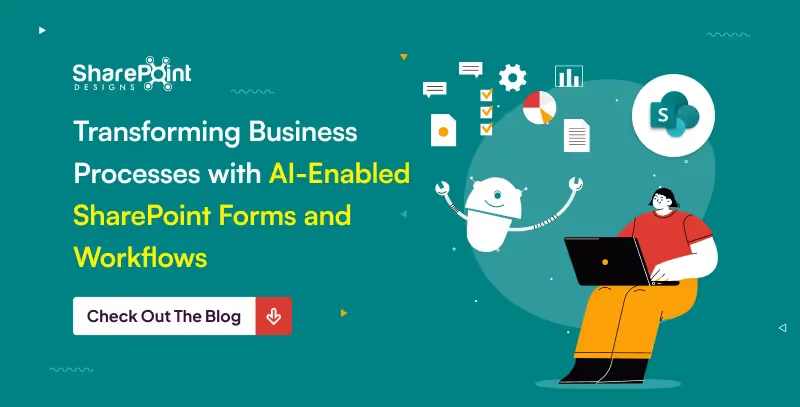
Transforming Business Processes with AI-Enabled SharePoint Forms and Workflows
In today's digital age, organizations are continually seeking ways to streamline operations, enhance productivity, and improve user experiences.

Managing API permissions in SharePoint can be a crucial task for maintaining the security and functionality of your organization's digital environment. If you're a Global Admin, you can grant these permissions with ease by following the steps outlined below.
Prerequisite: Global Admin Role
Before you begin, ensure that you have the Global Admin role. This role is necessary to access and modify API permissions in the SharePoint Admin Center.
Benefits of granting API Access
Granting API access in SharePoint Online unlocks powerful features for custom webpart development. By leveraging APIs, you can build webparts that extend SharePoint's functionality beyond its core features.
Eg: Fetching User Details.
Step 1: Access SharePoint Admin Center
First, navigate to the SharePoint Admin Center. You can do this by going to the following
URL: https://<your-tenant-name>-admin.sharepoint.com/_layouts/15/online/AdminHome.aspx#/webApiPermissionManagement
Replace <your-tenant-name> with the actual name of your tenant. This link will take you directly to the Web API Permission Management section within the SharePoint Admin Center

Step 2: Approve API Requests
Once you're in the SharePoint Admin Center, follow these steps to approve API requests:
Click on "Pending Requests”: Locate and click on the "Pending Requests" section. This will display all the API requests that are awaiting approval.
Review Pending API Requests: Look through the list of pending API requests permissions type. These requests come from external applications (Such as Custom Webpart development) that are seeking permission to access your SharePoint data.

Select the API: Find the API in the list of pending requests.
Click "Approve": After selecting the API, click the "Approve" button to grant the necessary permissions.

By following these steps, you can easily manage and approve API permissions in SharePoint. This ensures that only trusted applications have access to your SharePoint environment, maintaining both security and functionality.
Conclusion
Granting API permissions in SharePoint is a straightforward process when you have the Global Admin role. By navigating to the SharePoint Admin Center and approving pending requests, you can control which external applications interact with your SharePoint data. Always review requests carefully to ensure they are legitimate and necessary for your organization’s needs.

How to grant API permissions in sharepoint admin?
Managing API permissions in SharePoint can be a crucial task for maintaining the security and functionality of your organization's digital environment.

What is PowerApps and How Can It Benefit Your Business?
Feeling overwhelmed by repetitive tasks? Struggling with outdated systems that are slowing down your workflow? In today's fast-paced business environment, streamlining workflows and boosting productivity is crucial for success. This is where PowerApps comes in.
PowerApps is a powerful low-code development platform from Microsoft. It helps you to develop customized business applications without requiring a deep understanding of coding. Think of it as a user-friendly tool that allows you to build solutions specifically tailored to your unique needs.
Here are just a few key benefits of using PowerApps
- Increased Efficiency: Automate repetitive tasks and manual processes, freeing up valuable time for your team to focus on higher-level work.
- Improved Productivity: Streamline workflows and provide employees with the tools they need to get things done faster and more efficiently.
- Enhanced Collaboration: Facilitate teamwork and information sharing through collaborative applications that connect your workforce.
- Reduced Costs: Save time and money by building custom solutions in-house, instead of relying on expensive traditional development or third-party software.
- Scalability and Flexibility: PowerApps applications can grow and adapt alongside your business needs, ensuring your tools continue to support your evolving workflows.
Top 10 PowerApps Templates to Streamline Your Workflow
Now that you understand the power of PowerApps, let's explore some of the most valuable pre-built templates available. These Free PowerApps Templates offer a great starting point to address common business challenges and can be easily customized to fit your specific needs.
1. Expense Tracker
Say goodbye to paper receipts and manual expense reports! This user-friendly template allows employees to easily capture and submit expense details on the go, with automatic calculations and clear categorization. Managers can review and approve submissions within the app, saving everyone time and frustration.
2. Inventory Management
Never run out of stock again! This template provides real-time insights into your inventory levels. Track product details, quantities, and reorder points, all within a centralized and accessible platform. Generate reports to identify trends and optimize your ordering process for maximum efficiency.
3. Leave Request and Approval
Streamline your leave request process with this intuitive template. Employees can submit requests with clear details and justifications, while managers can review and approve or deny leave electronically. Automated notifications keep everyone informed throughout the process, eliminating the need for email back-and-forth.
4. Customer Relationship Management (CRM)
Build stronger customer relationships with a custom CRM template. Track customer interactions, manage leads, and oversee sales pipelines, all within a user-friendly interface. This template allows you to centralize customer data, personalize interactions, and improve overall customer satisfaction.
5. Survey and Feedback
Capture valuable insights from employees, customers, or stakeholders with a customizable survey template. Design surveys with various question formats, gather real-time data, and analyze results visually. Utilize this feedback to improve processes, identify areas for improvement, and gain a deeper understanding of your target audience.
6. Asset Management
Keep track of your company assets with this comprehensive template. Log asset details, track maintenance schedules, and monitor locations, all within a central platform. This streamlines asset management, reduces loss, and ensures preventative maintenance is performed on time.

Supercharge Your Workflow: Top 10 PowerApps Templates and How They Benefit Your Business
Feeling overwhelmed by repetitive tasks? Struggling without dated systems that are slowing down your workflow? In today's fast-paced business environment,

1. Delight Your Users
Small, delightful experiences can greatly influence how users perceive your product. These moments are not about functionality; they are about adding fun, lifting spirits, and inspiring joy.
Consider ways to evoke emotions in your users, aiming to create enjoyable and memorable moments.
Key Benefits:
- Increased Engagement: Positive experiences create feedback loops that encourage users to return.
- Organic Growth: Delightful interactions are more likely to be shared, naturally extending your reach through word of mouth—the most powerful form of marketing.
- User Happiness: Boosts overall satisfaction and fosters a deeper emotional connection with your product.

2. Make the Effort Visible
Revealing the hard work behind your service enhances its perceived value. When users seethe effort put into creating a product, their appreciation grows.
Key Benefits:
- Higher Conversions: Highlighting your dedication can improve conversion rates.
- Greater Trust: Users are more likely to trust and value your service when they recognize the effort behind it.

3. Use Faces
Using human faces in your design can attract attention and evoke empathy.
- Guide Attention: Faces looking towards CTAs or key content can effectively direct user focus.
- Stay Authentic: Choose real, relatable photos to maintain authenticity.
- Evoke Emotion: Select faces that reflect the emotions you want users to feel.
Key Benefits:
- Increased Engagement: Faces build personal connections with users.
- Enhanced Trust: Authentic visuals humanize your product and build trust.
%201.avif)

The directional gaze image emerged as the clear winner, revealing the powerful impact of guiding viewer attention with simple visual cues.

7 Design Approaches to Build Stronger Emotional Engagement
Small, delightful experiences can greatly influence how users perceive your product. These moments are not about functionality; they are about adding fun, lifting spirits, and inspiring joy.

In an age where digital interactions define user experiences, creating a strong first impression in UI/UX design is critical. As a seasoned designer with over 6 years of experience and numerous successful projects under my belt, I understand that users, much like judges, form opinions within seconds. Implementing design strategies that resonate with human judgment not only captivates users but establishes trust and credibility from the get-go.

Summary
This article presents four ways to craft a strong first impression in UI/UX: use clean, visually appealing layouts; engage users with interactive, personalized touches; make interactions effortless through consistency, smart defaults, and clear error handling; and prioritize action with continuous feedback, collaboration, and testing. The focus is on clarity, convenience, and empathy so users feel understood, confident, and in control from the first interaction.
1. Looks Matter
Just like we notice someone's appearance, the visual appeal of a digital interface is crucial. A clean and uncluttered design, like the below website, should grab attention and make it easy for users to find what they need.
By keeping things neat and focusing on what's needed, designers make users feel comfortable and in control.
Research shows that users make judgments about a website's aesthetic within 0.05 seconds. A clean, uncluttered design allows users to navigate easily and discover content efficiently. Consider brands like Notable Brand that have redefined their interfaces to prioritize clarity


4 Tips for making a Great First Impression in Design
In an age where digital interactions define user experiences, creating a strong first impression in UI/UX design is critical.

Modern design is crucial in today's digital environment, and this is especially true for SharePoint intranets. The design of these digital hubs is critical to user engagement and productivity enhancement. They are the cornerstone of internal collaboration and interaction within enterprises.
When it comes to intranet platforms, SharePoint is a global leader because it provides unmatched scalability, flexibility, and integration possibilities. Because of its many capabilities and easy interaction with third-party apps and Microsoft 365, it is the platform of choice for companies all around the world.
See these design principles in real intranets Browse the LookBook
Why Modern Design Matters for SharePoint Intranets
A modern SharePoint intranet is more than just a place to keep files and documents. It's an interactive platform that promotes information accessibility and user engagement. This is how your intranet will benefit from a modern design approach:
1. Elevate User Experience (UX)
Empower users to swiftly and efficiently access the resources they need through an intuitive interface and seamless navigation.
2. Boost Employee Engagement
A visually captivating and user-friendly intranet design encourages user adoption, fostering a sense of excitement with modern layouts and captivating imagery..
3. Maximize Productivity
Streamlined workflows and an intuitive information architecture empower employees to focus on their core responsibilities by simplifying the resource search process.
4. Foster Collaboration
Modern design elements inspire employee interaction and the exchange of knowledge, promoting a strong sense of community within the organization.
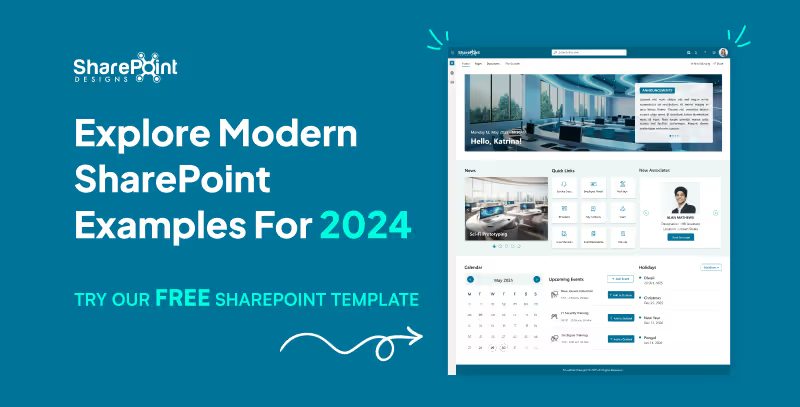
Explore Modern SharePoint Intranet Examples for 2024
Modern design is crucial in today's digital environment, and this is especially true for SharePoint intranets.
In the rapidly evolving digital landscape, organizations continuously seek tools that enhance efficiency and streamline operations. A pivotal development in this quest is the general availability of SharePoint eSignatures, slated for release in 2024. This feature marks a significant advancement in Microsoft's document management capabilities, integrating seamlessly with Microsoft Syntex to enhance user experience and security.
1. Streamlined Document Handling
SharePoint eSignatures revolutionize how businesses handle contracts and agreements by enabling digital signing directly within the SharePoint environment. This integration eliminates the need for third-party eSignature solutions, reducing costs and complexity while ensuring data remains secure within the Microsoft ecosystem.


Embracing Digital Transformation: SharePoint eSignatures Available in 2024
In the rapidly evolving digital landscape, organizations continuously seek tools that enhance efficiency and streamline operations.
Introduction
In today's digital-first environment, organizations are continuously searching for ways to streamline processes and enhance productivity. SharePoint Syntex, part of the Microsoft 365 suite, leverages artificial intelligence to transform the way your business manages and utilizes content. This blog post outlines a practical roadmap for IT leaders looking to deploy SharePoint Syntex effectively.

Unleashing Efficiency: Your Step-by-Step Guide to Implementing SharePoint Syntex
In today's digital-first environment, organizations are continuously searching for ways to streamline processes and enhance productivity.
Most organizations know SharePoint as a place to store files. But the businesses that get real value from it use SharePoint very differently.
They use it to:
- Reduce email overload
- Centralize knowledge
- Automate everyday processes
- Support hybrid and remote work
- Create a single digital workplace employees actually rely on
This article explains what SharePoint is, and more importantly, how it helps businesses improve collaboration, productivity, and information management in real-world scenarios.
What is SharePoint?
SharePoint is a web-based platform from Microsoft that helps organizations store, manage, share, and collaborate on information securely.
Over time, it has evolved from a basic file-sharing tool into a full digital workplace platform that supports:
- Intranets and internal portals
- Document management with version control
- Team and department sites
- Workflow automation
- Integration with Microsoft 365 tools
Today, SharePoint acts as a central layer that connects people, content, and processes across the organization.
Why Businesses Use SharePoint (Beyond File Storage)
The real value of SharePoint lies in how it brings structure to everyday work.
Instead of scattered files, emails, and disconnected tools, SharePoint provides a single source of truth where teams can collaborate with clarity and control.
This combination makes SharePoint especially valuable for growing and distributed teams.
How SharePoint Improves Everyday Workflows
In many organizations, work slows down because information lives in too many places.
SharePoint simplifies this by bringing documents, discussions, and processes together.
Practical workflow improvements include:
- Teams collaborating on the same document without email attachments.
- Automated approval flows replacing manual follow-ups.
- Department sites replacing shared drives.
- Clear ownership and visibility over content.
When structured properly, SharePoint reduces friction rather than adding another tool to manage.
What is SharePoint? A Complete Guide to How it Helps Businesses Work Smarter.
Most organizations know SharePoint as a place to store files. But the businesses that get real value from it use SharePoint very differently.
TL;DR
The simple answer is Yes and No. If you use a prompt into ChatGPT to generate a result, you cannot claim copyright protection for the output. On the bright side, if you modify the output in creative ways, it may be eligible for copyright protection! It's important to remember that only the parts of the work that are authored by humans can be copyrighted.
In a world where artificial intelligence is increasingly contributing to creative endeavours, a question arises regarding the copyrightability of AI-generated content. The debate surrounding this topic is complex and multifaceted. Hence, it requires a thorough examination to fully understand the issue. Let’s dive into this murky digital pool with a dash of wit.

Picture this: A robot tapping away at its keyboard, spewing out sonnets that would make Shakespeare blush. Now, who owns those sonnets? The robot? Its creator? Or perhaps the ghost of the Bard himself? Cue dramatic music.
Sure, AI can churn out content faster than a caffeinated squirrel on a treadmill, but does that mean it deserves the same copyright protections as human-made masterpieces? It’s like asking if a blender can claim royalties for the smoothie it blends.

Legal scholars are scratching their heads (and probably reaching for the Advil) trying to decipher this conundrum. After all, copyright law was crafted with human ingenuity in mind, not algorithms that binge-watch cat videos for inspiration.
On the flip side, denying AI copyright protection could stifle innovation faster than you can say “404 error.” Imagine a world where AI creators throw in the towel because they can’t monetize their digital brainchildren. It’s like telling a toddler they can’t keep their finger paintings.

So, can AI-generated content be copyrighted? The answer is about as clear as mud in a hurricane but there's some light at the end of this tunnel.
The U.S. Copyright Office has recently provided some guidance on this topic. AI-generated content can sometimes be copyrighted, according to David Siegel, partner at Grellas Shah LLP. Thus far, the Copyright Office, has explained that, for a work to be afforded copyright protection in the U.S., it must have a human author. Yet, Siegel said he is not sure what that means in the world of AI.
If the only human involvement is the input of a chat prompt into ChatGPT, for example, one cannot obtain copyright protection for the raw result of that prompt," Siegel said. On the other hand, if a user inputs a prompt into an AI tool, gets a response and then modifies the result in creative ways, that can potentially result in content afforded copyright protection. However, only human-authored parts of the work can be copyrighted.
One thing’s for sure: as long as there are humans behind the AI, there’ll be a legal circus worthy of the big top. Grab your popcorn and enjoy the show!
The Copyright Conundrum: Can AI-Generated Content be copyrighted
In a world where artificial intelligence is making strides in creative endeavours, one burning question arises: Can AI-generated content be copyrighted? It’s a debate that’s as perplexing as trying to teach a goldfish to fetch.



.svg)