Tech Ideas & Best Practices
What is the Best Intranet for Healthcare in 2026?
The best intranet for healthcare in 2026 is Microsoft SharePoint, properly implemented by a specialist partner. Key differentiators include HIPAA security, granular role-based access, seamless EHR integration, and a customized, branded employee experience, all provided without extra vendor licenses for organizations already on Microsoft 365.
Platforms like Simpplr, Staffbase, and Unily target healthcare but can't replace your Microsoft 365 subscription. SharePoint delivers those features with stronger compliance, direct integration with Teams, Outlook, and Power Platform, and workflows customized to your environment.
Healthcare IT leaders: If you use Microsoft 365, you already have the top healthcare intranet platform. You need expert implementation, not another vendor.
Quick Comparison: Intranet Platforms for Healthcare
Why Healthcare Intranets Are Different From Every Other Industry
Healthcare organizations face intranet challenges that no other vertical deals with at the same scale.
The U.S. expects a shortage of over 500,000 registered nurses by 2033. Most clinical staff are rarely at desks and must be reached quickly. Intranets that require desktop logins during long shifts are ignored. Only mobile-first platforms succeed in healthcare.
HIPAA and ePHI compliance is non-negotiable. A data breach in a corporate intranet is a PR problem. A healthcare intranet breach involving protected health information (PHI) triggers mandatory federal breach notification and fines up to $1.9 million per violation category. Your intranet must be architected for compliance from day one, not retrofitted after launch.
Shift-based communication creates dangerous information gaps. A policy update published at 9am reaches the day shift. Night shift nurses starting at 7pm may not see it for 16 hours unless the intranet actively surfaces it on login. Healthcare intranets must handle time-sensitive, shift-aware communication. According to the American Hospital Association, hospitals with more engaged staff deliver measurably safer care and better patient outcomes, linking intranet effectiveness directly to clinical quality.
Multiple departments with radically different needs. Doctors need fast access to clinical protocols and prescription portals. Nurses need shift reports and care plans. HR needs policy management and onboarding workflows. Administrators need real-time operational dashboards. A single homepage layout fails all of them.
Regulatory documentation requires a lifecycle, not just storage. Clinical SOPs, formularies, infection control guidelines, and accreditation documents must be versioned, approved, and retired on a documented schedule. SharePoint handles this natively. A communication-first platform does not.
The Core Problem: Most Healthcare Intranets Are Built Wrong
Across 100+ intranet deployments in hospital networks, multi-site health systems, clinics, and aged care providers, the same failure pattern appears consistently:
The intranet launches as a communication portal. It has a news section, a document library, and quick links. After 6 months, usage drops. Staff returns to email, WhatsApp, and printed handouts. Leadership asks why adoption failed.
The reason is structural, not technical. An intranet not built around the actual daily workflow of each clinical role will fail. The right approach starts with one question: what does each role need to complete their job in the first 10 minutes of their shift?
- A floor nurse clocking in needs today’s patient census, active alerts, shift handover notes, and emergency protocols
- A ward administrator needs to review pending approvals, staff scheduling updates, and HR announcements.
- A department head needs the status of compliance documentation, team performance data, and departmental news.
- A new staff member needs onboarding tasks, a training calendar, and their manager’s contact information.
When those answers drive design, adoption follows because the intranet is useful, not just available.
What a Healthcare SharePoint Intranet Looks Like in Practice
SharePoint Designs has built healthcare intranets across seven distinct design approaches, each tailored to different clinical environments, organizational cultures, and branding requirements. All seven run on the same SharePoint foundation.
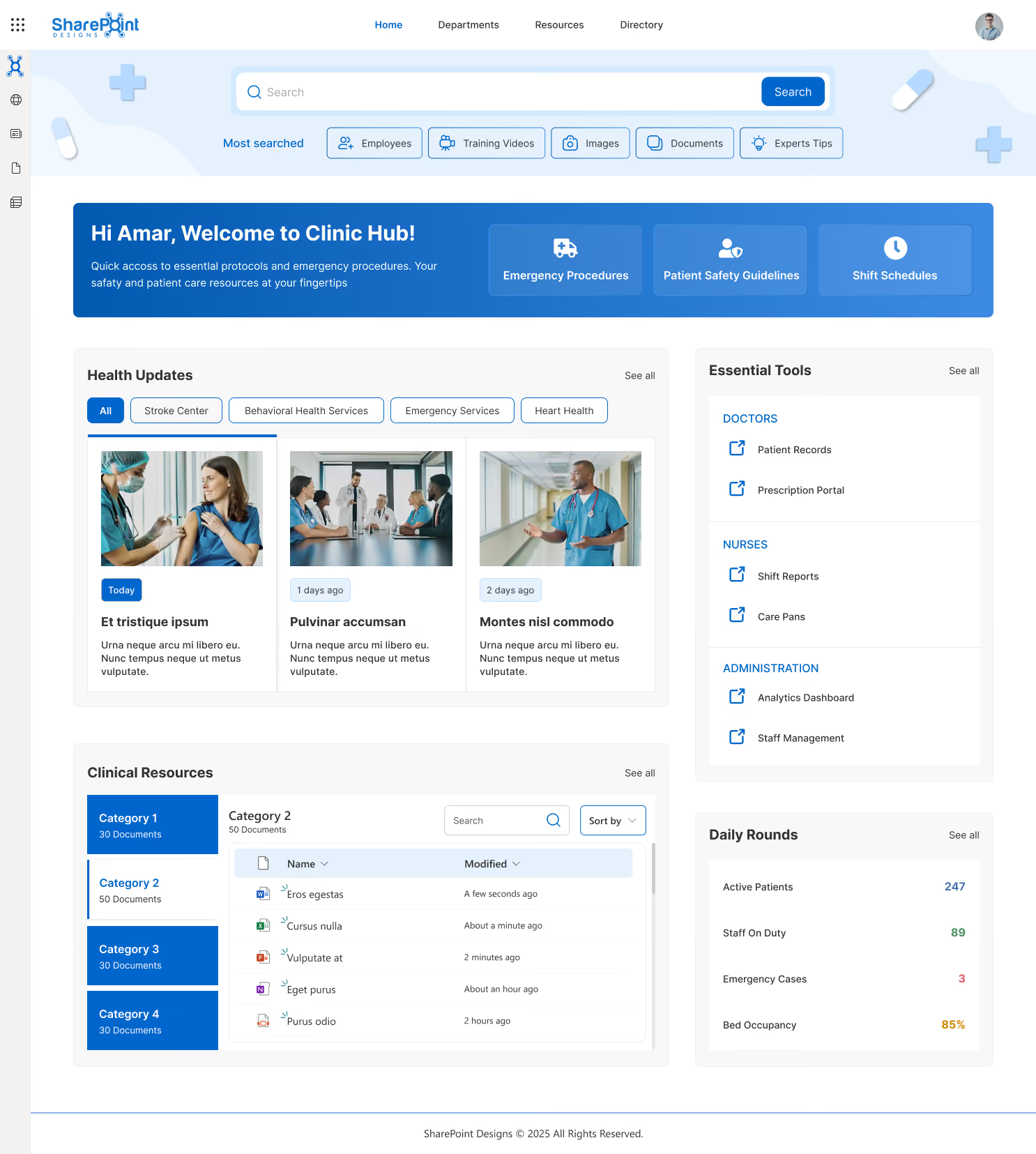
Design 1 - Clinic Hub: Acute Care & Multi-Department Hospitals
Built for acute care hospitals and multi-department clinical environments. The homepage centers on role-specific quick access: Emergency Procedures, Patient Safety Guidelines, and Shift Schedules are pinned in the hero section.
Health Updates are filterable by service line: Stroke Center, Behavioral Health, Emergency Services, and Heart Health. A right-side panel separates doctor tools (Patient Records, Prescription Portal) from nurse tools (Shift Reports, Care Plans) and administrative tools (Analytics Dashboard, Staff Management).
A Daily Rounds widget surfaces live operational metrics: Active Patients, Staff on Duty, Emergency Cases, and Bed Occupancy. This is the most operations-dense design, suited to high-acuity hospital environments.
Design 2 - Vision: Large Health Networks (500+ Staff)
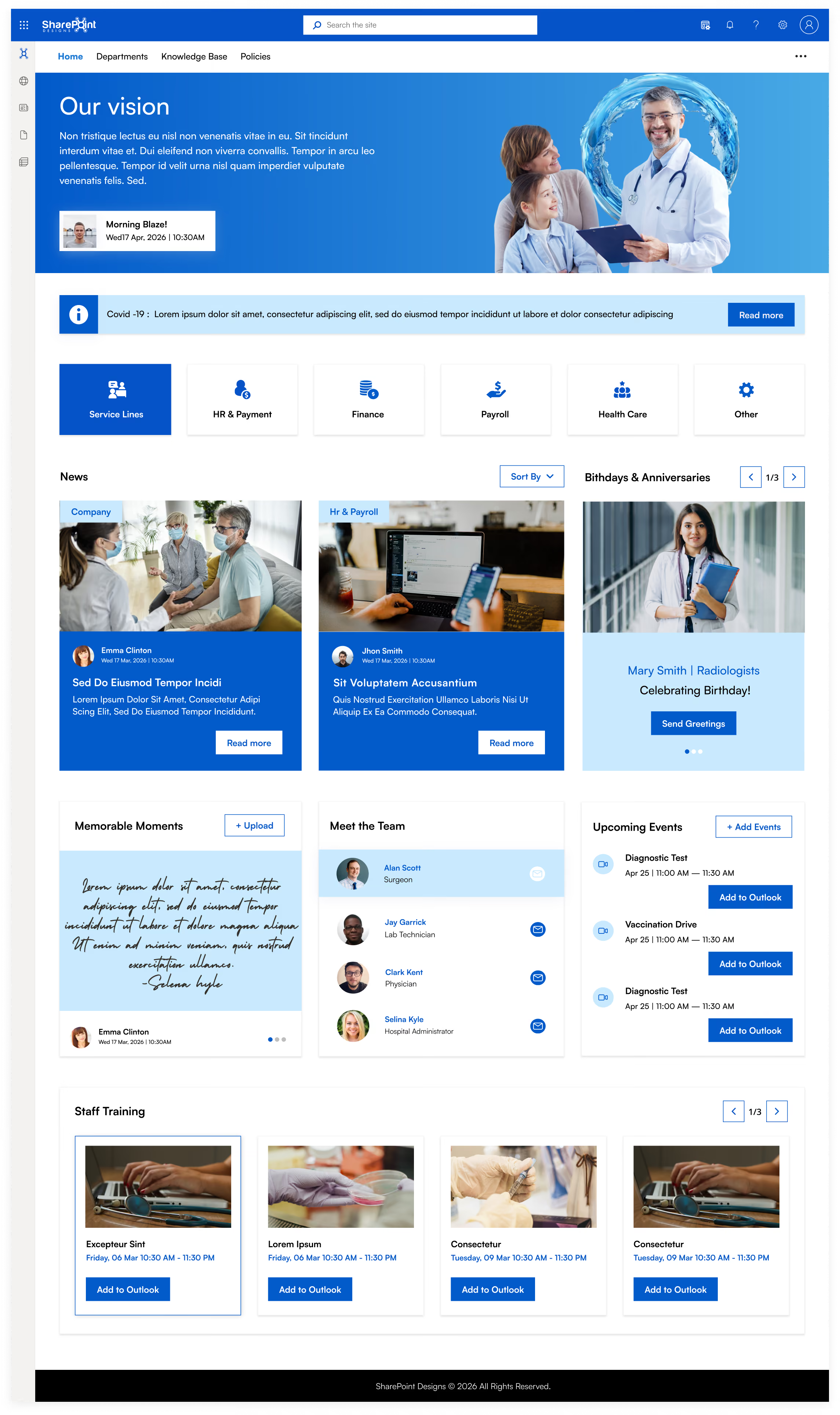
Built for multi-location health systems where leadership communication and cultural alignment are priorities. The full-width hero banner carries personalized daily briefing and leadership vision messaging. A service line navigation row lets each department (HR & Payment, Finance, Payroll, Health Care) operate as its own subsite while remaining connected to the central hub.
The Meet the Team and Memorable Moments sections drive connection across distributed sites. Birthdays & Anniversaries and Staff Training, with direct Outlook calendar integration, are consistently among the highest-used features after launch because they make the platform feel human, not institutional.
Design 3 - Women’s Health & Specialty Clinics
Built for specialty healthcare providers: OB/GYN practices, fertility clinics, maternity hospitals, and women’s health centers. The design language (purple palette, specialty-specific department filters: Obstetrics, Gynecology, Fertility IVF, Maternity Care) signals immediately that this was designed for this organization.
The People Directory includes an org chart filterable by specialty. The calendar surfaces relevant appointments (Prenatal Checkup, Ultrasound Scan) with direct Outlook integration. Service Awards recognize long-tenure staff as a meaningful driver of retention in specialist clinical environments.

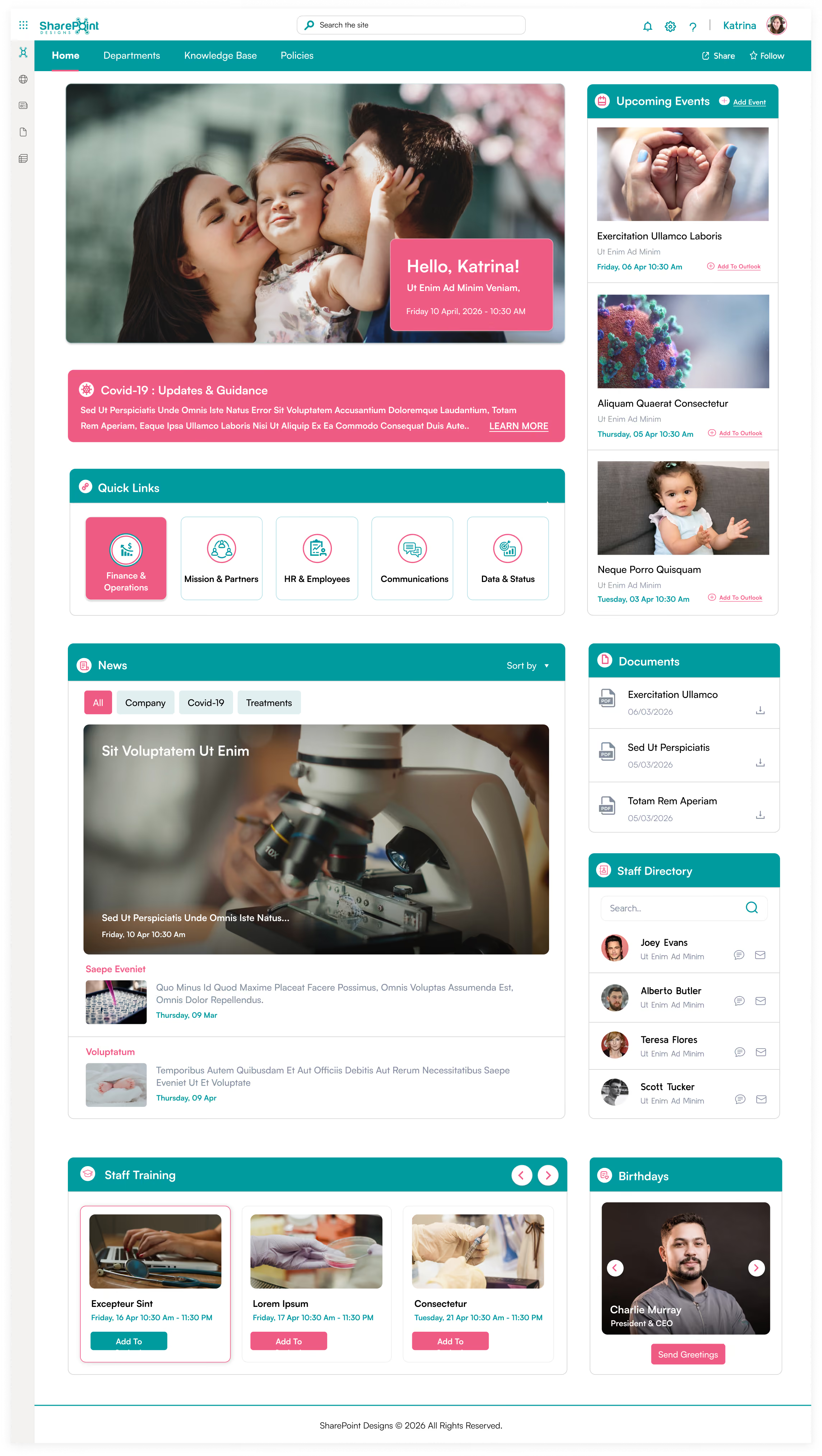
Design 4 - Compassionate Care: Community & Family Health
Built for community health centers, family medicine practices, and organizations where patient-centered culture is central to the brand. Quick Links segment by role: Finance & Operations, Mission & Partners, HR & Employees, Communications, Data & Status.
The News section supports filtered views for Company, Covid-19, and Treatments content. Documents are surfaced on the homepage with direct download links; clinical staff never navigate a document library.
The warm hero imagery and Birthdays section reinforce a community feel, which better drives adoption in smaller clinical environments than any feature set.
Design 5 - Research & Pharma: Science-Led Healthcare
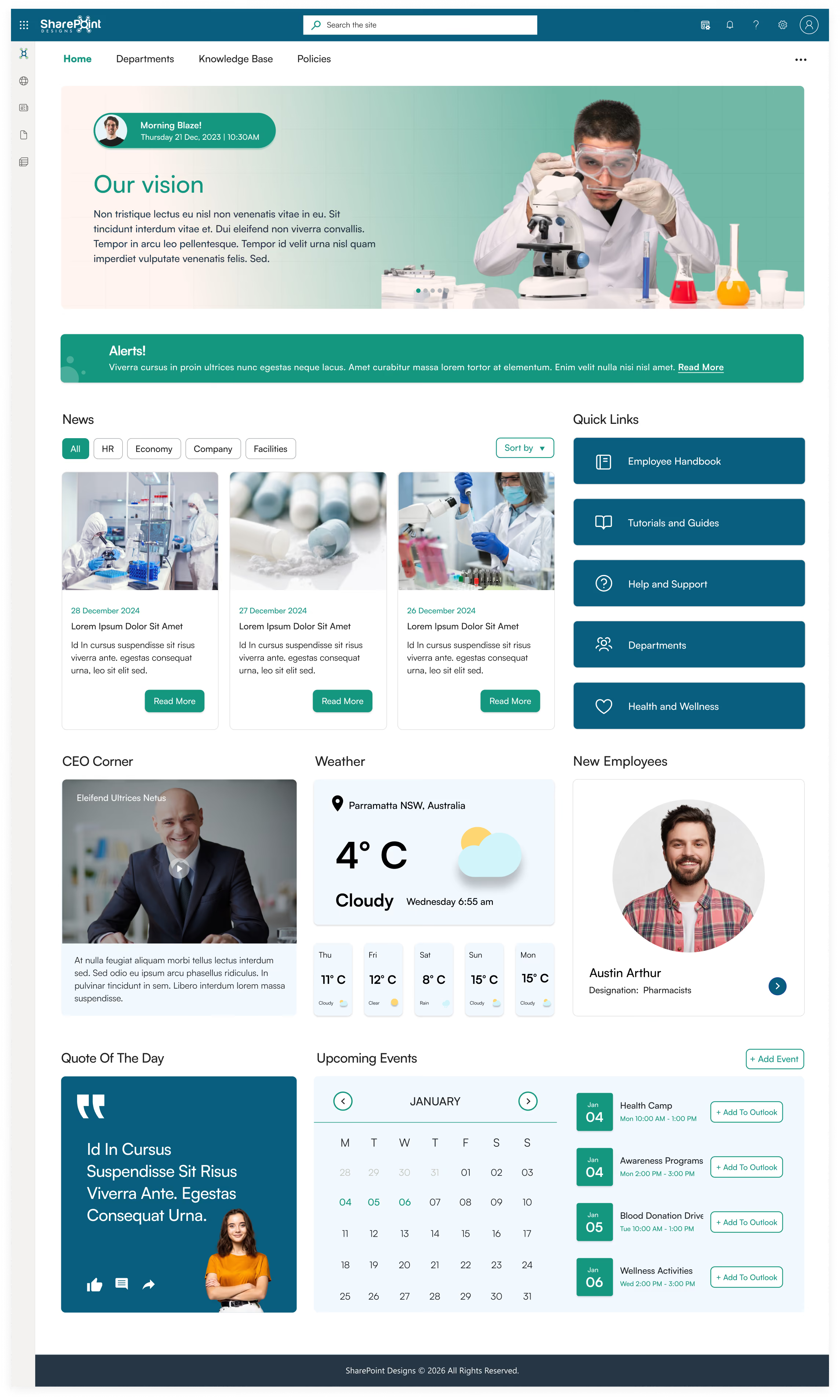
Built for pharmaceutical companies, research hospitals, and clinical research organizations. The homepage leads with a CEO Corner video section and lab-focused hero imagery.
Quick Links structure research workflows: Employee Handbook, Tutorials and Guides, Help and Support, Departments, Health and Wellness. A live weather widget supports staff traveling between campuses.
New Employees are highlighted to improve onboarding visibility in organizations with higher researcher turnover. The Quote of the Day section reinforces culture in a format that resonates with research-oriented teams.
Design 6 - Enterprise Hospital Network
The most feature-complete design for large enterprise hospital systems. The personalized hero greeting with vision statement carousel creates immediate personal relevance.
Below it: an Announcements scroller for urgent all-staff communications, Quick Links divided across clinical and operational categories, a My Apps section surfacing role-specific tools (Call Center Web, Front Desk, Payroll, XM Fax, Duo Central), New Joiners, Birthdays & Anniversaries, Testimonials, Company Directory, Calendar, and Events all on a single scrollable homepage.
The Testimonials carousel lets staff share organizational moments, a proven driver of cultural engagement in large, distributed hospital networks.

Design 7 - Mental Health & Behavioral Services
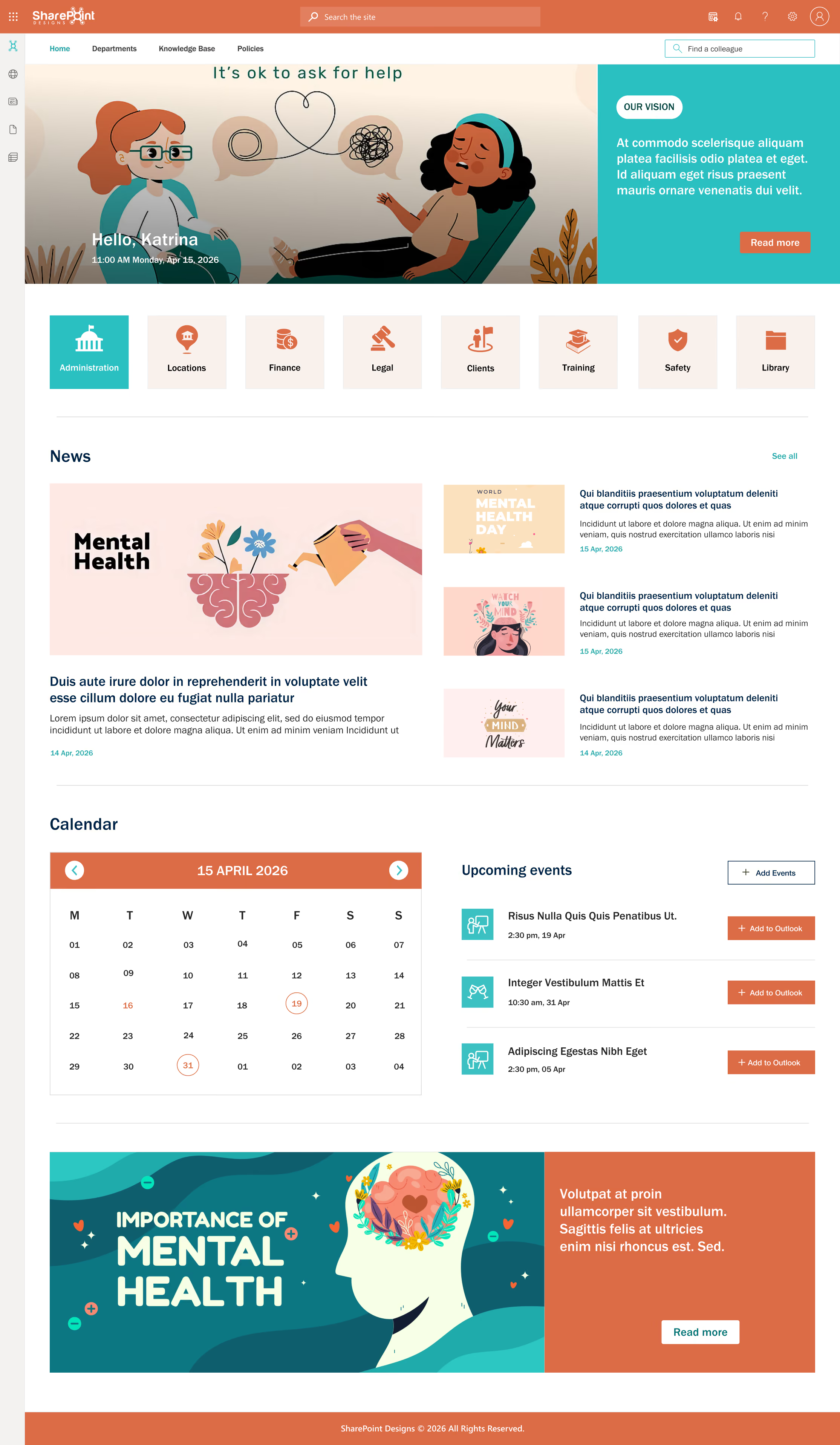
Built for mental health organizations, behavioral health services, and wellbeing-focused healthcare providers. The calm color palette (coral, teal, white) is deliberate, as clinical staff in this sector respond differently to high-intensity blue corporate designs.
Navigation reflects the specific needs of behavioral health: Administration, Locations, Finance, Legal, Clients, Training, Safety, and Library. A full-width mental health awareness banner at the bottom normalizes the organization’s focus on staff and patient wellbeing.
The Calendar and Upcoming Events sections are prominent because scheduling is operationally central to behavioral health service delivery.
SharePoint Intranet for Healthcare (2026): Complete Guide for Hospitals, Clinics & Health Systems
The best intranet for healthcare in 2026 is Microsoft SharePoint, properly implemented by a specialist partner. Key differentiators include HIPAA security

SharePoint is moving beyond libraries, folders, and permissions. Microsoft is building an intelligent content platform where AI agents handle documents, letting you focus on meaningful work. Here’s what IT leaders and intranet owners must know for 2025-2026.
The Copilot Era Isn't Coming. It's Already Here.
Let's start with the biggest shift. Microsoft 365 Copilot, now an AI-powered assistant across Word, Excel, PowerPoint, Teams, and SharePoint, has moved from blog post previews to full production. But 2025's story isn't about Copilot itself. It's about what happens when Copilot gets specialized.
Copilot Agents (Agent 365)
Think of these as dedicated AI employees for each SharePoint site. A legal site might have an agent trained on contract templates and regulatory filings. An HR portal could have one that answers benefits questions using your company's actual policy documents. These are not generic chatbots. They are site-specific AI assistants that understand your content.
Agentic Workflows
This is where automation becomes autonomy. An agentic workflow (an automated process managed by AI systems rather than just following preset steps) does more than move a document from folder A to folder B when you click "Approve." It reads the document, finds which approval chain is required, routes it, follows up with stalled approvers, and escalates when deadlines pass. The human stays in the loop but no longer deals with the plumbing.
Key distinction: Traditional Power Automate flows (Microsoft’s service for automating repetitive tasks) follow rigid IF-THEN rules. Agentic workflows use AI reasoning (artificial intelligence logic that can adapt to exceptions) to handle edge cases that would have previously required a human to intervene.
Work IQ and Semantic Search
Work IQ is Microsoft's name for the contextual intelligence layer across your entire M365 tenant. It knows which files you've worked on, which meetings discussed a topic, and which emails are project-related, even if nobody tagged them properly.
The result is semantic search. Instead of searching for "Q3-budget-final-v2-REVISED.xlsx," you search for "the budget spreadsheet Sarah shared after the board meeting." The system understands your intent, matches it to your activity graph, and surfaces the right file. This saves knowledge workers hours each week. It reduces the time spent finding things to 20%.
AI Meeting Summaries
Teams meetings now generate structured summaries. These are not just transcripts, but distilled outputs: decisions made, action items assigned, and questions left open. Summaries are automatically stored as team SharePoint documents, creating a searchable decision log that did not exist before.
SharePoint Premium: Your Documents Learn to Read Themselves
SharePoint Premium (formerly Syntex) is Microsoft's answer to a common problem. Every organization has mountains of unstructured content that no one can find, classify, or govern at scale. The 2025–2026 updates push SharePoint Premium from an "interesting add-on" to strategic infrastructure.
Content Assembly
Imagine you have a SharePoint list with 200 rows of client data. Content Assembly lets you create a Word or PDF template, such as a consulting agreement. You can auto-generate 200 personalized documents in minutes. No mail merge and no manual copy-paste. The templates are modern, using structured content controls rather than legacy fields. The output is clean, branded, and ready to send.
For any organization that generates contracts, proposals, or compliance reports at volume, this capability alone justifies the Premium license.
Taxonomy Tagging
Here's the dirty truth about metadata: everyone agrees it is important. Nobody wants to do it manually. SharePoint Premium solves this with AI-driven auto-tagging. Upload a document, and the system reads it and matches its content to your organization's term store. It automatically applies the right tags.
The accuracy is not perfect on day one, but the model improves as it processes more content. The real value is consistency. Instead of 50 people tagging documents 50 different ways (or not tagging them at all), you get a single, enforced taxonomy across the organization.
Why does this matter for intranets :Taxonomy tagging is the foundation for metadata-driven navigation. Without clean, consistent tags, your smart intranet filters are just empty dropdowns. With good tags, employees find what they need in seconds.
Unstructured Document Processing and OCR
Not every document in your company follows a neat template. Letters, internal memos, invoices, and scanned certificates are messy files that traditional DMS platforms struggle with. SharePoint Premium's AI models read these documents, extract key metadata (like dates, names, amounts, and categories), and index them for search.
OCR is now built into SharePoint libraries. Scanned PDFs and photos of documents become fully searchable text without any third-party tool. For legal, healthcare, or government fields, where paper-to-digital conversion is a constant headache, this is a genuine game-changer.
Smart PDF Tools
This feature is simple but extremely useful. SharePoint and OneDrive now have native PDF operations: merge PDFs, extract pages, add annotations, and apply watermarks. You no longer need to download, open in Adobe, edit, and re-upload. It happens in place, in the browser, with version history kept intact.
Forget Files. The Future Is Living Objects.
The biggest shift in Microsoft 365 is not about a single feature. It's a new way to think about content. Files are static; you create them, save them, and share them, then hope everyone's looking at the right version. Living objects are different.
Loop Components
A Loop component is a piece of content, such as a table, a task list, or a status tracker, that exists independently of any single app. Drop it into a Teams message, and your colleague can edit it there. Paste the same component in an Outlook email; it stays synced. Update it in one place, and it updates everywhere.
This breaks the old model of "files live in folders." Loop components live in the Microsoft Graph. They are objects with relationships, not documents with paths. For organizations still struggling with "which version of the spreadsheet is current," this is the answer.
The file was the atom of digital work for 40 years. Loop components are splitting that atom.
Shared Channels (Teams Connect)
External collaboration has always been painful in Microsoft 365. Guest access is clunky. Tenant switching is even worse. Shared Channels let you create a single Teams channel that spans organizations. Both your team and your client's team work in the same space, with the same files, and under separate tenant governance.
For agencies, consulting firms, and any company with heavy partner or vendor collaboration, this removes significant friction.
Holographic Meetings (Microsoft Mesh)
This feature is further out on the adoption curve. Microsoft Mesh creates 3D virtual meeting spaces where participants appear as avatars. With the right hardware, they can appear as holograms. Today, the practical use case is immersive workshops and brainstorming sessions. Spatial presence adds value in design reviews, architecture planning, or training simulations.
Asynchronous Video and Quick Steps
Two features sound small but change daily habits. Clipchamp integration lets anyone record a quick video update. You can post it to a SharePoint page or Teams channel, replacing a 30-minute meeting with a 2-minute video. Quick Steps in SharePoint libraries add one-click buttons for approve, route, archive, and notify actions. These used to require navigating approval workflows or switching to Power Automate.
AI Made Governance Non-Negotiable
Here's the uncomfortable truth about Copilot: AI is only as good as your data governance. If your SharePoint has oversharing, stale permissions, or sensitive documents in "Everyone" folders, Copilot will surface this content to anyone who asks the right question. The 2025 governance toolkit exists to prevent this.
Data Access Governance (DAG)
DAG gives admins a new tool: a clear dashboard. It shows which sites are overshared, which files have "Everyone" or "Everyone except external users" permissions, and where the highest data risk exists. This is not theoretical. In pilot deployments, organizations often discover that 30-40% of SharePoint sites have broader permissions than intended.
Pre-Copilot audit:If you're planning a Copilot rollout, run a DAG report first. Every overshared site is a potential exposure vector once AI starts indexing and surfacing content. Fix permissions before you flip the switch.
Restricted Access Control (RAC)
RAC is the override button. Set a site-level policy to restrict access to a specific security group, regardless of file or folder permissions. If someone accidentally shares a file with the organization, RAC blocks access for anyone not in the group.
For executive sites, M&A deal rooms, and any workspace with genuinely sensitive content, RAC is the safety net that didn't exist before.
Sensitivity Labels and Document-Level Encryption
Sensitivity labels are persistent metadata that travel with a document when it is downloaded, emailed, copied to a USB drive, or opened on a personal device. The label stays, and its policies (encryption, watermarking, print restrictions) stay with it. This is "data protection that follows the file," not "data protection that depends on the file staying in the right location."
Document-level encryption goes further. For genuinely critical files, board minutes, IP documentation, and pre-announcement financials, encryption ensures that even if the file is exfiltrated, the content is unreadable without the right credentials. Crucially, it also blocks external AI tools from parsing the document's text.
Content Lifecycle Management
The average enterprise SharePoint environment doubles in size every 18-24 months. Most of that growth is content nobody looks at, maintains, or needs, but nobody deletes either. Content Lifecycle Management automates the identification of inactive sites and stale documents, triggers review cycles, and can automatically archive or delete content in accordance with retention policies.
This isn't just about storage costs. Every orphaned document is a governance liability and a distraction for AI-powered search. Cleaning up content sprawl is the single highest-ROI governance activity you can do in 2025.
Building Intranets That People Actually Use
All the AI and governance tooling in the world doesn't matter if employees can't find what they need or won't visit the intranet in the first place. The 2025-2026 architecture and UX trends are about making SharePoint intranets feel less like IT infrastructure and more like a product employees genuinely want to open.
Flat Architecture with Hub Sites
The old model: a single root site with deeply nested subsites, each with its own permissions, navigation, and branding. The new model: independent sites connected through Hub Site associations. Each site manages its own content, but they share navigation, search, and branding through the hub.
This flat architecture is faster to build, easier to govern, and far more flexible. Need to reorganize departments? Detach a site from one hub and attach it to another. No migration required.
Modern Site Theming
SharePoint's new "expressive" templates and adaptive layouts bring modern web design conventions into the intranet: asymmetric hero regions, card-based content, clean typography, and responsive layouts that look good on any device. The days of intranets that look like they were built in 2012 are (finally) ending.
Design tip:The best intranets now look and feel like consumer-grade products. Your intranet is competing for attention with Slack, email, and every other tool on your employees' screens. It needs to earn their click.
Mobile-First Design
Frontline workers, field teams, and hybrid employees don't sit at desktops all day. Designing SharePoint pages for the mobile app first, then adapting them for desktop, ensures that your intranet serves the entire workforce, not just those in the office.
Metadata-Driven Navigation
Instead of clicking through five levels of folders to find a document, users filter by metadata such as department, document type, project, date range, and status. This requires clean taxonomy (see Section 2), but when it's done right, it reduces the average "time to document" from minutes to seconds.
The combination of metadata-driven navigation and semantic search makes the traditional folder structure increasingly irrelevant. Not gone folders still exist for backward compatibility, but no longer the primary way people find things.
What This Means for Your Organization
The trends above aren't a buffet, but they're interconnected layers of the same platform shift. Here's the practical sequence for organizations looking to act on this:
The Three-Step Priority
Step 1:Fix governance first. Run DAG reports, apply RAC policies, and implement sensitivity labels. No AI deployment is safe without this foundation.
Step 2:Build your content intelligence layer. Deploy SharePoint Premium for taxonomy tagging and document processing. Clean, classified content is what makes semantic search and Copilot Agents actually useful.
Step 3:Redesign the experience. Adopt flat architecture, modern theming, and metadata-driven navigation. Layer in Loop components for collaboration and Quick Steps for daily efficiency.
The organizations that will get the most value from this platform in 2025-2026 aren't the ones chasing the shiniest new feature. They're the ones that build the foundation of governance, taxonomy, and architecture, and then let the AI amplify what they've already done well.
The file folder isn't dead yet. But it's definitely on notice.
SharePoint & Microsoft 365 2025–26 Outlook: The Death of the File Folder
SharePoint is moving beyond libraries, folders, and permissions. Microsoft is building an intelligent content platform
SharePoint's disorganized content, outdated files, broken links, and missing metadata hinder Copilot’s AI. If your files aren't organized and metadata is inconsistent, Copilot’s answers suffer.
SharePoint Knowledge Agent (renamed “AI in SharePoint” in March 2026) automatically organizes and enriches content, enabling Copilot to deliver accurate answers.
With endless SharePoint sites and files, content chaos is common. To address this, the following sections will explain what the Knowledge Agent does, who uses it, how to enable it, and key tips from our SharePoint Designs testing.
What is a SharePoint Knowledge Agent?
SharePoint Knowledge Agent, built into SharePoint Online (now “AI in SharePoint”), natively organizes your intranet to improve Copilot's answer quality.
Key facts:
- Renamed: As of March 2026, “Knowledge Agent” is now called “AI in SharePoint,” but most documentation and users still refer to it as Knowledge Agent for now.
- Copilot Integration: Requires a Microsoft 365 Copilot license, ensuring your organization gets the full benefit of Copilot’s AI capabilities.
- Knowledge Agent accesses and enriches SharePoint metadata and content natively, providing deep integration within SharePoint. In comparison, Copilot Studio agents are custom-built for specific tasks and currently do not have native access to SharePoint metadata or its content. This distinction affects their capabilities and integration with SharePoint.
At SharePoint Designs, we’ve tested Knowledge Agent since the preview. It makes document libraries much easier to use and manage, especially at scale.
Key Features
SharePoint Knowledge Agent isn’t just another AI add-on. It’s a comprehensive suite of features designed to make SharePoint content Copilot-ready and keep your intranet healthy and usable. Here’s how it works in practice:
- Auto-tagging and Metadata Autofill
A Knowledge Agent reads documents and creates metadata, such as document type, client, or expiry. You can prompt it for specific details using plain language.Copilot reads file content and metadata (since October 2025). Auto-filled metadata helps Copilot recognize documents and give precise answers.
For example, an HR team uploads 500 policies. Knowledge Agent auto-tags each with type, review date, and department so Copilot can identify expiring policies instantly. - AI-generated Views
Knowledge Agent creates smart library views using metadata, for example, contracts by client or invoices over $500.
These views are instant, with no manual setup, helping users quickly find and monitor key content. - Natural Language Rules and Automation
Describe your workflow in plain English (like “email me for invoices over $500”), and Knowledge Agent automates it. No Power Automate needed for simple tasks. - Content Health and Site Hygiene
Knowledge Agent detects broken links, outdated pages, and content gaps. It suggests improvements to keep your intranet fresh and valuable. - Grounded Q&A on Site Content
Users can ask Knowledge Agent questions about site content. Enriched metadata improves answer accuracy over standard Copilot queries.
Having reviewed its features, let's turn to who within your organization will benefit most from Knowledge Agent.
Knowledge Agent benefits a wide range of roles across your organization:
- IT Admins: Streamline content governance, automate metadata management, and cut down on manual cleanup.
- HR Teams: Auto-tag policies with review dates and categories; streamline compliance audits.
- Legal Teams: Classify contracts, extract key clauses, and route flagged documents for review.
- Project Teams: Identify outdated documentation, broken links, and missing project artifacts.
- Intranet Managers: Improve findability, keep content fresh, and surface knowledge gaps.
SharePoint Designs configures the Knowledge Agent for every team during your deployment, ensuring that all departments benefit. Learn more at sharepointdesigns.com.
How to Enable Knowledge Agent
This section offers a hands-on walkthrough for enabling the Knowledge Agent in your environment.
Prerequisites
- Microsoft 365 Copilot license: Required for all users accessing Knowledge Agent.
- SharePoint Online Management Shell: Version 16.0.26615.12013 or later.
- Permissions: SharePoint Administrator or Global Administrator role.
- Availability: Not available in GCC, GCC High, DoD, or air-gapped environments.
Step-by-Step: Enable via PowerShell
- Install or update the SharePoint Online Management Shell:
Install-Module -Name Microsoft.Online.SharePoint.PowerShell - Connect to your tenant:
Connect-SPOService https://yourtenant-admin.sharepoint.com - Enable Knowledge Agent for all sites:
Set-SPOTenant -KnowledgeAgentScope AllSites - Or enable for specific sites only:
Set-SPOTenant -KnowledgeAgentScope IncludeSelectedSites - Or enable for all sites except specific ones:
Set-SPOTenant -KnowledgeAgentScope ExcludeSelectedSites - Verify your configuration:
Get-SPOTenant | Select-Object KnowledgeAgentScope
Scope Options Explained
- AllSites: Every site gets a Knowledge Agent.
- IncludeSelectedSites: Only specified sites (up to 100).
- ExcludeSelectedSites: All sites except specified ones (up to 100).
- NoSites: Disabled everywhere (default).
EU/UK Tenants: Anthropic Sub-processor Requirement
As of March 2026, AI in SharePoint uses Anthropic models for advanced features. EU and UK tenants must enable Anthropic as a sub-processor in the Microsoft Admin Center; otherwise, users will see errors.
Recommendation
Begin with IncludeSelectedSites. Test 3-5 key libraries for 2-4 weeks, collect feedback, then expand.
Best Practices from Real-World Testing
Based on real-world deployments including projects by SharePoint Designs, here are proven best practices:
- Clean Up Before You Turn It On
Knowledge Agent works best with tidy libraries. Clean up folders, delete old files, and set naming rules beforehand. - Start With High-Value Libraries
Start with libraries where metadata is crucial, such as contracts or policies, rather than broad, shared folders. - Review Auto-Generated Metadata
Assign a content owner to review the first metadata batch. Adjust prompts if needed for accuracy. - Combine With Managed Metadata
Use SharePoint’s managed metadata with Knowledge Agent to control vocabulary and avoid tag sprawl. - Measure the Impact
Track Copilot answer quality before and after Knowledge Agent. Use analytics to see which views succeed.
How this Connects to your Intranet Strategy
Knowledge Agent signals a major shift for SharePoint: from simple file storage to an AI-powered knowledge fabric. Organizations with well-designed intranets and clean information architecture will see the biggest gains. If your SharePoint is messy and underdeveloped, the AI can only do so much, so there’s clear ROI in investing in information architecture now, before general availability. (Teper, 2026)
At SharePoint Designs, we help organizations build SharePoint intranets that are structured, branded, and AI-ready from day one. With the Knowledge Agent entering GA, now is the time to get your content foundation right. SharePoint Designs has delivered intranets for more than 800 clients across 23 countries. We know what works and what doesn’t. Learn more at sharepointdesigns.com.
Conclusion
Knowledge Agent (AI in SharePoint) links content quality to AI quality. Clean up content, enable the preview, and set metadata practices now to get ahead when GA arrives. If you use Microsoft 365 Copilot, SharePoint readiness is essential.
If you’re planning to enable Knowledge Agent and want to make sure your SharePoint environment is ready, talk to the SharePoint Designs team. We’ve been building AI-ready intranets since before Knowledge Agent existed. Contact us at sharepointdesigns.com/contact.
Contact SharePoint Designs
SharePoint Knowledge Agent: What it is, How to Set it Up, and Why your Intranet Needs it in 2026
SharePoint's disorganized content, outdated files, broken links, and missing metadata hinder Copilot’s AI.
Introduction
Every organization holds vast institutional knowledge policies, processes, project learnings, compliance documents, and expertise that lives in people's heads and inboxes. The challenge has never been creating that knowledge. It has always been making it findable, usable, and governed.
The SharePoint Knowledge Agent solves this problem directly. Built on Microsoft's AI infrastructure and integrated with SharePoint Online and Microsoft 365, it transforms how teams capture, surface, and act on internal knowledge without changing how employees work.
This guide covers:
- What the SharePoint Knowledge Agent is and how it works
- Its key features and real-world use cases
- How it compares to standard SharePoint search
- What organizations in the US, UK, Australia, and beyond need to know before implementing one
- Answers to the most searched questions
What is the SharePoint Knowledge Agent?
The SharePoint Knowledge Agent is an AI-powered knowledge management layer built on top of Microsoft SharePoint Online. It acts as an intelligent assistant that understands your organization's content across sites, document libraries, and Microsoft 365 apps and surfaces it through natural language queries and contextual recommendations.
How it differs from standard SharePoint search:
- Standard search returns a list of keyword-matched documents.
- The Knowledge Agent understands intent, not just words.
- It synthesizes answers from multiple sources and delivers a single, coherent response.
- It recommends relevant content before you even search.
Example: Ask "What is our process for onboarding a new vendor?" and the Knowledge Agent returns the correct policy document, the relevant approver contact, and a workflow summary rather than 47 documents containing the word "vendor."
All data remains inside your Microsoft 365 tenant, under your existing governance, security, and compliance controls. The SharePoint Knowledge Agent aligns with key compliance certifications such as ISO 27001 and supports regulatory requirements, including GDPR. This ensures that data protection and privacy are maintained to standards recognized by IT leaders and auditors. (General Data Protection Regulation - Microsoft GDPR)
Key Features of the SharePoint Knowledge Agent
1. AI-Powered Natural Language Search
- Search across all SharePoint sites, document libraries, and M365 apps using plain English.
- Surfaces documents, policies, FAQs, procedural guides, and best practices in one response
- No need to know which site or library a document lives in
- Especially valuable for large enterprises with content spread across dozens of sites
2. Contextual Knowledge Recommendations
- Proactively surfaces relevant content based on what an employee is currently working on
- A contract reviewer automatically sees approval policies and legal contacts without searching.
- Reduces time spent hunting for information before making decisions
- Increases the likelihood that employees will act on accurate, up-to-date content
3. Automatic Knowledge Article Creation
- Converts unstructured content into structured knowledge automatically
- Processes meeting minutes, project notes, Teams threads, and email chains
- Outputs searchable, governed knowledge articles ready for your intranet
- Closes the gap between where knowledge is created and where it needs to live
4. Deep Microsoft 365 Integration
- Works within Microsoft Teams, Outlook, and Viva Connections, not just SharePoint
- Employees access knowledge inside the tools they already use
- No context switching, no separate knowledge portal to log into
- Unified experience across the entire Microsoft 365 ecosystem
5. Enterprise Security and Compliance
- Fully respects existing SharePoint permission structures.
- Employees only see content they are authorized to access
- Sensitive documents, restricted policies, and confidential files remain protected.
- All data stays within your Microsoft 365 tenant; no third-party data exposure.
5 High-Value Use Cases for the SharePoint Knowledge Agent
1. Employee Onboarding
The problem: New hires waste days searching for training materials, policies, and key contacts, often relying on a manager or buddy to point them in the right direction.
How the Knowledge Agent helps:
- Delivers a role-specific knowledge interface from day one
- Answers plain-language questions with governed, accurate responses.
- Reduces burden on HR and line managers
- Creates a consistent onboarding experience across offices and time zones
Business outcome: Faster time-to-productivity. Less onboarding friction. Lower early attrition.
2. Project Knowledge Management
The problem: Lessons learned, decisions, and project documentation are buried in email threads and the memories of people who may have already left.
How the Knowledge Agent helps:
- Centralizes project knowledge as it is created, not retroactively
- Makes historical project data searchable by future teams
- Surfaces relevant decisions and lessons learned at the start of similar projects
- Reduces repeated mistakes and duplicate effort
Business outcome: Faster project initiation. Better-informed teams. Fewer repeated errors.
3. Customer and Internal Support Teams
The problem: Support agents need the right answer quickly, and finding it across multiple repositories wastes critical time.
How the Knowledge Agent helps:
- Provides instant access to troubleshooting guides, FAQs, and escalation procedures
- Returns a single synthesized answer rather than a list of documents to read through
- Keeps response content consistent across all agents
- Reduces average handling time measurably
Business outcome: Faster resolution. Higher customer satisfaction. More consistent support quality.
4. Policy and Compliance Management
The problem: Employees work from outdated policies. Compliance documents are updated but old versions continue to circulate.
How the Knowledge Agent helps:
- Always surfaces the most current, authorized version of any policy.
- Flags updates and draws related resources to employees' attention.
- Ensures compliance-sensitive teams act on accurate information
- Reduces regulatory risk from outdated documentation
Business outcome: Reduced compliance risk. Consistent policy adherence across departments and geographies.
5. Cross-Departmental Knowledge Sharing
The problem: Different departments solve the same problems independently. Expertise is invisible across team boundaries. Silos cost time and money.
How the Knowledge Agent helps:
- Connects knowledge and expertise across departmental boundaries
- Helps employees find colleagues who have solved similar challenges
- Surfaces reusable solutions from across the organization
- Builds a culture of knowledge sharing over time
Business outcome: Less duplicated effort. Stronger cross-functional collaboration. Faster innovation cycles.
SharePoint Knowledge Agent vs. Standard SharePoint Search
Bottom line: Standard SharePoint search finds documents. The Knowledge Agent finds answers.
What Makes a Successful Implementation?
Deploying a knowledge Agent delivers results only when the underlying environment is ready. Organizations that get the most from AI-powered knowledge management share these characteristics:
- Governed information architecture - The agent surfaces what exists. Unstructured, inconsistently labeled content produces poor output. Clean taxonomy and governance come first.
- Defined content ownership - Every knowledge article needs an owner accountable for keeping it accurate. Without ownership, knowledge bases degrade as policies and processes change.
- An employee adoption strategy - The best tool delivers no value if teams don't use it. Adoption requires visible champions, embedded workflows, and clear communication not just a go-live announcement.
- Iterative refinement - AI systems improve with use and feedback. Treat the Knowledge Agent as a capability that evolves with your organization, not a one-time deployment.

SharePoint Knowledge Agent: The Smarter Way to Manage Organizational Knowledge in 2026
Every organization holds vast institutional knowledge policies, processes, project learnings, compliance documents, and expertise that lives in people's heads and inboxes.
Introduction
If you still rely on SharePoint Alerts for notifications, time is running out. Microsoft will fully retire SharePoint Alerts in July 2026. Since January 2026, creating new alerts has been blocked, and existing alerts now expire every 30 days unless renewed manually. Many organizations are unprepared for this change. Alerts have been a core SharePoint feature since the early 2000s.
This blog explains the retirement schedule, Microsoft’s recommended replacements (SharePoint Rules and Power Automate), and gives a step-by-step migration plan based on real client migrations.
The Retirement Timeline
Microsoft is retiring SharePoint Alerts in phases. Here’s how the changes have rolled out:
- July 2025: New alert creation was blocked for newly onboarded tenants.
- September 2025: New alert creation is blocked for all existing tenants.
- October 2025: Existing alerts started expiring 30 days after their first run. Users began seeing banners in SharePoint and in alert emails warning about retirement. Alerts could be manually extended for an additional 30 days, but only through direct user action.
- January 2026: Creation of new alerts is now fully blocked for every tenant. Attempting to create an alert displays a banner directing users to Rules or Power Automate.
- July 2026: Full retirement. All remaining alerts stop working permanently, with no further extensions.
Risk: The 30-day expiry of Alerts already causes unreliability. If an alert isn’t extended, notifications stop with no warning. Teams using alerts for compliance, security, or monitoring face immediate risks.
Next, it's important to understand why Microsoft is making this change.
Classic SharePoint Alerts rely on legacy infrastructure dating to SharePoint 2010 or earlier. Alerts don’t integrate with Microsoft’s modern notification tools, such as Teams, Adaptive Cards, or the Power Platform. You can’t customize emails, add logic, or route notifications. Admins lack a central way to audit or control alerts, and digest summaries are inconsistent.
Microsoft wants to shift notifications and automation to the Power Platform (primarily Power Automate and Power Fx). This fits the technology direction, but the new tools have gaps. Organizations need a clear migration plan and sometimes expert help.
With the retirement reason clear, let’s examine alternatives to SharePoint Alerts.
Option 1: SharePoint Rules (Simple Replacement)
SharePoint Rules are the direct successor to most classic alerts. They’re built into every modern SharePoint list and document library. Just open the “Automate” menu at the top. No code required; any user with Edit or Contribute permissions can create a rule.
Four triggers are available:
- When a column changes
- When a column value changes to something specific
- When a new item is created
- When an item is deleted
Rules can email notifications or move/copy files to another library. Use Rules for simple needs such as:
- “Alert the legal team when contract status changes to ‘Under Review.’”
- “Move documents to the archive when status is ‘Completed.’”
Limitations:
- No daily/weekly digests each event triggers a separate email.
- No way to monitor “all changes” you must pick a specific event.
- Not available on Site Pages libraries.
- No integration with Teams, Slack, or external apps.
- Requires Edit permission (classic Alerts needed only Read).
Option 2: Power Automate (Advanced Replacement)
For more advanced tasks, Microsoft recommends Power Automate. It can:
- Send daily/weekly digest emails summarizing all changes.
- Send notifications to Teams, Slack, or other services.
- Include conditional logic, approvals, and multi-step workflows.
- Use templates for common scenarios.
Limitations:
- Complexity: Building a digest flow requires some technical know-how.
- Governance: Flows run under the creator’s account, so management is trickier.
- Licensing: Not all M365 plans include Power Automate.
- No “convert alert to flow” button each must be rebuilt manually.
The gap: The biggest feature missing from Rules is the digest summary. Many organizations use Alerts’ daily/weekly digests for compliance or reporting. As of April 2026, Rules still don’t support this, and the community wants it. For digest needs without the complexity of Power Automate, consider third-party tools like VirtoSoftware’s Alerts & Reminders or ManageEngine M365 Manager Plus.
How to Migrate Step-by-Step Guide
Here’s a practical checklist you can use this week:
Step 1: Audit your existing alerts
- Go to each SharePoint site > Site Settings > User Alerts (admin view) to see all active alerts.
- Or use PowerShell to export all alerts across the tenant.
- Document: who set the alert, what it monitors, and notification type (immediate, daily digest, weekly digest).
Step 2: Categorize by complexity
- Simple (immediate, single event): Migrate to SharePoint Rules.
- Digest (summaries): Migrate to Power Automate or a third-party tool
- Complex (logic, multi-list, external apps): Migrate to Power Automate
Step 3: Create Rules for the simple ones
- Open the list/library > Automate > Create a rule.
- Select the trigger and recipients.
- Test it
Step 4: Build Power Automate flows for digest needs
- Use Microsoft’s template “Send a weekly digest of SharePoint list items” as a starting point.
- Customize the HTML email table and set recurrence.
Step 5: Communicate the change
- Announce: “SharePoint Alerts are being retired. Here’s what’s changing.”
- Update training/help docs.
- Set a deadline: all alerts must be migrated by June 2026 (one month before the cutoff).
What SharePoint Designs Recommends
For most organizations, a mix of Rules (for simple notifications) and Power Automate (for digests and advanced scenarios) will cover 90% of use cases. The final 10% organizations with hundreds of alerts, complex routing, or compliance needs may need a structured migration project.
We’ve helped clients migrate in 23 countries. The proven approach: audit, categorize, migrate simple alerts to Rules, and build reusable Power Automate templates for digests.

SharePoint Alerts Are Retiring in July 2026 - Here’s What to Do Before They Stop Working
If you still rely on SharePoint Alerts for notifications, time is running out. Microsoft will fully retire SharePoint Alerts in July 2026
Testing SharePoint applications manually requires a structured approach to ensure functionality, usability, security, and integration of all work seamlessly. Whether you're working on SharePoint Online or on-premises solutions, a well-defined checklist helps avoid production issues and improves overall quality.
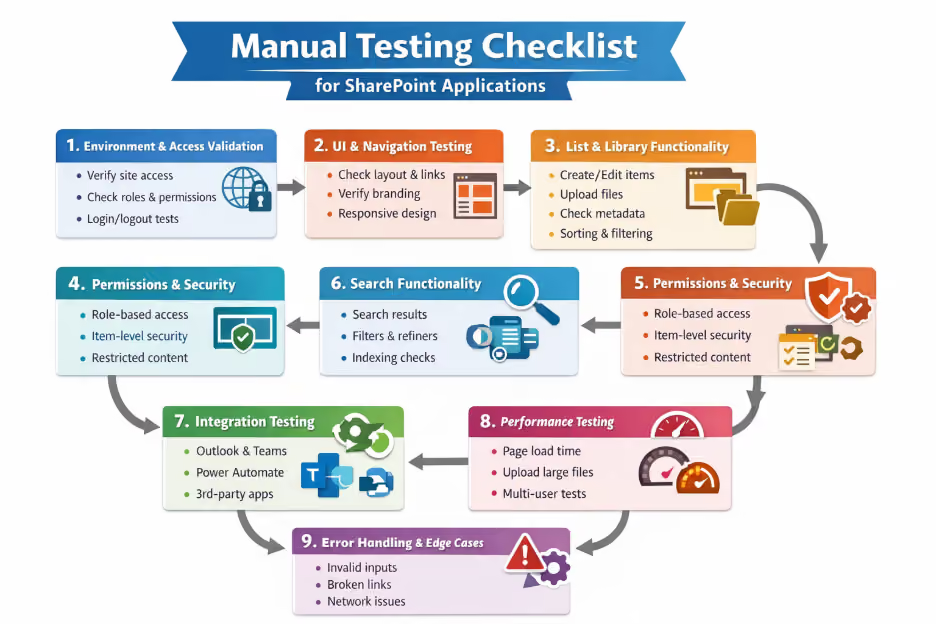
Let’s walk through a comprehensive manual testing checklist—with real-world examples.
1. Environment & Access Validation
Before diving into testing, ensure your environment is correctly set up.
Checklist:
- Verify SharePoint site URL accessibility
- Confirm user roles and permissions
- Check login/logout functionality
- Validate multi-browser support (Chrome, Edge, etc.)
Example:
A user with Read-only access should not be able to edit or delete documents in a document library.
2. UI & Navigation Testing
SharePoint applications rely heavily on usability.
Checklist:
- Validate site layout and responsiveness
- Check navigation links (Quick Launch, Top Navigation)
- Verify branding elements (logos, themes)
- Ensure pages load correctly without UI breaks
Example:
Clicking on “HR Policies” in the navigation bar should be redirected to the correct document library page without errors.
3. List & Library Functionality
Lists and document libraries are the backbone of SharePoint.
Checklist:
- Create, edit, and delete list items
- Upload, download, and version documents
- Validate metadata fields
- Check sorting, filtering, and grouping
Example:
Uploading a document should automatically assign metadata like “Department = Finance” based on default settings.
4. Forms & Workflows Testing
Many SharePoint apps use forms (Power Apps) and workflows (Power Automate).
Checklist:
- Validate form input fields (mandatory, data types)
- Check form submission behavior
- Verify workflow triggers and approvals
- Test email notifications
Example:
Submitting a leave request form should trigger an approval workflow and send an email to the manager.
5. Permissions & Security Testing
Security is critical in SharePoint applications.
Checklist:
- Verify role-based access (Owner, Member, Visitor)
- Test item-level permissions
- Check inheritance breaking scenarios
- Validate restricted content visibility
Example:
A confidential document should only be visible to the HR team and not to general employees.
6. Search Functionality
SharePoint’s search is a key feature for users.
Checklist:
- Verify keyword search results
- Check filters and refiners
- Validate indexing delays
- Test search for documents, lists, and pages
Example:
Searching for “Project Plan” should return relevant documents with matching titles or content.
7. Integration Testing
SharePoint often integrates with other tools.
Checklist:
- Validate integration with Microsoft 365 apps (Outlook, Teams)
- Check Power Automate and Power Apps connectivity
- Verify third-party integrations
Example:
Clicking “Share in Teams” should correctly post the document link in the selected Microsoft Teams channel.
8. Performance Testing (Manual Observations)
Even in manual testing, basic performance checks matter.
Checklist:
- Measure page load times
- Test large file uploads
- Check behavior under multiple users
Example:
Uploading a 100MB file should not cause the browser to freeze or crash.
9. Mobile & Responsive Testing
Users often access SharePoint on mobile devices.
Checklist:
- Test responsiveness on mobile/tablet
- Verify touch interactions
- Validate SharePoint mobile app behavior
Example:
A document library should display properly on a mobile screen without layout distortion.
10. Error Handling & Edge Cases
Always test unexpected scenarios.
Checklist:
- Invalid inputs in forms
- Network interruptions
- Unauthorized access attempts
- Broken links
Example:
Entering an invalid email format in a form should show a proper validation message instead of submitting.
Leave Request Workflow
Scenario Overview
A SharePoint-based Leave Management system where:
- Employee submits a leave request
- Workflow triggers approval
- Manager approves/rejects
- Employee gets notified
Example 1: Employee Submits Leave Request
Test Steps:
- Login as Employee
- Open Leave Request form
- Enter details:
- Leave Type: Casual Leave
- From Date: 10 Apr
- To Date: 12 Apr
- Reason: Personal work
- Click Submit
Expected Result:
- Form should be submitted successfully
- Leave request entry created in SharePoint list
- Status should be “Pending Approval”
Example 2: Workflow Trigger Validation
Test Steps:
- Submit a leave request
- Check workflow/Power Automate run history
- Expected Result:
- Workflow should trigger automatically
- Workflow status should be “Running” or “Completed”
- No errors in flow execution
Example 3: Manager Receives Email Notification
Test Steps:
- Submit leave request as Employee
- Login to Manager email (Outlook)
- Expected Result:
- Manager should receive email with:
- Employee name
- Leave dates
- Approve/Reject link or button
Example 4: Manager Approves Request
Test Steps:
- Login as Manager
- Open approval email or SharePoint item
- Click Approve
- Expected Result:
- Request status updated to “Approved”
- Approval comments saved (if applicable)
- Workflow completes successfully
Example 5: Employee Receives Approval Notification
Test Steps:
- Manager approves request
- Login as Employee
- Check email / SharePoint notifications
- Expected Result:
- Employee receives confirmation email
- Email contains:
- Approval status
- Leave details
- SharePoint list shows Approved status
Example 6: Rejection Scenario (Edge Case)
Test Steps:
- Manager selects Reject
- Adds rejection reason
- Expected Result:
- Status updated to “Rejected”
- Employee receives rejection email with reason
Final Thoughts
Manual testing of SharePoint applications is not just about clicking through pages, it’s about validating real user scenarios, ensuring data security, and confirming seamless integrations.
%201.avif)
Manual Testing Checklist for SharePoint Applications (With Examples)
Testing SharePoint applications manually requires a structured approach to ensure functionality, usability, security, and integration of all work seamlessly.

SharePoint Online pages are the building blocks of every modern Microsoft 365 intranet. Whether you need a department homepage, a project hub, a resource library, or an announcement post, pages are how information gets organized and shared across your organization. This guide covers everything from creating your first blank page to adding web parts, configuring layouts, and publishing in one place, clearly and without jargon.
What is a SharePoint Online Page?
A SharePoint Online page is a modern, web-based content canvas that lives inside a SharePoint site. It is built by placing web parts modular content blocks onto a layout, then publishing the result to make it visible to people with access to the site.
Pages are stored in the Site Pages library of each site. Every site starts with a home page by default, and you can create as many additional pages as your content requires , there is no practical limit.
Before You Start - What You Need
- Edit permissions on the SharePoint site (Site Member or Site Owner role)
- A modern SharePoint site (Team site or Communication site), Quick Chart web part and modern pages are not available on classic sites
- Access to SharePoint Online via Microsoft 365, no additional licence required beyond a standard M365 Business or Enterprise plan
- A clear purpose for the page knowing whether it is a resource hub, department page, or landing page will guide your template and web part choices
Note: If you do not see the New button on your site, your SharePoint administrator may have disabled page creation. Ask them to enable it in SharePoint Admin Center → Settings → Pages → Allow users to create new modern pages.
How to Create a Page in SharePoint Online - Step by Step
Step 1: Navigate to your SharePoint site
Open your browser and go to the SharePoint site where you want to create the page. You must be signed in to Microsoft 365 with an account that has Edit or Owner permissions on that site.
Step 2: Click New → Page
From the site home page or any existing page, click the New button in the top command bar. A dropdown menu will appear. Select Page from the options.
Alternative entry points: You can also go to Site Contents → Site Pages library → New, or use the SharePoint App Bar → Create → Page.

Step 3: Choose a template
The Template Gallery opens. You will see built-in templates including Blank, Visual, Basic Text, Showcase, and others. Select the template that best fits your content structure, then click Create page.
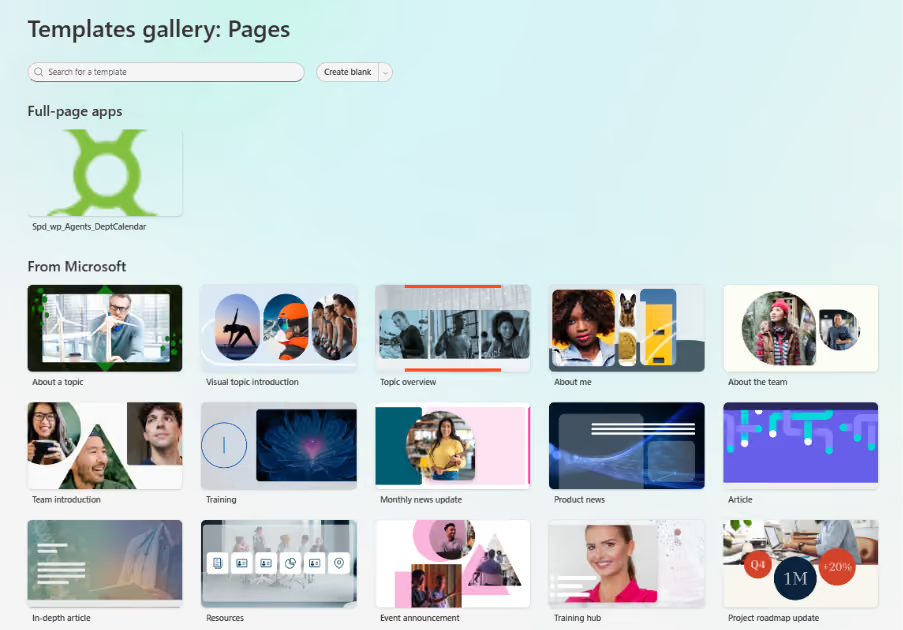
Template guidance:
- Blank - clean canvas, full control, best for experienced page builders
- Basic Text - pre-configured text and image layout, ideal for articles and documentation
- Visual - image-heavy layout, well suited to department landing pages and homepages
- Showcase - highlights featured content, good for project hubs and resource centres
Pro tip: If your organization has saved custom page templates, they will appear in the Template Gallery under 'Saved on this site'. Using a template saves significant setup time and ensures brand consistency.
Step 4: Add a page title
Click inside the Add a title area at the top of the page and type your page title. This title appears in the browser tab, in search results, and in the Site Pages library.

- Keep titles clear and descriptive, they are indexed by Microsoft Search
- Avoid vague titles like 'New Page' or 'Untitled', they make the page hard to find later
- The title also becomes the default file name in the Site Pages library (spaces are replaced with hyphens)
Step 5: Add a banner image (optional but recommended)
Click the image icon in the title area to upload or select a banner image. You can choose from Stock images, OneDrive, your site's image library, or upload from your device.

After selecting an image, use the focal point tool to control which part of the image is shown when the banner is cropped at different screen sizes. Set the focal point on the most important part of the image usually a face or a key visual element.
Step 6: Configure the title area layout
Click the Edit properties icon (pencil icon) in the title area to open the web part property pane. Under Layout, choose from six options:

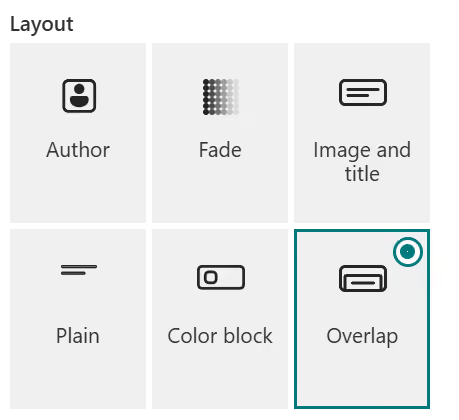
- Image and title - full-width banner with the title overlaid on the image (most visual)
- Plain - no image, clean white title area, works well for text-heavy pages
- Colour block - solid colour background behind the title, good for branded pages
- Overlap - page title overlaps the section below, creates depth
- Compact - minimal title height, maximises content area
- No title - removes the title area entirely for fully custom layouts
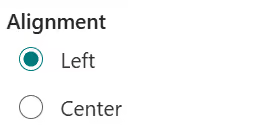
Under Alignment, choose Left or Centre to control where the title text is positioned within the title area.
Step 7: Once you have configured the page, click Publish at the top right corner to make the page live.

Step 8: Add web parts to your page
Click the + (plus) icon that appears when you hover between sections or at the bottom of the page. A web part picker opens. Search for the web part you need or browse by category.

Select the web part you wish to add (for example: Text, Image, Quick links, Document library, etc.).
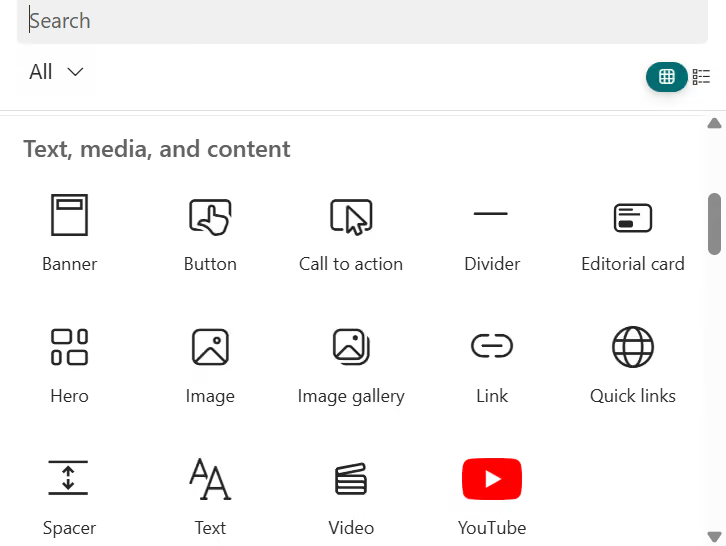
After selecting a web part, it is placed on the page and its property pane opens on the right side. Configure the web part settings, then click anywhere outside the pane to close it. Repeat for each web part you need.
Moving web parts: click and hold the move icon (four-directional arrow) on a web part to drag it to a new position. Web parts can be moved within a section or between sections.
Deleting a web part: click the web part to select it, then click the Delete (bin) icon that appears in the toolbar.
Step 9: Organize content with sections and columns
SharePoint pages use sections as horizontal rows of content. Each section can contain one, two, three, or four columns. Click the + icon on the left side of the page (in edit mode) to add a new section.
- Single column - full-width content, best for text articles and announcements
- Two columns - side-by-side layout, good for pairing an image with text
- Three or four columns - grid layout, ideal for icon-based quick links or metric cards
- Full-width section - edge-to-edge layout, powerful for Hero and Banner web parts
Collapsible sections: you can set a section to be collapsible, letting users expand or collapse content blocks. This is useful for long pages with categorised content such as FAQs or policy libraries.
Step 10: Save and publish
When your page is ready, Click save & Publish
Looking for a professionally designed SharePoint intranet? Book a Free Live Demo
%201.avif)
How to Create a Page in SharePoint Online - A Complete Step-by-Step Guide for 2026
SharePoint Online pages are the building blocks of every modern Microsoft 365 intranet.

Is it possible to change the blue colour of SharePoint quick chart without any code change?
Yes, you can change the SharePoint Quick Chart color without code by using an out-of-the-box (OOTB) workaround. Create the chart in Excel, customize the colors, and embed it in SharePoint using the File and Media web part for full design control.
TL;DR: Change SharePoint Quick Chart color using Excel + File & Media web part. No coding required.
The Quick Chart web part in SharePoint is a convenient tool for visualizing simple data. However, it has a notable limitation: it does not support advanced color customization or theme alignment. For organizations aiming to build branded and visually consistent SharePoint experiences, this restriction can significantly impact the overall user interface and design quality. Since the out-of-the-box Quick Chart web part in SharePoint does not support theme-based colour customization, an effective alternative is to use the File and Media web part.
This article outlines a practical, out-of-the-box (OOTB) workaround to overcome this limitation without requiring any custom development or SPFx solutions.
Understanding the Limitation
The SharePoint Quick Chart web part provides only minimal styling options. Specifically:
- No support for custom color palettes
- No integration with SharePoint themes
- Limited control over chart appearance
As a result, organizations cannot align charts with their branding or design systems using the default configuration.
OOTB Workaround: Using Excel and File & Media Web Part
A reliable and effective approach is to create the chart in Excel and embed it into SharePoint. This method leverages existing SharePoint capabilities while enabling complete control over chart design.
This solution is entirely out-of-the-box, requiring no code or additional tools.
Step-by-Step Implementation
1. Create the Chart in Excel
Instead of using the Quick Chart web part, design your chart in Microsoft Excel.
2. Customize the chart design in Excel
- Set individual colours for text, bars, and plot areas of the chart as per the requirement.
- Apply your theme-specific styling (let’s say for example, you are creating a Batman themed intranet, using yellow bars with black background).
3. Adjust the background and layout:
- Change all rows and columns to a black background.
- Set the chart background to black for consistency.
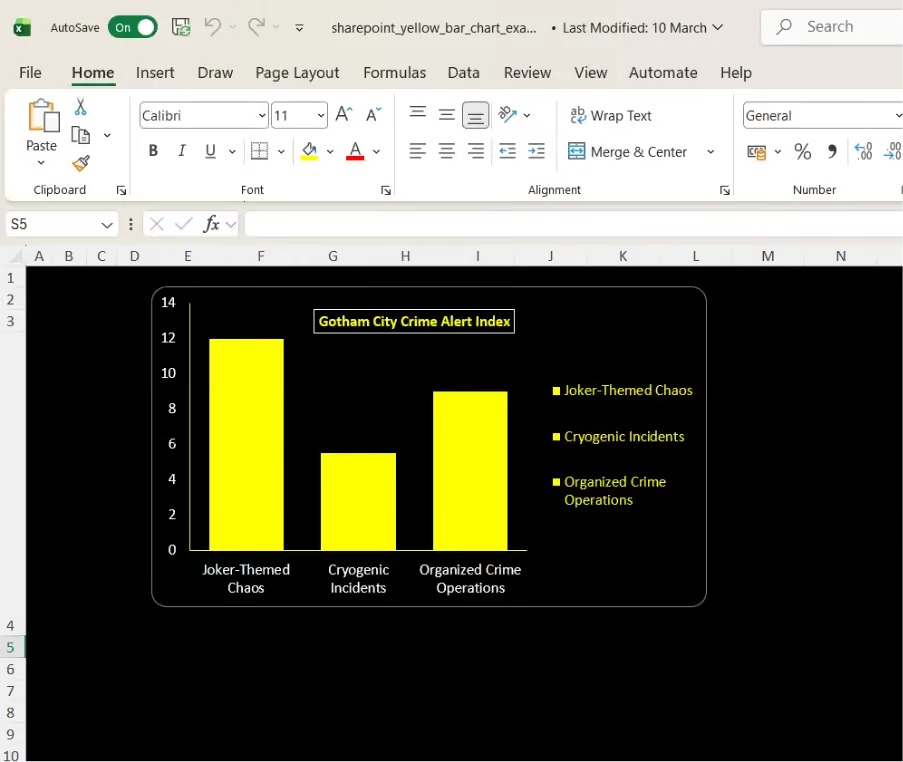
4. Upload the Excel file to the Document Library available in Site Contents.
5. Embed it in SharePoint using the File and Media web part.
6. After embedding the excel need to do configuration
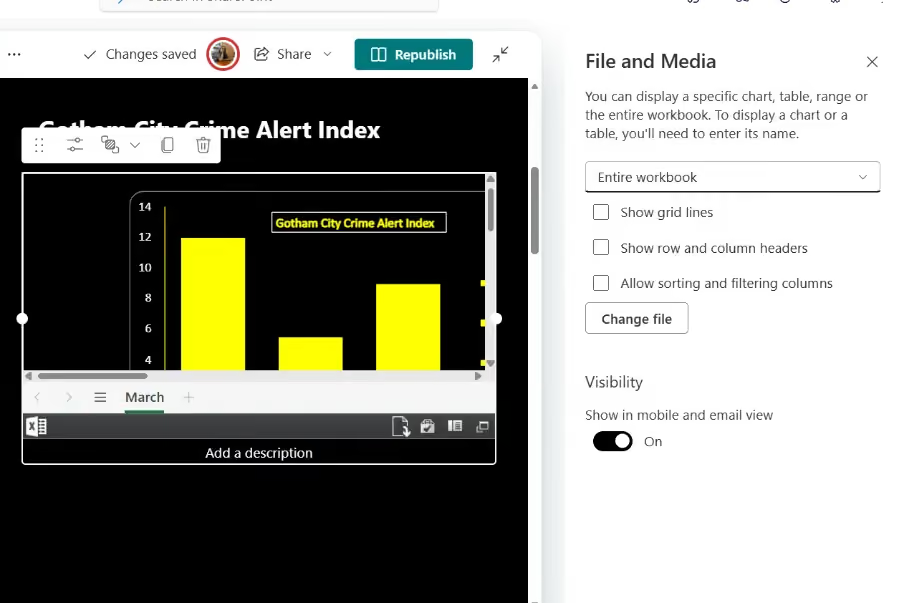
7. Select the “Entire Workbook” option from the dropdown menu to ensure the full chart view is displayed.
8. Uncheck the three available options (Gridlines, Row and column header, Sorting and filtering Columns.) to hide the Excel sheet structure and keep the view clean and presentation friendly.
Using Excel with the File and Media web part enables complete customization of chart design, making it a practical alternative to the limited styling options of the Quick Chart web part.
Why This Approach is Effective
This method addresses the inherent limitations of the Quick Chart web part while avoiding the complexity of custom development. It is particularly beneficial for:
- Business users who require quick customization
- Organizations avoiding SPFx or custom code
- Teams building visually consistent intranet pages
If you are looking to enhance your SharePoint experience beyond default capabilities:
We help organizations design and implement modern SharePoint solutions, including:
- Custom web parts using SPFx
- Branded intranet experiences
- Advanced dashboards and visual components
Contact us to explore how your SharePoint environment can be transformed into a more engaging and functional digital workplace.

Overcoming SharePoint Quick Chart Color Limitations Using an Out-of-the-Box Approach
Is it possible to change the blue colour of SharePoint quick chart without any code change? yes, using a simple OOTB workaround.

Introduction to SharePoint Consulting Companies
SharePoint consulting companies help organizations design, implement, and optimize Microsoft SharePoint environments. Their expertise covers modern intranet development, document management systems, workflow automation, and Microsoft 365 integrations.
For busy business leaders and IT teams, working with a SharePoint consultant ensures:
- Faster intranet deployment
- Reduced development costs
- Improved employee experience
- Scalable digital workplace solutions
The right consulting partner can transform SharePoint from a simple document repository into a powerful digital workplace platform.
What Do SharePoint Consulting Companies Actually Do?
SharePoint consulting firms provide specialized services to help organizations maximize their Microsoft ecosystem investments.
Core Services
1. Sharepoint Intranet Development
- Design modern employee portals
- Build communication sites and department hubs
- Improve internal communication and engagement
2. Document Management Systems
- Structured document libraries
- Metadata tagging and search optimization
- Compliance and governance setup
3. Workflow Automation
- Automate approvals and business processes
- Integrate Power Automate workflows
- Reduce manual tasks
4. Microsoft 365 Integration
- Connect SharePoint with Microsoft Teams
- Integrate Power Apps and Power BI
- Build custom employee apps
5. Migration and Modernization
- Upgrade legacy SharePoint environments
- Migrate from file servers or other intranets
- Modernize classic SharePoint portals Related Article: Elevate Your Business with Specialized SharePoint Consultancy Services
Related Article: Elevate Your Business with Specialized SharePoint Consultancy Services
Why Businesses Hire SharePoint Consultants?
Organizations often struggle to build effective intranets using default SharePoint functionality alone.
Here are the most common challenges consultants solve:
- Limited out-of-the-box customization
- Slow intranet development cycles
- Poor employee adoption
- Complex Microsoft 365 integrations
SharePoint consulting firms bring technical expertise, design strategy, and best practices that significantly reduce implementation risk
Top 9 SharePoint Consulting Companies in 2026
Below are some of the most reputable SharePoint consulting firms based on industry expertise, innovation, and client reviews from platforms like Clutch and G2.
1. SharePoint Designs
Best for Modern AI-Powered SharePoint Intranets SharePoint Designs is one of the best SharePoint Intranet consultant specializes in building modern SharePoint intranet experiences that are visually engaging, scalable, and easy to deploy.
The company offers prebuilt AI-assisted SharePoint templates and web parts, enabling organizations to launch intranets much faster than traditional development approaches.
Key Services
- SharePoint intranet consulting
- Prebuilt SharePoint templates and web parts
- AI-assisted intranet solutions
- Employee onboarding portals
- Document management systems
- Microsoft Power Apps integrations
Why Businesses choose Sharepoint Designs
- Faster intranet launch using prebuilt components
- Modern website-like user experience
- AI-driven intranet features
- Cost-effective solutions for SMBs and enterprises
Estimated Pricing
Review Ratings
- Clutch: 4.8 / 5 ⭐
- G2: 4.7 / 5 ⭐
2. Powell Software
Best known for its Powell Intranet platform, which enhances SharePoint with advanced employee experience features.
Highlights
- Strong governance features
- Employee engagement tools
- Deep Microsoft Teams integration
Estimated Pricing
$6 – $12 per user per month
Ratings
- Gartner: 4.3 / 5 ⭐
- G2: 3.9 / 5 ⭐
3. Brainvire
A global IT consulting company offering enterprise SharePoint development and Microsoft ecosystem consulting.
Highlights
- Large enterprise implementations
- SharePoint migrations
- Custom portal development
Estimated Pricing
$20,000 – $100,000 per project
Ratings
- Clutch: 4.8 / 5 ⭐
- TrustPilot: 4.0 / 5 ⭐
4. Techcronus
Provides scalable SharePoint consulting for enterprises across North America and Europe.
Highlights
- Custom SharePoint solutions
- Microsoft 365 consulting
- Enterprise collaboration platforms
Estimated Pricing
$10,000 – $60,000
Ratings
- Clutch: 4.3 / 5 ⭐
- TrustPilot: 3.8 / 5 ⭐
5. Flexsin
Focuses on SharePoint integration and consulting services for organizations looking to streamline operations.
Highlights
- SharePoint migration service
- Microsoft ecosystem integrations
- Managed support services
Estimated Pricing
$8,000 – $40,000
Ratings
- Clutch: 4.3 / 5 ⭐
6. IDS Logic
Specializes in improving operational efficiency through SharePoint automation and collaboration tools.
Highlights
- Workflow automation
- Intranet portals
- SharePoint consulting
Estimated Pricing
$7,000 – $30,000
Ratings
- Clutch: 4.3 / 5 ⭐
- Trust Pilot: 3.7 / 5 ⭐
7. ManekTech
Provides experienced SharePoint developers for businesses requiring dedicated development resources.
Highlights
- Custom SharePoint application
- Microsoft 365 development
- SharePoint migration services
Estimated Pricing
$25 – $50 per hour
Ratings
- Clutch: 4.5 / 5 ⭐
- Trust Index: 3.9 / 5 ⭐
8. Samarpan Infotech
A development-focused SharePoint consulting company known for building custom web parts and portals.
Highlights
- Custom intranet modules
- SharePoint web part development
- Enterprise collaboration systems
Estimated Pricing
$5,000 – $20,000
Ratings
- Clutch: 4.9 / 5 ⭐
9. ScienceSoft
A Microsoft consulting partner providing enterprise-grade SharePoint solutions and digital workplace consulting.
Highlights
- Enterprise intranet architecture
- SharePoint modernization projects
- Microsoft cloud consulting
Estimated Pricing
$30,000 – $150,000+
Ratings
- Clutch: 4.7 / 5 ⭐
- G2: 4.6 / 5 ⭐
How to Choose the Right SharePoint Consultant
Use the following checklist before selecting a consulting partner.
1. Evaluate Intranet Expertise
Look for consultants experienced in modern SharePoint communication sites and employee experience platforms.
2. Review Portfolio
Analyze their previous intranet implementations and case studies.
3. Check Third-Party Reviews
Platforms like Clutch, G2, and GoodFirms provide verified client feedback.
4. Consider Deployment Speed
Companies offering prebuilt templates or frameworks can launch intranets much faster.
5. Compare Pricing Models
Consultants may charge:
- Fixed project pricing
- Hourly consulting fees
- SaaS-style intranet platforms

Related Article: The Complete Guide to Hiring a SharePoint Consultant for Your Business
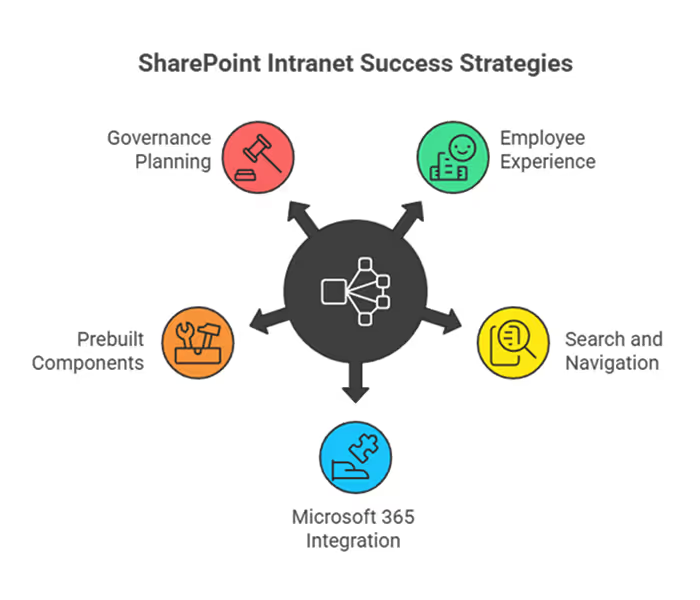
Top Tips for Building a Successful SharePoint Intranet
Follow these best practices to ensure your intranet delivers real value.
1. Prioritize Employee Experience
A modern intranet should be intuitive and visually engaging.
2. Focus on Search and Navigation
Employees must be able to find documents and information quickly.
3. Integrate Microsoft 365 Tools
Combine SharePoint with:
- Microsoft Teams
- Power Apps
- Power Automate
- Power BI
4. Use Prebuilt Components
Prebuilt templates and web parts accelerate development and reduce costs.
5. Plan Governance Early
Define permissions, document structures, and content ownership from the beginning.
Conclusion & Next Step
Choosing the right SharePoint consulting partner is critical for building a successful digital workplace.
The companies listed above offer a range of services from custom enterprise development to fast intranet deployments using prebuilt templates.
If you're planning a modern SharePoint intranet, working with an experienced consultant like SharePoint Designs can help you launch faster while delivering a more engaging employee experience.
Next Step
Explore how modern SharePoint solutions can transform your digital workplace and improve collaboration across your organization.
Top 9 SharePoint Consulting Companies in 2026 (Expert Guide)
Choosing the right SharePoint consulting company helps organizations build modern intranets, automate workflows, and improve collaboration faster.

Most SharePoint intranets don’t fail because SharePoint is bad.
They fail because they’re built without looking at real SharePoint intranet designs that employees love to use.
In almost every organization, the story starts the same way:
“We already have SharePoint, let’s build an intranet.”
Six months later, no one remembers the URL.
Let’s change that by walking through real-world SharePoint intranet sample sites, based on patterns that consistently work across companies.
SharePoint Intranet Homepage Examples (That Employees Return To)
In one company, the intranet homepage looked impressive but useless.
Big banners. Too many links. No idea where to start.
After reviewing modern SharePoint intranet homepage examples, they focused on simplifying the experience.
The new homepage focused on:
- One clear welcome message
- 3–5 key actions employees use daily
- Targeted news instead of company-wide noise
- A visible Microsoft Search bar
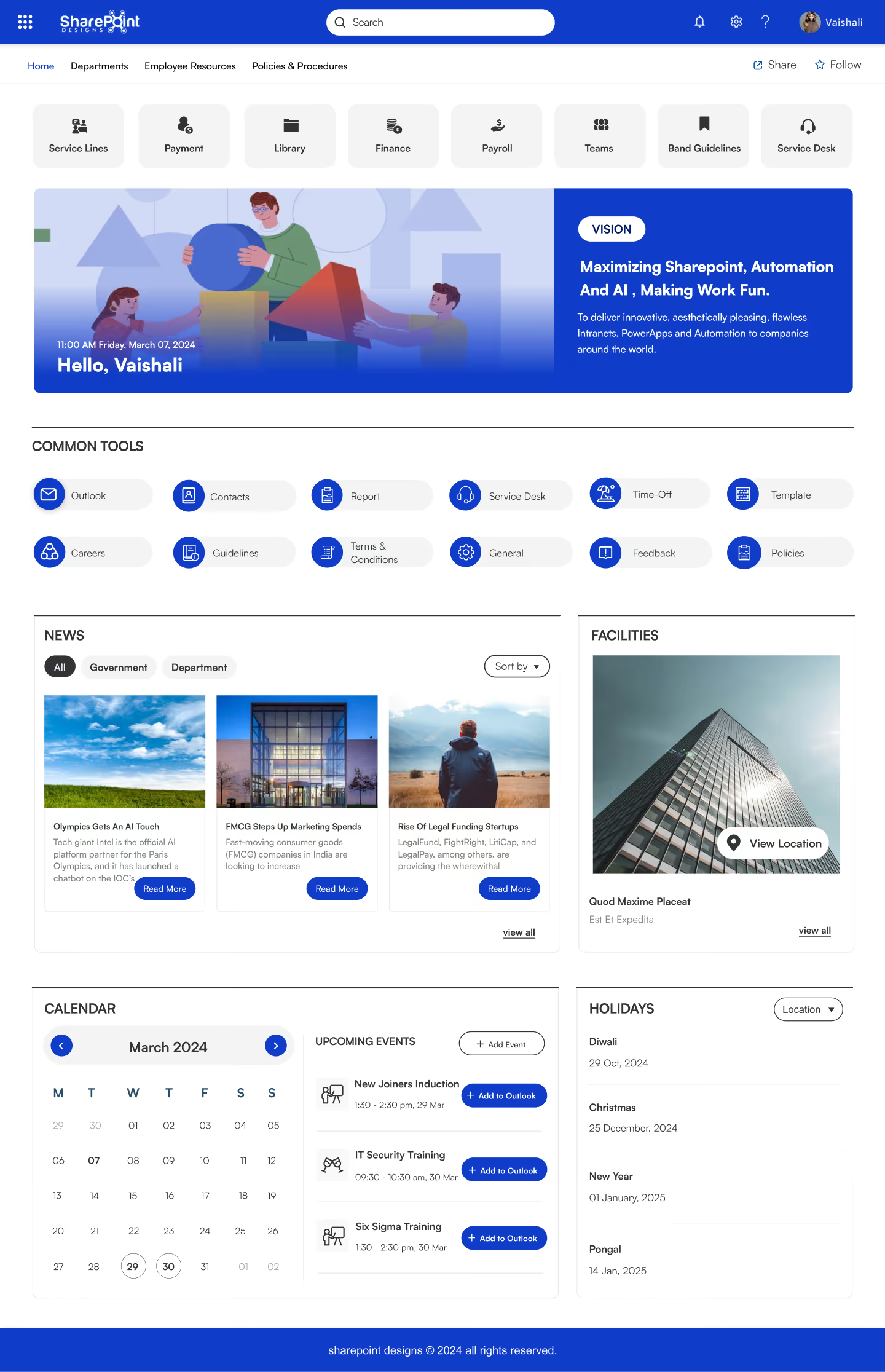
One thing we’ve noticed across multiple intranet redesigns is that clarity almost always beats visual complexity. In similar cases, teams that narrowed their homepage to just a few key actions saw nearly 2× higher repeat visits within the first two months.
Usage didn’t increase because of design.
It increased because the homepage finally answered one question:
“What should I do here?”
The industry line is woven naturally into the benefits rather than being a separate list — keeps it punchy and scan-friendly for ads, landing pages, or brochures. Want me to write this as a Google Ad headline + description set or a landing page hero section?
SharePoint Intranet Homepage Best Practices
SharePoint HR Intranet Template (That Reduce Daily Questions)
HR teams often become accidental support desks.
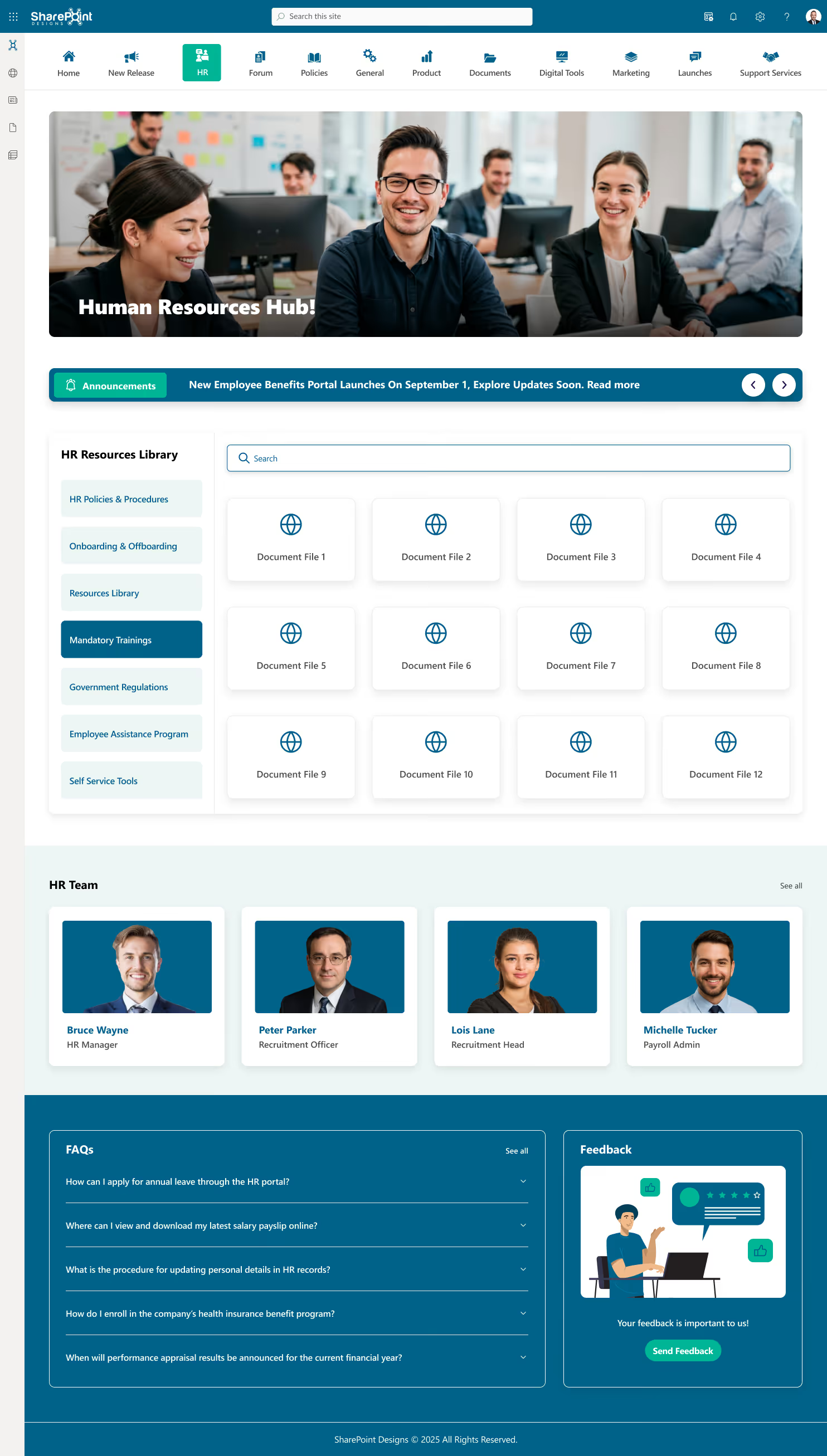
A growing company solved this by implementing one of the most common SharePoint intranet design ideas: an HR portal template.
The HR intranet included:
- Leave policies and benefits explained in plain language
- Onboarding checklists for new hires
- People directory with role and contact details
- FAQs based on real employee questions
Within weeks, repetitive HR emails dropped.
When HR content mirrors real employee language, repeat questions typically decline by 30–45% within the first quarter.
SharePoint Intranet Examples: Real Stories of What Actually Works
Most SharePoint intranets don’t fail because SharePoint is bad. They fail because they’re built without looking at real SharePoint intranet designs that employees love to use.

This question comes up a lot when teams start redesigning their intranet.
What Makes a SharePoint Intranet Feel Like a Website?
If that’s on your mind too, don’t scroll too far, here’s the simple answer.
A website-like SharePoint intranet is built with clean layouts, clear navigation, strong visual hierarchy, and role-based content, so employees can find what they need quickly without training.
One of the biggest misconceptions about SharePoint is that it’s only good for documents. In reality, some of the most website-like experiences inside organizations today are built on SharePoint using modern pages, web parts, and thoughtful layout choices.
Most people don’t complain that SharePoint doesn’t work, they complain that it doesn’t feel right.
“It feels clunky.”
“It looks like a document dump.”
“It doesn’t feel like a real website.”
And yet, many organizations run SharePoint intranets that employees actually enjoy using. They open them daily, trust the content, and instinctively know where to click. The difference isn’t the platform, it’s how SharePoint is designed and structured.
Let’s look at real SharePoint intranet examples that feel like real websites, based on what employees actually see and experience, following the same principles covered in our guide on how to make SharePoint look like a website focusing on layout, navigation, and user intent.
Instead of building an intranet from scratch, explore our professionally designed SharePoint templates used by organizations worldwide.
SharePoint Intranet Examples That Feel Like Real Websites with Use cases
This question comes up a lot when teams start redesigning their intranet.

Building an effective intranet requires more than attractive layouts. Organizations now expect intranets to streamline communication, centralize knowledge, and support hybrid, remote, and frontline employees. SharePoint Online remains one of the most reliable platforms for this purpose, but the true value emerges when companies adopt structured, experience-led SharePoint site templates that ensure consistency and scalability across the digital workplace.
This guide presents the most dependable and effective SharePoint intranet templates, informed by modern UX principles, real organizational needs, and the long-term governance practices essential for a sustainable intranet. The insights below come from practical intranet deployment experience, deep familiarity with Microsoft 365 architecture, and ongoing trends within digital workplace transformation.
Ready-to-Use SharePoint Intranet Templates
Launch a modern SharePoint intranet faster with professionally designed, fully customizable templates.
Explore Templates
Executive Summary
Modern SharePoint templates serve as prebuilt, governance-friendly frameworks that ensure:
- A consistent intranet experience across departments and regions
- Faster deployment cycles without reliance on custom development
- Better content structure, navigation, and findability
- Higher employee engagement due to intuitive design and personalization
- Scalability for enterprise-level intranet growth
This article covers:
- Template types: Site templates vs page templates
- Common intranet challenges templates solve
- Strategic considerations for intranet planning
- Detailed templates aligned to real business scenarios
- Governance and brand structure that maintains long-term intranet quality
The goal is to provide a practical guide for organizations aiming to build a SharePoint intranet that is durable, discoverable, and aligned with organizational goals.
Need inspiration?
See 50+ real SharePoint intranet designs.
Open LookBook
Why SharePoint Templates Matter?
Organizations frequently struggle with intranet adoption because the platform lacks clarity, structure, and consistency. Despite SharePoint’s flexibility, many intranets decline in effectiveness over time due to:
- Unstructured content growth
- Inconsistent page creation
- Limited governance
- Overreliance on IT for updates
- Poor navigation models
- Out-of-date design patterns
Modern SharePoint templates directly address these challenges by offering repeatable, governed structures that reduce content fragmentation and improve navigation. When implemented strategically, templates provide a predictable experience for employees and contribute to measurable improvements in communication, productivity, and compliance.
Understanding SharePoint Templates: Site Templates and Page Templates
A key element of intranet governance is understanding how SharePoint templates function at different levels. SharePoint Site templates establish the overall framework for an intranet area. They define navigation, default pages, branding, and structural rules. These templates are typically used for departmental hubs, HR portals, knowledge centers, or corporate communication sites.
SharePoint Page templates, on the other hand, control how individual pages are laid out. They ensure that news articles, knowledge pages, onboarding content, or landing pages follow a consistent design and information hierarchy. When used together, site and page templates prevent the visual and structural fragmentation that commonly affects growing intranets.
This distinction is often overlooked, yet it is foundational to building an intranet that remains usable as content volume increases.
Out-of-the-Box vs Custom vs Strategic Templates
Organizations usually build SharePoint intranets in three ways: using Microsoft’s out-of-the-box templates, creating a fully custom intranet, or adopting strategic SharePoint templates. Out-of-the-box templates enable quick setups but lack branding, governance, and long-term scalability.
Custom intranets offer full flexibility but come with higher costs, longer timelines, and ongoing dependency on developers.
Strategic SharePoint templates bridge this gap by combining speed, structure, and usability. They provide modern UX, built-in governance, and consistent branding while remaining flexible enough to evolve with business needs. SharePoint supports this approach through its template framework, and SharePoint Designs builds on it by offering user-friendly prebuilt intranet templates that are easy to deploy and designed for long-term adoption.
10 Great SharePoint Site Templates (With Real Use Cases and Strategic Insights)
Building an effective intranet requires more than attractive layouts. Organizations now expect intranets to streamline communication




.svg)





