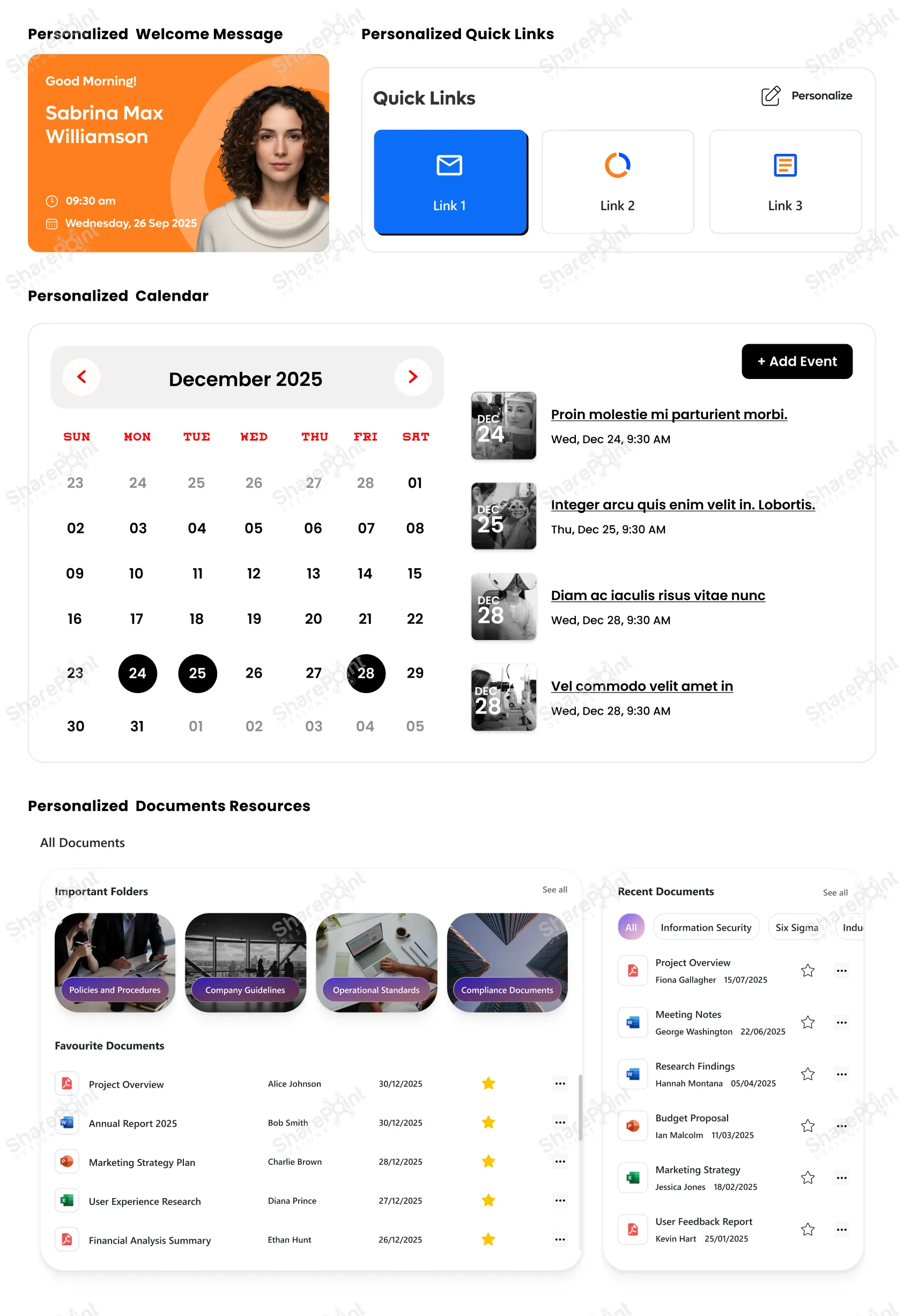
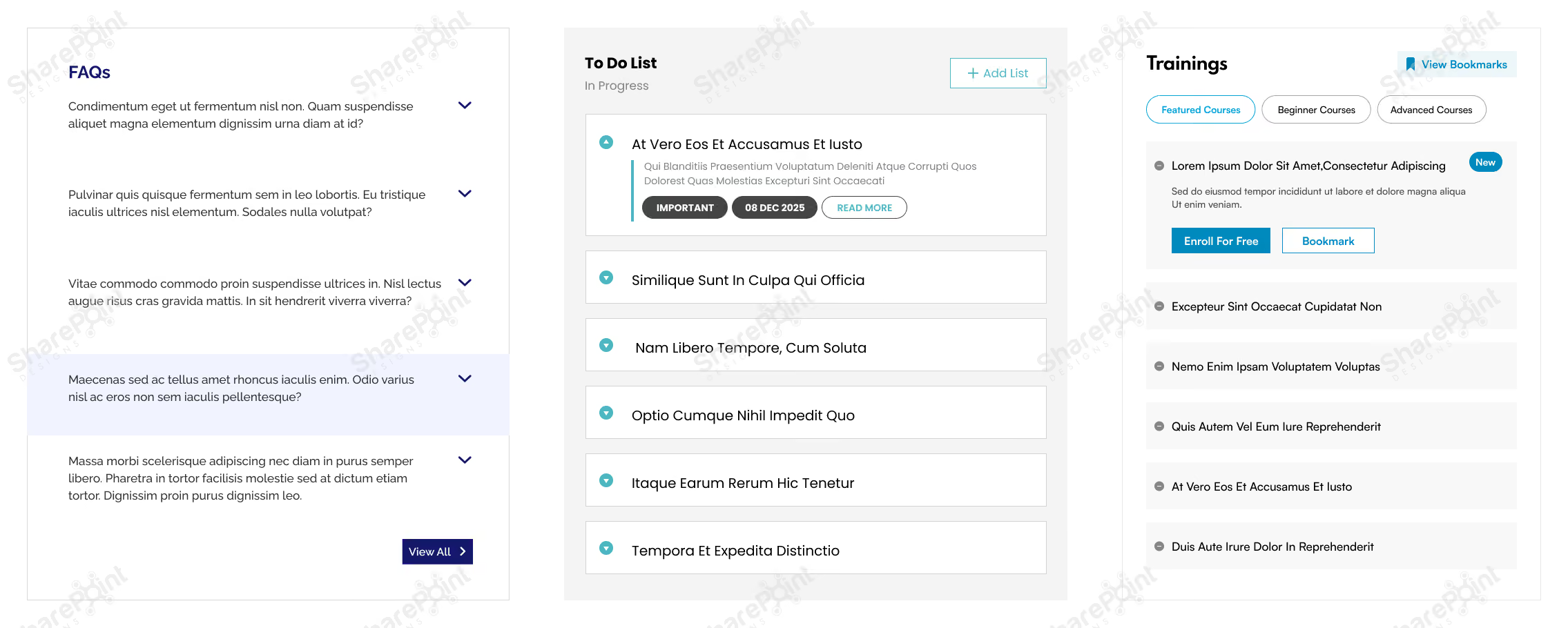
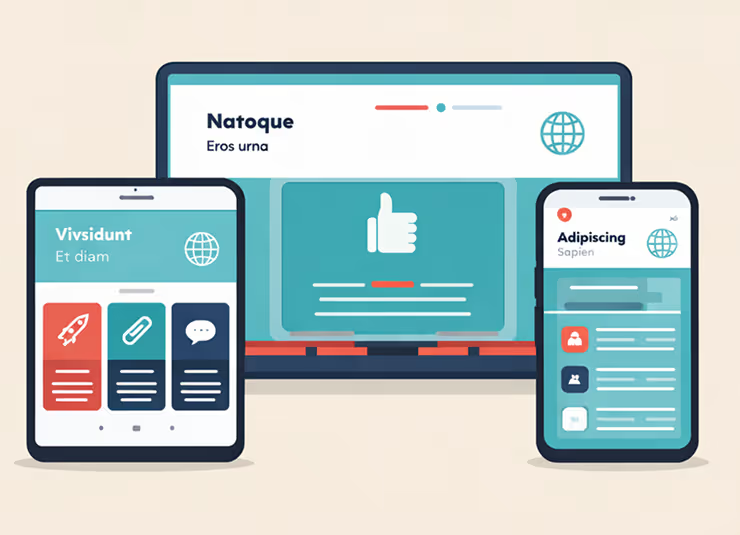
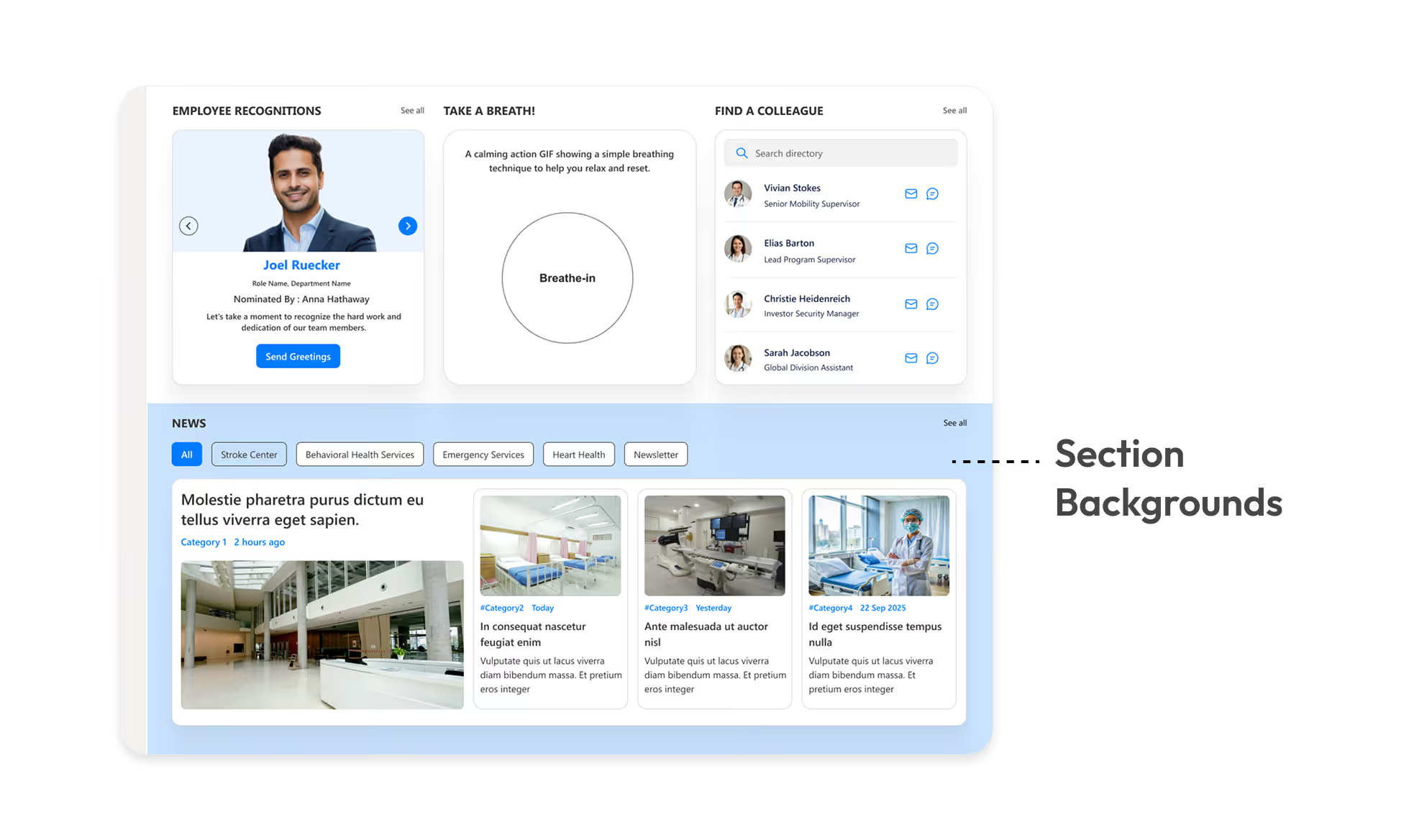
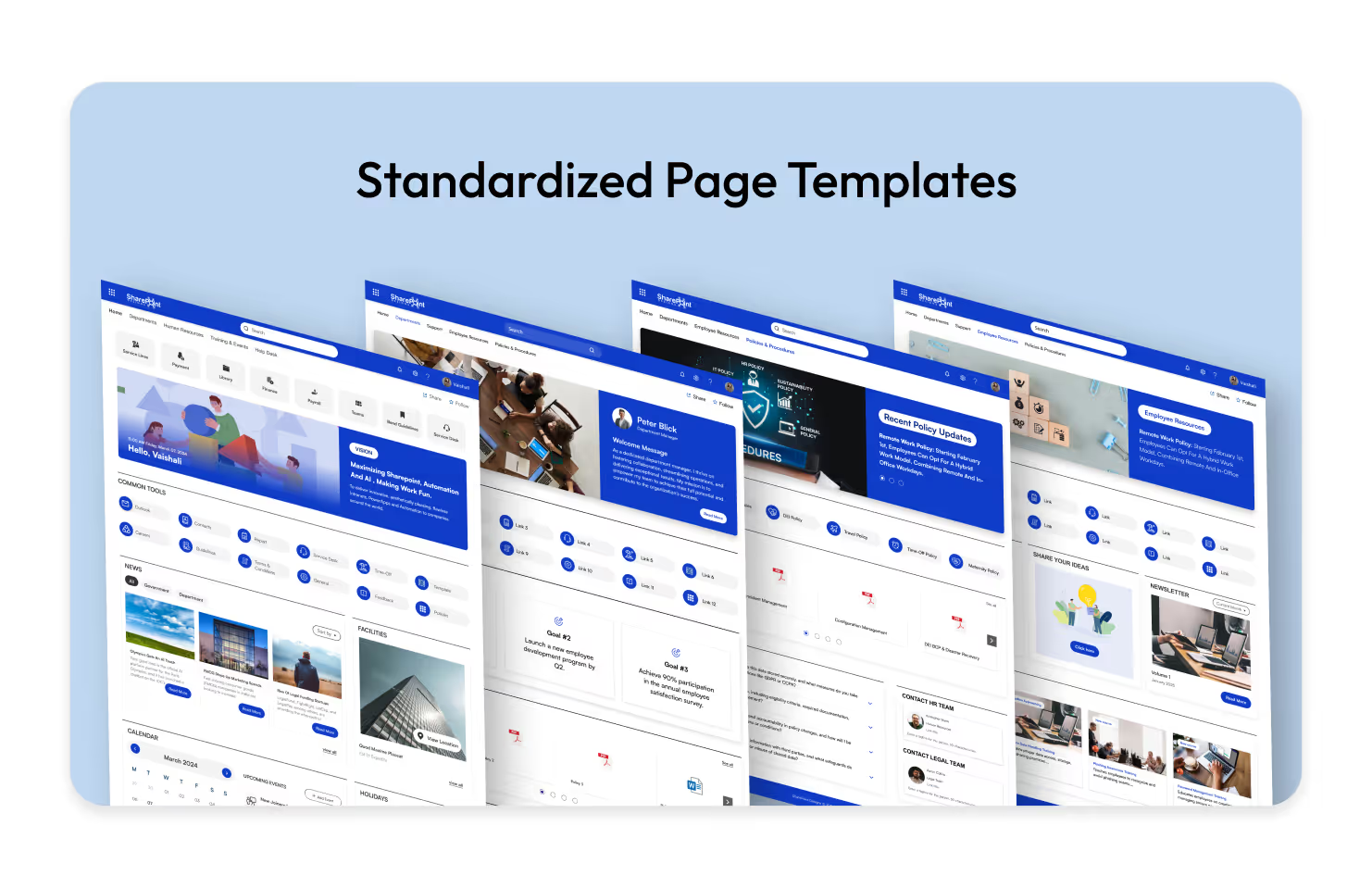
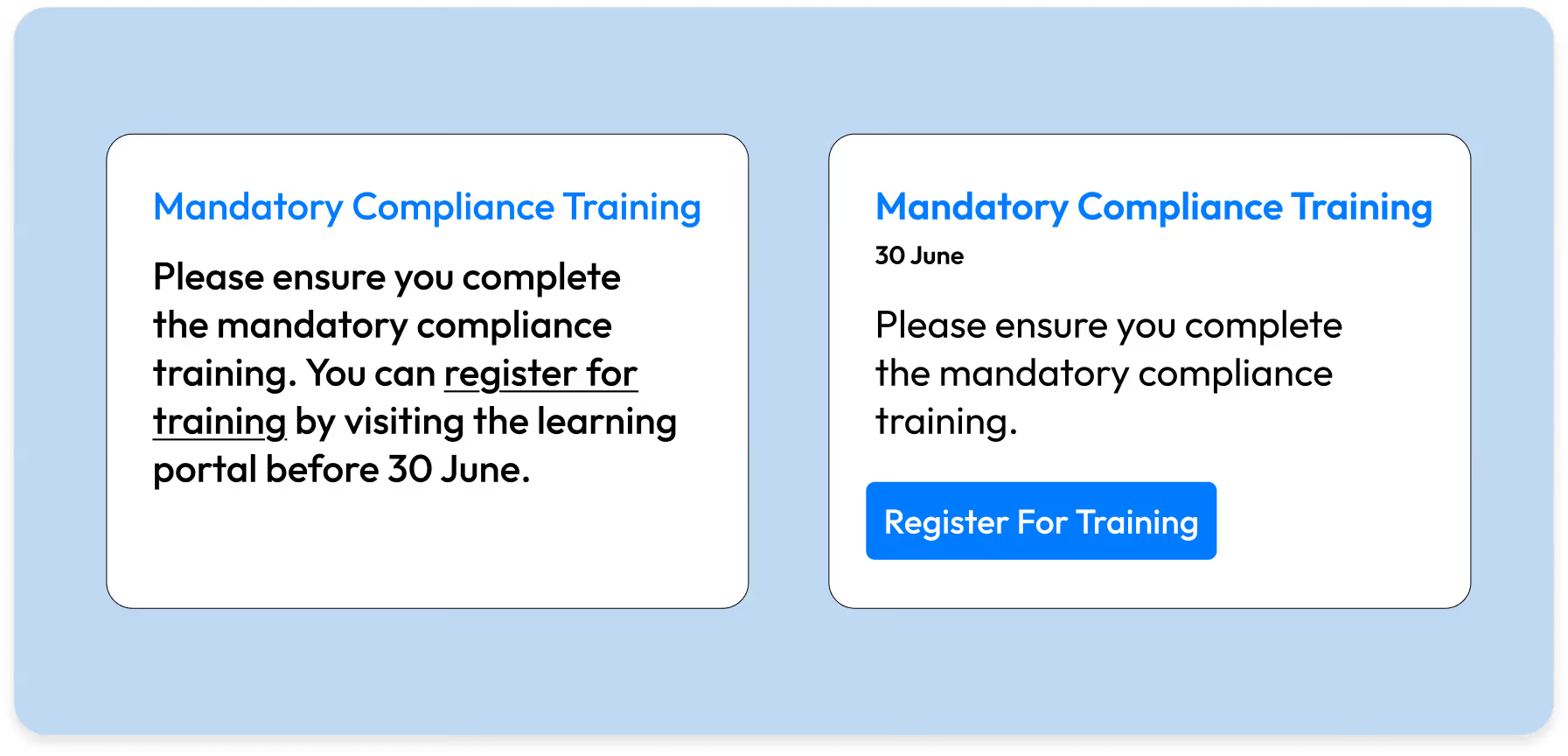
Create your own custom-themed FREE INTRANET DESIGN IN A MINUTE! Try it Yourself!
Do it Yourself Intranet Design

Tech Ideas & Best Practices

SharePoint is a collaboration and document management platform. It is designed to help organizations manage and share information more efficiently. SharePoint helps companies by providing a centralized platform for document management, team collaboration, and communication. With SharePoint Online, businesses can access company data from anywhere, facilitating remote work and improving productivity.

To effectively organize SharePoint sites, start by defining a clear structure and hierarchy. Categorize sites based on teams, projects, or departments, ensuring a logical arrangement. Leverage SharePoint's features like lists, libraries, and metadata to classify and tag content for easy searching and retrieval. Assign site owners who can manage permissions, content, and collaborate with users.

Here are some of the best use cases for SharePoint

  • Intranet Portal
  • Document Management System 
  • Content Management System
  • Custom ERP on SharePoint
  • Project Management tool
  • Knowledge Base - Viva Topics
  • Department and Team sites
  • Forms and workflows 
  • Purchase Request 
  • Internal Newsletter

SharePoint as an Intranet

SharePoint is the ultimate collaboration platform for your organization's intranet, offering a host of customizable features and functions. Think of it as a private network that's accessible only to your team, complete with SharePoint Design Examples to guide you in customizing your own intranet.

SharePoint can be used to share important company information, collaborate on projects, and communicate with one another. With a company directory, training calendar, and tools for task management, SharePoint makes it easy for your team to stay connected and informed.

Using SharePoint, you can customize your intranet to suit your organization's needs. With SharePoint, you can add custom web parts and apps to provide additional functionality, such as event calendars, news feeds, and document libraries.

And with the concept of hub sites, SharePoint makes it easy to connect and organize multiple SharePoint sites in a central location. It is easy to share resources and information between departments or teams when using SharePoint.

With SharePoint, your organization can stay connected and collaborate like never before.

SharePoint as a Document Management System

With a central document library and built-in document workflows, SharePoint makes it easy to store, find, and share content. Organizing SharePoint sites is crucial for efficient collaboration. Start by creating a clear site structure, organizing documents into libraries, and setting up appropriate permissions for different teams.

When using SharePoint, encourage proper document management by utilizing version control, check-in/check-out, and document approval workflows.

Track and collaborate on processes directly from your Office desktop programs - SharePoint allows you to protect sensitive documents and ensure that only authorized users have access to them by controlling access at any level.

And with Document IDs, every document can be made unique and easily retrievable. All documents can be tagged with metadata, making it easy to find what you need.

With SharePoint, you can streamline your organization's document management process and improve efficiency.

Content Management System

SharePoint is the best platform for creating a robust intranet that enhances employee engagement and supports a digital workplace. With SharePoint Online, you can easily build and manage an intranet site tailored to your organization's needs. Utilizing SharePoint team sites is a perfect example of how to collaborate effectively within a team, share documents, and coordinate tasks.

If you're looking to boost collaboration and streamline content management within your organization, then SharePoint is the perfect solution. This powerful platform makes it easy for your team to work together on documents, media assets, and web content in real time, with the bonus of version control to ensure that everyone is always working with the most up-to-date information.

But that's not all - SharePoint also integrates seamlessly with OneDrive and Microsoft 365, so you can share and access information across different platforms.

As an administrator, you'll have complete control over who has access to which content, ensuring that the right people have the right information at the right time. With SharePoint, you'll be able to take your team’s collaboration and content management to the next level.

Custom ERP on SharePoint

If you’re looking to streamline your business operations and improve efficiency, look no further than SharePoint. As a flexible platform, SharePoint can be used to build custom Enterprise Resource Planning (ERP) systems that help manage day-to-day business activities such as procurement, project management, risk management, compliance, and operations.

With SharePoint, you can easily integrate your ERP system with other business processes and third-party applications, thanks to its seamless integration with Office 365 and OneDrive.

Additionally, SharePoint has robust security and permission controls, ensuring that sensitive information is kept safe and secure.

With SharePoint as your ERP solution, you'll be able to take control of your business processes and drive your organization to new levels of success.

Project Management Tool

With SharePoint, you can create dedicated project sites that bring together all the relevant documents, tasks, and discussions in one place. SharePoint's task lists allow you to assign tasks to team members and set deadlines, ensuring that everyone stays on track and on schedule. And with Microsoft Teams integration, you can also use Teams as a task management tool, giving your team even more flexibility and visibility into project progress.

By using SharePoint for project management, you'll be able to increase collaboration and efficiency, helping your team deliver better results.

SharePoint as a Knowledge Base

SharePoint is a powerful knowledge management platform that makes it easy for your organization to access and share critical information. With a document repository, everyone in your company has access to the knowledge base. They can use keyword searches to find the information they need quickly and easily.

In addition to providing convenient access to information, SharePoint also offers advanced features like version control and permissions management, which allow you to efficiently manage your knowledge base and ensure that your team has access to the most up-to-date resources.

To work with SharePoint effectively, provide comprehensive user training and promote best practices for site navigation and content creation. Consider utilizing SharePoint hub sites to aggregate and connect existing team sites, fostering better collaboration and information sharing across departments.

Whether you're looking to design useful resources for your employees or simply want to streamline the way your team accesses and shares knowledge, SharePoint is the perfect solution to work efficiently on SharePoint, familiarize yourself with its features like document libraries, lists, and workflows. Project SharePoint site examples demonstrate its effectiveness in managing projects, facilitating communication, and tracking progress. SharePoint also excels in case management, providing a centralized hub for organizing and resolving cases. Modern SharePoint intranet examples showcase visually appealing and user-friendly interfaces that improve information dissemination and collaboration on the intranet homepage.

Department Sites and Team Sites

SharePoint offers two types of sites that can help your organization stay connected and organized: department sites and team sites.

Department sites are specifically designed and managed by a department within your organization, and can be customized to meet the specific needs of that department. With features like search, news feeds, calendars, and lists, department sites are a great way for multiple departments to share and manage information.

Team sites, on the other hand, are more focused on collaboration within a specific team. These sites allow members of a team to share and manage documents, resources, and other information in a single, central location. With SharePoint team sites, your team can stay connected and organized, no matter where you are.

Overall, the main difference between department sites and team sites is their scope. Department sites are accessible to multiple departments within an organization, while team sites are only accessible to the members of a specific team. Whether you need a broad-based solution for multiple departments or a more focused solution for a specific team, SharePoint has it all.

Forms and Workflows

Are you tired of manually managing your business processes and wasting valuable time on tedious tasks? With SharePoint, you can streamline your workflows and increase productivity with the help of powerful tools like PowerApps and Microsoft InfoPath.

Creating forms and initiating workflow processes has never been easier, and SharePoint's built-in workflows can help manage common business processes with ease. Plus, you can create custom workflows to meet your specific needs and improve collaboration between team members.

Imagine being able to collect and track data seamlessly, streamlining your processes and freeing up more time to focus on what matters. With SharePoint's workflow capabilities, all these possibilities can be a reality.

Purchase Request

If you want to streamline and manage your organization's purchase request process, SharePoint has got you covered. With SharePoint, you can design customizable purchase request forms and store them in a central location that is easily accessible by multiple users. This makes it easy for teams to work together on purchase requests, improving collaboration and efficiency.

What’s more, you can customize your purchase request forms to include any additional information that you need, ensuring that you have all the relevant details on hand. With SharePoint's powerful purchase request management capabilities, you'll be able to streamline your process and make informed purchasing decisions, helping your organization succeed.

Internal Newsletter

SharePoint's internal newsletter web part is the perfect solution for keeping your employees informed and up to date. With just a few clicks, you can add this web part to your SharePoint site and start sharing relevant news, updates, and other important information with your team.

Also, you can customize the newsletter web part to display the articles or links that you want, making it easy to highlight the most important information. And with the ability to match the branding of your SharePoint site, you can ensure that your newsletters are consistent with your organization's visual identity. Keep your team in the loop with SharePoint's internal newsletter web part.

Conclusion

To work with SharePoint effectively, familiarize yourself with its features like document versioning, metadata, and search capabilities. It's essential to handle sensitive corporate data securely by implementing data loss prevention policies, encryption, and access controls. SharePoint is a versatile solution for managing and safeguarding valuable company information.

Contact us today, if you would like a free demo to know more about the various ways SharePoint can help your company.

sharepoint-usecase

Top 10 Best Use Cases for SharePoint

December 30, 2022

SharePoint is a collaboration and document management platform. It is designed to help organizations manage

Shantha Kumar
Shantha Kumar

If creating power apps app has always been on your mind but you didn't know where to start, then you have come to the right place. Power Apps is a versatile platform that empowers users to create mobile and web apps with ease. One of the great starting point is Free SharePoint templates. Whether you need a mobile app for on-the-go productivity or a web app for broader accessibility, Power Apps and SharePoint have got you covered.

In this blog you can learn how to create an app from free PowerApps templates, a blank canvas, and a data source. We will focus on canvas apps, which give you the flexibility to arrange the user experience and interface the way that you want it.

What is Power Apps?

Power Apps, part of the Microsoft Power Platform, allows you to build three types of apps:

  • Canvas Apps: Highly flexible, drag-and-drop design for both mobile and desktop.
  • Model-Driven Apps: Component-based apps with dashboards, forms, views, and charts.
  • Portal Apps: External-facing apps for customers, partners, or vendors.

Creating power apps mobile app becomes a seamless process. Its intuitive interface allows users to design custom mobile apps tailored to their specific needs. You can get started in many different ways; however, for all of the options, you will use the Power Apps Studio features and functionality to build your app.

1. Create an App from a Template

A quick way to learn Power Apps is to start with templates. Templates come with sample data, letting you explore functionality and design before building your own.

Popular Power Apps Templates: (H4)

1. Budget Tracker Template

For example, you can use PowerApps budget tracker template to create an app that helps you track the budget for projects and events with custom categories, simple data entry, and visuals that highlight expenditures for an effortless inspection.

2. Issue Tracker Template

PowerApps issue tracker template to keep track of different issues, assign owners, and update statuses.

3. Knowledge Base Template

Centralize policies, troubleshooting guides, and training content. Optimized for mobile, so your team can access knowledge anytime, anywhere. Equip your team with the tools to find the information they need quickly and effectively. Embrace the future of workplace learning with our Power Apps Knowledge Base Template.  

2. Create an App from a Data Source

Another great option is to build directly from your own data. Power Apps connect seamlessly to multiple data sources, including:

  • Microsoft SharePoint lists
  • Dataverse (formerly CDS)
  • SQL, Excel, and many others

When you point Power Apps at a data source, it automatically generates a three-screen app that lets you:

  • Browse records
  • View item details
  • Create, edit, or delete records

Power Apps + SharePoint Lists

SharePoint lists and Power Apps integrate tightly. You can:

  • Build an app directly from a SharePoint site
  • Customize modern list forms inside Power Apps

Read our guide: How to Build a Power Apps App from a SharePoint List

3. Build from a Blank Canvas

If you want complete creative control, you can start from scratch with a blank canvas. This option lets you:

  • Add screens, forms, and layouts as you go
  • Design custom user experiences
  • Use connectors to link to multiple data sources

Think of this as freeform app creation perfect if you have a unique use case or want to experiment.

4. Explore Model-Driven Apps

For more structured, data-first applications, Power Apps offers Model-Driven Apps. These are ideal when you need:

  • Dashboards with real-time insights
  • Predefined business rules
  • Components like charts, forms, and workflows

Examples of sample project templates in Power Platform include:

  • Asset Checkout
  • Innovation Challenge
  • Fundraise

Why Power Apps is a Game-Changer

Power Apps isn’t just about making apps. it’s about transforming business productivity.

  • No-code/low-code design - Empower non-developers to build solutions.
  • Integration-ready - Works seamlessly with SharePoint, Teams, Office 365, and 400+ connectors.
  • Mobile-friendly - Apps run smoothly across desktop, tablet, and mobile devices.

Final Thoughts

Whether you’re:

  • Starting with a template,
  • Connecting to a data source, or
  • Designing from a blank canvas

Power Apps make custom app development simple and accessible.

For organizations using SharePoint, it’s an especially powerful way to turn lists and processes into mobile-first, automated solutions.

ways-build-power-apps

Ways to Build Power Apps: A Beginner’s Guide

October 27, 2022

If creating a Power Apps application has always been on your mind but you didn’t know where to start, you’ve come to the right place.

Johnsi Jayasingh
Johnsi Jayasingh

Article Header

Microsoft VIVA As An Intranet is a Microsoft Teams based application that allows users to view company wide news, join conversations and be connected with everyone with any device.

Create a culture of connections

With VIVA as Intra-net, you can easily allow everyone to collaborate with colleagues across your organization without having to send files back and forth via email. You can also encourage meaningful connections that allows to join a discussion, mentorship within the group.

Collaborate Easily with Team Members from Anywhere

In addition to being able to share documents and other files, you can also quickly connect with team members using chat, voice calls, and instant messaging. This makes it easier to work together and stay connected throughout the day.

Stay Connected with Mobile Devices

With mobile devices becoming more popular, it’s no surprise that people are increasingly relying on them for communication. According to a recent study by Cisco Systems, nearly half (47 percent) of employees surveyed said they used smartphones at least once per week for business purposes. And while some companies still rely on traditional methods of communication, such as email, others are embracing newer technologies, such as social media and mobile apps, to keep up with the times.

Microsoft-VIVA-as-Intra-Net-Is-The-Future-Of-Workplace-Communication

Why Microsoft VIVA as Intra-Net is the Future Of Workplace Communication?

October 3, 2022

Microsoft VIVA As An Intranet is a Microsoft Teams-based application that allows users to view company

Venkatesh Maran
Venkatesh Maran

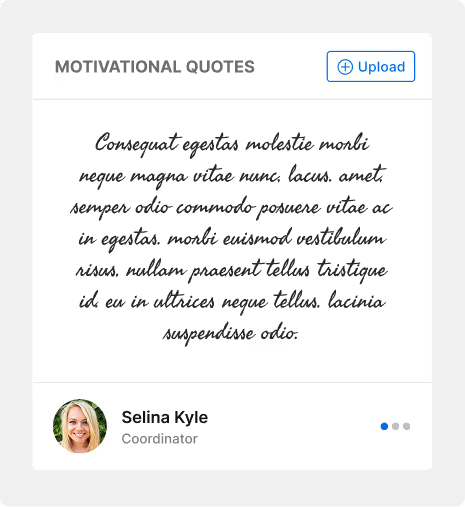
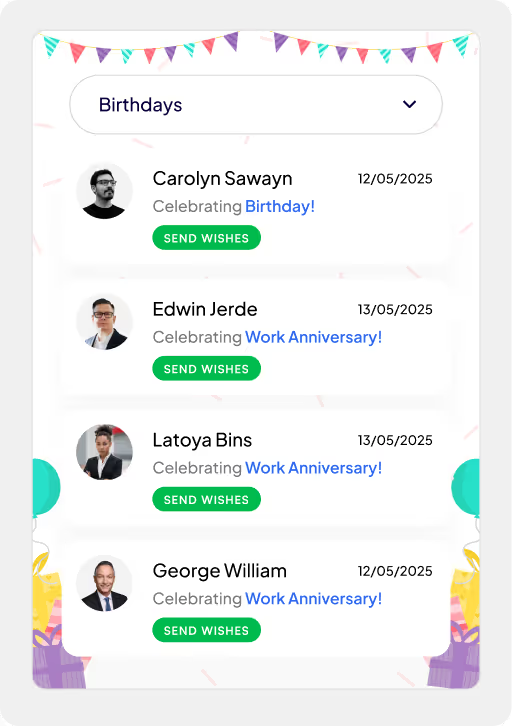
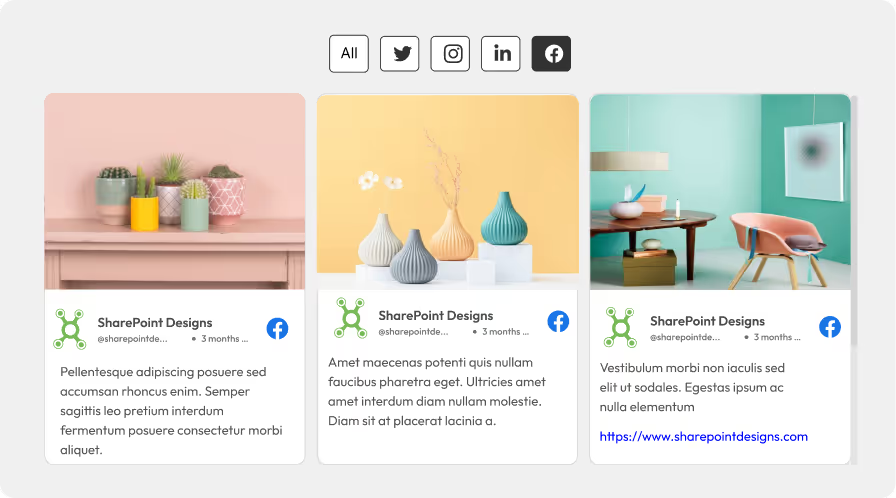
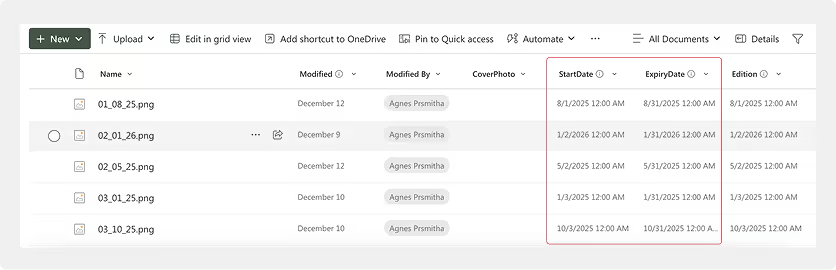
4 Easy-to-Implement SharePoint Design Examples

SharePoint Designs, as the name suggests we are all about creating aesthetically pleasing, innovative, clean and modern designs. We are committed to providing our clients with a world-class experience using our unique designs.

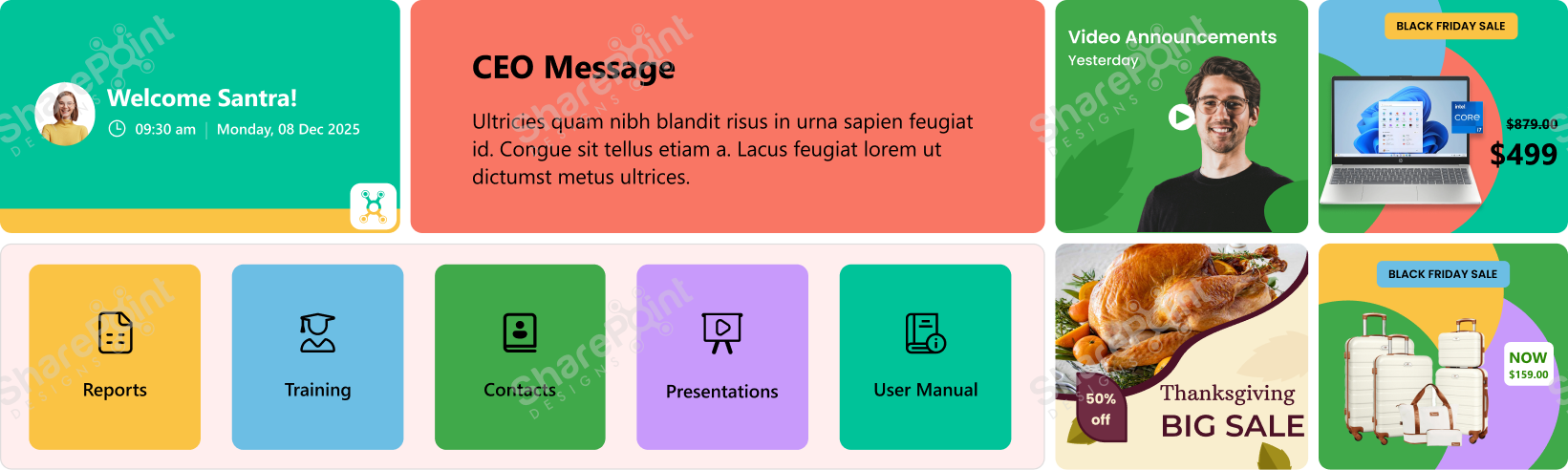
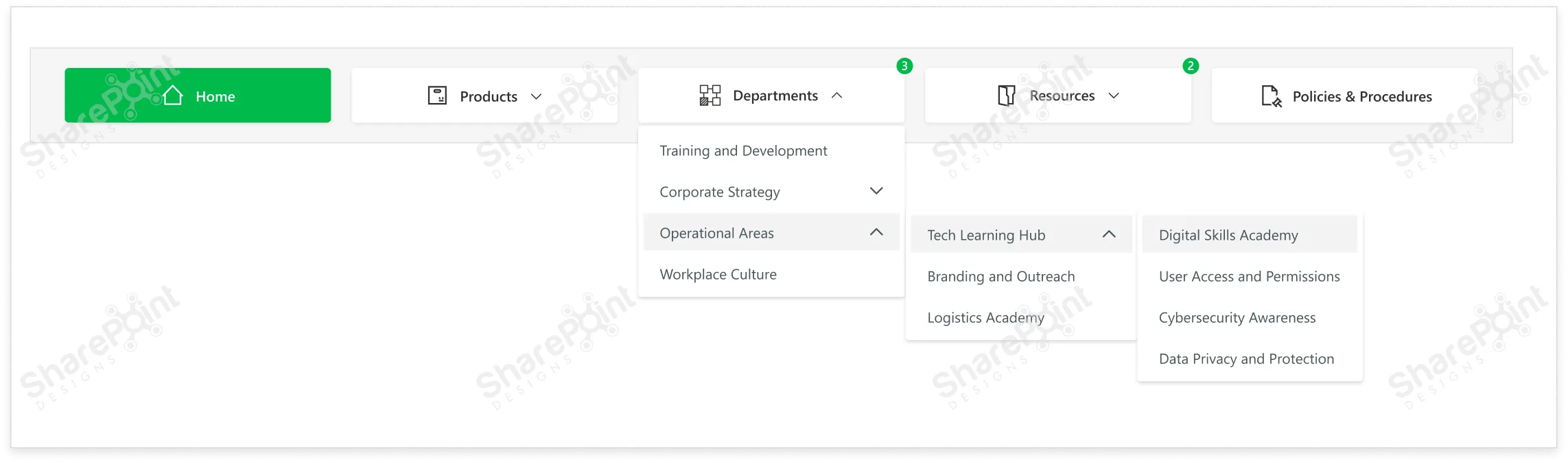
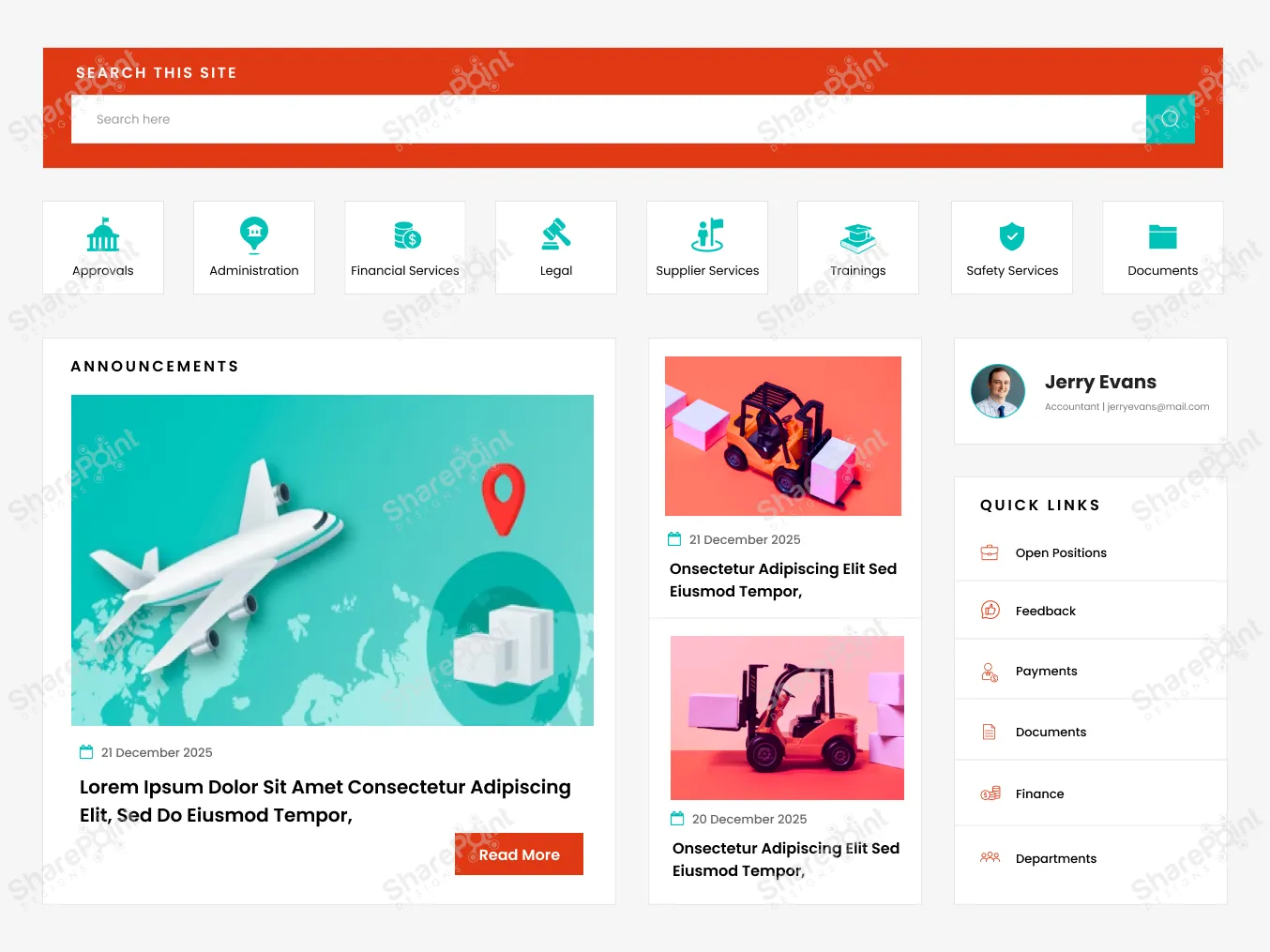
Not all designs have to be complicated and time consuming, some of the designs are very easy to do using the out of the box webparts provided by SharePoint.

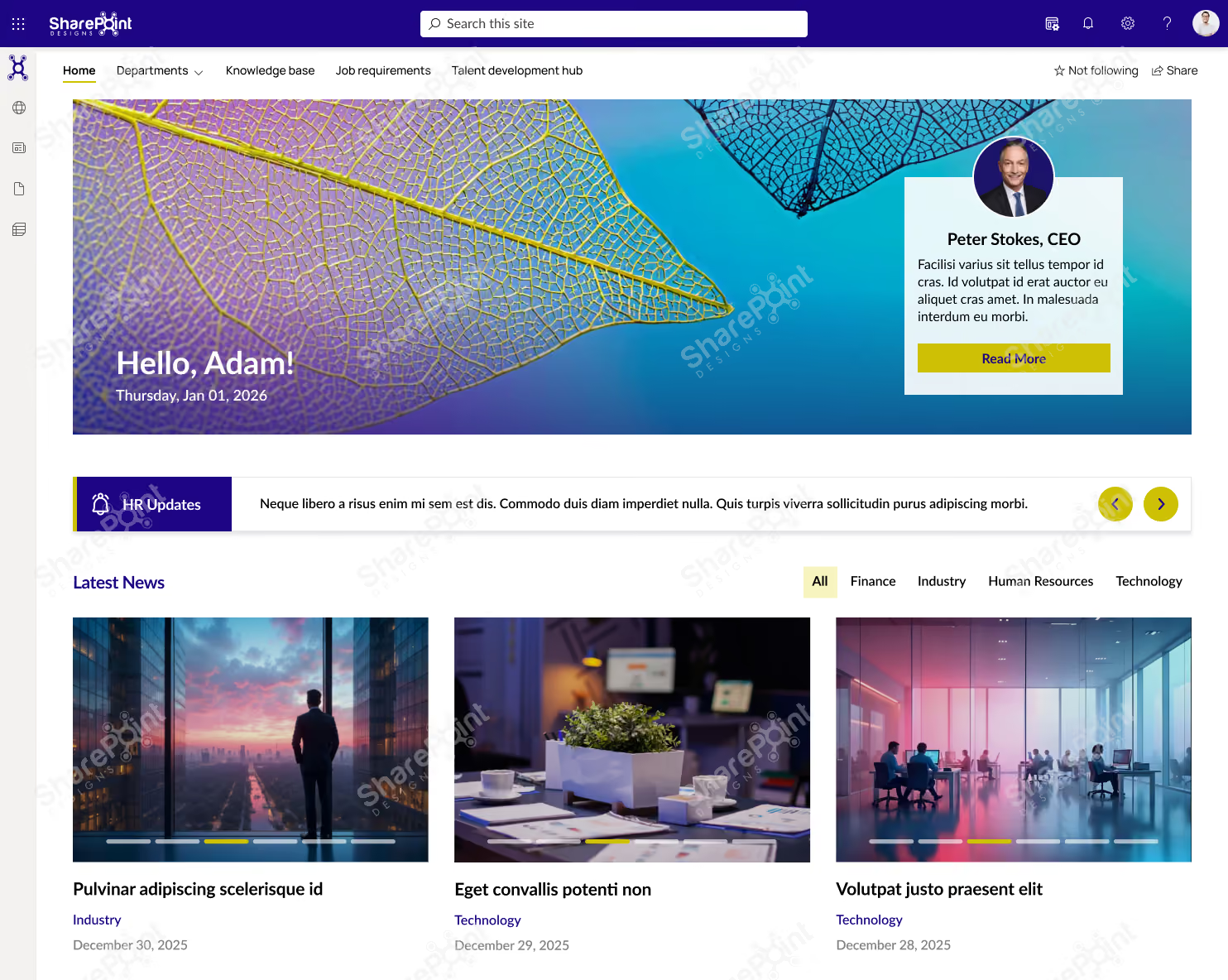
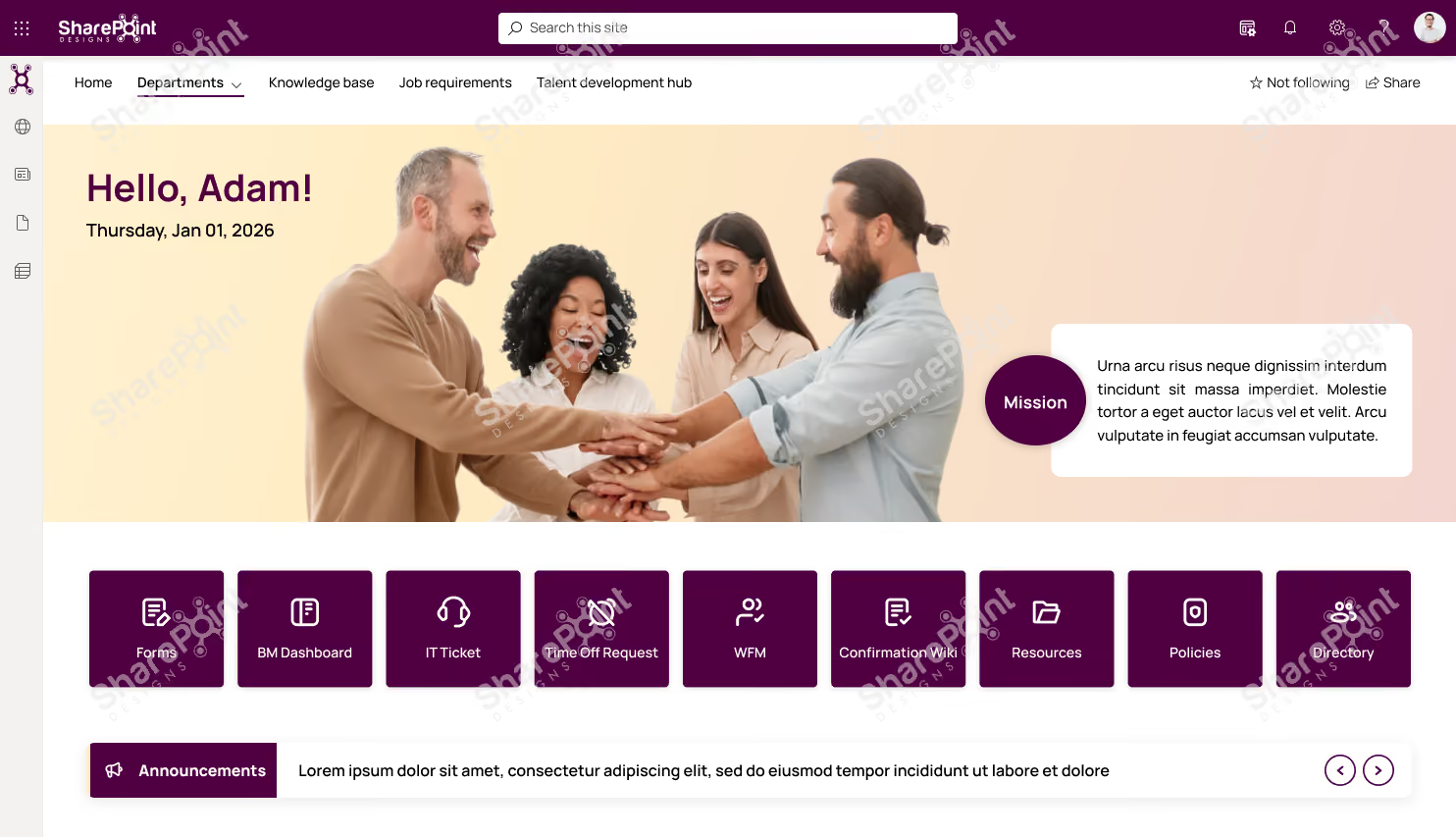
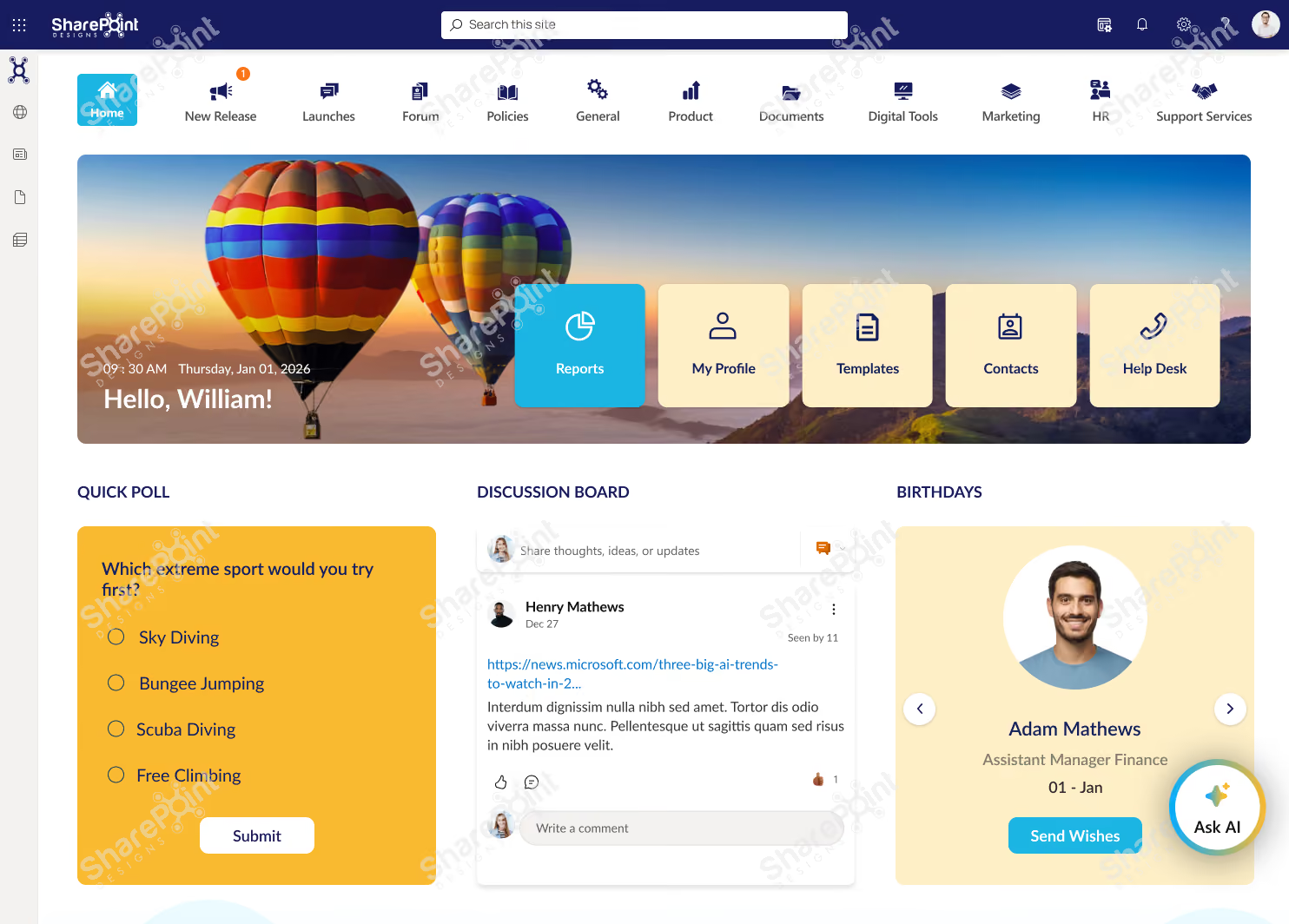
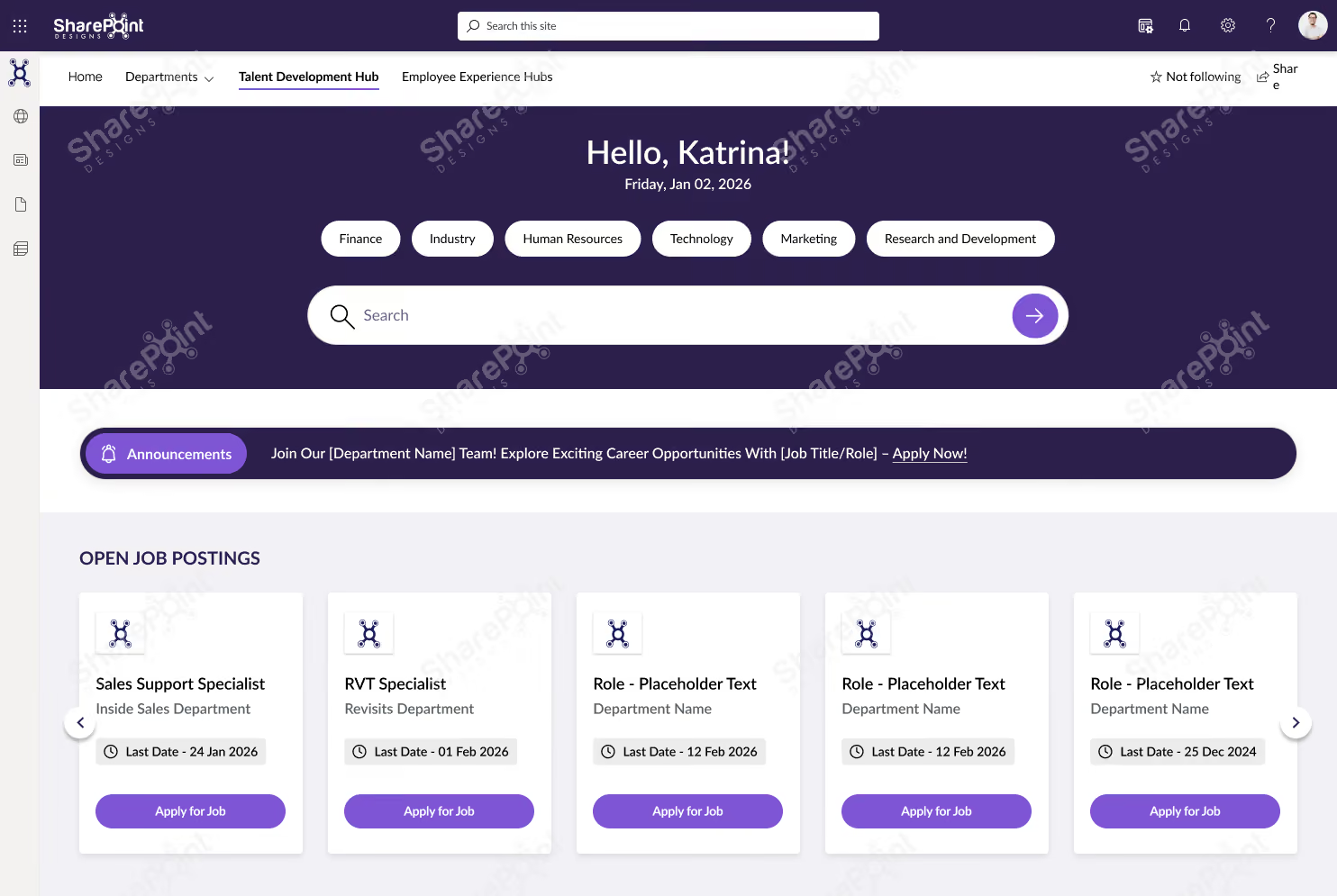
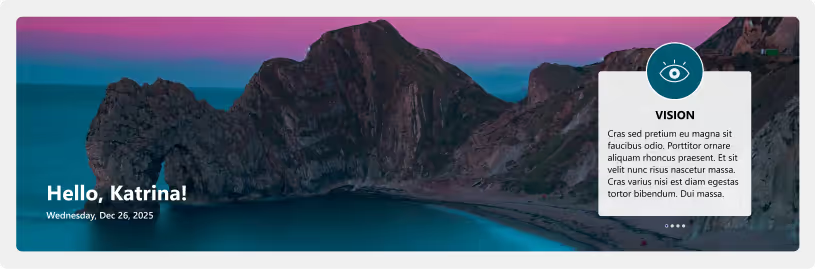
Here we are presenting you 4 Best SharePoint design Examples for free which can be achieved easily with no or very minimal coding knowledge.

SharePoint Design Example 1

sharepoint intranet examples

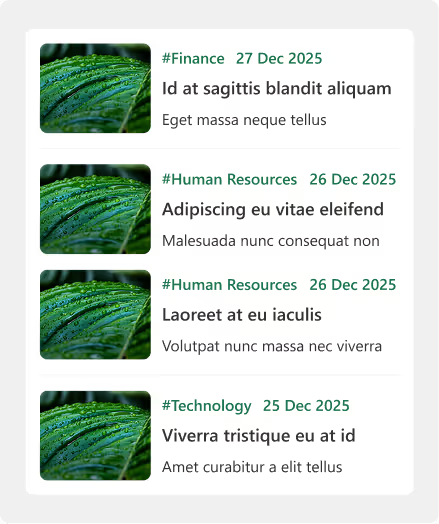
SharePoint Design Example 2

sharepoint intranet examples

SharePoint Design Example 3

sharepoint intranet examples

SharePoint Design Example 4

sharepoint homepage designs
SharePoint-Design-Examples-That-Are-Easy-to-Implement

4 Easy-to-Implement SharePoint Design Examples

September 30, 2022

SharePoint is an enterprise content management system that allows users to create web applications

Johnsi Jayasingh
Johnsi Jayasingh

Power Automate is a cloud-based service that allows users to create automated processes in Microsoft

Create a new flow

You can use Power Automate to automate any process that requires input from a user. This includes creating emails, sending messages, scheduling meetings, and more.

Add a task

Once you add a task, you can choose what type of task you want to create. There are three options available: Create a new email, send an existing email, or schedule a meeting.

Add a webhook

You can also use a webhook to trigger actions when something happens on your website. This allows you to automate things like sending emails, updating a database, or even creating a new document.

Add a trigger

A trigger is a piece of code that tells Power Automate what to do when certain events occur. Triggers are triggered by different events, such as when a user visits a webpage, clicks a button, or submits a form.

Add a workflow

Once you’ve added triggers to your flow, you can add actions to them. Actions are pieces of code that tell Power Automate how to perform a task. You can use actions to automate any process, whether it’s sending out emails, creating reports, or performing other tasks.

5-best-power-automate-flows-to-start-with

5 Power Automate Flows Every Beginner Should Start Using

September 30, 2022

Power Automate is a cloud-based service that allows users to create automated processes in Microsoft

Viknesh Udhayakumar
Viknesh Udhayakumar

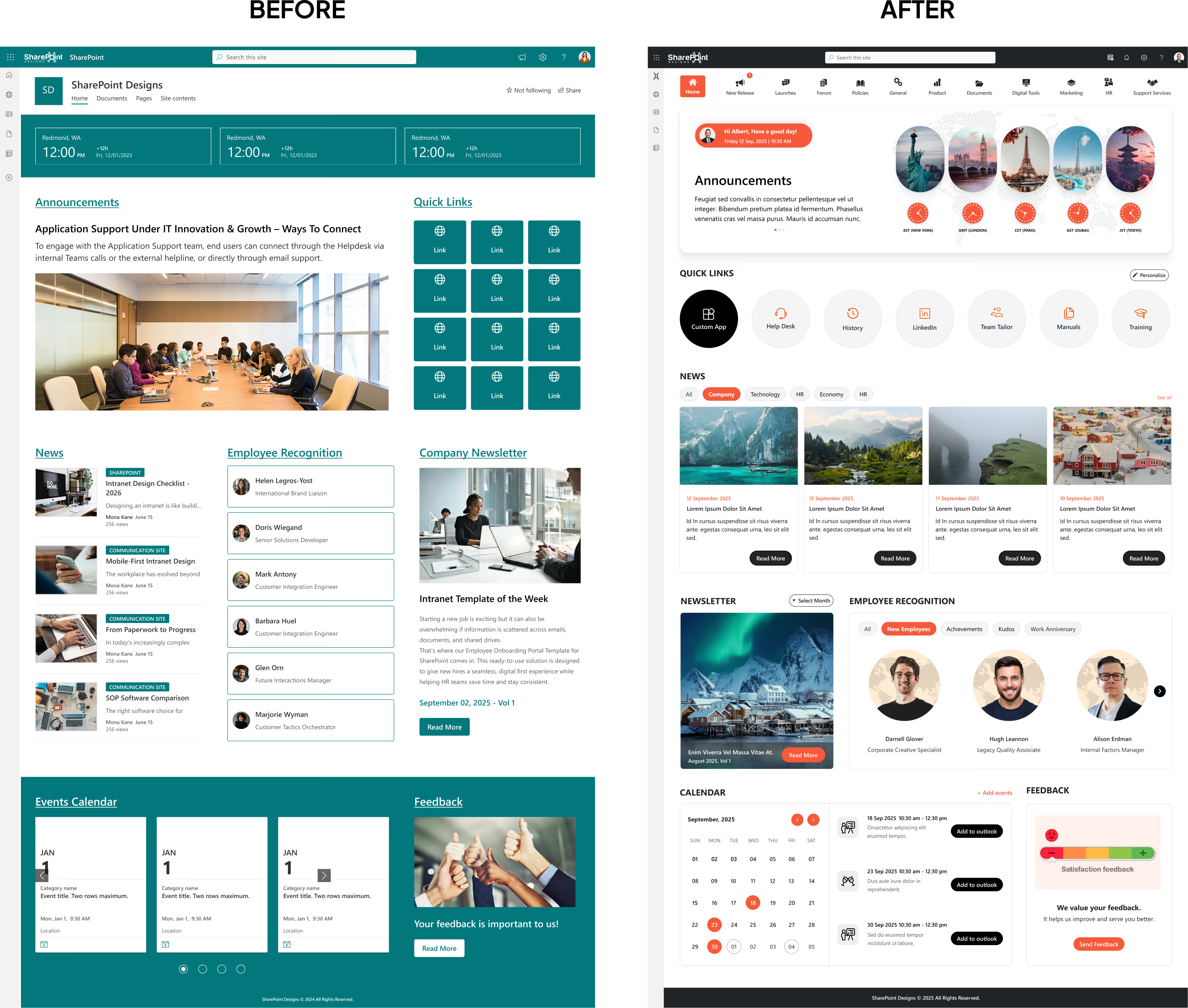
SharePoint is Microsoft's web content management system (CMS). It allows users to easily manage information across an organization's intranet or extranet sites. When it comes to examples of good SharePoint intranet sites, there are plenty of impressive ones to draw inspiration from. In this blog we provide you some samples of our SharePoint Intranet templates that  can be leveraged to create engaging and interactive intranet portals that improve communication, collaboration, and knowledge sharing within organizations. These free designs provide a great starting point for building your intranet site and offer basic functionalities to get you up and running quickly.

If you're looking to buy SharePoint intranet examples, there are numerous options available that can enhance your SharePoint intranet site. These design examples can be easily downloaded and customized to fit your organization's needs. They provide a solid foundation for building a visually appealing and functional intranet site, saving you time and effort in development. These intranet design examples include a variety of features that allow you to customize the look and feel of your site.

A SharePoint Site is a collection of pages, lists, libraries, apps, web parts, configurations, features, content types, and sub-sites. Examples of Site templates in SharePoint include collaboration (team) sites, communication sites, organization sites, wiki sites, blank sites, and publishing sites.

The two main type of SharePoint intranet sites are:

Team Site

A SharePoint team site connects you and your team to shared content and resources. Use team sites to store and collaborate on files or to create and manage lists of information as well as:

  • Track and stay updated on project status
  • Organize and co-author shared content
  • Connect to a Microsoft 365 group to access team resources

Communication Site

A SharePoint communication site is a great place to broadcast information to others. Share news, reports, status updates, and more in a visually appealing format. Use communication sites to engage and inform broad audiences.

  • Create portals, department, or project-specific sites.
  • Share company news, announcements, and events.
  • Engage dozens, or thousands, of viewers.

Here are some of the SharePoint site design examples for free so you can kickstart your SharePoint intranet journey!

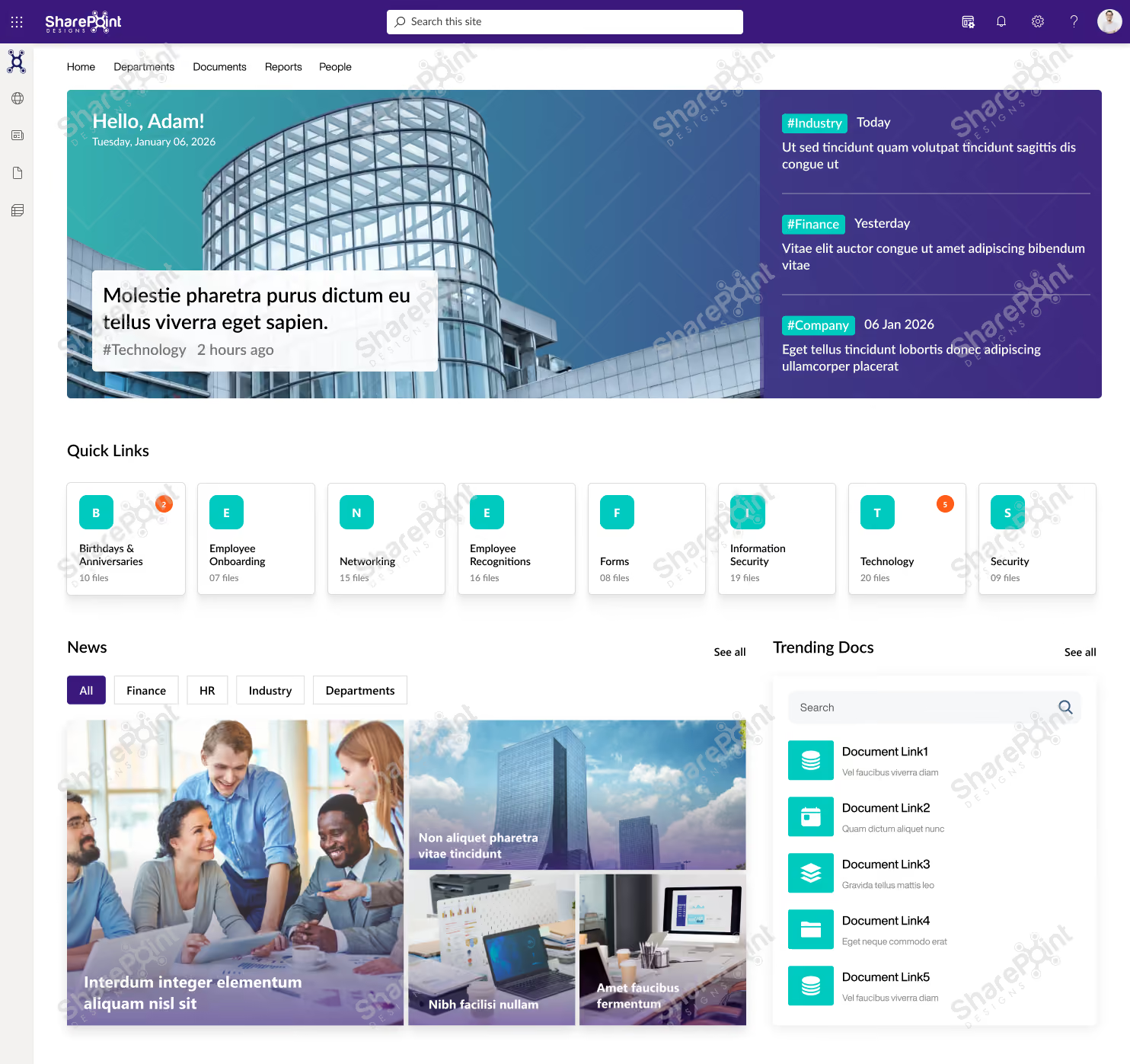
Intranet Home Page Design

Here is a SharePoint design example for a basic intranet site:

SharePoint Intranet Home Page Design

SharePoint Intranet Business Portal Design

A business portal is a website that provides employees with access to company news and services. It can help companies improve productivity by providing employees with easy access to information and tools.

Business Portal SharePoint Intranet Design

SharePoint Intranet Collaboration Portal Design

This SharePoint intranet template includes a  collaboration team site that allows users to share files, collaborate on documents, and communicate online.

 Collaboration Portal SharePoint Intranet Design

Knowledge Base Portal Design

This template includes a knowledge base portal with an easy navigation menu, search box, and categories. It's perfect for any organization that wants to provide its employees with access to company information.

Knowledge Base Portal SharePoint Intranet Design

In conclusion, whether you choose to buy SharePoint templates, download free solutions, or explore Office 365 intranet templates, SharePoint offers a wide range of options to create impressive intranet sites. With its web parts, site templates, and integration capabilities, SharePoint online is a versatile tool that can be tailored to meet your organization's specific requirements. Contact us today so we can explore the best template that can get you started right away. We promise we can deliver a custom intranet site in as early as 2 days!!! So, what are you waiting for?

4-free-sharepoint-examples-to-help-you-launch-your-new-site

Launch Your New Site with These 4 Free SharePoint Examples

September 30, 2022

SharePoint is Microsoft's web content management system (CMS). It allows users to easily manage information

Johnsi Jayasingh
Johnsi Jayasingh

About the Client

Magick Woods Export Pvt. Ltd. is a wholly-owned subsidiary of Magick Woods Ltd., Canada - one of the top manufacturers and pioneers of quality bath vanities and kitchen cabinets. Some of their customers include Home Depot, Lowes, Menards, Rona, and Home Hardware.

Project challenges

  • Lack of a quality check process at the end of the production line to ensure delivery of products that meet world-class standards
  • An ineffective manual tracking system involving QC inspectors - due to the unavailability of a defect identification system
  • No one-stop report repository in place for the management to review the number of open defects and statuses of defects

Our Solution

SharePoint Designs developed a QC form to update the defects in the system instantly. Equipped with a camera feature, the QC Inspector could upload or capture the images of defective items. The data stored in the back-end could be used for further analysis. Furthermore, the form could be easily accessed through handheld devices like mobiles or tabs. Using Power BI, a summarised report of the defects and their status was made available for quick reviews.

Our experience in working with different MS applications like Power Apps, Power Automate, Power BI played a major role in the quick roll-out.

Business Benefits

  • Power to instantly reject defective products and eliminating any of their chances of reaching the end customer
  • Vast reduction of worker hours involved in updating, correcting, and verifying the documents
  • Ability of the QC form to captures the total defects recorded in a day
  • Easy-to-interpret Power BI-based reports that facilitates a smooth management review process
magicwoods-qc-form

Magicwoods – QC Form

August 19, 2022

One of the top manufacturers and pioneers of quality bath vanities and kitchen cabinets. Some of their customers include Home Depot, Lowes, Menards, Rona,

Razia Shafiullah Khan

About the client

Daikin, a global air conditioning manufacturing company, has its employee base spread across countries and was looking for solution to reach the employees in their native language.

Challenges

The Intranet is a connecting tool for employees located across the world. The user-friendly intranet might fail to serve its purpose if it does not have a personal touch with the users.  Giving the option to the users to read the content in the language they prefer, is an added advantage.

Our Solution

We used Azure translation services and configured 7 languages (Japanese, Mandarin, Indonesian, Portuguese, Spanish, Thai, Vietnamese). The translator tool was added as an extension, so the user can translate from anywhere on the site. Entire site contents except attachments are translated. The user is able comprehend the business in their own native language which brings real collaboration among the employees. The discussion board has a separate language option. The users can choose to comment using their preferred language and others can read it using translation tool similar to social networking tools.  

Technologies used

Azure Translation services

daikin-translations

Daikin – Translations

August 19, 2022

A global air conditioning manufacturing company, has its employee base spread across countries and was looking for solutions to reach the employees in their native language

Razia Shafiullah Khan

Intranet, a powerful tool in the modern age helps to stay connected virtually with colleagues across the world. With the right design and content, an organization can use the intranet as an effective tool for communication. It isn’t just sharing news, business information, or management messages. Intranet can do more for business than we all imagine. 

Here, we are elaborating on how Daikin, a global air conditioner manufacturing company uses the intranet as a tool to reach out to its employees. Daikin approached SharePoint Designs to redesign its intranet into an informational and engaging one. 

The Home Page Contents  

As we always say, we love to design SharePoint sites. Our very creative design team came up with multiple design ideas to keep the Intranet home page informative and lively. Here are the contents on the Home Page 

  • Unique top navigation bar: A custom extension was developed to display the top navigation bar across the site. The option consists of the Home Page, Discussion Board, Upload form, and other folder names. This allows the user to navigate across the site from any location. The top navigation displays the count of new uploads for the day.
  • Welcome banner: A Personalized Welcome banner greets the logged-in user and displays the current date and time. It also provides quick links for manuals and contact details.   
  • Upload Form:  A custom-developed upload form, using which users can create site pages. All files related to the site pages are stored in a unique folder in the document library that can be located easily. 
  • Discussion Board: The latest three discussion topics along with a brief description appear on the home page. Clicking on the     title navigates to the discussion topic.
  • Latest Uploads & Press Release: The recent four press release items and recent five uploads in all other folders are displayed on the Home Page – Press release & latest upload sections.
  • Advanced search: The custom search bar is available throughout the site. The search results are refined to display results only from the site pages library. The users can easily find the information they are looking for with either a keyword search or use filters on the search bar. The results page is neatly designed with more filter options.
  • Recommended Read corner: Select and featured articles are displayed in this section. This space can be utilized to display the Most viewed or liked site page for the month, announce contest winners, etc. 
  • Translator: To support the employee base across various countries, the intranet was designed with a translator tool. Reading the content in a language the user is comfortable has its advantages. Azure translation services are utilized and the employees can choose from the  eight language options. The entire site contents, except the files, use  azure translation services.  
  • Subscribe to periodic emails: Though the Home page is full of information, users might miss reading any important updates on the intranet. The new “Subscribe” feature allows users to stay in touch with what is happening around them. On each folder page, a subscribe option is available that the user can activate to receive an instant, daily or weekly summary of the uploads done. Using Power Automate flow, automated emails are sent to users based on their subscription frequency.

A well-built intranet plays a vital role in connecting remote teams, share knowledge and business updates. SharePoint Designs, understands the business values and envisions the complete solution. From design to deployment, we carefully plan and deliver outstanding intranets that help businesses engage with each other.  

how-daikin-collaborated-across-the-globe-through-a-simple-powerful-tool-intranet

How Daikin collaborated across the globe through a simple & powerful tool - Intranet

August 19, 2022

Intranet, a powerful tool in the modern age helps to stay connected virtually

Razia Shafiullah Khan

About the client

Daikin, a global air conditioning manufacturing company was looking for an innovative approach to collaborating and conducting interactive discussion topics among employees across the globe. 

Challenges

An interactive and engaging platform for employees to discuss various topics that include industry-related, People related Hobbies, or other interests. Employees should be able to comment, view others' posts, and post likes. The discussion board should be as simple as using a social networking forum.

Our Solution

Though SharePoint has a default discussion board, we at SharePoint Designs built a custom webpart including Power Automate flows provides all the below features and gives the best user experience.

Discussion post owner and admin privileges

  • Using a custom form, any user who has access to SharePoint can initiate a discussion topic and attach files to the discussion post and notify others through an automated email when the discussion is created. 
  • The discussion post owner can edit or delete his post.
  • The Post owner will get notified when other users post like or comment on the discussion topic.
  • Ability to close or reopen each discussion.
  • Admin can Pin topics so that users can view them on the top on the discussion board page.

Discussion post users

  • All users can like, comment and tag other SharePoint users or user groups on the discussion board post. Users will be able to edit or delete their comments.
  • Tagged users get notified through an automated email. 
  • Users can view and download the attachments on the discussion post.
  • Ability to Pin topics of their choice, search with keywords, share the discussion post link, and translate the contents.

Benefits

A very innovative and interactive tool that engages employees to actively participate in discussions, and contests. The organization that values their employees' feedback are always ahead in the competition. Discussion Board acts as an open forum to discuss with many people at a time. 

Technologies

SPFx, Power Automate

intranet-discussion-board-as-interactive-as-a-social-networking-site

Intranet Discussion Board as interactive as a social networking site!!!

August 19, 2022

Daikin, a global air conditioning manufacturing company was looking for an innovative approach to collaborating

Razia Shafiullah Khan

About the client: Daikin, a global air conditioning manufacturing company, was looking for an innovative approach to collaborate and share knowledge with its employees across the globe.  

Challenges

  • A Proper document management system that classifies information based on pre-defined categories and allows users to access documents across the site
  • A user-friendly site page so users can preview the documents attached, download, comment & tag other users.
  • Enable users to click and search pre-defined categories on the site pages
  • Restrict other users from viewing sensitive or confidential documents
  • There should be an option to delete pages automatically based on the expiry date.

Our Solution

  • SharePoint Designs understood the requirements and captured them as detailed user stories. As a first step, an upload form captured all the information required to create the site page in the SharePoint library. Each field in the upload form was metadata on the site page for search. 
  • The user who creates the page updates the mandatory information and need-to-know information on the upload form. Using the upload form, the user can upload any files and folder up to 5GB. The user has an option to notify users regarding the page upload through the upload form. Using Power Automate Flow, an automatic email with the brief content of the upload is sent to the users immediately.
  • The user is also allowed to restrict access to all employees by using the “Who can access” field. The site page will be visible only to those user groups mentioned in the form.
  • The created site page is detailed and allows users to like, comment, and tag other users. Tagged users will receive an automated email containing the link to the site page. 
  • The site page contains metadata, which allows the user to click and search the site pages library. 
  • Automatic page deletion is enabled through Power Automate flow based on the expiry date updated on the upload form.
  • All users are enabled to download the files without opening them.
  • The person who created the site page can delete his page without navigating to the site page library
  • Using Power Automate, a flow is executed to identify any expired site pages and gets deleted on the mentioned date.

Admin Features

The site admins are provided with additional features to perform the below functions

  • Option to edit or delete the site page of other users. 
  • Manage permissions by restricting or providing access even after the page is published
  • Edit and delete other user comments

Benefits

The site page is power packed with so many details in a well-planned design and layout that the reader finds it very smooth to navigate to each segment of the page, click and search metadata and move on to the following pages in the chosen folder. Anyone who wants to share knowledge with other colleagues can use the upload form & share information.

Technologies Used:

SPFx custom webpart, Power Automate

Automated Creation

How SharePoint Designs simplified site page creation with power packed features

August 19, 2022

Daikin, a global air conditioning manufacturing company, was looking for an innovative approach

Razia Shafiullah Khan

When bringing two companies together through acquisitions, you are often bringing in a different culture with different technology. This can often make it difficult to efficiently collaborate. Sharing files and streamlining communication is a common problem. Two of the leading agency networks, McCann and MullenLowe, needed help to create a single platform which enabled their employees to work together through close collaboration. Microsoft Teams provided the solution they were looking for.\

mccann-mullenlowe-microsoft-teams-case-study

McCann & MullenLowe - Microsoft Teams Case Study

August 24, 2021

When bringing two companies together through acquisitions, you are often bringing in a different culture with different technology.

Shantha Kumar
Shantha Kumar

Welcome to the fourth industrial revolution where we're now experiencing the digital age. This revolution is transforming all industries, including shipping and logistics. Maersk, the integrated transport and logistics giant, has transformed their business using digital strategies. In the past, shipment delays were caused by hiccups in a supply chain, since those chains must move large amounts of data. Since Maersk's switch to harnessing data digitally, they've reinvented how global supply chain management is done.

maersk-navigates-data-move-goods-globally

Disruption Defined: Maersk navigates data to move goods globally

August 23, 2021

Welcome to the fourth industrial revolution where we're now experiencing the digital age.

Ragul R
Ragul R

"PowerApps gives me the ability dream up a business system, draw it, then make it at much quicker speeds that I could have done by learning to program."– Lars Peterson, General Manager (and app maker), Reliable Electric

Lars Peterson is a General Manager at Reliable Electric, Canada, who had no prior app development experience before using the Power platform. He taught himself PowerApps, Microsoft Flow and SQL, and used the Power platform to transform core business processes, such as creating daily work order estimates. This replaced a legacy system for which the company was paying $2,000 for a single seat, and was not user friendly or customizable to meet their exact needs.

Business scenario

Reliable Electric specializes in the design and installation of integrated electrical projects in high-end homes. To generate a work order proposal for a customer, they need to go through the process of analyzing drawings and determining the materials required to accomplish the design. The term used to define this process in construction and engineering projects is a takeoff. To put together a proposal, the estimator at Reliable Electric needs to generate accurate price estimates for all the takeoffs in a project. This requires a complex set of inputs followed by a lookup of product information and a series of calculations to generate a final customer-ready proposal with accurate estimates.

Before Power platform – business process, challenges and opportunities

Reliable Electric had purchased a legacy desktop-based software called Accubid. The process was as follows:
- A contractor would provide the plans
- Estimators would do the takeoffs and enter all the information into Accubid
- All information from Accubid was then copy-pasted into an estimation spreadsheet to get a final proposal

Power platform

This solution had several challenges:

- According to Lars, “the interface was terrible, was hard to view and change certain data elements.”
- The output from Accubid had to be copy-pasted into a spreadsheet to get a proposal that met their needs.
- Only one person could use the tool at a time. Each additional seat was $2000, which was cost prohibitive.
- They needed a solution that provided them control over their data, with a user interface that was easy to use.

Power Platform solution – Work order estimation app

In a prior role, Lars Peterson was a small business consultant who researched multiple tools to help his customers but found himself almost always recommending Excel. He tried Access but felt it was complex and not something he could leave with the customer to maintain on their own. After joining Reliable Electric, he spent six months researching several estimation software solutions. He did not find any off-the-shelf tools that met his exact needs and decided to build a solution on his own using PowerApps and Microsoft Flow, with SQL as the backend. He found out about PowerApps through his Office 365 subscription. He chose it over other competitive offerings due to the rich visual appeal and depth of customization that was possible. He calls the solution “Estimating the Database” or ED for short. The application has been live in production since December 2017 and used daily by Estimators, Project Managers and Sales Representatives in the organization. It actively manages over 70 projects at any given point in time.

Power Platform solution
Screenshot of estimator app

PowerApps: Estimators use a PowerApp on their desktop to manage the entire estimation process. They use predefined assemblies that have been customized for the business. These assemblies are basically takeoff templates that have a collection of products. The assembly is attached to a project and becomes a takeoff – an assembly with a quantity. The cost and labor associated with each takeoff is rolled up based on the products in the takeoff. Each takeoff is then priced based on this roll up with labor costs and other adjustments factored in. All of this happens automatically based on the defaults set in the estimate and can be customized as needed. The final output is stored in a SQL database. An Excel spreadsheet that is directly connected to the database is used to generate the final product list or bill of materials along with the proposal summary.

Microsoft Flow: Flows are used to trigger stored procedures in SQL and notify the Director of Projects & Design whenever a new product is added, or a new assembly created.

SQL Azure: All data for assemblies, product lists, prices and estimates are stored in a SQL Azure database.

SQL Azure

Benefits from using the Power platform

  • Reduced the time for data entry by half which allowed plans to get priced quickly
  • Electricians found the app easy to learn and use, as compared to the old Accubid solution
  • No more need for copy-pasting data, the spreadsheet is directly connected to the database which ensures that everyone always has accurate information
  • They are in full control of the data – it is instantly available and can iterate through quickly
Benefits from using the Power platform

Solution architecture

The app uses SQL Azure for storing information about Assemblies, Products, Estimates and Proposals involved. The PowerApps application provides easy to use templates to key in the receptacle, view the assemblies and products involved, modify if needed per the customer’s request and generate an estimate for the client

 High level architecture diagram of the Power platform solution
   High level architecture diagram of the Power platform solution

Looking beyond a single app

Encouraged by the success of the estimator app, Lars has built several additional solutions. His goal is to modernize all instances where they use siloed spreadsheets for critical business processes and replace them with a PowerApps solution. He has brought on an additional resource to work on the backend SQL database layer, while he continues to develop the PowerApps Canvas apps.

  • Employee Engagement: A phone app used to submit feedback, report vacation, 1-on-1 forms, and manage employee information.
  • Product Updater: A tablet app built to edit product lists and vendor product information.
  • Sales Tracker: A desktop app to enter and track opportunities and projects. Setting this up to link to QuickBooks through an Azure SQL synced database.
  • Asset Tracker: A phone app that tracks all tools in the company. Plan to use the barcode feature in this app and populate it full of tools.

Additional screenshots

Work order estimator

Work order estimator

Work order estimator screenshot

Mobile apps – employee requests, asset tracking

Mobile apps-employee requests-asset tracking

Product updater

Product updater

Sales tracker

Sales tracker
reliable-electric-power-platform-customer-story

Reliable Electric: Power platform customer story

December 23, 2020

PowerApps gives me the ability dream up a business system, draw it, then make it at much quicker speeds that I could have done by learning to program.

Venkatesh Maran
Venkatesh Maran

A very common question our customers ask is, how do I implement role based access control in my app. In other words, how do I make certain features or screens of my app available only to the authorized people in my organization. For example, make Admin screen available only to the users who belong to an Active Directory Group “Administrators” or make management views available only to the users belonging to the Active Directory Group “Managers” (as shown in the picture below).

In this blog post, I’ll show you how you can find out the Active Directory group membership of the signed in user and accordingly make decision to show/ hide certain features.

Use-Case

High Level Steps

We’ll use custom connector feature of PowerApps to connect to Microsoft Graph API for listing the Active Directory Groups that the user belongs to*. After getting the list of groups through this custom connector in PowerApps, we can easily check if the user belongs to a particular group and accordingly set the visibility of certain controls or screens.

Following are the broad steps:

Step 1: Register an app in the Azure Active Directory and request permission to use the right Graph API(s)

Step 2: Grant Permission requested above (An Active Directory Admin needs to do this)

Step 3: Add this app as a custom connector in PowerApps environment

Step 4: Use the custom connector in your PowerApps app

* Note:

  • If you never used Microsoft Graph before, I strongly recommend that you checkout their documentation and graph explorer. I find Graph Explorer very handy to explore what’s out there and even test out the output of the specific APIs before using this in my own code.
  • Graph API we are using here, lists the groups that the user is direct member of. So, it’ll miss out the group membership through nested group membership. For this blog, we are keeping it simple by just checking for direct membership. There are other Graph APIs for finding nested group membership too. However you’ll need to know group id (you can’t use group name for using that API). You can use the concept outlined in this blog to make use of this other API (after finding group id from the graph explorer). If there is enough interest, I’ll do another blog post showing how to use the other graph api.

Step 1: Register An App In The Azure Active Directory and Request Permission To Use The Right Graph API(s)

These steps are similar to the steps documented in this example of custom api.

1. Sign in to the Azure portal. If you have more than one Azure Active Directory tenant, make sure you’re logged into the correct directory by looking at your username in the upper-right corner.

contoso directory

2. Select Azure Active Directory -> App Registration

3. Select New application registration.

Microsoft Azure New application registration

4. For Registering a New App, use following values:

Name: Any Name that you want to use ( I used “GraphAPIDemo”)

Application type: Web app/ API

Sign-on URL: https://login.windows.net

Web-app

5. Once it is created, select this newly created app. Note down the application id (it’ll be used as Client Id in the later step of adding this API as custom connector in PowerApps environment). After noting down the application id, click “Settings” menu at the top.

Powerapps-environment

6. From Settings, click on Reply URLs, add following url and hit save:

https://msmanaged-na.consent.azure-apim.net/redirect

Note- This url may not work for non US locations. If you get error, you’ll have to come back and add your location specific url. I’ll go in greater details about that error at a later step (where you register this as custom connector in PowerApps environment).

Power-app-environment

7. From Settings, click on Keys

Form-settings

8. Enter a description for the key, choose the expiry period, and hit Save. A new key value will be generated. Note down that value. You’ll need this key secret in later step while registering this API as custom API in PowerApps. (Note- very important to note down this secret in this step because you won’t be able to see this key if you come back to this screen later. )

Custom API Powerapps

9. Go back to Settings, click on Required Permissions

Powerapps

10. In the Required Permissions, click on Add and then Select an API:

Permissions request

11. On the next screen, select Microsoft Graph:

Microsoft Graph

12. Click on Select Permissions:

Permissions

13. Under “Delegated Permissions”, check following ones:

  • View User’s Basic Profile
  • View User’s Email Address
  • Sign Users In
  • Access Directory As Signed In User
  • Read Directory Data
  • Read All Groups
  • Read All User’s Basic Profile
  • Sign in and read User Profile and, hit “Select”
Delegated Permissions

Step 2: Grant The Permissions Requested In The Previous Step (An Active Directory Admin Needs To Do This)

This step can be done only by the admin of the active directory. There are 2 ways to do this:

Option 1:

Ask the admin to the Azure portal, go to Azure Active Directory -> App Registrations -> and select the app you registered in the previous step. Go to settings -> Required Permissions, and click on Grant Permissions button at the top:

Permissions-request

Option 2:

Send the following URL to the Active Directory Admin (it is typically someone from your IT Department). In the url below, put the client id (or application id) you noted while registering the app in the active directory. On clicking this url, your Active Directory Tenant Admin will get the prompt to grant permission.

https://login.microsoftonline.com/powerappsdemo1.onmicrosoft.com/oauth2/authorize?client_id=<Client-Id you noted earlier>&response_type=code&redirect_uri=https://msmanaged-na.consent.azure-apim.net/redirect&nonce=1234&resource=https://graph.windows.net&prompt=admin_consent

Step 3: Add This Registered App As A Custom Connector In Your PowerApps Environment

1. Go to powerapps and click on gear icon on the top right, and select “Custom Connectors”.

Note- if you are part of multiple Active Directory Tenants, make sure you sign in to the active directory tenant where you registered this app in the first step.

Powerapps-registered-apps

2. Once you get to Customer Connectors screen, click on “Create custom connector” and Choose the option to “Import an Open API File”:

Connectors

3. You’ll get following dialogue box. By importing an OpenAPI file, you are essentially importing a Swagger file. Use the Swagger file I created for this scenario (Save it to your local drive, and use it for uploading OpenAPI file). For Custom Connector title, use any title you want. I used DirectGroupMembership.

Custom-connector

4. “General Information” step is automatically filled using the information in the swagger file. Feel free to change the icon, description but don’t change Host and Base Url.

General Information

5. Click Continue. In the Security Step, Swagger file will help automatically select Authentication Type as OAuth2.0 and choose the Identity Provider as “Azure Active Directory”. Leave all the information as automatically filled. You just need to fill the following information:

Client id: <Application Id you noted down in the earlier step of registering your app in Azure Active Directory.” >

Client secret: <Secret Key you noted while creating Keys in the App registration in Azure Active Directory step earlier>

Resource Url: https://graph.microsoft.com/

Click Continue.

Security

6. Next Step of Definition will have everything automatically filled out from the Swagger file. Don’t make any changes (except summary and description- if you want to)

Fill Form Automatically

7. Click on Creator Connector:

Creator-Connector

8. If you followed all the steps properly, clicking on “Create connector” should create the connector successfully.

If you see warning like following, scroll down and see if you see 200 Success message. If you see 200 Success message, please ignore the warnings. These warnings show up because my swagger file has extra parameters that are used by other Graph APIs. You don’t them for this example, that’s why it’s just warning.

Graph API

Next step is to test it. Click on “Test” link and then “New Connection” on the Test Screen:

New Connection

9. Click on “Create” from the Pop up dialogue box:

Create pop up dialogue box

10. Sign in using your account:

Sign in account

If you are getting sign in error in creating connection, scroll down and see your error message. If the error message points to a different reply url than the one you specified while registering the app in active directory (Step-1) earlier, please add this reply address as a reply url in your app (reply url from your error message)

Connections

11. On successful sign in, you successfully registered Graph API with the right permission as a custom connector in your PowerApps environment. You should be all set to use it in your app. You can go ahead testing this in the portal by going to “Custom Connector”, selecting this connector and clicking on “Test”. For user id input, provide your full email (e.g. sudhesh@powerappsdemo1.onmicrosoft.com) and see the output. If all goes well, you should get 200 OK status.

If you are getting 404 error, please check the following in the graph explorer

Go to graph explorer, sign in, and try running following API (make sure you provide full email of the user id e.g. meganb@bappartners.onmicrosoft.com ).

https://graph.microsoft.com/v1.0/users/{userid}/memberOf

Graph Explorer
Modify Permission

See if you can successfully get the list of groups here.

If you get permission error, please click on modify permission link and add following permissions (your Active Directory Admin will have to do this):

User.Read

User.ReadBasic.All

People.Read

Directory.Read.All

Group.Read.All

User.Read.All

People.Read.All

After ensuring that you get the groups list using Graph API as stated above, come back and test your custom connector in PowerApps. You should be good now.

If you are facing any other error, please double check that you followed following steps properly:

  • The Registered App was Granted Permission by an Admin of the Active Directory (Ensure that the permission was granted before you registered this as custom connector in PowerApps environment)
  • While registering the app, you provided proper reply url  (if you got error during custom connection creation, you added additional reply url)
  • While creating custom connector, you provided proper resource url
  • You noted down the correct Client Id, and Client Secret. (Client Id is same as Application Id. Key is same as Client Secret)
  • You are signed in to the Active Directory Tenant where you registered your app
  • You could successfully run the api from Graph Explorer

Step 4: Use the custom connector in your PowerApps app

1. In the PowerApps environment where you created this custom connector, create a new app.

custom connector in your PowerApps app

2. Create a blank app. Click on View -> Data Sources. You should see this Custom Connector you just created in the list of data sources (If not, click on “New Connection” and you’ll see that connector). Click on the Custom Connector you just created.

create blank app

On click on this, your custom connector should be a Data Source in your App now. I see “Graph” as a data source now (this name came from the title given in the swagger file. Feel free to change that).

3. For quick testing to see if you are getting the groups, insert a button control and OnSelect action of the button, put following formula:

ClearCollect(MyGroups, Graph.ListUserGroups(User().Email).value)
Graph is the name of the data source (custom connector)

quick-setting

4. Preview the app and click on the button. Go back to design mode and check if the collection “MyGroups” has the list of the groups you are member of.

design mode

5. Getting some value in collection like above means you are able to successfully get the list of Groups, the signed in user is member of. You can now use this for setting visibility on or off of certain screens or controls. For example, if you have an Admin button on this screen, you can set the visible property of that Button to:

If(“Administrator” in MyGroups.displayName, true, false)

Note- in your application, you’ll most likely not have any button to get the list of groups. You’ll most like do this in the OnVisible event of your screen.

Hopefully this tutorial gives you a good overview of how to implement active directory group membership based permissions in your app. There are many steps involved here (incl. admin consent), so it’s a long post. However following all these steps successfully will also give you good idea of how to implement any custom connector in your PowerApps environment and how to make use of different Graph APIs.

Let us know your feedback and questions. Will be great if some of you can share your scenario or any additional tutorials you created on similar lines.

Related Links:

Ways to Build Power Apps: A Beginner’s Guide

implementing-role-based-security-powerapps-app

Implementing Role Based Security In Your PowerApps App

December 23, 2020

A very common question our customers ask is, how do I implement role based access control in my app. In other words, how do I make certain features or screens

Venkatesh Maran
Venkatesh Maran

Bookmark PowerApps Champs to continue learning about how Champions have used Power Apps in ways that are redefining their organizations, their careers, and their lives. Read about their impact–find out what makes them Champions.

Samit

Samit Saini was a security guard at London Heathrow Airport who enjoyed tinkering with technology like Excel and VBA. When he got access to Power Apps, he used it to digitize some of the paper-based processes at Heathrow such as providing translations for common questions asked by international passengers, performing customer experience audits, and supporting passengers with reduced mobility.

Heathrow has benefitted greatly from this level of substitution, having already saved more than 11,000 sheets of paper, 850 hours of time, and $460,000 in potential app costs. They cite that every 25,000 sheets of paper saved equals about 3 trees. But as Samit puts it, “In Heathrow, we’re not trying to save trees, we’re trying to save the forest.” With this type of implementation, Power Apps is reducing the consumption of resources of paper, time, and money.

Watch a video on Samit’s journey: MeetSamit

Samit-PowerApps

Martin

Martin Lee has built 50+ apps over the past year for a variety of use cases such as field technicians, call center agents, and executive conferences for Autoglass® (part of Belron® group). Belron® is a vehicle glass repair and replacement group operating worldwide across 34 countries and employing over 25,000 people. With the data collected from apps, they are generating insights and reports getting much more than they had originally planned to do.

Martin-PowerApps

Nick

Apps could be made by anyone, for anyone, to solve anything. But they could also be done any time. At the American Red Cross, a volunteer had created an app while deployed during Hurricane Harvey. The app allowed volunteers to check-in and report on their status. It was a simple use case, but had significant value, and it was made ad hoc. Nick Gill, a trainer at the American Red Cross, described this app in his Microsoft Business Applications Summit presentation, along with the app he built for First Aid & CPR instructors to order training supplies such as gloves and masks.

Learn more about the American Red Cross.

Nick-PowerApps

Camilla

Camilla Friedrichsen is a Quality Management Specialist at the LEGO Group headquarters in Billund, Denmark. She created a solution to track and communicate product quality issues with the development and operations teams at LEGO. All the information on a quality issue became available in one spot, her team did not need to search elsewhere for additional information, such as pictures. Managing access was easy as SharePoint gave the flexibility of maintaining granular level permissions. Her team was able to implement the solution for themselves, without needing IT to build it for them.

Learn more about Camilla and the LEGO Group - MeetCamilla

Camilla-PowerApps

Vanessa

At Standard Bank, Africa’s largest bank in terms of assets, Vanessa Welgemoed is on Ian Doyle’s team which has modified the company’s app-building process. As part of their approach, they elicit ideas from those in their organization on what apps they want. Those who share ideas are also invited to learn how to build the apps themselves, so that they are not reliant on central IT. With this implementation in place, Standard Bank collectively has over 100 apps in production and is continuing to grow at a rapid pace as the energy and interest in the Power platform continues to grow.

See how Standard Bank is using Power Apps

Vanessa-PowerApps

Remi

SNCF is France’s national state-owned railway company that operates the country’s national rail services. Rémi Delarboulas, a digital adviser in the digital transformation team took the initiative to build a Power Apps application called Digi Bogies. The aim was to reduce the error rate and streamline the work required to perform this operation. The result was a very intuitive user experience that culminated in the app providing a list of recommendations and guidance around optimal spring placements.

Learn more about SNCF at: Power Platform Customer Success Story

Remi-PowerApps

Jonathan

Jonathan Oberhaus is an example of someone whose job is to make apps: not any ordinary apps–but specifically Power Apps. At DriveTime, he has shipped four solutions in production and continues to grow the app portfolio for scenarios such as insurance claims management and contract employee management.

DriveTime started its Power Apps journey as an early adopter in 2016 with Travis Bliele, a business analyst with Power BI and SQL background but no app development experience. He had created a mobile solution for DriveTime car buyers to inspect vehicles at auctions. As the impact of the Power platform grew, the company created a full time Power Apps developer position filled by Jonathan Oberhaus.

Jonathan-PowerApps

Keith

Arriva is one of Europe’s largest transport providers. They operate ~18% of London’s bus service and service ~2.4 billion passenger journeys each year. Keith Whatling had used Power Apps and the Common Data Service to digitize management of the quality process in Arriva London’s operations center. Management and staff could stay more connected in order to continually improve the quality of their operations.

Keith speaks passionately about ‘digital inclusion.’ To quote Keith, Power Apps is a tool that “democratizes technology, one where the cost of quality apps, processes, and data are in the hands of those that need it, not just those who can afford it. It’s the pebble in the pond. A game changer.” He sees how Power Apps makes it possible to build ‘never apps’ apps that would never be built for small teams. Everyone can have an app.

Keith-PowerApps

Eric

At G&J Pepsi, the largest family-owned bottler for Pepsi-Cola products, Eric McKinney was managing the company’s migration to the cloud and rolling out services such as Office 365 and Skype. He substituted a paper-based store audit process with Power Apps. With real-time reporting, the company was able to respond much more quickly to issues and reduce errors. On top of that, G&J Pepsi was able to use rich PowerBI reports to derive insights over the aggregated data such as their top in-store competitors on a per-region basis. Since 2016, Eric has built several cross-platform solutions using Power Apps for auditing stores, managing merchandise and tracking resources.

Watch a video on Power Apps at G&J Pepsi

Eric-PowerApps

Ludovic

SNCF Railway has a growing community of app makers. They have thousands of app makers on their Yammer channel for Power Apps. While to some this is a large active community, to Ludovic Malondra, a digital transformation leader at SNCF, he sees this as a relatively small number. His goal is to expand Power Apps adoption to all 165,000 employees at the company, redefining the expectations of growing community.

Learn more about SNCF at: Power Platform Customer Success Story/

Ludovic--PowerApps

Ashlee

Never doubt that a twitter contest could change your life. Ashlee’s Power Apps story begins with a fidget spinner–not an ordinary one, but a digital one. Having learned about a challenge to see who could build a fidget spinner in Power Apps, Ashlee used her knowledge of trigonometry to animate a spinner that wowed the Power Apps team and won the contest.

Today she builds complex apps with her dad and leads hackathons where participants of all ages learn Power Apps and crucial life skills.

Ashlee-PowerApps

More Resources

Would you like to learn about more customer stories? Visit

Customer Stories

Designing a Power Apps app

Ways to Build Power Apps: A Beginner’s Guide

meet-power-apps-champions

Meet the Power Apps Champions

December 22, 2020

Bookmark PowerApps Champs to continue learning about how Champions have used Power Apps in ways that are redefining their organizations, their careers,

Venkatesh Maran
Venkatesh Maran

United Kingdom based nonprofit Leonard Cheshire doesn’t just provide care and support for people with disabilities around the world, it changes lives for the better permanently. The organization works to make the support that enables independent, rewarding living more accessible to all, and it is in the middle of a major digital transformation. Using Microsoft Dynamics 365 and the Microsoft Power Platform, Leonard Cheshire is streamlining its processes and has created smarter apps for staff to make great care services easier to access and deliver.

With Power Apps, Leonard Cheshire can change the game in the way we support people with disabilities to achieve their goals and aspirations.

-Deepash Shah: Business System Manager

Leonard Cheshire

Power Apps

Transforming lives through digital innovation

Millions of people around the world live with disabilities and have full, rewarding, and personally fulfilling lives. Leonard Cheshire supports thousands of them by providing more than just social care. The nonprofit supports individuals to live, learn, and work independently, giving them freedom, choice, and greater structure in their lives.

Leonard Cheshire focuses on a single, simple goal to deliver real and sustained positive changes in the lives of people with disabilities by improving the accessibility of education, employment, and independent living support. To help it make support services more accessible, Leonard Cheshire uses technology in creative and intuitive ways.

“We knew we could create better outcomes for the people we support by changing our technology,” says Jon Petty, Executive Director of Technology at Leonard Cheshire. “So we launched an organization-wide transformation initiative we call Project Connect.”

Project Connect is designed to shift mindsets and processes throughout Leonard Cheshire by using digital technology to connect people and streamline operations. But before Project Connect, the nonprofit relied on numerous disparate systems and manual processes.

“The limitations of the tools we were working with were well known,” says Petty. “The need for change was clear costs kept going up, and we had to make decisions based on little to no data, because it was all stored in different places. There was no single version of the truth.”

Establishing a foundation for greater transformation

Leonard Cheshire worked with QuantiQ a Gold-competency member of the Microsoft Partner Network to consolidate its systems and build new apps and workflows using Microsoft Dynamics 365 and the Microsoft Power Platform. The nonprofit will use the Dynamics 365 Customer Service and Dynamics 365 Finance apps to consolidate information across services, provide simple, streamlined support, and manage social care billing and project accounting. With the Dynamics 365 Healthcare and Nonprofit Accelerators, Leonard Cheshire saved time and effort by reusing existing blueprints with Common Data Model standards. On the platform, it built customized apps for end-to-end fundraising and billing management.

At the center of its transformation, Leonard Cheshire is using the Microsoft Power Platform to build new, intuitive apps for handling care plans, assessments, and notifications; uploading images to Microsoft Azure Blob storage; and creating data visualization and business insights for reporting. Before, support workers at Leonard Cheshire used Microsoft Word and Excel files to build care plans and assessments, and they used third-party or house-built finance and compliance apps.

“Our old systems hadn’t seen any investment in years,” says Laura Crandley, Executive Director of Partnerships at Leonard Cheshire. “People did what you would expect they came up with their own solutions. We had thousands of Word documents in use. Our people will be able to manage and record care easily from anywhere using a streamlined mobile app.”

Establishing a foundation for greater transformation

Better experiences, better lives

Using this blend of Dynamics 365 apps and Microsoft Power Automate, Microsoft Power Apps, and Microsoft Power BI on the Microsoft Power Platform, Leonard Cheshire is building a complete, cohesive platform for modern, streamlined operations. That new foundation is bringing the organization’s entire digital world together, creating an ecosystem that’s far more valuable than the sum of its previously disparate parts.

Leonard Cheshire is improving management, service delivery, and reporting while reducing administration and overall costs. An independent ROI study predicted full payback in less than 36 months. The investment pays off in productivity and collaboration, too. Leonard Cheshire staff now work on a common platform with a single view of the information they need.

For example, the nonprofit had a paper-based staff rostering system that it is now fully digitizing. This will give decision makers full visibility into how many external agency staff the nonprofit is using and an opportunity to reduce this expense by better scheduling according to staffing gaps.

“We’ve identified a lot more ways that we can make a difference using Dynamics 365 and the Microsoft Power Platform,” says Crandley. “We’re now using them to improve our financial operations, with customer relationship management and compliance monitoring capabilities to follow in the next few months.”

As Project Connect continues, Leonard Cheshire is finding more ways to empower its employees and the people they help. For those who rely on Leonard Cheshire’s support, the transformation initiative will make services more accessible and understandable, ultimately enabling them to live more fulfilling, independent lives from the moment they first engage with the organization.

Find out more about Leonard Cheshire on Twitter, Facebook, YouTube, and LinkedIn.

Our old systems hadn’t seen any investment in years. People did what you would expect—they came up with their own solutions. Our people will be able to manage and record care easily from anywhere using a streamlined mobile app.

-Laura Crandley: Executive Director, Partnerships

Leonard Cheshire

leonard-cheshire-supports-people-live-learn-work-independently-help-power-apps-dynamics-365

Leonard Cheshire supports people to live, learn, and work independently with the help of Power Apps and Dynamics 365

December 22, 2020

United Kingdom–based nonprofit Leonard Cheshire doesn’t just provide care

Venkatesh Maran
Venkatesh Maran

Introduction: Why Power Apps

Have you ever wished you could build your own app without being a professional developer?

With Microsoft Power Apps, that dream becomes a reality. Power Apps is part of the Microsoft Power Platform and allows anyone from beginners to IT pros to create apps with drag-and-drop simplicity.

Whether you want a mobile app for your team, a SharePoint-integrated solution, or a knowledge base your company can carry in their pocket, Power Apps has you covered.

But here’s the big question: How do you start?

There are three main ways to build apps in Power Apps:

  1. Start from a blank canvas
  2. Start from data
  3. Start from a template

This guide will break them down, show Power Apps examples, and help you decide which method is best for your business.

1. Build a Power Apps Canvas App from Blank

Starting from scratch gives you the most flexibility. With a Power Apps Canvas App, you can design the app exactly how you want it, think of it like drawing on a whiteboard.

  • Canvas App from Blank: Design the UI freely with drag-and-drop tools.
  • Model-Driven App from Blank: Powered by your data model, with prebuilt forms, dashboards, and charts.
  • Portal App from Blank: Create external-facing websites and apps for customers or vendors.

When to use Canvas Apps:

  • You need a custom business solution.
  • You want to integrate with SharePoint app development or external data sources.
  • You’re solving a problem that templates don’t fit.
three-ways-make-app

3 Ways to Build a Power Apps App (and How Consulting Can Help You Get It Right)

December 22, 2020

Empower your team to start building and launching apps right away using pre-built templates drag-and drop simplicity, and quick deployment.

Venkatesh Maran
Venkatesh Maran

Customer-first priority

One of the highest priorities for North State Grocery is keeping customers happy at both of its chains. When a popular customer service program became a bottleneck for responding to customer requests for new products, the customer service team worked with SkyLite Systems to replace it.

The new solution unlocks customer data from Microsoft SharePoint Online a familiar tool for the staff making it possible for all stakeholder departments to access and update the database from any connected device.

It also helps keep data and alerts moving smoothly, preventing requests from falling through the cracks  all while increasing the value of Office 365 and the company’s Microsoft investment.

“This tool makes managing the customer relationship much easier.
Now we know that nothing is going to fall through the cracks.”
- Lynn Martinusen, Customer Service Manager, North State Grocery

Competitive industry needs

Holiday Market and SAV•MOR Foods, the two formats that comprise the North State Grocery regional grocery retail organization, operate in an extremely margin-sensitive, competitive industry.

With limited square footage and big competitors in the northern California market, it’s critical for these operations to be highly customer focused. That’s why the stores rely heavily on strong customer service to attract and retain loyal customers  in-store, at the point of purchase, via email, and on social media.

One way the stores cater to their customers is by using shelf signage to solicit suggestions for new products.

“You can call us, and we’ll do our best to bring in any item that’s available and feasible for us to carry.
We’ve always received great reviews from customers for working with them to stock products that are important to them.”
- Lynn Martinusen

Growing complexity of customer needs

  • Natural and organic products expanding exponentially made it harder to keep up.
  • Many new and niche products were emerging, making buyer/vendor selection challenging.
  • Small store footprints meant limited shelf space.
“We rely on our customers to tell us what they want to see in our stores.”
-Martinusen
  • Customer request program existed for 28 years.
  • Managed by a small team of four.
  • Used Microsoft Access database.
  • Became difficult to:
    1. Respond to requests
    2. Manage follow-ups
    3. Keep buyers, customers, and managers in sync
    4. Prevent requests from being lost
Martinusen:
“It was a huge responsibility… the old system just wasn’t conducive to having everyone work with the program.
Instead, it was a bottleneck.”

Building the new solution

North State worked with SkyLite Systems (Microsoft Partner Network) to design a modern platform.

How it started:

  • Began with a simple sketch on paper of requirements.
  • Built a custom Microsoft SharePoint Online list form using Power Apps.
  • Integrated with an existing customer database in SharePoint.
  • Leveraged Microsoft Flow (11 automated flows) for alerts and lifecycle tracking.

Benefits:

  • No training needed familiar SharePoint UI.
  • Nontechnical staff could build reports and metrics with 20+ list views.
  • More than 50 users now collaborate across departments (vs. 4 in old system).

How it works

  • All requests stored in SharePoint lists.
  • Stakeholders use Power Apps forms to view request details.
  • Automated email alerts go to buyers, managers, and customer service.
  • SharePoint Quick Edit list view feels like a spreadsheet for updates.
  • Deep integration with Outlook and Flow ensures tasks are completed.
Chennault:
“This spreads the workflow and decision making to staff who are directly responsible… eliminating the bottleneck.”

Rollout and adoption

  • Built in 10 days → tested by customer service → rolled out to buyers.
  • Added quick edit functionality for ease of use.
  • Training delivered via manual + video uploaded to SharePoint.
  • Now managing nearly 300,000 customer records and 1,200 items, with 50+ new requests weekly.

Results and impact

  • Time savings: 15 minutes saved per customer contact.
  • No middleman: Store managers can instantly check status or trigger actions.
  • Positive customer reviews: Yelp, Facebook, and hotline praise follow-up.
  • Better employee adoption: Buyers and managers find it manageable.
  • Maximized Office 365 investment: No new software required.
“Power Apps has created a way for us to easily share important information about customer requests
for new products with our stores and senior management staff.”
- Lynn Martinusen

Final takeaway

North State Grocery successfully modernized a 28-year-old customer request program by combining SharePoint, Power Apps, and Microsoft Flow.

The result: Greater efficiency, Stronger customer loyalty, and Higher value from Microsoft 365.

grocery-chain-northern-california-southern-oregon-boosts-customer-relationships-custom-app

Grocery chain in northern California and southern Oregon boosts customer relationships with custom app

December 22, 2020

One of the highest priorities for North State Grocery is keeping customers happy at both of its chains.

Venkatesh Maran
Venkatesh Maran

As an App Maker, before you begin building your Power Apps solution, it's recommended to go through a design process. When designing your Power Apps solution, there are several different factors to consider, such as:

  • Business requirements
  • Data Model
  • User Experience (UX)
  • User Interface (UI)
  • Business Logic
  • Output

By going through a simple design process, you can flush out any minor issues before they become a larger problem once the app has been put into production. It is also important to understand that this design process is for Canvas apps.

So how do you go from a simple blank Canvas app, as seen below?

Blank Canvas app

To a fully customized Canvas app solution?

Blank Canvas app

Understand the needs of the user

One of the most powerful and, at the same time, challenging parts of building a canvas app is that you start with a blank screen. This gives you the ability to build what you want, but to do that you have to know what you want.

In many cases, when purchasing software to solve and or streamline business solutions, there are many business processes that don't quite fall within the software's supported guidelines. When you run into this issue, typically, there are several internal discussions and meetings held to determine how those unsupported processes can be updated/altered to meet the software requirements. For most organizations, this isn't ideal because of the cost or time takes to update those business processes. The great news is, by using Power Apps to build your solution, you won't have to worry about unsupported business solutions. Why? With Power Apps, you can build a custom solution tailored to the exact needs of your business requirements.

Often when building an app, you are tempted to recreate the piece of paper or legacy software-driven process exactly. This is possible but might not be the ideal solution. By challenging the existing process and asking what it is the business needs to do, not what does the piece of paper or old software allows you to do, it opens the possibility of better, more efficient processes. For example, maybe on the paper process, the user had to type notes about what they see. Would it be better instead to just take a picture? This type of thinking will lead to better apps and better outcomes.

Business Requirements

Every app you develop will have a different set of business requirements based on the solution. Taking the time to think about all the requirements is key to rolling out a successful production app.

Depending on the solution or company policies, you may have certain security, privacy, or compliance requirements you must follow. For example, let's say you are collecting secure personal information in the app. You will want to ensure this information is securely stored and not visible to everyone.

During this process, you will also want to identify any government regulations or authentication/authorization requirements (if applicable). You don't necessarily have to have all the answers to your questions here; you just want to know all the requirements.

Offline Mode

One of the first questions to consider when developing your application is, will the app need to function offline? If so, will the entire app or only part of the app needs to function offline? When will the data be synchronized to my data source? Are there any limitations?

This is important to consider during the planning phase because if you were to build your app without this functionality, then decide to add it later, it will be more difficult than just doing it in the first place. Why is this? You will need to make sure you are using collections and additional functions like SaveData and LoadData as you go along to allow your app to function offline. Also, if you are using Forms and trying to implement Offline mode, you will run into issues.

There is a thorough discussion that needs to take place around Offline mode, and it's best to have this early in the design process as it will affect the rest of the process.

Data Model

In the "Power Apps related technologies" module, you learned about some of the common data sources for building apps, but with all these choices how do you actually decide which data source to use for your solution? Maybe you already have a data source implemented that users work with on a day to day basis, like SharePoint. Could you just use this as your data source to build your app? Do I need to connect to multiple data sources? These are all common questions you should ask yourself and there are number of additional factors to consider, such as:

  • Business Requirements – Every data source and it's supported functionality is slightly different. So, depending on your app requirements you need to select the data source that supports your needs or modify your business requirements to comply with the supported functionality for the selected data source.
  • Licensing/Cost – Certain data sources like the Common Data Service or SQL are considered a "premium data source". A premium data source will require each user who uses the app to have a Power Apps Per App Plan or a Power Apps Per User Plan. For more information about licensing, see Power Apps pricing

User Experience (UX)

By designing your Power Apps solution in a Canvas app, you have complete control of the end-user experience. This allows you to fully customize nearly every aspect of your app. However, just because you can doesn't necessarily mean you should. When designing your Power Apps solution your goal should be to keep it simple. When your end users open the application and begin using it, they should have no confusion about what to click on or where to go. If your app requires an extensive training program for users to understand how to use it, you may want to rethink your app.

Some of the basic designs elements you will want to consider are things like:

  • Custom Branding (your logo and colors)
  • Pop-ups
  • Hide/show buttons based on users' access/permissions

One of the most common User Experience enhancements you can implement in your applications are Pop-ups. By implementing pop-ups, you can provide the users with a simple, but useful visual to confirm what the user clicked on went through or maybe your pop-up acts as a loading screen as the logic on the backend is processed. For example, in the screenshot below when a user clicks on "Submit", we might have a simple pop-up display to let them know their submission was successful.

User Interface (UI)

To fully visualize the User Interface or UI, you may want to consider creating a mockup of your application. Two common ways to create a mockup of your application are below:

Use Visio to create a wireframe diagram. A wireframe is a visual representation of an application's user interface. To begin, there are various website and mobile wireframe templates available, or you could start from blank template. The diagrams are a quick way to show app functionality and gain team consensus on the design.

The example below shows a simple Visio wireframe of a Purchase Items screen in an inventory app.

User Interface

Use Power Apps to create a mockup of your application. You can add most of the controls, graphics, forms, and other items to your app screens and play with the layout and size for each element as if you were building the app for real. When designing the UI you don't need to add the logic behind the various elements you placed on the screen.

The goal here is to focus on what the app could look like and how it could function. This similar to what you can do with a Visio wireframe but one of the biggest pros of going this route is that you will gain more experience working with Power Apps and also learn more about the various UI elements available in the process.

All of the experience and knowledge you will gain by creating your app mockup in Power Apps will only payoff later when it's time to start on the production app. Another big upside to using Power Apps for your mockup is that if you show this to your team and they like what you did, you can continue building off this app or create a new app and copy the elements you would like to keep to your other application. By not having to redo the UI or only having to redo parts of it, you could potentially save yourself hours of work.

The example below shows a simple mockup of a New Purchase Order Screen.

New Purchase Order Screen

It really comes down to your preference and comfort with the software you are using to create the mockup. You should also consider licensing and costs when making this decision. Visio requires additional licensing to get the full functionality required for creating a wireframe diagram. Whereas with Power Apps, it doesn't matter which license you have. As long as you have Power Apps (and sufficient permissions in your environment), you can create apps and mockup apps.

As you design the User Interface, a few additional things to think about are Accessibility and Localization. It's important to ensure the app interface follows accessibility guidelines so all your users can interact with your application without any issues. To review these guidelines and additional accessibility properties, see Create accessible canvas apps in Power Apps.

Localization can be something you must consider when developing your application as well. Depending on where your app will be used, you may need to use different punctuation. For example, some regions of the world use a . (dot or period) as the decimal separator while others use a , (comma). For more information on building a globally supported application, see Build global support into canvas apps .

Business Logic

When using the common data service, you can create business rules and recommendations to apply logic and validations without writing code or creating plug-ins. The great thing about the common data service and business rules is that they are applied at the data level. This means that you can apply rules that are enforced regardless of how the data is accessed.

Often when building apps all of the business logic is built into the app. This works great if the data is only accessed via the app. The challenge is often business data is used in many ways and from different tools. This is where Business Rules shine. You can apply logic on the data in the Common Data Service, allowing your rules to be enforced no matter which tool interacts with the data.

For example, you have built a capital project expense tracking application using Common Data Service as the data source. In your business process, the duration field is an optional field if your request is less than 10,000 but the duration field is required if the request is more than 10,000.

After you set up your entity in Common Data Service, you would then apply a business rule that says if Project Amount is greater than 10,000 then make Project Duration a required field. Now, regardless of how the user interacts with the data, the Business Rule will be enforced, keeping your data integrity.

Output

Finally, you will want to discuss your app's data output. This simply means what type of data will your app generate, and once the data is generated what will be done with it? A few questions to ask your app stakeholders:

  • How does the data need to be visualized?
  • What actions will be taken on the data once it is collected?
  • Are there specific format or file types the data are needed?

The answers to these questions will help determine if additional functionality needs to be added to the app such as a Power BI report, email output, PDF, or CSV.

Let’s look at an example. Perhaps your organization has a legacy ERP solution and the orders submitted in your Power App need to be reflected in the ERP application. While one option might be to build a custom connector to that solution, another option may be to export the data to a CSV file using Power Automate and Power Apps together, see screenshot below:

stakeholders report

The great thing about generating this CSV file export is that it's not linked to your data, so the changes you make to the file will not alter the app data.

If you need our team to build this types of PowerApps for your business. Please submit the form!

Related Blogs

Checkout our other blogs related to building Power Apps:

https://www.sharepointdesigns.com/blog/ways-build-power-apps

designing-power-apps-app

Designing a Power Apps app

November 16, 2020

As an App Maker, before you begin building your Power Apps solution, it's recommended to go through a design process. When designing your Power Apps solution

Venkatesh Maran
Venkatesh Maran

Welcome to Microsoft Power Apps. This self-paced, online module helps you build apps from the ground up.

In this module, you will:

  • Explore how Power Apps can make your business more efficient.
  • Learn which technologies to use to perform tasks in Power Apps.
  • Learn about the different ways to build an app in Power Apps.
  • Create your first app from data in a Microsoft Excel workbook.

In this introductory module, you'll learn how to create an app from data in an Excel workbook. As a prerequisite, you'll download a workbook that contains sample data. Next, you'll upload the workbook to Microsoft OneDrive for Business, where you can share the data with others. Then, you'll build the app without using code.

Power Apps is a suite of apps, services, connectors, and a data platform that provides you with an opportunity to build custom apps for your business needs. By using Power Apps, you can quickly build custom business apps that connect to your business data that is stored either in the underlying data platform (Common Data Service) or in various online and on-premises data sources (SharePoint, Excel, Office 365, Dynamics 365, SQL Server, and so on).

Apps that are built by using Power Apps provide rich business logic and workflow capabilities to transform your manual business processes to digital, automated processes. Power Apps simplifies the custom business app building experience by enabling users to build feature-rich apps without writing code.

Power Apps also provides an extensible platform that lets pro developers programmatically interact with data and metadata, apply business logic, create custom connectors, and integrate with external data.

With Power Apps, you can:

  • Build an app quickly by using the skills that you already have.
  • Connect to the cloud services and data sources that you're already using.
  • Share your apps instantly so that coworkers can use them on their phones and tablets.
Build an app quickly

When it comes to using Power Apps to get things done and keep people informed, your options are nearly limitless. The following examples can help you think about how to use an app, instead of traditional paper notes, to run your business:

  • Equipment in the field -Often, company representatives who visit customers in the field carry clipboards to help guarantee a paper trail of parts with scheduled replacement dates. By running an app on a tablet, reps can look up the customer's equipment, see a picture of a part, test and analyze the part, and then order new parts. Reps can perform these tasks on-site instead of leaving the customer's warehouse.
  • Restaurant employee management - Employees of a large restaurant might fill out work schedules and vacation requests on a piece of paper that's affixed to a wall. With Power Apps running on everyone's smartphone, employees can open the app to record the same information, anywhere, anytime. The app can even send reminders for the start of the next day's shift.

If you're a beginner with Power Apps, this module gets you going quickly; if you're familiar with Power Apps, it ties concepts together and fills in the gaps.

Power Apps building blocks

Power Apps is a collection of services, apps, and connectors that work together to let you do much more than just view your data. You can act on your data and update it anywhere and from any device.

To create, share, and administer apps, you'll use the following sites:

  • Make a Power App - On this site, you can open apps, specify the type of app that you want to create, share your app, and create data connections and flows. To use this site, you'll need to log in by using your organizational account.
  • Power Apps Studio - On this site, you build apps by configuring user interface (UI) elements and Excel-like formulas.
  • Power Apps admin center - On this site, you'll define environments and data policies.

Note:

To use these sites, you'll need to sign in by using your organizational account.

When you've completed your tasks, you can run your apps in a browser or in Power Apps Mobile (available for Windows tablets, iOS devices, and Android devices).

Related Blogs

Checkout our other blogs related to building Power Apps:

Ways to Build Power Apps: A Beginner’s Guide

Designing a Power Apps app

Top 10 best use cases for Power Automate

introducing-power-apps

Introducing Power Apps

November 16, 2020

Welcome to Microsoft Power Apps. This self-paced, online module helps you build apps from the ground up. Explore how Power Apps can make your business

Venkatesh Maran
Venkatesh Maran

This unit explores each part of the following Power Apps components:

  • Power Apps Home Page - Apps start here, whether you build them from data, a sample app, or a blank screen.
  • Power Apps Studio - Develop your apps further by connecting to data, adding and arranging user interface (UI) elements (known as controls), and building formulas.
  • Power Apps Mobile - Run your apps on Microsoft Windows, Apple iOS, and Google Android devices.
  • Power Apps Admin Center - Manage Power Apps environments and other components.

Power Apps Home Page

If you are building an app, you'll start with the Power Apps Home Page. You can build apps from sample apps, templates, or a blank screen. All the apps that you've built appear here, along with any apps that others have created and shared with you.

Power Apps Home Page

Power Apps Studio

Power Apps Studio is where you can fully develop your apps to make them more effective as a business tool and to make them more attractive. Power Apps Studio has three panes that make creating apps seem more like building a slide deck in Microsoft PowerPoint:

  • Left pane - Shows a hierarchical view of all the controls on each screen or a thumbnail for each screen in your app.
  • Middle pane - Shows the canvas app that you're working on.
  • Right pane - Where you set options such as the layout, properties, and data sources for certain controls.

Power Apps Studio

Power Apps Mobile

Power Apps Mobile for Windows, iOS, and Android devices allows you to use all the apps that you've created, and those others have shared with you, on your mobile device. You or your users can download the Microsoft Power Apps app from the appropriate app store. When users log in with their credentials, they will see all apps that have been shared with them. The Power Apps Mobile app only needs to be downloaded once.

When you use apps in Power Apps Mobile, you get the most out of your device's capabilities: camera controls, GPS location, and more.

Power Apps Mobile

Power Platform admin center

The Power Platform admin center is the centralized place for managing Power Apps for an organization. On this site, you can define and manage different environments to house the apps. For example, you might have separate environments for development and production apps. Additionally, you can define data connections and manage environment roles and data policies.

Licensing

Most users get their initial start with Power Apps by utilizing one of the licenses that come with their Microsoft 365 Plan or Microsoft Dynamics 365 license. These licenses allow you to extend the functionality of the app that is licensed. This means if you purchased a Microsoft 365 plan that included a Power Apps license then you can build apps that extend and use SharePoint as a data source. But Power Apps doesn’t have to stop at just extending that platform.

Power Apps has over 300 available data source connectors available including Common Data Service. To incorporate Common Data Service or any of those additional connectors all users of the app will need a premium license. There are two different ways to acquire a Premium license:

  • Per App model
  • Per User model.

The Per App license plan allows individual users to run two applications and one portal for a specific business scenario in a specific environment based on the full capabilities of Power Apps with access to premium connectors. The Per User license plan allows users to run unlimited premium licensed apps. This gives you the ability to grow with Power Apps and control costs by purchasing the license that best matches your business goals.

In addition, Power Apps also has the capability to use Power Apps portals to build externally or internally facing websites using Common Data Service and Power Apps controls. Power Apps portals have their own licensing model and are not included in any of the licenses discussed previously above. With Power Portals you will purchase a capacity based license to meet your business needs.

Review the following links about licensing.

Microsoft Power Apps pricing

Microsoft Power Automate pricing

Microsoft Power Apps portals pricing.

Related Blogs

Checkout our other blogs related to building Power Apps:

Ways build power apps

Designing Power Apps app

power-apps-building-blocks

Power Apps building blocks

November 16, 2020

This unit explores each part of the following Power Apps components: Power Apps Home Page - Apps start here, whether you build them from data

Johnsi Jayasingh
Johnsi Jayasingh

Microsoft Power Apps works with other technologies to help you build powerful apps for your organization. Some of these technologies include:

  • Data sources - Without data, you don't have a business. Data sources bring cloud and on-premises data into your apps. You access data through built-in connections, custom connectors, and gateways.
  • Common Data Service - A compliant and scalable data service that's integrated into Power Apps.
  • Power Automate - Allows you to build automated workflows to receive notifications, run processes, collect data, and more.

Data sources, connections, and gateways

In Power Apps, most canvas apps use external information that is stored in Data Sources. A common example is a table in an Excel file that is stored in OneDrive for Business or SharePoint. Apps access these data sources by using connections. Some connections allow Power Apps to read and write stored data. In Power Apps, you can add many data sources to your apps through built-in or custom connectors. Some of the most popular data sources are shown in the following figure.

Data sources, connections, and gateways

Many data sources are cloud services, like Salesforce. Even Twitter can be a data source if, for example, you're tracking your company's hashtags. Connectors might not seem like the most exciting part of app development; however, they're essential when you work with data that you, your colleagues, and your customers care about. When an app shows up with your data source for the first time, you might suddenly find that they are, in fact, exciting.

For data that's stored on-premises instead of in the cloud, you can use a gateway to provide a reliable connection between Power Apps and your data source. The gateway sits on an on-premises computer and communicates with Power Apps.

An advantage of building your business apps in Power Apps is being able to connect to many data sources in a single app. With the connectors in Power Apps, you can connect to where your data lives. To learn more about data sources in Power Apps, refer to the Working With Data learning path.

Common Data Service

An important data source option to explore further is the Common Data Service. Common Data Service lets you store and manage data that's used by business applications. Data within Common Data Service is stored within a set of entities. An entity is a set of records that are used to store data, similar to how a table stores data within a database. Common Data Service includes a base set of standard entities that cover typical scenarios, but you can also create custom entities that are specific to your organization and then populate them with data by using Power Query. App makers can then use Power Apps to build rich applications by using this data.

Common Data Service

For information on purchasing a plan to use Common Data Service, refer to the License and Pricing information pages.

Reasons to use Common Data Service

Standard and custom entities within Common Data Service provide a cloud-based storage option for your data. Entities let you create a business-focused definition of your organization's data for use within apps. If you're unsure if entities are your best option, consider the following benefits:

  • Simple to manage - Both the metadata and data are stored in the cloud. You don't need to worry about the details of how they're stored.
  • Helps to secure data - Data is stored so that users can see it only if you grant them access. Role-based security allows you to control access to entities for different users within your organization.
  • Access your Dynamics 365 Data - Data from your Dynamics 365 applications is also stored within the Common Data Service, which allows you to quickly build apps that use your Dynamics 365 data and extend your apps by using Power Apps.
  • Rich metadata - Data types and relationships are used directly within Power Apps.
  • Logic and validation - Define calculated fields, business rules, workflows, and business process flows to ensure data quality and drive business processes.
  • Productivity tools - Entities are available within the add-ins for Microsoft Excel to increase productivity and ensure data accessibility.

Related Power Platform technologies

As you continue developing your application, you may want to consider implementing additional Power Apps related technologies such as Power Automate and or Power BI. For example, you may have a simple Expense Report App that requires an approval before an item can be purchased. With Power Automate, you can create a simple Flow to make this happen. Or maybe you want to display your data with custom charts and graphs giving your users a more visual look into the data, which can often be useful. In this section, you will learn more about some of the other Power Platform technologies and how you could apply them in your own Power Apps solution. Keep in mind, if you decide to implement these Power Apps related technologies you should also review their licensing structure and associated costs.

Power Platform technologies

Power Automate

Power Automate brings automation to your business. This can be traditional workflows via flow, Robotic Process Automation (RPA) for automating legacy systems via UI Flows, or business process automation via Business Process Flows. Each of these capabilities increases your productivity to connect disjointed systems to build the business solution you need and make your app more powerful.

You can use Power Automate to create logic that performs one or more tasks when an event occurs in a canvas app. For example, configure a button to execute a flow to do one of the following: create an item in a SharePoint list, send an email or meeting request, or add a file to OneDrive. The button could be configured to do all of those in a single Power Automate flow. You can configure any control in the app to start the flow, which continues to run even if you close Power Apps. Below is an example using Power Automate to send a flow:

Power Automate

Identify Flows in your Solution

Now that you have a general overview of Power Automate, how do you determine if the solution you’re building requires a Flow? There are a number of simple functions Power Apps can do, like sending an email when a button is pressed in your application. This email generated from Power Apps can also contain dynamic/specific information and be sent to any email address you would like. Often, customers will use Power Automate to create this same functionality even though Power Apps can do this out of the box. Power Automate should be used for more complex solutions, such as the approval workflows. With Power Automate you can run an approval when a button is pressed, on a schedule, when an item is created or modified, and so on.

For many Power Apps solutions Power Automate is used to handle complex business logic. Do you need a way to make sure someone acted on the incident report that was generated by your app? Or, do you need a process to kick off every time new data is created in another system so Power Apps will have the data it needs? Do you need to check each morning to see if an inspection is due that day and then send an email with a link to your Power Apps inspection form? These are great uses of Power Automate to transform your app from a point solution to a fully featured business solution.

Power BI

Power BI is an analytics tool within the Power Platform suite. Power BI connects data from multiple sources and transforms the data into graphical visualizations to gain insights. It allows business users to utilize a number of different visualizations to build comprehensive reports and dashboards. When creating Power BI reports to view and analyze your app data, you have the ability to customize them for personal use and will only be accessible by you, providing you with a more unique and custom experience. If you need to share the report with others, you and each of the report consumer will need a Power BI Pro license. This license allows you to not only share the content but also control what others are able to do with the shared report or dashboard.

While Power Apps has capabilities to include simple graphs or tables, many solutions would be better served with a visualization provided by Power BI. Power Apps and Power BI have two options for seamless integration:

Embed a Power BI tile in a Power Apps app

By embedding a Power BI tile in a Power Apps solution, you are able to bring valuable visualizations into the app to allow the user to consume that data within the context of the app.

In the example below, you will see a simple Power BI Tile embedded in a Sales Planning app built in Power Apps. The visual is displaying the Profit and Gross Sales and the Power Apps form allows the user to enter sales predictions.

Embed a Power BI tile

Embed a Power Apps app in a Power BI Dashboard

Another integration between these two applications, is to embed a Power Apps app in your Power BI report. This allows the user to act on data while never leaving the dashboard resulting in a better user experience. Consider an inventory management dashboard for a manufacturing facility. Without leaving the dashboard, the user can submit to purchasing an order for additional material. While the solution may have been utilizing both the Power Apps and Power BI platforms, the user simply experiences a complete end to end solution in one window on their desktop.

In the example below, we are analyzing the Sale Price and Profit by Country and Segment. Notice once you have embedded your Power App in a Power BI Dashboard you can navigate between screens.

Power BI Dashboard

In this next screenshot, still working with the same data as the previous example, you can utilize the native Power Apps features like Search with Power BI data.

Power BI Dashboard Screenshot

In this last screenshot, for this example, you will see the embedded Power App is filtered by the Power BI selection.

Power BI Dashboard

Translating needs to the appropriate technology

To build the best solution, think through the use cases and determine how you want to collect the data, use the data, and analyze the data. Once you have determined how the solution will be used in each one of those cases, you can begin to select the right technology to execute each function.

It would be difficult to cover every use case and decision point, but to help you understand the decision-making process let’s explore sending an email via Power Automate versus sending an email via Power Apps. First consider the look and feel of the email, does your solution require special formatting of the email? To format the text of your email in Power Apps, like adding italics or bold text, you would need to write HTML. In Power Automate though, this functionality can be implemented by using the simple Design Interface that is provided out of the box.

Below are examples of the formulas to execute sending an email via Power Apps versus via Power Automate.

Send an Email via Power Apps

Send an Email via Power Apps

Send an Email via Power Automate

Send an Email via Power Automate

Also, the number of steps in your solution/process will aid you in determining which technology best suits your needs. Power Apps is great for performing simple solutions with minimal steps but as your solutions become more complex and requires multiple steps, Power Automate would be the better solution.

Again for this particular example, both technologies can provide the same solution, but there are little nuances that should be considered and thoroughly discussed during the design process to determine your requirements and help you choose the best product for your solution.

Let's not forget about discussing Power Apps and Power BI, and when to use one vs. the other. When deciding whether to use the basic charts, graphs, and visuals that come with Power Apps out of the box or to utilize a more powerful software like Power BI it really depends on your business solution and requirements. For example, if in your solution, you are wanting to add some basic graphs and charts to improve the apps overall look and feel while adding some visual flair for your users, Power Apps has you covered.

Here is a quick look at one of the simple, out of the box Power Apps charts.

Graph

Simple and minimal design above, nothing crazy but it gets the job done.

On the other hand, if your solution requires in-depth analysis of your data, and robust visuals, Power BI will be the best product for your solution. Keep in mind, with Power BI, each app user will need an additional license on top of the Power Apps license. This is a small price to pay though if our solution relies on intuitive dashboards, charts, graphs, and several other features to help you get the most out of your solution.

Graph

By identifying the needs of related Power Apps technologies in your solution and strategically implementing them, you will be able to provide your users with a better overall experience when using the solution.

Reference Links:

Ways build power apps

Designing Power Apps app

Top 10 best use cases for power automate

power-apps-related-technologies

Power Apps related Technologies

November 16, 2020

Microsoft Power Apps works with other technologies to help you build powerful apps for your organization. Some of these technologies include: Data sources - Without data,

Venkatesh Maran
Venkatesh Maran

Keep cameras on, set agendas and other tactics you should employ to make your meeting efficient and impactful.

With people forced to stay home for their safety but still needing to continue work, virtual meetings have become the main form of communication between leaders and their employees. Of course, even before the pandemic, most companies have been conducting virtual meetings in order to avoid being hindered by geography, especially in a growing global market. However, virtual meetings also pose problems. Lack of proper equipment such as a good internet connection can cause lags and miscommunication between parties. Staying focused is also a concern. It’s a leader’s responsibility to ensure that each team member has everything they need to ensure the effectiveness of their virtual meetings.

1. Make sure that everyone has their camera on (don’t just use audio)

Videoconferences are a lot more effective than audio conferences. A recent study by Gigaom found that “87 percent of remote workers feel more connected through the use of videoconferencing.” This ensures that every person in your virtual meeting is focused and engaged. Without videos, participants might multitask or zone out of the meeting. Because they are “on camera,” people tend to stay alert and focused. You’ll get more productivity when you can all monitor each other. Make having their camera on mandatory.

2. Connect with your people with empathy, EQ and genuine concern

Virtual meetings can often appear cold and detached. To avoid this, you need to show empathy for your people. It’s OK to show genuine concern for them. In this way, you can connect with them. Acknowledge everyone in the virtual room, not just during a roll-call at the beginning of the meeting but also during the meeting itself. Let everyone talk so that they can share their ideas as well (we’ll talk more about this later). When you allow them to share their ideas, it shows that you value their input.

Also, make sure that disrespect is not tolerated during your meeting. If it appears someone is being disrespected, step in and mediate; emphasize the need for respect. Also, if you’re meeting with other people from different time zones, consider their time zones as well. Set a meeting time that is convenient for everyone. For instance, if they’re only needed for a specific topic, allow them to stay only for that part of the meeting. This way, you show your people that you care for their well being as well.

3. Ask if there’s anything they need

Make sure to ask your people about any problems they might be encountering. While it might seem surprising, not everyone has everything they need to have an effective virtual meeting. For instance, if they don’t have a desktop or laptop setup, they’ll be forced to use their phones, which create more background noise. Background noise is distracting. If there’s a way that your company can provide such items for your employees, with the proviso that the equipment would only be used for work when they are at home, consider doing so. Most likely, they only need one or two items to complete their setups, like the camera or a dedicated microphone and headset. If that’s not possible and your employees have the ability to purchase their own, consider giving them recommendations on what equipment to get.

4. Give people an opportunity to share their thoughts

Despite the need to stay on topic, make sure that you let others share their thoughts. As the leader, it’s your job to facilitate the meeting so that everybody stays on topic, but give each individual two to three minutes to ask questions, raise concerns, provide updates, etc. As a facilitator, you coordinate the meetings, so when more extroverted individuals begin to dominate the meeting, step in and direct inquiries towards the quieter individuals. This way, you can get input from everyone. It also allows you to ensure that everyone is really participating and engaging.

5. Set an agenda with an outline, and appoint someone as the timekeeper

In order to stay focused and on point, it’s important that you set an agenda so you can keep track of the meeting. Preparation is the key. Before you set up the meeting, make sure that you already have an outline of what will be discussed and how long it might take your team to discuss it. Set a time limit for each topic of discussion. Furthermore, if you think you won’t be able to keep track, appoint someone else to act as a timekeeper so you can focus on facilitating the meeting.

While face-to-face meetings may still be better, virtual meetings exist to allow you to reach your people across the globe. These five tips will help you ensure high productivity and efficiency during your virtual meetings.

5-ways-lead-effective-virtual-meetings-remote-teams

5 Ways to Lead Effective Virtual Meetings With Your Remote Teams

October 20, 2020

Keep cameras on, set agendas and other tactics you should employ to make your meeting efficient and impactful.

Abish Kumar
Abish Kumar

Team messaging tools like Slack, Flock, and Microsoft Teams have completely transformed workplace communication. Quick decisions, brainstorming sessions, and urgent problem-solving now happen in real timeoften within minutes.

But while team messengers improve speed and collaboration, they also come with a challenge: poor messaging etiquette can quickly lead to confusion, distractions, or awkward situations at work.

To help you communicate more effectively, here are 5 things to avoid when using a team messenger in the workplace.

1. Don’t Bring Up Irrelevant Topics

One major advantage of team messengers is instant access to colleagues. However, this convenience can quickly become a distraction if conversations drift off-topic.

Avoid:

  • Turning work channels into casual chat rooms
  • Starting discussions unrelated to the task or agenda
  • Letting side conversations grow into long threads

Why it matters:

Irrelevant messages reduce focus and clutter important work-related conversations, especially in busy channels.

2. Don’t Stay Silent in Group Conversations

If you’re part of a team channel, there’s a reason for it. Staying completely silent can slow decision-making and give the impression of disengagement.

Do this instead:

  • Acknowledge messages when required
  • Share brief updates or feedback
  • Ask clarifying questions when needed

Active participation helps teams collaborate better and keeps communication flowing smoothly.

3. Avoid Messaging at Odd or Inappropriate Hours

Team messengers make it easy to contact anyone at any time but that doesn’t mean you should.

Best practices:

  • Know the difference between urgent and important
  • Respect working hours and time zones
  • Use delayed or scheduled messages if available

Unless it’s critical, avoid messaging colleagues late at night or early in the morning. Team messengers are work tools not social chat apps.

4. Be Careful with Your Choice of Words

Written messages can easily be misunderstood. Without tone or facial expressions, even a harmless message can come across the wrong way.

Avoid:

  • Informal or inappropriate language
  • Messages that sound aggressive or dismissive
  • Emotional responses typed in haste

Always read your message once before sending. Professional, clear language helps prevent confusion and conflict.

5. Don’t Get Too Personal

Instant messaging feels informal, which can cause conversations to become overly personal very quickly.

Remember:

  • Keep discussions professional
  • Avoid personal opinions or sensitive topics
  • Stay focused on work-related communication

Maintaining professional boundaries ensures respectful and productive collaboration across teams.

Why Messaging Etiquette Matters?

When used correctly, team messengers improve collaboration, speed up decisions, and reduce unnecessary meetings. When misused, they can become distracting and counterproductive. Platforms like Microsoft Teams work best when paired with clear communication norms and good etiquette especially in remote and hybrid work environments.

Quick Summary

Using team messengers effectively requires focus, professionalism, and respect for boundaries. Avoid irrelevant conversations, silence, poor timing, careless wording, and overly personal messages especially when using tools like Microsoft Teams for daily work communication. Explore modern digital workplace solutions that help teams communicate better, collaborate smarter, and stay aligned no matter where they work from.

5-things-avoid-using-team-messenger

#5 Things to Avoid While Using a Team Messenger

October 20, 2020

Team messaging tools like Slack, Flock, and Microsoft Teams have completely transformed workplace communication.

Venkatesh Maran
Venkatesh Maran

You've just arrived at the office, booted up your computer or laptop, and filled your first cup of coffee. You sit back down, take a sip, and what do you see? Chances are it's a login screen. Hastily, you type in your username and password and get on with a productive day.

At least that was the idea, until you remember you forgot to send Karen from HR your vacation request form. You try to reach her by email but to no avail, so you boot up the informal messenger that everyone in the office uses because the legacy messenger set up years ago crashes when you send so much as an emoji. But of course, you once again need to type in your login info, only to see that Janice is not online. So ultimately you end up making two trips to HR (on the first trip, you forgot to staple your vacation balance because the document is stored in a separate internal SharePoint) to finally get your vacation approved. Ready to throw your computer out a window yet? We don't blame you.

This scenario may seem comical, but it's a reality that thousands of employees must endure thanks to the lack of a single, unified digital workspace. Preferably one that can be implemented across your entire organization and serve as a hub for all documents and teams to collaborate, within and across projects.

After reading this infographic, you'll learn how each department within your business can utilize Microsoft Teams to become more efficient, store documents securely, and collaborate seamlessly with any peer or colleague.

Microsoft Teams helps businesses become more efficient by enabling improved collaboration, horizontal work methods, and organized, easily accessible information. It also helps them to accelerate decision making by sharing information in the moment and with context, empowering people to quickly make well-informed choices.

Read below to learn how all your departments can use Teams to deliver organization-wide value.

Human Resources

HR departments can use Teams to effectively manage recruitment, training, and reviews across administrative areas, as well as to establish meetings with candidates and peers.

Sales

Teams is a crucial tool for sales reps to communicate when in the field or during meetings and deliver real-time reporting on customer cases from anywhere in the world.

Marketing

Teams provides a creative hub where creative ideas and strategies can evolve into revenue-generating initiatives.

Finance

Financial departments benefit greatly from Teams’ security and integration features, which helps their information remain safe and easily accessible whenever they need it.

Engineering

Teams can allow engineering departments to move quickly between ideation, development and deployment phases, as well as easily integrate developer tools.

Project Management

PMs can effectively use Teams to manage stakeholders, tools, budgets, project reviews, and feedback.

Information Technology

Teams increases the efficiency of IT departments and allows them to focus on their organization’s digital transformation and technological innovation.

Ready to streamline your business processes and foster a collaborative workspace that is efficient, secure, and user-friendly? It's time to revolutionize the way your teams work together.

Reach out to a Microsoft Teams Expert today to start leveraging the unmatched capabilities of integrated, intelligent collaboration tools in your business landscape.

empower-entire-organization-microsoft-teams

Empower your entire organization with Microsoft Teams

October 19, 2020

You've just arrived at the office, booted up your computer or laptop, and filled your first cup of coffee. You sit back down, take a sip, and what do

Venkatesh Maran
Venkatesh Maran
 Microsoft Teams

Using Microsoft Teams helps you save time by having all solutions in one place for improved collaboration and information sharing. Foster a collaborative environment and embrace the upside of teamwork - frictionless sharing that makes good ideas exceptional.

Innovate by cultivating a collaborative culture, Microsoft Teams lets you fully embrace the upside of teamwork—frictionless sharing that makes good idea exceptional

Time saved from not needing to switch between applications
Time saved from not needing to switch between applications:


The central location for all solutions                        Information Worker :

and the more efficient meetings                                5min/day

saved 1.1 to 8.0 hours per user per week.

Streamline-solutions-microsoft-teams

Streamline solutions with Microsoft Teams

October 15, 2020

Using Microsoft Teams helps you save time by having all solutions in one place for improved collaboration and information sharing. Foster a collaborative environment and embrace

Abish Kumar
Abish Kumar

Microsoft plans to roll out an updated meeting experience, which will enable users to have conversations and calls in separate Windows during Teams meetings. In a Microsoft 365 Roadmap document, Microsoft confirmed that the feature is now timed for roll out beginning in June:

Multi-window experiences are coming to Teams meetings and calling. Users will have the ability to pop out meetings and calling into separate windows to help them optimize their workflow. These experiences can be turned on directly within Teams for PC and Mac clients.

In addition, Microsoft says that the upcoming Teams update will allow you to pin meeting controls such as mute, video, chat, leave, and others to the top of your screen. With this change, the Redmond giant aims to ensure that the meeting and call controls never block the underlying content.

Microsoft-Teams-Controls

1.Click on Avatar on top right of Teams and click Settings.

Avatar

2.Check the Turn on new calling and meetings experiences check box and then restart the Teams client.

Teams Experience

While the existing current meeting experience will be retired later this year, Microsoft has provided a timeline as to  when we should expect the new experiences to be enabled:

  • June – New experiences are available and users can enable through settings.
  • July – Experiences are enabled by default and users can disable through settings.
  • August – Experiences are enabled by default and user controls are no longer available.
Microsoft-teams-get-new-meeting.

Microsoft Teams to get new meeting and calling experience in June

October 15, 2020

Microsoft plans to roll out an updated meeting experience, which will enable users to have conversations. and calls in separate Windows

Abish Kumar
Abish Kumar

This infographic lists the many ways you can use Microsoft Teams to drive workplace collaboration. It also provides statistics on the success and popularity of Microsoft Teams.

Microsoft-Teams

Drive workplace collaboration through one digital hub where teams can meet, call, and chat. Use Microsoft Teams to have instant conversations with members of your staff or guests outside your organization.
You can also make phone calls, host meetings, and share files.

  • 20M+ daily active users
  • 5,00,000+ organizations use teams
  • 91 Fortune 100 companies use teams
  • Teams is in 181 markets with support for 53 languages(and growing)
  • 200+ organizations have 10,000+ active Teams users

Before we transitioned to remote working, we had approximately 30 Teams meetings a day. Now it’s up to 500 a day. We’re all working better together to continue to provide amazing customer support and simplify health services for our members in a challenging time.     

Dennis Armstrong, Enterprise Messaging Engineer                                                                                
Premera Blue Cross

collaborate-microsoft-teams

Collaborate with Microsoft Teams

October 15, 2020

This infographic lists the many ways you can use Microsoft Teams to drive workplace collaboration. It also provides statistics on the success and popularity of Microsoft Teams.

Ragul R
Ragul R

Are you tired of wasting your time with manual processes? Want a flexible workflow platform to automate communications and document management at your firm?

At the most basic level, the workflow platform has to be user-friendly and light to load in order for the stakeholders to use it on a daily basis. The platform should send out alerts and notifications to all the users, have easy log-in processes, integrate and work harmoniously with other softwares, manage and track documents, and provide analytics on the content that’s stored in it.

SharePoint Designs prides in taking up one-off novel projects that have challenging pain points and require a completely innovative business solution through Microsoft Office 365, especially SharePoint and Azure.

Problem

Conveyance firms act as a liaison between law firms and customers that want to buy properties. Conveyancing, for decades, has been a service that involves a colossal amount of manual labour. This legal process of buying and selling properties involves document, contract, and physical property verifications. The most important of all is managing the back and forth communication between customers, sellers, bankers, middlemen, legal advisors, and other third-party vendors.  

One such conveyancing firm wanted a solution to leverage technology, and automate most of this tasks for all the stakeholders involved. This way, customers could engage in remote transactions instead of having to meet everyone in person. The technological solution could save time, efforts, and energy for all the individuals involved.  

Solution

SharePoint Design’s team came up with a SaaS solution for the client where we designed a personalised cloud-based workflow platform using Microsoft Office 365. We were able to deliver the project to the client within one and a half months!

As opposed to Google’s SaaS and PaaS solutions, Microsoft’s solutions are more integrated. Therefore, using Office 365, we could build a workflow that allowed staff to create their log-in identities, authenticated them, stored all the company documents, gave a server space to host the workflow platform, and automated the organization of work emails in different folders on Outlook as well. We also built an Outlook plugin, a pop-up reminder for employees, asking them to organize emails into various folders if they were not already sorted automatically.

Technology

The team at SharePoint Designs used Angular 6.0, Graph API and Outlook API to come up with a fresh solution for the client.

You can build mobile and web applications with Angular. Add to that Microsoft’s Graph API, you have good productivity apps and workflow platforms. With Graph API, you can integrate these platforms seamlessly with other Microsoft products like Excel or Outlook, create calendars, retrieve and analyze data, organize documents, analyze user patterns and send out alerts, and do business forecasts in real time. Combined with the Outlook API, you could link your workflow platform to Outlook to send and receive emails. Whatever messages you send through your workflow platform automatically gets organized in various folders on Outlook as well.

Finally,

If you are looking to automate and scale up your business, we at SharePoint Designs provide PaaS and SaaS solutions. Leave it to a good integrated-technology platform that can do the job for you. Using SharePoint, businesses can achieve advanced technological feats.

Want efficiency, productivity, and smooth collaborations? Office 365 is the best integrated solution provided by Microsoft for all your business needs. Microsoft’s products have a competitive advantage over Google and  IBM products as they can be integrated with one another seamlessly to build customized business solutions.

conveyancing-canada-automated-personalized-saas-solution

How Conveyancing in Canada was automated with a personalized SaaS solution

June 17, 2019

Are you tired of wasting your time with manual processes? Want a flexible workflow platform

Ragul R
Ragul R