Tech Ideas & Best Practices
SharePoint remains one of the most versatile platforms for internal communication, document management, and team collaboration. However, SharePoint delivers its true value only when it is customized to reflect the unique workflows and structure of your organization. With the right enhancements and guidance from professional SharePoint consulting services, your intranet can become a productivity powerhouse.
As a digital workplace consultant with hands-on experience implementing SharePoint for diverse industries, we have seen how the right features can transform productivity. Below are the top customizations that consistently deliver measurable results.
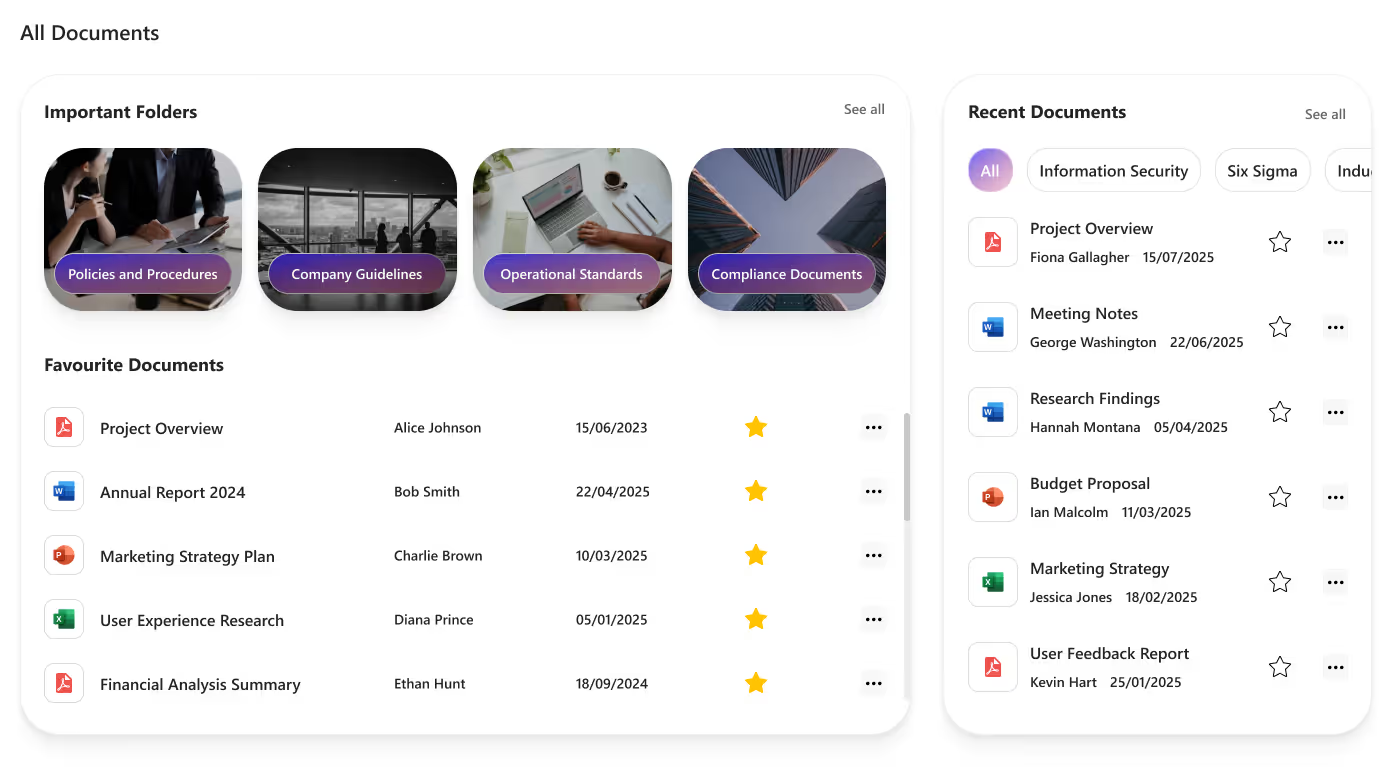
1. Custom Document Libraries With Smart Rules
A traditional file system often comes with problems like duplication, outdated information, and poor searchability. SharePoint’s custom document libraries solve these challenges with structured metadata, automated rules, and strict version control.
Benefits include:
- Organized content using metadata and filters
- Fewer duplicated files
- Transparent document history and version tracking
- Custom approval workflows
- Department-level permission control
Organizations using structured libraries report up to 30% faster document retrieval, saving hours every week.
Top SharePoint Custom Features That Improve Productivity
SharePoint remains one of the most versatile platforms for internal communication, document management, and team collaboration.

A user is stuck on a long-loading screen, getting slightly frustrated. Suddenly, the UI shifts to a calming micro-animation, a soft breathing circle, and gently says, “Hang on, we’re almost there.”
Do you know what this moment represents?
It shows a human-like reaction: when we notice someone getting stressed, we naturally try to calm or comfort them.

That’s exactly what Neuro-Adaptive Interfaces are trying to do in UI design by 2026. They use data from user behaviour, emotions, and context to automatically adjust the interface’s tone, layout, content, or visual intensity to match the user’s mental and emotional state.
Why It Matters
1. Burnout-Aware Design
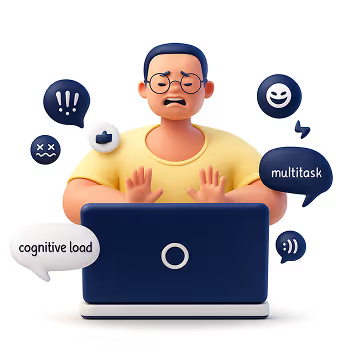
Modern users multitask more than ever, switching between apps, tabs, and devices. Neuro-adaptive design reduces cognitive strain by stepping in at the right moments, slowing things down, simplifying screens, or offering supportive cues before frustration builds.
2. AI Empathy Layer

Interfaces can now detect emotional arcs, not just actions. A stressed user gets softer tones and simpler paths. A confident user gets faster workflows. The system mirrors emotional intelligence by responding in a comforting, human-like way.
3. Neuro-Inclusion
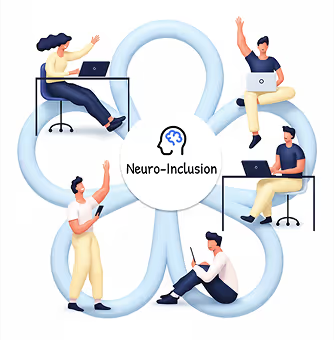
Different brains process information differently. By adapting layouts, reducing distractions, or altering reading density, neuro-adaptive UIs create safer digital spaces for users with ADHD, anxiety, dyslexia, or sensory sensitivities.
4. Productivity & Retention

Emotionally aligned experiences encourage trust and flow. When a system “feels” supportive, users learn faster, commit fewer errors, and stay engaged longer, directly impacting product adoption.
How It Works
1. Mouse Movement Speed or Pauses

Detects: Frustration, hesitation, or confusion
Response: Highlights tooltips, simplifies layout options, slows animations, or guides with micro-hints.
2. Eye Tracking or Camera Input

Detects: Distraction, fatigue, or wandering focus
Response: Reduces motion, adjusts brightness, increases contrast, or declutters the screen.
3. Voice Tone Analysis

Detects: Stress, irritation, or urgency
Response: Shifts microcopy to a calmer tone or provides step-by-step instructions.
4. System Data (Time of Day, Workload)

Detects: Late-night usage, heavy task load, or deadlines
Response: Suggests short breaks, activates “focus mode,” or reduces interface density.
5. Biometric Feedback (Opt-in)

Detects: Elevated heart rate, stress responses
Response: Calming visuals, slow animations, ambient backgrounds, or mental reset prompts.
Expanded Real-World Use Cases
1. Microsoft Viva + Copilot
Recognizes emotional patterns across the workday and gently nudges users to manage workload, reflect, or reset, boosting well-being at work.
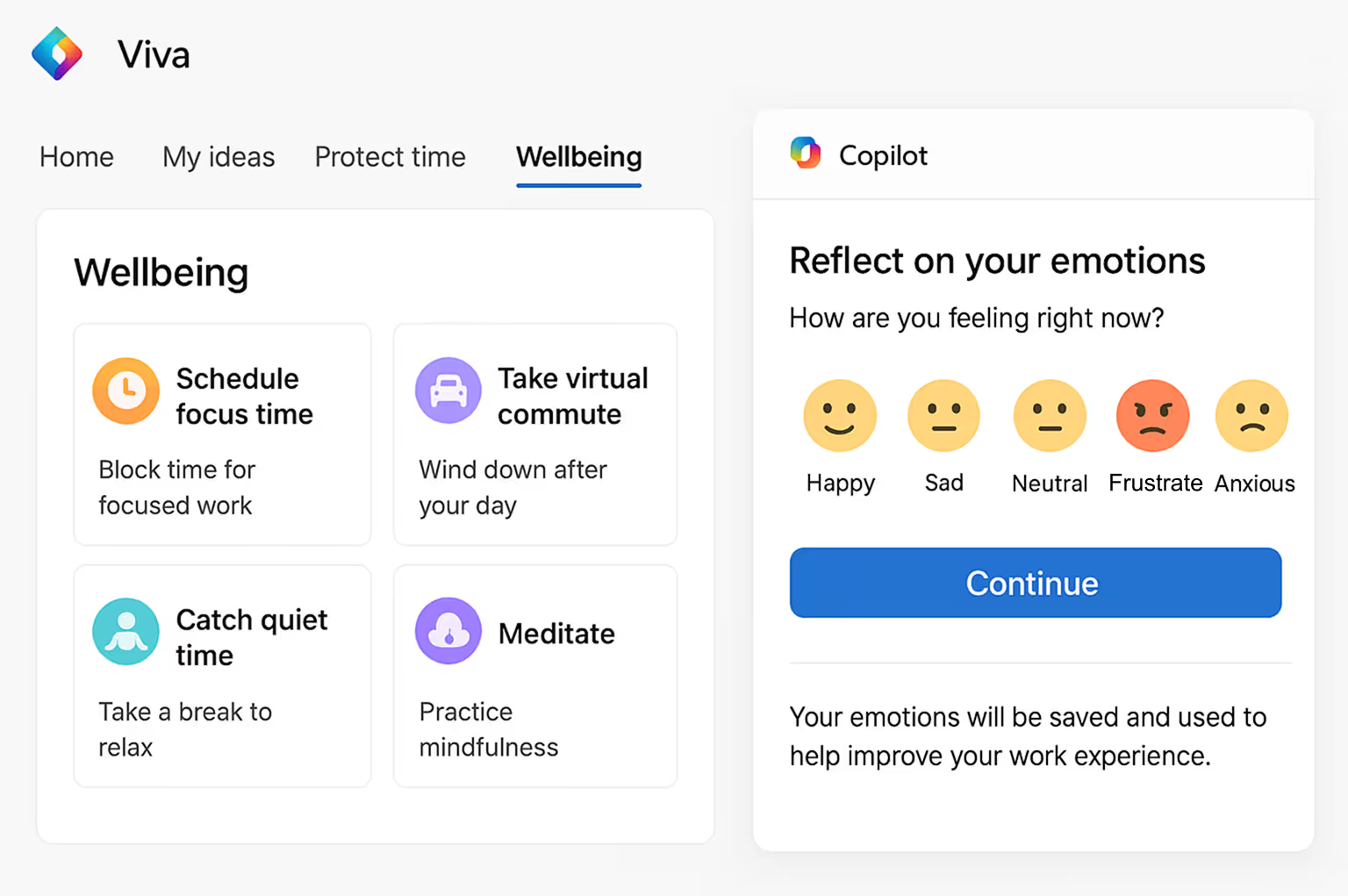
This image illustrates how Viva + Copilot visualizes emotional patterns and work rhythms, helping users stay balanced and productive throughout the day.
2. Healthcare Dashboards
During critical moments, interfaces shift to high-contrast, low-distraction modes to support better decision-making for doctors and nurses.
The dashboard image shows a high-contrast, distraction-free interface designed for doctors to make quicker, clearer decisions during critical moments.
3. E-Learning Platforms
Track attention levels and learning fatigue to dynamically adjust difficulty, add breaks, or change the lesson style.
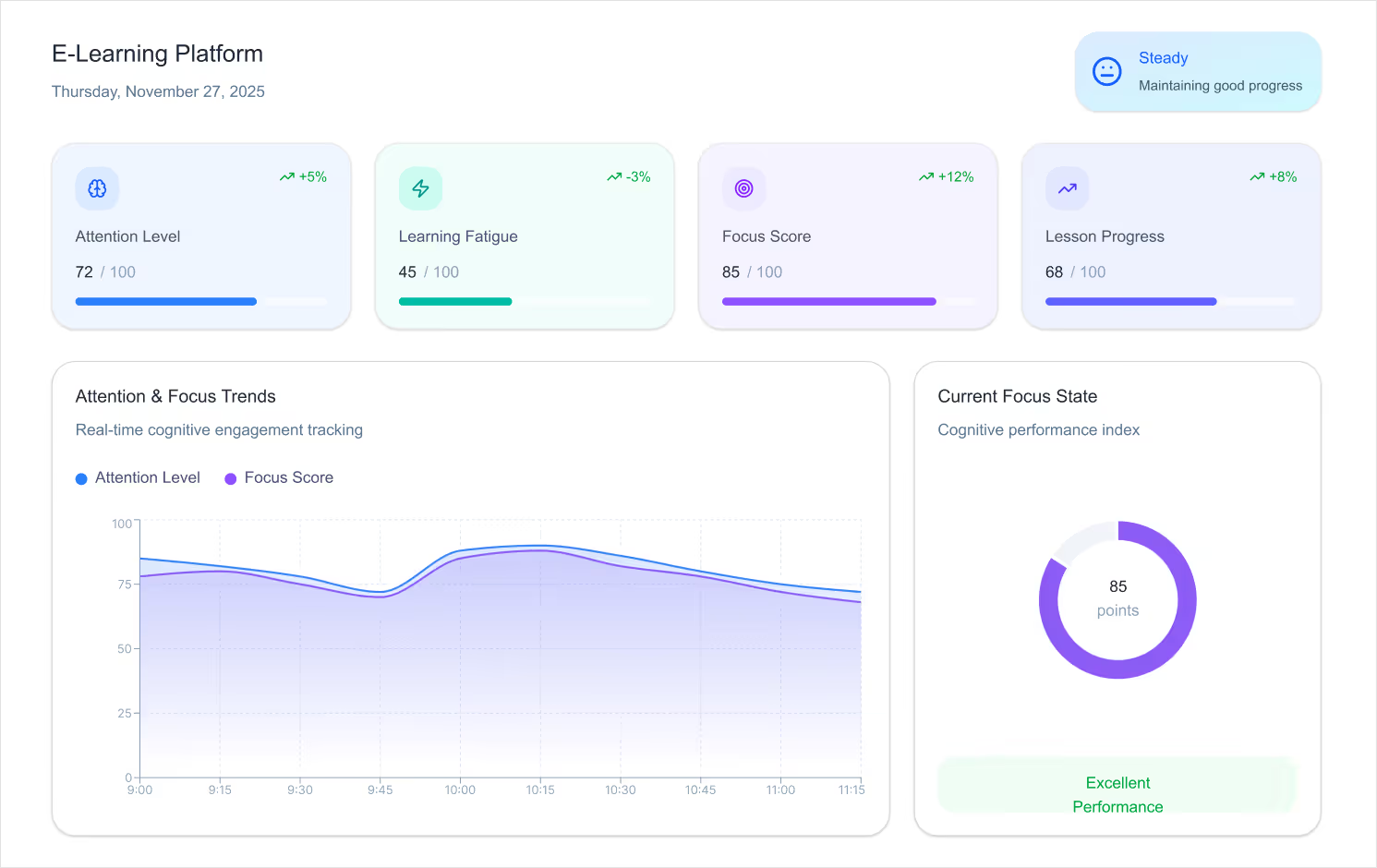
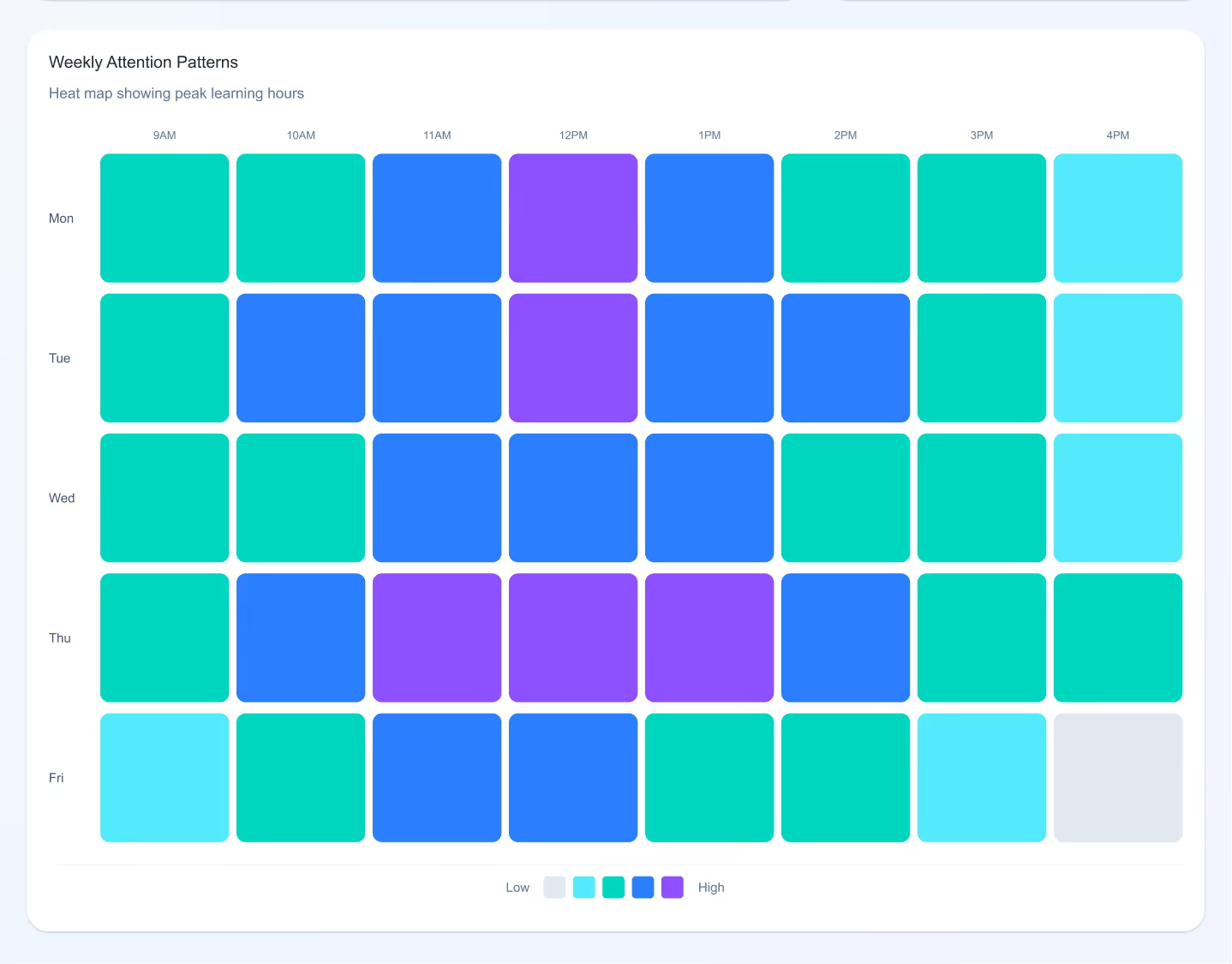
This example shows an adaptive learning screen that adjusts lesson difficulty and pacing based on a student’s attention level and engagement.
4. Banking Apps
Detect confusion during transactions and simplify steps automatically, reducing drop-offs and errors.
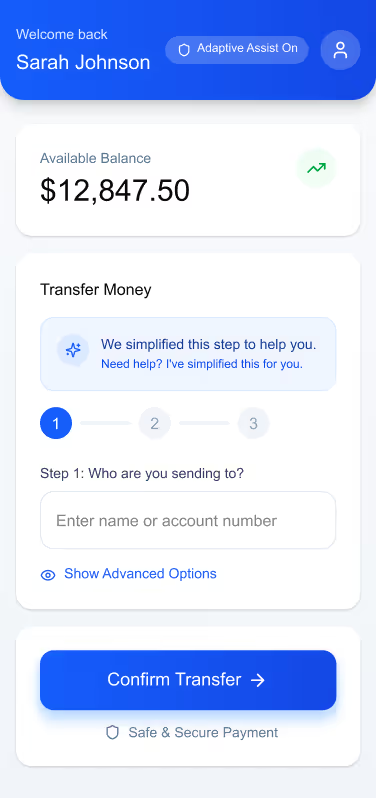
The banking UI demonstrates how steps can automatically simplify when confusion is detected, making complex transactions feel intuitive and safe.
5. Corporate Intranets
Enable “calm modes” during repetitive tasks soft colors, minimal UI, slower animations to reduce digital fatigue.
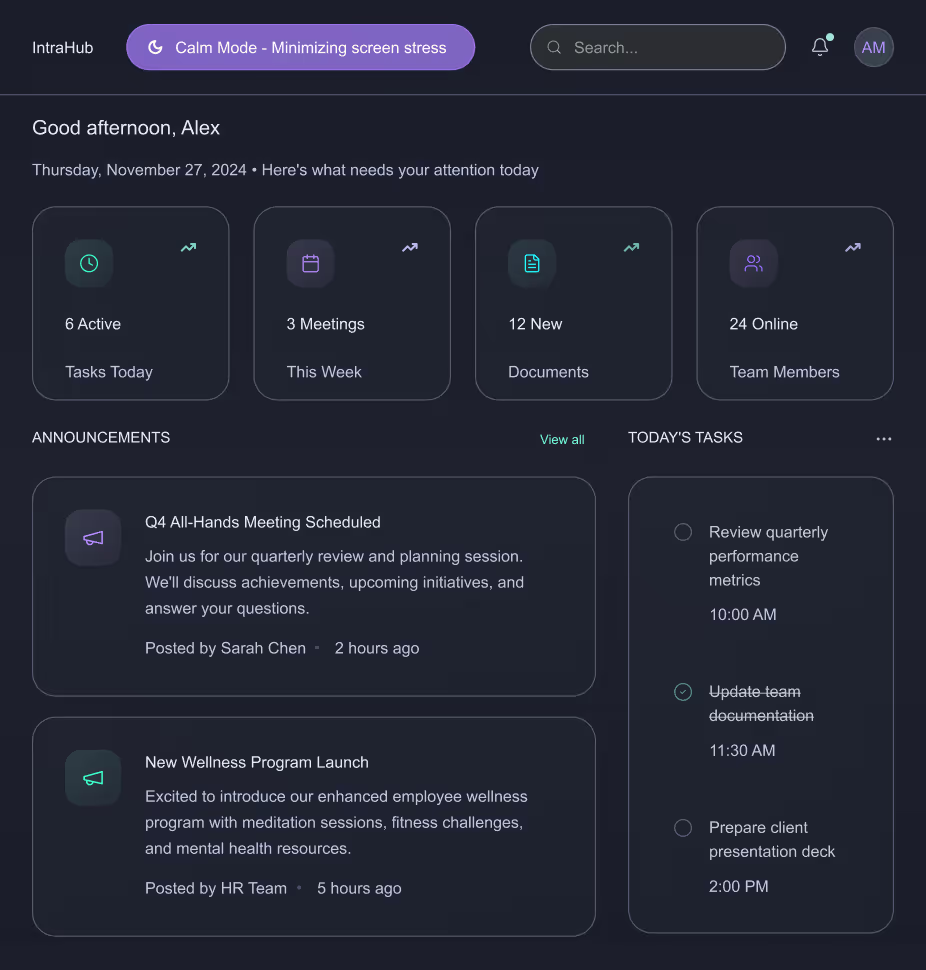
The intranet layout highlights a calm, minimal interface using soft colors and reduced visual noise to ease stress during repetitive workflows.
6. Productivity Tools
Apps like Notion, Asana, and Figma are beginning to experiment with emotion-sensitive features that adapt based on user pace and interaction mood.
Design Considerations for 2026 and Beyond
1. Privacy-First Emotion Tracking
Designers must ensure emotional data is opt-in, transparent, and stored responsibly. Users should always feel in control.
2. Avoid Over-Adaptation
Too much change can overwhelm users. Neuro-adaptive patterns must be subtle, predictable, and respectful.
3. Consistency with Human-Centered Language
Microcopy must balance empathy and clarity. Not every emotional signal needs a “comfort message”; sometimes simplifying the interface is enough.
4. Cross-Device Continuity
Emotion-aware experiences should sync across mobile, desktop, and wearable devices to maintain flow.
Conclusion
As we move into the next era of digital design, our role goes beyond usability. It’s about designing experiences that respect mental energy, emotional states, and human limitations.
Emotionally Intelligent and Neuro-Adaptive Interfaces remind us that great design doesn’t just speak, it listens, adapts, and supports.
This is the future of meaningful, human-centred digital experiences.
Emotionally Intelligent & Neuro-Adaptive Interfaces
Modern users multitask more than ever, switching between apps, tabs, and devices. Neuro-adaptive design reduces cognitive strain by stepping in at the right moments,

In this blog post, we’ll walk through how to manually upload an Intuit Interchange Format (IIF) file to a SharePoint document library and automatically parse its contents to create list items in a SharePoint list using Power Automate. This can be especially useful when working with QuickBooks for data exports.
Scenario Overview
1. Manually upload an IIF file to a SharePoint document library.
2. Trigger a Power Automate flow when the file is uploaded.
3. Read and parse the file content.
4. Extract relevant data (e.g., transaction details).
5. Create items in a SharePoint list based on the data.
Step 1: Set Up SharePoint Library and List
Document Library
1. Create a new library (e.g., "Time Tracker Excel Docs").
2. Assume we are uploading the file contains the values for the below fields,
- Date
- Type
- Amount
- Account
- Name
- Memo
3. Based on the above fields, create a necessary column in SharePoint list." Include Column Name along with type of column.
SharePoint List
1. Create a new SharePoint list (e.g., "IIF Uploads Data").
2. Define necessary columns like:
- Date
- Type
- Amount
- Account
- Name
Step 2: Uploading the IIF File
1. Users to manually upload .iif files to the “Time Tracker Excel Docs” library.
2. Example file name (e.g., Invoices_2025.iif).
Step 3: Create Power Automate Flow
1. Trigger Action
Use “When a file is created (properties only)” to trigger the document library.
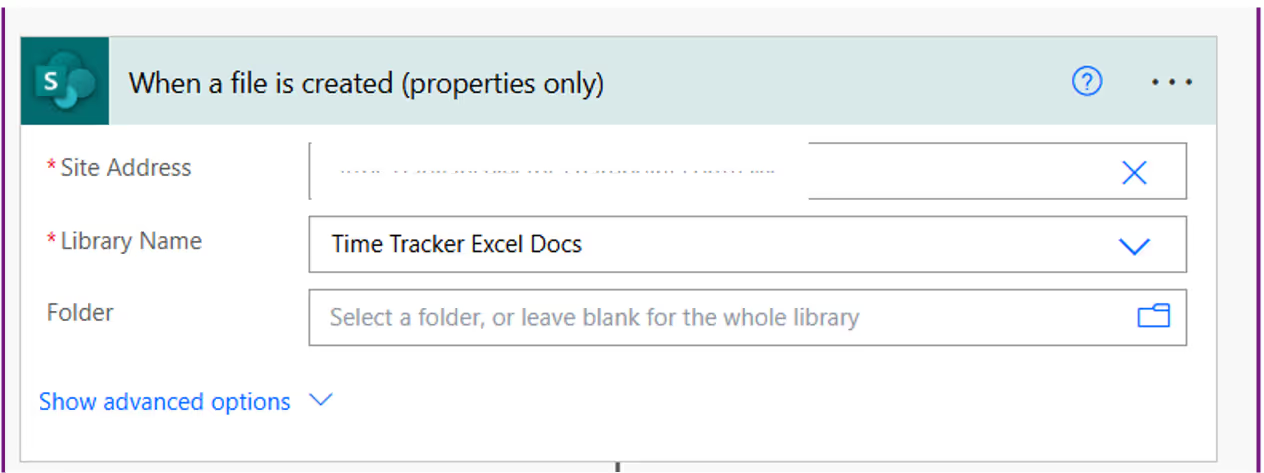
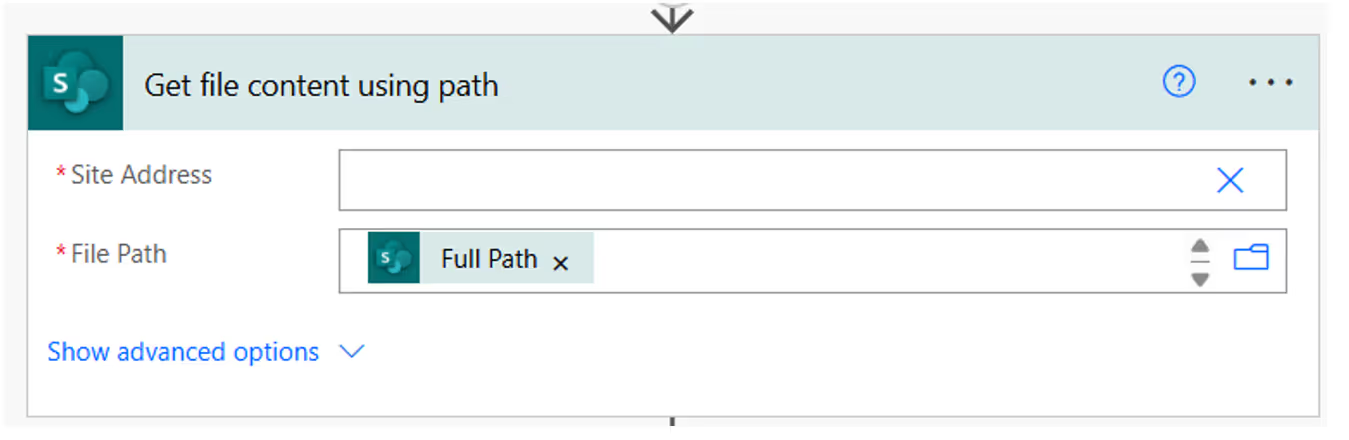
2. Get File Content
- Action: “Get file content”
- Use the Identifier from the trigger step.
3. Convert File Content from Base64 to String
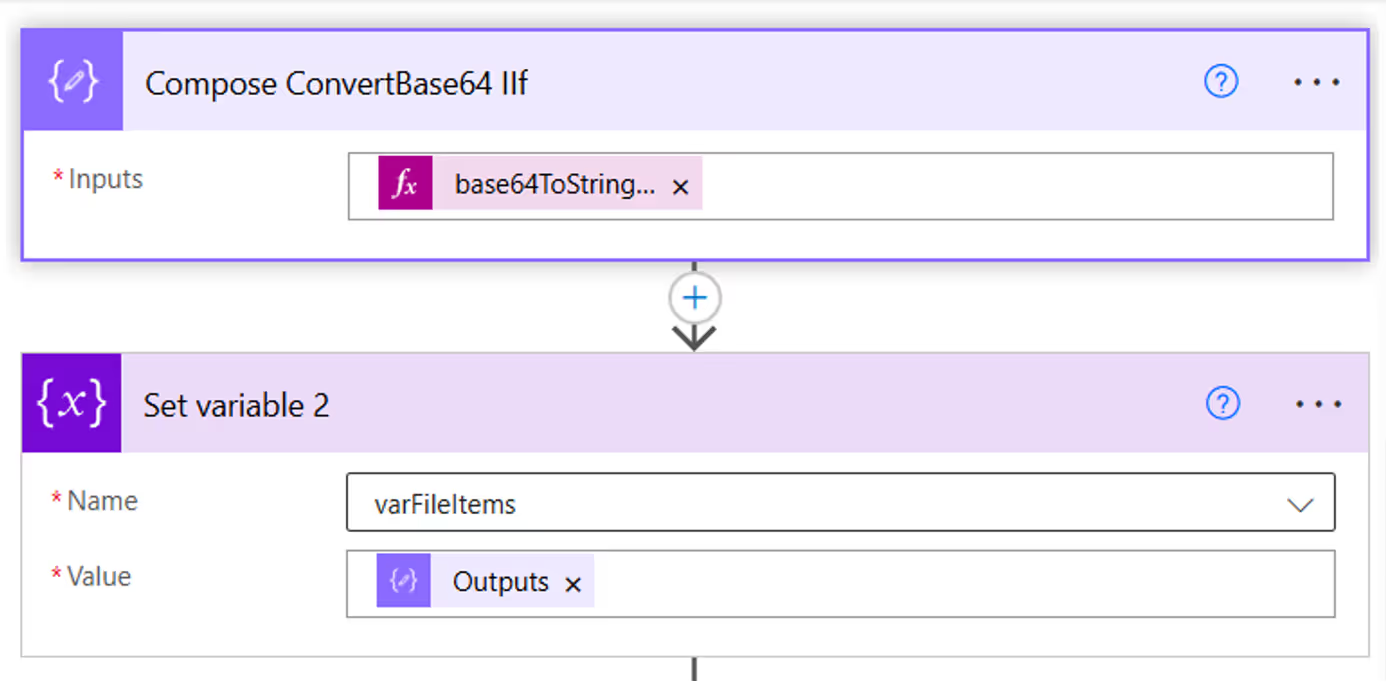
- Action Name: ‘Compose ConvertBase64 IIF’
- Description: This Compose action decodes the base64 content of the uploaded .iif file into a readable string format.
- Expression Used: base64ToString(body('Get_file_content')?['$content'])
- Create an 'Initialize variable' action named 'varFileItems' with the type set to 'String' and use a 'Set variable 2' action to assign the output of the 'Compose' action to it.
- Get file content is the action where the file content is fetched from the SharePoint library.
- base64ToString() is the expression that converts the base64-encoded file content into plain text.
Automate IIF File uploads and data extraction with Power Automate and SharePoint
In this blog post, we’ll walk through how to manually upload an Intuit Interchange Format (IIF) file to a SharePoint document library

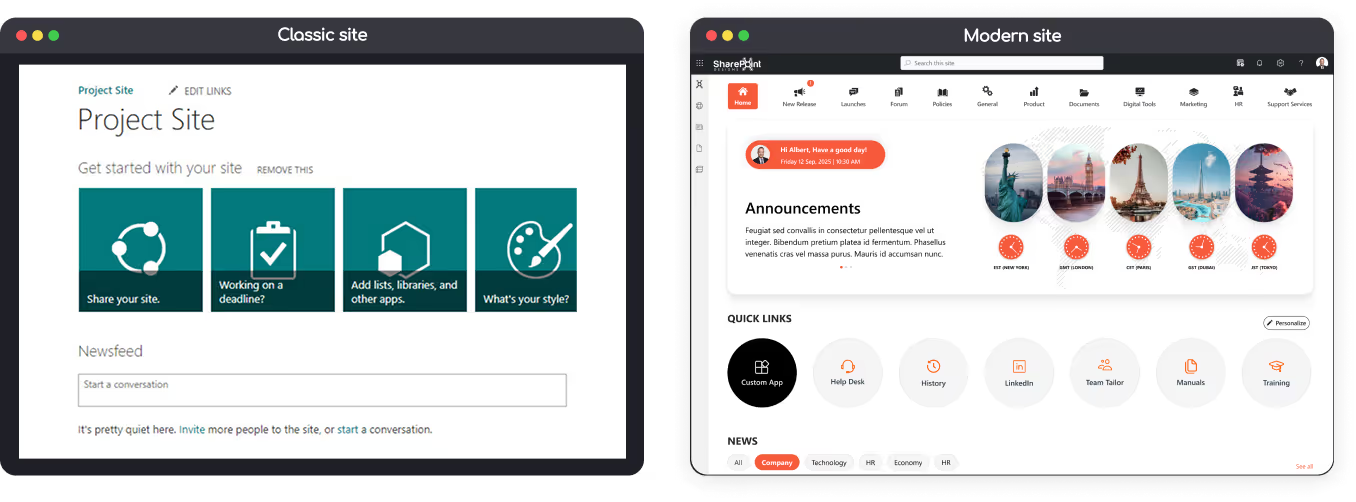
Why Modernize?
The modern SharePoint experience is responsive, faster, mobile-friendly, and supports modern web parts, improved search, and Microsoft 365 integrations.
You can modernize in-place (convert pages, enable modern lists and libraries) or create a new modern site and migrate content both approaches are valid depending on your customizations and risk appetite.
Approaches to Modernization
1. In-place modernization
Keep the same site, convert pages, and enable modern lists/libraries. Best if you want minimal URL change or have few subsites.
2. New modern site + migrate
Create a modern Communication or Team site and migrate content. Recommended for sites with heavy customizations, custom master pages, or complex navigation.
3. Hybrid approach
Modernize some sites in-place and create new modern sites for others. Copy content as needed.
Note: Always plan, inventory, and back up before touching production. Modernization modifies pages and layouts test in a dev or staging environment first.
How to Change Classic SharePoint to Modern SharePoint (An Updated Guide)
The modern SharePoint experience is responsive, faster, mobile-friendly, and supports modern web parts,

Introduction: Importance of Collaboration and Role of SharePoint
Collaboration is the foundation that keeps any business intact. However, as your company grows, relying solely on manual processes becomes ineffective.
That’s where Microsoft SharePoint, a modern collaboration platform trusted by over 200 million active monthly users, becomes essential.
Many organizations still struggle to leverage SharePoint’s full potential due to a lack of understanding or poor implementation.
This guide will help you learn everything about SharePoint features, pricing, and implementation strategies so your team can collaborate seamlessly and efficiently.
What is SharePoint?
Microsoft SharePoint is a versatile intranet and collaboration platform that helps organizations create centralized hubs for communication, document sharing, and project management.
Whether you use the on-premises server or the cloud-based SharePoint Online, the platform simplifies teamwork even for non-technical users.
To explore real-world design examples, read our blog: Modern SharePoint Intranet Templates That Boost Employee Engagement in 2025
Features of SharePoint
SharePoint offers a powerful blend of collaboration and automation features. Below are its key functionalities:
1. Collaboration
SharePoint enables seamless teamwork regardless of where your employees are.
Multiple users can co-author documents in real time, comment, and restore older versions if needed.
Admins can set permissions in advance to manage who can edit or share files.
Additionally, SharePoint’s centralized dashboard keeps all updates visible, eliminating the need to sift through endless email threads.
(Related: The Ultimate Guide to Modern Intranet & Digital Workplace Success )
2. Project Management
Its advanced search filters, calendar integration, and Outlook connectivity make it easy to schedule tasks and stay on top of deadlines.
For advanced setups, you can also automate project tracking with Microsoft Power Automate learn more in our post on Transforming Business Processes with AI in SharePoint Workflows.
3. Content Management
Beyond document storage, SharePoint doubles as a Content Management System (CMS).
It allows content managers to upload, publish, and archive content easily while maintaining version control.
Deleted or outdated versions can be restored instantly and no external tools are required.
Explore layout ideas for your library: 15 Modern SharePoint Document Library Web Part Layouts
4. Integration
Integration defines SharePoint’s true power.
It works seamlessly with Microsoft 365 apps includes Word, Excel, PowerPoint enabling real-time editing and collaboration without endless file transfers.
You can also integrate Microsoft Teams, Power Apps, or third-party CRMs to extend functionality.
5. Security
Security is non-negotiable in any enterprise solution.
SharePoint offers robust controls for access management, data encryption, and multi-factor authentication.
Admins can restrict external sharing, define user roles, and even require sign-ins for document access.
For governance insights, read Governance of Data in SharePoint: Tools, Policies, and Best Practices
SharePoint Pricing Plans
When selecting a SharePoint plan, it’s important to choose one that aligns with your organization’s size, collaboration needs, and integration goals. Microsoft offers SharePoint primarily through two main licensing options are SharePoint Online Plan 1 and Microsoft 365 Business Standard each offering distinct benefits.
1. SharePoint Online Plan 1
Best for: Small to medium businesses that need a secure intranet and document collaboration platform without requiring the full Microsoft 365 suite.
Key Features:
- Team sites, document libraries, and version control
- Real-time co-authoring and file sharing
- 1 TB of OneDrive storage per user
- Lists, libraries, and customizable pages
- Access from web and mobile devices
- Enterprise-grade security and compliance controls
Pricing:
Starts at $5.00 USD per user/month (annual commitment).
This plan focuses purely on SharePoint and does not include Office desktop apps or Exchange-based email.
Recommended for companies that want a lightweight, scalable intranet solution built purely on SharePoint Online.
2. Microsoft 365 Business Standard
Best for: Businesses seeking a complete productivity suite including SharePoint, Teams, and the full Office app ecosystem.
Key Features:
- Everything included in SharePoint Online Plan 1
- Desktop, web, and mobile versions of Word, Excel, PowerPoint, and Outlook
- Microsoft Teams for meetings, chat, and collaboration
- Business-class email hosting with 50 GB mailbox
- 1 TB cloud storage per user via OneDrive
- Security and compliance tools integrated across Microsoft 365 services
Pricing:
Starts at $12.50 USD per user/month (annual commitment).
Ideal for organizations looking to integrate document management, internal communication, and collaboration tools under one Microsoft 365 umbrella.
Explore next: Modern SharePoint Design Examples for Corporate Intranets
3. Enterprise Options (E1, E3, E5)
For large organizations or enterprises needing advanced compliance, analytics, and automation, Microsoft offers Enterprise (E1/E3/E5) plans.
Highlights:
- Enhanced governance and security capabilities
- Advanced data loss prevention (DLP)
- Power Automate and Power Apps integration
- Advanced analytics with Power BI
- Unlimited cloud storage in higher tiers
Pricing:
Enterprise plans vary by feature set and start around $10–$38 USD per user/month depending on the license type.
You can check the detailed pricing Plans here: Microsoft SharePoint Pricing Plans
A Guide to SharePoint: All You Need to Know About SharePoint and How to Implement It
Collaboration is the foundation that keeps any business intact. However, as your company grows,

Introduction: Why Intranets Still Matter
Intranets have evolved far beyond internal newsboards or file repositories.
Today, a modern intranet acts as the central nervous system of an organization a place where communication, collaboration, and knowledge come together to drive productivity.
Yet, many companies struggle to realize their intranet’s full potential. Employees often rely on scattered email threads or outdated file systems because their intranet lacks structure, usability, or engagement features.
A well-designed intranet built on Microsoft SharePoint or a similar platform transforms internal operations. It unites teams, simplifies access to resources, and fosters a culture of transparency.
This guide explores the key components, technologies, and strategies behind a high-performing digital workplace.
Core Components of a High-Performing Intranet
A high-performing intranet isn’t just a place to store documents , it’s the digital backbone of your organization.
It aligns people, information, and workflows under one unified digital workplace.
Modern intranets blend strategy, structure, and technology, ensuring employees can communicate, collaborate, and contribute effectively.
Below are the core pillars that define an effective modern intranet.
1. Structure and Information Architecture
Your intranet’s structure is its nervous system if navigation fails, engagement follows.
A well-defined information architecture ensures employees find what they need in three clicks or fewer.
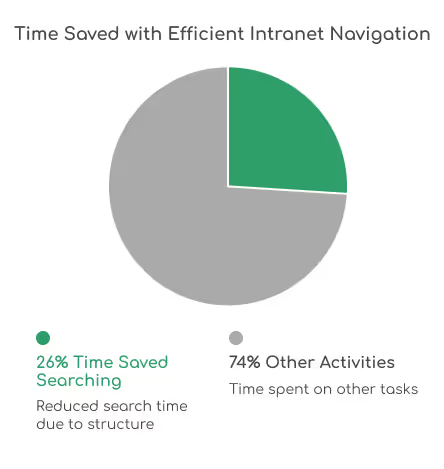
Research by Nielsen Norman Group shows that users spend 26% less time searching when intranet navigation is logically structured.
Start by mapping your content into intuitive categories like Departments, Projects, and Resources.
Use consistent site hierarchies, quick links, and breadcrumbs to guide users smoothly across pages.
A confusing layout can cost hours in lost productivity each week, especially in large enterprises.
Related: 5 Custom SharePoint Quick Links Layouts to Elevate Intranet Navigation
(Discover creative ways to simplify navigation using custom layouts and web parts.)
2. User Experience (UX) and Design
Great intranet design isn’t about flashy visuals, it’s about how effortless it feels to use.
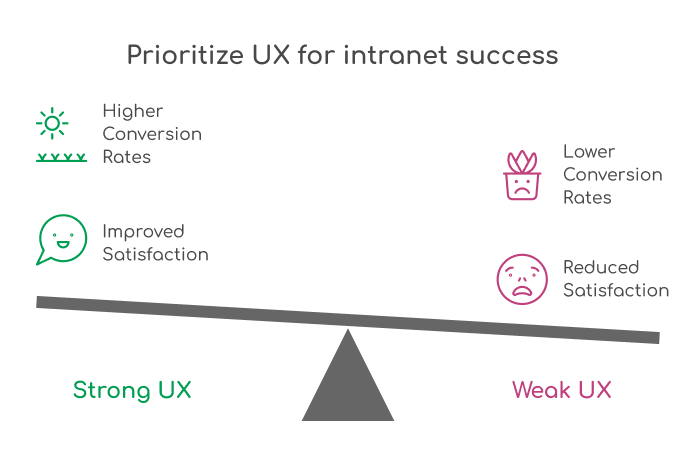
In fact, according to Forrester Research, companies with strong UX see up to 400% higher conversion rates and improved employee satisfaction scores.
Your intranet should reflect your brand identity while keeping accessibility and mobile responsiveness at its core.
Consistency in typography, colors, and page layouts builds familiarity and trust.
Features like personalized dashboards, dark mode, and employee spotlight sections enhance inclusivity and engagement especially for hybrid teams.
Explore our Intranet Design Checklist 2026 (A step-by-step guide to designing a SharePoint intranet your team actually loves to use.)
3. Governance and Compliance
Governance is the invisible framework that keeps your intranet secure, compliant, and scalable.
Without clear ownership and workflows, intranets quickly turn into cluttered repositories.
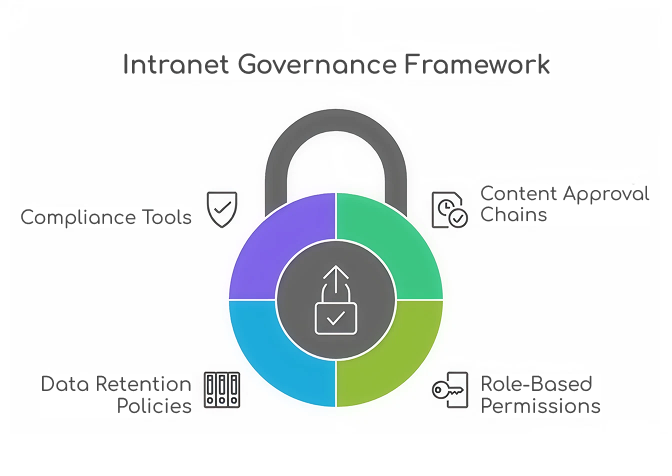
Define content approval chains, role-based permissions, and data retention policies early in your governance model.
According to AIIM, 60% of organizations struggle with document version control due to poor governance.
SharePoint offers built-in compliance tools and policy automation capabilities when properly configured, these can reduce data breaches and policy violations by over 30%.
Learn how to implement effective governance frameworks that protect your intranet and your data with our detailed blog on Governance of Data in SharePoint: Tools, Policies, and Best Practices
4. Content Management
Your intranet’s success is directly tied to the quality and freshness of its content.
Employees should be able to search, filter, and discover information easily.
This is where metadata tagging, content expiration policies, and AI-powered search can make a measurable difference.
Microsoft reports that employees spend up to 20% of their time searching for internal information an issue solved by structured content libraries and taxonomy-based metadata.
Set up content review cycles and empower department owners to maintain pages regularly.
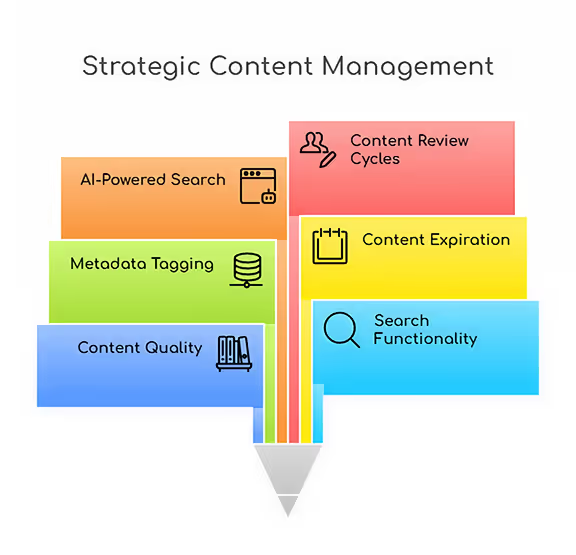
Read: 15 Modern SharePoint Document Library Web Part Layouts to explore creative ways to organize, display, and manage your digital assets effectively
5. Integration and Automation
The modern intranet isn’t static, it’s an intelligent workspace.
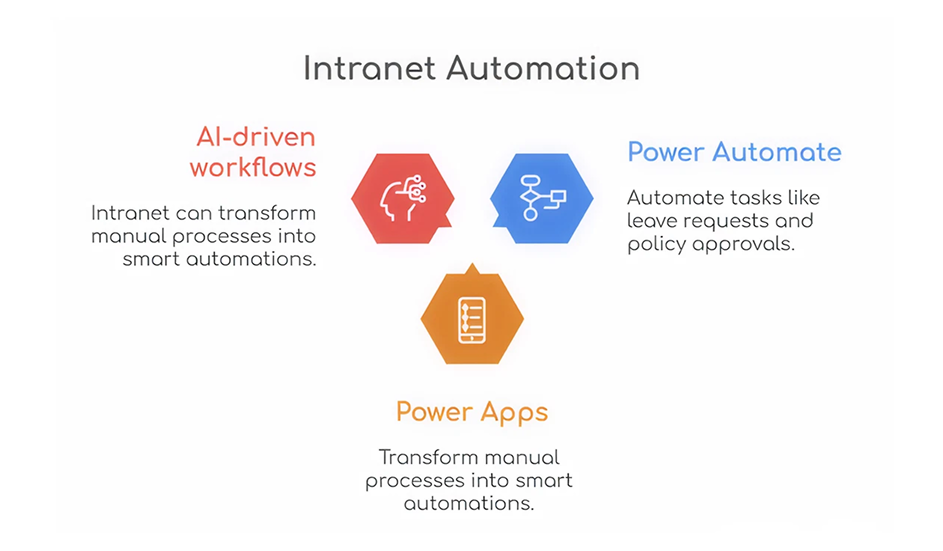
Through Microsoft Power Automate, Power Apps, and AI-driven workflows, your intranet can transform manual processes into smart automations.
Imagine automating tasks like leave requests, policy approvals, or IT ticket routing.
According to Gartner, automation can save organizations 25,000 hours per year in administrative tasks on average.
With SharePoint, integrating Teams, Outlook, and third-party CRMs enhances overall digital synergy.
Bringing It All Together
A truly high-performing intranet aligns these five components structure, UX, governance, content, and automation under a strategic vision.
When each pillar functions cohesively, your organization gains not just an intranet, but a connected, intelligent workspace that drives efficiency and engagement.
The Ultimate Guide to Modern Intranet & Digital Workplace Success
Intranets have evolved far beyond internal news boards or file repositories.
Ever missed a task because you forgot to follow up?
SharePoint reminders and alerts make sure that never happens again.
Whether you’re tracking project deadlines or document approvals, you can automate it all no coding required!
Need help setting up your SharePoint automation? Get a Free Consultation Today
How to Set Up Automated Reminders and Alerts in SharePoint (Step-by-Step Guide 2026)
SharePoint reminders and alerts make sure that never happens again.

Microsoft 365 brings together two powerful platforms for teamwork SharePoint Online and Microsoft Teams. SharePoint provides a secure place to store, organize, and manage content, while Teams enables real-time communication and collaboration. By integrating a new SharePoint site with Teams, organizations can provide employees with a unified hub where conversations, files, and resources live together.
In this blog, we’ll walk through the steps to integrate a new SharePoint site with Microsoft Teams and highlight best practices for seamless collaboration.
Steps to Integrate a SharePoint Site with Microsoft Teams
Step 1: Create a New SharePoint Site
1. Check out this blog for creating a SharePoint site.
(or)
2. Navigate to the SharePoint Admin Center (or directly via the SharePoint home page).
3. Click Create site.

4. Choose the Communication site template (recommended for collaboration).
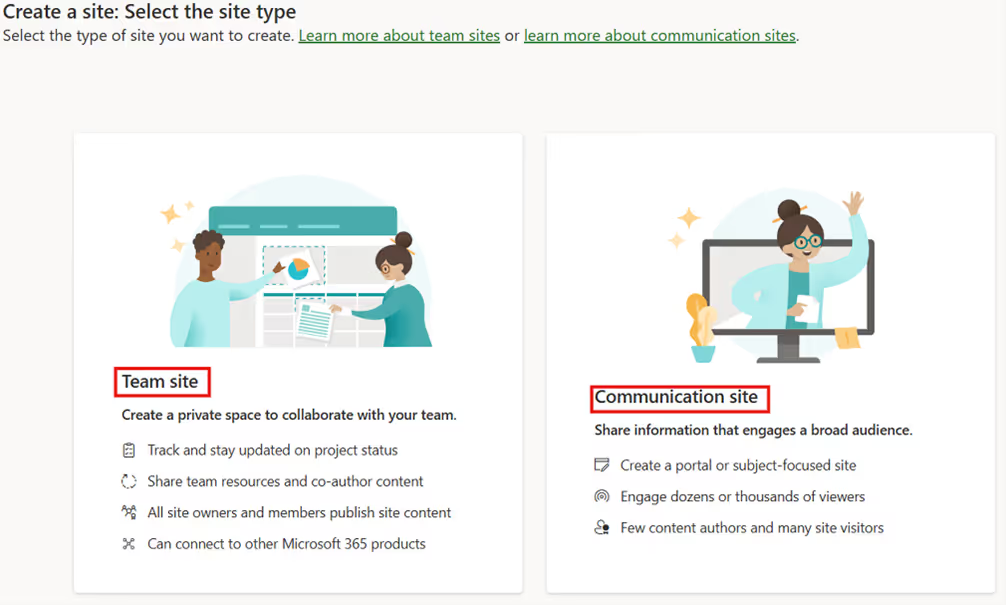
5. Enter site name, owners.
6. Once created, your site will have its own document library, lists, and permissions.
Note: Use clear and consistent naming conventions so the site is easily recognizable in Teams.
Step 2: Connect the SharePoint Site to Microsoft Teams
You can link your existing SharePoint site to a new or existing Teams channel.
Option A: Add a SharePoint Site to Teams (opens directly within Teams)
1. In Teams, go to your desired team and channel.
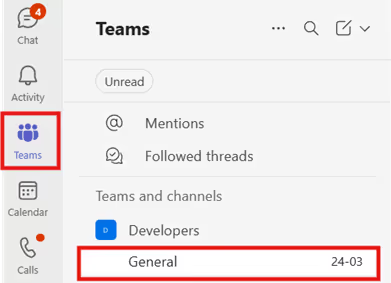
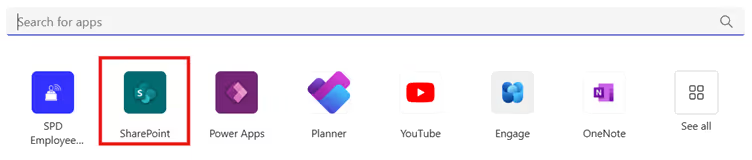
2. Click + (Add a tab).

3. Select SharePoint.
4. Select Any SharePoint site and paste the SharePoint site link in the text box.
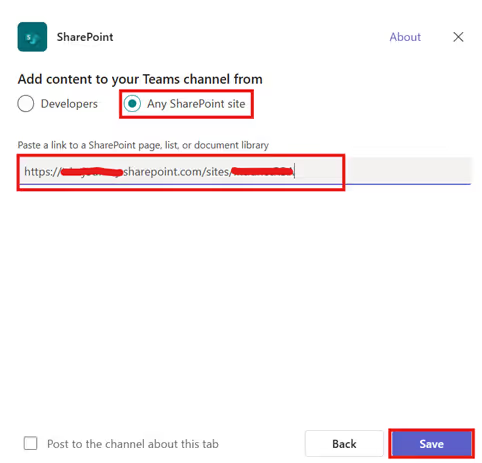
5. Click Save to add it as a new tab.

This allows members to interact with SharePoint pages (like dashboards or news pages) without leaving Teams.
Option B: Add SharePoint Site as a Website Tab (opens in a new browser tab)
If you want to link the entire SharePoint site:
1. Go to the desired team channel in Teams.
2. Click + (Add a tab).
3. Search for Website.

4. Paste your SharePoint site URL.
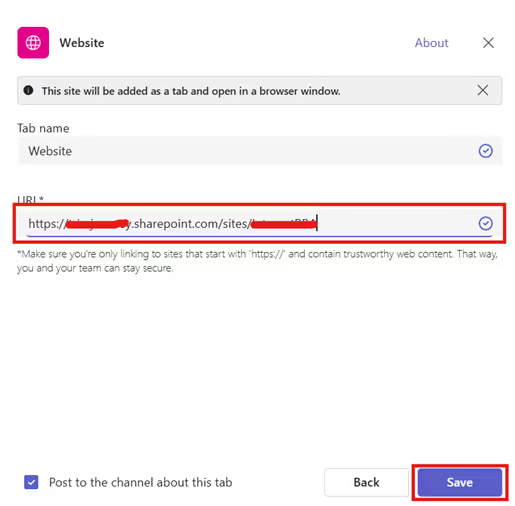
5. Click Save to add it as a new tab.

Step 3: Manage Permissions Effectively
Teams and SharePoint permissions are linked:
- Adding a member to Teams automatically grants them access to the connected SharePoint site.
- Removing a member from Teams revokes SharePoint access.
Conclusion
Integrating SharePoint with Microsoft Teams bridges the gap between structured content management and fluid team communication. By connecting your new SharePoint site into Teams, you create a single hub for collaboration where users can chat, share, and co-author documents all without switching between apps.
Related Blogs
How to Create a SharePoint Site: Step-by-Step Guide
Explore the Best SharePoint Intranet Examples: 16 Practical Applications

Integrate SharePoint with Microsoft Teams for Seamless Collaboration
Microsoft 365 brings together two powerful platforms for teamwork SharePoint Online and Microsoft Teams.

Celebrations are the heartbeat of workplace culture.
Whether it’s a birthday, a work anniversary, or simply welcoming a new colleague, these moments create opportunities to connect, appreciate, and build stronger bonds across teams. But in busy workplaces, it’s easy to let these special days slip by unnoticed.
That’s where Celebration Web Parts come in bringing birthdays, anniversaries, and milestones right onto your intranet. With simple, elegant, and engaging designs, they make it effortless to recognize your people and spread positivity with just one click.
All-in-One Celebrations Web Part
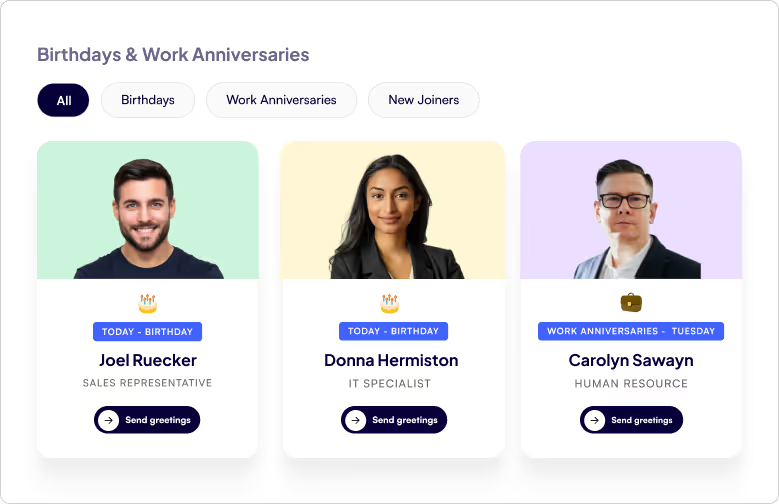
- Web Part Title at the Top Left - A clear, customizable title so employees instantly know what the section is about.
- Tabbed Navigation - Switch effortlessly between Birthdays, Work Anniversaries, and New Joiners with dedicated tabs.
- Employee Cards in a Clean Box Layout - Each person being celebrated gets their own spotlight in a beautifully organized card.
- Profile Image - Displays the employee’s photo to make celebrations more personal and recognizable.
- Celebration Type - Clearly shows whether it’s a Birthday, Work Anniversary, or a New Joiner being introduced.
- Employee Details - Includes the employee’s name and designation, giving context and recognition.
- Send Greeting Button - A one-click “Send Greeting” button that directly opens Outlook, allowing colleagues to instantly send warm wishes or a welcome note.
Celebrations in a Vertical View
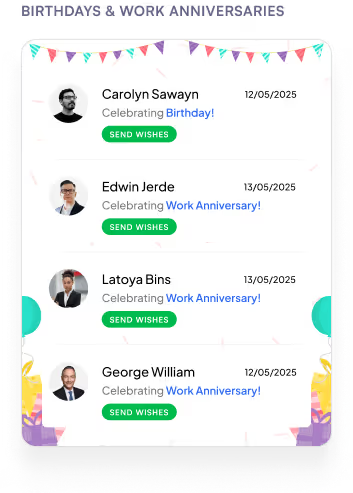
- Web Part Title on Top - A clear heading that immediately tells you what the section is about.
- Vertical List Layout - All employees celebrating a Birthday or Work Anniversary are neatly displayed in a vertical order.
- Profile Picture on the Left - Each employee’s photo is placed on the left for quick recognition.
- Employee Information in the Center
1. Displays the name and designation for context.
2. Includes a Send Greeting button that opens Outlook so you can instantly share wishes.
- Date on the Right - Clearly shows the date of the birthday or work anniversary, so you never miss a celebration.

Employee Recognition Made Easy: SharePoint Celebration Web Parts
Celebrations are the heartbeat of workplace culture.

Calendars aren’t just about dates anymore. They’re about making sure you don’t double-book that meeting, forget your training, or miss the office party.
Custom Calendar Web Parts the unsung heroes of workplace organization. They don’t just sit quietly on your intranet, they remind, guide, and sync like a personal assistant who never takes a coffee break.
Whether it’s a new training, an all-hands event, or just keeping tabs on your week, these calendars are here to turn “Oops, I forgot” into “Don’t worry, I’m already on it.”
Plan Smarter with the Classic Calendar Web Part
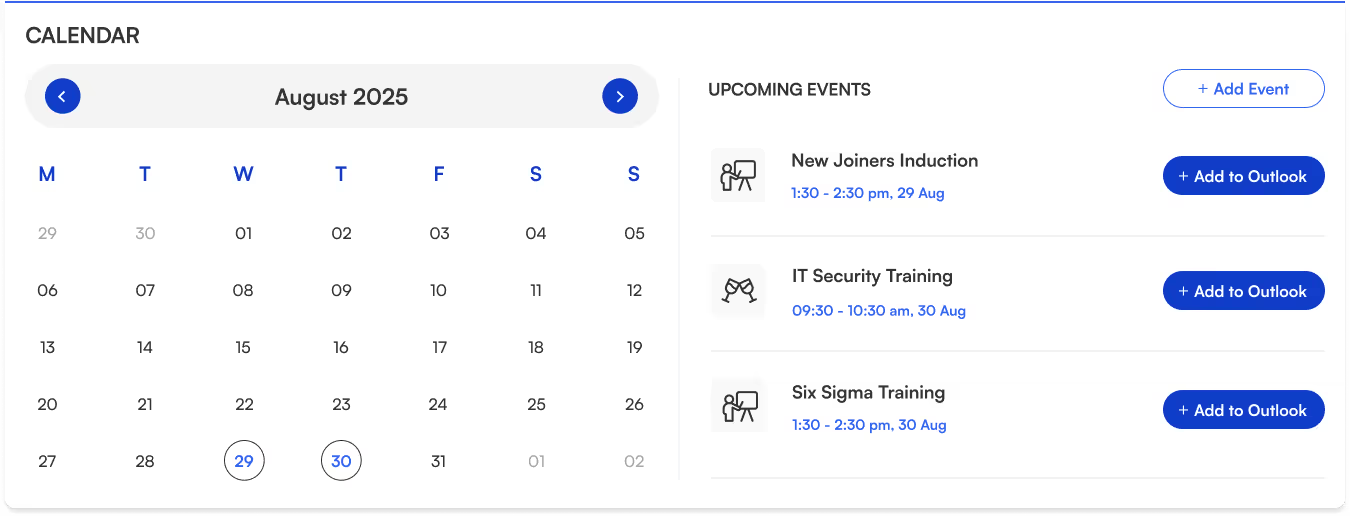
- Title sits neatly at the top-left for quick identification.
- Two-section layout:
Left → interactive calendar view.
Right → upcoming events list.
- Each event shows its name, icon, date, and time clear and scannable.
- “Add to Outlook” button beside every event for instant sync and reminders.
- “Add Event” button (top-right corner) makes creating events quick and easy.
- Perfect for day-to-day scheduling.
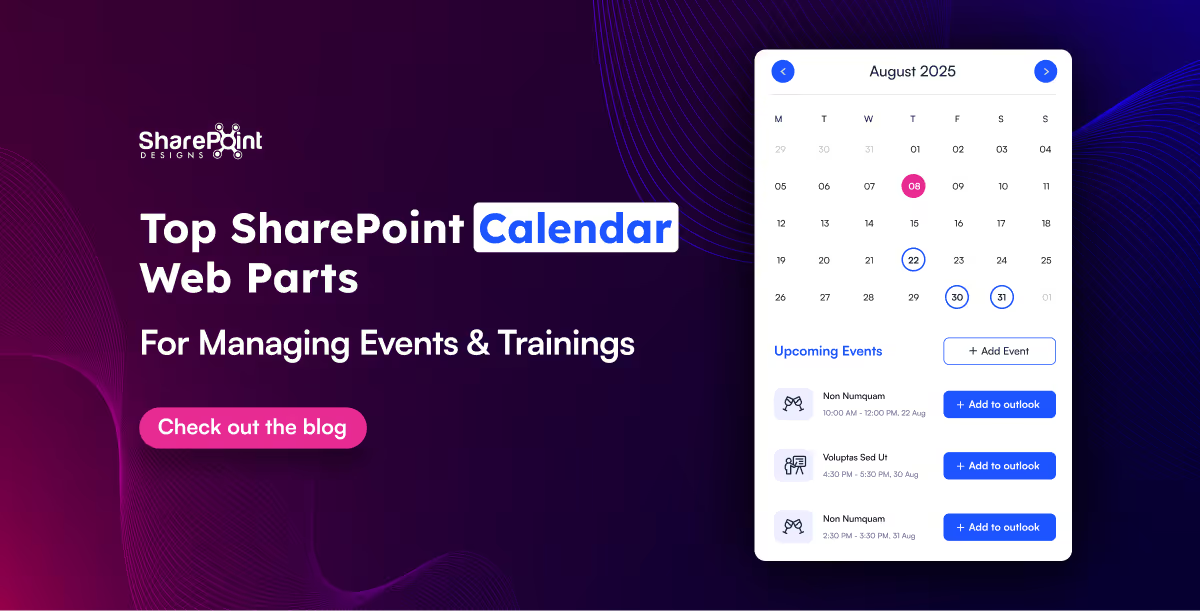
Top SharePoint Calendar Web Parts for Managing Events & Trainings
Calendars aren’t just about dates anymore. They’re about making sure you don’t double-book that meeting, forget your training,
Hunting down a document shouldn’t feel like solving a mystery novel.
That’s where Document Library Webparts swoop in like superheroes for your intranet. From sleek slides to smart filters, they don’t just store your files they showcase them in style, keep everything organized, and make searching as easy as scrolling your Insta feed. Whether it’s policies, SOPs, trainings, or your team’s most important docs, there’s a layout here designed to save your time.
1. Important Documents Library, Your One-Stop Space

- Organized as sleek slides with images, category, title, and short description.
- Shows who last viewed the document and how long ago (down to minutes or seconds).
- Department tabs below the title for instant filtering.
- See All link on the top-right to view the complete library.
- Smart, sleek, and makes key files easy to find.
2. Mandatory Trainings Library, Essential Learning Hub

- Every training document is displayed as slides with cover images.
- Category tag (top-left) and file type icon (bottom-left) on each slide.
- Short descriptions for quick context.
- Department tabs for category-based filtering.
- All links on the top-right for the full training collection.
- Keeps all your must-do training just a click away.

15 Modern SharePoint Document Library Web Part Layouts for Smarter File Management
Hunting down a document shouldn’t feel like solving a mystery novel.
In a big organization, remembering who’s who can feel like trying to recall names at a never-ending party.
The Organization Chart Web Part makes it easy to put faces, names, and roles together in seconds.
Whether you’re welcoming a new joiner, looking for the right colleague to collaborate with, or simply trying to understand the reporting flow, these web parts make navigating your org chart a breeze. They also integrate seamlessly into your SharePoint intranet design, helping employees connect faster and work smarter.
Smart Search & Quick Actions
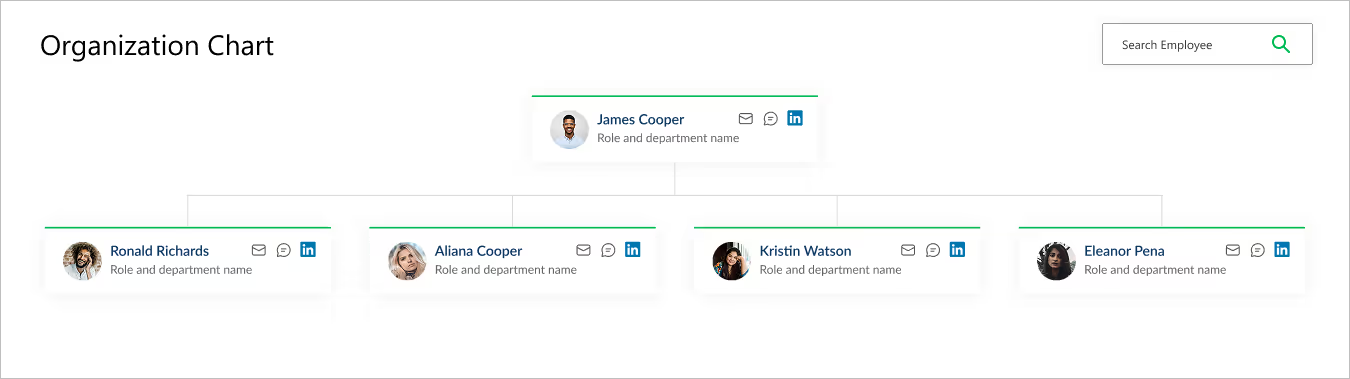
- Title & Search Bar: Title sits at the top left, while a smart search bar on the top right makes it effortless to find employees.
- Profile Cards: Each card brings the chart to life with a photo, name, and role.
- Quick Connect Icons: Handy action buttons on the right let you email, message, or even connect via LinkedIn in a single click.
- Why It’s Great: A simple yet powerful way to explore your company structure and stay connected.
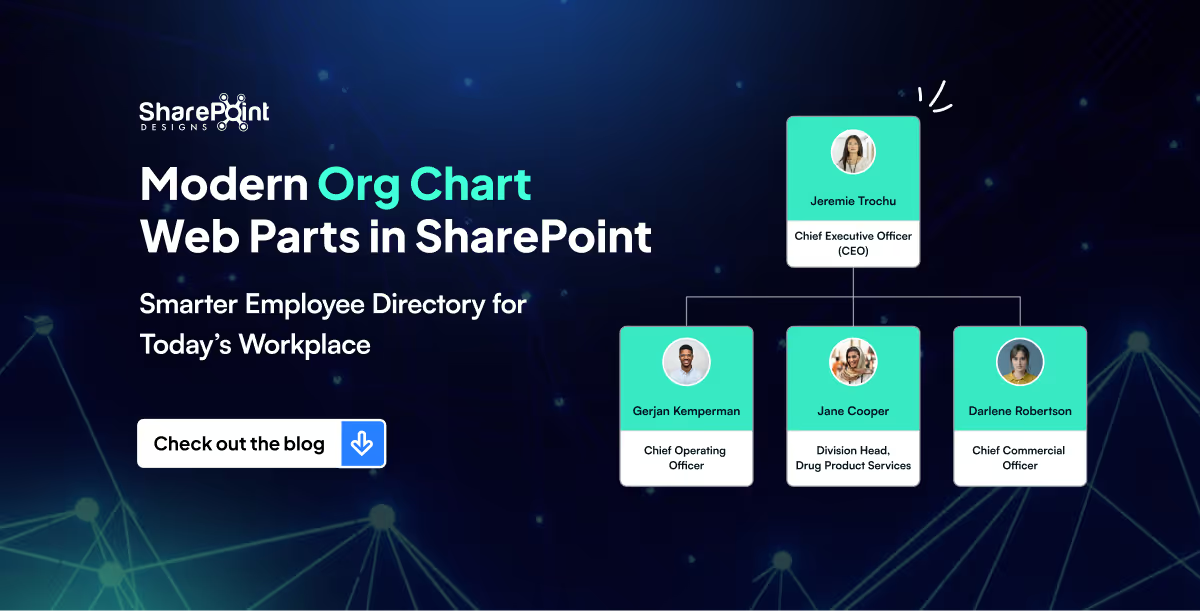
Modern Org Chart Web Parts in SharePoint: Smarter Employee Directory for Today’s Workplace
In a big organization, remembering who’s who can feel like trying to recall names at a never-ending party.



.svg)





