Tech Ideas & Best Practices
"PowerApps gives me the ability dream up a business system, draw it, then make it at much quicker speeds that I could have done by learning to program."– Lars Peterson, General Manager (and app maker), Reliable Electric
Lars Peterson is a General Manager at Reliable Electric, Canada, who had no prior app development experience before using the Power platform. He taught himself PowerApps, Microsoft Flow and SQL, and used the Power platform to transform core business processes, such as creating daily work order estimates. This replaced a legacy system for which the company was paying $2,000 for a single seat, and was not user friendly or customizable to meet their exact needs.
Business scenario
Reliable Electric specializes in the design and installation of integrated electrical projects in high-end homes. To generate a work order proposal for a customer, they need to go through the process of analyzing drawings and determining the materials required to accomplish the design. The term used to define this process in construction and engineering projects is a takeoff. To put together a proposal, the estimator at Reliable Electric needs to generate accurate price estimates for all the takeoffs in a project. This requires a complex set of inputs followed by a lookup of product information and a series of calculations to generate a final customer-ready proposal with accurate estimates.
Before Power platform – business process, challenges and opportunities
Reliable Electric had purchased a legacy desktop-based software called Accubid. The process was as follows:
- A contractor would provide the plans
- Estimators would do the takeoffs and enter all the information into Accubid
- All information from Accubid was then copy-pasted into an estimation spreadsheet to get a final proposal

This solution had several challenges:
- According to Lars, “the interface was terrible, was hard to view and change certain data elements.”
- The output from Accubid had to be copy-pasted into a spreadsheet to get a proposal that met their needs.
- Only one person could use the tool at a time. Each additional seat was $2000, which was cost prohibitive.
- They needed a solution that provided them control over their data, with a user interface that was easy to use.
Power Platform solution – Work order estimation app
In a prior role, Lars Peterson was a small business consultant who researched multiple tools to help his customers but found himself almost always recommending Excel. He tried Access but felt it was complex and not something he could leave with the customer to maintain on their own. After joining Reliable Electric, he spent six months researching several estimation software solutions. He did not find any off-the-shelf tools that met his exact needs and decided to build a solution on his own using PowerApps and Microsoft Flow, with SQL as the backend. He found out about PowerApps through his Office 365 subscription. He chose it over other competitive offerings due to the rich visual appeal and depth of customization that was possible. He calls the solution “Estimating the Database” or ED for short. The application has been live in production since December 2017 and used daily by Estimators, Project Managers and Sales Representatives in the organization. It actively manages over 70 projects at any given point in time.

PowerApps: Estimators use a PowerApp on their desktop to manage the entire estimation process. They use predefined assemblies that have been customized for the business. These assemblies are basically takeoff templates that have a collection of products. The assembly is attached to a project and becomes a takeoff – an assembly with a quantity. The cost and labor associated with each takeoff is rolled up based on the products in the takeoff. Each takeoff is then priced based on this roll up with labor costs and other adjustments factored in. All of this happens automatically based on the defaults set in the estimate and can be customized as needed. The final output is stored in a SQL database. An Excel spreadsheet that is directly connected to the database is used to generate the final product list or bill of materials along with the proposal summary.
Microsoft Flow: Flows are used to trigger stored procedures in SQL and notify the Director of Projects & Design whenever a new product is added, or a new assembly created.
SQL Azure: All data for assemblies, product lists, prices and estimates are stored in a SQL Azure database.

Benefits from using the Power platform
- Reduced the time for data entry by half which allowed plans to get priced quickly
- Electricians found the app easy to learn and use, as compared to the old Accubid solution
- No more need for copy-pasting data, the spreadsheet is directly connected to the database which ensures that everyone always has accurate information
- They are in full control of the data – it is instantly available and can iterate through quickly

Solution architecture
The app uses SQL Azure for storing information about Assemblies, Products, Estimates and Proposals involved. The PowerApps application provides easy to use templates to key in the receptacle, view the assemblies and products involved, modify if needed per the customer’s request and generate an estimate for the client

Looking beyond a single app
Encouraged by the success of the estimator app, Lars has built several additional solutions. His goal is to modernize all instances where they use siloed spreadsheets for critical business processes and replace them with a PowerApps solution. He has brought on an additional resource to work on the backend SQL database layer, while he continues to develop the PowerApps Canvas apps.
- Employee Engagement: A phone app used to submit feedback, report vacation, 1-on-1 forms, and manage employee information.
- Product Updater: A tablet app built to edit product lists and vendor product information.
- Sales Tracker: A desktop app to enter and track opportunities and projects. Setting this up to link to QuickBooks through an Azure SQL synced database.
- Asset Tracker: A phone app that tracks all tools in the company. Plan to use the barcode feature in this app and populate it full of tools.
Additional screenshots
Work order estimator


Mobile apps – employee requests, asset tracking

Product updater

Sales tracker


Reliable Electric: Power platform customer story
PowerApps gives me the ability dream up a business system, draw it, then make it at much quicker speeds that I could have done by learning to program.

A very common question our customers ask is, how do I implement role based access control in my app. In other words, how do I make certain features or screens of my app available only to the authorized people in my organization. For example, make Admin screen available only to the users who belong to an Active Directory Group “Administrators” or make management views available only to the users belonging to the Active Directory Group “Managers” (as shown in the picture below).
In this blog post, I’ll show you how you can find out the Active Directory group membership of the signed in user and accordingly make decision to show/ hide certain features.

High Level Steps
We’ll use custom connector feature of PowerApps to connect to Microsoft Graph API for listing the Active Directory Groups that the user belongs to*. After getting the list of groups through this custom connector in PowerApps, we can easily check if the user belongs to a particular group and accordingly set the visibility of certain controls or screens.
Following are the broad steps:
Step 1: Register an app in the Azure Active Directory and request permission to use the right Graph API(s)
Step 2: Grant Permission requested above (An Active Directory Admin needs to do this)
Step 3: Add this app as a custom connector in PowerApps environment
Step 4: Use the custom connector in your PowerApps app
* Note:
- If you never used Microsoft Graph before, I strongly recommend that you checkout their documentation and graph explorer. I find Graph Explorer very handy to explore what’s out there and even test out the output of the specific APIs before using this in my own code.
- Graph API we are using here, lists the groups that the user is direct member of. So, it’ll miss out the group membership through nested group membership. For this blog, we are keeping it simple by just checking for direct membership. There are other Graph APIs for finding nested group membership too. However you’ll need to know group id (you can’t use group name for using that API). You can use the concept outlined in this blog to make use of this other API (after finding group id from the graph explorer). If there is enough interest, I’ll do another blog post showing how to use the other graph api.
Step 1: Register An App In The Azure Active Directory and Request Permission To Use The Right Graph API(s)
These steps are similar to the steps documented in this example of custom api.
1. Sign in to the Azure portal. If you have more than one Azure Active Directory tenant, make sure you’re logged into the correct directory by looking at your username in the upper-right corner.

2. Select Azure Active Directory -> App Registration
3. Select New application registration.

4. For Registering a New App, use following values:
Name: Any Name that you want to use ( I used “GraphAPIDemo”)
Application type: Web app/ API
Sign-on URL: https://login.windows.net
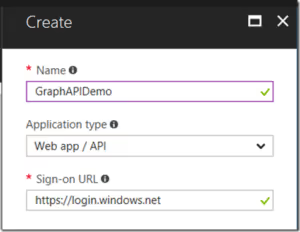
5. Once it is created, select this newly created app. Note down the application id (it’ll be used as Client Id in the later step of adding this API as custom connector in PowerApps environment). After noting down the application id, click “Settings” menu at the top.

6. From Settings, click on Reply URLs, add following url and hit save:
https://msmanaged-na.consent.azure-apim.net/redirect
Note- This url may not work for non US locations. If you get error, you’ll have to come back and add your location specific url. I’ll go in greater details about that error at a later step (where you register this as custom connector in PowerApps environment).
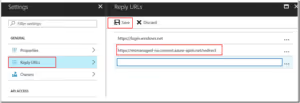
7. From Settings, click on Keys

8. Enter a description for the key, choose the expiry period, and hit Save. A new key value will be generated. Note down that value. You’ll need this key secret in later step while registering this API as custom API in PowerApps. (Note- very important to note down this secret in this step because you won’t be able to see this key if you come back to this screen later. )

9. Go back to Settings, click on Required Permissions

10. In the Required Permissions, click on Add and then Select an API:

11. On the next screen, select Microsoft Graph:

12. Click on Select Permissions:

13. Under “Delegated Permissions”, check following ones:
- View User’s Basic Profile
- View User’s Email Address
- Sign Users In
- Access Directory As Signed In User
- Read Directory Data
- Read All Groups
- Read All User’s Basic Profile
- Sign in and read User Profile and, hit “Select”

Step 2: Grant The Permissions Requested In The Previous Step (An Active Directory Admin Needs To Do This)
This step can be done only by the admin of the active directory. There are 2 ways to do this:
Option 1:
Ask the admin to the Azure portal, go to Azure Active Directory -> App Registrations -> and select the app you registered in the previous step. Go to settings -> Required Permissions, and click on Grant Permissions button at the top:

Option 2:
Send the following URL to the Active Directory Admin (it is typically someone from your IT Department). In the url below, put the client id (or application id) you noted while registering the app in the active directory. On clicking this url, your Active Directory Tenant Admin will get the prompt to grant permission.
https://login.microsoftonline.com/powerappsdemo1.onmicrosoft.com/oauth2/authorize?client_id=<Client-Id you noted earlier>&response_type=code&redirect_uri=https://msmanaged-na.consent.azure-apim.net/redirect&nonce=1234&resource=https://graph.windows.net&prompt=admin_consent
Step 3: Add This Registered App As A Custom Connector In Your PowerApps Environment
1. Go to powerapps and click on gear icon on the top right, and select “Custom Connectors”.
Note- if you are part of multiple Active Directory Tenants, make sure you sign in to the active directory tenant where you registered this app in the first step.

2. Once you get to Customer Connectors screen, click on “Create custom connector” and Choose the option to “Import an Open API File”:

3. You’ll get following dialogue box. By importing an OpenAPI file, you are essentially importing a Swagger file. Use the Swagger file I created for this scenario (Save it to your local drive, and use it for uploading OpenAPI file). For Custom Connector title, use any title you want. I used DirectGroupMembership.

4. “General Information” step is automatically filled using the information in the swagger file. Feel free to change the icon, description but don’t change Host and Base Url.

5. Click Continue. In the Security Step, Swagger file will help automatically select Authentication Type as OAuth2.0 and choose the Identity Provider as “Azure Active Directory”. Leave all the information as automatically filled. You just need to fill the following information:
Client id: <Application Id you noted down in the earlier step of registering your app in Azure Active Directory.” >
Client secret: <Secret Key you noted while creating Keys in the App registration in Azure Active Directory step earlier>
Resource Url: https://graph.microsoft.com/
Click Continue.

6. Next Step of Definition will have everything automatically filled out from the Swagger file. Don’t make any changes (except summary and description- if you want to)

7. Click on Creator Connector:

8. If you followed all the steps properly, clicking on “Create connector” should create the connector successfully.
If you see warning like following, scroll down and see if you see 200 Success message. If you see 200 Success message, please ignore the warnings. These warnings show up because my swagger file has extra parameters that are used by other Graph APIs. You don’t them for this example, that’s why it’s just warning.

Next step is to test it. Click on “Test” link and then “New Connection” on the Test Screen:

9. Click on “Create” from the Pop up dialogue box:

10. Sign in using your account:

If you are getting sign in error in creating connection, scroll down and see your error message. If the error message points to a different reply url than the one you specified while registering the app in active directory (Step-1) earlier, please add this reply address as a reply url in your app (reply url from your error message)

11. On successful sign in, you successfully registered Graph API with the right permission as a custom connector in your PowerApps environment. You should be all set to use it in your app. You can go ahead testing this in the portal by going to “Custom Connector”, selecting this connector and clicking on “Test”. For user id input, provide your full email (e.g. sudhesh@powerappsdemo1.onmicrosoft.com) and see the output. If all goes well, you should get 200 OK status.
If you are getting 404 error, please check the following in the graph explorer
Go to graph explorer, sign in, and try running following API (make sure you provide full email of the user id e.g. meganb@bappartners.onmicrosoft.com ).
https://graph.microsoft.com/v1.0/users/{userid}/memberOf


See if you can successfully get the list of groups here.
If you get permission error, please click on modify permission link and add following permissions (your Active Directory Admin will have to do this):
User.Read
User.ReadBasic.All
People.Read
Directory.Read.All
Group.Read.All
User.Read.All
People.Read.All
After ensuring that you get the groups list using Graph API as stated above, come back and test your custom connector in PowerApps. You should be good now.
If you are facing any other error, please double check that you followed following steps properly:
- The Registered App was Granted Permission by an Admin of the Active Directory (Ensure that the permission was granted before you registered this as custom connector in PowerApps environment)
- While registering the app, you provided proper reply url (if you got error during custom connection creation, you added additional reply url)
- While creating custom connector, you provided proper resource url
- You noted down the correct Client Id, and Client Secret. (Client Id is same as Application Id. Key is same as Client Secret)
- You are signed in to the Active Directory Tenant where you registered your app
- You could successfully run the api from Graph Explorer
Step 4: Use the custom connector in your PowerApps app
1. In the PowerApps environment where you created this custom connector, create a new app.

2. Create a blank app. Click on View -> Data Sources. You should see this Custom Connector you just created in the list of data sources (If not, click on “New Connection” and you’ll see that connector). Click on the Custom Connector you just created.

On click on this, your custom connector should be a Data Source in your App now. I see “Graph” as a data source now (this name came from the title given in the swagger file. Feel free to change that).
3. For quick testing to see if you are getting the groups, insert a button control and OnSelect action of the button, put following formula:
ClearCollect(MyGroups, Graph.ListUserGroups(User().Email).value)
Graph is the name of the data source (custom connector)

4. Preview the app and click on the button. Go back to design mode and check if the collection “MyGroups” has the list of the groups you are member of.

5. Getting some value in collection like above means you are able to successfully get the list of Groups, the signed in user is member of. You can now use this for setting visibility on or off of certain screens or controls. For example, if you have an Admin button on this screen, you can set the visible property of that Button to:
If(“Administrator” in MyGroups.displayName, true, false)
Note- in your application, you’ll most likely not have any button to get the list of groups. You’ll most like do this in the OnVisible event of your screen.
Hopefully this tutorial gives you a good overview of how to implement active directory group membership based permissions in your app. There are many steps involved here (incl. admin consent), so it’s a long post. However following all these steps successfully will also give you good idea of how to implement any custom connector in your PowerApps environment and how to make use of different Graph APIs.
Let us know your feedback and questions. Will be great if some of you can share your scenario or any additional tutorials you created on similar lines.
Related Links:

Implementing Role Based Security In Your PowerApps App
A very common question our customers ask is, how do I implement role based access control in my app. In other words, how do I make certain features or screens
Bookmark PowerApps Champs to continue learning about how Champions have used Power Apps in ways that are redefining their organizations, their careers, and their lives. Read about their impact–find out what makes them Champions.
Samit
Samit Saini was a security guard at London Heathrow Airport who enjoyed tinkering with technology like Excel and VBA. When he got access to Power Apps, he used it to digitize some of the paper-based processes at Heathrow such as providing translations for common questions asked by international passengers, performing customer experience audits, and supporting passengers with reduced mobility.
Heathrow has benefitted greatly from this level of substitution, having already saved more than 11,000 sheets of paper, 850 hours of time, and $460,000 in potential app costs. They cite that every 25,000 sheets of paper saved equals about 3 trees. But as Samit puts it, “In Heathrow, we’re not trying to save trees, we’re trying to save the forest.” With this type of implementation, Power Apps is reducing the consumption of resources of paper, time, and money.
Watch a video on Samit’s journey: MeetSamit

Martin
Martin Lee has built 50+ apps over the past year for a variety of use cases such as field technicians, call center agents, and executive conferences for Autoglass® (part of Belron® group). Belron® is a vehicle glass repair and replacement group operating worldwide across 34 countries and employing over 25,000 people. With the data collected from apps, they are generating insights and reports getting much more than they had originally planned to do.

Nick
Apps could be made by anyone, for anyone, to solve anything. But they could also be done any time. At the American Red Cross, a volunteer had created an app while deployed during Hurricane Harvey. The app allowed volunteers to check-in and report on their status. It was a simple use case, but had significant value, and it was made ad hoc. Nick Gill, a trainer at the American Red Cross, described this app in his Microsoft Business Applications Summit presentation, along with the app he built for First Aid & CPR instructors to order training supplies such as gloves and masks.
Learn more about the American Red Cross.

Camilla
Camilla Friedrichsen is a Quality Management Specialist at the LEGO Group headquarters in Billund, Denmark. She created a solution to track and communicate product quality issues with the development and operations teams at LEGO. All the information on a quality issue became available in one spot, her team did not need to search elsewhere for additional information, such as pictures. Managing access was easy as SharePoint gave the flexibility of maintaining granular level permissions. Her team was able to implement the solution for themselves, without needing IT to build it for them.
Learn more about Camilla and the LEGO Group - MeetCamilla

Vanessa
At Standard Bank, Africa’s largest bank in terms of assets, Vanessa Welgemoed is on Ian Doyle’s team which has modified the company’s app-building process. As part of their approach, they elicit ideas from those in their organization on what apps they want. Those who share ideas are also invited to learn how to build the apps themselves, so that they are not reliant on central IT. With this implementation in place, Standard Bank collectively has over 100 apps in production and is continuing to grow at a rapid pace as the energy and interest in the Power platform continues to grow.
See how Standard Bank is using Power Apps

Remi
SNCF is France’s national state-owned railway company that operates the country’s national rail services. Rémi Delarboulas, a digital adviser in the digital transformation team took the initiative to build a Power Apps application called Digi Bogies. The aim was to reduce the error rate and streamline the work required to perform this operation. The result was a very intuitive user experience that culminated in the app providing a list of recommendations and guidance around optimal spring placements.
Learn more about SNCF at: Power Platform Customer Success Story

Jonathan
Jonathan Oberhaus is an example of someone whose job is to make apps: not any ordinary apps–but specifically Power Apps. At DriveTime, he has shipped four solutions in production and continues to grow the app portfolio for scenarios such as insurance claims management and contract employee management.
DriveTime started its Power Apps journey as an early adopter in 2016 with Travis Bliele, a business analyst with Power BI and SQL background but no app development experience. He had created a mobile solution for DriveTime car buyers to inspect vehicles at auctions. As the impact of the Power platform grew, the company created a full time Power Apps developer position filled by Jonathan Oberhaus.

Keith
Arriva is one of Europe’s largest transport providers. They operate ~18% of London’s bus service and service ~2.4 billion passenger journeys each year. Keith Whatling had used Power Apps and the Common Data Service to digitize management of the quality process in Arriva London’s operations center. Management and staff could stay more connected in order to continually improve the quality of their operations.
Keith speaks passionately about ‘digital inclusion.’ To quote Keith, Power Apps is a tool that “democratizes technology, one where the cost of quality apps, processes, and data are in the hands of those that need it, not just those who can afford it. It’s the pebble in the pond. A game changer.” He sees how Power Apps makes it possible to build ‘never apps’ apps that would never be built for small teams. Everyone can have an app.

Eric
At G&J Pepsi, the largest family-owned bottler for Pepsi-Cola products, Eric McKinney was managing the company’s migration to the cloud and rolling out services such as Office 365 and Skype. He substituted a paper-based store audit process with Power Apps. With real-time reporting, the company was able to respond much more quickly to issues and reduce errors. On top of that, G&J Pepsi was able to use rich PowerBI reports to derive insights over the aggregated data such as their top in-store competitors on a per-region basis. Since 2016, Eric has built several cross-platform solutions using Power Apps for auditing stores, managing merchandise and tracking resources.
Watch a video on Power Apps at G&J Pepsi

Ludovic
SNCF Railway has a growing community of app makers. They have thousands of app makers on their Yammer channel for Power Apps. While to some this is a large active community, to Ludovic Malondra, a digital transformation leader at SNCF, he sees this as a relatively small number. His goal is to expand Power Apps adoption to all 165,000 employees at the company, redefining the expectations of growing community.
Learn more about SNCF at: Power Platform Customer Success Story/

Ashlee
Never doubt that a twitter contest could change your life. Ashlee’s Power Apps story begins with a fidget spinner–not an ordinary one, but a digital one. Having learned about a challenge to see who could build a fidget spinner in Power Apps, Ashlee used her knowledge of trigonometry to animate a spinner that wowed the Power Apps team and won the contest.
Today she builds complex apps with her dad and leads hackathons where participants of all ages learn Power Apps and crucial life skills.

More Resources
Would you like to learn about more customer stories? Visit

Meet the Power Apps Champions
Bookmark PowerApps Champs to continue learning about how Champions have used Power Apps in ways that are redefining their organizations, their careers,
Introduction: Why Power Apps
Have you ever wished you could build your own app without being a professional developer?
With Microsoft Power Apps, that dream becomes a reality. Power Apps is part of the Microsoft Power Platform and allows anyone from beginners to IT pros to create apps with drag-and-drop simplicity.
Whether you want a mobile app for your team, a SharePoint-integrated solution, or a knowledge base your company can carry in their pocket, Power Apps has you covered.
But here’s the big question: How do you start?
There are three main ways to build apps in Power Apps:
- Start from a blank canvas
- Start from data
- Start from a template
This guide will break them down, show Power Apps examples, and help you decide which method is best for your business.
1. Build a Power Apps Canvas App from Blank
Starting from scratch gives you the most flexibility. With a Power Apps Canvas App, you can design the app exactly how you want it, think of it like drawing on a whiteboard.
- Canvas App from Blank: Design the UI freely with drag-and-drop tools.
- Model-Driven App from Blank: Powered by your data model, with prebuilt forms, dashboards, and charts.
- Portal App from Blank: Create external-facing websites and apps for customers or vendors.
When to use Canvas Apps:
- You need a custom business solution.
- You want to integrate with SharePoint app development or external data sources.
- You’re solving a problem that templates don’t fit.

3 Ways to Build a Power Apps App (and How Consulting Can Help You Get It Right)
Empower your team to start building and launching apps right away using pre-built templates drag-and drop simplicity, and quick deployment.
Customer-first priority
One of the highest priorities for North State Grocery is keeping customers happy at both of its chains. When a popular customer service program became a bottleneck for responding to customer requests for new products, the customer service team worked with SkyLite Systems to replace it.
The new solution unlocks customer data from Microsoft SharePoint Online a familiar tool for the staff making it possible for all stakeholder departments to access and update the database from any connected device.
It also helps keep data and alerts moving smoothly, preventing requests from falling through the cracks all while increasing the value of Office 365 and the company’s Microsoft investment.
“This tool makes managing the customer relationship much easier.
Now we know that nothing is going to fall through the cracks.”
- Lynn Martinusen, Customer Service Manager, North State Grocery
Competitive industry needs
Holiday Market and SAV•MOR Foods, the two formats that comprise the North State Grocery regional grocery retail organization, operate in an extremely margin-sensitive, competitive industry.
With limited square footage and big competitors in the northern California market, it’s critical for these operations to be highly customer focused. That’s why the stores rely heavily on strong customer service to attract and retain loyal customers in-store, at the point of purchase, via email, and on social media.
One way the stores cater to their customers is by using shelf signage to solicit suggestions for new products.
“You can call us, and we’ll do our best to bring in any item that’s available and feasible for us to carry.
We’ve always received great reviews from customers for working with them to stock products that are important to them.”
- Lynn Martinusen
Growing complexity of customer needs
- Natural and organic products expanding exponentially made it harder to keep up.
- Many new and niche products were emerging, making buyer/vendor selection challenging.
- Small store footprints meant limited shelf space.
“We rely on our customers to tell us what they want to see in our stores.”
-Martinusen
- Customer request program existed for 28 years.
- Managed by a small team of four.
- Used Microsoft Access database.
- Became difficult to:
1. Respond to requests
2. Manage follow-ups
3. Keep buyers, customers, and managers in sync
4. Prevent requests from being lost
Martinusen:
“It was a huge responsibility… the old system just wasn’t conducive to having everyone work with the program.
Instead, it was a bottleneck.”
Building the new solution
North State worked with SkyLite Systems (Microsoft Partner Network) to design a modern platform.
How it started:
- Began with a simple sketch on paper of requirements.
- Built a custom Microsoft SharePoint Online list form using Power Apps.
- Integrated with an existing customer database in SharePoint.
- Leveraged Microsoft Flow (11 automated flows) for alerts and lifecycle tracking.
Benefits:
- No training needed familiar SharePoint UI.
- Nontechnical staff could build reports and metrics with 20+ list views.
- More than 50 users now collaborate across departments (vs. 4 in old system).
How it works
- All requests stored in SharePoint lists.
- Stakeholders use Power Apps forms to view request details.
- Automated email alerts go to buyers, managers, and customer service.
- SharePoint Quick Edit list view feels like a spreadsheet for updates.
- Deep integration with Outlook and Flow ensures tasks are completed.
Chennault:
“This spreads the workflow and decision making to staff who are directly responsible… eliminating the bottleneck.”
Rollout and adoption
- Built in 10 days → tested by customer service → rolled out to buyers.
- Added quick edit functionality for ease of use.
- Training delivered via manual + video uploaded to SharePoint.
- Now managing nearly 300,000 customer records and 1,200 items, with 50+ new requests weekly.
Results and impact
- Time savings: 15 minutes saved per customer contact.
- No middleman: Store managers can instantly check status or trigger actions.
- Positive customer reviews: Yelp, Facebook, and hotline praise follow-up.
- Better employee adoption: Buyers and managers find it manageable.
- Maximized Office 365 investment: No new software required.
“Power Apps has created a way for us to easily share important information about customer requests
for new products with our stores and senior management staff.”
- Lynn Martinusen
Final takeaway
North State Grocery successfully modernized a 28-year-old customer request program by combining SharePoint, Power Apps, and Microsoft Flow.
The result: Greater efficiency, Stronger customer loyalty, and Higher value from Microsoft 365.
Grocery chain in northern California and southern Oregon boosts customer relationships with custom app
One of the highest priorities for North State Grocery is keeping customers happy at both of its chains.
As an App Maker, before you begin building your Power Apps solution, it's recommended to go through a design process. When designing your Power Apps solution, there are several different factors to consider, such as:
- Business requirements
- Data Model
- User Experience (UX)
- User Interface (UI)
- Business Logic
- Output
By going through a simple design process, you can flush out any minor issues before they become a larger problem once the app has been put into production. It is also important to understand that this design process is for Canvas apps.
So how do you go from a simple blank Canvas app, as seen below?

To a fully customized Canvas app solution?

Understand the needs of the user
One of the most powerful and, at the same time, challenging parts of building a canvas app is that you start with a blank screen. This gives you the ability to build what you want, but to do that you have to know what you want.
In many cases, when purchasing software to solve and or streamline business solutions, there are many business processes that don't quite fall within the software's supported guidelines. When you run into this issue, typically, there are several internal discussions and meetings held to determine how those unsupported processes can be updated/altered to meet the software requirements. For most organizations, this isn't ideal because of the cost or time takes to update those business processes. The great news is, by using Power Apps to build your solution, you won't have to worry about unsupported business solutions. Why? With Power Apps, you can build a custom solution tailored to the exact needs of your business requirements.
Often when building an app, you are tempted to recreate the piece of paper or legacy software-driven process exactly. This is possible but might not be the ideal solution. By challenging the existing process and asking what it is the business needs to do, not what does the piece of paper or old software allows you to do, it opens the possibility of better, more efficient processes. For example, maybe on the paper process, the user had to type notes about what they see. Would it be better instead to just take a picture? This type of thinking will lead to better apps and better outcomes.
Business Requirements
Every app you develop will have a different set of business requirements based on the solution. Taking the time to think about all the requirements is key to rolling out a successful production app.
Depending on the solution or company policies, you may have certain security, privacy, or compliance requirements you must follow. For example, let's say you are collecting secure personal information in the app. You will want to ensure this information is securely stored and not visible to everyone.
During this process, you will also want to identify any government regulations or authentication/authorization requirements (if applicable). You don't necessarily have to have all the answers to your questions here; you just want to know all the requirements.
Offline Mode
One of the first questions to consider when developing your application is, will the app need to function offline? If so, will the entire app or only part of the app needs to function offline? When will the data be synchronized to my data source? Are there any limitations?
This is important to consider during the planning phase because if you were to build your app without this functionality, then decide to add it later, it will be more difficult than just doing it in the first place. Why is this? You will need to make sure you are using collections and additional functions like SaveData and LoadData as you go along to allow your app to function offline. Also, if you are using Forms and trying to implement Offline mode, you will run into issues.
There is a thorough discussion that needs to take place around Offline mode, and it's best to have this early in the design process as it will affect the rest of the process.
Data Model
In the "Power Apps related technologies" module, you learned about some of the common data sources for building apps, but with all these choices how do you actually decide which data source to use for your solution? Maybe you already have a data source implemented that users work with on a day to day basis, like SharePoint. Could you just use this as your data source to build your app? Do I need to connect to multiple data sources? These are all common questions you should ask yourself and there are number of additional factors to consider, such as:
- Business Requirements – Every data source and it's supported functionality is slightly different. So, depending on your app requirements you need to select the data source that supports your needs or modify your business requirements to comply with the supported functionality for the selected data source.
- Licensing/Cost – Certain data sources like the Common Data Service or SQL are considered a "premium data source". A premium data source will require each user who uses the app to have a Power Apps Per App Plan or a Power Apps Per User Plan. For more information about licensing, see Power Apps pricing
User Experience (UX)
By designing your Power Apps solution in a Canvas app, you have complete control of the end-user experience. This allows you to fully customize nearly every aspect of your app. However, just because you can doesn't necessarily mean you should. When designing your Power Apps solution your goal should be to keep it simple. When your end users open the application and begin using it, they should have no confusion about what to click on or where to go. If your app requires an extensive training program for users to understand how to use it, you may want to rethink your app.
Some of the basic designs elements you will want to consider are things like:
- Custom Branding (your logo and colors)
- Pop-ups
- Hide/show buttons based on users' access/permissions
One of the most common User Experience enhancements you can implement in your applications are Pop-ups. By implementing pop-ups, you can provide the users with a simple, but useful visual to confirm what the user clicked on went through or maybe your pop-up acts as a loading screen as the logic on the backend is processed. For example, in the screenshot below when a user clicks on "Submit", we might have a simple pop-up display to let them know their submission was successful.
User Interface (UI)
To fully visualize the User Interface or UI, you may want to consider creating a mockup of your application. Two common ways to create a mockup of your application are below:
Use Visio to create a wireframe diagram. A wireframe is a visual representation of an application's user interface. To begin, there are various website and mobile wireframe templates available, or you could start from blank template. The diagrams are a quick way to show app functionality and gain team consensus on the design.
The example below shows a simple Visio wireframe of a Purchase Items screen in an inventory app.

Use Power Apps to create a mockup of your application. You can add most of the controls, graphics, forms, and other items to your app screens and play with the layout and size for each element as if you were building the app for real. When designing the UI you don't need to add the logic behind the various elements you placed on the screen.
The goal here is to focus on what the app could look like and how it could function. This similar to what you can do with a Visio wireframe but one of the biggest pros of going this route is that you will gain more experience working with Power Apps and also learn more about the various UI elements available in the process.
All of the experience and knowledge you will gain by creating your app mockup in Power Apps will only payoff later when it's time to start on the production app. Another big upside to using Power Apps for your mockup is that if you show this to your team and they like what you did, you can continue building off this app or create a new app and copy the elements you would like to keep to your other application. By not having to redo the UI or only having to redo parts of it, you could potentially save yourself hours of work.
The example below shows a simple mockup of a New Purchase Order Screen.

It really comes down to your preference and comfort with the software you are using to create the mockup. You should also consider licensing and costs when making this decision. Visio requires additional licensing to get the full functionality required for creating a wireframe diagram. Whereas with Power Apps, it doesn't matter which license you have. As long as you have Power Apps (and sufficient permissions in your environment), you can create apps and mockup apps.
As you design the User Interface, a few additional things to think about are Accessibility and Localization. It's important to ensure the app interface follows accessibility guidelines so all your users can interact with your application without any issues. To review these guidelines and additional accessibility properties, see Create accessible canvas apps in Power Apps.
Localization can be something you must consider when developing your application as well. Depending on where your app will be used, you may need to use different punctuation. For example, some regions of the world use a . (dot or period) as the decimal separator while others use a , (comma). For more information on building a globally supported application, see Build global support into canvas apps .
Business Logic
When using the common data service, you can create business rules and recommendations to apply logic and validations without writing code or creating plug-ins. The great thing about the common data service and business rules is that they are applied at the data level. This means that you can apply rules that are enforced regardless of how the data is accessed.
Often when building apps all of the business logic is built into the app. This works great if the data is only accessed via the app. The challenge is often business data is used in many ways and from different tools. This is where Business Rules shine. You can apply logic on the data in the Common Data Service, allowing your rules to be enforced no matter which tool interacts with the data.
For example, you have built a capital project expense tracking application using Common Data Service as the data source. In your business process, the duration field is an optional field if your request is less than 10,000 but the duration field is required if the request is more than 10,000.
After you set up your entity in Common Data Service, you would then apply a business rule that says if Project Amount is greater than 10,000 then make Project Duration a required field. Now, regardless of how the user interacts with the data, the Business Rule will be enforced, keeping your data integrity.
Output
Finally, you will want to discuss your app's data output. This simply means what type of data will your app generate, and once the data is generated what will be done with it? A few questions to ask your app stakeholders:
- How does the data need to be visualized?
- What actions will be taken on the data once it is collected?
- Are there specific format or file types the data are needed?
The answers to these questions will help determine if additional functionality needs to be added to the app such as a Power BI report, email output, PDF, or CSV.
Let’s look at an example. Perhaps your organization has a legacy ERP solution and the orders submitted in your Power App need to be reflected in the ERP application. While one option might be to build a custom connector to that solution, another option may be to export the data to a CSV file using Power Automate and Power Apps together, see screenshot below:

The great thing about generating this CSV file export is that it's not linked to your data, so the changes you make to the file will not alter the app data.
If you need our team to build this types of PowerApps for your business. Please submit the form!
Related Blogs
Checkout our other blogs related to building Power Apps:
https://www.sharepointdesigns.com/blog/ways-build-power-apps

Designing a Power Apps app
As an App Maker, before you begin building your Power Apps solution, it's recommended to go through a design process. When designing your Power Apps solution
Welcome to Microsoft Power Apps. This self-paced, online module helps you build apps from the ground up.
In this module, you will:
- Explore how Power Apps can make your business more efficient.
- Learn which technologies to use to perform tasks in Power Apps.
- Learn about the different ways to build an app in Power Apps.
- Create your first app from data in a Microsoft Excel workbook.
In this introductory module, you'll learn how to create an app from data in an Excel workbook. As a prerequisite, you'll download a workbook that contains sample data. Next, you'll upload the workbook to Microsoft OneDrive for Business, where you can share the data with others. Then, you'll build the app without using code.
Power Apps is a suite of apps, services, connectors, and a data platform that provides you with an opportunity to build custom apps for your business needs. By using Power Apps, you can quickly build custom business apps that connect to your business data that is stored either in the underlying data platform (Common Data Service) or in various online and on-premises data sources (SharePoint, Excel, Office 365, Dynamics 365, SQL Server, and so on).
Apps that are built by using Power Apps provide rich business logic and workflow capabilities to transform your manual business processes to digital, automated processes. Power Apps simplifies the custom business app building experience by enabling users to build feature-rich apps without writing code.
Power Apps also provides an extensible platform that lets pro developers programmatically interact with data and metadata, apply business logic, create custom connectors, and integrate with external data.
With Power Apps, you can:
- Build an app quickly by using the skills that you already have.
- Connect to the cloud services and data sources that you're already using.
- Share your apps instantly so that coworkers can use them on their phones and tablets.

When it comes to using Power Apps to get things done and keep people informed, your options are nearly limitless. The following examples can help you think about how to use an app, instead of traditional paper notes, to run your business:
- Equipment in the field -Often, company representatives who visit customers in the field carry clipboards to help guarantee a paper trail of parts with scheduled replacement dates. By running an app on a tablet, reps can look up the customer's equipment, see a picture of a part, test and analyze the part, and then order new parts. Reps can perform these tasks on-site instead of leaving the customer's warehouse.
- Restaurant employee management - Employees of a large restaurant might fill out work schedules and vacation requests on a piece of paper that's affixed to a wall. With Power Apps running on everyone's smartphone, employees can open the app to record the same information, anywhere, anytime. The app can even send reminders for the start of the next day's shift.
If you're a beginner with Power Apps, this module gets you going quickly; if you're familiar with Power Apps, it ties concepts together and fills in the gaps.
Power Apps building blocks
Power Apps is a collection of services, apps, and connectors that work together to let you do much more than just view your data. You can act on your data and update it anywhere and from any device.
To create, share, and administer apps, you'll use the following sites:
- Make a Power App - On this site, you can open apps, specify the type of app that you want to create, share your app, and create data connections and flows. To use this site, you'll need to log in by using your organizational account.
- Power Apps Studio - On this site, you build apps by configuring user interface (UI) elements and Excel-like formulas.
- Power Apps admin center - On this site, you'll define environments and data policies.
Note:
To use these sites, you'll need to sign in by using your organizational account.
When you've completed your tasks, you can run your apps in a browser or in Power Apps Mobile (available for Windows tablets, iOS devices, and Android devices).
Related Blogs
Checkout our other blogs related to building Power Apps:

Introducing Power Apps
Welcome to Microsoft Power Apps. This self-paced, online module helps you build apps from the ground up. Explore how Power Apps can make your business
This unit explores each part of the following Power Apps components:
- Power Apps Home Page - Apps start here, whether you build them from data, a sample app, or a blank screen.
- Power Apps Studio - Develop your apps further by connecting to data, adding and arranging user interface (UI) elements (known as controls), and building formulas.
- Power Apps Mobile - Run your apps on Microsoft Windows, Apple iOS, and Google Android devices.
- Power Apps Admin Center - Manage Power Apps environments and other components.
Power Apps Home Page
If you are building an app, you'll start with the Power Apps Home Page. You can build apps from sample apps, templates, or a blank screen. All the apps that you've built appear here, along with any apps that others have created and shared with you.

Power Apps Studio
Power Apps Studio is where you can fully develop your apps to make them more effective as a business tool and to make them more attractive. Power Apps Studio has three panes that make creating apps seem more like building a slide deck in Microsoft PowerPoint:
- Left pane - Shows a hierarchical view of all the controls on each screen or a thumbnail for each screen in your app.
- Middle pane - Shows the canvas app that you're working on.
- Right pane - Where you set options such as the layout, properties, and data sources for certain controls.

Power Apps Mobile
Power Apps Mobile for Windows, iOS, and Android devices allows you to use all the apps that you've created, and those others have shared with you, on your mobile device. You or your users can download the Microsoft Power Apps app from the appropriate app store. When users log in with their credentials, they will see all apps that have been shared with them. The Power Apps Mobile app only needs to be downloaded once.
When you use apps in Power Apps Mobile, you get the most out of your device's capabilities: camera controls, GPS location, and more.
Power Platform admin center
The Power Platform admin center is the centralized place for managing Power Apps for an organization. On this site, you can define and manage different environments to house the apps. For example, you might have separate environments for development and production apps. Additionally, you can define data connections and manage environment roles and data policies.
Licensing
Most users get their initial start with Power Apps by utilizing one of the licenses that come with their Microsoft 365 Plan or Microsoft Dynamics 365 license. These licenses allow you to extend the functionality of the app that is licensed. This means if you purchased a Microsoft 365 plan that included a Power Apps license then you can build apps that extend and use SharePoint as a data source. But Power Apps doesn’t have to stop at just extending that platform.
Power Apps has over 300 available data source connectors available including Common Data Service. To incorporate Common Data Service or any of those additional connectors all users of the app will need a premium license. There are two different ways to acquire a Premium license:
- Per App model
- Per User model.
The Per App license plan allows individual users to run two applications and one portal for a specific business scenario in a specific environment based on the full capabilities of Power Apps with access to premium connectors. The Per User license plan allows users to run unlimited premium licensed apps. This gives you the ability to grow with Power Apps and control costs by purchasing the license that best matches your business goals.
In addition, Power Apps also has the capability to use Power Apps portals to build externally or internally facing websites using Common Data Service and Power Apps controls. Power Apps portals have their own licensing model and are not included in any of the licenses discussed previously above. With Power Portals you will purchase a capacity based license to meet your business needs.
Review the following links about licensing.
Microsoft Power Automate pricing
Microsoft Power Apps portals pricing.
Related Blogs
Checkout our other blogs related to building Power Apps:

Power Apps building blocks
This unit explores each part of the following Power Apps components: Power Apps Home Page - Apps start here, whether you build them from data

Microsoft Power Apps works with other technologies to help you build powerful apps for your organization. Some of these technologies include:
- Data sources - Without data, you don't have a business. Data sources bring cloud and on-premises data into your apps. You access data through built-in connections, custom connectors, and gateways.
- Common Data Service - A compliant and scalable data service that's integrated into Power Apps.
- Power Automate - Allows you to build automated workflows to receive notifications, run processes, collect data, and more.
Data sources, connections, and gateways
In Power Apps, most canvas apps use external information that is stored in Data Sources. A common example is a table in an Excel file that is stored in OneDrive for Business or SharePoint. Apps access these data sources by using connections. Some connections allow Power Apps to read and write stored data. In Power Apps, you can add many data sources to your apps through built-in or custom connectors. Some of the most popular data sources are shown in the following figure.

Many data sources are cloud services, like Salesforce. Even Twitter can be a data source if, for example, you're tracking your company's hashtags. Connectors might not seem like the most exciting part of app development; however, they're essential when you work with data that you, your colleagues, and your customers care about. When an app shows up with your data source for the first time, you might suddenly find that they are, in fact, exciting.
For data that's stored on-premises instead of in the cloud, you can use a gateway to provide a reliable connection between Power Apps and your data source. The gateway sits on an on-premises computer and communicates with Power Apps.
An advantage of building your business apps in Power Apps is being able to connect to many data sources in a single app. With the connectors in Power Apps, you can connect to where your data lives. To learn more about data sources in Power Apps, refer to the Working With Data learning path.
Common Data Service
An important data source option to explore further is the Common Data Service. Common Data Service lets you store and manage data that's used by business applications. Data within Common Data Service is stored within a set of entities. An entity is a set of records that are used to store data, similar to how a table stores data within a database. Common Data Service includes a base set of standard entities that cover typical scenarios, but you can also create custom entities that are specific to your organization and then populate them with data by using Power Query. App makers can then use Power Apps to build rich applications by using this data.

For information on purchasing a plan to use Common Data Service, refer to the License and Pricing information pages.
Reasons to use Common Data Service
Standard and custom entities within Common Data Service provide a cloud-based storage option for your data. Entities let you create a business-focused definition of your organization's data for use within apps. If you're unsure if entities are your best option, consider the following benefits:
- Simple to manage - Both the metadata and data are stored in the cloud. You don't need to worry about the details of how they're stored.
- Helps to secure data - Data is stored so that users can see it only if you grant them access. Role-based security allows you to control access to entities for different users within your organization.
- Access your Dynamics 365 Data - Data from your Dynamics 365 applications is also stored within the Common Data Service, which allows you to quickly build apps that use your Dynamics 365 data and extend your apps by using Power Apps.
- Rich metadata - Data types and relationships are used directly within Power Apps.
- Logic and validation - Define calculated fields, business rules, workflows, and business process flows to ensure data quality and drive business processes.
- Productivity tools - Entities are available within the add-ins for Microsoft Excel to increase productivity and ensure data accessibility.
Related Power Platform technologies
As you continue developing your application, you may want to consider implementing additional Power Apps related technologies such as Power Automate and or Power BI. For example, you may have a simple Expense Report App that requires an approval before an item can be purchased. With Power Automate, you can create a simple Flow to make this happen. Or maybe you want to display your data with custom charts and graphs giving your users a more visual look into the data, which can often be useful. In this section, you will learn more about some of the other Power Platform technologies and how you could apply them in your own Power Apps solution. Keep in mind, if you decide to implement these Power Apps related technologies you should also review their licensing structure and associated costs.

Power Automate
Power Automate brings automation to your business. This can be traditional workflows via flow, Robotic Process Automation (RPA) for automating legacy systems via UI Flows, or business process automation via Business Process Flows. Each of these capabilities increases your productivity to connect disjointed systems to build the business solution you need and make your app more powerful.
You can use Power Automate to create logic that performs one or more tasks when an event occurs in a canvas app. For example, configure a button to execute a flow to do one of the following: create an item in a SharePoint list, send an email or meeting request, or add a file to OneDrive. The button could be configured to do all of those in a single Power Automate flow. You can configure any control in the app to start the flow, which continues to run even if you close Power Apps. Below is an example using Power Automate to send a flow:

Identify Flows in your Solution
Now that you have a general overview of Power Automate, how do you determine if the solution you’re building requires a Flow? There are a number of simple functions Power Apps can do, like sending an email when a button is pressed in your application. This email generated from Power Apps can also contain dynamic/specific information and be sent to any email address you would like. Often, customers will use Power Automate to create this same functionality even though Power Apps can do this out of the box. Power Automate should be used for more complex solutions, such as the approval workflows. With Power Automate you can run an approval when a button is pressed, on a schedule, when an item is created or modified, and so on.
For many Power Apps solutions Power Automate is used to handle complex business logic. Do you need a way to make sure someone acted on the incident report that was generated by your app? Or, do you need a process to kick off every time new data is created in another system so Power Apps will have the data it needs? Do you need to check each morning to see if an inspection is due that day and then send an email with a link to your Power Apps inspection form? These are great uses of Power Automate to transform your app from a point solution to a fully featured business solution.
Power BI
Power BI is an analytics tool within the Power Platform suite. Power BI connects data from multiple sources and transforms the data into graphical visualizations to gain insights. It allows business users to utilize a number of different visualizations to build comprehensive reports and dashboards. When creating Power BI reports to view and analyze your app data, you have the ability to customize them for personal use and will only be accessible by you, providing you with a more unique and custom experience. If you need to share the report with others, you and each of the report consumer will need a Power BI Pro license. This license allows you to not only share the content but also control what others are able to do with the shared report or dashboard.
While Power Apps has capabilities to include simple graphs or tables, many solutions would be better served with a visualization provided by Power BI. Power Apps and Power BI have two options for seamless integration:
Embed a Power BI tile in a Power Apps app
By embedding a Power BI tile in a Power Apps solution, you are able to bring valuable visualizations into the app to allow the user to consume that data within the context of the app.
In the example below, you will see a simple Power BI Tile embedded in a Sales Planning app built in Power Apps. The visual is displaying the Profit and Gross Sales and the Power Apps form allows the user to enter sales predictions.

Embed a Power Apps app in a Power BI Dashboard
Another integration between these two applications, is to embed a Power Apps app in your Power BI report. This allows the user to act on data while never leaving the dashboard resulting in a better user experience. Consider an inventory management dashboard for a manufacturing facility. Without leaving the dashboard, the user can submit to purchasing an order for additional material. While the solution may have been utilizing both the Power Apps and Power BI platforms, the user simply experiences a complete end to end solution in one window on their desktop.
In the example below, we are analyzing the Sale Price and Profit by Country and Segment. Notice once you have embedded your Power App in a Power BI Dashboard you can navigate between screens.

In this next screenshot, still working with the same data as the previous example, you can utilize the native Power Apps features like Search with Power BI data.

In this last screenshot, for this example, you will see the embedded Power App is filtered by the Power BI selection.

Translating needs to the appropriate technology
To build the best solution, think through the use cases and determine how you want to collect the data, use the data, and analyze the data. Once you have determined how the solution will be used in each one of those cases, you can begin to select the right technology to execute each function.
It would be difficult to cover every use case and decision point, but to help you understand the decision-making process let’s explore sending an email via Power Automate versus sending an email via Power Apps. First consider the look and feel of the email, does your solution require special formatting of the email? To format the text of your email in Power Apps, like adding italics or bold text, you would need to write HTML. In Power Automate though, this functionality can be implemented by using the simple Design Interface that is provided out of the box.
Below are examples of the formulas to execute sending an email via Power Apps versus via Power Automate.
Send an Email via Power Apps

Send an Email via Power Automate

Also, the number of steps in your solution/process will aid you in determining which technology best suits your needs. Power Apps is great for performing simple solutions with minimal steps but as your solutions become more complex and requires multiple steps, Power Automate would be the better solution.
Again for this particular example, both technologies can provide the same solution, but there are little nuances that should be considered and thoroughly discussed during the design process to determine your requirements and help you choose the best product for your solution.
Let's not forget about discussing Power Apps and Power BI, and when to use one vs. the other. When deciding whether to use the basic charts, graphs, and visuals that come with Power Apps out of the box or to utilize a more powerful software like Power BI it really depends on your business solution and requirements. For example, if in your solution, you are wanting to add some basic graphs and charts to improve the apps overall look and feel while adding some visual flair for your users, Power Apps has you covered.
Here is a quick look at one of the simple, out of the box Power Apps charts.

Simple and minimal design above, nothing crazy but it gets the job done.
On the other hand, if your solution requires in-depth analysis of your data, and robust visuals, Power BI will be the best product for your solution. Keep in mind, with Power BI, each app user will need an additional license on top of the Power Apps license. This is a small price to pay though if our solution relies on intuitive dashboards, charts, graphs, and several other features to help you get the most out of your solution.

By identifying the needs of related Power Apps technologies in your solution and strategically implementing them, you will be able to provide your users with a better overall experience when using the solution.
Reference Links:

Power Apps related Technologies
Microsoft Power Apps works with other technologies to help you build powerful apps for your organization. Some of these technologies include: Data sources - Without data,
Are you tired of wasting your time with manual processes? Want a flexible workflow platform to automate communications and document management at your firm?
At the most basic level, the workflow platform has to be user-friendly and light to load in order for the stakeholders to use it on a daily basis. The platform should send out alerts and notifications to all the users, have easy log-in processes, integrate and work harmoniously with other softwares, manage and track documents, and provide analytics on the content that’s stored in it.
SharePoint Designs prides in taking up one-off novel projects that have challenging pain points and require a completely innovative business solution through Microsoft Office 365, especially SharePoint and Azure.
Problem
Conveyance firms act as a liaison between law firms and customers that want to buy properties. Conveyancing, for decades, has been a service that involves a colossal amount of manual labour. This legal process of buying and selling properties involves document, contract, and physical property verifications. The most important of all is managing the back and forth communication between customers, sellers, bankers, middlemen, legal advisors, and other third-party vendors.
One such conveyancing firm wanted a solution to leverage technology, and automate most of this tasks for all the stakeholders involved. This way, customers could engage in remote transactions instead of having to meet everyone in person. The technological solution could save time, efforts, and energy for all the individuals involved.
Solution
SharePoint Design’s team came up with a SaaS solution for the client where we designed a personalised cloud-based workflow platform using Microsoft Office 365. We were able to deliver the project to the client within one and a half months!
As opposed to Google’s SaaS and PaaS solutions, Microsoft’s solutions are more integrated. Therefore, using Office 365, we could build a workflow that allowed staff to create their log-in identities, authenticated them, stored all the company documents, gave a server space to host the workflow platform, and automated the organization of work emails in different folders on Outlook as well. We also built an Outlook plugin, a pop-up reminder for employees, asking them to organize emails into various folders if they were not already sorted automatically.
Technology
The team at SharePoint Designs used Angular 6.0, Graph API and Outlook API to come up with a fresh solution for the client.
You can build mobile and web applications with Angular. Add to that Microsoft’s Graph API, you have good productivity apps and workflow platforms. With Graph API, you can integrate these platforms seamlessly with other Microsoft products like Excel or Outlook, create calendars, retrieve and analyze data, organize documents, analyze user patterns and send out alerts, and do business forecasts in real time. Combined with the Outlook API, you could link your workflow platform to Outlook to send and receive emails. Whatever messages you send through your workflow platform automatically gets organized in various folders on Outlook as well.
Finally,
If you are looking to automate and scale up your business, we at SharePoint Designs provide PaaS and SaaS solutions. Leave it to a good integrated-technology platform that can do the job for you. Using SharePoint, businesses can achieve advanced technological feats.
Want efficiency, productivity, and smooth collaborations? Office 365 is the best integrated solution provided by Microsoft for all your business needs. Microsoft’s products have a competitive advantage over Google and IBM products as they can be integrated with one another seamlessly to build customized business solutions.

How Conveyancing in Canada was automated with a personalized SaaS solution
Are you tired of wasting your time with manual processes? Want a flexible workflow platform

Your current document management system (DMS) is not up to your expectations: there is still a lot of manual work involved to organize, search or retrieve files. Your important files are getting overwritten, and you are unable to keep the version history intact. Interdepartmental collaborations are a total mess. Your staff’s productivity takes a hit because they are busy sorting and organizing files most of the time. The server keeps failing and the current DMS is wasting your time and the company’s money.
Do not lose hope yet...
At SharePoint Designs we would like to share a case study on how we helped an accounting firm with a DMS that combines Microsoft's SharePoint technology with artificial intelligence (AI).
Problem
The account firm wanted several years worth of hard copy documents digitized, organized and placed in various folders. They files needed to be named appropriately with the corresponding dates of creation, organization name etc., for easy search and retrieval.
This was usually a manual task where in the staff, after scanning the documents, creates appropriate folders and subfolders to organize them. Then, the individual renames each of the files based on its type, the client it belongs to, date of creation, and version history. The documents could belong to a miscellaneous collection of financial, legal, letter, collateral, or other types. This strenuous process is not feasible or efficient for large firms that need hard copies digitized for various procedures.
Solution
SharePoint Design’s team arrived at a simple solution to automate this manual task by leveraging technology to create an AI metadata recognition system. For instance, the AI software reads the scanned documents line by line. It recognizes the unique elements in the document as instructed by a software code like date, organization’s name, logo, type of document, etc.
Accordingly, it creates tags based on keywords like date, document type, and organizational name to create folders and subfolders to rename the files and save them correspondingly. If there are different versions of the same file, the software retains the version history as well.
For instance, at the most basic level, this customized solution can do the following for you. Let’s assume that there are there are various edited versions of an invoice billed to an ABC Company. The AI software would create a folder for the company and subfolders for the year and month. Under these folders, there may be a subfolder named “invoices”. In this folder, the software may save the corresponding invoices by giving names such as “ABC. 3.9.2019. Invoice-1”, “ABC. 3.9.2019. Invoice-2,” etc.
More commonly, the accounting staff at various firms are usually indecisive about how to structure various documents, especially if the clientele is massive. In fact, the templates and formats of various documents would have changed over the years as well. Leave it to AI to do such immensely complicated tasks with ease. Years of machine learning and robust research with software codes has equipped the AI software to recognize documents even if they have extremely modified templates.
Technology
Our firm has combined SharePoint DMS platform with Azure Search API and Azure Cognitive Services to bring about a tailored solution for our client’s problem.
The SharePoint platform has multiple products that can be integrated with one another to get hybrid solutions for your most complex business problems. You can store and access files in a well-organized fashion.It works on multiple devices, let’s you collaborate with multiple users who can have a single log-in to access all apps.
With seamless workflows, user permissions and zero server problems, you can maintain document security, confidentiality and compliances. You could also do data analysis and reporting on all the content you have stored on SharePoint. It is extendable and its scope is expandable for you to build customized solutions for your unique business needs.
Azure is a cloud-solutions service that hosts all your data, applications, softwares, tools with a cloud or hybrid server. No need to set up expensive hardware anymore. All you have to do is just pay a monthly subscription to manage everything through Azure. Azure’s cognitive services help build intelligent applications with features like facial and speech recognition, visual detection, intuitive search solutions, etc. With the help of Azure AI, all your data can be read and analyzed without hassles to bring out the correct business outcomes for you.
So, free yourself from manual labor and become a decision-making authority to give your company that outstanding competitive edge in the market.

We saved 10000+ man hours for a firm with document management solutions.
Your current document management system (DMS) is not up to your expectations
Microsoft flow is a cloud-based workflow engine, Using Flow end users can create cross application workflows (no code workflows). Flow is a part of office 365 E3 suite. It is a successor of SharePoint designer workflows. Complex level Flows can be promoted to an Azure logic app.

Microsoft Flows Vs SharePoint Designer Workflows

Anatomy of Microsoft Flow
- Flow Designer
- Connectors, Triggers & Actions
- Variables & Data Flow
- Expressions
- Branching, Error Handling & Scopes
Flow Designer – Create a Flow from Browser or Mobile Application
Desktop Version
- Go to https://flow.Microsoft.com
- Sign-in with Office 365 Account
- Start from existing template or import from disk or create from scratch (both in desktop & mobile browsers)

Mobile Version
- Install flow mobile app, sign in
- Create new flow (template or from scratch).

Connectors
Connectors Wrapper around an API that allows Flow to talk with other services.It exposes Triggers & Actions.
Standard Connectors – included as part of E3
- Microsoft Connectors (SharePoint, Azure Blob storage, SQL Server.)
- Non-Microsoft Connectors (Twitter, Slack.)
- https://us.flow.microsoft.com/en-us/connectors/?filter=&category=standard
Premium Connectors – additional cost
- Microsoft Connectors (HTTP with Azure AD.)
- Other Connectors (Salesforce, MySQL.)
- https://us.flow.microsoft.com/en-us/connectors/?filter=&category=premium
Custom Connectors – additional cost , development
- ISV, System Integrators, End users can create custom connectors to integrate any system/application/service.
- https://us.flow.microsoft.com/en-us/connectors/?filter=&category=custom
Triggers
Run based on user action or event
- From other apps in office 365 – PowerApps, SharePoint, etc.
- From SQL
- From dedicated Flow button

Run on a schedule
- Flow also run based on time schedule, From every minute to 1 am on Days.

Run by HTTP GET/POST to URL generated by flow
- Call another Flow
- Call from any application/service/agent that can make HTTP calls

Scenarios & Types of Triggers
Triggers - Scenarios
- Simple: Flows start with a Trigger.
- Advanced: Flows can have more than 1 trigger (async actions)
- Custom: Flows can have custom triggers
Types
Polling Trigger
- Periodically checks the service
- Checks count as executions
Push Triggers
- Listen for data on an endpoint or wait for event.
Actions
- Execute CRUD operations with workflow context
- SharePoint: Create Item, Delete Item, Create File.
- SQL: Insert Row, Update Row, Delete Row, Get Row.

- Transform Data
- Inline – using expressions (e.g. string operations, math operations.)
- Other services – Html to text.


Send Notification
- Send mobile notification, send email notification etc.
Call other Flow
- Chain Flows to create complex Flows.
Variables
- Use Variables connector*
- Initialize & then set value
- Supported value types (Boolean, String, Object, Array, Float).
Variables are NOT always necessary!
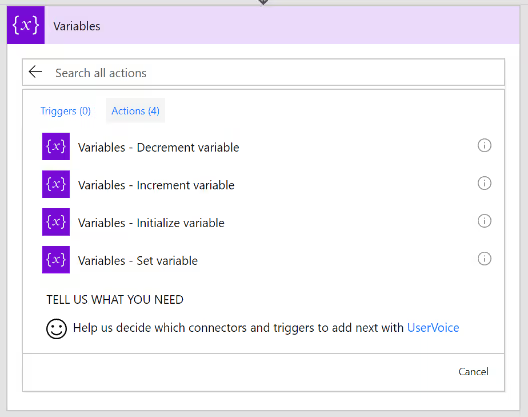
Why variables are not always necessary?
- Data Flows from each step and is available for all later steps
- ‘Add Dynamic Content’ allows us to select outputs from previous steps
- Certain outputs show up based on the types of the inputs and outputs.

Expressions
- Expressions can be used in most of the fields to transform data inline
- IntelliSense available as you type

Branching
- If-then-else

- Switch

For-Each
- By default, parallel
- Parallel (20 exec)
- Supports sequential

Do-Until
- Emulate State machines
- Help in approvals & more

- Parallel branches

Error Handling
- Actions can be set to run if previous action fails/times out.

Scopes
- Logically group actions
- Allow advanced error handling for a group of actions
- Scope boxes are in brown boxes.


Getting Started With Microsoft Flow
Microsoft flow is a cloud-based workflow engine, Using Flow end users can create cross application workflows. Flow is a part of office 365 E3 suite. It is a successor


.svg)