Tech Ideas & Best Practices
For years, we've designed intranets around the assumption that employees will come to the intranet and look for information. But what happens when employees stop browsing your Intranet and ask AI instead?
Why click through five menus when they can ask one question and get the answers they need?
1. AI needs somewhere to get its answers
AI doesn't magically know your company's policies, processes, organisational structure or project information.
It needs your content.
SharePoint is increasingly becoming an important knowledge layer for Microsoft Copilot and SharePoint agents. SharePoint sites and document libraries can have AI agents that answer questions using content the employee has permission to access.
The employee may never visit that HR page again. But AI might.
That’s why the boring policy page sitting in SharePoint becomes much more important.
2. Someone still has to decide what is trustworthy
Let's go back to our leave policy example.
You ask: "What is our sick leave policy?"
AI gives you an answer.
But which document did it use?
The 2021 PDF? The 2024 HR page? The document sitting in an old departmental library?
This is where SharePoint governance becomes an AI problem.
What makes content trustworthy?
Someone still needs to decide:
- What is the source of truth?
- Who owns the content?
- When was it last reviewed?
- Which version is current?
- Who should have access?
- What should be archived?
- What should be deleted?
AI can retrieve knowledge but someone still has to make sure that knowledge deserves to be retrieved.
3. Your intranet is more than a very expensive search box
Imagine opening your company intranet on a Monday morning.
You see a message from your CEO.
There's a story about a team that just won an important client.
There's a reminder about the town hall.
There's a new learning programme.
Someone has been recognised for ten years with the company.
You weren't looking for any of that.
You discovered it.
- Company identity
- Leadership visibility
- Internal communications
- Employee communities
- Recognition
- Culture
- Events
- Resources
- Self-service experiences
AI is excellent when you know what you want.
An intranet can be valuable when you don't yet know what you want.
4. Not everything should become a conversation
Imagine your CEO publishes an important company announcement.
You could ask:
"Hey Copilot, what did the CEO say today?"
And get a three-line summary.
Is it efficient? Absolutely.
But would you get the same experience as seeing the announcement, reading the message, understanding the context and discovering the related stories around it? Probably not.
There is something about visual storytelling, context and serendipitous discovery that a question-and-answer interface doesn't always provide.
Sometimes you don't know what you need until you see it.
5. The homepage can still influence user behaviour
AI responds to what you ask.
An intranet can introduce you to something you didn't know you needed.
You might open the intranet to check a travel policy and discover
- A new employee benefit
- An upcoming town hall
- A leadership message
- A learning opportunity
- An employee recognition story
- An important company announcement
The homepage can act like a company's noticeboard, newspaper and frontdoor.
That still has value.
For years, we've designed navigation to help people understand where information lives.
With AI, we also need to think whether the information is structured well enough for AI to understand, retrieve and use.
So what does an AI-ready SharePoint intranet look like?
An AI-ready intranet needs:
1. Trusted content
Employees and AI need to know which information is authoritative.
2. Strong governance
Content needs owners, review dates and lifecycle management.
3. Clean information architecture
Information needs meaningful structure and context.
4. Accurate permissions
AI agents need to respect the same access boundaries employees alreadyhave. SharePoint agents use content the user has permission to access.
5. Content that makes sense to AI
Pages and documents need to be clear, current, structured and meaningful.
Because your employees might stop browsing your intranet. Your AI won't.
So... do we still need SharePoint intranets?
Yes, but the real question is:
Do we still need intranets designed for employees to browse?
The future may be an intranet employees visit less often.
Its content may show up through Copilot, agents, Teams and other places where employees already work. Microsoft is already expanding SharePoint's AI capabilities and bringing interactive SharePoint experiences into the Copilot canvas.
So perhaps the future of the intranet is less about being a destination employees must visit.
And more about the intelligence underneath the employee experience.
So, the approach towards modern intranets may change from:
"How do we make employees use the intranet more?"
To:
"How do we make our intranet useful even when employees never open it?"
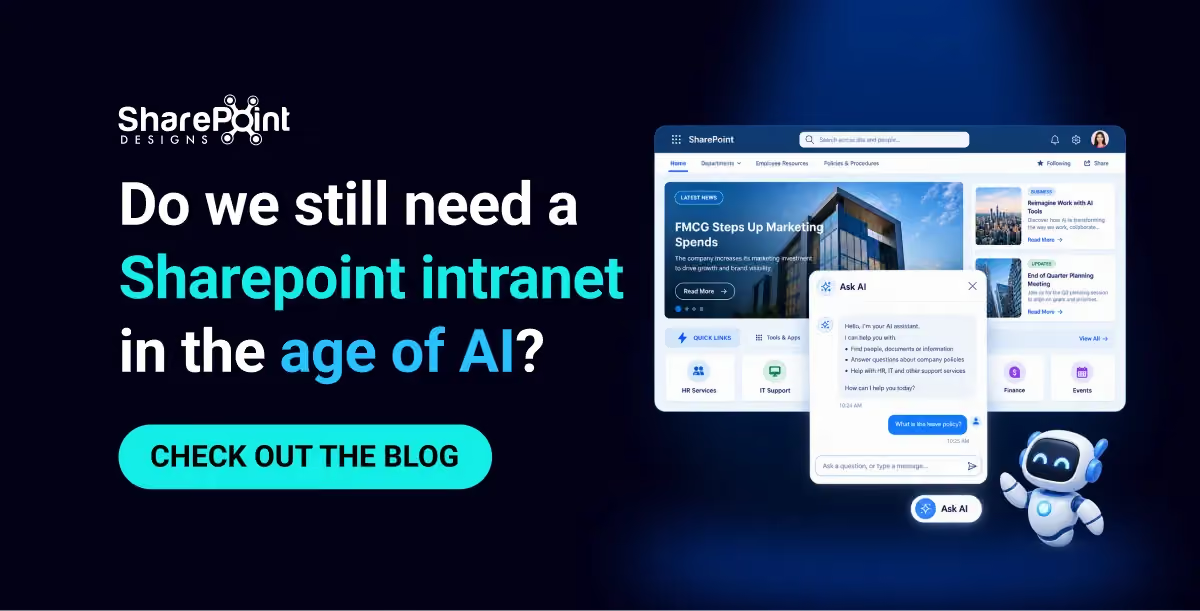
Do we still need a Sharepoint intranet in the age of AI?
For years, we've designed intranets around one assumption: Employees will come to the intranet and look for information.

Organizations today expect their intranet to be more than a document repository. Modern SharePoint intranets serve as digital workplaces where employees access company news, collaborate with teams, discover resources, complete daily tasks, and stay connected regardless of location.
Prebuilt SharePoint intranet templates significantly reduce implementation time while following Microsoft's modern design principles. Instead of building an intranet from scratch, organizations can deploy professionally designed experiences that are easy to customize and scale.
This article explores eight prebuilt SharePoint intranet templates available on Microsoft Marketplace, highlighting their key benefits, business use cases, and the SharePoint web parts commonly used in each solution.
Why Choose a Prebuilt SharePoint Intranet?
A professionally designed intranet offers several advantages:
- Faster deployment compared to custom development
- Modern responsive design for desktop and mobile
- Reduced implementation cost
- Easy customization without rebuilding from scratch
- Built on native SharePoint Online capabilities
- Scalable architecture for future business growth
- Better employee engagement through intuitive navigation and content organization
Organizations adopting modern Microsoft 365 intranets often experience improved collaboration, knowledge sharing, and communication across departments.
Intranet Design 1 - Professional SharePoint Intranet
Ideal For
- Medium and large enterprises
- Corporate headquarters
- Multi-department organizations
Overview
This professionally designed SharePoint intranet serves as a centralized digital workplace for organizations looking to improve internal communication, collaboration, and information sharing. Employees can quickly access company news, announcements, resources, policies, and departmental portals from a single modern homepage.
Key Benefits
- Professional and modern corporate branding
- Centralized company communication
- Improved employee engagement
- Faster access to business resources
- Better navigation across departments
Looking for a professional, corporate-ready intranet? Explore Intranet Design 1
Intranet Design 2 - Clean and Minimal SharePoint Intranet
Ideal For
- Modern organizations
- HR departments
- Small and medium businesses
- Employee self-service portals
Overview
Designed with simplicity in mind, this clean and minimal intranet provides employees with quick access to essential resources while maintaining a clutter-free interface. The intuitive layout improves usability and ensures important information is always easy to find.
Key Benefits
- Clean and distraction-free interface
- Improved employee productivity
- Easy navigation
- Faster information discovery
- Simplified content management
Want a clutter-free intranet your employees will actually use? Check out Intranet Design 2
Intranet Design 3 - Personalized SharePoint Intranet
Ideal For
- Employee experience initiatives
- Knowledge management
- Hybrid workplaces
- Large enterprises
Overview
This personalized SharePoint intranet delivers targeted content based on employee roles, departments, and interests. Personalized experiences help employees discover relevant news, resources, and applications while improving engagement across the organization.
Key Benefits
- Personalized user experience
- Increased employee engagement
- Relevant content delivery
- Better knowledge sharing
- Enhanced productivity
Ready to deliver a personalized experience for every employee? Explore Intranet Design 3
Intranet Design 4 - SharePoint for Employee Engagement Portal
Ideal For
- HR teams
- Internal communications
- Employee engagement initiatives
- Corporate culture programs
Overview
Built to strengthen workplace culture, this employee engagement portal encourages communication, recognition, participation, and collaboration through interactive content and engaging homepage experiences.
Key Benefits
- Higher employee engagement
- Better internal communication
- Stronger company culture
- Improved collaboration
- Increased participation in company initiatives
Want to build a workplace culture employees are proud of? Check out Intranet Design 4
Intranet Design 5 - Departmental SharePoint Intranet
Ideal For
- Individual departments
- Operations
- Finance
- Marketing
- Sales
- Project teams
Overview
This departmental intranet helps individual business units organize documents, announcements, projects, calendars, and collaboration tools within a dedicated SharePoint workspace while maintaining consistency with the corporate intranet.
Key Benefits
- Better departmental collaboration
- Centralized project resources
- Organized document management
- Improved team productivity
- Easier access to department information
Need a dedicated space for your team's documents, news, and calendars? Explore Intranet Design 5
Healthcare Intranet Design 1 - SharePoint for Hospitals & Clinics
Ideal For
- Hospitals
- Clinics
- Healthcare providers
- Medical institutions
Overview
Purpose-built for healthcare organizations, this intranet centralizes operational updates, hospital announcements, clinical resources, staff schedules, and departmental communication to improve coordination across medical teams.
Key Benefits
- Faster hospital communication
- Improved operational efficiency
- Better access to clinical resources
- Enhanced staff collaboration
- Mobile-friendly experience
Need a smarter way to connect your clinical and administrative teams? Check out Healthcare Intranet Design 1
Healthcare Intranet Design 2 - Modern SharePoint for Healthcare
Ideal For
- Healthcare organizations
- Medical staff
- Nurses
- Administrative teams
Overview
A modern healthcare intranet focused on employee productivity, collaboration, and easy access to medical resources. Staff can quickly locate policies, certifications, training materials, and operational updates from a visually engaging homepage.
Key Benefits
- Modern healthcare workplace experience
- Better staff engagement
- Easier training access
- Centralized healthcare resources
- Improved operational efficiency
Looking for a modern healthcare intranet that improves staff engagement and resource access? Explore Healthcare Intranet Design 2
Healthcare Intranet Design 3 - SharePoint with KPIs and Wellness
Ideal For
- Healthcare leadership
- Hospital management
- Executive teams
- Wellness initiatives
Overview
This healthcare intranet combines executive dashboards with employee wellness initiatives, enabling leadership to monitor key performance indicators (KPIs), operational metrics, organizational announcements, and staff wellness programs from a single dashboard.
Key Benefits
- Real-time KPI visibility
- Executive dashboards
- Employee wellness promotion
- Data-driven decision making
- Centralized healthcare insights
Want real-time KPI visibility and employee wellness built into your intranet? Check out Healthcare Intranet Design 3
Top 8 SharePoint Intranet Templates for Microsoft 365: Features, Benefits & Use Cases
Organizations today expect their intranet to be more than a document repository. Modern SharePoint intranets serve...

Introduction
A well-branded SharePoint intranet is more than just a visually appealing portal—it reflects your organization's identity and creates a consistent experience for employees. Modern SharePoint branding focuses on usability, visual consistency, and built-in branding capabilities such as themes, fonts, site branding, and custom components. By following branding best practices, organizations can create an engaging, professional, and user-friendly digital workplace that improves adoption and builds trust.
1. Branding Scope in SharePoint
Modern SharePoint provides a controlled branding model that helps maintain performance, accessibility, and long-term maintainability.
You can customize:
- Theme colors
- Font packages
- Site logo and header
- Navigation styles
- Page layouts
These built-in branding capabilities enable organizations to create a consistent and professional intranet experience while remaining aligned with Microsoft's modern SharePoint framework.
Note: Deep customizations, such as injecting custom CSS or directly modifying the DOM, are not recommended because they may be unsupported and could break after SharePoint updates.
2. Organization Theme Configuration
Previously, SharePoint theming was primarily done using PowerShell by defining a JSON color palette and deploying it at the tenant level. With recent updates in SharePoint, Microsoft has introduced Brand Center and Site Branding, making theme creation more user-friendly through UI.
However, it is important to understand:
- PowerShell-based theming is still supported and required for advanced/custom palette scenarios.
- Brand Center simplifies theme creation but does not fully replace the legacy theming engine.
Types of Theming in SharePoint
- Tenant-Level Theming Themes created at the tenant level are available across all SharePoint sites.
- Site-Level Theming Themes created at the site level are available only within that specific site.
1. Tenant-Level Theming (Using Brand Center)
Prerequisites
- Global Administrator or SharePoint Administrator permissions
Steps to Create Tenant Theme
- Go to the Microsoft 365 Admin Center.
- In the left navigation panel, go to Settings → Org settings, and then select Brand center.
- Click Copy link.
- Paste it into a new browser tab to open the Brand Center.
Create Brand Colors
- Click Add colors to navigate to the Brand colors page.
- Click Add a color to create a new brand color.
- Define color using:
- Use the color pickers to move around and select a color.
- Enter a Hexadecimal code value into the Hex box.
- Enter Red, Green, Blue values into the text boxes.
- Provide:
- Enter a name for your brand color.
- Use the toggle to control whether the color appears when users create themes.
- Save the color.
You can create multiple brand colors for reuse.
Create SharePoint Theme
- In Brand Center, go to:
- Apply your brand → SharePoint
- Under Themes, click Add theme
Choose your colors
- Primary color – Select the main color for your theme. You can choose from the brand color library or click Add a new color to define a custom color.
- Text color – Select the color used for text elements.
- Background color – Select the background color for pages and site content.
- Dark theme – Enable this option if you are using a dark background color.
- Accent color – Select the color used for highlights, buttons, and interactive elements.
As you configure each color, a preview panel on the right displays how the theme appears across:
- UI Elements
- SharePoint
- Viva Connections
Name your theme
- Enter a name for your theme.
- Enable Visible to make the theme available under Themes when users access Change the look.
Save the theme
- Click Save to create the theme.
- The theme will be available across all SharePoint sites in the organization.
Apply Tenant Theme
- Go to the SharePoint site where you want to apply the theme.
- Click on the Settings (⚙️ gear icon) in the top-right corner.
- In the Settings panel, under the SharePoint section, click on Change the look.
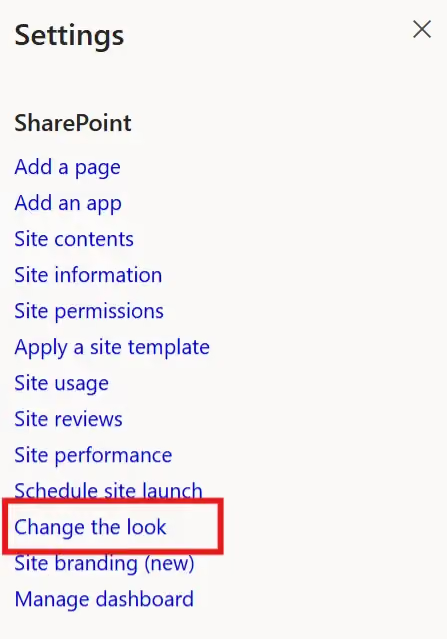
- In the Change the look section, click Theme.
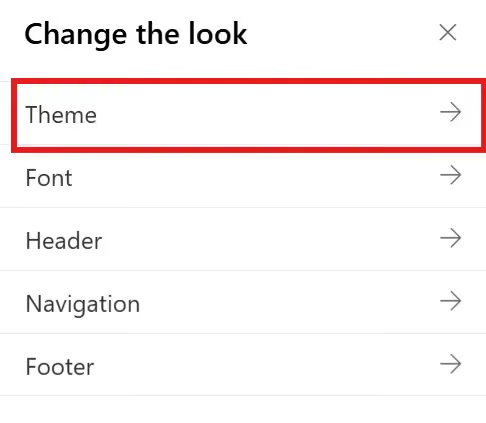
- In the Theme panel, From Your organization section, select the desired theme.

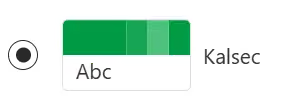
- Click Save to apply the theme to your SharePoint site.
2. Site-Level Theming (Using Site Branding)
Site-level theming allows localized customization without impacting other sites.
Prerequisites
- Site Owner / Full Control permissions
Steps to Create Site Theme
- Open your SharePoint site
- Click on the Settings (⚙️ gear icon) in the top-right corner.
- In the Settings panel, under the SharePoint section, click on Site branding (new).
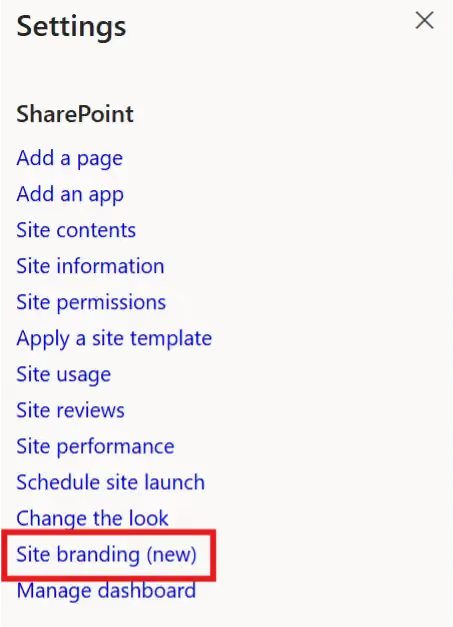
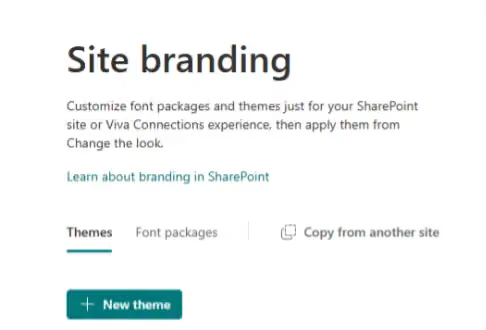
- The page will navigate to the Site branding experience, where you can customize the theme for your site.
Create Theme
- Click + New theme to launch the theme designer.
- Click + Add color to add your primary and secondary brand colors.
- You can select a color from your brand’s palette or click + New color.
- A color picker will appear, where you can either enter a custom HEX code or choose a color visually to define your theme colors.
Example:
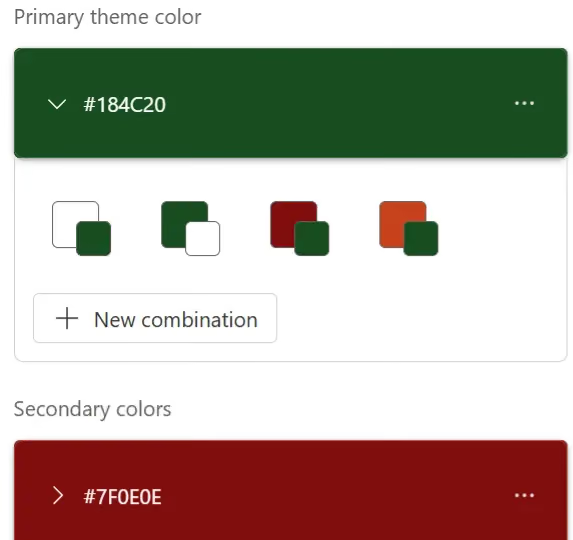
- Primary color: 184c20
- Secondary color: 7f0e0e
Add Color Combinations (Optional)
- Click + New combination to add up to 16 combinations within the primary and secondary colors. In each color combination, you can switch around the background/accent color.
- A popup window will appear to create the new combination.
- In the Light mode section, select a color. You can choose from your brand’s palette or click + Add color to pick a new color.
- Notes:
- If you select the same color combination again in the New Combination popup, an error message will appear:
"Color combination already exists."
- After selecting the color, click Add to save the new combination.
- The color combination will be saved successfully.
- Repeat these steps to add additional color combinations as needed.
Save Theme
- Once you have finished configuring the colors, click Next to continue.
- Enter a name for your theme, then click Save.
Apply Site Theme
- Open the SharePoint site where the theme was configured.
- Click on the Settings (⚙️ gear icon) in the top-right corner.
- In the Settings panel, under the SharePoint section, click on Change the look.
- In the Change the look section, click Theme.
- In the Theme panel, your custom themes appear under the From this site section. Select the desired theme.
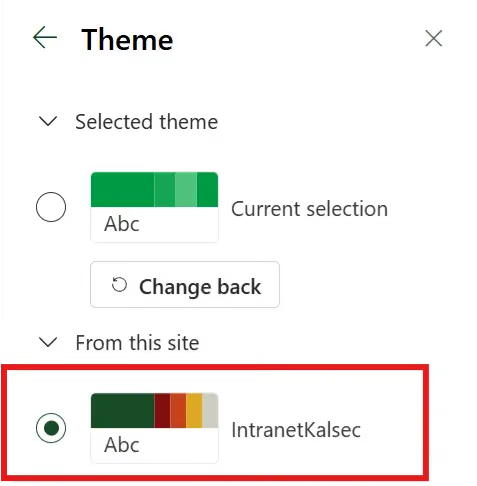
- Click Save to apply the theme to your SharePoint site.
3. Organization Font Configuration
SharePoint Brand Center allows organizations to configure custom fonts and apply consistent typography across SharePoint sites and Viva Connections experiences. Standardizing fonts helps reinforce brand identity and provides a consistent user experience.
Brand Fonts
Brand fonts are your organization's fonts that are uploaded and managed within the SharePoint Brand Center.
Prerequisites
- Global Administrator or SharePoint Administrator permissions.
Steps to Upload Brand Fonts
- Go to the Microsoft 365 Admin Center.
- In the left navigation panel, go to Settings → Org settings, and then select Brand center.
- Click Copy link.
- Paste the copied link into a new browser tab to open the Brand Center.
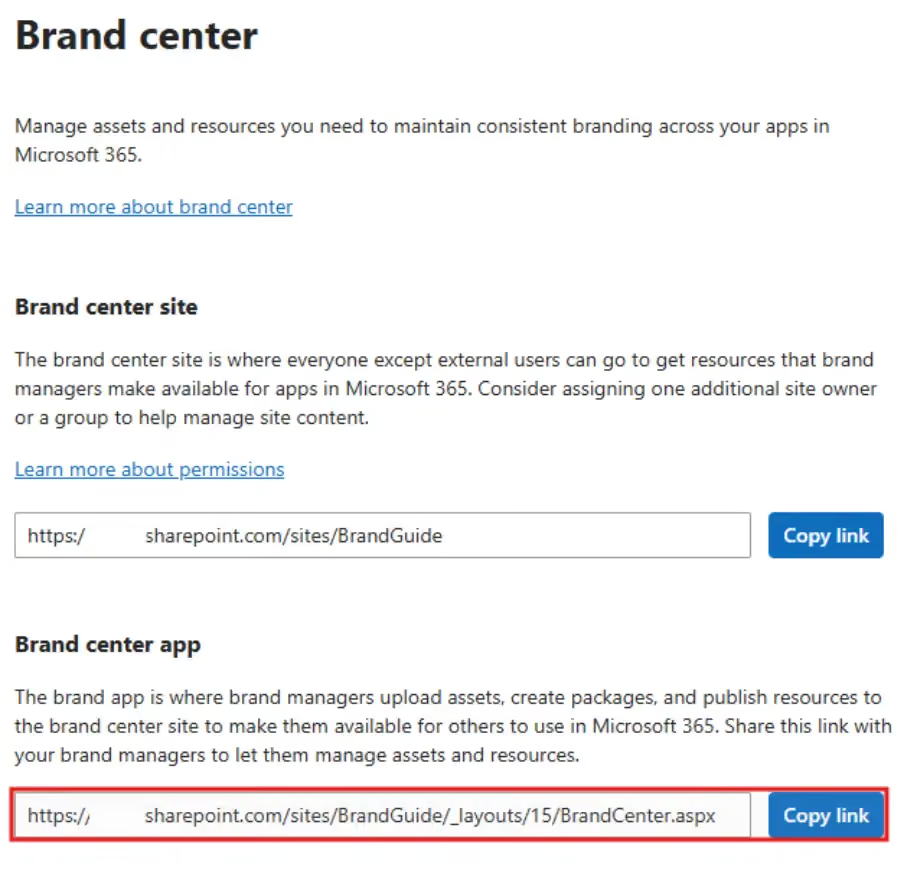
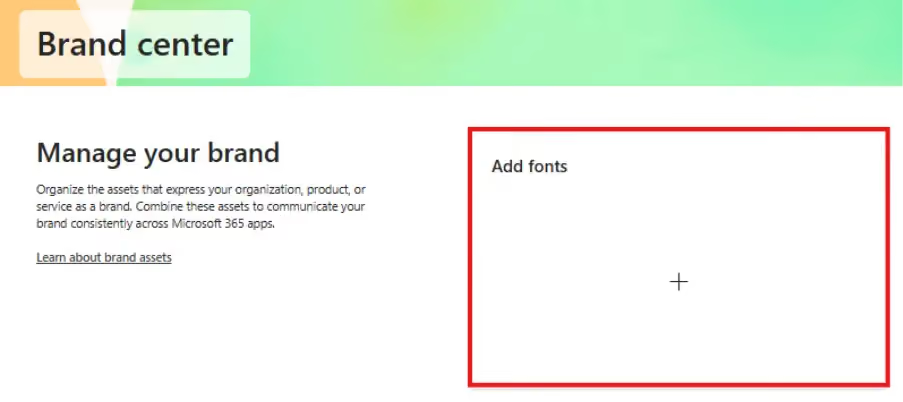
Manage Your Custom Brand Fonts
- From the Brand Center page, click Brand fonts.
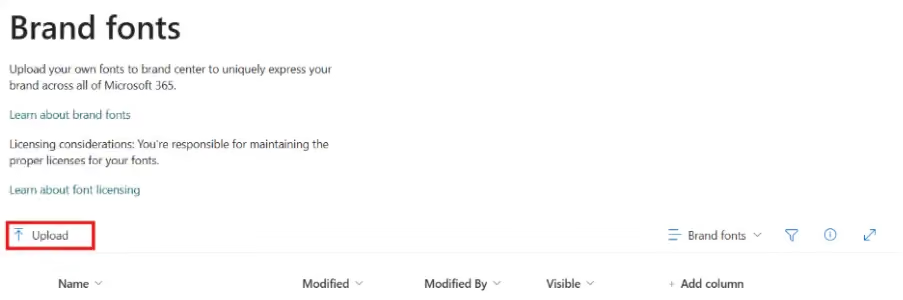
- On the Brand fonts page, click Upload to upload your custom font files.
Supported file types: .otf, .ttf, .woff, and .woff2.
Create Your Own Font Packages
There are two ways to create custom font packages:
- Brand Center Font packages created in the Brand Center are available across all SharePoint sites.
- Site Branding Font packages created in Site Branding are available only within that specific site.
Brand Center
- From the Brand Center page, click SharePoint to open the SharePoint branding page.
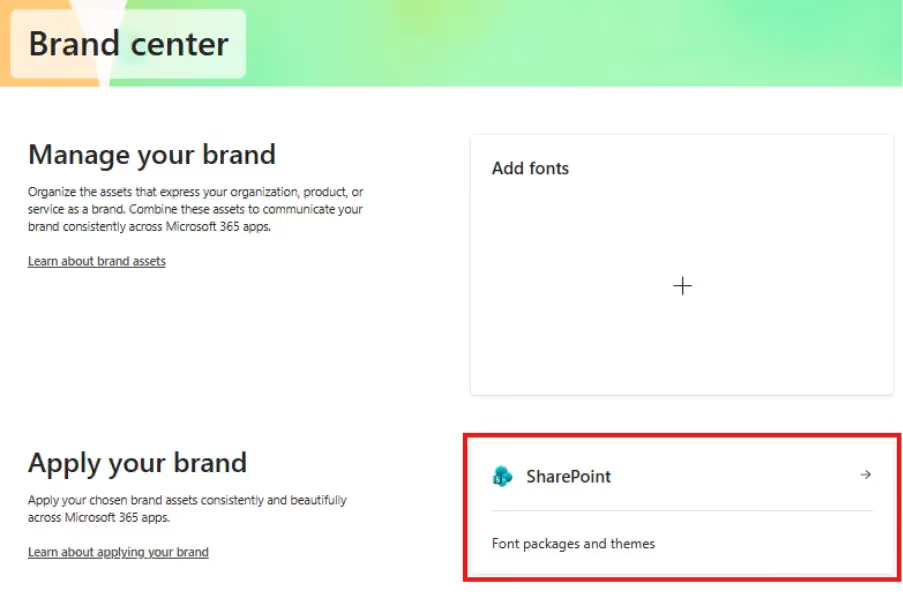
- Click Add font package.
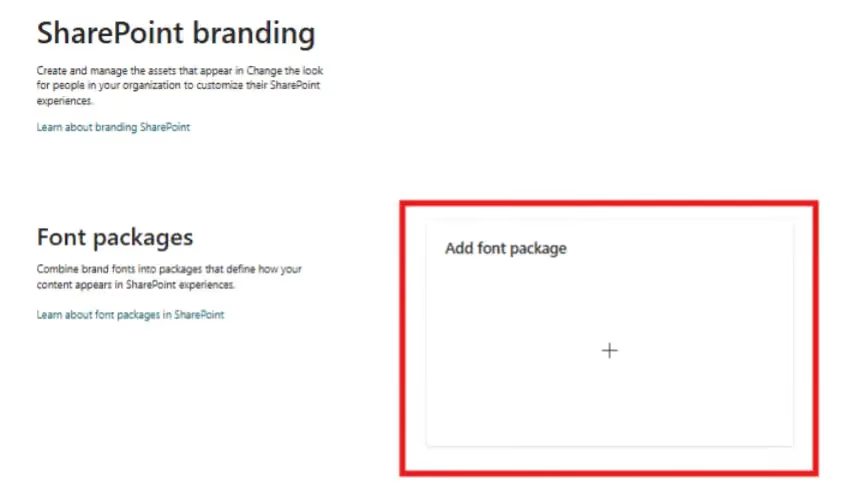
- The Create a font package page will open.
Configure the Font Package
- Select display and content fonts using the font families available in your Brand fonts library.
- You can select up to two different font families, or you can use the same font family for both display and content fonts.
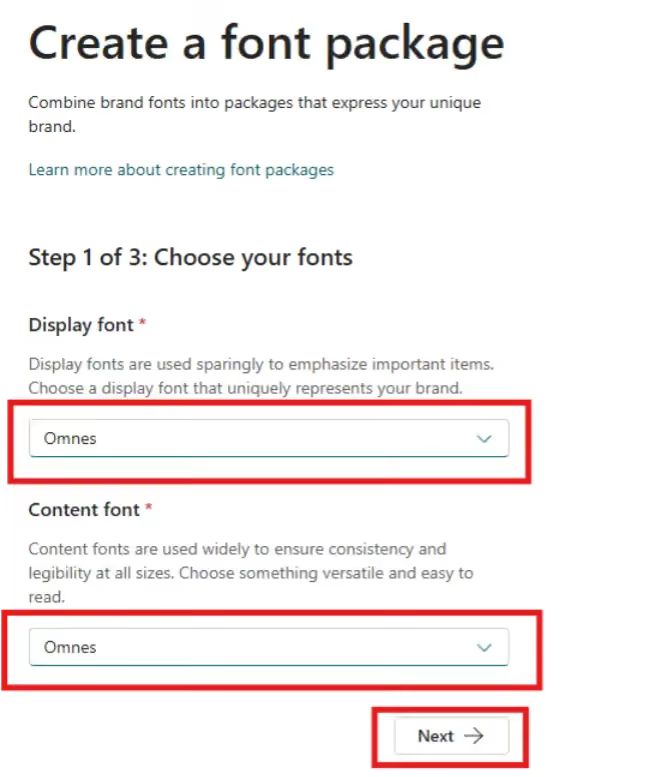
- Select the desired font family and font style for each of the four font slot mappings.
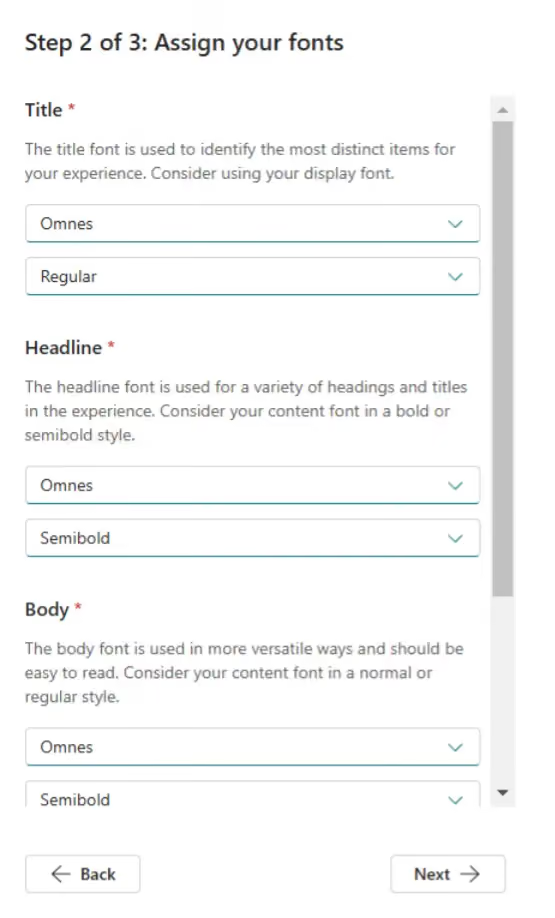
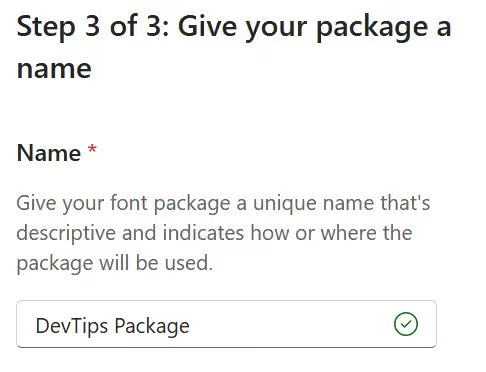
- Enter a name for your font package.
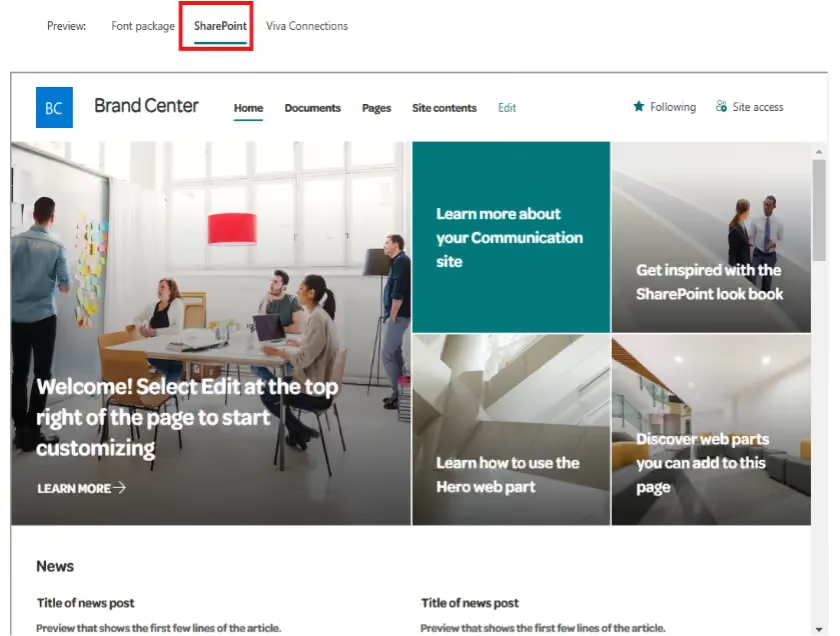
- Preview the font package in different experiences.
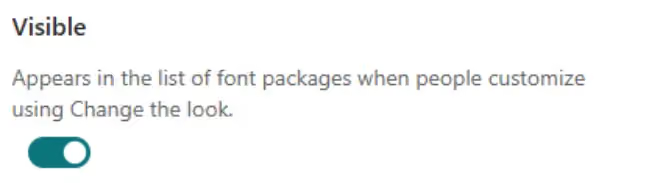
- Determine the Visible setting for your font package.
- Click Save.
After saving, it may take a few minutes for the font package to become available in the Change the look experience across SharePoint sites.
Apply a Font Package to Your SharePoint Site
- Go to the SharePoint site where you want to apply the font package.
- Click Settings (⚙️) in the top-right corner.
- In the Settings panel, under the SharePoint section, click Change the look.
- In the Change the look panel, click Font.
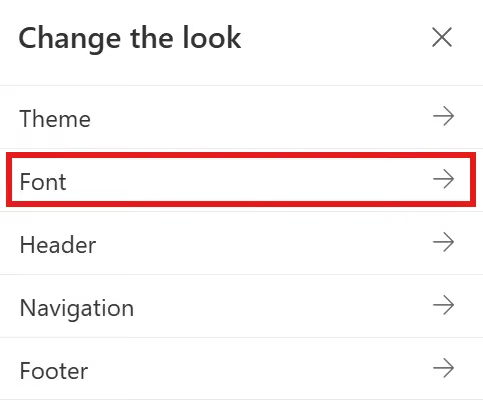
- In the Available font packages drop-down menu, your custom font packages will appear under From my organization.
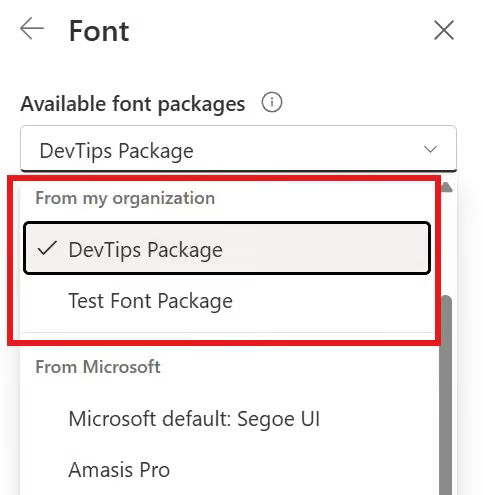
- Select the desired font package.
- Click Save to apply the font package.
Site Branding
Prerequisites
- Site Owner / Full Control permissions
Steps to Create a Font Package
- Open your SharePoint site.
- Click Settings (⚙️) in the top-right corner.
- In the Settings panel, under the SharePoint section, click Site branding (new).
- The Site Branding experience will open, where you can customize fonts for your site.
- Click Font packages.
- Click + New font package.
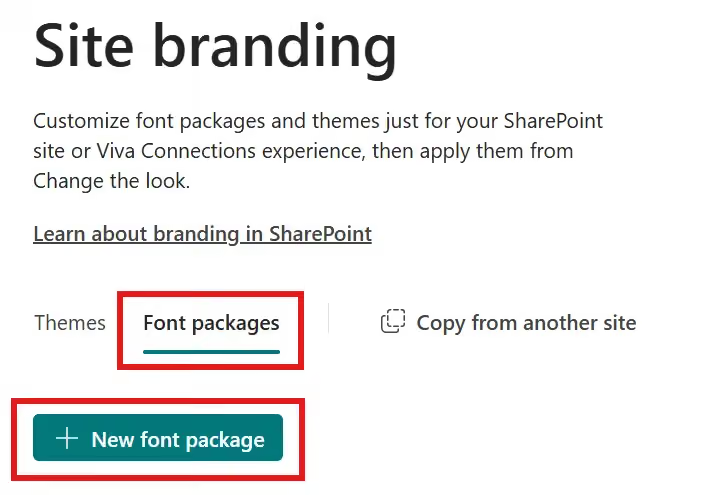
Configure the Font Package
- Select display and content fonts using the available font families.
- You can select up to two different font families, or you can use the same font family for both display and content fonts.
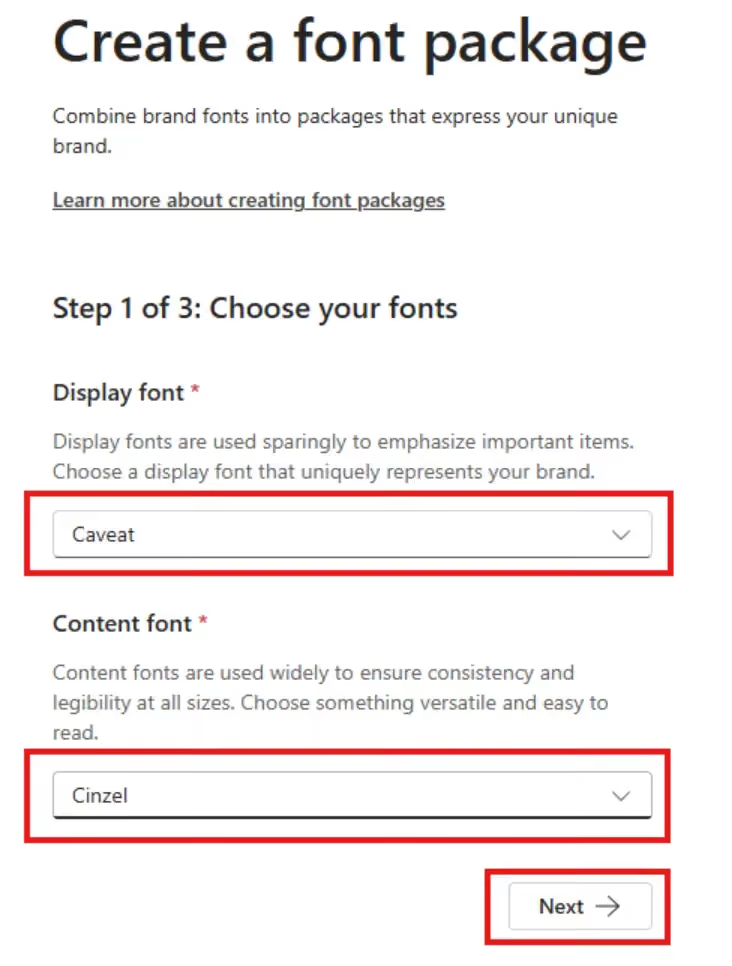
- If you want to add additional fonts, upload them in the Manage your custom fonts library within the Brand Center. You can follow the above instructions to upload new fonts.
- Select the desired font family and font style for each of the four font slot mappings.
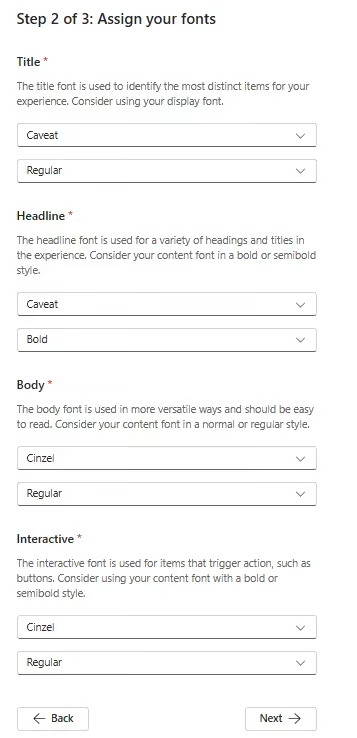
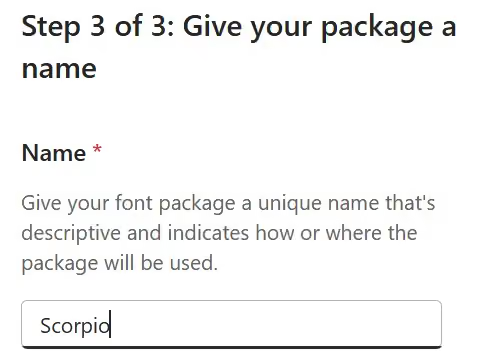
- Enter a name for your font package.
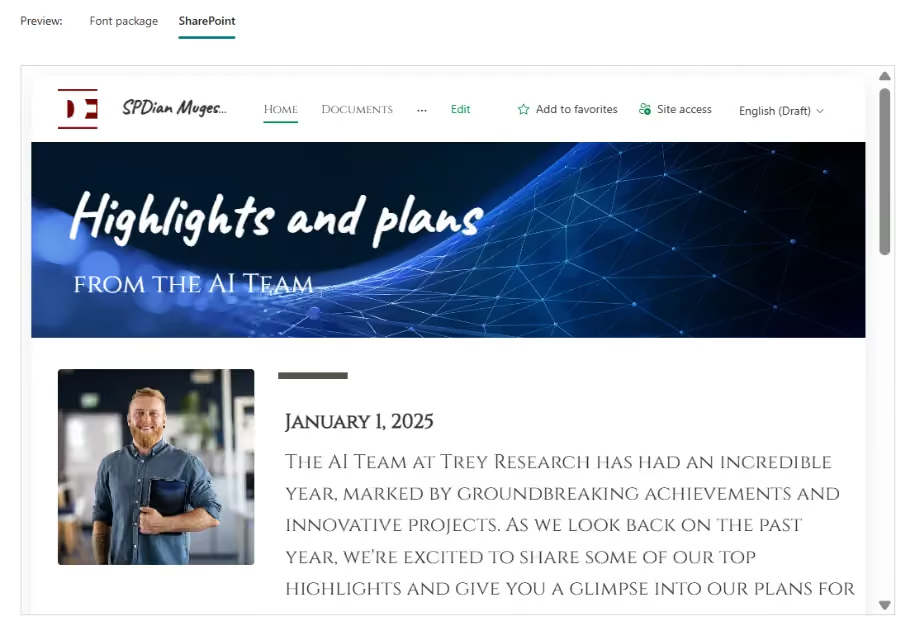
- Preview the font package in different experiences.
- Click Save.
SharePoint Intranet Branding Ideas: A Complete Guide to Themes, Fonts & Design
A well-branded SharePoint intranet is more than just a visually appealing portal; it reflects your organization's identity...

How Our Setup Wizard Simplifies SharePoint Branding
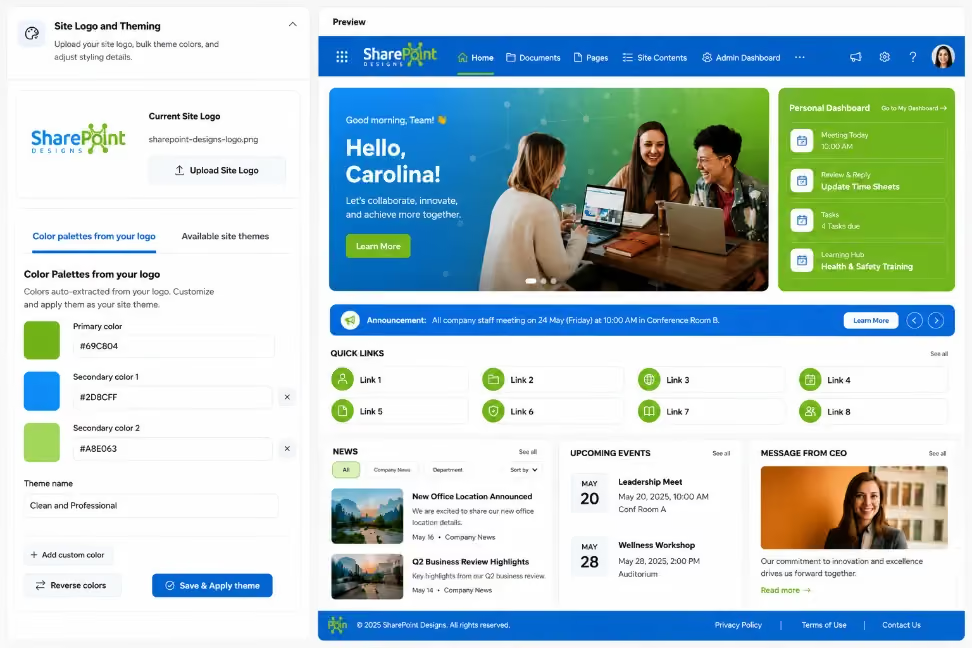
Branding a SharePoint intranet can be time consuming. Usually, someone has to find the brand colors, copy the hex codes, create a theme, and match it to SharePoint’s color settings. This process can be slow and may lead to mistakes.
With our setup wizard, it’s much simpler. Just upload our logo. The system automatically finds brand colors, creates and names the theme and applies it to your SharePoint site.
Here's how the flow works.
Step 1: The user uploads their brand logo
In the Branding step of the wizard, the user picks their company logo - the same file they'd use anywhere else. The wizard uploads it to the site and immediately shows it in the site header, so there's instant visual confirmation that the right file is in place.
No color pickers, no hex codes, no “what's your primary color?” form field. The logo is the input.
Step 2: The image analyzer reads the brand colors from the logo
Behind the scenes, the uploaded image is sent to our image analyzer running in Azure Functions. It analyzes the logo and sends back the brand colors actually present in it - each one with a role, not just a value:
The extracted colors appear in the wizard as color chips the moment analysis completes. If the user wants to fine-tune a shade, they can - but they don't have to. If there's only one color in your logo, then you can add a color of your choice as the secondary color but its purely your choice.
For most organizations, the colors that come back are exactly the brand colors, because they came straight from the logo.
Step 3: Click Apply Theme - and it's done
Once the colors are back from the analyzer, clicking Apply Theme applies the branding directly to the SharePoint site:
- The full theme is generated from the extracted colors - the complete palette SharePoint needs, including all the lighter and darker shades, derived automatically.
- Header, navigation, buttons, links, and section backgrounds all pick up the brand colors.
- Text colors are chosen for readability against the brand colors automatically, so a light or unusual brand color never produces unreadable white-on-yellow headers.
The live preview in the wizard shows exactly what the site will look like before Apply Theme is clicked, so there are no surprises - what the user approves is what gets applied.
Why This Makes Setup Easier
The whole process – uploading the logo, automatically analyzing the brand colors, and applying the theme with one click – makes branding much faster and easier:
- No brand guidelines document required. The logo already contains the brand.
- No manual color entry. The analyzer classifies primary, secondary, and accent automatically.
- No theme-building expertise needed. The full SharePoint palette, light/dark variants, and readable text colors are generated for you.
- One click to apply. No separate theme creation, registration, and activation steps.
The best branding step is the one the user barely notices. Upload the logo, watch the site become theirs, click Apply. Done.
How to create a SharePoint Brand theme from Your Logo
Branding a SharePoint intranet can be time consuming. Usually, someone has to find the brand colors, copy the hex codes,

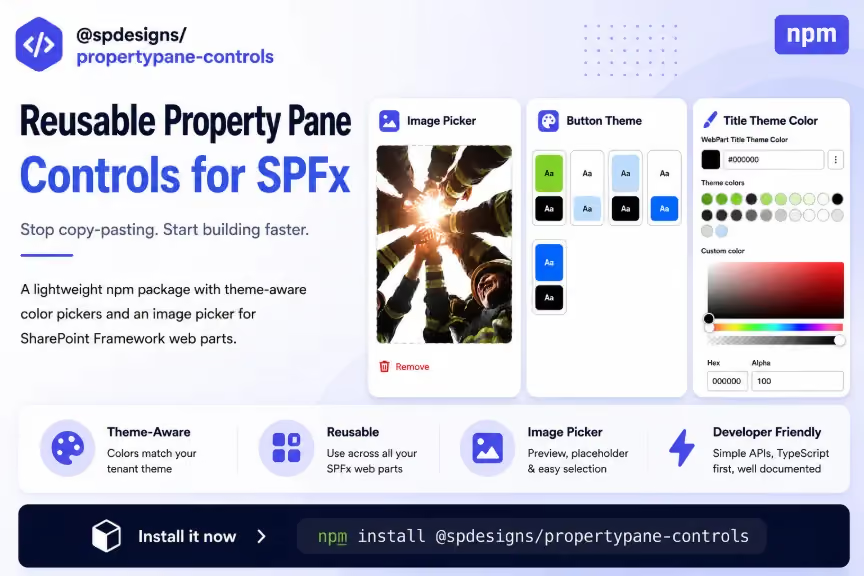
A shared, plug-and-play toolkit for color pickers and image pickers in SharePoint Framework (SPFx) web parts.
The Problem
If you've ever built more than one SharePoint web part, you've probably written the same little bits of property pane code repeatedly. A color swatch picker so users can pick a theme color, and an image picker so they can choose a picture and see a preview of it.
Here's what actually happens in real projects: every web part ends up with its own slightly different copy of the same file, usually called something like ColorPropertyControls.ts. One copy correctly reads the tenant's theme colors. Another copy was made before a bug fix went in, and nobody remembered to update it. In one web part, the color is saved as a simple piece of text (like "#FF0000"); in another, it's saved as a more complicated object. So a fix that works perfectly in one place quietly breaks in another.
In short: the same small feature gets rebuilt slightly wrong, over and over, across projects.
Why Not Just Use the PnP Library That Already Exists?
There's already a popular toolkit called @pnp/spfx-property-controls that gives you building blocks like a color picker and a file picker. It's genuinely good, and this new package doesn't replace it.
The catch is that PnP's controls are generic - they don't know anything about your specific SharePoint tenant's brand colors, they don't understand the idea of pairing "a background color with a matching accent color" as one single choice, and they don't show a preview of the image you've already picked next to the button that lets you change it. To get that specific behaviour, someone has to wrap the PnP controls in extra glue code - and that's exactly the code that keeps getting copy-pasted and drifting out of sync.
So the real choice was one of three options: keep copy-pasting the glue code forever, rebuild it slightly differently every time, or extract it once into a shared package that every project can install and update together. This package is that third option.
Introducing @spdesigns/propertypane-controls
Think of this package as a small, ready-made toolbox that plugs into SharePoint's property pane - the panel on the right where site owners configure a web part. It ships two tools:
- ColorPropertyControls - a color picker manager that knows your tenant's theme colors, so the swatches it shows always match the actual site colors. It can show either a single compact color picker, or a pair of colors (like a background color and a matching accent color) chosen together as one unit.
- PropertyPaneImagePickerField - an image preview box designed to sit next to the standard image-selection button. It shows the picture that's currently selected, plus a "Remove" option to clear it.
It's a thin, opinionated layer that sits on top of the existing PnP controls - not a replacement for them. The goal isn't to reinvent the color picker or the file picker; it's to stop everyone rewriting the same wiring around them.
Getting Started: Installation
Install it the same way you'd install any other package:
If you're actively developing a change to the package itself and haven't published it yet, you can point your project at it by local path instead - just remember to build it first so the lib/ folder actually exists:
Next, set up the color manager once per web part. This should happen in onInit() - the web part's startup method - so that the tenant's theme colors are already loaded by the time someone opens the property pane:
Feature 1: The Color Picker
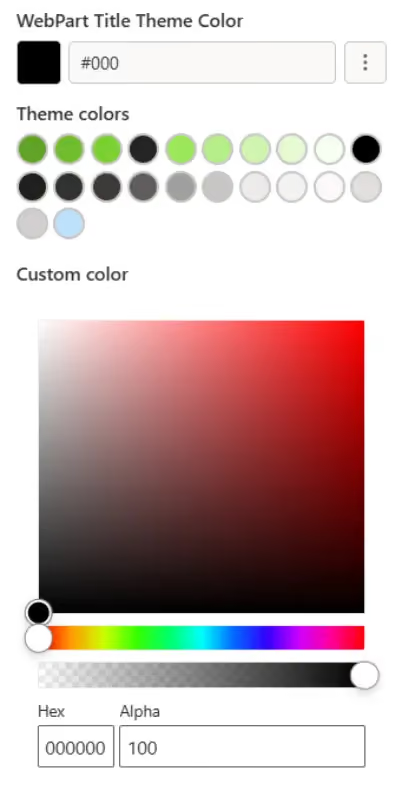
Use this when you have one color to configure - say, a text color or a background color. Add one field for every color you want the user to be able to change:
Want to let the user type in any hex color code they like, instead of only picking from the preset swatches? Pass in a PropertyFieldColorPicker from the PnP library as an "additionalExpandedFields" option - it appears underneath the swatch grid whenever the picker panel is open:
A Small But Important Detail: How You Store the Color
Keep color properties as plain text, like textColor: string. That's what the compact color picker expects, and it means there's nothing to "reconcile" later - the picker just writes the hex value directly into the property.
Some older web parts instead store color as an object, like selectedColor: { themePrimary: string }. That still works, but there's a gotcha: the free-form hex picker always writes plain text, so it will overwrite the whole object unless you add a small repair step:
Plain text values never need that extra repair step - which is exactly why they're the recommended way to go. One less thing to accidentally get wrong.
Feature 2: The Theme Swatch Picker (Paired Colors)
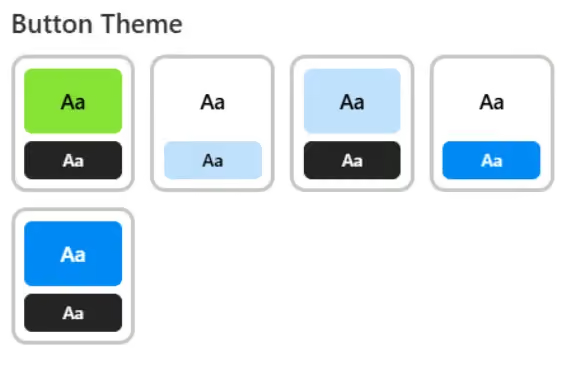
Sometimes you don't want one color - you want a matched pair, like a button's background color plus its accent color for a hover effect, or a gradient card's two-tone look. This is stored as a single "index" property (basically, "which pair number did they pick?"):
Here, storing the value as an object (selectedColors) is completely fine and expected, because nothing else ever writes to that property except this one call. It's a different situation from the single-color case above - not a contradiction of the earlier advice.
Feature 3: The Image Picker
Place PropertyPaneImagePickerField directly above the standard PropertyFieldFilePicker button that it works alongside. One important rule: keep the button's label text set to exactly "Select image" - the image picker looks for the file picker's button by matching that exact text, so it has to line up.

One thing worth calling out: the onDelete handler above only clears the property - it doesn't delete the actual file. That's the right default if the image lives in the user's own document library. Only delete the underlying file too if your web part is the one that uploaded it in the first place.
Moving an Existing Web Part Over
Migrating a web part off its old, hand-copied version of this code is meant to be boring - in a good way:
- Add the package as a dependency (see Installation above).
- Delete the web part's local copies of ColorPropertyControls.ts and PropertyPaneImagePickerField.ts.
- Change the import statement to point at "@spdesigns/propertypane-controls".
- That's it - no code changes needed. This package is a byte-for-byte extraction of the code that was already there.
Two habits from the old copy-pasted code are worth keeping even after migrating:
- Only restore a saved color or index inside onInit() when the property is still unset -otherwise you'll overwrite a color the user already picked, every single time they reopen the pane.
- Keep new color properties as plain text strings rather than objects, per the guidance above.
Why This Actually Matters
- Consistency - every web part behaves the same way, instead of having ten slightly different forks of the same file floating around.
- One place to fix things - a bug fix or a theme-loading improvement ships to every web part the next time they bump the version number, instead of being patched into one project and forgotten everywhere else.
- No extra weight - the underlying SharePoint and PnP libraries are "peer dependencies," meaning this package reuses what your web part already includes rather than bundling its own duplicate copy.
- Safe migrations - because it's a byte-for-byte extraction of existing code, moving a web part over introduces no behaviour change. There's nothing new to re-test beyond confirming the build still works.
- Cleaner pull requests - property pane wiring stops showing up as brand-new code in every PR, since it's now a dependency bump rather than a hand-written file.
The Bottom Line
If you've ever opened a new SPFx web part and thought, "didn't I already write this color picker somewhere else?" - that's exactly the itch this package scratches. Install it once, wire it up in a few lines, and stop reinventing the same property pane controls project after project.
Stop Copy-Pasting Your Property Pane Code: Meet @spdesigns/propertypane-controls
If you've ever built more than one SharePoint web part, you've probably written the same little bits of property pane code repeatedly.
Your SharePoint intranet needs a new feature. The OOTB web part almost does what you need, but not quite. A custom SPFx web part can give you exactly what you want, but at a higher cost and maintenance effort.
So, which one should you choose? Let's compare OOTB vs. custom SPFx based on what actually matters to your business.

What is an OOTB WebPart?
OOTB (Out-of-the-Box) web parts are pre-built components provided by SharePoint. They require no coding and are configurable via a property pane.
Example: Quick Links WebPart
- Layouts: Compact, Filmstrip, Grid, Button, List, Tiles
- Configurable UI via property pane
- No coding required
- Standard Microsoft design
- Limited styling options
- Layout-based customization only
- Cannot fully match brand guidelines
OOTB Quick Links Settings include: Layout selection, icon size, show/hide title, basic animation toggle, and audience targeting.
When to Use OOTB WebPart?
Use OOTB when you need a quick solution with no complex UI, when the standard SharePoint look is acceptable, and when no development time is available.
Best for: Internal quick links, small portals.

What is a Custom WebPart?
Custom web parts are built using SPFx (SharePoint Framework) with React and TypeScript. They allow fully branded, business-specific experiences with complete control over UI and behavior.
Example: Top Navigation WebPart
- Fully custom UI (buttons, icons, colors)
- Custom property pane (theme, alignment, gradient, etc.)
- Business-specific logic
- Matches company design system
- Looks like a product UI, not a default SharePoint page
Custom WebPart Settings include: Theme selection, alignment control (Left / Center / Right), gradient hover effects, button hover theme, target audience toggle, and admin settings.
When to Use Custom WebPart?
Use Custom when branding consistency is required, advanced UI/UX is needed, or business-specific logic must be implemented.
Best for: Corporate portals, navigation systems, dashboard-style UI.
Feature Comparison: Custom WebPart vs OOTB WebPart
Custom News WebPart vs SharePoint OOTB News WebPart
When it comes to implementing a News section, organizations face a key decision: should you use the Out-of-the-Box (OOTB) News WebPart or build a Custom SPFx News WebPart? Here's a complete comparison based on UI/UX, configuration, flexibility, performance, and real-world usage.
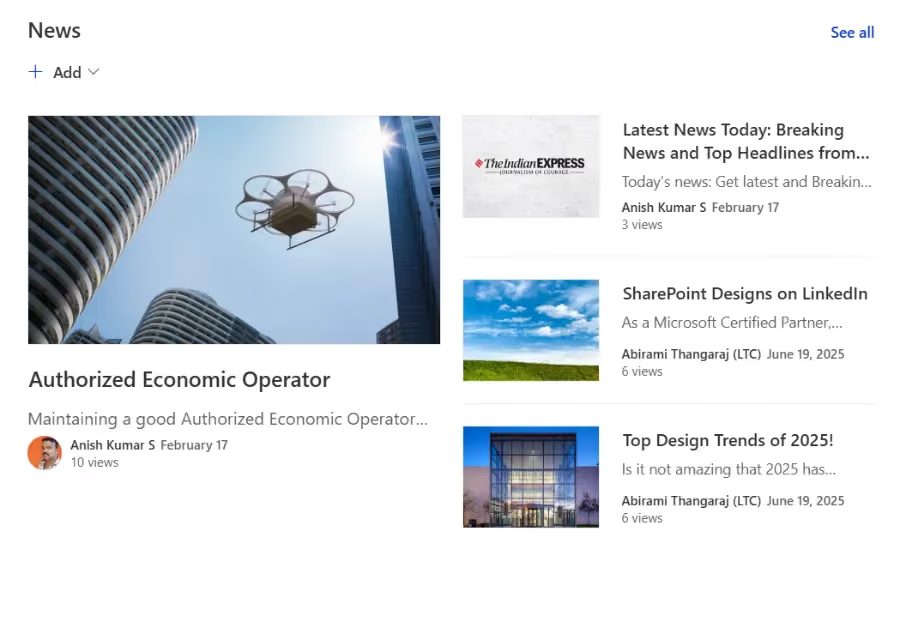
What is SharePoint OOTB News WebPart?
The OOTB News WebPart is a default component provided by SharePoint to display news posts from sites.
- Multiple layouts (Top story, List, Carousel, Tiles)
- Automatic content aggregation
- Basic filtering and organization
- Author and publish date display
Best suited for quick and standard implementations without development effort.
What is a Custom News WebPart?
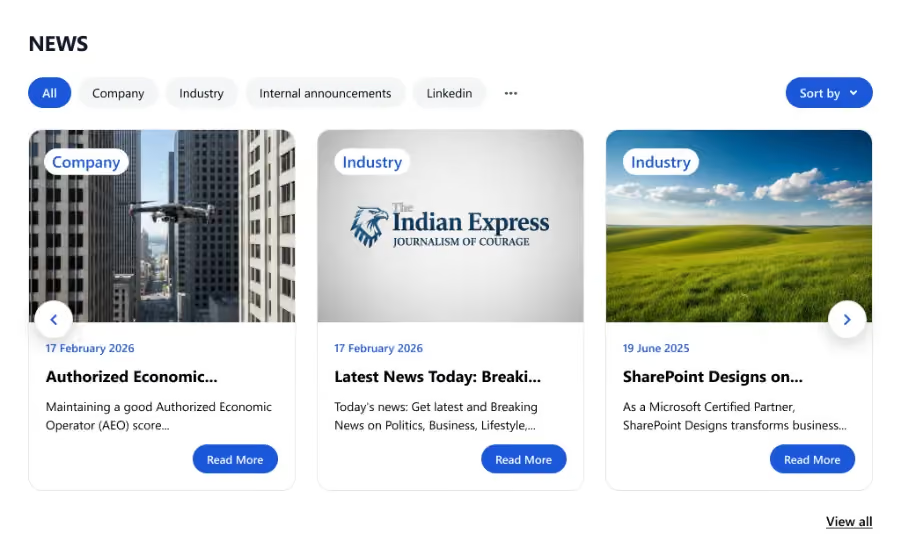
A Custom News WebPart is built using SPFx (SharePoint Framework) with React and TypeScript.
- Fully customized UI design
- Advanced filtering (category-based tabs)
- Custom sorting and interactions
- Branding and theme control
- Business-specific logic
Ideal for organizations that need a rich and branded experience.
UI & User Experience Comparison
Custom News WebPart:
- Modern card-based layout
- Category filters (All, Company, Departments, etc.)
- "Read More" call-to-action buttons
- Clean spacing and visual hierarchy
- Fully branded look and feel
- Provides a premium, application-like experience
OOTB News WebPart:
- Standard SharePoint layouts
- Limited styling options
- No CTA buttons
- Traditional list/grid display
- Provides a clean but generic experience
Configuration Comparison
Custom WebPart Configuration: Theme color selection, layout control (Filmstrip, Grid), border toggle and color picker, item count control, category filter enable/disable, search box toggle, RSS feed integration, and target audience support. Offers full flexibility and extensibility.
OOTB WebPart Configuration: Layout selection (Top story, List, Carousel), news source selection, keyword filtering, show/hide author and date, audience targeting, and manual or automatic sorting. Offers easy setup but limited customization.
Feature Comparison: Custom News WebPart vs OOTB News WebPart
When to Use OOTB News WebPart?
Choose OOTB when you need a quick solution, no custom UI is required, the standard SharePoint look is acceptable, and you want zero development effort. Best for internal portals and simple use cases.
When to Use Custom News WebPart?
Choose Custom when branding is important, advanced UI/UX is needed, business-specific features are required, and better layout control is essential. Best for corporate portals and client-facing applications.
Final Verdict: News WebPart
There is no single "best" option — it depends on your requirement.
- Use OOTB WebPart for speed and simplicity
- Use Custom WebPart for flexibility and a premium experience
Use OOTB wherever possible, and go Custom wherever necessary.
Custom Events Calendar WebPart vs SharePoint OOTB Events WebPart
Managing events efficiently is a key requirement in modern SharePoint portals. Organizations often need a clean, interactive, and user-friendly way to display upcoming events. Here's how the two approaches compare.
What is SharePoint OOTB Events WebPart?
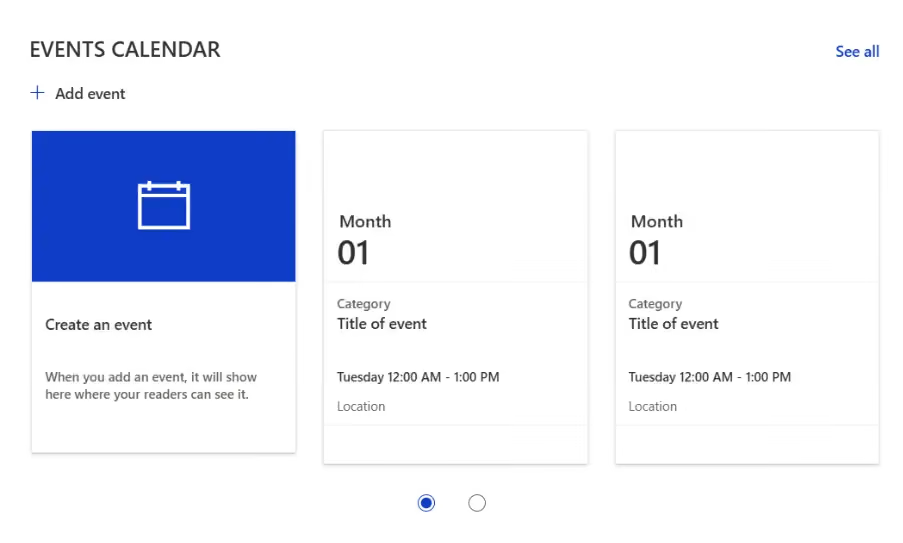
The OOTB Events WebPart is a built-in SharePoint component used to display events from an Events list.
- Displays events in Compact or Filmstrip layout
- Integrated with SharePoint Events list
- Supports date-based filtering
- Shows event details like time, location, and category
- Simple "Add event" functionality
Best for quick and standard event display.
What is a Custom Events Calendar WebPart?
A Custom Events WebPart is built using SPFx (React + TypeScript) and provides a more advanced and interactive experience.
- Full calendar view (month-wise navigation)
- Interactive date selection
- Upcoming events panel
- "Add Event" and "View All" actions
- Fully branded UI (colors, styles, layout)
- Business-specific customization
Best for rich, interactive event management experiences.
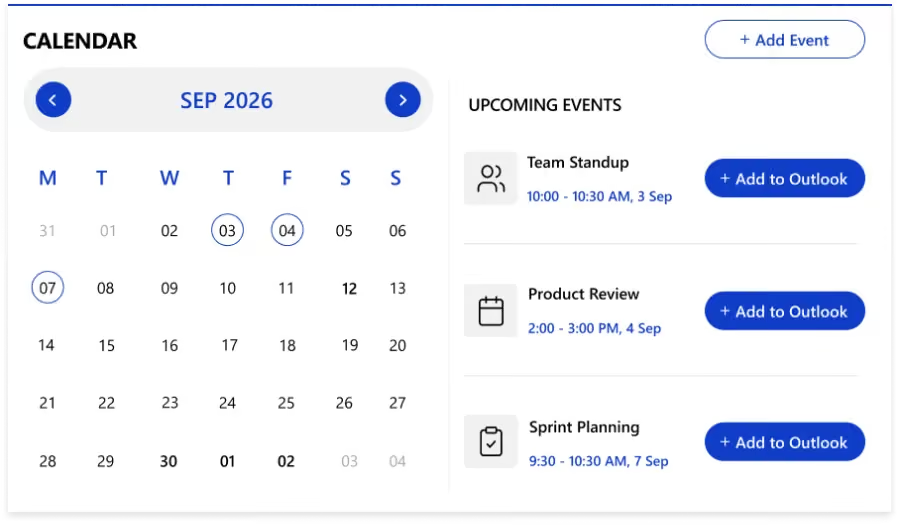
UI & User Experience Comparison
Custom Events WebPart:
- Full calendar interface with month navigation
- Selected date highlighting
- Dedicated "Upcoming Events" section
- Clean and modern layout with better readability
- Feels like a real application dashboard
OOTB Events WebPart:
- Card-based or filmstrip layout
- No full calendar view
- Events shown as list/cards
- Basic interaction with standard SharePoint styling
Configuration Comparison
Custom WebPart Configuration: Theme color customization, calendar view toggle, border control and styling, event source selection, category-based filtering, "Add Event" button toggle, "View All" link configuration, and upcoming events logic. Provides complete control over behavior and UI.
OOTB WebPart Configuration: Source selection, category filtering, date range filtering, layout selection (Compact / Filmstrip), show/hide images, item count control, and animation toggle. Easy to configure but limited in flexibility.
Feature Comparison: Custom Events vs OOTB Events WebPart
When to Use OOTB Events WebPart?
Choose OOTB when you need quick implementation, basic event listing is enough, no custom UI is required, and no development effort is available. Best for internal or simple portals.
When to Use Custom Events WebPart?
Choose Custom when you need a full calendar experience, UI/UX is important, branding is required, and advanced filtering or interaction is needed. Best for corporate dashboards, employee engagement portals, and event-heavy platforms.
Final Verdict: Events WebPart
- OOTB WebPart → Fast, simple, reliable
- Custom WebPart → Advanced, interactive, flexible
Use OOTB where possible, and build Custom where necessary. A well-designed portal usually combines both approaches based on business needs.
Custom Welcome Banner vs SharePoint OOTB Banner
In modern SharePoint portals, the homepage banner plays a critical role in shaping the first impression and user engagement. Here's a complete comparison between the Custom SPFx Welcome Banner and the SharePoint OOTB Banner (Title Area).
What is SharePoint OOTB Banner?
The OOTB Banner (also known as the Title Area) is a built-in feature in SharePoint pages used to display page headers.
- Predefined layouts (Author, Fade, Color block, Overlap)
- Text alignment options (Left / Center)
- Page title and description
- Background image support
- Publish date and read time
Best suited for simple and standard page headers.
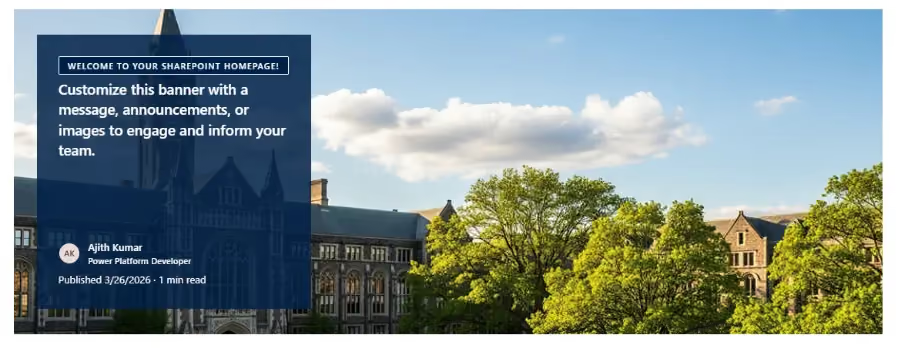
What is a Custom Welcome Banner WebPart?
A Custom Welcome Banner is developed using SPFx (React + TypeScript) to provide a more personalized and engaging experience.
- Personalized greeting (e.g., "Hello, [User]")
- User profile display (name, role, avatar/initials)
- Dynamic date and time
- Custom message or announcement section
- Call-to-action button (e.g., "Read More")
- Fully branded UI
Ideal for interactive and modern homepage experiences.

UI & User Experience Comparison
Custom Welcome Banner:
- Large background image with overlay
- Personalized greeting and user information
- Clean card-style content layout
- Interactive CTA button
- Modern typography and spacing
- Provides a premium, application-like experience
OOTB Banner:
- Static text block with limited layout variations
- No personalization or interactive elements
- Standard SharePoint styling
- Provides a basic and functional experience
Configuration Comparison
Custom WebPart Configuration: Greeting type (general or personalized), dynamic welcome message, background image and overlay control, text alignment, show/hide user information, description editor, CTA button configuration, theme colors and gradients, and draggable layout support. Offers full flexibility and customization.
OOTB Banner Configuration: Layout selection (Fade, Color block, etc.), text alignment, title and description editing, show/hide publish date, and estimated read time. Offers simple configuration with limited control.
Feature Comparison: Custom Banner vs OOTB Banner
When to Use OOTB Banner?
Use OOTB Banner when you need a quick and simple header, no personalization is required, the standard layout is sufficient, and no development effort is available. Best for content-focused pages.
When to Use Custom Banner?
Use Custom Banner when personalization is required, branding is important, and interactive elements are needed. Best for employee portals, corporate dashboards, and client-facing applications.
Final Verdict: Welcome Banner
- OOTB Banner → Simple, fast, and easy
- Custom Banner → Interactive, flexible, and premium
If your homepage requires strong user engagement, the Custom Banner is the better choice. A homepage banner is more than just a header, it defines the user experience and engagement level of your portal.
Tip: Combine a Custom Banner with Custom News, Quick Links, and Events WebParts to create a fully branded SharePoint experience.
%20WebPart.avif)
SharePoint OOTB vs Custom SPFx WebPart: Side-by-Side Comparison
Your SharePoint intranet needs a new feature. The OOTB web part almost does what you need, but not quite.

Have you ever uploaded a file to SharePoint and then struggled to find it later?
You're not alone. One of the most common frustrations SharePoint users experience is thinking a file has disappeared. The good news is that, in most cases, the file isn't lost. It may be hidden by filters, located in a different SharePoint document library, waiting to be indexed by search, or affected by permissions.
In this article, we'll explore the most common reasons why you can't find a file in SharePoint and the steps you can take to locate it quickly.
1. Verify You're Looking in the Correct SharePoint Site
Many organizations use multiple SharePoint sites for different teams, departments, and projects. As a result, files can easily be stored in a different location than expected.
Before assuming the file is missing:
- Confirm you're in the correct SharePoint site.
- Check the document library where the file was originally uploaded.
- Browse through folders and subfolders.
- Use the site navigation menu to verify your location.
A file may simply be stored in another library or folder within the organization.
2. Check for Active Filters
SharePoint views often include filters that control which files are displayed.
Files can be hidden based on:
- File type
- Modified date
- Author
- Approval status
- Custom metadata columns
If a filter is active, your file may not appear even though it still exists in the library.
How to Fix It
Try these steps:
- Clear any active filters.
- Switch to the default library view.
- Refresh the page.
- Check whether the file becomes visible.
Many missing file in SharePoint issues are resolved by simply removing active filters.
3. Allow Time for SharePoint Search Indexing
If you've recently uploaded a file, SharePoint Search may not display it immediately.
SharePoint uses search indexing to make content searchable, and there can be a delay before newly uploaded documents appear in search results.
What You Can Do
- Wait a few minutes and try searching again.
- Open the document library directly.
- Navigate through folders manually instead of relying solely on search.
- Try searching using the exact file name or relevant document keywords.
Often, the file exists and is accessible even before SharePoint Search indexing is complete.
4. Review SharePoint File Permissions
SharePoint permissions play a major role in what users can see within SharePoint.
If a document has unique permissions or restricted access, it may not appear for everyone.
Possible scenarios include:
- The file was shared only with specific users.
- Folder-level permissions are restricting visibility.
- Access inheritance was broken for the document.
- The document has restricted sharing settings.
How to Fix It
Contact your SharePoint administrator or site owner and ask them to verify:
- Your access permissions.
- The file's sharing settings.
- Any restrictions applied to the document or folder.
In many cases, the file is present but simply hidden due to access limitations.
5. Check Whether the File Was Moved or Deleted
Files can sometimes be accidentally moved to another folder or deleted by a team member.
Before assuming permanent loss:
- Check the SharePoint Recycle Bin.
- Review recent activity in the document library.
- Look at file Version History if available.
- Ask team members if they recently reorganized folders.
If the file was deleted, you may be able to recover deleted files in SharePoint using the Recycle Bin.
6. Try Searching with Different Keywords
If you still can't find your file, try changing your search terms.
Instead of searching only for the complete file name, try:
- Part of the file name.
- A unique keyword from the document.
- The author's name.
- The file type.
- A combination of relevant keywords.
For example, instead of searching for:
"report"
try:
"2026 marketing report"
or:
"marketing report xlsx"
Using more specific keywords can help narrow down your search results and make it easier to find missing files in SharePoint.
Bonus Tips for Finding Files Faster in SharePoint
Use the Exact File Name
Searching with the complete file name usually provides more accurate results when you know the exact name of the document.
Search Using Document Keywords
Don't search only by file name. Try searching for words or phrases contained within the document.
Check Microsoft 365 Recent Files
The Recent section in Microsoft 365 can help you find documents you've recently opened or edited.
Check Microsoft Teams
If the file was shared through Microsoft Teams, check the relevant team or channel where the document was shared.
Organize Content Effectively
Good organization makes files easier to locate and reduces reliance on search.
Consider using:
- Consistent folder structures
- Metadata columns
- Clear naming conventions
- Appropriate SharePoint views
- Well-defined permissions
For organizations managing large volumes of content, a structured SharePoint document management system can make information easier to organize, find, and manage.
Quick Checklist: Can't Find a File in SharePoint?
Before assuming the file is lost, check:
- Am I in the correct SharePoint site?
- Am I looking in the correct document library?
- Are any filters active?
- Has the file been indexed for search?
- Do I have the correct SharePoint permissions?
- Was the file moved to another folder?
- Was the file accidentally deleted?
- Have I checked the SharePoint Recycle Bin?
- Have I tried searching using different keywords?
- Have I checked Microsoft 365 or Teams Recent Files?
Final Thoughts
If you can't find a file in SharePoint, there's a good chance the file still exists.
Most missing-file situations are caused by incorrect locations, active filters, search indexing delays, permission restrictions, or accidental moves and deletions.
By systematically checking these areas, you can usually find missing files in SharePoint quickly and avoid unnecessary frustration.
If your organization frequently struggles to locate documents, it may be worth reviewing your SharePoint document management, information architecture, metadata, and search strategy to make content easier to discover from the start.
Why Can't I Find My File in SharePoint? Common Causes and Solutions
Can't find a file in SharePoint? Discover the common reasons files go missing and simple ways to locate them using search, filters, permissions, and the Recycle Bin.

A few years into building things on SharePoint, you start to recognise a certain kind of Monday morning email. It is short. It is polite. And it almost always ends with the same four words: “should be simple, right?”
Mine, one Monday, was from a client who wanted a small dashboard on their intranet homepage. Nothing wild. Pull some project data, show it as cards, turn the late ones red, let people click through to the details. I read it twice, opened the site, and reached for the tool everyone reaches for first the built-in web parts that ship with SharePoint.
That is where this story starts, because every SharePoint developer lives through some version of it. The built-in parts get you moving in minutes. Then, one quiet afternoon, they run out of room and you have to decide what kind of developer you want to be.
The out-of-the-box crew (better than you think)
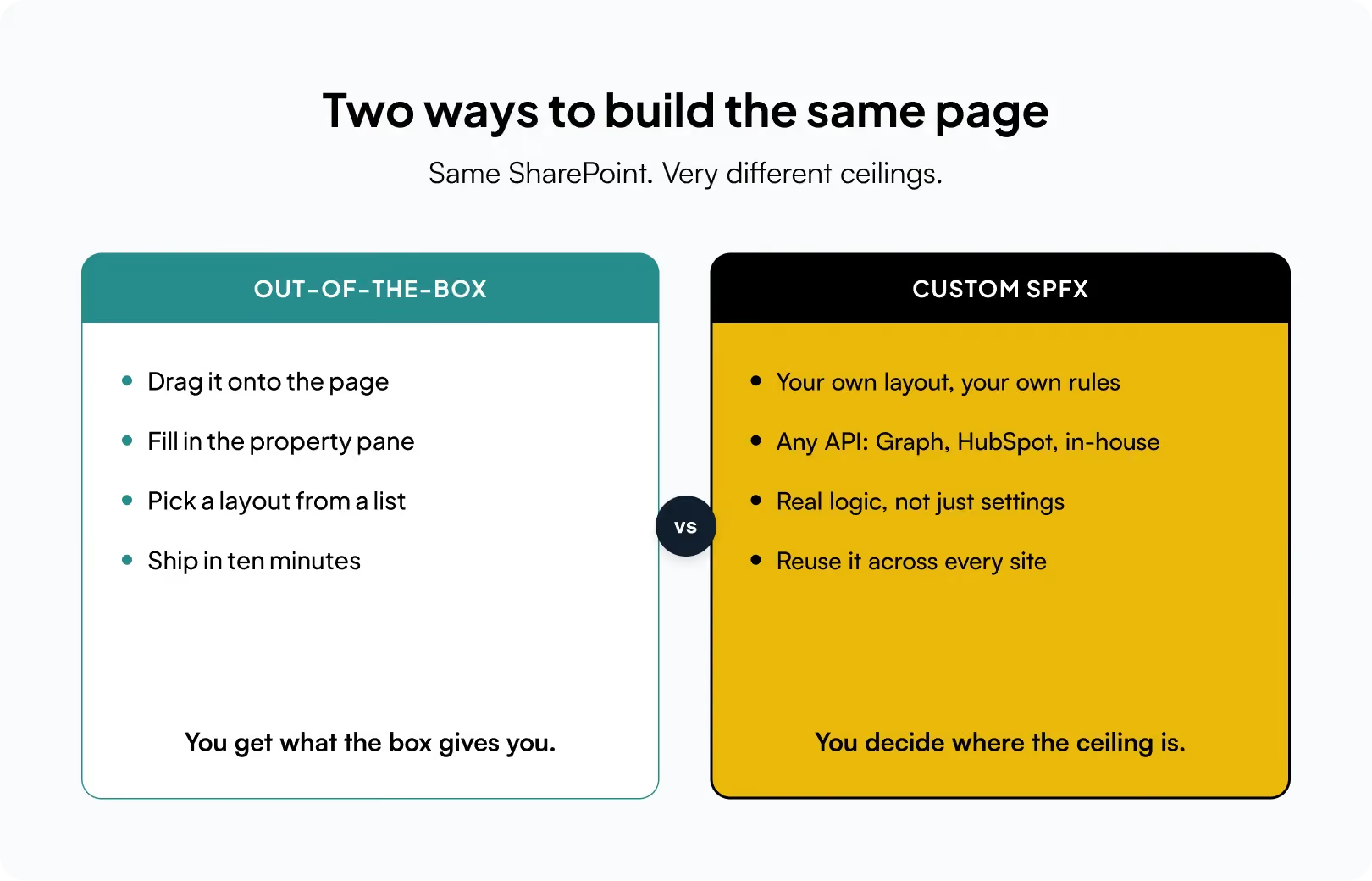
Let me defend them for a moment, because they deserve it. Out-of-the-box (OOTB) web parts are the readymade blocks Microsoft hands you: Text, Image, Hero, News, Quick Links, Highlighted Content, the humble List view, and a dozen others. You drag one onto the page, a little panel slides in from the right, you tick a few boxes, and you are done. No code. No deployment. No app catalog. No late nights.
For a huge slice of everyday work, that is exactly the right answer. A team wants a news feed and a few links? Do not write a single line of TypeScript for that you would be showing off, not helping. OOTB parts are fast, they are maintained by Microsoft, they survive tenant updates without you lifting a finger, and any site owner can rearrange them long after you have moved on. That last point matters more than people admit.
So, this is not a story about OOTB being bad. It is a story about what happens when the requirement grows one size too big for the block that was meant to hold it.
The afternoon the box said no
Back to my dashboard. The Highlighted Content web part could pull items across the site. Good start. But the client wanted the cards grouped by project stage, sorted by how many days were left, and colour coded green, amber, red based on a little calculation that lived nowhere in the list. They also wanted a status number in the corner pulled from a completely different system the sales team used.
I opened the property pane and looked for the setting that would let me do that. It was not there. Of course it was not there. A property pane can only ever offer you the choices its author imagined in advance, and no one at Microsoft imagined this client’s specific idea of “late.” I could get maybe seventy percent of the way. The last thirty percent the part that actually made the client say “yes, that one” was locked behind a door with no handle.
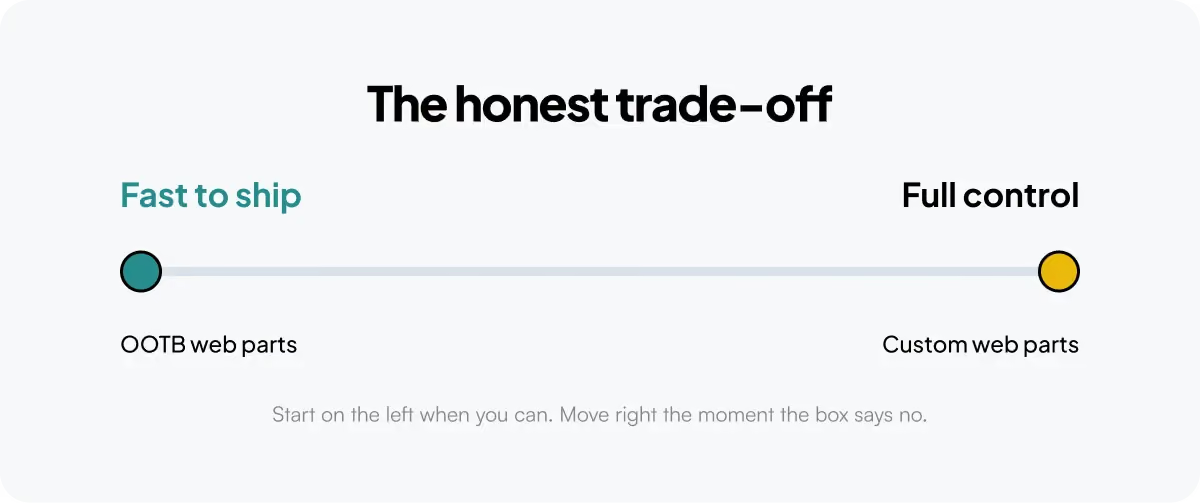
That is the honest boundary of OOTB. You get what the box gives you, and not one pixel more. When your requirement lands inside that box, life is wonderful. When it lands just outside, there is no dial to turn.
So what actually is a custom web part?
Here is the plain English version. The SharePoint Framework SPFx lets you build your own web part with the same tools the modern web is built on: TypeScript, React, and a normal package of code. You build it, bundle it, drop it into your tenant’s app catalog once, and from then on it shows up in the same web-part toolbox as all the built-in ones. To the person editing the page, it looks like just another block. Under the hood, it is a small application you wrote, running right there inside SharePoint.
That single shift from configuring someone else’s block to shipping your own is the whole game. And once you cross it, a lot of previously locked doors simply open.
Why I keep reaching for custom
After enough of those Monday emails, I stopped seeing custom web parts as “the expensive option” and started seeing them as the one that actually respects the requirement. A handful of reasons, from the trenches:
- You own every pixel. OOTB gives you a layout and a colour or two. A custom part gives you the whole canvas spacing, typography, hover states, the exact card design the brand team fought over. You are no longer bending the client’s vision to fit a template; you are building the template.
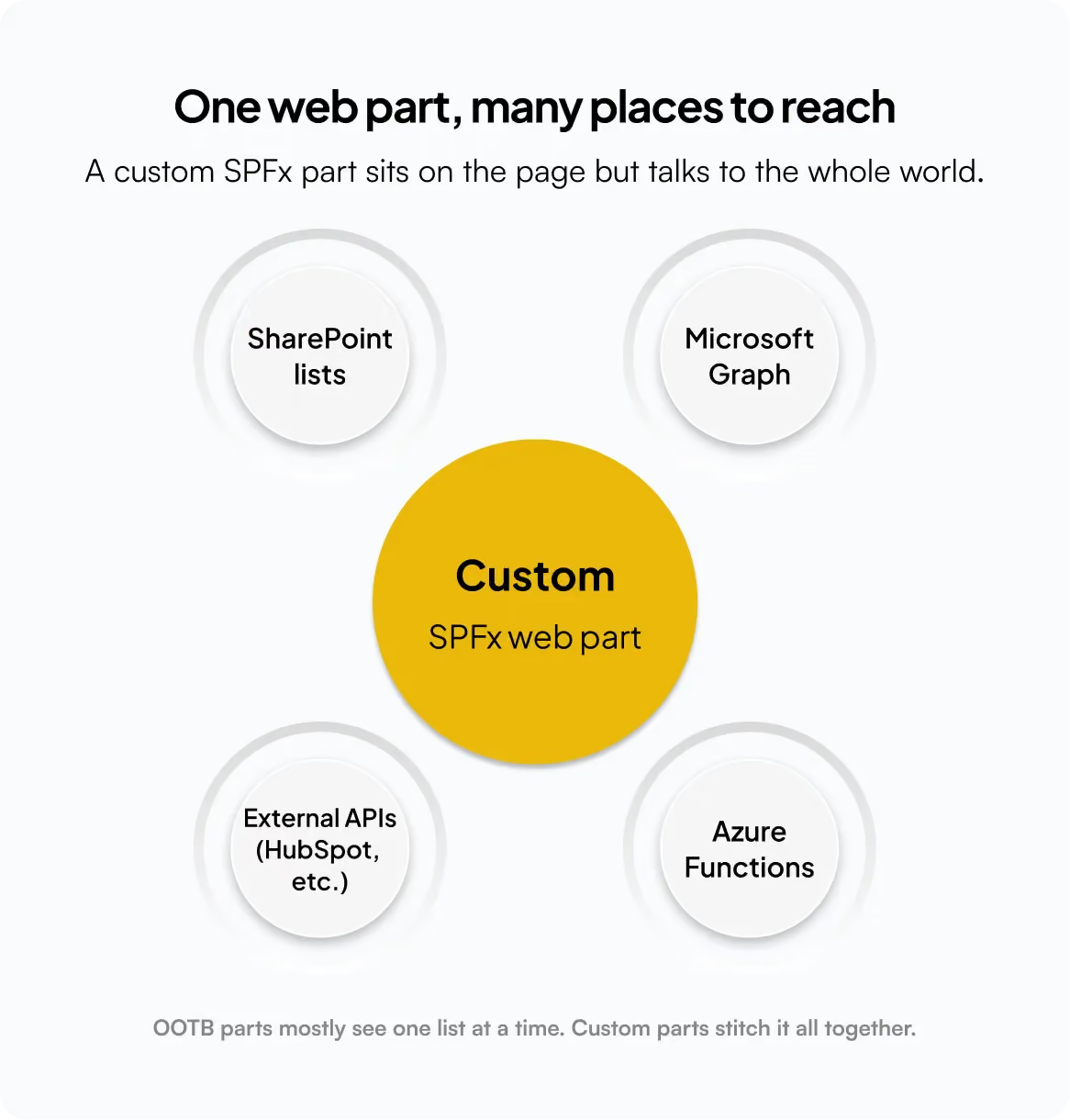
- It talks to anything. This is the big one. A custom part can call Microsoft Graph for people and calendars, hit an external service like HubSpot, or reach into an Azure Function you wrote for the heavy logic. My dashboard’s “number from the sales system” went from impossible to a single fetch call. OOTB parts mostly see one list at a time; a custom part stitches the whole picture together.
- The logic lives where it belongs. “Late” meant something specific to this client a rule with a few branches. In a custom part that rule is just code, sitting right next to the thing it colours. No brittle workaround, no fifteen nested conditions inside a view, no praying the formula bar behaves.
- Build once, reuse everywhere. Ship the part to the app catalog and every site in the tenant can use it, all pulling from the same code. Fix a bug once and it is fixed for all of them. Try keeping twenty hand-tuned OOTB pages in sync by hand and you will understand why this is worth so much.
- It grows up with your project. Because it is real code, it lives in Git. You can review it, test it, and push it through a proper pipeline. Six months later, when the client asks for “just one more thing,” you open the same tidy project instead of trying to reverse-engineer what past-you clicked in a property pane.
- You can tune the performance. Lazy load the heavy bits, cache the calls that do not change, load only the data actually on screen. With OOTB you get whatever performance profile you were given. With custom, slowness becomes a problem you are allowed to fix.
- Put those together and a pattern shows up: OOTB answers the question “how do I configure this?”, while custom answers “how do I build exactly this?”. Most memorable projects are hiding in that gap.
A tiny taste of the real thing
People imagine custom web parts as some towering wall of code. Often the core is smaller than the workaround it replaces. Here is the shape of that “late” rule that had no home in a property pane just plain logic, living exactly where it is used:
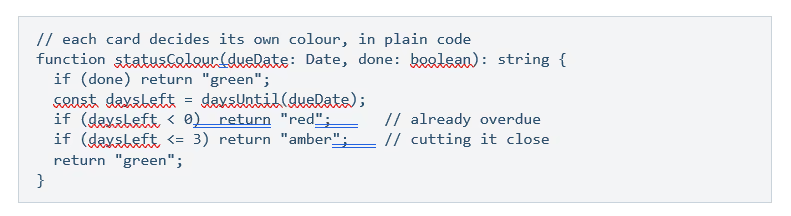
There is no property pane on earth that would have offered me that exact rule. But as a few lines of code, it took a minute and it did precisely what the client pictured.
“So should I ever use out-of-the-box?”
Absolutely, and often. If the built-in part does the whole job, using a custom one instead is not craftsmanship it is extra code for someone to maintain and a slower page for no reason. The skill is not always choosing custom; it is knowing the exact moment the box stops being enough.
A rule of thumb I actually use: Reach for OOTB when the requirement fits inside a property pane — news, links, a simple list, standard content. Reach for custom the moment you need your own layout, your own logic, or data from more than one place. If you find yourself fighting an OOTB part to make it do something it was never built for, that fight is the answer.
The one-line version
Out-of-the-box web parts are a brilliant place to start and a frustrating place to get stuck. Custom SPFx web parts cost a little more up front and hand you the one thing configuration never can: no ceiling. On the projects people actually remember the ones where the client leans in and says “yes, that one” the extra effort has paid for itself every single time.
So the next time a Monday email lands with “should be simple, right?”, go ahead and try the box first. Just do not be surprised when, one quiet afternoon, you find yourself opening a fresh SPFx project and smiling. That is not the hard road. That is the one with room to grow.
%20WebPart.webp)
SharePoint OOTB vs Custom SPFx Web Parts: Which Should You Choose?
Explore the differences between SharePoint OOTB and custom SPFx web parts, and learn when custom development is the better choice.

In 2026, employees don’t access their intranet only from desktop computers. Frontline workers check shift schedules on their phones. Sales reps pull up documents before meetings. New hires browse onboarding pages from their mobile devices.
If your SharePoint intranet only works well on a desktop monitor, it may be failing a significant part of your workforce.
A mobile-friendly SharePoint intranet allows employees to find information, complete tasks, and read content across different screen sizes without excessive scrolling, pinching, or zooming.
SharePoint Online’s modern pages are responsive by default, but basic responsiveness doesn’t always translate into a genuinely usable mobile experience.
This guide covers where SharePoint intranets commonly break on mobile, what a good mobile experience looks like, and how to fix common issues without rebuilding your intranet from scratch.
Why Mobile-Friendliness Matters for Your Intranet
Your intranet is where employees access HR policies, IT support, organizational announcements, documents, and everyday tools.
If that experience is difficult to use on a phone, employees may stop checking it. They might message a colleague instead of searching for information, miss important announcements, or avoid using certain resources altogether.
This is especially important for frontline and hybrid workers.
Warehouse teams, field staff, retail employees, and other employees without a fixed desk may rely heavily on mobile devices to access workplace information.
A mobile-friendly intranet isn’t simply about making a desktop page smaller. It’s about making the employee experience work effectively on smaller screens.
Where SharePoint Intranets Commonly Break on Mobile
1. Multi-Column Layouts Don’t Work Well on Mobile
Multi-column layouts can collapse poorly on smaller screens.
Web parts designed for a three-column desktop layout may stack vertically on mobile, pushing important content further down the page.
The visual hierarchy that works well on a wide desktop screen may not work as effectively on a narrow smartphone.
2. Navigation Becomes Difficult to Use
Mega menus and deeply nested navigation can become a maze of taps on a phone.
If employees need several taps to reach frequently used information, they may give up and ask a colleague instead.
Your SharePoint intranet navigation should prioritize the information employees access most often and keep the mobile journey as simple as possible.
3. Hero Banners and Images Aren’t Optimized
Wide desktop banners can become awkwardly cropped on mobile devices.
An image that looks impressive at 1440px can lose its focal point at 375px if it isn’t designed with responsive layouts in mind.
Large, unoptimized images can also affect page loading times, particularly when employees are using mobile connections.
4. Text Density Is Too High
A paragraph that looks comfortable on a wide screen can become a wall of text on a smartphone.
Use:
- Shorter paragraphs
- Descriptive headings
- Bullet points
- Appropriate font sizes
- Adequate line spacing
These small changes can make your SharePoint intranet design much easier to read on mobile devices.
5. Custom SPFx Web Parts Aren’t Tested for Mobile
This is one of the most commonly overlooked issues.
SharePoint’s out-of-the-box web parts provide responsive capabilities, but custom SPFx web parts still need to be designed and tested for different screen sizes.
Dashboards, forms, document management tools, and other custom components may work perfectly at desktop breakpoints but become difficult to use at tablet and mobile widths.
Test custom components at:
- 1440px — desktop
- 1024px — smaller desktop/tablet
- 768px — tablet
- 375px — mobile
A proper responsive design process should account for all of these screen sizes.
6. The SharePoint Mobile App and Browser Experience Can Differ
Don’t test your intranet only on a desktop browser.
Employees may access your intranet through:
- SharePoint mobile app
- Mobile browser
- Microsoft Teams
- Tablet
- Desktop browser
Testing across these experiences helps identify layout, navigation, and web part issues before employees encounter them.
What a Mobile-Friendly SharePoint Intranet Actually Looks Like
Mobile-friendly goes beyond simply asking, “Does it fit on the screen?”
A genuinely usable mobile intranet should have the following characteristics.
Priority Content Is Reachable Quickly
The most-used links, such as leave requests, IT tickets, announcements, and employee resources, should be easy to access.
Employees shouldn’t have to navigate through several layers just to complete a common task.
Touch Targets Are Easy to Use
Buttons, links, and interactive elements should be large enough to tap accurately without requiring users to zoom in.
Pages Load Quickly
Large images and unnecessary web parts can make an intranet feel slow on mobile connections.
Compressing images, optimizing media, and keeping pages lightweight can help improve the mobile experience.
Navigation Is Simplified for Small Screens
Instead of simply shrinking a desktop mega menu, simplify the navigation structure for mobile users.
Where appropriate, use SharePoint’s Hide on mobile option for web parts that are useful on desktop but add unnecessary clutter on smaller screens.
Typography Is Easy to Read
Employees shouldn’t need to pinch and zoom to read an announcement or policy.
Use readable font sizes, appropriate line spacing, and shorter content blocks to make information easier to consume.
The SharePoint App in Teams Extends the Intranet to Mobile
Many organizations use Microsoft Teams as their primary digital workplace.
The SharePoint experience in Teams can bring your organization’s SharePoint content closer to employees who spend most of their day working in Teams, including on mobile devices.
This makes it important to consider Teams when planning your SharePoint intranet design.
For frontline workers in particular, providing access to important news, resources, tasks, and tools through the platforms they already use can make the intranet more accessible.
If your organization is already using Teams extensively, integrating the intranet experience with Teams can be an important part of your mobile strategy.
SPFx Adaptive Card Extensions for Mobile-First Experiences
SPFx Adaptive Card Extensions (ACEs) can be used to create modular, interactive experiences for the SharePoint and Microsoft 365 ecosystem.
These experiences can be useful for scenarios such as:
- Viewing employee information
- Accessing frequently used resources
- Checking IT requests
- Accessing HR services
- Completing common employee tasks
For organizations building custom experiences, mobile-first design should be considered from the beginning rather than added after development is complete.
Mobile-Friendly SharePoint Intranet Checklist
Before starting a redesign, open your intranet on your own phone and ask:
- Can employees find the top three things they search for in under 10 seconds?
- Do any web parts overlap, get cut off, or fail to load?
- Is any text too small to read without zooming?
- Does the search bar work well on mobile?
- Is navigation easy to understand?
- Would a new employee know where to go without prior context?
- Does the experience work consistently across mobile and desktop?
- Have custom SPFx web parts been tested on mobile?
- Does the intranet work well when accessed through Teams?
If you hesitate on any of these questions, you’ve found an area worth improving.
How to Fix a Mobile SharePoint Intranet Without Starting Over
You don’t necessarily need to rebuild your entire intranet.
Most mobile-friendliness issues can be addressed through targeted improvements:
- Audit and simplify navigation specifically for mobile.
- Reorder web parts so critical content appears earlier on smaller screens.
- Use Hide on mobile for web parts that create unnecessary clutter.
- Rework custom SPFx web parts that weren’t designed with responsive breakpoints.
- Test layouts at 1440px, 1024px, 768px, and 375px.
- Compress and resize images to improve loading times.
- Improve typography and spacing for smaller screens.
- Test the intranet on actual mobile devices rather than only resizing a desktop browser.
- Consider integrating the intranet experience with Teams for employees who primarily work there.
A responsive optimization project can often be much more targeted than rebuilding an entire intranet from scratch.
Mobile-Friendly SharePoint Intranet Checklist
Final Thoughts
A mobile-friendly SharePoint intranet isn't simply a desktop intranet viewed on a smaller screen.
It should make information easy to find, navigation simple to use, content readable, and everyday tasks accessible regardless of the device employees use.
For organizations with frontline, hybrid, and mobile employees, optimizing the intranet for smaller screens can make a meaningful difference to employee experience and intranet adoption.
If your current intranet works well on desktop but feels difficult to use on mobile, you may not need to start over. A focused review of your SharePoint intranet design, navigation, content, performance, and custom web parts can identify the biggest problems and provide a practical path to improvement.
Is Your SharePoint Intranet Mobile-Friendly? Here's How to Check and Fix It
Is your SharePoint intranet easy to use on mobile? Discover common mobile usability issues and practical ways to improve navigation, performance, responsiveness, and employee experience.

This question is landing in AI platforms daily right now. And it's a genuinely smart question, not a naïve one.
Microsoft Copilot is impressive. It understands natural language, synthesizes answers from documents, summarises meeting notes, and can answer "What's our travel expense policy?" in seconds. So the logic goes: if Copilot can surface any information in our Microsoft 365 environment, why does the intranet's underlying structure still matter?
The short answer: Copilot is only as intelligent as the content it's grounded in. And without a well-designed intranet, that content is a mess.
This article addresses the most common questions employees, IT leaders, and business decision-makers are asking AI platforms right now about SharePoint intranets and gives you a straight, honest answer to each one.
TL;DR : Copilot is the engine. Your intranet is the road. A Ferrari on a dirt track doesn't perform like a Ferrari. Microsoft Copilot relies entirely on the structure, governance, and quality of your SharePoint content to deliver accurate, trustworthy answers. A custom intranet is not a search tool; it's the organized, governed, branded digital workplace that makes Copilot work properly, drives employee engagement, and gives your organization an experience that generic Microsoft defaults cannot provide.
The Most-Asked Intranet Questions on AI Platforms Right Now
1. Why do we need a custom intranet if Microsoft Copilot can help employees find information?
This is the number-one question being asked, and it deserves the fullest answer.
Copilot does not replace the intranet. Copilot's ability to surface answers depends entirely on the quality and structure of your SharePoint content. An organization with well-governed, well-structured SharePoint content can deploy AI agents that accurately answer questions, generate compliant documents, manage workflows, and surface relevant information in context. An organization with a disorganized intranet ends up with AI agents that hallucinate, misroute, or fail to retrieve the right information.
Here's the specific problem: Copilot does not know which version of a document is authoritative. It does not know that a page hasn't been updated in three years. It does not know that a policy was superseded last month. AI agents cannot figure things out the way your people do. Your colleagues can navigate folder chaos, guess which version is right, or intuit that an outdated page shouldn't be trusted. An agent cannot. It will read whatever is there and assume it's valid.
A custom intranet solves this by:
Providing a structure Copilot can rely on. A well-designed SharePoint intranet defines where content lives, who owns it, and when it was last reviewed. That structure becomes the architecture Copilot reasons across. Without it, Copilot is searching a filing cabinet that someone has tipped everything into.
Driving employee experience, not just retrieval. An intranet is not a search bar. It is your organization's digital headquarters where employees feel connected to the company's mission, access leadership news, onboard into a new role, and navigate their tools. Copilot does not provide any of this. In a context of hybrid work and information overload, a well-designed intranet becomes the essential digital headquarters that keeps teams connected and productive.
Enforcing governance and permissions. Copilot surfaces what it can see. If your permissions model is broken, and for most organizations it is, Copilot will surface sensitive HR data to the wrong people, or miss content entirely because it sits behind misconfigured permissions. A custom intranet design includes a deliberate governance model from day one.
Creating brand and culture. Your intranet is the face of your digital workplace. A generic SharePoint default communicates nothing about who your organization is. A designed intranet communicates your values, surfaces the right people, and creates the consistent experience that drives adoption.
The answer to this question is not "Copilot vs. intranet." Copilot is designed as a general-purpose AI assistant rather than a specialized tool for intranet design. They are built for different things. The intranet is the foundation. Copilot is the intelligence layer that sits on top of it.
2. What is the difference between SharePoint out-of-the-box and a custom SharePoint intranet?
SharePoint out-of-the-box gives you the platform. A custom intranet gives you the workplace.
Out of the box, SharePoint provides document libraries, sites, pages, Teams integration, and basic search. These are infrastructure components. They are not a finished digital workplace any more than an empty office building is a workplace.
A custom intranet built on SharePoint adds:
- Intentional information architecture - content organized the way your employees think, not the way Microsoft organizes it by default
- Branded design - visual experience aligned to your identity, not a generic Microsoft template
- Purpose-built navigation - menus, hub sites, and landing pages designed around your departments, roles, and workflows
- Governance model - defined content ownership, retention policies, review cycles, and access controls
- Employee experience features - news aggregation, people directory, quick links, events calendar, onboarding journeys, and department portals.
- Copilot readiness - content structure, metadata, and permissions configured so Copilot can deliver accurate, trusted answers
SharePoint is undergoing its most significant transformation in over two decades, powered by artificial intelligence. In 2026, organizations are moving beyond traditional document management to embrace AI-driven knowledge platforms. But that transformation only delivers value if the underlying platform is built properly.
3. Does SharePoint still need a custom design in 2026 or has Microsoft improved the default experience?
Microsoft has made significant improvements to the default SharePoint page. Building is faster, branding controls are broader, and AI is accelerating design with tools like the SharePoint Page Agent. Instead of navigating menus, understanding information architecture principles, and configuring settings manually, SharePoint now asks one question: "What do you need this to do?" You describe your goal in plain language, and SharePoint responds with a plan covering site structure, pages, lists, libraries, and starter content.
But these improvements solve a different problem. They make it faster to build SharePoint pages. They do not solve governance, information architecture, adoption, or the employee experience gap that persists in almost every default Microsoft 365 deployment.
The reality in 2026 is that organizations using default SharePoint without a deliberate design and governance strategy are experiencing three consistent failures:
Low adoption. Employees visit the intranet once, find it hard to navigate, and default to asking colleagues or searching Teams instead. Copilot adoption suffers as a result because the underlying content is not maintained.
Content chaos. Organizations create over two million SharePoint sites and upload more than two billion files daily, creating content chaos where critical information becomes impossible to find. Without governance, this compounds every month.
Copilot failures. When Copilot returns wrong or outdated answers, trust collapses quickly. Employees lose confidence in both the AI and the platform. Recovering that trust is significantly harder than building the intranet correctly from the start.
4. What does a well-structured intranet actually do for Microsoft Copilot?
This question is being asked more and more as organizations move to Microsoft 365 Copilot licensing and discover that the AI underperforms. The reason is almost always the same: poor intranet structure.
A SharePoint intranet built for agents is not flashy. It is predictable. Clean. Governed. Something an AI can understand without guesswork. When your content follows consistent patterns and your governance model reflects how your organization actually operates today, agents become dramatically more reliable.
Specifically, a well-structured intranet gives Copilot:
Clean, authoritative content. When content owners are defined and review cycles are enforced, the information Copilot retrieves is current and accurate. Copilot becomes genuinely useful rather than a source of doubt.
Correct permissions boundaries. Microsoft has introduced a SharePoint Admin Agent, a new AI-driven governance tool that identifies overshared content and monitors inactive sites to prevent Copilot sprawl, where AI accidentally reveals sensitive data due to poor permissions. Good intranet design prevents oversharing from being a problem in the first place.
Structured metadata. Tagged content, properly organized libraries, and consistent naming conventions allow Copilot to locate and cross-reference information accurately. Without this, Copilot's retrieval is imprecise.
Curated knowledge sources. A new dynamic FAQ web part powered by Microsoft 365 Copilot automatically curates and updates frequently asked questions by analyzing user behavior and connected data sources. But that only works when the underlying content is well-organized and maintained.
Think of it this way: if you want Copilot to be your organization's most trusted assistant, your intranet needs to be the most well-organized library it has ever worked from.
5. What is the SharePoint Knowledge Agent, and do I need a custom intranet for it to work?
SharePoint Knowledge Agent represents Microsoft's solution for preparing large volumes of content for AI consumption while maintaining governance and accuracy.
It can summarise documents, compare versions, spot outdated content, suggest structure, and answer questions directly from your SharePoint content. It is Microsoft's acknowledgment that most environments are not AI-ready, and it is a tool to help organizations close that gap.
But here is the critical limitation that most teams discover too late: Knowledge Agent won't rewrite your information architecture for you.
It can tell you that your intranet has problems. It cannot fix them. It cannot define a hub site structure, create content ownership frameworks, establish governance policies, or design an employee-facing experience that people will actually use.
A custom intranet design does all of those things before you deploy Knowledge Agent, so that when you switch it on, it has a well-organized, well-governed environment to work from, not a filing cabinet it needs to apologize for.
6. How long does it take to build a SharePoint intranet and what does it cost?
This is the most practically asked question, and it deserves a direct answer.
A typical custom SharePoint intranet project with SharePoint Designs covers the following phases:
Cost varies significantly based on organization size, content volume, and complexity. Smaller organizations (under 500 employees) typically pay a salary within a few months of a junior developer's salary. Enterprise projects scale with complexity.
The more relevant question is: what does a poor intranet cost? Research consistently shows that employees in organizations with poorly designed digital workplaces spend an average of 45 minutes per day searching for information they cannot find. Across a 500-person organization, that is the equivalent of dozens of full-time employees producing nothing. The cost of building the intranet right is almost always a fraction of the productivity drain of not building it properly.
Don't Have 3–6 Months? There's a Faster Path.
If the timeline above feels too long for where your organization is right now, there is a proven alternative that does not compromise on quality.
SharePoint Designs offers a prebuilt, ready-to-use SharePoint intranet that can be installed in hours and is fully operational from Day 1.
Rather than building from a blank canvas, our prebuilt intranet gives you a professionally designed, Copilot-ready SharePoint environment with everything already in place: navigation, branding templates, department pages, news hub, people directory, quick links, HR and IT portals, governance framework, and content structure installed directly into your Microsoft 365 tenant.
What you get from Day 1:
- Fully branded, modern SharePoint intranet live in hours, not months.
- Pre-configured hub site structure with department portals built in
- Governance framework and content ownership model included
- Copilot-ready information architecture from the moment it's installed.
- Mobile-friendly, accessible from any device
- Built on your own Microsoft 365 tenant, your data never leaves your environment.
- Works natively with Microsoft Teams, Viva Connections, and Microsoft 365 Copilot
And you can try it free for 15 days - no commitment, no credit card required.
The 15-day free trial gives your team full access to the complete intranet environment inside your own Microsoft 365 tenant, so you can see exactly how it looks, how it works, and whether it fits your organization before any decision is made.
Already on SharePoint 2016 or 2019? Our prebuilt intranet is also the fastest path to a modern, Copilot-ready environment post-migration. Start Your 15-Day Free Trial →
The custom-built path (3–6 months) remains the right choice for organizations with complex enterprise requirements, highly customized workflows, or large content migration needs. But for organizations that need a production-ready, professional intranet quickly, the prebuilt route provides the same foundational quality in a fraction of the time.
7. Should I wait for Microsoft to improve SharePoint defaults before investing in a custom intranet?
This is a reasonable question, and the honest answer is that the improvements Microsoft makes will make your intranet better, not make it unnecessary.
SharePoint is no longer just where you store company knowledge. It is the environment in which AI agents operate. The quality and structure of your SharePoint environment directly determine the quality of what those agents can do.
Every Microsoft improvement, Knowledge Agent, Copilot integration, agentic AI, and dynamic FAQs amplifies the value of a well-structured intranet. It does not replace the need for one. If your intranet is disorganized today, Microsoft's AI improvements will surface that disorganization to your employees faster and more visibly than ever before.
The organizations winning in 2026 are not the ones waiting for Microsoft to solve their workplace problems. They are the ones who built a clean, governed, Copilot-ready intranet and are now layering AI capabilities onto a foundation that actually supports them.
8. What's the difference between SharePoint intranet and Microsoft Viva?
Microsoft Viva is the employee experience platform built on top of SharePoint and Microsoft 365. It includes modules for communications (Viva Connections), learning (Viva Learning), engagement (Viva Engage), and workforce analytics (Viva Insights).
Viva Connections is the most directly intranet-relevant module, as it surfaces your SharePoint intranet inside Microsoft Teams, bringing your news, quick links, and dashboard into the tool employees use most.
A custom SharePoint intranet is the content and governance layer that makes Viva Connections valuable. Without a well-designed intranet underneath it, Viva Connections surfaces the same poorly organized content in a different interface.
Think of the relationship as:
- SharePoint intranet - the well-organized, governed, branded knowledge environment
- Viva Connections - the employee-facing interface that surfaces the environment inside Teams
- Microsoft Copilot - the AI intelligence layer that reasons across all of it
All three need each other. None of them replaces the others.
9. Can SharePoint Designs build a Copilot-ready intranet from scratch?
Yes. And this is exactly what the most forward-thinking organizations are commissioning in 2026.
A Copilot-ready intranet built by SharePoint Designs is not just a pretty SharePoint deployment. It is architected from day one with AI performance in mind:
- Information architecture designed around how Copilot retrieves and reasons across content, not just how humans navigate
- Metadata taxonomy is defined to enable Copilot to accurately filter, rank, and contextualize information.
- Permissions model that prevents oversharing while ensuring Copilot can access what employees are authorized to see
- Content governance framework with defined owners, review cycles, and archiving policies so content stays current and trustworthy
- Branded employee experience that drives adoption because an intranet no one uses produces content Copilot cannot learn from
- Migration and clean-up of legacy content so you do not import years of outdated information into your new Copilot-ready environment
The result is a SharePoint environment that looks and feels like a premium digital workplace on day one and gets measurably smarter as Copilot learns from the well-governed content inside it.
The Bottom Line
Microsoft Copilot does not make your intranet redundant. It makes your intranet more important than ever.
Every AI capability Microsoft releases in 2026, from Knowledge Agent to Copilot grounding to agentic workflows, runs on top of your SharePoint environment. The quality of those AI experiences is a direct reflection of how well your intranet is designed, governed, and maintained.
Organizations that invest in a custom, Copilot-ready intranet now are building the foundation for an AI-powered digital workplace that works. Organizations that skip that investment are deploying expensive AI licenses onto a content environment that makes those AI tools look bad.
The question was never "intranet or Copilot." The question is: how do we build an intranet worthy of Copilot's capabilities?
Ready to Build a Copilot-Ready Intranet?
SharePoint Designs specializes in modern SharePoint intranet design, Copilot readiness, and Microsoft 365 digital workplace transformation.
- SharePoint Intranet Design Service - Custom, branded, Copilot-ready intranet build
- Prebuilt Intranet - 15-Day Free Trial - Fully operational SharePoint intranet installed in hours, free to try for 15 days
- Microsoft 365 Copilot Integration - AI grounding, governance, and Knowledge Agent setup
- SharePoint Site Audit - Full assessment of your current environment's Copilot readiness
- Free Migration Checklist - If you're still on SharePoint 2016/2019, start here
- Migration Tools Comparison - SPMT vs ShareGate vs AvePoint compared.
- Contact SharePoint Designs - Speak to a specialist this week.
.avif)
Why Do We Need a Custom Intranet If Microsoft Copilot Can Help Employees Find Information?
Microsoft Copilot is impressive. It understands natural language, synthesizes answers from documents, summarises meeting notes, and can answer "What's our travel expense policy?" in seconds.
Accidentally deleting an important file in Microsoft SharePoint can be stressful, especially when it contains critical business information. Fortunately, SharePoint provides built-in recovery options that make it possible to restore deleted files, folders, and previous versions of documents.
In this guide, we'll walk through the different ways to recover deleted files in SharePoint, including the Recycle Bin, Second-Stage Recycle Bin, and Version History.
Recover Deleted Files from the SharePoint Recycle Bin
The first place to check when a file is accidentally deleted from SharePoint is the SharePoint Recycle Bin.
Steps to Restore a Deleted File
- Open your SharePoint site.
- Navigate to the document library where the file was originally stored.
- Click Recycle Bin from the site navigation.
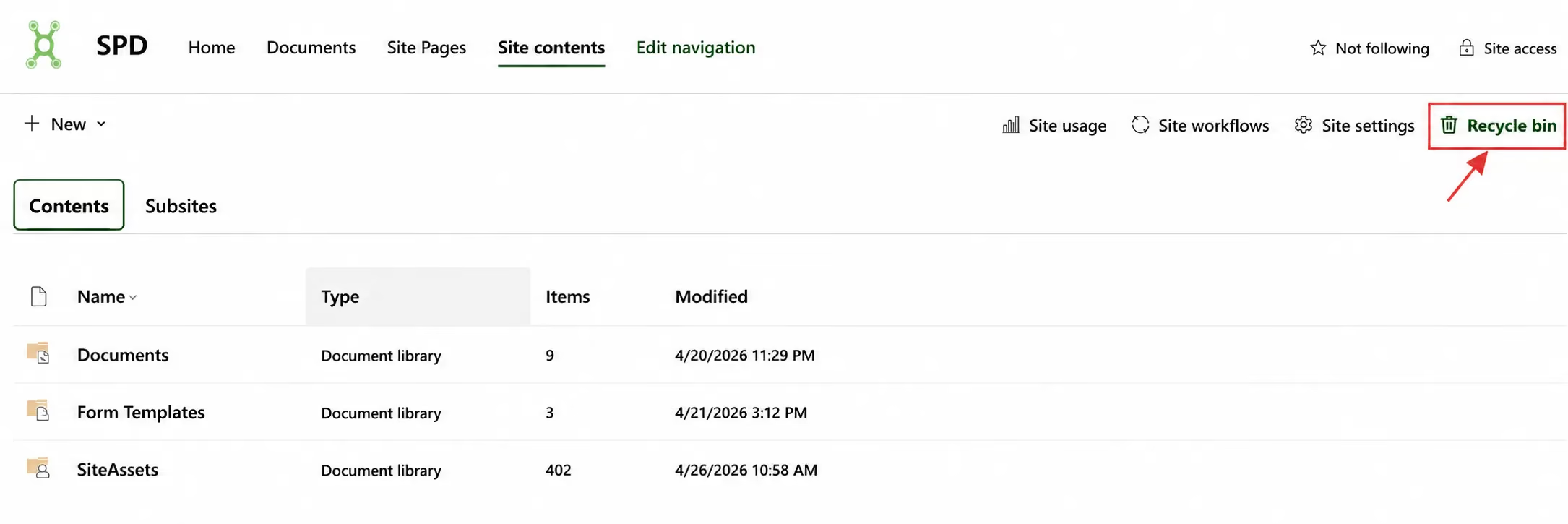
4. Browse the deleted items and locate the file or folder you want to recover.
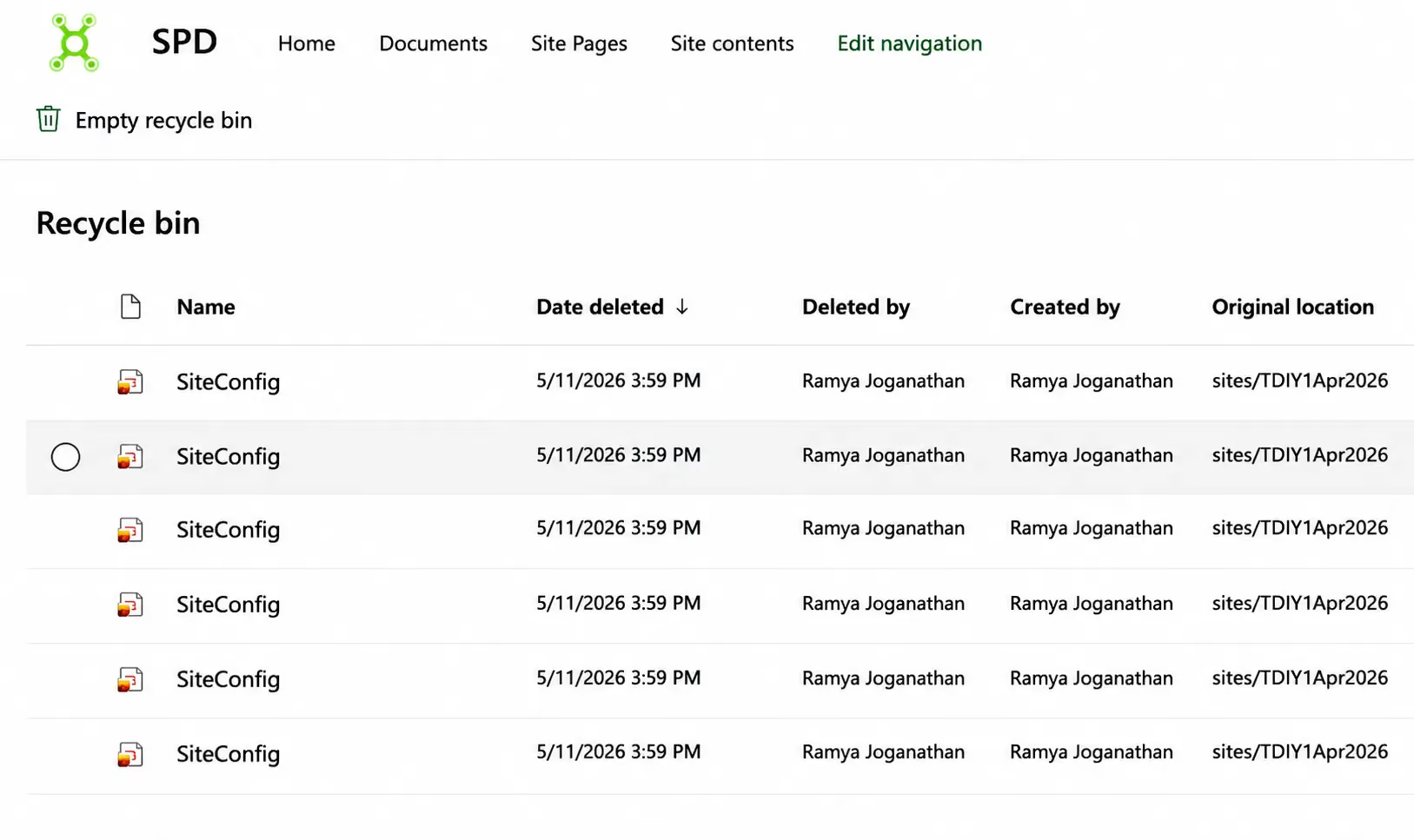
5. Select the item and click Restore.
Once restored, the file is returned to its original location in the document library.
Check the Second-Stage Recycle Bin
Can't find the deleted file in the regular Recycle Bin? Don't panic.
SharePoint also has a Second-Stage Recycle Bin, also known as the Site Collection Recycle Bin. It provides an additional recovery option for items that have been removed from the first-stage Recycle Bin.
This recovery area is typically accessible to SharePoint administrators or users with the required permissions.
How to Access the Second-Stage Recycle Bin
- Open the SharePoint Recycle Bin.
- Scroll to the bottom of the page.
- Select Second-stage recycle bin.
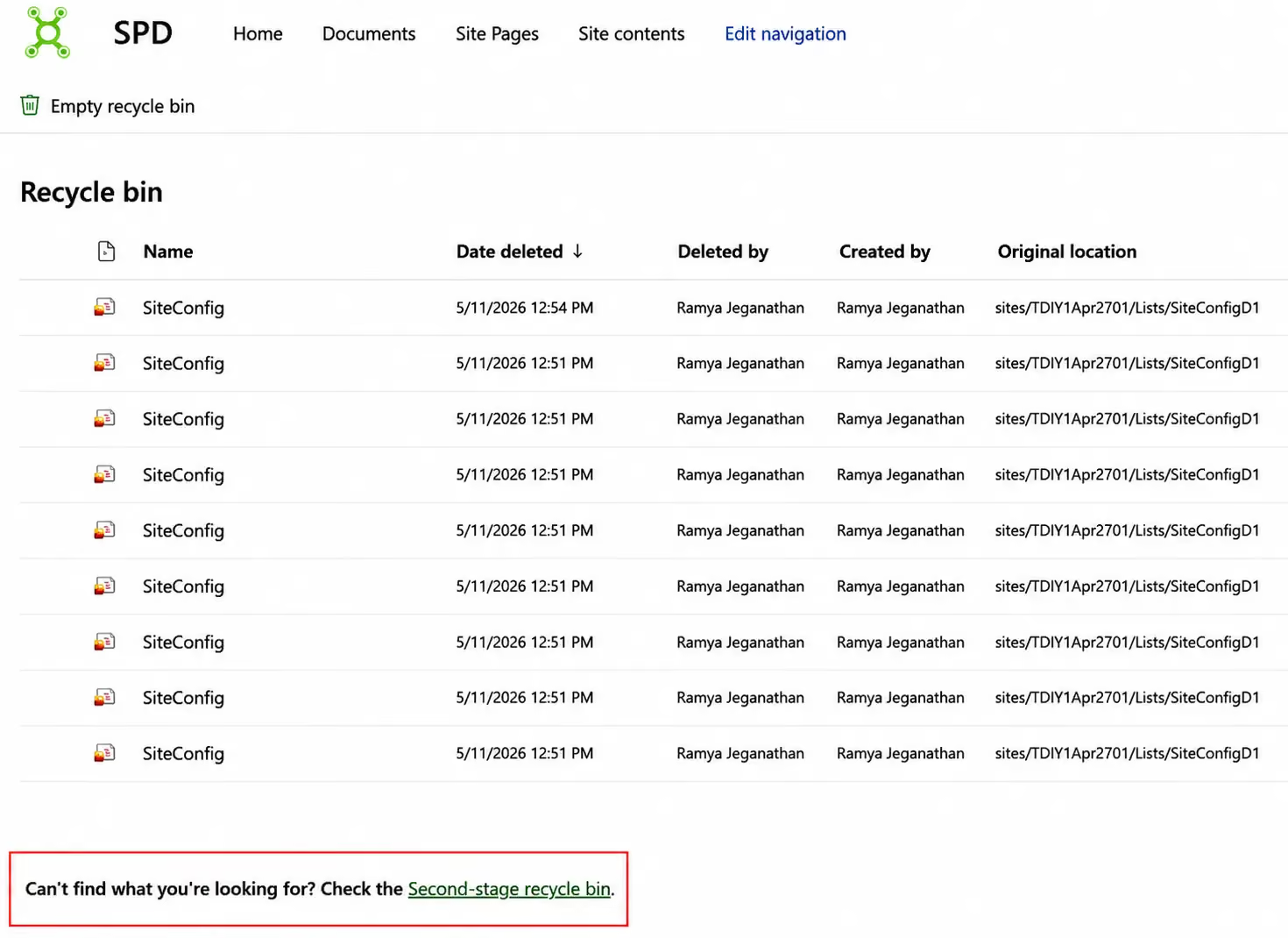
4. Locate the deleted file or folder.
5. Select the item and click Restore.
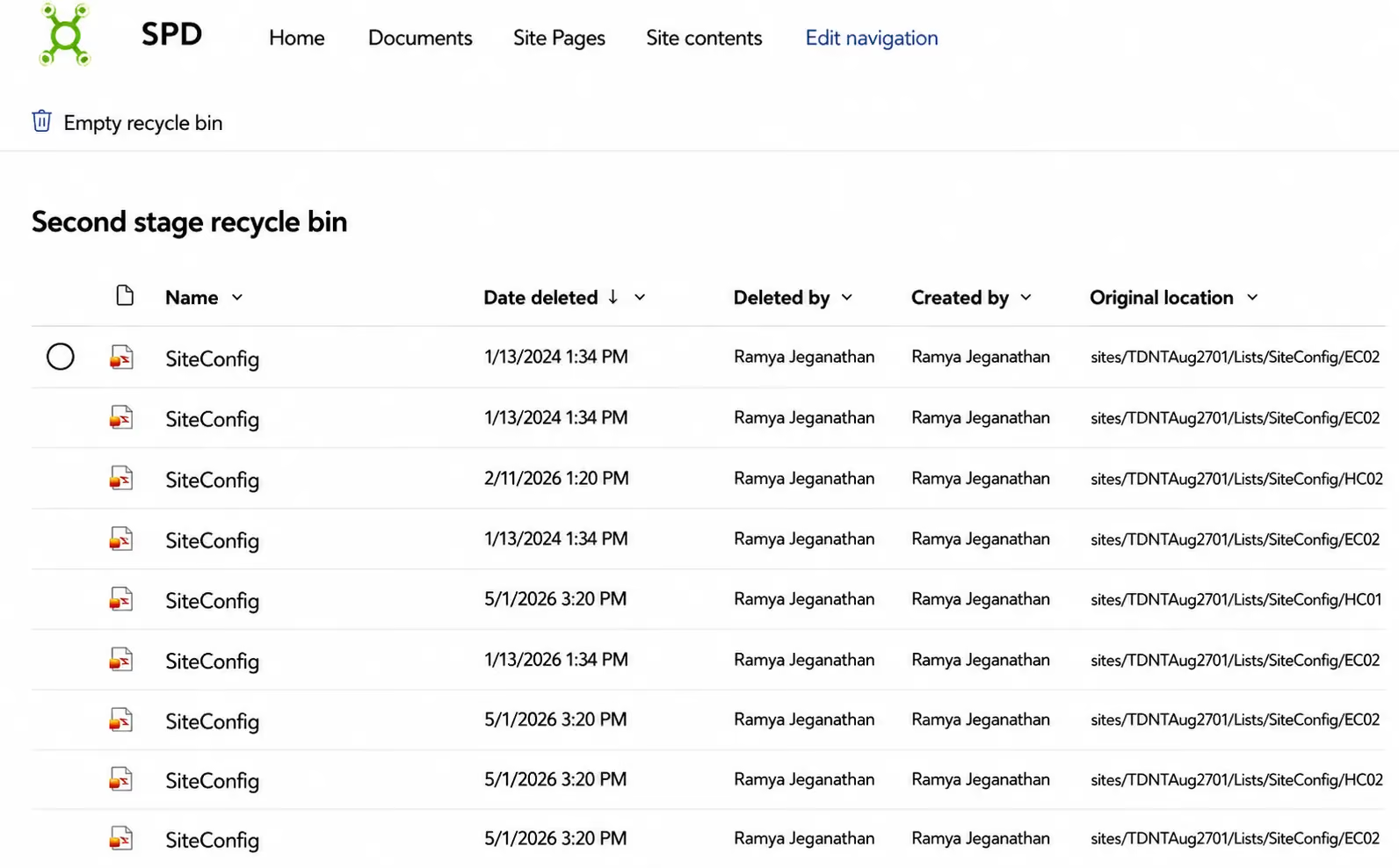
This provides an additional layer of protection when a deleted SharePoint file is no longer available in the regular Recycle Bin.
Restore an Earlier Version Using SharePoint Version History
Sometimes a file hasn't been deleted at all. Instead, it may have been overwritten, modified incorrectly, or had important content removed.
In these situations, SharePoint Version History can help you recover an earlier version of the document.
Steps to Restore a Previous Version
- Locate the document in the SharePoint document library.
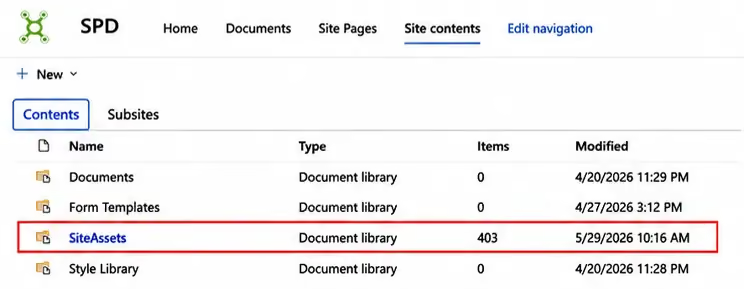
2. Click the three dots (...) beside the file.
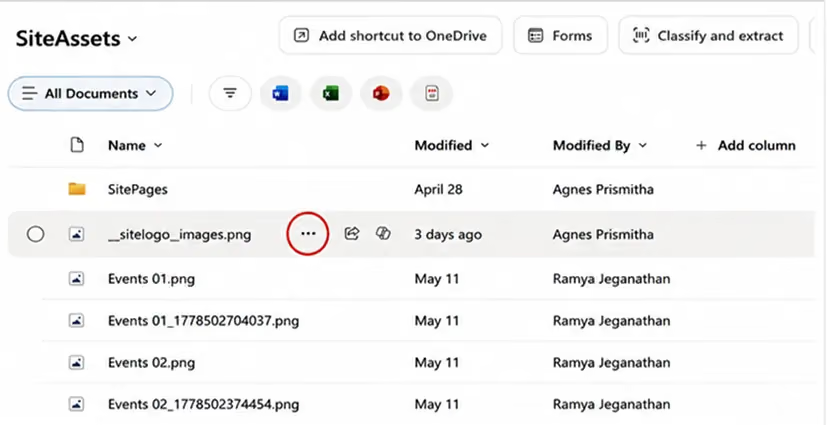
3. Select Version History.
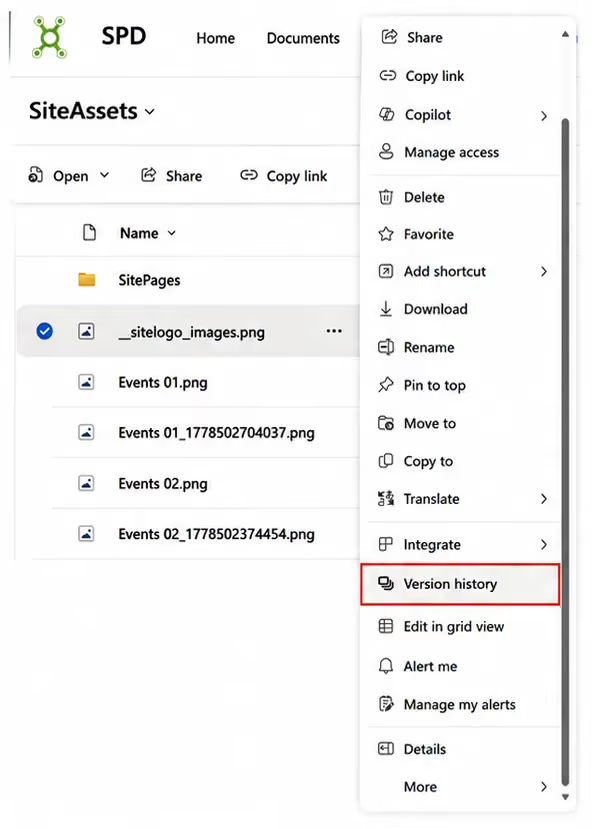
4. Review the available versions.
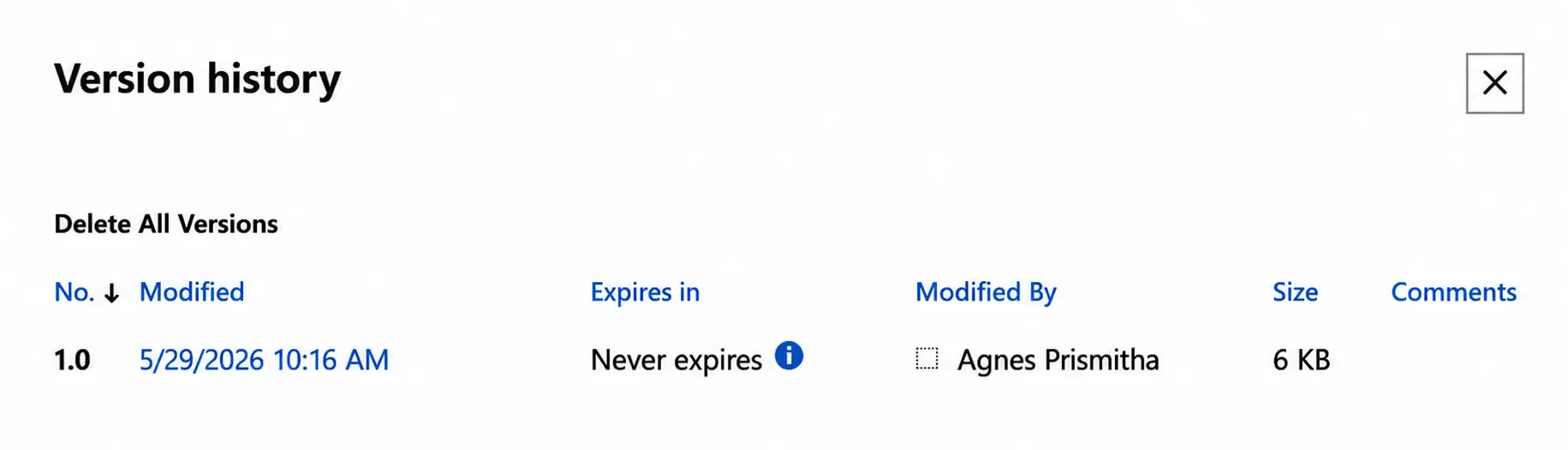
5. Select the version you want to recover and click Restore.
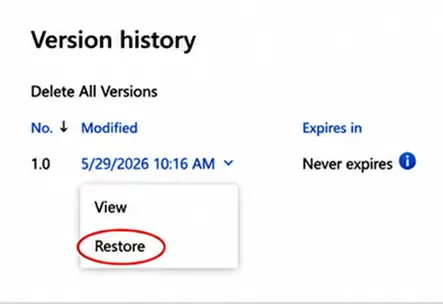
SharePoint restores the selected version as the current version while maintaining the version history.
How Long Are Deleted Files Retained in SharePoint?
In SharePoint in Microsoft 365, deleted items are retained for 93 days from the time they are deleted from their original location. The 93-day period spans the first-stage and second-stage Recycle Bins.
If a file is no longer available through the Recycle Bins after the retention period, recovery may require administrator assistance or an organizational backup and recovery solution.
For organizations with critical business data, additional retention policies and backup solutions can provide another layer of protection.
What If You Can't Find the Deleted SharePoint File?
If the file isn't in the first-stage Recycle Bin:
1. Check the Second-Stage Recycle Bin
A SharePoint administrator may be able to restore the file from there.
2. Check Version History
If the file still exists but its contents were changed or overwritten, an earlier version may be available.
3. Contact Your SharePoint Administrator
If the item has been permanently removed or is affected by retention policies, your administrator may have additional recovery options.
Recovering Deleted Files in SharePoint: Quick Summary
Final Thoughts
Recovering deleted files in SharePoint is usually a straightforward process. Whether you need to restore a deleted document from the SharePoint Recycle Bin, recover an item from the Second-Stage Recycle Bin, or retrieve an older version using Version History, SharePoint provides multiple ways to protect and recover your content.
Understanding these recovery options can save valuable time and prevent unnecessary stress when important files go missing.
For organizations managing large volumes of business-critical content, having the right SharePoint document management, retention, and backup strategy can provide an additional layer of protection against accidental data loss.
How to Recover Deleted Files in Microsoft SharePoint - A Complete Guide
Accidentally deleted an important SharePoint file? Learn how to recover deleted files using the Recycle Bin, Second-Stage Recycle Bin, and Version History with this simple step-by-step guide.
Many organizations invest time in building well-structured SharePoint sites with organized libraries, meaningful metadata, and clear navigation. Yet when users ask Microsoft Copilot simple questions like "Where do I submit a purchase request?", the answers can still be generic or incorrect.
The problem isn't that Copilot can't read your content. It's that it doesn't understand your organization's unique processes, terminology, or conventions.
That's where SHAREPOINT.md comes in.
This little-known Markdown file gives Copilot the context it needs to provide accurate, site-specific answers. Instead of relying only on existing documents, Copilot learns how your SharePoint site works.
.avif)
What Is SHAREPOINT.md?
SHAREPOINT.md is a Markdown file stored in your SharePoint site's Agent Assets library. Microsoft Copilot reads this file before answering questions on the site, allowing it to understand your organization's terminology, workflows, and business rules.
Think of it as a briefing document for AI.
Instead of teaching a new employee how your site works, you're teaching Copilot.
Unlike normal SharePoint content, this file isn't meant for end users. Its purpose is to provide background context that helps Copilot generate more accurate responses.
What you typically include
- Purpose of the SharePoint site
- Library and list descriptions
- Department-specific terminology
- Business processes
- Manual approval steps
- Naming conventions
- Rules Copilot should follow
- Common mistakes to avoid
Why Microsoft Introduced It
Copilot is excellent at reading documents, but it doesn't automatically understand the unwritten knowledge that teams rely on every day.
For example:
- "PR" might mean Purchase Request in one department but Pull Request in another.
- An approval process may require a manual action that isn't documented anywhere.
- A library called Archive might no longer be used, even though it still exists.
Without guidance, Copilot relies on general SharePoint knowledge and can confidently provide the wrong answer.
SHAREPOINT.md solves this by supplying the missing organizational context.
Where Does SHAREPOINT.md Live?
The file is stored in the Agent Assets library.
/sites/YourSite/AgentAssets/SHAREPOINT.md
If the Agent Assets library isn't available, it can be enabled through SharePoint Site Collection Features.
Once created, the file is automatically used whenever someone starts a Copilot conversation on that SharePoint site.
.avif)
How Copilot Uses the File
When a user opens Copilot on a SharePoint site, the AI loads SHAREPOINT.md as background context before processing the question.
This allows Copilot to understand:
- Site purpose
- Library roles
- Business terminology
- Approval workflows
- Manual processes
- Department rules
Instead of making assumptions, Copilot responds using the guidance you've provided.
For example, if your context file states that purchase requests must always be created through a specific SharePoint list, Copilot consistently directs users there instead of suggesting generic document uploads.
.avif)
What Information Should You Include?
A good context file focuses on information Copilot cannot easily infer from documents alone.
Avoid copying information that already exists in documents. Instead, describe the rules, conventions, and processes behind the content.
SHAREPOINT.md vs SharePoint Pages
A common misconception is that a SharePoint page can replace SHAREPOINT.md.
Although both can explain how a site works, they serve different purposes.
A SharePoint page is content that Copilot may discover during a search.
SHAREPOINT.md is context that Copilot receives before answering any question.
For best results, use both and keep them aligned.
.avif)
SHAREPOINT.md vs SPFx
Developers often compare SHAREPOINT.md with SharePoint Framework (SPFx), but they solve different problems.
SPFx changes what users can do.
SHAREPOINT.md changes what Copilot understands.
For example, if you've built a custom SPFx web part for contract management, Copilot won't automatically know it exists. By documenting it in SHAREPOINT.md, users asking where to find contracts can be directed to the correct interface instead of receiving a generic answer.
Benefits of Using SHAREPOINT.md
Adding a well-written context file can significantly improve the quality of Copilot responses without requiring custom development.
Some key benefits include:
- More accurate, site-specific answers
- Better understanding of business terminology
- Improved navigation to the correct libraries and lists
- Consistent guidance for business processes
- Reduced duplicate instructions across Copilot Skills
- No coding or deployment required
- Easy to update using standard SharePoint versioning
Because the file is stored in the Agent Assets library, it can be maintained by site owners without involving developers.
Limitations
While SHAREPOINT.md is powerful, it's important to understand its boundaries.
Treat SHAREPOINT.md as documentation for AI, not as a replacement for good information architecture.
Security Considerations
SHAREPOINT.md does not bypass SharePoint permissions.
Copilot can only access content that the current user is already allowed to view. The context file simply helps Copilot interpret your site more accurately.
However, remember that everyone using Copilot on that site may benefit from the information in the file. Avoid including:
- Passwords or credentials
- Confidential business information
- Sensitive employee details
- Security procedures
- Information that shouldn't be broadly disclosed
Security should always be enforced through SharePoint permissions, sensitivity labels, and governance not through instructions written in SHAREPOINT.md.
Governance Best Practices
Because the context file influences every Copilot conversation on a site, it should be treated as an important business document.
Consider these governance practices:
- Assign a dedicated owner.
- Enable SharePoint version history.
- Review the file regularly.
- Update it whenever libraries, lists, or workflows change.
- Restrict editing permissions to trusted site owners.
A simple review process helps ensure Copilot continues to provide reliable answers as the site evolves.
.avif)
Best Practices
A good SHAREPOINT.md file should be concise, structured, and focused on information that Copilot cannot infer from documents alone.
Do
- Clearly state the site's purpose.
- Use the exact names of libraries, lists, and columns.
- Define business acronyms and terminology.
- Describe manual approval steps.
- Explain routing rules and business processes.
- Include instructions about common mistakes to avoid.
Don't
- Repeat generic SharePoint documentation.
- Write long narrative paragraphs.
- Store confidential information.
- Allow the file to become outdated.
- Treat it as a security mechanism.
The goal is to provide Copilot with clear operational context rather than duplicate existing documentation.
Real Business Example
Imagine your Finance department manages purchase requests through SharePoint.
Without SHAREPOINT.md, a user asks:
"How do I submit a purchase request?"
Copilot might recommend uploading a document to a document library because that's common SharePoint behaviour.
With SHAREPOINT.md, Copilot understands the department's actual process:
- Purchase requests must be created in the Requests list.
- Managers review requests manually.
- Documents are attached only after approval.
- The Archive library is no longer used.
The result is faster, more accurate guidance that reflects how the organization works.
.avif)
When Should You Use SHAREPOINT.md?
It's most valuable for SharePoint sites that include:
- Department workflows
- Approval processes
- Custom terminology
- Manual business steps
- Custom SPFx solutions
- Power Automate workflows
- Complex document management
For simple document repositories with little business logic, a short context file or none may be sufficient.
Final Summary
SHAREPOINT.md is one of the simplest ways to improve Microsoft Copilot in SharePoint.
By providing context about your site's terminology, workflows, business rules, and organizational conventions, it helps Copilot deliver responses that are more accurate and relevant than generic SharePoint guidance.
Unlike custom development, it requires no code or deployment. A well-maintained Markdown file in the Agent Assets library can immediately improve how Copilot answers questions, routes users, and understands your organization's processes.
If your SharePoint sites contain department-specific workflows, approval processes, or custom solutions, creating a SHAREPOINT.md file is a small investment that can significantly improve the Copilot experience for everyone using the site.
Why SHAREPOINT.md Is the Most Underrated Microsoft Copilot Feature of 2026
What if a simple SHAREPOINT.md file could help Copilot better understand your SharePoint site, content, and business context? Discover how this underrated capability can make your SharePoint environment more AI-ready.



.svg)





