Published Date -

SharePoint OOTB vs Custom SPFx WebPart: Side-by-Side Comparison
%20WebPart.webp)
Your SharePoint intranet needs a new feature. The OOTB web part almost does what you need, but not quite. A custom SPFx web part can give you exactly what you want, but at a higher cost and maintenance effort.
So, which one should you choose? Let's compare OOTB vs. custom SPFx based on what actually matters to your business.

What is an OOTB WebPart?
OOTB (Out-of-the-Box) web parts are pre-built components provided by SharePoint. They require no coding and are configurable via a property pane.
Example: Quick Links WebPart
- Layouts: Compact, Filmstrip, Grid, Button, List, Tiles
- Configurable UI via property pane
- No coding required
- Standard Microsoft design
- Limited styling options
- Layout-based customization only
- Cannot fully match brand guidelines
OOTB Quick Links Settings include: Layout selection, icon size, show/hide title, basic animation toggle, and audience targeting.
When to Use OOTB WebPart?
Use OOTB when you need a quick solution with no complex UI, when the standard SharePoint look is acceptable, and when no development time is available.
Best for: Internal quick links, small portals.

What is a Custom WebPart?
Custom web parts are built using SPFx (SharePoint Framework) with React and TypeScript. They allow fully branded, business-specific experiences with complete control over UI and behavior.
Example: Top Navigation WebPart
- Fully custom UI (buttons, icons, colors)
- Custom property pane (theme, alignment, gradient, etc.)
- Business-specific logic
- Matches company design system
- Looks like a product UI, not a default SharePoint page
Custom WebPart Settings include: Theme selection, alignment control (Left / Center / Right), gradient hover effects, button hover theme, target audience toggle, and admin settings.
When to Use Custom WebPart?
Use Custom when branding consistency is required, advanced UI/UX is needed, or business-specific logic must be implemented.
Best for: Corporate portals, navigation systems, dashboard-style UI.
Feature Comparison: Custom WebPart vs OOTB WebPart
Custom News WebPart vs SharePoint OOTB News WebPart
When it comes to implementing a News section, organizations face a key decision: should you use the Out-of-the-Box (OOTB) News WebPart or build a Custom SPFx News WebPart? Here's a complete comparison based on UI/UX, configuration, flexibility, performance, and real-world usage.
What is SharePoint OOTB News WebPart?
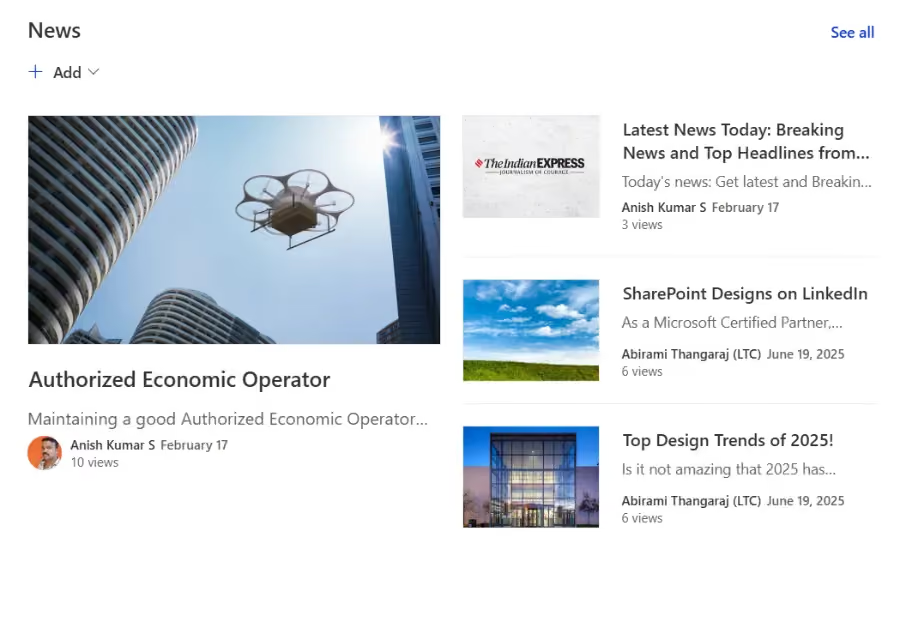
The OOTB News WebPart is a default component provided by SharePoint to display news posts from sites.
- Multiple layouts (Top story, List, Carousel, Tiles)
- Automatic content aggregation
- Basic filtering and organization
- Author and publish date display
Best suited for quick and standard implementations without development effort.
What is a Custom News WebPart?
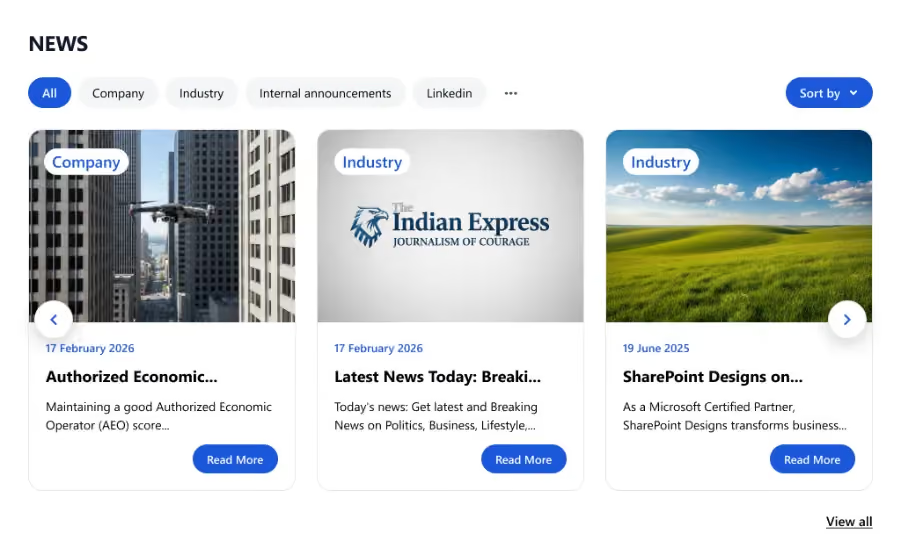
A Custom News WebPart is built using SPFx (SharePoint Framework) with React and TypeScript.
- Fully customized UI design
- Advanced filtering (category-based tabs)
- Custom sorting and interactions
- Branding and theme control
- Business-specific logic
Ideal for organizations that need a rich and branded experience.
UI & User Experience Comparison
Custom News WebPart:
- Modern card-based layout
- Category filters (All, Company, Departments, etc.)
- "Read More" call-to-action buttons
- Clean spacing and visual hierarchy
- Fully branded look and feel
- Provides a premium, application-like experience
OOTB News WebPart:
- Standard SharePoint layouts
- Limited styling options
- No CTA buttons
- Traditional list/grid display
- Provides a clean but generic experience
Configuration Comparison
Custom WebPart Configuration: Theme color selection, layout control (Filmstrip, Grid), border toggle and color picker, item count control, category filter enable/disable, search box toggle, RSS feed integration, and target audience support. Offers full flexibility and extensibility.
OOTB WebPart Configuration: Layout selection (Top story, List, Carousel), news source selection, keyword filtering, show/hide author and date, audience targeting, and manual or automatic sorting. Offers easy setup but limited customization.
Feature Comparison: Custom News WebPart vs OOTB News WebPart
When to Use OOTB News WebPart?
Choose OOTB when you need a quick solution, no custom UI is required, the standard SharePoint look is acceptable, and you want zero development effort. Best for internal portals and simple use cases.
When to Use Custom News WebPart?
Choose Custom when branding is important, advanced UI/UX is needed, business-specific features are required, and better layout control is essential. Best for corporate portals and client-facing applications.
Final Verdict: News WebPart
There is no single "best" option — it depends on your requirement.
- Use OOTB WebPart for speed and simplicity
- Use Custom WebPart for flexibility and a premium experience
Use OOTB wherever possible, and go Custom wherever necessary.
Custom Events Calendar WebPart vs SharePoint OOTB Events WebPart
Managing events efficiently is a key requirement in modern SharePoint portals. Organizations often need a clean, interactive, and user-friendly way to display upcoming events. Here's how the two approaches compare.
What is SharePoint OOTB Events WebPart?
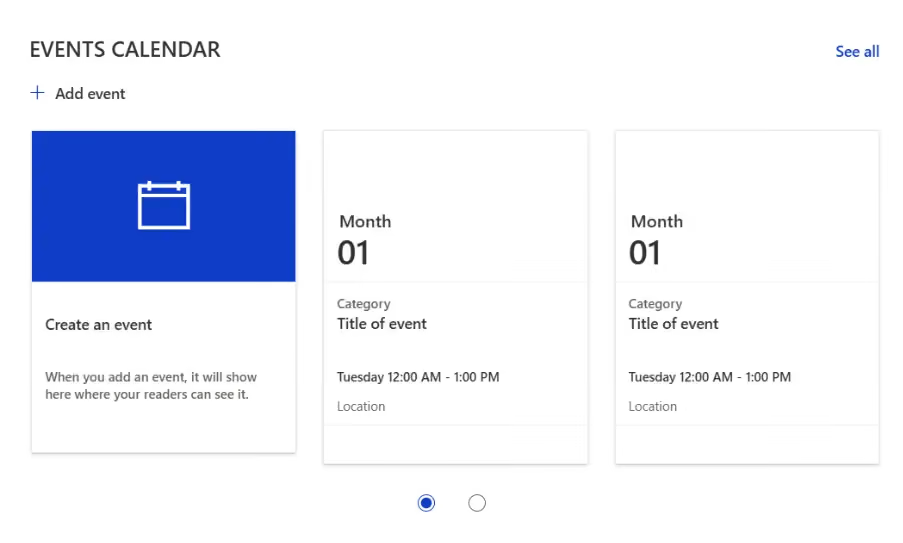
The OOTB Events WebPart is a built-in SharePoint component used to display events from an Events list.
- Displays events in Compact or Filmstrip layout
- Integrated with SharePoint Events list
- Supports date-based filtering
- Shows event details like time, location, and category
- Simple "Add event" functionality
Best for quick and standard event display.
What is a Custom Events Calendar WebPart?
A Custom Events WebPart is built using SPFx (React + TypeScript) and provides a more advanced and interactive experience.
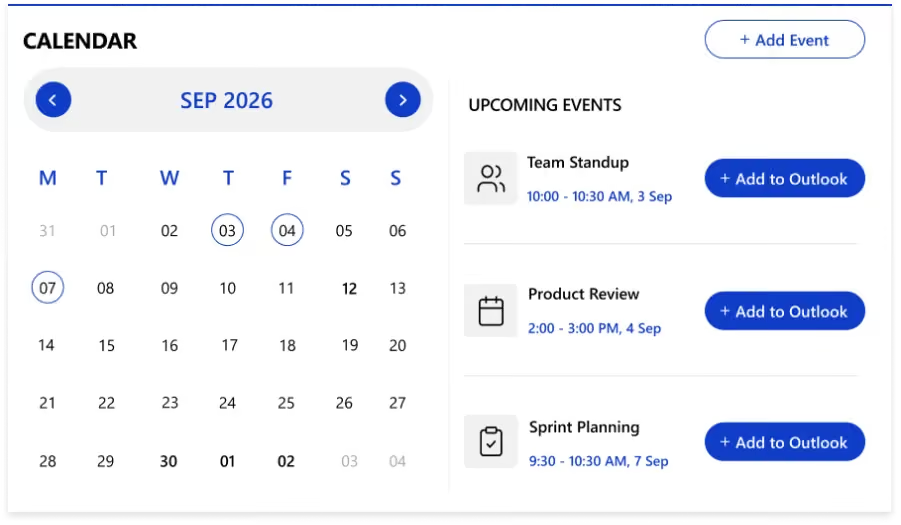
- Full calendar view (month-wise navigation)
- Interactive date selection
- Upcoming events panel
- "Add Event" and "View All" actions
- Fully branded UI (colors, styles, layout)
- Business-specific customization
Best for rich, interactive event management experiences.
UI & User Experience Comparison
Custom Events WebPart:
- Full calendar interface with month navigation
- Selected date highlighting
- Dedicated "Upcoming Events" section
- Clean and modern layout with better readability
- Feels like a real application dashboard
OOTB Events WebPart:
- Card-based or filmstrip layout
- No full calendar view
- Events shown as list/cards
- Basic interaction with standard SharePoint styling
Configuration Comparison
Custom WebPart Configuration: Theme color customization, calendar view toggle, border control and styling, event source selection, category-based filtering, "Add Event" button toggle, "View All" link configuration, and upcoming events logic. Provides complete control over behavior and UI.
OOTB WebPart Configuration: Source selection, category filtering, date range filtering, layout selection (Compact / Filmstrip), show/hide images, item count control, and animation toggle. Easy to configure but limited in flexibility.
Feature Comparison: Custom Events vs OOTB Events WebPart
When to Use OOTB Events WebPart?
Choose OOTB when you need quick implementation, basic event listing is enough, no custom UI is required, and no development effort is available. Best for internal or simple portals.
When to Use Custom Events WebPart?
Choose Custom when you need a full calendar experience, UI/UX is important, branding is required, and advanced filtering or interaction is needed. Best for corporate dashboards, employee engagement portals, and event-heavy platforms.
Final Verdict: Events WebPart
- OOTB WebPart → Fast, simple, reliable
- Custom WebPart → Advanced, interactive, flexible
Use OOTB where possible, and build Custom where necessary. A well-designed portal usually combines both approaches based on business needs.
Custom Welcome Banner vs SharePoint OOTB Banner
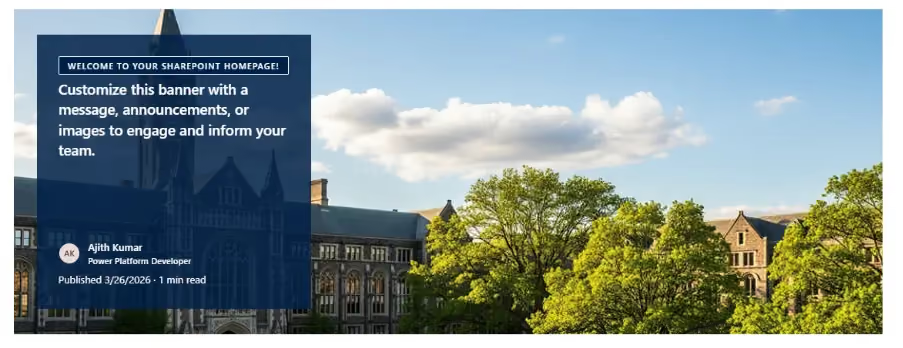
In modern SharePoint portals, the homepage banner plays a critical role in shaping the first impression and user engagement. Here's a complete comparison between the Custom SPFx Welcome Banner and the SharePoint OOTB Banner (Title Area).
What is SharePoint OOTB Banner?
The OOTB Banner (also known as the Title Area) is a built-in feature in SharePoint pages used to display page headers.
- Predefined layouts (Author, Fade, Color block, Overlap)
- Text alignment options (Left / Center)
- Page title and description
- Background image support
- Publish date and read time
Best suited for simple and standard page headers.
What is a Custom Welcome Banner WebPart?
A Custom Welcome Banner is developed using SPFx (React + TypeScript) to provide a more personalized and engaging experience.
- Personalized greeting (e.g., "Hello, [User]")
- User profile display (name, role, avatar/initials)
- Dynamic date and time
- Custom message or announcement section
- Call-to-action button (e.g., "Read More")
- Fully branded UI
Ideal for interactive and modern homepage experiences.

UI & User Experience Comparison
Custom Welcome Banner:
- Large background image with overlay
- Personalized greeting and user information
- Clean card-style content layout
- Interactive CTA button
- Modern typography and spacing
- Provides a premium, application-like experience
OOTB Banner:
- Static text block with limited layout variations
- No personalization or interactive elements
- Standard SharePoint styling
- Provides a basic and functional experience
Configuration Comparison
Custom WebPart Configuration: Greeting type (general or personalized), dynamic welcome message, background image and overlay control, text alignment, show/hide user information, description editor, CTA button configuration, theme colors and gradients, and draggable layout support. Offers full flexibility and customization.
OOTB Banner Configuration: Layout selection (Fade, Color block, etc.), text alignment, title and description editing, show/hide publish date, and estimated read time. Offers simple configuration with limited control.
Feature Comparison: Custom Banner vs OOTB Banner
When to Use OOTB Banner?
Use OOTB Banner when you need a quick and simple header, no personalization is required, the standard layout is sufficient, and no development effort is available. Best for content-focused pages.
When to Use Custom Banner?
Use Custom Banner when personalization is required, branding is important, and interactive elements are needed. Best for employee portals, corporate dashboards, and client-facing applications.
Final Verdict: Welcome Banner
- OOTB Banner → Simple, fast, and easy
- Custom Banner → Interactive, flexible, and premium
If your homepage requires strong user engagement, the Custom Banner is the better choice. A homepage banner is more than just a header, it defines the user experience and engagement level of your portal.
Tip: Combine a Custom Banner with Custom News, Quick Links, and Events WebParts to create a fully branded SharePoint experience.
faqs

Shantha Kumar


Shantha Kumar is a Chief Technology Officer (CTO), Microsoft MVP, and Solution Architect with extensive experience building secure, scalable solutions on Microsoft 365, SharePoint, SPFx, Power Platform, and Azure. He leads SaaS-focused engineering teams and actively shares practical insights as a global community speaker and author.






.svg)