Published Date -

How to Recover Deleted Files in Microsoft SharePoint - A Complete Guide
Accidentally deleting an important file in Microsoft SharePoint can be stressful, especially when it contains critical business information. Fortunately, SharePoint provides built-in recovery options that make it possible to restore deleted files, folders, and previous versions of documents.
In this guide, we'll walk through the different ways to recover deleted files in SharePoint, including the Recycle Bin, Second-Stage Recycle Bin, and Version History.
Recover Deleted Files from the SharePoint Recycle Bin
The first place to check when a file is accidentally deleted from SharePoint is the SharePoint Recycle Bin.
Steps to Restore a Deleted File
- Open your SharePoint site.
- Navigate to the document library where the file was originally stored.
- Click Recycle Bin from the site navigation.
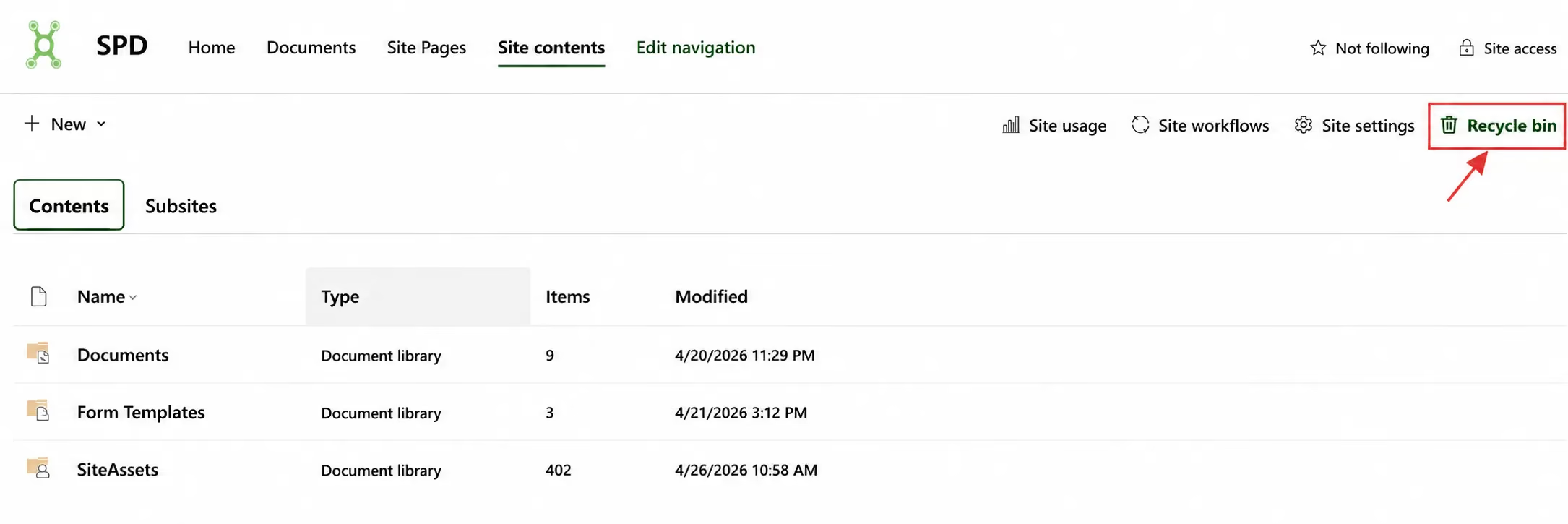
4. Browse the deleted items and locate the file or folder you want to recover.
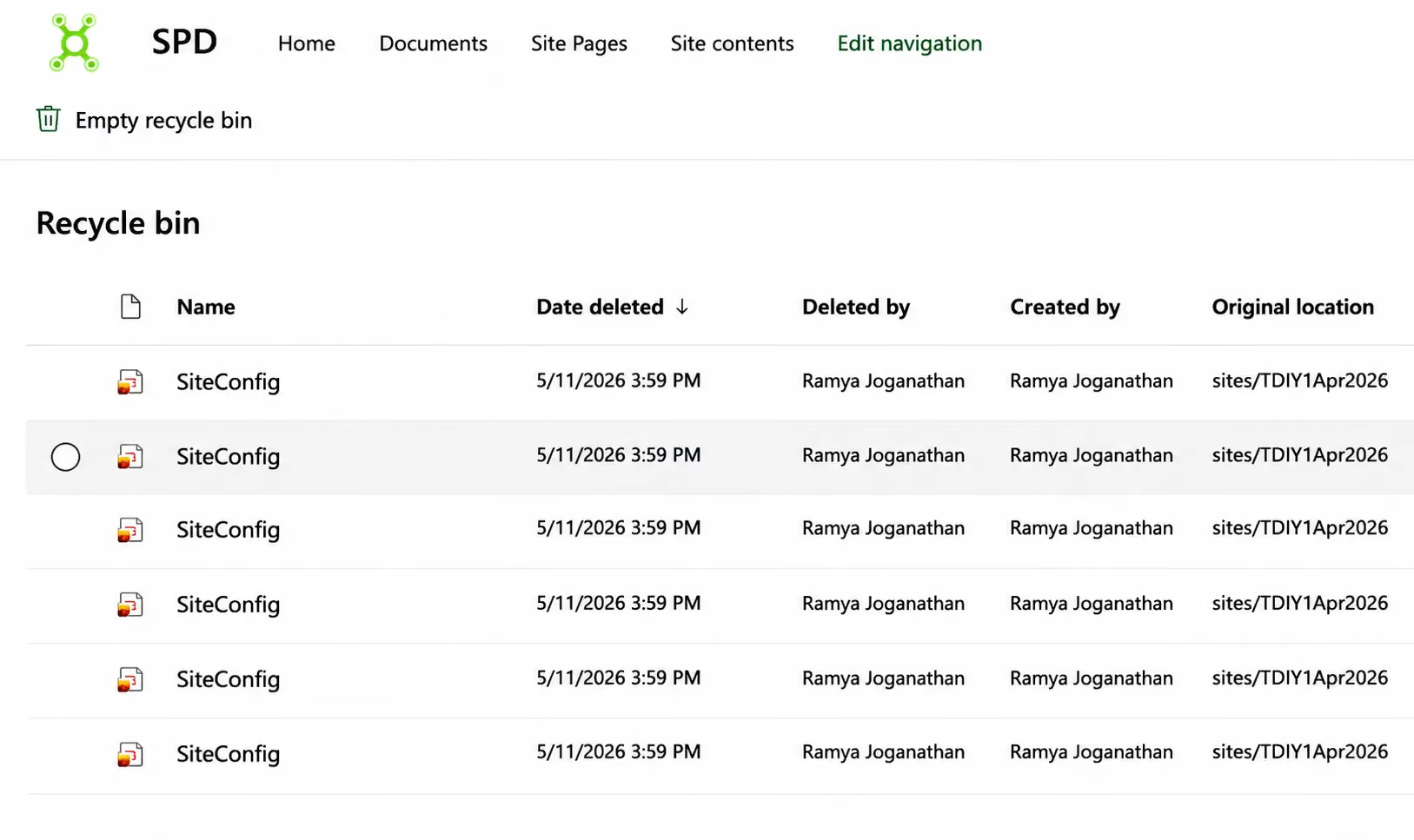
5. Select the item and click Restore.
Once restored, the file is returned to its original location in the document library.
Check the Second-Stage Recycle Bin
Can't find the deleted file in the regular Recycle Bin? Don't panic.
SharePoint also has a Second-Stage Recycle Bin, also known as the Site Collection Recycle Bin. It provides an additional recovery option for items that have been removed from the first-stage Recycle Bin.
This recovery area is typically accessible to SharePoint administrators or users with the required permissions.
How to Access the Second-Stage Recycle Bin
- Open the SharePoint Recycle Bin.
- Scroll to the bottom of the page.
- Select Second-stage recycle bin.
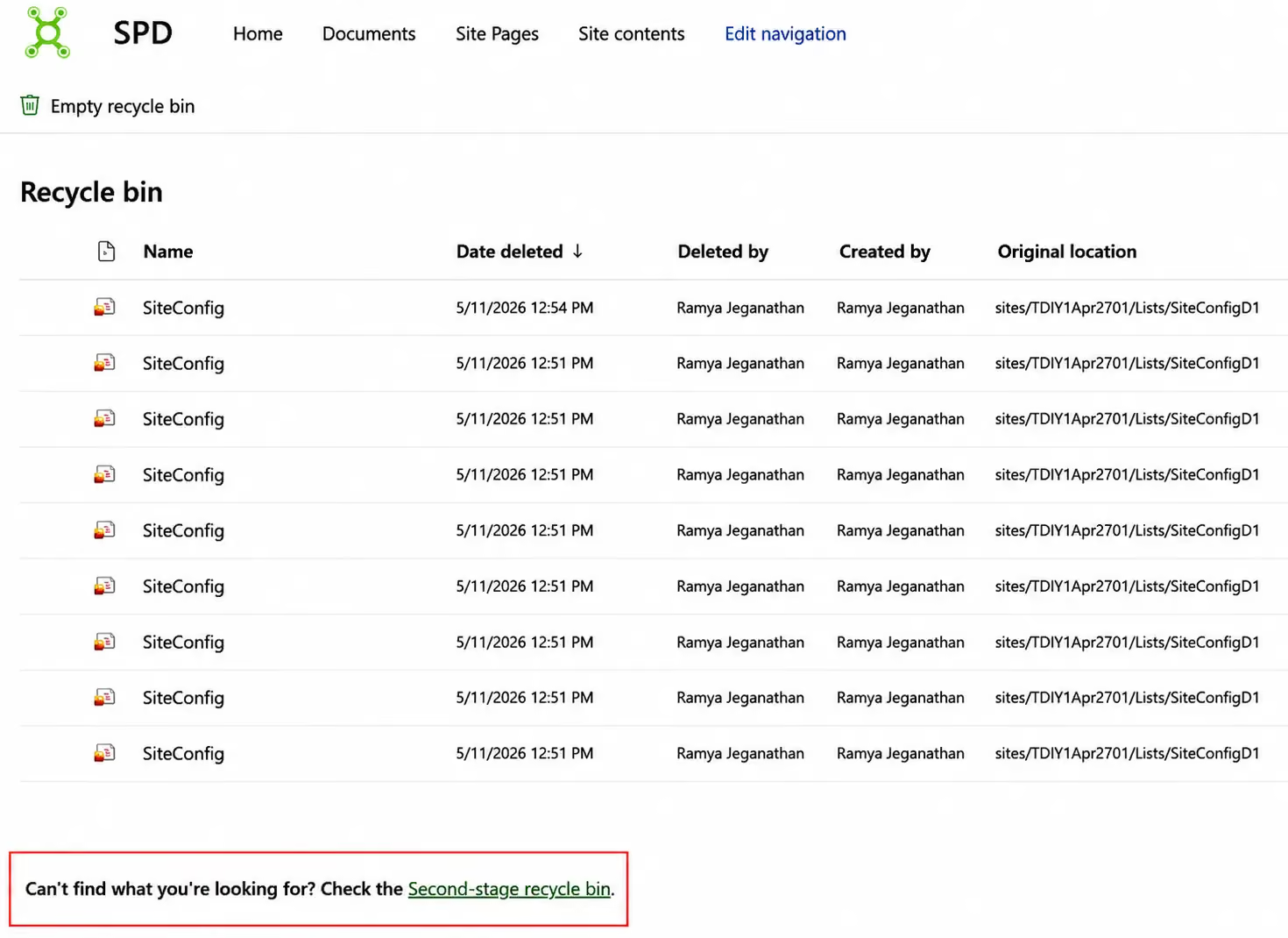
4. Locate the deleted file or folder.
5. Select the item and click Restore.
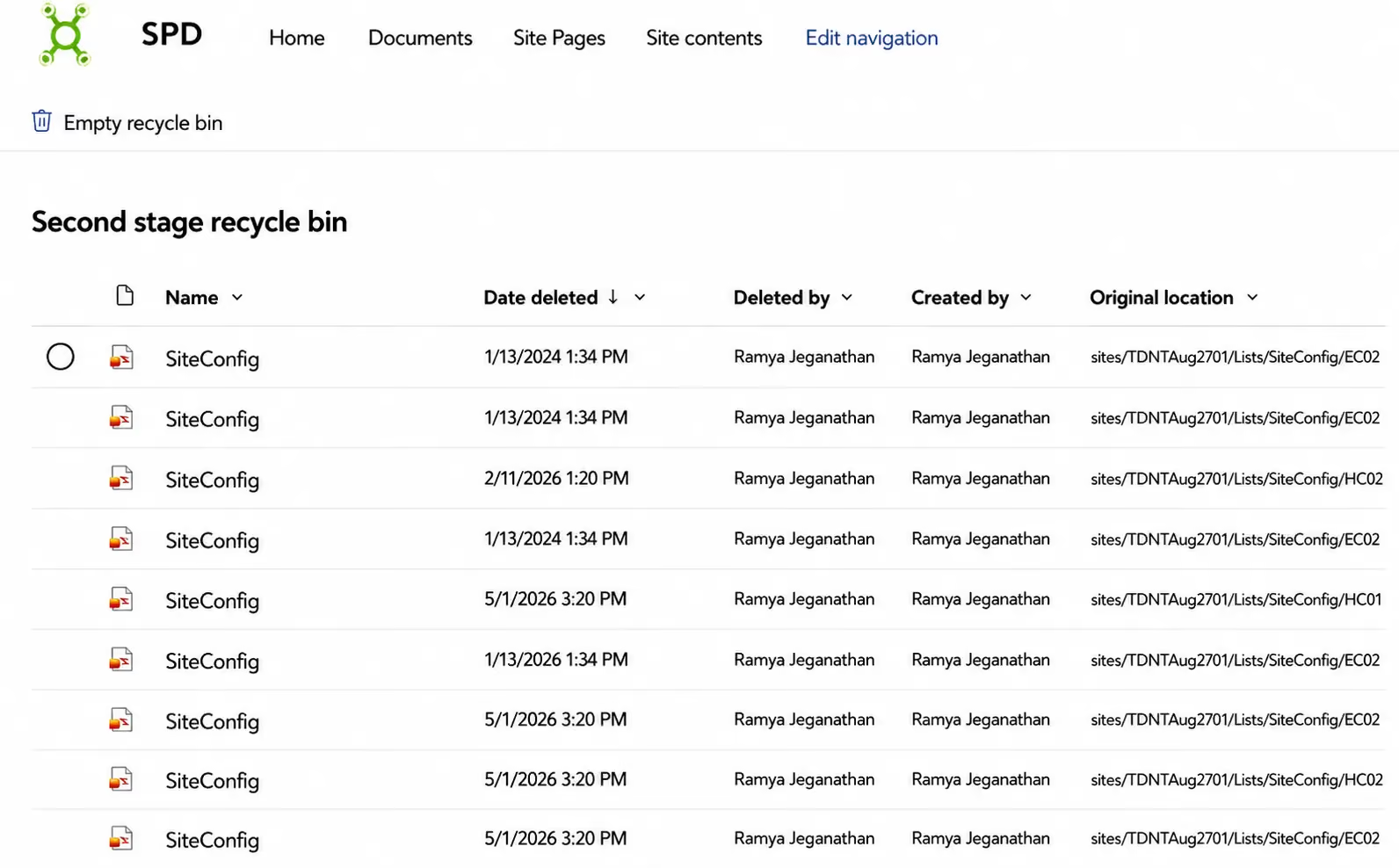
This provides an additional layer of protection when a deleted SharePoint file is no longer available in the regular Recycle Bin.
Restore an Earlier Version Using SharePoint Version History
Sometimes a file hasn't been deleted at all. Instead, it may have been overwritten, modified incorrectly, or had important content removed.
In these situations, SharePoint Version History can help you recover an earlier version of the document.
Steps to Restore a Previous Version
- Locate the document in the SharePoint document library.
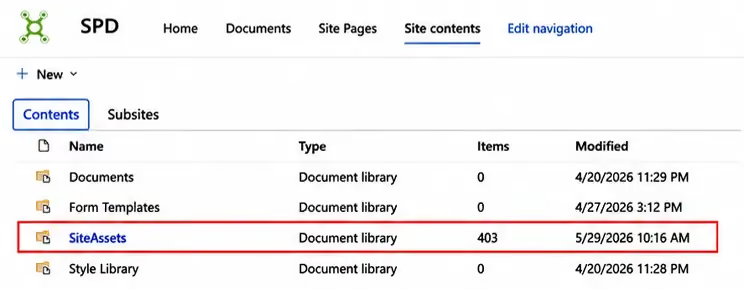
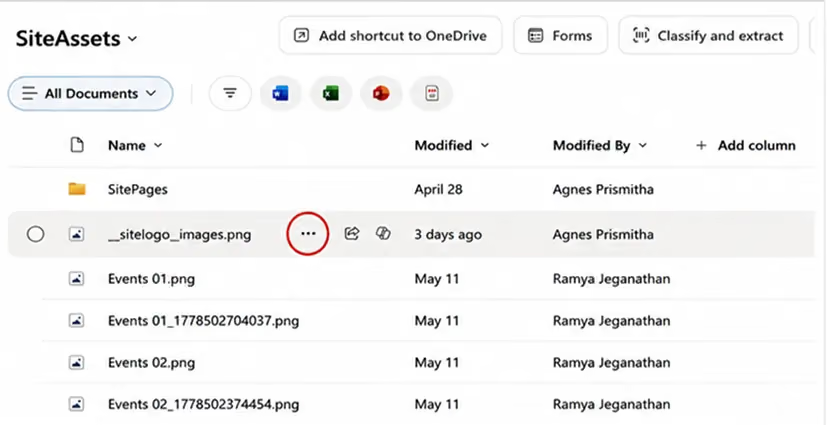
2. Click the three dots (...) beside the file.
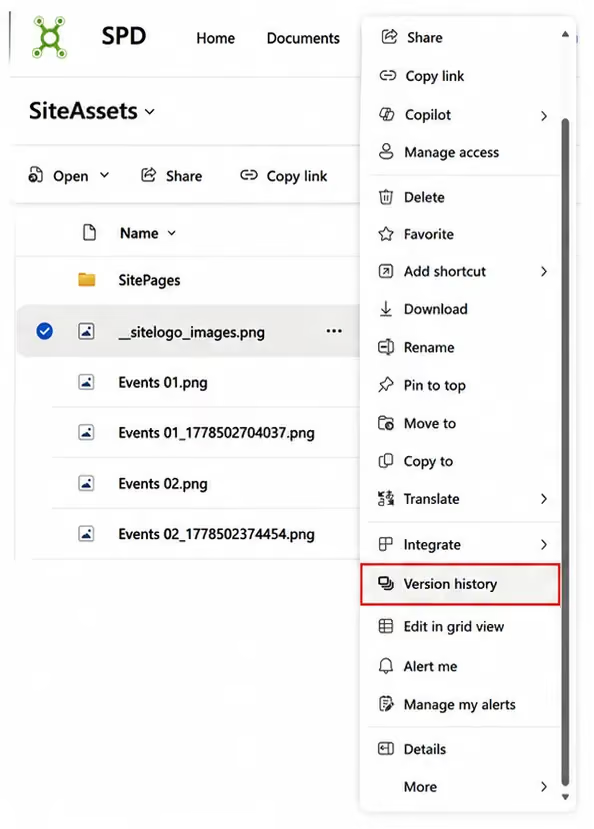
3. Select Version History.
4. Review the available versions.
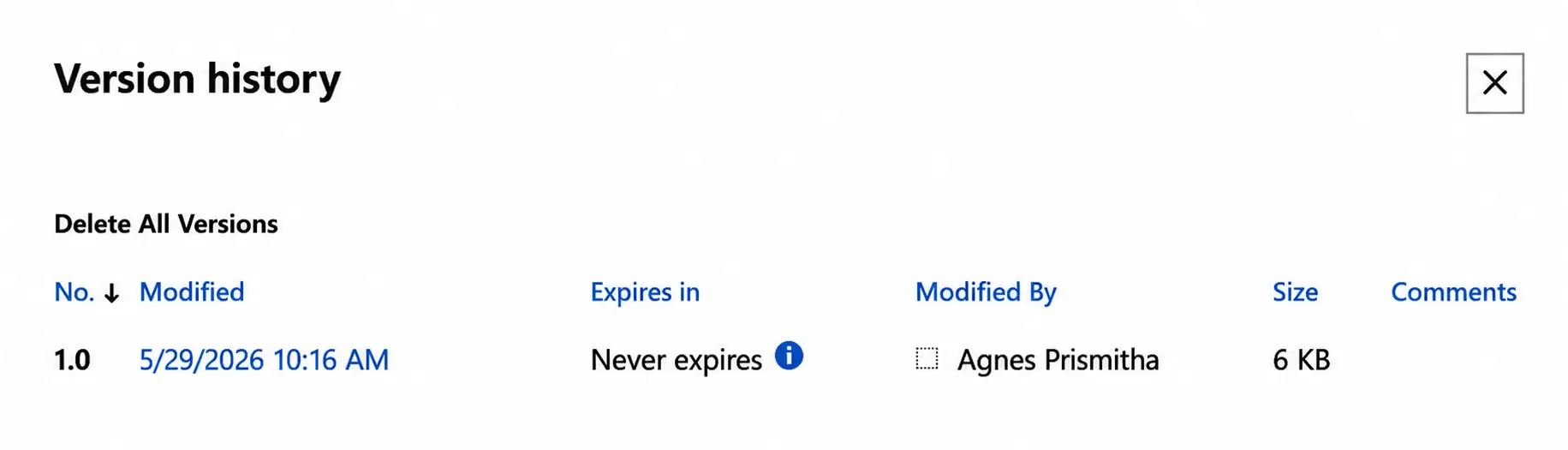
5. Select the version you want to recover and click Restore.
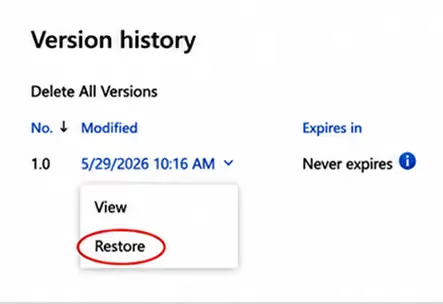
SharePoint restores the selected version as the current version while maintaining the version history.
How Long Are Deleted Files Retained in SharePoint?
In SharePoint in Microsoft 365, deleted items are retained for 93 days from the time they are deleted from their original location. The 93-day period spans the first-stage and second-stage Recycle Bins.
If a file is no longer available through the Recycle Bins after the retention period, recovery may require administrator assistance or an organizational backup and recovery solution.
For organizations with critical business data, additional retention policies and backup solutions can provide another layer of protection.
What If You Can't Find the Deleted SharePoint File?
If the file isn't in the first-stage Recycle Bin:
1. Check the Second-Stage Recycle Bin
A SharePoint administrator may be able to restore the file from there.
2. Check Version History
If the file still exists but its contents were changed or overwritten, an earlier version may be available.
3. Contact Your SharePoint Administrator
If the item has been permanently removed or is affected by retention policies, your administrator may have additional recovery options.
Recovering Deleted Files in SharePoint: Quick Summary
Final Thoughts
Recovering deleted files in SharePoint is usually a straightforward process. Whether you need to restore a deleted document from the SharePoint Recycle Bin, recover an item from the Second-Stage Recycle Bin, or retrieve an older version using Version History, SharePoint provides multiple ways to protect and recover your content.
Understanding these recovery options can save valuable time and prevent unnecessary stress when important files go missing.
For organizations managing large volumes of business-critical content, having the right SharePoint document management, retention, and backup strategy can provide an additional layer of protection against accidental data loss.
faqs

Agnes Prismitha

Agnes Prismitha is a Product Ambassador with 1.8 years of experience in building collaborative digital workplace solutions. She works closely with both technical teams and stakeholders to ensure solutions meet business needs and encourage product adoption.





.svg)