Published Date -

How to create a SharePoint Brand theme from Your Logo
How Our Setup Wizard Simplifies SharePoint Branding
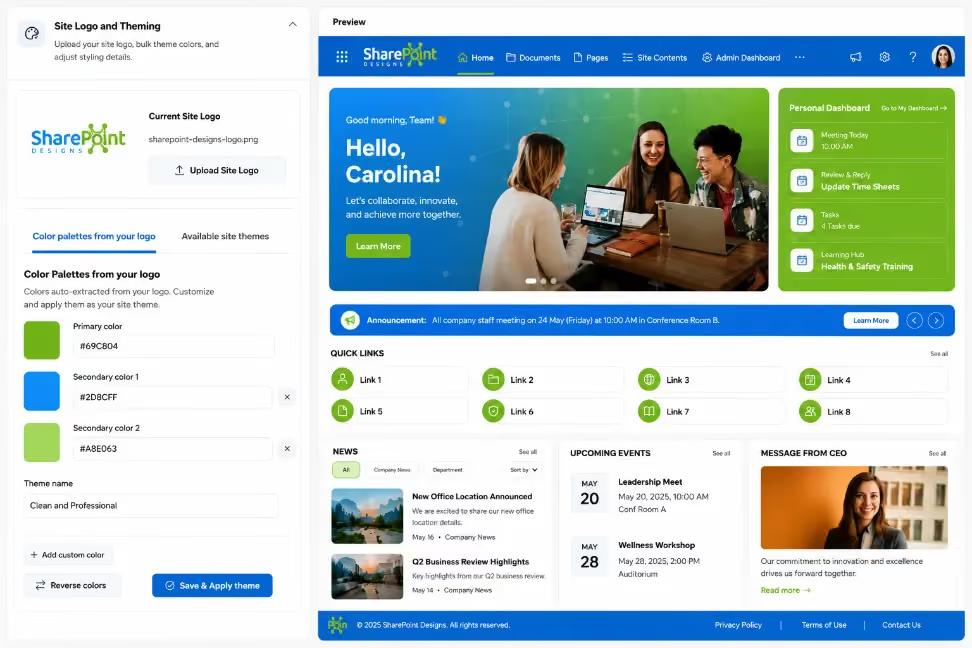
Branding a SharePoint intranet can be time consuming. Usually, someone has to find the brand colors, copy the hex codes, create a theme, and match it to SharePoint’s color settings. This process can be slow and may lead to mistakes.
With our setup wizard, it’s much simpler. Just upload our logo. The system automatically finds brand colors, creates and names the theme and applies it to your SharePoint site.
Here's how the flow works.
Step 1: The user uploads their brand logo
In the Branding step of the wizard, the user picks their company logo - the same file they'd use anywhere else. The wizard uploads it to the site and immediately shows it in the site header, so there's instant visual confirmation that the right file is in place.
No color pickers, no hex codes, no “what's your primary color?” form field. The logo is the input.
Step 2: The image analyzer reads the brand colors from the logo
Behind the scenes, the uploaded image is sent to our image analyzer running in Azure Functions. It analyzes the logo and sends back the brand colors actually present in it - each one with a role, not just a value:
The extracted colors appear in the wizard as color chips the moment analysis completes. If the user wants to fine-tune a shade, they can - but they don't have to. If there's only one color in your logo, then you can add a color of your choice as the secondary color but its purely your choice.
For most organizations, the colors that come back are exactly the brand colors, because they came straight from the logo.
Step 3: Click Apply Theme - and it's done
Once the colors are back from the analyzer, clicking Apply Theme applies the branding directly to the SharePoint site:
- The full theme is generated from the extracted colors - the complete palette SharePoint needs, including all the lighter and darker shades, derived automatically.
- Header, navigation, buttons, links, and section backgrounds all pick up the brand colors.
- Text colors are chosen for readability against the brand colors automatically, so a light or unusual brand color never produces unreadable white-on-yellow headers.
The live preview in the wizard shows exactly what the site will look like before Apply Theme is clicked, so there are no surprises - what the user approves is what gets applied.
Why This Makes Setup Easier
The whole process – uploading the logo, automatically analyzing the brand colors, and applying the theme with one click – makes branding much faster and easier:
- No brand guidelines document required. The logo already contains the brand.
- No manual color entry. The analyzer classifies primary, secondary, and accent automatically.
- No theme-building expertise needed. The full SharePoint palette, light/dark variants, and readable text colors are generated for you.
- One click to apply. No separate theme creation, registration, and activation steps.
The best branding step is the one the user barely notices. Upload the logo, watch the site become theirs, click Apply. Done.
faqs
Bharath

Meet Bharath, a Software Engineer specializing in Microsoft SharePoint development. He brings hands-on experience in SharePoint, SPFx, React, TypeScript, Power Automate, and PowerShell, delivering custom web parts, workflows, extensions, and modern intranet solutions across client and internal projects.







.svg)