SharePoint Store
SharePoint Designs delivers customized solutions for Small businesses, Medium and Large Enterprises.
SharePoint Designs delivers customized solutions for Small businesses, Medium and Large Enterprises.
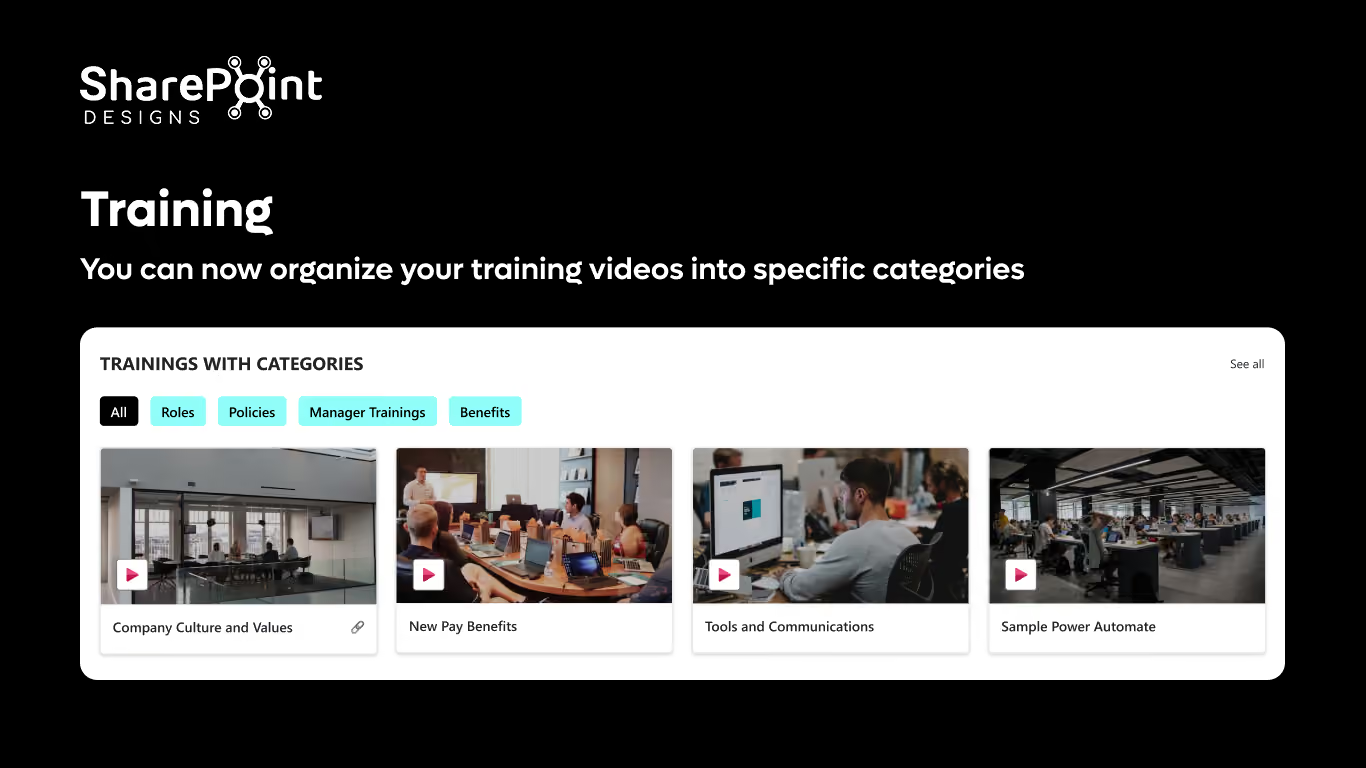
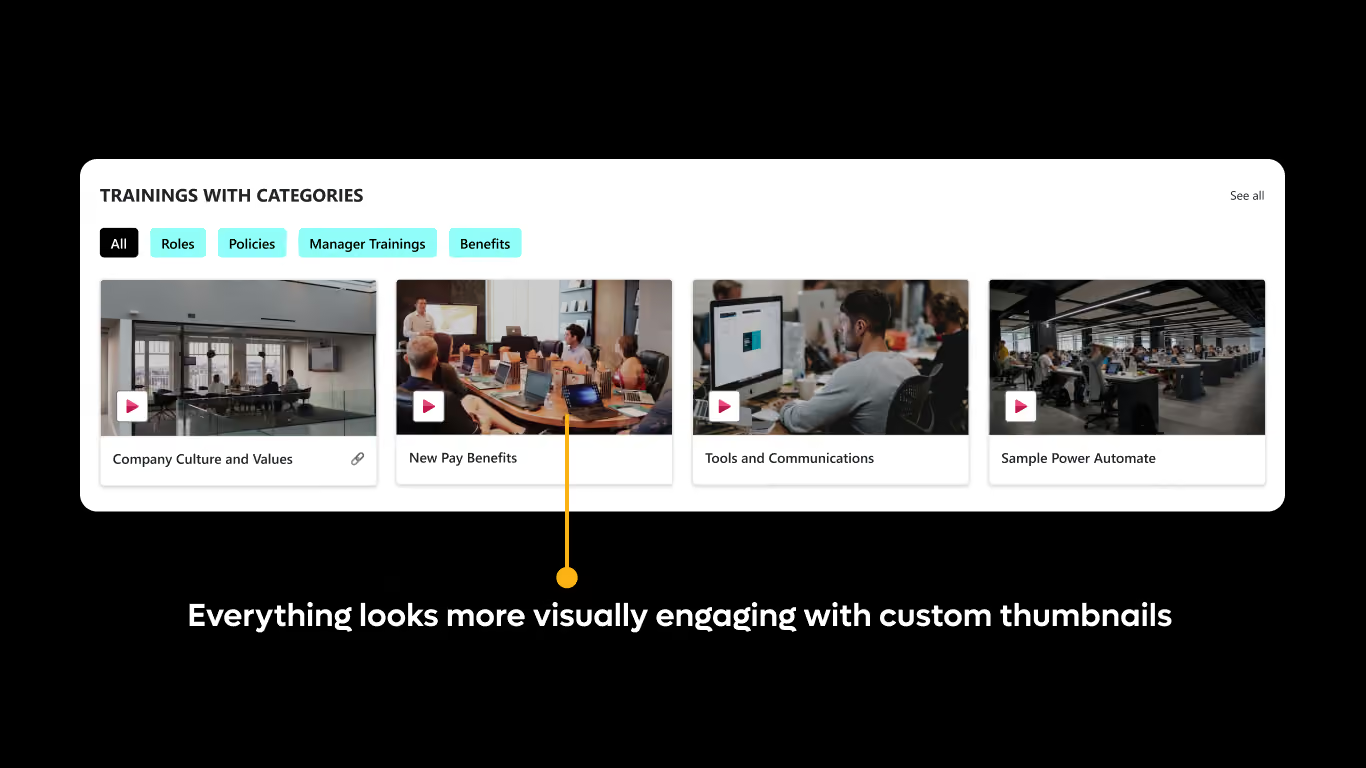
You can now organize your training videos into specific categories like role, departments, policies etc. The most important new features is Categories
We had a document library where we could upload training materials, and those documents would be displayed directly in the web part.
But now, we’ve taken it to the next level. You can now organize your training videos into specific categories like role, departments, policies etc. The most important new features is Categories.
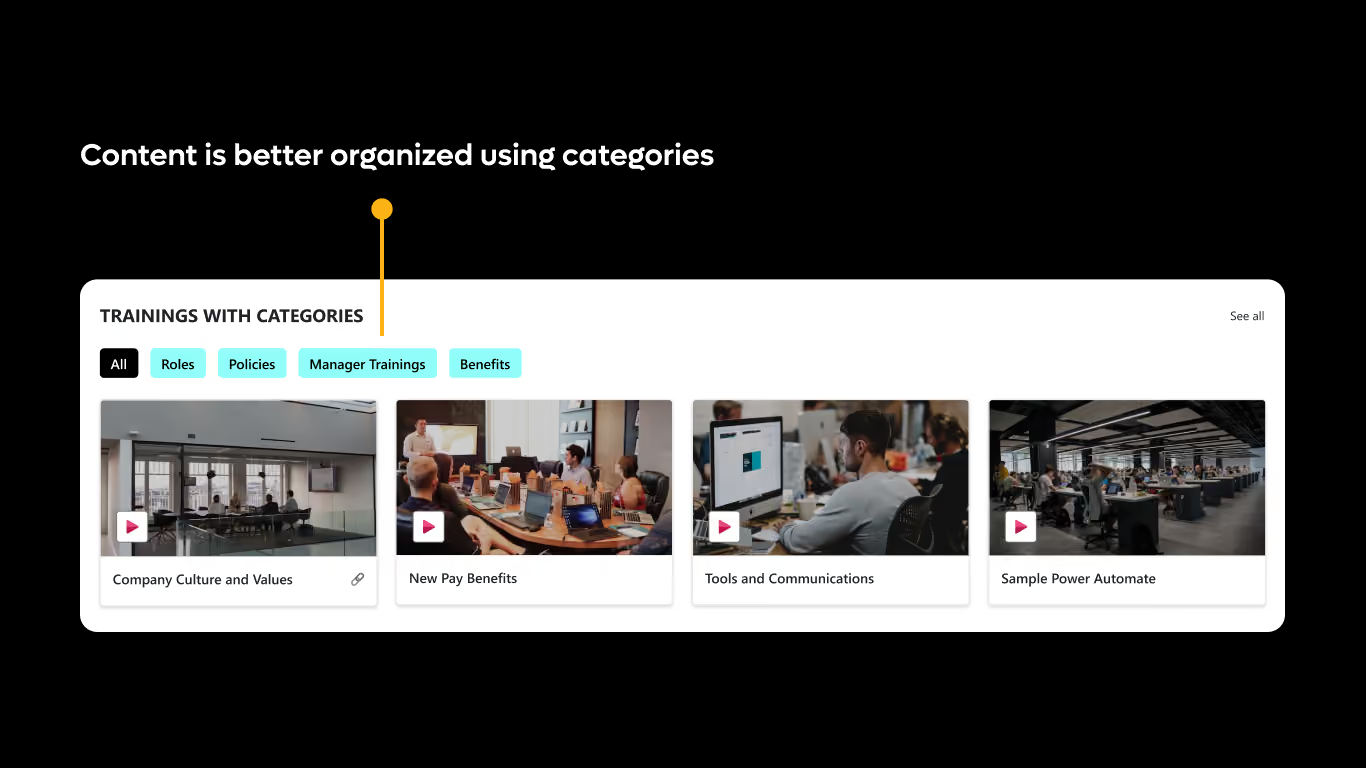
You can now organize your training videos into specific categories, making it much easier to navigate and find relevant content.
In the web part, you’ll notice a Categories tab.
Simply click on any category, and it will instantly filter and display the videos associated with it.
1. Upload multiple supportive documents to a single training video
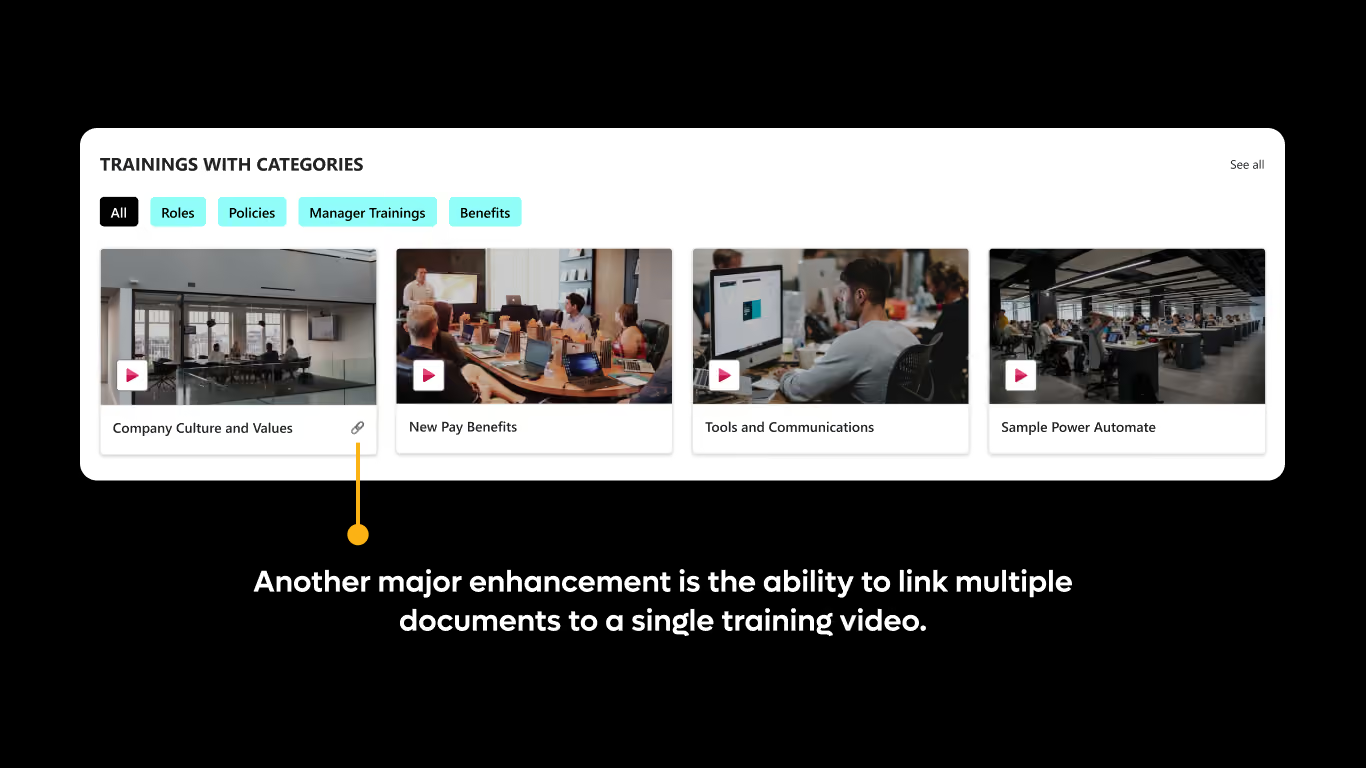
Another major enhancement is the ability to link multiple documents to a single training video.
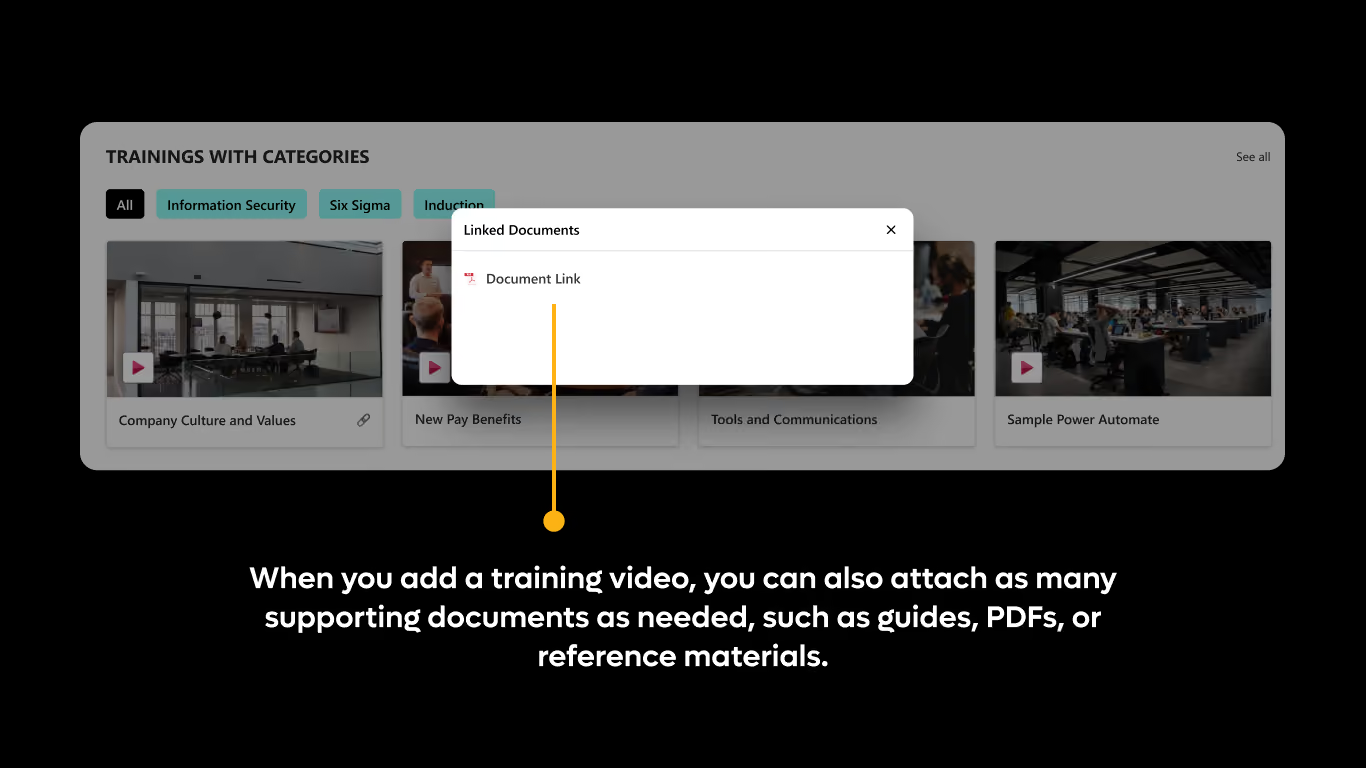
When you add a training video, you can also attach as many supporting documents as needed. Such as guides, PDFs, or reference materials.
You’ll see a linked document icon on each video.
Clicking on it will show all the related documents for that specific training.
2. Directly link a URL.
Now let’s talk about one of the most useful upgrades URL support.
Earlier, when adding URLs in the SharePoint library, there were performance issues.
It could take up to 15 minutes for the URL to become accessible due to API delays.
To solve this, we’ve implemented a custom solution using Power Automate.
3. Thumbnails for URLs
For videos, thumbnails are automatically fetched.
But for URLs, we needed a custom approach.
So, we’ve added an Image column in the document library.
This allows you to upload a custom thumbnail image for each URL.
That image will then be displayed in the web part, giving a clean and visually appealing experience.
With these upgrades:

Awards & Recognition



.svg)

Certified & Compliant



SharePoint Designs is a leading provider of Microsoft ecosystem services covering apps, intranets, and other digital gateways. We offer out-of-the-box SharePoint development, implementation, migration, and maintenance solutions to build or increase business resilience, operational excellence, and employee productivity. Some of our SharePoint services are Microsoft SharePoint configuration, Microsoft Teams set-up, advanced document management, and streamlined external sharing.
SharePoint Designs’ expertise unlocks the value of Microsoft Power Apps and Power Automate. We help quickly develop and deploy desktop/mobile applications and multi-layered automated workflows. SharePoint Designs also delivers cost-effective Copilot studio services to bridge conversational gaps between employers and customers.
Our suite proficiency makes it effortless to design, manage, and monitor custom-built AI-driven chatbots that are catered to specific organizational use cases. SharePoint Designs is backed by a track record of friction-free integration and smooth deployment for multiple clients across the world. Our flexible pricing plans can meet the unpredictable demands of your business. We also provide 24/7 customer support at global and regional levels.
SharePoint Designs empowers businesses with both ready-to-deploy and fully customized Microsoft 365 solutions. Our product suite includes prebuilt Intranets, Document Management Systems (DMS), SOP Manager, Employee Onboarding, and Knowledge Management Systems (KMS) designed to get you up and running quickly.
For organizations with unique needs, we offer end-to-end SharePoint development, Power Apps, Power Automate workflows, and AI chatbot integrations.
We combine the speed and simplicity of productized solutions with the flexibility of tailored services. Whether you're streamlining internal operations or enhancing collaboration, we ensure seamless integration, fast deployment, and strong ROI.
Our team supports you every step of the way with scalable pricing and 24/7 assistance. At SharePoint Designs, we don’t just implement technology we help you get the most out of it.


