Published Date -

How to Brand your SharePoint Intranet: Colours, Fonts & Logo Guide (2026)
%201.avif)
Quick Answer
To brand your SharePoint intranet, apply your company's primary colors to the site theme using SharePoint's Change the Look settings, upload your logo to the header, and select a consistent font pairing across all pages. The goal is to make the intranet feel like an extension of your corporate website not a generic Microsoft template. Done right, branded intranets see up to 40% higher daily adoption rates than unbranded ones.
Your employees open the intranet and the first thing they see is a grey Microsoft template with the default blue header and a placeholder logo. Within three seconds, they've already decided this isn't worth their time.
This is the branding problem that affects most SharePoint intranets and it's entirely fixable.
Branding your SharePoint intranet isn't about aesthetics for aesthetics' sake. It's about trust, recognition, and adoption. When your intranet looks and feels like your company, your colors, your logo, your voice employees stop seeing it as an IT tool and start seeing it as a company resource worth using every day.
At SharePoint Designs, we've branded over 800+ SharePoint intranets for organizations including Harvard University, Vanderbilt University, and multiple Fortune 500 companies. This guide distils everything we've learned into a step-by-step framework you can apply to your own intranet today.
Why does SharePoint Intranet Branding Matter?
An unbranded intranet sends an unintentional message to employees: this wasn't built for you. It looks like an afterthought. Employees who land on a generic SharePoint site with the default Microsoft theme are significantly less likely to return, less likely to search for content, and less likely to trust the information they find there.
The data backs this up. In our work across 800+ intranet deployments, we consistently find that branded intranets those using company colors, fonts, and logo prominently achieve measurably higher adoption within the first 90 days of launch compared to unbranded equivalents with the same content.
What does good Intranet Branding actually achieve?
- It builds immediate recognition. Employees shouldn't need to read the URL to know they're on the company intranet. The visual identity should communicate that within one second of the page loading.
- It signals that this is a permanent, invested resource. A polished, branded intranet tells employees that leadership cares about this tool. That perception alone increases usage.
- It reduces cognitive friction. When the intranet matches the visual language employees already associate with your brand, they navigate it more instinctively. Familiar colors and typography reduce the mental effort required to use the tool.
- It supports employer branding. For new hires especially, the intranet is often the first internal digital touchpoint after onboarding. A well-branded intranet reinforces the professionalism and culture they were sold during recruitment.
What are the Core Elements of SharePoint Intranet Branding?
There are four core branding elements to get right on a SharePoint intranet:
- Color palette - Your primary, secondary, and accent colors applied to headers, buttons, section backgrounds, and navigation
- Typography - Font choices for headings, body text, and UI elements
- Logo placement - Where your logo sits, at what size, and on which pages
- Visual language - Photography style, illustration style, icon sets, and graphic elements that feel consistent with your corporate identity
Each of these works together. Getting the colors right but leaving the default SharePoint font makes the intranet feel 70% branded. Getting all four right makes it feel completely native to your company.
You may also like: Typography Trends
Part 1: How to Choose the Right Colors for your SharePoint Intranet
SharePoint Online uses a theming system called Change the Look that lets you apply custom colors to your intranet without any coding. Here's how it works in practice.
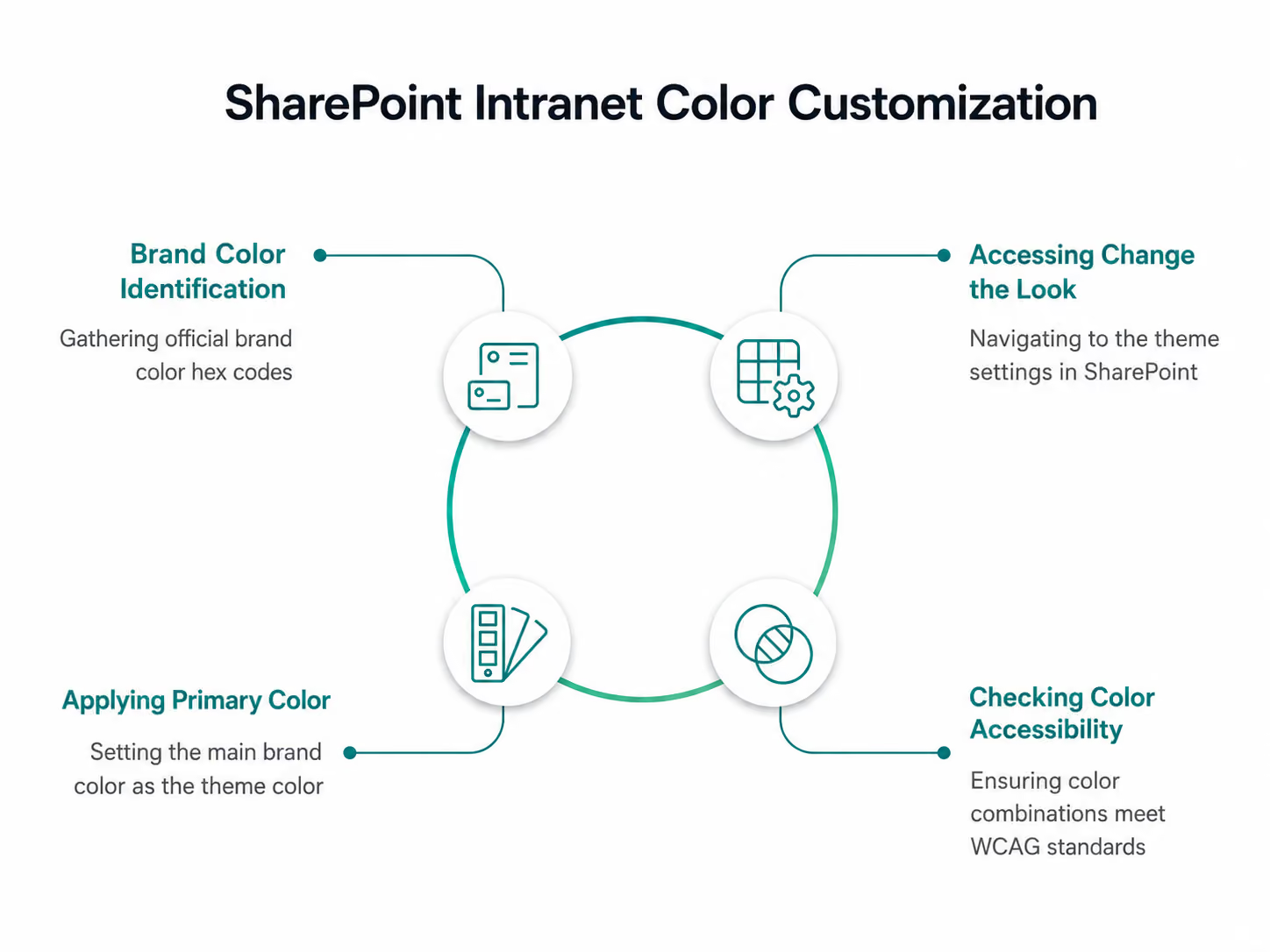
Step 1 - Identify your brand color values
Before touching SharePoint, collect your official brand color hex codes from your brand guidelines or marketing team. You'll need:
- Primary color - your main brand color (e.g. #0052CC for a corporate blue)
- Secondary color - a supporting color used for accents or secondary elements
- Neutral colors - your greys, whites, and off-whites for backgrounds and text
If your brand guidelines only specify Pantone or CMYK values, convert them to hex using a color converter tool before proceeding.
Step 2 - Access Change the Look
From your SharePoint home site, click the gear icon (Settings) in the top right → Change the look → Theme. You'll see a palette of Microsoft's pre-built themes. Ignore these you're going to create a custom one.
Step 3 - Apply your primary color
Click Custom at the bottom of the theme panel. You'll see a color picker where you can enter your hex code directly. Enter your primary brand color as the "Theme color."
SharePoint automatically generates a color ramp from your primary color lighter and darker variations used across different UI elements. Review this ramp carefully. Sometimes the auto-generated variations clash or become inaccessible if so, adjust manually.
Step 4 - Check color accessibility
This is a step most organizations skip and later regret. Every color combination on your intranet needs to meet WCAG 2.1 AA accessibility standards specifically a minimum contrast ratio of 4.5:1 for body text and 3:1 for large text and UI components.
Use the WebAIM Contrast Checker to test your primary color against white and against your neutral backgrounds. If you're a public sector organization or in a regulated industry, you may need to meet the stricter AAA standard.
What colors work best for SharePoint intranets?
The best performing intranet color palettes we've seen across our 300+ projects share a few characteristics:
- Use your primary brand color for the header and navigation only. Applying it everywhere dilutes its impact and makes the intranet feel visually noisy. The header and navigation are high-visibility areas strong brand colour here is immediately z without being overwhelming.
- Use neutral backgrounds (white or light grey) for content areas. Dark or heavily coloured page backgrounds make long-form content harder to read and reduce dwell time. White and off-white backgrounds consistently outperform colored ones for readability metrics.
- Reserve your accent color for calls to action. Buttons, links, and key navigation elements should use your accent color consistently. This creates a clear visual hierarchy that guides employees to take actions submit a form, find a document, read an announcement.
- Avoid pure black (#000000) for body text. Use a very dark grey instead (e.g. #1a1a1a or #111827). Pure black on white creates a harsh contrast that causes eye strain during long reading sessions. Most corporate brand guidelines already specify this.
Part 2: How to Choose and Apply Fonts to your SharePoint Intranet
SharePoint Online supports web-safe fonts natively and also support web fonts through custom CSS injection for organizations with developer access. However, for most intranet projects, working with SharePoint's available font options is both faster and more maintainable.
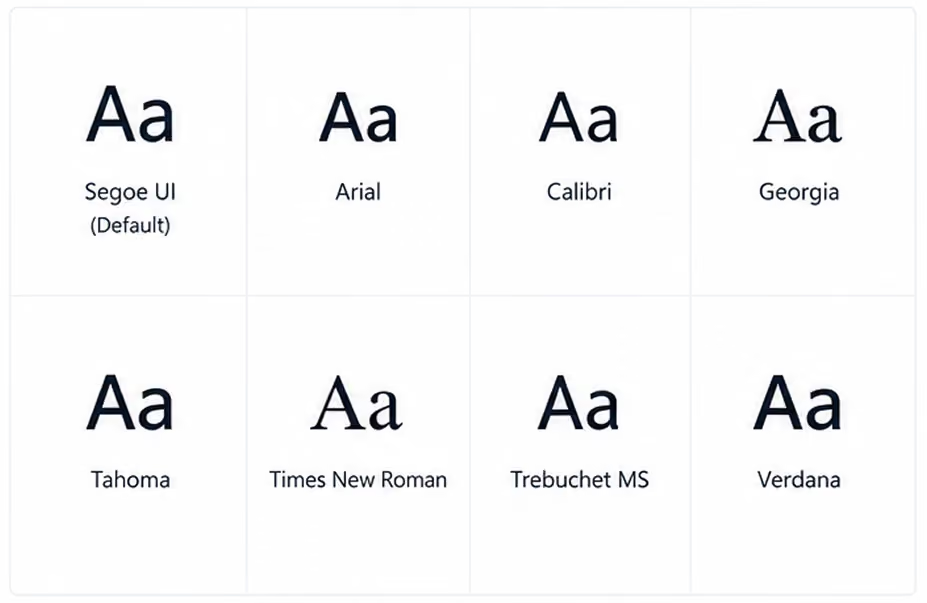
The available fonts in SharePoint's native theme settings include Segoe UI (Microsoft's default), Arial, Calibri, Georgia, Tahoma, Times New Roman, Trebuchet MS, and Verdana.
If your brand specifies a custom font that isn't in this list (for example, Gilroy, Proxima Nova, or a bespoke typeface), you have two options:
- Inject a Google Fonts or Adobe Fonts web font via a custom SPFx web part requires developer involvement but gives full control
- Choose the closest available system font that matches your brand's personality faster and simpler, suitable for most intranet projects
What font pairing works best for SharePoint intranets?
The most reliable and accessible font approach for SharePoint intranets is a two-font system:
- Heading font - bolder, slightly larger, used for H1, H2, H3 page titles and section headings
- Body font - clean, neutral, used for paragraph text, labels, and navigation items
The classic combination that works well across virtually every corporate intranet is Segoe UI for headings (it's Microsoft's own typeface optimized for screen readability) and Segoe UI for body text at a lighter weight. Simple, cohesive, and consistently legible across devices.
If your brand requires more personality, a safe alternative is Georgia for headings (adds warmth and editorial quality) with Arial for body text (neutral and universally accessible).
What font sizes should you use?
Consistent typographic hierarchy makes a SharePoint intranet dramatically easier to scan. Use these as a baseline:
Avoid going below 14px for any text employees need to read regularly. Small text on SharePoint's responsive grid can render even smaller on certain screen resolutions, making it inaccessible on some devices.
Part 3: How to Add and Position your Logo on SharePoint
The logo should appear in two locations at minimum on a well-branded SharePoint intranet:
1. The global navigation header - 0 top left of every page, visible on all sites and sub-sites within your intranet. This is the primary logo placement and the most important.
2. The home page hero section - either within the hero web part or as a standalone image element on the homepage. This reinforces the brand identity on the page employees see most frequently.
How do you add your logo to the SharePoint header?

Step 1 - Prepare your logo file
Your logo needs to be in PNG format with a transparent background. SVG is not supported in all SharePoint contexts. Recommended dimensions: 200px wide × 50px tall at 2x resolution (so upload at 400px × 100px for retina screens). Ensure the logo is legible against your header background color, test both light and dark backgrounds.
Step 2 - Go to Change the Look → Header
Settings gear → Change the Look → Header.
Here you can upload a custom logo image directly.
Step 3 - Upload and position
Click the logo upload area and select your PNG file. SharePoint will position it in the top left of the global header automatically. You can adjust the header layout between Compact, Standard, and Minimal. Standard is the most widely used for branded intranets as it gives the logo adequate breathing space.
Step 4 - Set the site name
Decide whether to show the site name text alongside the logo or suppress it. If your logo is a full wordmark (logo + company name), suppress the text to avoid duplication. If your logo is an icon or symbol only, keep the site name text visible.
What are common logo mistakes on SharePoint intranets?
- Using a logo with a white background instead of transparent. This creates a white box around your logo sitting on a colored header one of the most common and most visible branding errors we see. Always use a PNG with transparent background.
- Uploading a logo that's too small. SharePoint compresses uploaded images. If you upload a small logo, the compression makes it blurry. Always upload at 2x the intended display size.
- Using a dark logo on a dark header. Check contrast carefully. A dark navy logo on a dark teal header background disappears. Either lighten the logo version or choose a header background that provides sufficient contrast.
Part 4: How do you make the whole intranet feel visually consistent?
Applying colors, fonts, and a logo is the foundation but visual consistency across a multi-site intranet requires additional discipline. Here's what the best-branded intranets we've built share:
- Standardized page templates. Create saved page templates in SharePoint for the most common page types news article, department hub, policy document, event listing. Each template has pre-set section layouts, background colors, and web part placements that reflect your brand guidelines. This means whoever creates a new page, the output is always on-brand.
- A defined image style. Decide whether your intranet uses photography (real people, real offices), illustration, or icons and stick to it. Mixed visual styles are one of the most common causes of an intranet looking "off" even when the colors and fonts are correct. A branded photo library shared internally gives content authors the right assets to pull from.
- Consistent icon sets. SharePoint's default icons are functional but generic. Replacing them with a consistent icon set that matches your brand's visual style whether that's outlined, filled, or illustrated significantly elevates the overall feel. Microsoft's Fluent UI icon library is free, comprehensive, and designed to work within the Microsoft 365 environment.
- Section backgrounds used intentionally. SharePoint lets you set background colors on individual page sections. Used well, this creates visual rhythm and hierarchy alternating a white section with a light brand-color section breaks up long pages and draws attention to key content areas. Used poorly (random colours with no logic), it makes pages look chaotic.

You may also like: 10 UX Pitfalls that make your employees hate your Intranet
Part 5: What are the most common branding mistakes on SharePoint intranets?
Across 800+ intranet projects, these are the mistakes we see most frequently:
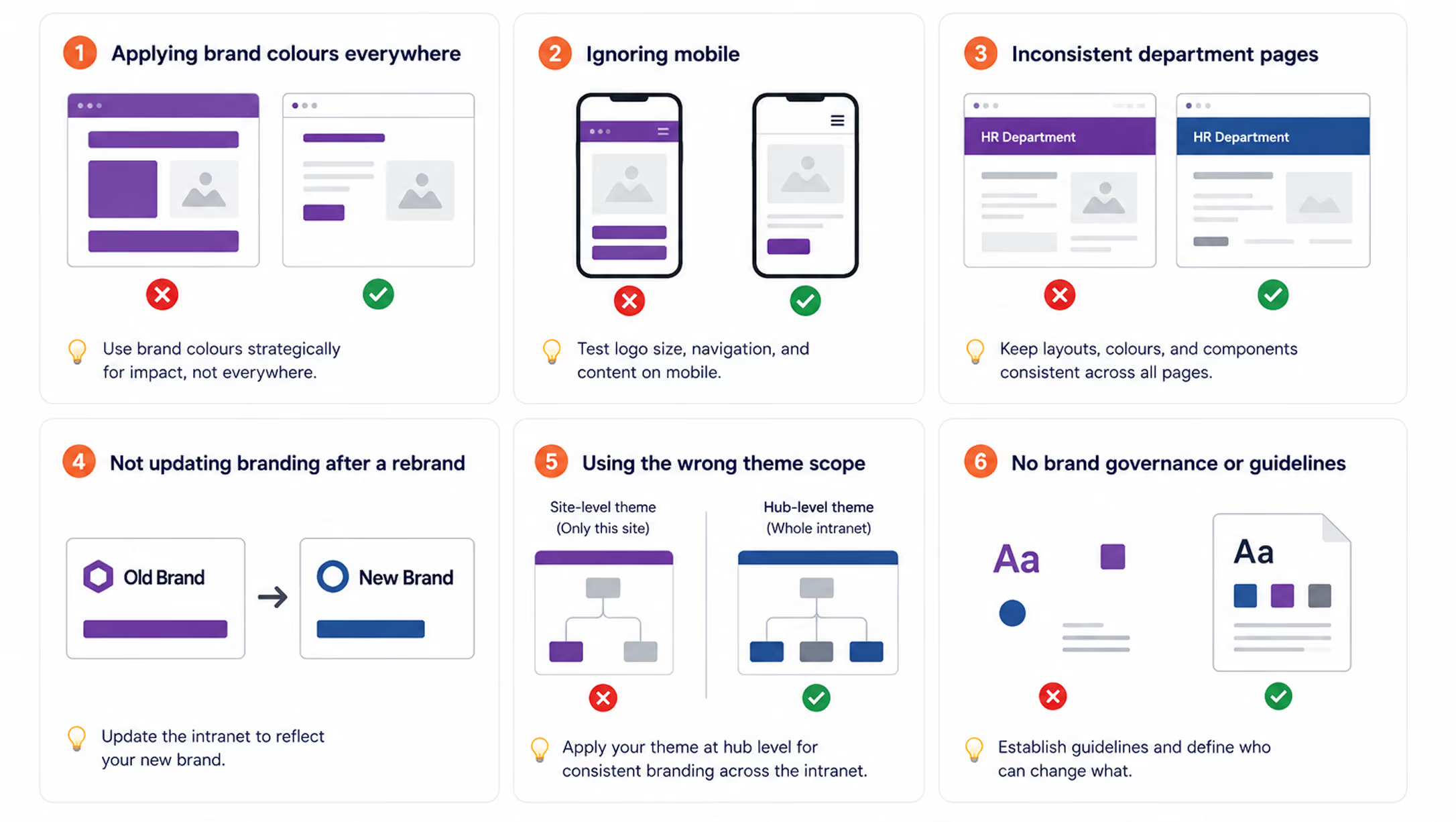
Applying brand colors everywhere. Covering every section, button, and background in your primary brand color doesn't make the intranet look more branded it makes it look exhausting. Brand colour should be used at strategic points to create impact. White space is your ally.
- Ignoring mobile. Over 30% of intranet visits now happen on mobile devices. SharePoint's responsive design means your intranet will reflow for mobile automatically, but your branding elements won't always translate perfectly. Test your logo size, navigation, and hero sections on a phone before launch.
- Inconsistent department pages. A beautifully branded homepage loses credibility the moment an employee clicks through to a department page that looks completely different. Brand governance who can change what and how needs to be established before launch and enforced afterwards.
- Not updating branding after a rebrand. When a company rebrands, the intranet is frequently the last digital property to be updated. This means employees are working in an intranet that contradicts the new brand identity they're seeing everywhere else. Build a branding update checklist into your intranet governance plan from day one.
- Using the wrong SharePoint theme scope. SharePoint has site-level themes and hub-level themes. If you apply branding only at site level, sub-sites and associated sites won't inherit it. Apply your theme at hub site level so it cascades consistently across the entire intranet.
Your SharePoint Intranet Branding Checklist
Before launching a branded SharePoint intranet, run through this checklist:
- Brand color hex codes collected from official brand guidelines
- Color accessibility tested (minimum 4.5:1 contrast ratio)
- Custom theme applied at hub site level
- Logo uploaded in PNG format with transparent background at 2x resolution
- Logo tested against header color for contrast
- Site name text shown or suppressed (consistent decision)
- Font hierarchy defined for H1, H2, H3, body, and navigation
- Page templates created for each major content type
- Image style guide defined and photo library shared
- Icon set selected and consistently applied
- Section background colors used with a clear logic
- Mobile view tested on iOS and Android
- Department pages and sub-sites checked for brand consistency
- Branding governance policy documented
Conclusion
A branded SharePoint intranet isn't just a visual preference it's a business investment that directly affects whether employees use your intranet or ignore it. The organisations that treat intranet branding with the same rigour as their external website are the ones that see sustained adoption, not just a spike at launch.
The good news is that SharePoint's native theming tools have improved significantly in recent years. Applying core brand colours, uploading a logo, and setting a consistent font hierarchy can be done in an afternoon without any developer support. The more advanced elements custom fonts, standardised templates, and visual governance require more effort, but the return in adoption and employee trust is measurable.
If you'd like to see what a fully branded SharePoint intranet looks like in practice, explore our Intranet Lookbook 50+ real SharePoint intranet designs built for clients across healthcare, financial services, manufacturing, and higher education.
Or if you're ready to have a conversation about your own intranet branding project, book a free consultation with our team. The first hour is on us.
Related Articles:
faqs

Mohammed Jamal

Mohammed Jamal is a UI/UX Designer with 3+ years of experience dedicated to crafting intuitive, user-centric digital experiences. He specializes in Web, SharePoint Intranet, Mobile, and Graphic Design, prioritizing seamless user journeys and high usability.





.svg)