Published Date -

Fluent UI CommandBar Overflow Issue: Preventing Items from Exceeding the Container
Overview
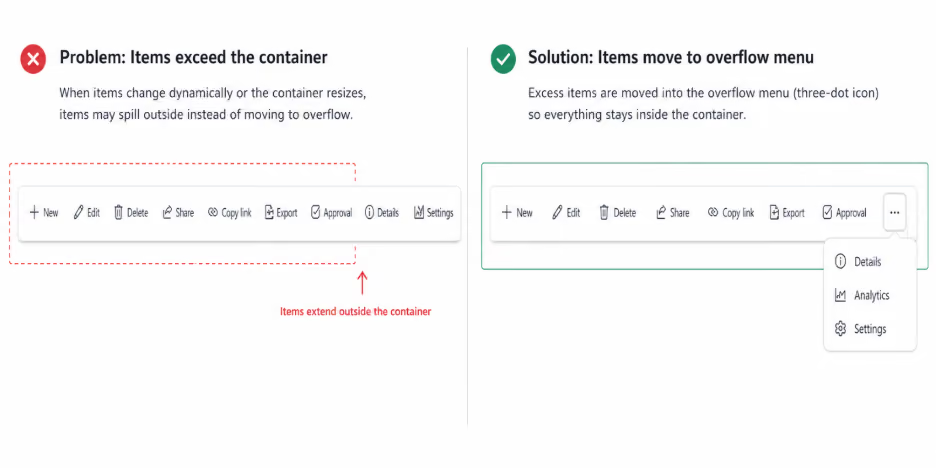
Fluent UI’s CommandBar is a powerful component for building toolbars with built-in support for responsive layouts and overflow handling. Under normal circumstances, when available horizontal space is insufficient, excess command items should automatically move into the overflow menu (represented by the three-dot icon).
However, in real-world applications, especially those with dynamic data or responsive layouts, developers may encounter a common issue:
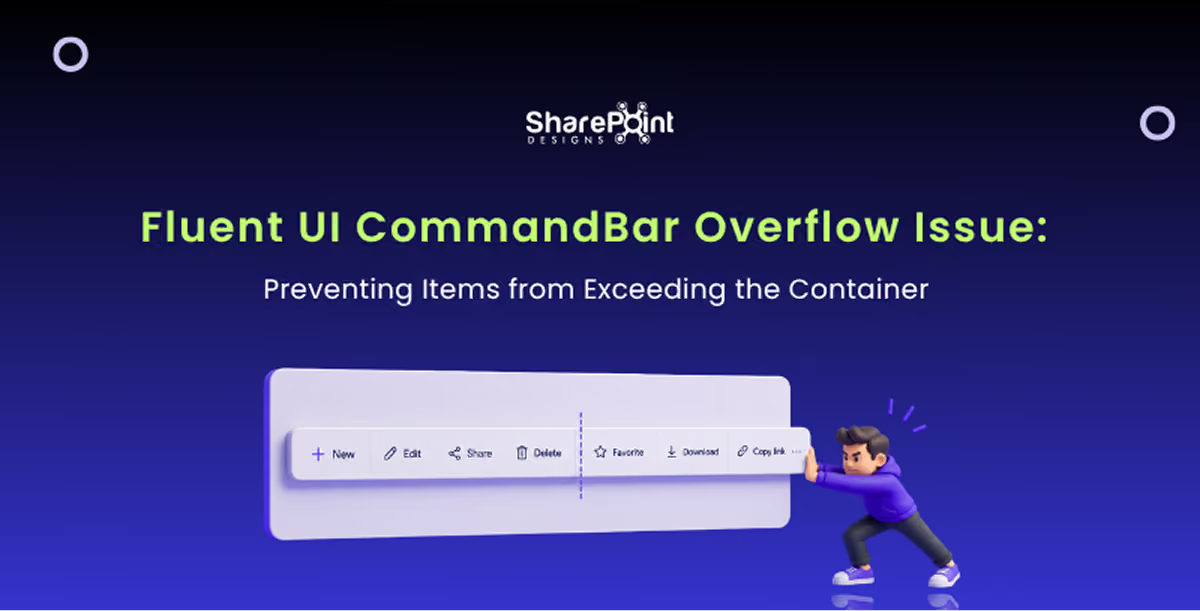
CommandBar items extend outside the container instead of moving into the overflow menu.
This article explains why this behavior occurs and presents a reliable solution to ensure proper overflow handling.
The Problem
The issue typically appears when:
- CommandBar items are updated dynamically.
- Items are conditionally added or removed (filters, permissions, feature flags)
- The container is resized after initial render.
- The layout changes due to responsive design.
In these scenarios, the CommandBar may fail to move excess items into the overflow menu, causing buttons to spill outside the container and break the layout.
Root Cause
Internally, Fluent UI’s CommandBar performs width and layout calculations only during its initial render cycle.
These calculations determine:
- Available container width
- Visible command items
- Overflowed items
When the items array changes after the initial render, the component does not automatically re-evaluate its layout. As a result, newly added or resized items are rendered without proper overflow recalculation.
The Solution
To resolve this issue, we need to explicitly force the CommandBar to recalculate its layout.
This can be achieved through two coordinated steps:
- Force a remount of the CommandBar using a dynamic key
- Trigger a resize event to ensure layout recalculation.
This approach ensures Fluent UI re-measures the available space and correctly moves excess items into the overflow menu.
Implementation
1. Use a Dynamic key on the CommandBar
<CommandBar
key={`commandbar-filter-${commandBarKey}`}
overflowButtonProps={{ ariaLabel: "More items" }}
items={items}
buttonAs={CustomButton}
className={styles.commandBarContainer}
/>
Changing the key value forces React to unmount and remount the component, triggering Fluent UI’s internal layout logic.
2. Update the Key When Items Change
useEffect(() => {
if (items.length > 0) {
const timer = setTimeout(() => {
setCommandBarKey(prev => prev + 1);
// Trigger layout recalculation
window.dispatchEvent(new Event("resize")); }, 100);
return () => clearTimeout(timer);
}
}, [items.length]);
Why This Works
- Updating the key forces a full component remount
- Remounting triggers Fluent UI’s width and overflow calculations.
- Dispatching a resize event ensures recalculation in responsive layouts.
- Overflow items are correctly moved to the three-dot menu.
- This approach provides consistent and predictable behavior even when CommandBar items are dynamic.
When to Apply This Fix
- This solution is recommended when:
- CommandBar items are dynamically generated.
- UI changes depend on user interaction or filters.
- The CommandBar is placed inside a responsive or resizable container.
- Overflow behavior is inconsistent or broken.
Conclusion
The Fluent UI CommandBar does not automatically recalculate overflow when its items change after initial render. While this is a known limitation, it can be addressed effectively by forcing a controlled remount using a dynamic key and triggering a resize event.
Until native support for automatic recalculation is introduced, this approach remains the most reliable and production-safe solution for handling dynamic CommandBar layouts.
faqs

Chipui Kasar


Chipuimi Kasar is a Tech Lead and Lead Developer with 4.6 years of experience specializing in SharePoint (SPFx), React, and TypeScript. He has strong hands-on expertise with Microsoft Graph, Azure, and the Power Platform, building scalable and modern Microsoft 365 solutions.








.svg)