Tech Ideas & Best Practices
In today's fast-paced digital landscape, businesses need robust, efficient, and user-friendly platforms to stay competitive. Microsoft Power Pages, part of the powerful Power Platform suite, offers an incredible opportunity to create secure, low-code business websites tailored to a variety of use cases. This blog post explores how Power Pages can revolutionize your operations across different sectors, providing strategic insights into their practical applications.
1. Customer Self-Service Portals
Description: Empower your customers to manage their accounts, track orders, and access support independently.
Benefits: By reducing the workload on customer service teams, these portals provide 24/7 access to crucial customer information, enhancing overall satisfaction and loyalty.
Example: Imagine an e-commerce business where customers can log in to track their shipments, view their order history, and initiate returns effortlessly. Power Pages enables the creation of a seamless self-service experience that meets these needs.
2. Partner Portals
Description: Foster collaboration with business partners by sharing essential documents, project updates, and sales data in real time.
Benefits: Some advantages are enhanced partner relationships, improved communication, and streamlined business processes.
Example: A manufacturing company can leverage Power Pages to provide its distributors with a centralized portal for accessing product catalogs, pricing information, and order statuses, ensuring that all parties are on the same page.
3. Employee Onboarding Portals
Description: Simplify the onboarding process by providing new hires access to necessary resources, training materials, and company information.
Benefits: Reduce onboarding time, enhance the new hire experience, and ensure compliance with company policies, all through a streamlined, user-friendly portal.
Example: A tech company can use Power Pages to create an onboarding portal where new employees can complete required paperwork, access training modules, and learn about the company culture, making their transition smoother and more efficient.
4. Community Portals
Description: Engage with community members by providing information, events, and support services tailored to their needs.
Benefits: Build a sense of community, provide easy access to critical information, and support local initiatives effectively.
Example: Local governments can utilize Power Pages to create a community portal where residents can find information about local events, public services, and contact officials, fostering a stronger, more connected community.
5. Supplier Portals
Description: Streamline procurement processes by allowing suppliers to submit bids, track orders, and manage invoices.
Benefits: Increase transparency, reduce administrative tasks, and expedite the procurement cycle, benefiting both the business and its suppliers.
Example: A retail chain can manage its supplier relationships more efficiently by providing a portal for suppliers to submit bids, track purchase orders, and manage invoices, all in one place.
6. Training and Certification Portals
Description: Offer online training courses, certification programs, and learning resources to employees or members.
Benefits: Facilitate employee development, ensure compliance with industry standards, and support continuous learning initiatives.
Example: Professional associations can offer members a portal to access certification programs, register for courses, and track their learning progress, helping them stay competitive and knowledgeable in their fields.
7. Event Management Portals
Description: Manage event registrations, schedules, and communications for conferences, seminars, and workshops.
Benefits: Simplify event planning, improve attendee experience, and provide real-time updates to ensure everything runs smoothly.
Example: Event management companies can use Power Pages to create a comprehensive portal for attendees to register, view event schedules, and receive timely updates, enhancing the overall event experience.
8. Project Management Portals
Description: Share project plans, timelines, and status updates with stakeholders, ensuring transparency and collaboration.
Benefits: Enhance project visibility, improve collaboration, and ensure timely updates to keep projects on track.
Example: Construction firms can provide clients with a portal to track the progress of building projects, view milestones, and access project documents, ensuring that everyone involved is well-informed and aligned.
9. Patient Portals
Description: Provide patients with secure access to their health records, appointment scheduling, and direct communication with healthcare providers.
Benefits: Improve patient engagement, streamline administrative processes, and enhance the quality of care by making health information easily accessible to patients.
Example: A healthcare provider can implement a patient portal that allows patients to view test results, schedule appointments, and communicate with their doctors, fostering better patient-provider relationships and more efficient care management.
10. Membership Management Portals
Description: Manage memberships, renewals, and exclusive member content for clubs, associations, or fitness centers.
Benefits: Simplify membership management, increase member engagement, and provide a centralized platform for accessing member-exclusive resources and benefits.
Example: A fitness center can create a portal where members can manage their subscriptions, book classes, and access exclusive content like workout videos and nutritional advice, enhancing the overall member experience.
Conclusion
Power Pages offers a versatile and robust solution for businesses looking to enhance their digital presence and streamline various operations. Organizations can improve efficiency, foster collaboration, and provide exceptional user experiences by leveraging these portals. Whether you’re managing customer relationships, onboarding new employees, or coordinating with partners and suppliers, Power Pages can be tailored to meet your unique business needs.

Transform Your Business with Power Pages: Versatile Use Cases Across Industries
In today's fast-paced digital landscape, businesses need robust, efficient, and user-friendly platforms to stay competitive.

In today's digital landscape, seamless authentication processes are paramount for ensuring user convenience and security. One effective solution is integrating Azure Active Directory (Azure AD) with Power Pages, Microsoft's dynamic content management system. By doing so, you can enhance user experience and simplify access management. In this guide, we'll walk through the step-by-step process of configuring Azure AD integration on Power Pages, enabling users to sign in securely from the home page.
Configuring Azure AD Integration on Power Pages
Accessing Power Pages Management
- Open your Power Pages site and navigate to the management section by clicking on the three dots and selecting "Power Pages Management".

Navigating to Site Settings
- Under the website section, locate and click on "Site Settings".

Configuring Authentication Type:
- Search for "LoginButtonAuthenticationType" and click on it.

- In the value field, enter"https://login.windows.net/[tenantid]/", replacing [tenantid] with your specific tenant ID.

Saving Changes:
- Click on "Save and Close" to ensure the configuration is applied.
Syncing and Previewing Changes
- Sync the changes made to ensure they take effect.
Preview the Power Pages site to confirm that the Azure AD integration is functioning as expected.
Streamlining Authentication with Azure AD Integration on Power Pages
In today's digital landscape, seamless authentication processes are paramount for ensuring user convenience and security.

Introduction
In the modern era of data management and analysis, seamless integration between platforms is paramount. SharePoint, a widely used collaboration tool, often houses valuable data that organizations need to leverage for decision-making. Power Pages, on the other hand, offers robust capabilities for data visualization and analysis. By syncing data from SharePoint lists to Power Pages tables, organizations can streamline workflows and enhance data-driven insights. Below are step-by-step instructions on how to achieve this synchronization effortlessly.
This is my SharePoint library which I’m going to sync it to Power Pages

- Go to Power Pages and select "Table" in the Data section.

- Opt for "New table from external data".

- If a Sharepoint connection exists, choose it; otherwise, create a new connection and proceed.

- Input the SharePoint List URL for data retrieval, then click "Next".


- Select the desired list from the available options on the site.

- Provide a display name and proceed by clicking "Next".

- Complete the setup by clicking "Finish".

- Once done, the selected list will be visible in the Data section.

- All items from the list will populate in Power Pages table.
- Additionally, you can add new items or update existing ones, and these changes will be automatically synced.


Conclusion
Efficient data management is crucial for organizations aiming to stay competitive in today's dynamic business landscape. By syncing SharePoint list data to Power Pages tables, organizations can harness the power of their data seamlessly. This synchronization process enables users to access, analyze, and update SharePoint data within the familiar interface of Power Pages, thereby enhancing productivity and facilitating informed decision-making. With these steps, organizations can unlock the full potential of their data assets, driving innovation and growth.

Step-by-Step Guide: Syncing SharePoint List to Power Pages Table
In the modern era of data management and analysis, seamless integration between platforms is paramount. SharePoint, a widely used collaboration tool,
Microsoft Power Pages is a low-code/no-code website builder that allows you to create and manage websites without writing any code. It comes with a variety of pre-built themes and templates, but you can also apply your custom styling to create a unique look and feel for your website.
There are two ways to apply custom styling in Power Pages
1. Use the Styling workspace: The Styling workspace in Power Pages allows you to make custom CSS changes to individual elements on your pages. You can change the font, color, size, and other properties of any element on your page.
2. Upload a CSS file: You can create a CSS file in your favourite code editor and then upload it to Power Pages. Once you have uploaded the CSS file, it will be applied to all pages on your website.
Way - 1: To use the Styling Workspace
1. Begin by accessing Power Pages and choosing the specific site where you intend to apply custom CSS.
2. Click on the Edit button to enter the site's editing mode.

3. Within the left-hand panel, locate and select the Styling option.

4. Now pick the element on your page that you wish to style.
5. In the Properties pane, make the desired CSS adjustments. You can customize the element in various aspects, such as.
- Theme: Change the theme by selecting the desired theme and clicking Save.

- Fonts: Modify font-related attributes, including font family, font weight, font size, and font color for different headings.

- Button: Tailor button properties, such as style, button radius, background color, and more.
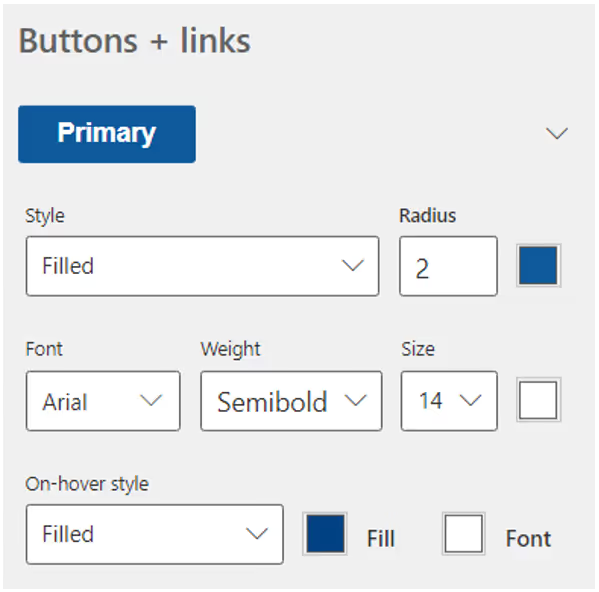
- Hyperlink: Adjust link properties, such as the presence of an underline, font style, link text color, hover color, and more.

6. After achieving the desired styling, save the changes.

7. To apply the updated CSS and view the alterations, select Sync.
Way - 2: To upload a CSS file
1. Start by navigating to Power Pages and selecting the specific site where you wish to apply custom CSS.
2. Click on the Edit button to enter the site's editing mode.
3. In the left-hand panel, locate and choose the Styling option.

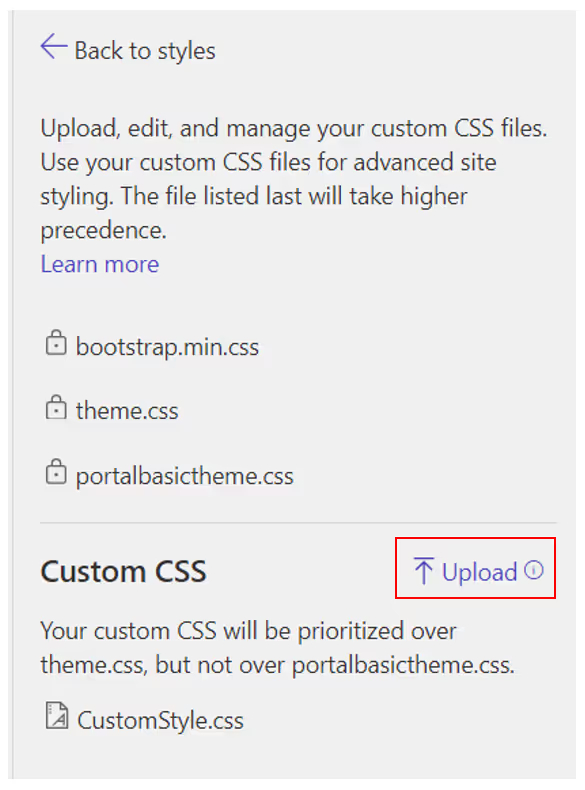
4. Within the More options menu, click on Manage CSS.

5. In the Custom CSS section, select Upload, and then proceed to pick the CSS file that you want to upload.
Here is an example of how to apply custom styling to a button in Power Pages
1. Begin by creating a new page and adding the Button component to it.


2. To apply custom styling, go to the page you've created and select Edit. This will open Visual Studio Code for editing.


3. Assign a custom class name, such as 'customstyleBtn', to the button element.

4. Navigate to the 'web-files' section and locate your 'CustomStyle.css' file.

5. Add your custom CSS rules to style the button according to your preferences.

6. Once you've made your CSS modifications, save the file by pressing 'Ctrl+S' (or the equivalent shortcut for your system). Then, return to your Power Pages site and click on Sync.

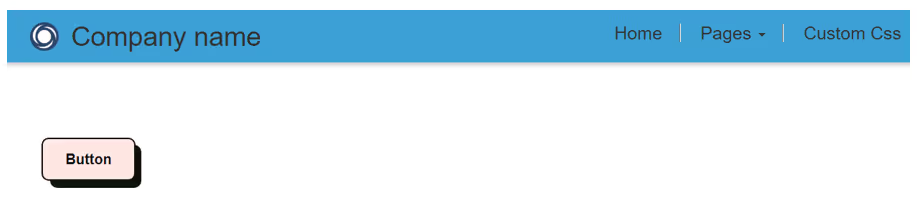
7. To preview the changes on your site, click Preview and select the Desktop option.

8. You'll see the final result, showcasing the custom styling applied to the button.
Conclusion
You can use CSS to style any element on your Power Pages page, including buttons, text, images, and layouts. By using custom CSS, you can create a unique and professional look and feel for your website.
Ready to give your Power Pages website a personalized touch? Start applying custom styling today and unlock endless design possibilities. Get creative and make your website stand out! If you have any questions or need assistance, feel free to reach out -> Contact us. Your unique web design journey begins here.

Modernize Microsoft Power Pages with OOTB Styles and Custom Styles: A Step-by-Step Guide
Microsoft Power Pages is a low-code/no-code website builder that allows you to create and manage websites without writing any code.
Power Pages is a remarkable low-code/no-code platform built on Microsoft Dataverse, designed for creating and managing websites with utmost ease. Even without prior coding experience, you can develop a website that's accessible to anonymous users, making it perfect for sharing public information. In this comprehensive guide, we'll walk you through the steps to create a stunning Power Pages site and offer valuable tips to ensure its professional appearance.
1.Step-by-Step Guide to Creating a Power Pages Site
- Access Power Pages: Start by visiting the Power Pages website

- Initiate a Free Trial: Click on the Try it for free button.
- Sign In: Use your Microsoft 365 account to sign in.
- Create a Developer Environment (if needed): If you encounter a message indicating that you can't create a site in the default environment, create a developer environment.

- Begin Site Creation: For initiating site creation, we have two options to choose from. Let's continue by opting to Start with a template.

- Select a Template: Choose a template that aligns with your site's purpose, whether it's for business, e-commerce, or personal use.

- Customize Site Details: Provide a name and web address for your site.
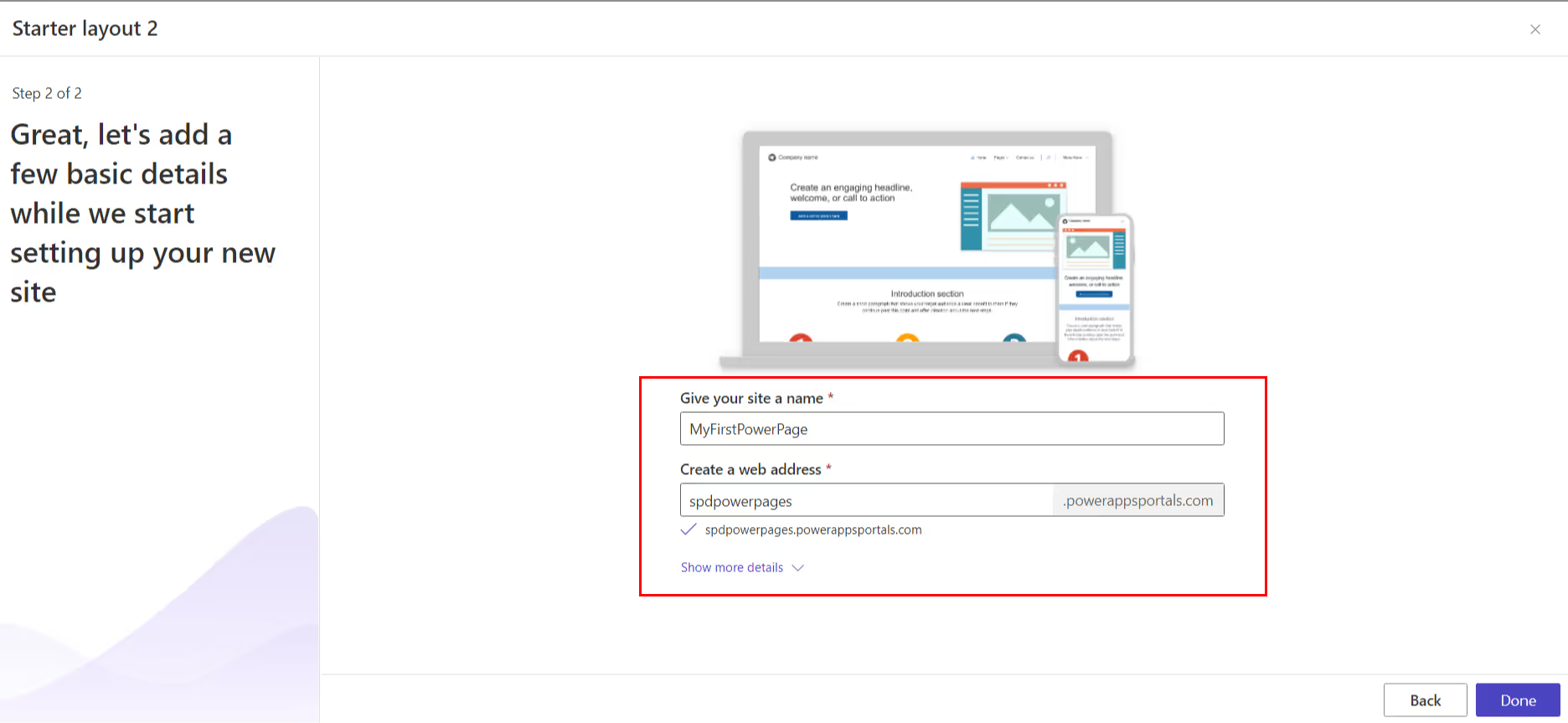
- Confirm and Proceed: Click Done to complete the initial setup.
2. Editing Your Power Pages Site
Once your site is ready, it's time to start editing. The Power Pages editor is user-friendly, featuring a drag-and-drop functionality to effortlessly add web parts from the Web Parts pane to your desired locations on the page.

To configure a web part, click on it, allowing you to adjust properties like alignment, links, and images.

3. Enabling Anonymous User Access
For sites that need to be accessible to anonymous users, follow these steps:
- Click Set up in the left navigation.
- Select Site visibility.
- Under Site visibility, opt for the Public setting.
- Click Set to public.

4. Preview and Go Live
Before going live, it's crucial to preview and ensure your site looks its best. You can do this by clicking the "Preview" button and choosing between the "Desktop" or "Mobile" options to test on various devices.

Sync your website. Once you are happy with your website, you can Sync it so that it is live and accessible to your users.

Tips for Crafting a Professional Power Pages Site
- Choose the Right Template: Select a template that complements your site's purpose and appearance.
- Quality Visuals: Incorporate high-quality images and videos to enhance visual appeal.
- Clear and Concise Content: Craft content that is both clear and easily comprehensible.
- Proofreading: Always proofread your content meticulously before publishing.
- Cross-Device Testing: Ensure your site functions seamlessly across different devices and browsers.
Examples of What You Can Create with Power Pages
- Create a company website to showcase your products or services.
- Establish a blog to share your expertise with your audience.
- Develop a knowledge base to offer support to your customers.
- Design an event website for promoting and registering attendees.
- Build a community website to facilitate user interaction.
While Power Pages works well for public-facing websites, many organizations also use SharePoint for internal portals and employee-facing experiences. Exploring modern intranet and portal structures can help you decide how these platforms complement each other.
Conclusion
Power Pages is an incredibly versatile platform for crafting professional websites, accessible even to non-coders. Its unique feature of allowing anonymous user access is a significant advantage for businesses seeking broader information sharing. To create a cohesive and successful site, remember to maintain consistent branding, implement responsive design, prioritize accessibility, keep content updated, and actively promote your site on various online channels, including social media. With these guidelines, you're well on your way to building a remarkable online presence with Power Pages.
Building a Power Pages site isn’t just about launch it’s about long-term usability. Teams that already manage SharePoint sites often find it easier to extend governance and structure across platforms when they understand how sites are planned and maintained in Microsoft environments.

4 Steps to Building Your Website with Power Pages: The Ultimate Guide
Power Pages is a remarkable low-code/no-code platform built on Microsoft Dataverse, designed for creating and managing websites with utmost ease.



.svg)





