Published Date -

Overcoming SharePoint Quick Chart Color Limitations Using an Out-of-the-Box Approach

Is it possible to change the blue colour of SharePoint quick chart without any code change?
Yes, you can change the SharePoint Quick Chart color without code by using an out-of-the-box (OOTB) workaround. Create the chart in Excel, customize the colors, and embed it in SharePoint using the File and Media web part for full design control.
TL;DR: Change SharePoint Quick Chart color using Excel + File & Media web part. No coding required.
The Quick Chart web part in SharePoint is a convenient tool for visualizing simple data. However, it has a notable limitation: it does not support advanced color customization or theme alignment. For organizations aiming to build branded and visually consistent SharePoint experiences, this restriction can significantly impact the overall user interface and design quality. Since the out-of-the-box Quick Chart web part in SharePoint does not support theme-based colour customization, an effective alternative is to use the File and Media web part.
This article outlines a practical, out-of-the-box (OOTB) workaround to overcome this limitation without requiring any custom development or SPFx solutions.
Understanding the Limitation
The SharePoint Quick Chart web part provides only minimal styling options. Specifically:
- No support for custom color palettes
- No integration with SharePoint themes
- Limited control over chart appearance
As a result, organizations cannot align charts with their branding or design systems using the default configuration.
OOTB Workaround: Using Excel and File & Media Web Part
A reliable and effective approach is to create the chart in Excel and embed it into SharePoint. This method leverages existing SharePoint capabilities while enabling complete control over chart design.
This solution is entirely out-of-the-box, requiring no code or additional tools.
Step-by-Step Implementation
1. Create the Chart in Excel
Instead of using the Quick Chart web part, design your chart in Microsoft Excel.
2. Customize the chart design in Excel
- Set individual colours for text, bars, and plot areas of the chart as per the requirement.
- Apply your theme-specific styling (let’s say for example, you are creating a Batman themed intranet, using yellow bars with black background).
3. Adjust the background and layout:
- Change all rows and columns to a black background.
- Set the chart background to black for consistency.
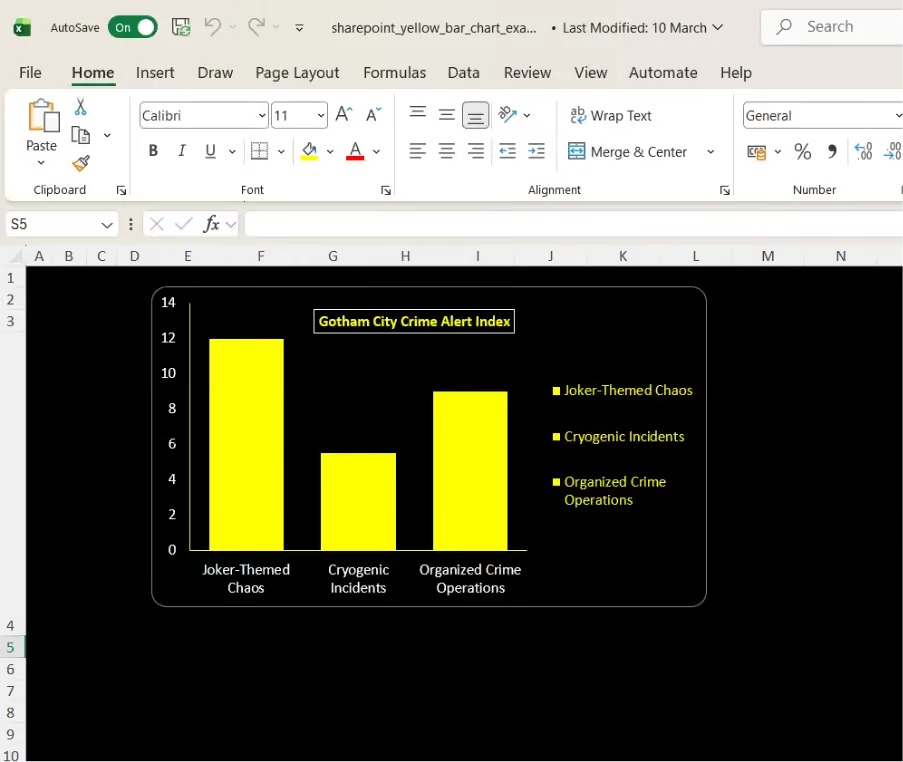
4. Upload the Excel file to the Document Library available in Site Contents.
5. Embed it in SharePoint using the File and Media web part.
6. After embedding the excel need to do configuration
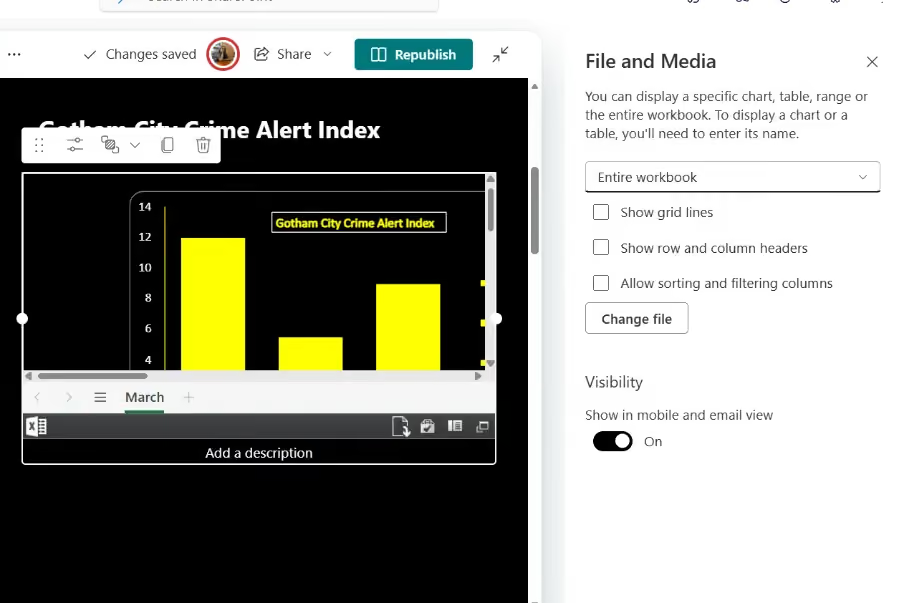
7. Select the “Entire Workbook” option from the dropdown menu to ensure the full chart view is displayed.
8. Uncheck the three available options (Gridlines, Row and column header, Sorting and filtering Columns.) to hide the Excel sheet structure and keep the view clean and presentation friendly.
Using Excel with the File and Media web part enables complete customization of chart design, making it a practical alternative to the limited styling options of the Quick Chart web part.
Why This Approach is Effective
This method addresses the inherent limitations of the Quick Chart web part while avoiding the complexity of custom development. It is particularly beneficial for:
- Business users who require quick customization
- Organizations avoiding SPFx or custom code
- Teams building visually consistent intranet pages
If you are looking to enhance your SharePoint experience beyond default capabilities:
We help organizations design and implement modern SharePoint solutions, including:
- Custom web parts using SPFx
- Branded intranet experiences
- Advanced dashboards and visual components
Contact us to explore how your SharePoint environment can be transformed into a more engaging and functional digital workplace.
faqs

Agnes Prismitha

Agnes Prismitha is a Product Ambassador with 1.8 years of experience in building collaborative digital workplace solutions. She works closely with both technical teams and stakeholders to ensure solutions meet business needs and encourage product adoption.






.svg)