Published Date -

Manual Testing Checklist for SharePoint Applications (With Examples)
%201.avif)
Testing SharePoint applications manually requires a structured approach to ensure functionality, usability, security, and integration of all work seamlessly. Whether you're working on SharePoint Online or on-premises solutions, a well-defined checklist helps avoid production issues and improves overall quality.
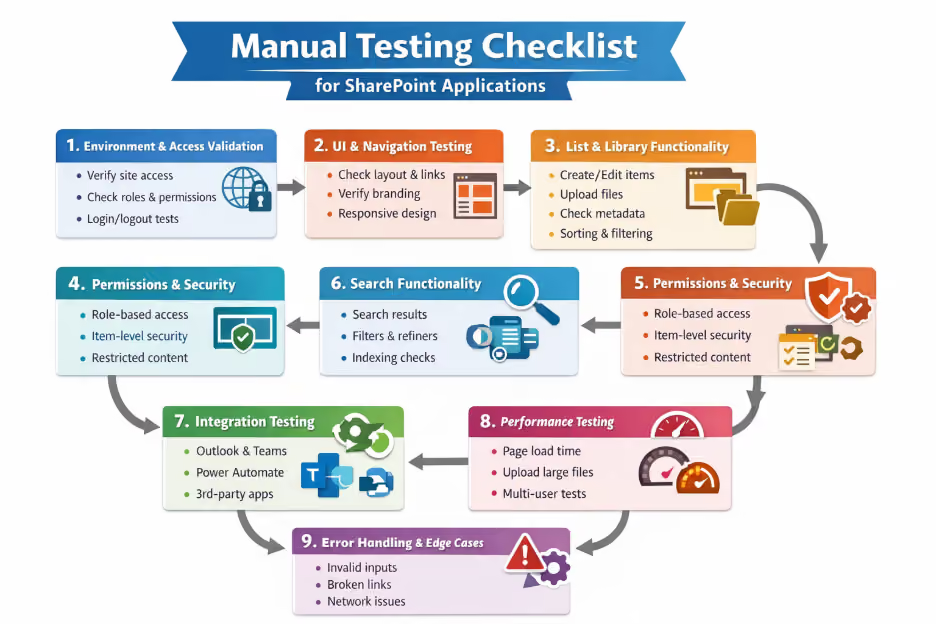
Let’s walk through a comprehensive manual testing checklist—with real-world examples.
1. Environment & Access Validation
Before diving into testing, ensure your environment is correctly set up.
Checklist:
- Verify SharePoint site URL accessibility
- Confirm user roles and permissions
- Check login/logout functionality
- Validate multi-browser support (Chrome, Edge, etc.)
Example:
A user with Read-only access should not be able to edit or delete documents in a document library.
2. UI & Navigation Testing
SharePoint applications rely heavily on usability.
Checklist:
- Validate site layout and responsiveness
- Check navigation links (Quick Launch, Top Navigation)
- Verify branding elements (logos, themes)
- Ensure pages load correctly without UI breaks
Example:
Clicking on “HR Policies” in the navigation bar should be redirected to the correct document library page without errors.
3. List & Library Functionality
Lists and document libraries are the backbone of SharePoint.
Checklist:
- Create, edit, and delete list items
- Upload, download, and version documents
- Validate metadata fields
- Check sorting, filtering, and grouping
Example:
Uploading a document should automatically assign metadata like “Department = Finance” based on default settings.
4. Forms & Workflows Testing
Many SharePoint apps use forms (Power Apps) and workflows (Power Automate).
Checklist:
- Validate form input fields (mandatory, data types)
- Check form submission behavior
- Verify workflow triggers and approvals
- Test email notifications
Example:
Submitting a leave request form should trigger an approval workflow and send an email to the manager.
5. Permissions & Security Testing
Security is critical in SharePoint applications.
Checklist:
- Verify role-based access (Owner, Member, Visitor)
- Test item-level permissions
- Check inheritance breaking scenarios
- Validate restricted content visibility
Example:
A confidential document should only be visible to the HR team and not to general employees.
6. Search Functionality
SharePoint’s search is a key feature for users.
Checklist:
- Verify keyword search results
- Check filters and refiners
- Validate indexing delays
- Test search for documents, lists, and pages
Example:
Searching for “Project Plan” should return relevant documents with matching titles or content.
7. Integration Testing
SharePoint often integrates with other tools.
Checklist:
- Validate integration with Microsoft 365 apps (Outlook, Teams)
- Check Power Automate and Power Apps connectivity
- Verify third-party integrations
Example:
Clicking “Share in Teams” should correctly post the document link in the selected Microsoft Teams channel.
8. Performance Testing (Manual Observations)
Even in manual testing, basic performance checks matter.
Checklist:
- Measure page load times
- Test large file uploads
- Check behavior under multiple users
Example:
Uploading a 100MB file should not cause the browser to freeze or crash.
9. Mobile & Responsive Testing
Users often access SharePoint on mobile devices.
Checklist:
- Test responsiveness on mobile/tablet
- Verify touch interactions
- Validate SharePoint mobile app behavior
Example:
A document library should display properly on a mobile screen without layout distortion.
10. Error Handling & Edge Cases
Always test unexpected scenarios.
Checklist:
- Invalid inputs in forms
- Network interruptions
- Unauthorized access attempts
- Broken links
Example:
Entering an invalid email format in a form should show a proper validation message instead of submitting.
Leave Request Workflow
Scenario Overview
A SharePoint-based Leave Management system where:
- Employee submits a leave request
- Workflow triggers approval
- Manager approves/rejects
- Employee gets notified
Example 1: Employee Submits Leave Request
Test Steps:
- Login as Employee
- Open Leave Request form
- Enter details:
- Leave Type: Casual Leave
- From Date: 10 Apr
- To Date: 12 Apr
- Reason: Personal work
- Click Submit
Expected Result:
- Form should be submitted successfully
- Leave request entry created in SharePoint list
- Status should be “Pending Approval”
Example 2: Workflow Trigger Validation
Test Steps:
- Submit a leave request
- Check workflow/Power Automate run history
- Expected Result:
- Workflow should trigger automatically
- Workflow status should be “Running” or “Completed”
- No errors in flow execution
Example 3: Manager Receives Email Notification
Test Steps:
- Submit leave request as Employee
- Login to Manager email (Outlook)
- Expected Result:
- Manager should receive email with:
- Employee name
- Leave dates
- Approve/Reject link or button
Example 4: Manager Approves Request
Test Steps:
- Login as Manager
- Open approval email or SharePoint item
- Click Approve
- Expected Result:
- Request status updated to “Approved”
- Approval comments saved (if applicable)
- Workflow completes successfully
Example 5: Employee Receives Approval Notification
Test Steps:
- Manager approves request
- Login as Employee
- Check email / SharePoint notifications
- Expected Result:
- Employee receives confirmation email
- Email contains:
- Approval status
- Leave details
- SharePoint list shows Approved status
Example 6: Rejection Scenario (Edge Case)
Test Steps:
- Manager selects Reject
- Adds rejection reason
- Expected Result:
- Status updated to “Rejected”
- Employee receives rejection email with reason
Final Thoughts
Manual testing of SharePoint applications is not just about clicking through pages, it’s about validating real user scenarios, ensuring data security, and confirming seamless integrations.
faqs

Anish kumar

I am Anish kumar from Kanyakumari, a detail-oriented software professional with over 4.8 years of experience in this company, specializing in testing and SharePoint development, and passionate about building efficient, user-friendly solutions.






.svg)





